 Member Content Pro: Show Members-Only Content on Public Squarespace Pages with Native Member Sites$59
 Squarespace · PluginSquarespell Original
Browse by platform
View allBrowse by goal
View allBrowse by goal
Fresh inventory
Recently added
Member Content Pro: Show Members-Only Content on Public Squarespace Pages with Native Member Sites$59Squarespace · PluginSquarespell Original Event Tickets: Sell Tickets on Squarespace Event Pages with Ticket Types, Seats Left and Native Checkout$59Squarespace · PluginSquarespell Original
 Wholesale Order Pad: Squarespace Wholesale Order Form with Bulk Add to Cart, Order by SKU and Reorder$85Squarespace · PluginSquarespell Original
 Squarespace Summary Block Pro: More Than 30 Items, Load More and Pagination$49Squarespace · PluginSquarespell Original
 Squarespace Delivery Area Checker: Postcode and ZIP Code Checker Plugin$49Squarespace · PluginSquarespell Original
 Order Rules: Squarespace Minimum Order, Quantity Limits and Pack Sizes Plugin$49Squarespace · PluginSquarespell Original
Search results
Matching products
Squarespace
What a free Squarespace SEO audit should check, which warnings to ignore because Squarespace controls them, and three free ways to run one, step by step.
A note on how we make money. SEO Roger and SEOSpace, the two audit tools this guide walks through, are listed on Squarespell with affiliate links, and so are the two FAQ widgets near the end. Squarespell may earn a commission if you buy a paid plan through them. Nothing in this guide is a Squarespell product, both audits have a free tier that earns us nothing, and the first option we recommend (Squarespace’s own panels plus Google Search Console) earns us nothing at all. Details are in our affiliate disclosure.
If you want the short version:
And the honest caveat before any of that matters: most Squarespace sites have few technical faults, because the platform handles the sitemap, SSL and structured data. What usually holds them back is thin content and pages nobody links to, which a crawler can flag but only you can fix.
Last updated: 29 September 2026
Searching for a free Squarespace SEO audit gets you dozens of tools that promise a score in 60 seconds. Most are general website checkers built with WordPress in mind, so a Squarespace owner gets a list that mixes real problems with instructions to edit files Squarespace never lets you touch. The score looks precise; the useful part is buried.
This guide separates the two. It sets out what a real audit checks on a Squarespace site, which findings you can act on and where in Squarespace you act on them, and which warnings to ignore. It then walks through three free ways to run the audit, step by step: Squarespace’s own panels with Google Search Console, SEO Roger’s free audit, and SEOSpace’s free 50-page audit.
We built it from Squarespace’s help center, Google’s Core Web Vitals guidance and the two tools’ own published pages and pricing, read between August and September 2026. We have not run either paid tool on a client site, and the guide says so wherever that matters.
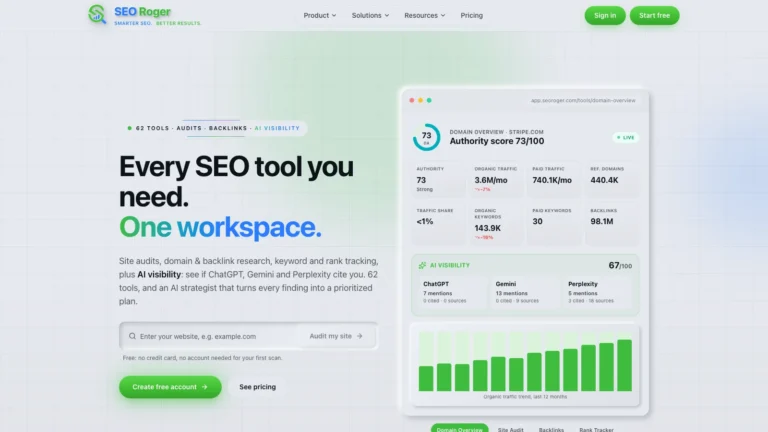
SEO Roger: All-In-One SEO Audit and AI Visibility Toolkit
Free plan available
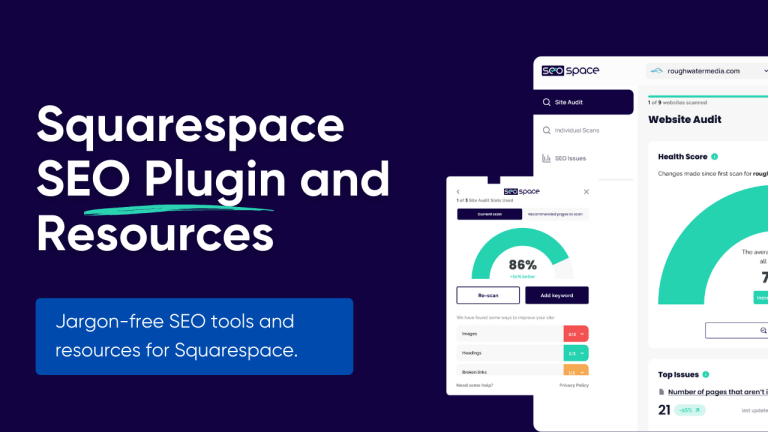
SEOSpace: Squarespace SEO Tool
$18.99/mo
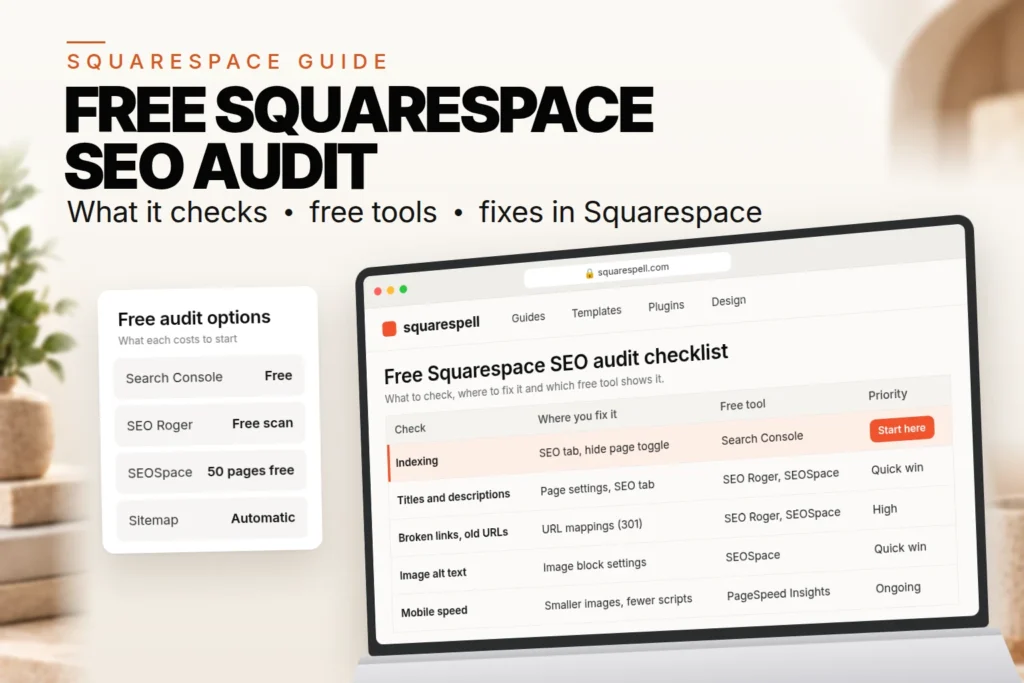
An SEO audit answers three questions in order: can search engines reach and index the pages you care about, does each page tell them clearly what it is about, and is the page good enough to deserve a click. Tools report these as dozens of checks, but on a Squarespace site they collapse into ten areas. The table shows each one, what to look for, and where you fix it.
| Check | What to look for | Where you fix it in Squarespace | Free tool that shows it |
|---|---|---|---|
| Indexing | Pages you want found that Google has not indexed, and pages you do not want found that it has | Page settings, SEO tab, “Hide page from search results” | Google Search Console |
| Titles | Missing, duplicated or vague SEO titles | Page settings, SEO tab | SEO Roger, SEOSpace |
| Descriptions | Empty SEO descriptions, or one description reused across pages | Page settings, SEO tab | SEO Roger, SEOSpace |
| URLs | Slugs like /new-page-3, and old URLs that now return 404 | Page settings (URL slug); Developer Tools, URL mappings | Search Console, SEO Roger, SEOSpace |
| Broken links | Links on your pages that lead to missing pages | The block that holds the link | SEO Roger, SEOSpace |
| Images | Missing alt text and oversized images | Image block, alt text field; re-upload a smaller file | SEO Roger, SEOSpace |
| Speed and Core Web Vitals | Slow largest image or text (LCP), slow response to taps (INP), layout jumps (CLS) | Fewer and smaller images and videos, fewer third-party scripts | Search Console, PageSpeed Insights, SEO Roger |
| Security | Pages served without HTTPS, or mixed domains | Settings, SSL | SEO Roger |
| Content | Thin pages, pages targeting the same search, pages with no internal links pointing to them | The page itself | SEO Roger, SEOSpace; your own judgement |
| AI and local visibility | Whether AI answers mention you; Google Business Profile health | Page content, llms.txt (7.1), your Business Profile | SEO Roger, SEOSpace (paid features) |
Fix locations from Squarespace’s help center; tool coverage from each tool’s published feature list. Checked 29 September 2026.
The order matters more than the score. A page Google has not indexed cannot rank whatever its title says, so indexing comes first. Titles, descriptions and URLs come next because they are quick, then speed, then content, which takes the longest and usually moves results the most.
Core Web Vitals have published targets. Google’s web.dev guidance treats a page as good when the Largest Contentful Paint happens within 2.5 seconds, Interaction to Next Paint is 200 milliseconds or less, and Cumulative Layout Shift is 0.1 or less, measured at the 75th percentile of real visits (web.dev, Web Vitals). A lab score from a one-off test is a hint; the field data in Search Console is what Google collects from real visitors.
Squarespace takes care of several things that general audit tools check first, which is why a Squarespace site often scores well on the technical half of an audit and still gets little traffic. According to Squarespace’s page on what it does for SEO and its site map documentation:
The practical implication for any audit report: a warning that says “edit your robots.txt”, “submit a custom sitemap” or “add product schema by hand” is written for a platform where you control those files. On Squarespace you cannot, and in most cases you do not need to. Note it, and move on to the findings you can act on.
What Squarespace does not do for you is the part that decides rankings: it cannot write a useful SEO title, choose the search a page should target, spot two pages competing for the same query, or notice that an old URL you deleted still gets links from other sites. That is what the audit is for.
Three free routes cover almost everything above. They overlap on purpose: Search Console shows what Google actually sees, and a crawler shows what is on the pages. Use Search Console plus one crawler.
| Option | Free tier | Page limit on free | What it shows best | What it cannot do | Paid from |
|---|---|---|---|---|---|
| Squarespace panels plus Google Search Console | Free | No crawl limit; reports on pages Google knows | Indexed pages, search queries, clicks, impressions, Core Web Vitals from real visits | Check your page content or alt text | Free |
| SEO Roger | One audit with no account; free-forever plan with site audits and 15 one-time credits | Not published for the free plan | Whole-site crawl graded across 14 areas, PageSpeed, schema and robots generators | Edit your Squarespace site; backlink and rank data use credits | $9 a month (Starter) |
| SEOSpace | Free tier, no card; 7-day trial on paid plans | 50 pages (automatic audit) | Squarespace-specific findings shown inside the editor through a Chrome extension | Work outside Chrome for the extension; edit your site for you | $18.99 a month (Starter, 100 pages) |
SEO Roger prices from its pricing page as recorded on its Squarespell listing (23 September 2026); SEOSpace prices from its pricing table as recorded on its listing (27 August 2026). Checked on both listings 29 September 2026.
Why no single tool is enough. A crawler reads your pages the way a visitor’s browser does, so it catches missing descriptions and broken links, but it guesses at what Google has indexed. Search Console knows exactly what Google indexed and which searches show your pages, but it does not tell you a page’s alt text is empty. The combination is the audit.
This is the free audit every Squarespace site should have, and it costs nothing at any stage. Squarespace connects to Search Console from its own Analytics area, then shows the keyword data inside your dashboard; the full reports stay in Search Console.
Open the Analytics panel in Squarespace and click Search keywords. In the panel’s pop-up, click Connect, sign in to the Google account you want to use, review the permissions and click Allow. Squarespace’s Search keywords documentation says the data takes up to 72 hours to appear, and that a site already verified in Search Console does not need verifying again. If the connection fails, Squarespace suggests authorising through the Connected accounts panel instead.
Once data arrives, the Google tab lists the searches that brought visitors, with total clicks, total impressions, average click-through rate and average position for the date range you choose. An audit reads these for two patterns: searches with many impressions and few clicks (the page shows up but the title and description do not earn the click), and searches where you sit in positions 5 to 20 (the page is close, and a better page could move it up).
Sign in at search.google.com/search-console. The Pages report shows which URLs are indexed and why others are not; the Core Web Vitals report groups your URLs as good, needing improvement or poor, using field data from real Chrome visits once a site has enough traffic. For a single page, paste its URL into PageSpeed Insights for a lab test with the specific elements slowing it down.
Open your Pages panel and note the pages you want found. Any of them missing from Search Console’s indexed list is the first thing to fix. Any page indexed that should not be (a thank-you page, a test page, a duplicate) is the second: hide it from search results in its page settings, covered in the fixing section below.
What this option misses: Search Console reports on pages Google already knows. It does not open each page to check alt text, heading order or broken outbound links, which is why the next two options exist.
SEO Roger is a platform-independent SEO workspace: site audits, rank tracking, backlinks and AI-answer visibility in one account. For a Squarespace owner the part that matters is the audit, which its Squarespell listing describes as grading 14 modules: site health, crawlability, broken links, link health, performance, security and HTTPS, meta tag placement, headings, thin content, images, accessibility, backlinks and authority, local SEO and AI visibility. Each finding comes with a severity, an impact estimate and a recommended fix, according to SEO Roger’s own site.
On SEO Roger’s homepage, type your domain into the website box and click Audit my site. The first scan needs no card and no account, according to the page itself. Use your primary domain (the one Squarespace redirects everything to), not the built-in squarespace.com address.
The full site audit reports an overall score with sub-scores (technical, on-page, content and speed in SEO Roger’s own example) and a list of issues labelled critical, warning or info, each with a Fix link. Read the list, not the score: one critical indexing issue matters more than twenty info notes.
Read its robots.txt and schema findings with the earlier section in mind. SEO Roger audits any platform, so a finding such as a robots.txt rule or missing schema block may describe something Squarespace controls. Check it against the Squarespace documentation before spending time on it.
SEO Roger’s free-forever plan keeps its free tools free (full site audits, PageSpeed, keyword ideas, schema and robots generators) and adds a one-time batch of 15 credits for the paid tools. Credits pay for things that cost SEO Roger third-party data or AI calls, such as backlink analysis, rank checks and its assistant, Roger AI, at about 2 credits per reply. Paid plans run from $9 a month (150 credits) to $79 a month (2,500 credits), with unlimited users on every plan.
Roger AI reads the site’s own crawl, ranking and backlink data and returns a fix list rather than generic advice, according to SEO Roger. On the free plan it draws on the 15 one-time credits, so use it once the crawl findings are clear, for questions such as which pages to fix first.
Who it suits: anyone who wants a whole-site crawl free, including designers auditing several client sites on different platforms. Who should skip it: owners who want instructions phrased in Squarespace’s own menu names; SEOSpace is built for that.
SEO Roger: All-In-One SEO Audit and AI Visibility Toolkit
Free plan available
SEOSpace is built only for Squarespace: a dashboard that crawls and scores the site, and a Chrome extension that opens over the Squarespace editor with the findings for the page you are editing. Its listing notes the key structural point: Squarespace does not let outside tools edit page content or meta tags, so SEOSpace writes the change and you apply it, and nothing is added to your site.
Sign up from any SEOSpace page. The free tier needs no card and includes live-page scanning, access to the Chrome extension and an automatic site audit of up to 50 pages.
Install the extension from the SEOSpace dashboard once the account exists. SEOSpace say Chrome gives the best experience and that Safari and Firefox support is being worked on; the dashboard itself works in any browser.
In the dashboard, add your website, optionally connect Google Search Console and Analytics, choose a monitoring frequency and click Start Audit. The Search Console connection is optional, but it is what lets SEOSpace base its advice on how your pages actually perform.
Findings arrive sorted as critical, recommended and optional rather than as one long list. Start with critical items. In SEOSpace’s own example the first critical task is adding FAQs written to be quoted by AI answers, which is a content job rather than a setting.
Open the page in the Squarespace editor with the extension running. The panel shows the page’s score and each finding; after you change the field it names, save, refresh and click Re-scan to confirm the finding has cleared.
The free tier covers 50 pages. Paid plans add more pages, scheduled re-audits, keyword tracking and AI Visibility, which scores how often ChatGPT, Perplexity, Gemini, DeepSeek and Copilot cite your site. Starter costs $18.99 a month for one site and 100 pages; unlimited pages start with Expert at $129.99 a month. Every paid plan has a 7-day free trial.
Who it suits: Squarespace owners who want each finding tied to the Squarespace field that fixes it. Who should skip it: sites over 50 pages that will not pay, and anyone auditing non-Squarespace sites, which SEOSpace does not cover.
SEOSpace: Squarespace SEO Tool
$18.99/mo
Whichever tool you use, the fixes happen in the same few places in Squarespace. These are the ones audits raise most often, with where each lives according to Squarespace’s help center.
Open the Pages panel, hover over the page, click the gear icon to open page settings, then the SEO tab. Enter an SEO title and SEO description written for that page’s search; the tab shows a preview of how it may look in results. Store, blog and other collection items have their own SEO fields in each item’s settings (Squarespace: Adding SEO descriptions).
Click the image block, open its settings and fill in the Image alt text field with a short description of what the image shows. Squarespace’s own hint under the field is “Describe your image to improve accessibility and SEO”. Product and gallery images have their own alt text fields in their item settings.
Fix a broken link in the block that holds it. For an old URL that other sites or Google still point to, add a 301 redirect in Developer Tools, URL mappings, one line per redirect in the form /old-page -> /new-page 301. Squarespace’s URL mappings documentation notes three limits: redirects only work once the old page is deleted or disabled, the field holds about 2,500 lines (400 KB), and redirects run top to bottom, so a higher line wins a conflict.
In the page’s settings, open the SEO tab and switch on “Hide page from search results”. This adds a noindex tag while the page stays public. Squarespace notes that homepages and individual collection items do not have the toggle, and that hiding a collection page also hides its items, including every product on a store page (Squarespace: hiding pages from search results).
Check SSL is active with Secure (Preferred) selected, as in the screenshot earlier. For speed, the fixes on Squarespace are editorial: fewer and smaller images, fewer autoplaying videos above the fold, and fewer third-party scripts in Code Injection. Re-test the same page in PageSpeed Insights after each change so you know which one helped.
Audits increasingly flag the absence of question-and-answer content, as SEOSpace’s example task above shows, because AI answers and search results quote short, direct answers. The simplest route on Squarespace is writing the questions and answers as ordinary text on the page. If you want a styled FAQ with categories or search, the two widgets below are listed on Squarespell with free plans; Elfsight’s listing notes it needs a Squarespace plan that allows code embeds. We have not checked whether either widget’s text is rendered in the page’s HTML for search engines, so if the goal is search, keep the answers in Squarespace’s own text as well.
Free plan available
This order suits a small Squarespace site of up to about 50 pages, and it fits in an hour once Search Console has its data.
Publishing the gaps is part of the method.
We didn’t run either tool on a Squarespace site for this guide. The steps come from SEO Roger’s and SEOSpace’s own published pages and the images they publish, as recorded on their Squarespell listings. We have not measured how accurate either audit is, or how the two scores compare on the same site.
We didn’t capture Google’s own screens. The Search Console and PageSpeed Insights steps follow Squarespace’s and Google’s documentation; the screenshots in that section show Squarespace’s settings, not Google’s tools.
SEO Roger does not publish a free-plan page limit on the pages we read, so the comparison table says so rather than guessing.
Prices change. SEO Roger’s prices were recorded on 23 September 2026 and SEOSpace’s on 27 August 2026; check both pricing pages before paying.
Squarespace changes its menus. Menu names here follow Squarespace’s help center and version 7.1; version 7.0 sites and some newer dashboards label things differently.
Is there a free Squarespace SEO audit built into Squarespace? Not as a single report. Squarespace gives you the pieces: the SEO tab on every page, the Search keywords panel fed by Google Search Console, and an SEO checklist in its help center. A crawl of every page for missing descriptions, alt text and broken links needs an outside tool such as SEO Roger or SEOSpace, both of which have free tiers.
How often should I audit a Squarespace site? Every three months for a site that changes occasionally, and after any redesign, template switch or batch of deleted pages. The riskiest moment is a redesign, because changed URLs lose their search history unless you redirect them with URL mappings. Paid SEOSpace plans re-audit monthly, weekly or daily depending on the plan.
My audit score is 90. Why am I still not ranking? Because audit scores mostly measure technical tidiness, and Squarespace handles much of that for you. Ranking depends on whether a page answers a search better than the pages already there. Look at Search Console for the queries where you appear in positions 5 to 20 and improve those pages’ content.
Should I fix every warning an audit lists? No. Fix critical indexing, title, description, broken link and speed findings first. Ignore warnings that ask you to edit robots.txt or the sitemap, which Squarespace does not allow, and treat generic advice like “add more words” as a prompt to check the page, not an instruction.
Do I need a Squarespace plan with Code Injection to run an audit? No. Search Console connects through the Search keywords panel, and neither SEO Roger nor SEOSpace installs code on your site. Code Injection only matters if a fix involves a third-party script, or if you add a noindex tag by hand, which Squarespace lists as available on the Core, Plus, Advanced, Business, Commerce Basic and Commerce Advanced plans.
What does AI visibility mean in an SEO audit? It measures whether AI answer tools such as ChatGPT, Perplexity, Gemini and Google’s AI Overviews mention or cite your site for questions in your field. SEO Roger and SEOSpace both sell it as a paid feature. Nobody can guarantee an AI citation; clear pages with direct answers are the part you control. On version 7.1 Squarespace also lets you add an llms.txt file from its SEO settings, a proposed standard it describes as still in development.
Can an audit tool fix the problems for me on Squarespace? No. Squarespace does not let outside tools edit page content or meta tags, so every tool in this guide tells you what to change and you make the change in Squarespace.
Connect Google Search Console through the Search keywords panel today, because its data takes up to three days to arrive. While you wait, run one free crawl: SEOSpace if your site is under 50 pages and you want Squarespace-specific instructions, SEO Roger if it is larger or you audit other platforms too. Then work the checklist above, starting with indexing and titles. For the wider picture of Squarespace SEO beyond the audit, our guide to Squarespace SEO covers the ongoing work.
Reviewed and last updated 29 September 2026. All prices checked on that date against the tools’ Squarespell listings.
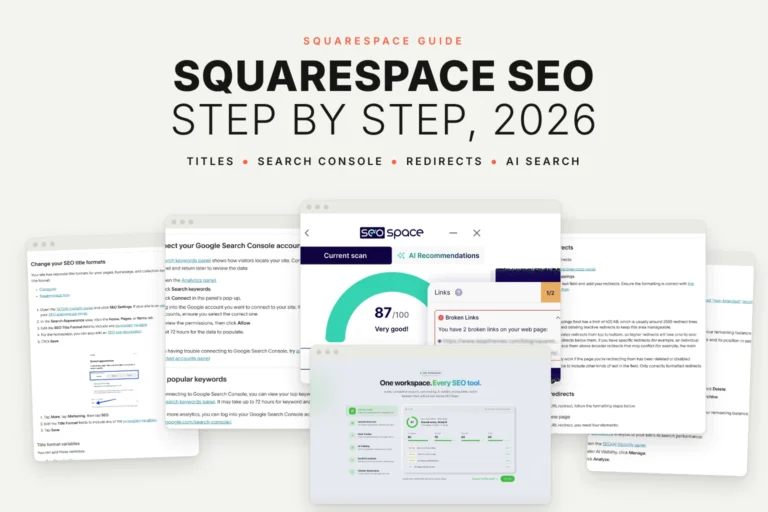
A step-by-step Squarespace SEO guide for 7.1: what the platform already handles, the twelve settings you control, how to get into AI answers, and which audit tools are worth adding.
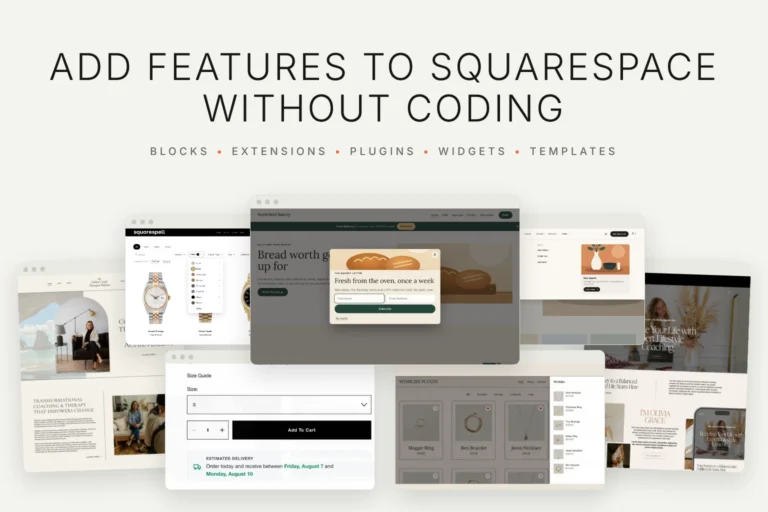
Five ways to add features to Squarespace without writing code, from built-in blocks and Extensions to builder plugins, hosted widgets and ready-made templates, with the plan each one needs and step-by-step setup.
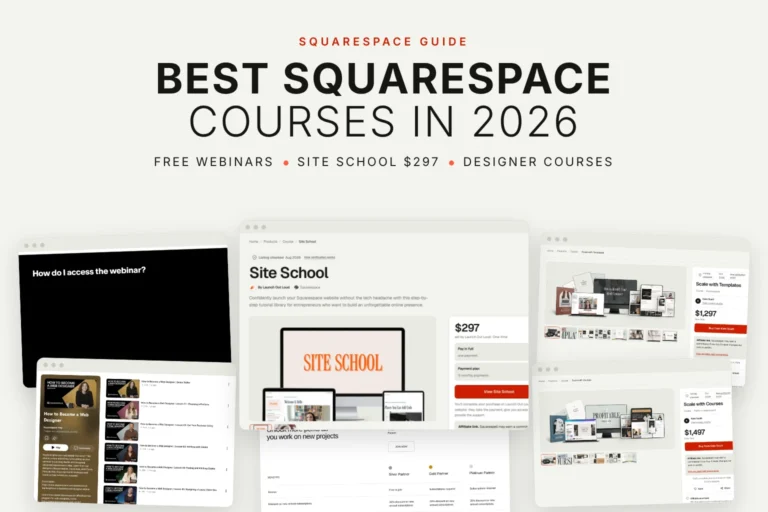
Every course that teaches Squarespace, free and paid, compared on who it is for, price, access and refunds, with the steps to get started in each. For people building their own site and for designers.
Squarespell All Access
All 48 plugins and every new one, worth $2,044 bought one by one. 14 days free, cancel anytime.
Start 14 days freeOr start free with 13 plugins, no cardFounding price until 1 December, kept for as long as you stay.