Event Tickets: Sell Tickets on Squarespace Event Pages with Ticket Types, Seats Left and Native Checkout$59Squarespell OriginalSquarespace 7.1 plugin
Event Tickets: Sell Tickets on Squarespace Event Pages with Ticket Types, Seats Left and Native Checkout
Tickets on every event page.
Price: $59
Instant download · Sold by Squarespell
Bundle & save
- 2 plugins 10% off
- 3 plugins 20% off
- 4+ plugins 30% off
Automatically applied at checkout on Squarespell plugins.
Requires Squarespace 7.1 and the Core plan or higher (Code Injection).
- Ticket types From the variants of a product in your store
- Native checkout Squarespace's own cart, no fee per ticket from us
- Phones A ticket bar while the box is off screen
- Installation One paste in Code Injection, Footer
Tickets on every event page.
Sell tickets right on your Squarespace event pages.
Good to know: Squarespace 7.1 only. Squarespace's order confirmation email is the ticket. There is no QR code, no PDF ticket and no check-in app. Code Injection needs the Core plan or higher.
-
Events and their tickets
Each event finds its ticket product in one of three ways, tried in this order: a link in the builder, a tag on the event such as "tickets: summer-concert", or a product with the same title in your ticket store pages.
-
Get tickets into Squarespace's own cart
Then the box reads the cart back and says "3 tickets are in your cart." with Checkout and View cart.
-
Event lists, Summary Blocks and phones
On phones a slim ticket bar shows the price and Get tickets while the box is off screen.
See how it looks on your site.
All features in detail
Tickets on every event page.
Sell tickets right on your Squarespace event pages. Each event shows its ticket types with prices, seats left and a quantity for each, and one Get tickets button puts them in Squarespace's own cart. Your events page shows "Only 3 left" or "Sold out" on every event. Payment and the order email stay Squarespace's own. One paste of code, one payment.
Squarespace events cannot sell tickets on their own page: visitors read about the event, then have to find a product somewhere in your store. Event Tickets puts the tickets on the event page itself, from a product in your store, with seats left and sold out, and every ticket goes through your normal Squarespace checkout.
Owners on the Squarespace Forum keep asking how to sell tickets on Squarespace. The usual answer is a product with one variant per ticket type and its stock as the seats. That works at checkout, but nothing ties the product to the event: the event page never shows a price, a Get tickets button, "Only 5 left" or "Sold out".
Event Tickets ties them together. It finds each event's ticket product in your store, by a link you set, a tag on the event or the same title, and shows a ticket box on the event page. Visitors choose how many of each ticket type, press Get tickets, and the tickets go into Squarespace's own cart. Then it reads the cart back and says what went in. Checkout, payments, stock and order emails stay Squarespace's own, with no fee per ticket from us.
You choose everything in a builder file that runs in your browser, with a sample events site that runs your exact settings beside it. Then you paste one block of code into Code Injection, Footer. Nothing is sent to another server.
What it does
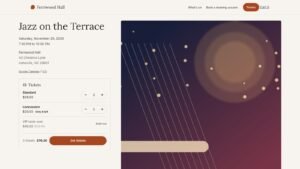
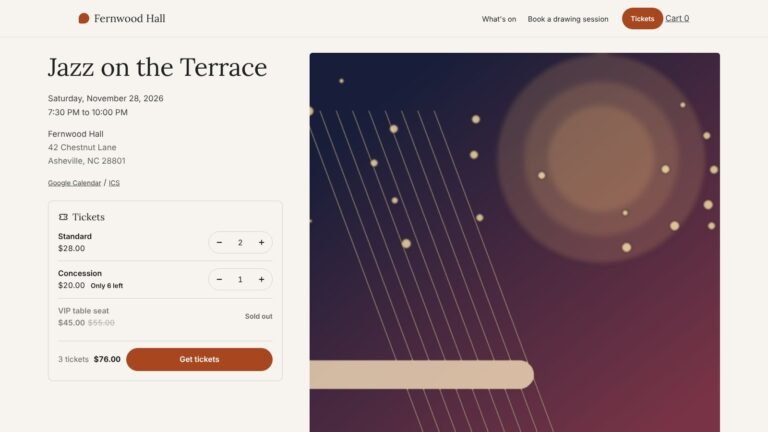
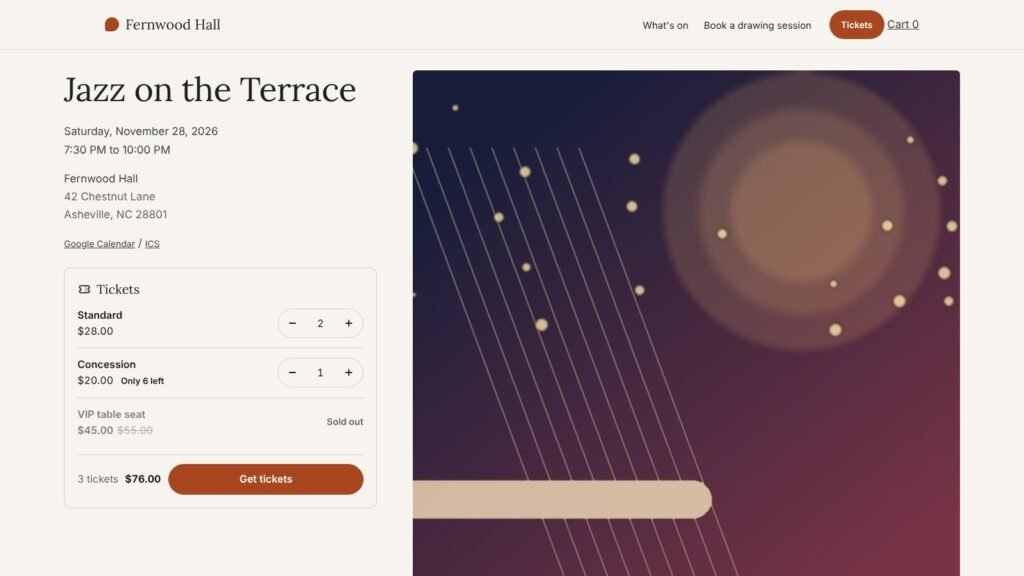
- Shows a ticket box on each event page, with ticket types, prices and a quantity for each
- Takes the ticket types and seats from a product in your store: its variants and their stock
- Puts every ticket into Squarespace's own cart with one Get tickets button
- Shows "Only 5 left" and "Sold out", per ticket type and for the whole event
- Adds "From $20.00", "Only 3 left" or "Sold out" and a Get tickets link to your events page and Summary Blocks
- Asks for attendee details from the product's own form, such as a name for the badge
- Stops ticket sales when the event starts, or hours before, and says when an event has ended
- Shows a ticket bar on phones while the box is off screen
Events and their tickets
- Each event finds its ticket product in one of three ways, tried in this order: a link in the builder, a tag on the event such as "tickets: summer-concert", or a product with the same title in your ticket store pages. "Tickets" and punctuation are ignored when titles are compared.
- The tag is hidden on the event page, so visitors never see it.
- One product can sell several events: a link can show only the variants with one option value, such as "Session 2" or a date, so each event shows only its own tickets.
- A link can set its own most tickets per order.
- New events need no new code: give them a product with the same title, or a tag.
The ticket box
- Ticket types come from the product's variants, such as Standard, Concession and VIP, each with its price and a quantity with plus and minus buttons.
- Seats left come from each variant's stock: "Only 5 left" when few are left (you choose from how many), always, or never. Unlimited stock shows no count.
- Sold-out ticket types are dimmed or hidden. When every type is sold out, the box says "This event is sold out." and can show a button you choose, such as Join the waiting list.
- Sale prices show with the original price crossed out. A price of 0 shows as Free.
- A total under the types, such as "3 tickets $76.00", and a most tickets per order, 10 unless you change it.
- The box counts what is already in the visitor's cart: "Only 1 more, 5 in your cart" or "All 6 left are in your cart".
- Ticket sales stop when the event starts, a number of hours before, or when it ends. After the event the box says "This event has ended.", or it is hidden.
- The box sits after the date and place, above or below the description, or only where you add a Code Block.
Get tickets into Squarespace's own cart
- One Get tickets button for every ticket type with a quantity. They go into Squarespace's own cart one after another, about 0.7 seconds each.
- Then the box reads the cart back and says "3 tickets are in your cart." with Checkout and View cart. Or it goes straight to the cart or to checkout, as you choose.
- A ticket type Squarespace refuses shows Squarespace's own reason, such as "Sorry, we only have 6 of that item available.", and keeps its quantity.
- The header cart count shows the new total.
Attendee details from the product form
- A product with a form in Squarespace, such as "Name for the label", shows its fields in the ticket box under the ticket type: text, text area and drop-down fields.
- A required field holds the tickets until it is filled, with "Fill in Name for the label." under the field.
- Subscriptions, gift cards, products with add-ons and products whose form has another field type show "Get tickets on the ticket page" instead, because Squarespace sells them on their own page.
Event lists, Summary Blocks and phones
- Your events page and Summary Blocks of events show a badge on each event: "Sold out", "Only 3 left", the lowest price such as "From $20.00" or Free, and a Get tickets link that opens the event at its ticket box.
- On phones a slim ticket bar shows the price and Get tickets while the box is off screen.
- A ticket box on any page: a Code Block with one line and your product's address shows its tickets on your home page or a landing page.
Words, look and languages
- Every word visitors see or hear can be changed in the builder, under Words. Words in curly brackets, like {n} and {price}, are filled in for you.
- Language sets for German, French, Spanish, Italian and Dutch pages, used when the page language matches. Have them checked by a native speaker before you switch them on.
- The box takes your section's font and colours, light or dark, and the colour of your site's primary button, or your own colour. Two styles: Card and Plain.
- Buttons are at least 44 pixels high with a visible focus ring, every quantity box is labelled with its ticket type, results are announced to screen readers, the box works with the keyboard, and the page never scrolls sideways on phones.
Light on your pages
- No library and no file from another server: one block of code in your Footer, about 50 KB (about 17 KB compressed).
- The box reads the product fresh from Squarespace on every event page, so seats are current. Event lists keep their badges for 2 minutes in the visitor's browser.
- While you edit a page in Squarespace, the box shows a quiet placeholder; when you click Exit, it comes back.
- Pasted twice by mistake, it still runs once.
- Owner test mode: add ?sqtix-debug to an event page address while logged in to see how the event found its product, its ticket types with prices and seats, the form fields, and why a box is missing. Visitors never see it.
Change settings later
Open the builder again (it remembers your settings in that browser), make the change, click Copy code and paste it over the old Event Tickets code in Code Injection, Footer. The builder can also save your settings to a file.
Your license key
Your key is in the order email and under My Account, Licenses on squarespell.com. You enter it once in the builder, together with the address of your website. The code you copy then works on that website.
- A Single License works on one website at a time. To move it, deactivate the old website under My Account, Licenses, click "Use another website or key" in the builder, activate the new one and copy the code again.
- A Multi-Use License works on unlimited websites. You activate each one in the builder and copy its code.
- Your site's built-in squarespace.com address always works, so you can install before your domain is connected.
One payment
You pay once. There is no monthly fee, no fee per ticket from us, no limit on events or tickets, and nothing switches off.
Who it is for
- Venues, theatres and music halls that sell seats to concerts and shows
- Studios and makers that run workshops and classes with a few places each
- Clubs, charities and schools that sell tickets to talks, dinners and fundraisers
- Free events that still need bookings, so you know how many to expect
- Designers building Squarespace sites for clients (the Multi-Use License covers unlimited websites)
One paste in your Footer.
-
Step 1: Make a ticket product
Make a ticket product in your store for an event: a Service product with the event's title, one variant per ticket type, its price and its stock as the seats.
-
Step 2: Activate
Open the builder file. Enter your license key and your website address, then click Activate.
-
Step 3: Choose
Choose how events find their tickets and how the ticket box looks, and check them in the preview.
-
Step 4: Paste
Click Copy code. In Squarespace open Pages, Custom Code, Code Injection, paste it into the Footer box and click Save.
Code Injection needs the Core plan or higher. Check your site in a private window. The PDF guide included with the plugin shows every step with screenshots.
What’s included and compatibility
What’s included
- The Event Tickets builder (one HTML file that runs in your browser), with a live preview on a sample events site
- An illustrated PDF installation guide
- Your license key
- Support by email at info@squarespell.com
For venues, theatres and music halls that sell seats to concerts and shows, studios and makers that run workshops and classes with a few places each, clubs, charities and schools that sell tickets to talks, dinners and fundraisers, free events that still need bookings, and designers building Squarespace sites for clients.
Known limitations
- Built for Squarespace 7.1. Squarespace 7.0 templates are not supported.
- Squarespace's order confirmation email is the ticket. There is no QR code, no PDF ticket and no check-in app.
- Seats are counted per ticket type, because Squarespace keeps stock per variant. One shared total for the whole event is not possible.
- The product's form is asked once per ticket type in an order, not once per ticket.
- Subscriptions, gift cards, products with add-ons and form fields other than text, text area and drop-down are bought on the product page.
- Checkout runs no code. The sales cutoff and the most tickets per order are kept by the ticket box, not at checkout.
- Ticket types go into the cart one after another, about 0.7 seconds each.
- Code Injection needs the Core plan or higher (Squarespace: Core, Plus, Advanced and some legacy plans).
- Tested in Chromium (Chrome) on a computer and at phone widths, on public Squarespace 7.1 sites with real carts and on the hosted demo. Not tested in Safari on iPhone, in Firefox or on real phones (iPhone and Android).
Check compatibility
- Squarespace version
- 7.1
- Works with
- Events pages (event pages, the events list and Summary Blocks of events) and store products: service and physical; subscriptions, gift cards and add-ons link to their product pages
- Ticket types
- The product's variants, with their prices, sale prices and stock
- Selling
- Squarespace's own cart and checkout; Checkout, the cart page or a note after adding
- Installation
- One paste in Code Injection, Footer
- Plugin version
- 1.0.0
- Plan needed
- Core or higher (Code Injection)
- Coding knowledge
- None. Everything is chosen in the builder.
- Browser support
- Tested in Chromium (Chrome) on a computer and at phone widths
- Dependencies
- None
- License
- Single License: Single Website. Multi-Use License: Unlimited Websites.
- Support
- info@squarespell.com
Squarespace 7.0 templates are not supported.
Good to know before you buy.
Answers to common questions about how the plugin works.
Can Squarespace sell event tickets?
Squarespace can sell a product with one variant per ticket type and its stock as the seats, but its event pages cannot show or sell that product. Event Tickets puts the tickets on the event page, and they go through Squarespace's own cart and checkout.
Is there a fee per ticket?
No. You pay once for the plugin. Squarespace's own plan and payment fees apply as they do to any product you sell.
How does an event know which product sells its tickets?
By a link you set in the builder, by a tag on the event such as "tickets: summer-concert", or by a product with the same title in your ticket store pages.
How do I make ticket types?
Give the product one option, such as Ticket, with a value for each type: Standard, Concession, VIP. Each value is a variant with its own price and stock.
How are seats counted?
Each ticket type's seats are its variant's stock in Squarespace. Squarespace counts it down with every order and stops selling at 0. The box also counts what is already in the visitor's cart.
What do visitors see when an event is sold out?
Sold-out ticket types are dimmed or hidden. When every type is sold out, the box says "This event is sold out." and can show your own button, such as Join the waiting list. The events page shows "Sold out" on that event.
Can one product sell tickets for several dates?
Yes. Give the product a second option for the date or session, and add a link for each event with its option value. Each event then shows only its own tickets.
Can I sell free tickets?
Yes. A ticket type with a price of 0 shows as Free, and visitors still book through the cart, so you know how many to expect.
Can I ask for attendee names?
Yes. Add a form to the product in Squarespace with text, text area or drop-down fields. The ticket box asks for them under each ticket type, once per ticket type in an order.
Do buyers get a ticket with a QR code?
No. Squarespace's order confirmation email is the ticket. There is no QR code and no check-in app.
Can ticket sales stop before the event?
Yes. Sales stop when the event starts, a number of hours before, or when it ends, as you choose. The box then says "Ticket sales have ended."
Which plan do I need?
Squarespace 7.1 on the Core plan or higher, for Code Injection.
Is this a subscription?
No. One payment: $59 for a Single License, $129 for a Multi-Use License. No monthly fee.
Installation & troubleshooting 9 fixes
- The ticket box does not show.
- Check that the code is saved in the Footer box of Code Injection and that your address is activated. Then add ?sqtix-debug to the event page address while logged in: the owner test mode says why, for example no product with the event's title.
- "Tickets could not load."
- The connection dropped, or the ticket store page has a password. Refresh the page. A wrong product address shows no box at all; the owner test mode names it.
- The box says "Get tickets on the ticket page".
- Subscriptions, gift cards, products with add-ons and products with some form fields are bought on their own page. The owner test mode says which and why.
- The wrong ticket types show.
- The ticket types are the product's variants. With a link, check its option value, which must match the option value in the product.
- A ticket type was not added.
- The box shows Squarespace's own reason, such as "Sorry, we only have 6 of that item available." Change the quantity and press Get tickets again.
- It shows twice.
- The code was pasted twice. Keep one Event Tickets block in the Footer and click Save.
- My change in the builder does not show.
- Click Copy code again, paste it over the old Event Tickets code in Code Injection, Footer, click Save and look at your site in a new private window.
- "Event Tickets: not activated for" your address.
- Only you see this note, while logged in. Activate that address in the builder, copy the code again and paste it over the old code.
- "Could not reach squarespell.com".
- The builder needs the internet once to activate. Check the connection and click Activate again. Your site never contacts squarespell.com.
Customer reviews
No reviews yet. Share your experience.
Sign in to write a review We will bring you straight back here.
Ready to sell your next event?
Event Tickets: Sell Tickets on Squarespace Event Pages with Ticket Types, Seats Left and Native Checkout · Single License

Squarespell All Access
Every Squarespell plugin for $15 a month
All 46 plugins and every new one, worth $1,926 bought one by one. 14 days free, cancel anytime.
Start 14 days freeOr start free with 13 plugins, no cardFounding price until 1 December, kept for as long as you stay.