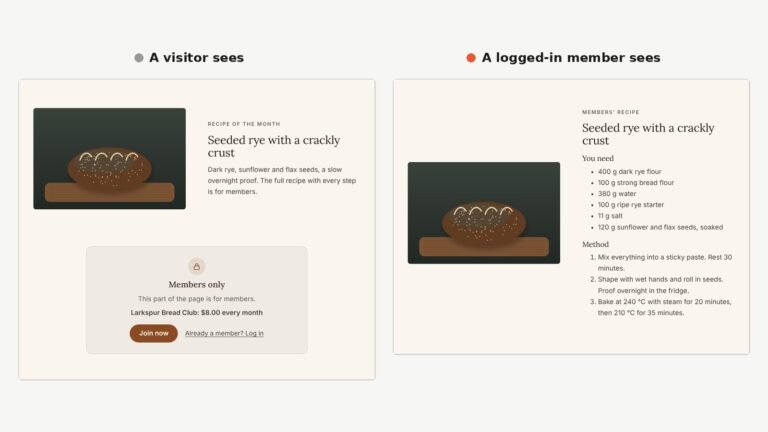
 Member Content Pro: Show Members-Only Content on Public Squarespace Pages with Native Member Sites$59
 Squarespace · PluginSquarespell Original
Browse by platform
View allBrowse by goal
View allBrowse by goal
Fresh inventory
Recently added
Member Content Pro: Show Members-Only Content on Public Squarespace Pages with Native Member Sites$59Squarespace · PluginSquarespell Original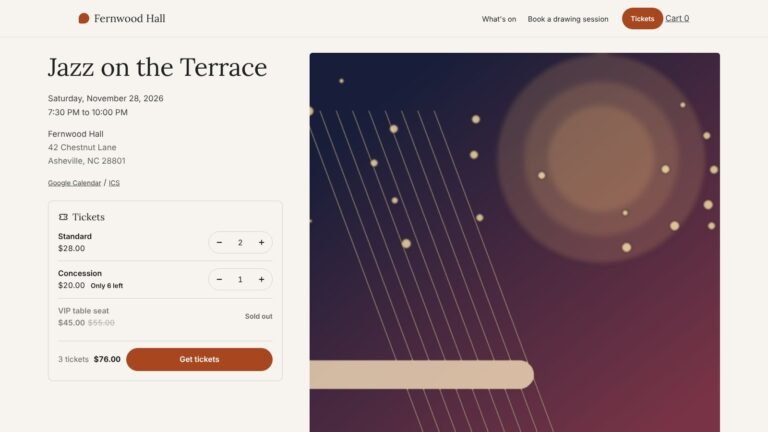 Event Tickets: Sell Tickets on Squarespace Event Pages with Ticket Types, Seats Left and Native Checkout$59Squarespace · PluginSquarespell Original
 Wholesale Order Pad: Squarespace Wholesale Order Form with Bulk Add to Cart, Order by SKU and Reorder$85Squarespace · PluginSquarespell Original
 Squarespace Summary Block Pro: More Than 30 Items, Load More and Pagination$49Squarespace · PluginSquarespell Original
 Squarespace Delivery Area Checker: Postcode and ZIP Code Checker Plugin$49Squarespace · PluginSquarespell Original
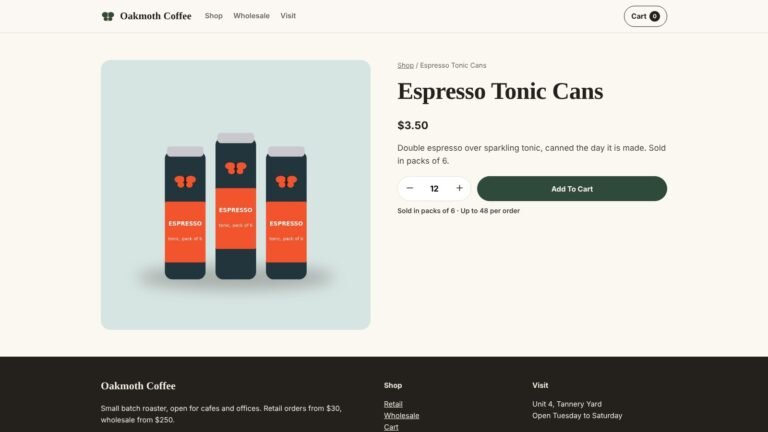 Order Rules: Squarespace Minimum Order, Quantity Limits and Pack Sizes Plugin$49Squarespace · PluginSquarespell Original
Search results
Matching products
Squarespace
A step-by-step Squarespace SEO guide for 7.1: what the platform already handles, the twelve settings you control, how to get into AI answers, and which audit tools are worth adding.
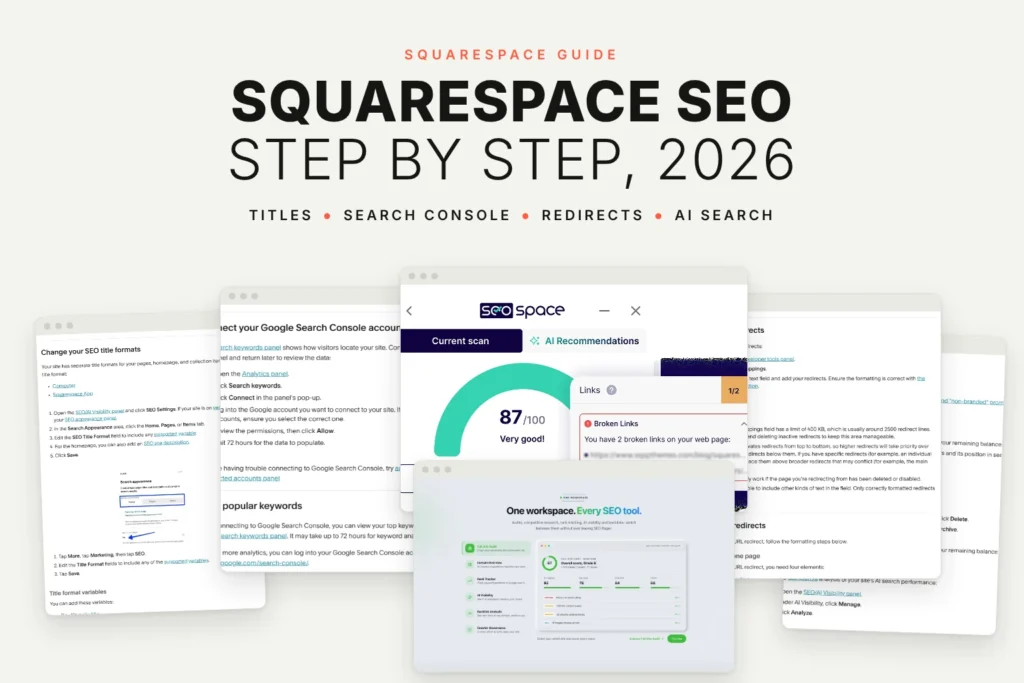
A note on how we make money. Most of this guide uses Squarespace’s own free tools, and those links earn us nothing. Some of the add-ons later on (SEOSpace, SEO Roger, and the Elfsight and Common Ninja widgets) are Squarespell listings with affiliate links, so Squarespell may earn a commission if you buy through them; the SQSP Themes plugins are listed too. Squarespell does not make any of the products in this guide. None of that changed what we recommend, and we say where the free route is enough. Details are in our affiliate disclosure.
If you want the short version:
And the honest caveat before any of that matters: no setting makes a page rank. Squarespace says it “can’t guarantee specific results”; the settings below only remove the reasons a good page would be ignored.
Last updated: 31 October 2026
Most Squarespace SEO advice online was written for an older version of the platform. It tells you to switch on AMP (Squarespace’s AMP guide now returns “page not found”), to look for SEO settings under Marketing (version 7.1 now has an SEO/AI Visibility panel), and says nothing about the AI answers that now sit above many search results.
So we rebuilt this guide from the sources that decide the answer: Squarespace’s current help centre articles and Google Search Central’s own documentation, all read on 31 October 2026. Every step below follows Squarespace’s published instructions, with a screenshot of that instruction, and every third-party tool is described from its listing and its maker’s own material. We have not run these tools on a client site for this article, and the gaps are listed near the end.
You will finish with a site that search engines can crawl, a title and description on every page, Search Console and Bing connected, redirects for anything you renamed, and a short list of tools if you want a second pair of eyes.
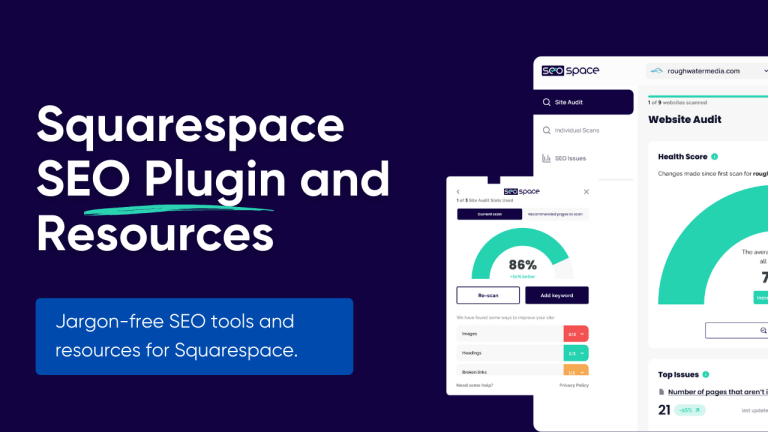
SEOSpace: Squarespace SEO Tool
$18.99/mo
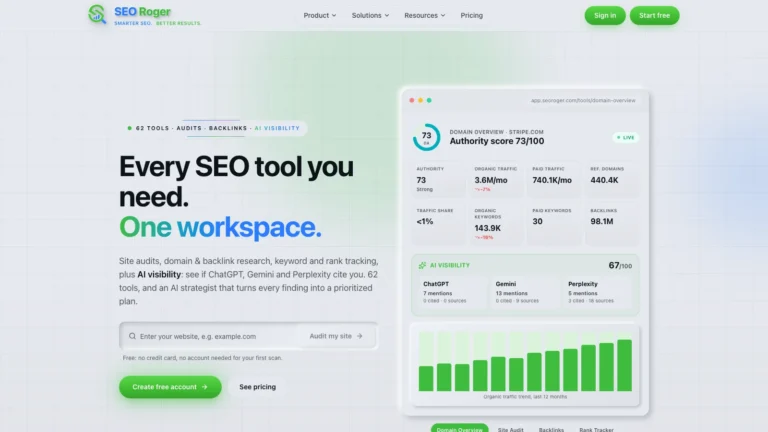
SEO Roger: All-In-One SEO Audit and AI Visibility Toolkit
Free plan available
Squarespace’s help article How does Squarespace optimize my site for search results? lists what every site gets without any setup. The practical point is that the technical layer people worry about on WordPress (sitemaps, schema plugins, SSL certificates, canonical tags) is not your job on Squarespace. You cannot break it, and you also cannot change it.
| Area | Squarespace does it | You do it |
|---|---|---|
| Sitemap | Builds and updates /sitemap.xml with your URLs and image metadata | Submit it once in Google Search Console |
| URLs | Clean, static URLs for pages and collection items | Make slugs readable; redirect any you change |
| Structured data | Blog post, Event, Local business, Organization, Product and Website schema (not editable) | Keep the visible business details accurate |
| Meta tags and alt text | Generates meta tags; uses image descriptions or file names as alt text | Write SEO titles, SEO descriptions and real alt text |
| Security | Free SSL certificate for connected domains | Check the SSL setting is on Secure |
| Mobile | Every site is mobile optimised | Do not disable mobile styles or overload pages |
| Multiple domains | Redirects every connected domain to your primary domain | Pick the right primary domain |
Read from Squarespace’s help centre on 31 October 2026.
Two older tips you can drop. AMP: Squarespace’s old AMP help article now returns “page not found” and AMP is not on the current SEO checklist, so there is nothing to switch on. FAQ schema: Google stopped showing FAQ rich results from 7 May 2026, according to its FAQ structured data page, so adding FAQ markup by hand earns no search feature.
These are the conditions that stop a Squarespace site from being indexed at all. Check them before you spend an hour on titles. Each comes from Squarespace’s SEO checklist or its Search Console guide.
Squarespace ranks text in this order, according to its guide Help search engines find your site: site title, SEO titles, page titles, blog post titles, then headings. The site title and the title formats sit at the top of that list, so set them first.
| Variable | What it inserts | Use it in |
|---|---|---|
%s | Your site title | All three formats |
%p | The page’s SEO title, or the page title if there is none | Pages format (and homepage) |
%i | The SEO title of a blog post, product or event, or its title if there is none | Items format |
| your text | Fixed custom text | Usually the homepage, for example %s | Wedding photographer in Leeds |
Variables from Squarespace’s title format guide, read 31 October 2026.
The mistake that hides every blog post title: if you remove %i from the Items format, Squarespace says neither an SEO title nor an item title appears in browser tabs, even when you have written one. Keep %i in the Items format and %p in the Pages format.
Each page has two titles: a navigation title for your menu (“About”) and an SEO title for search results and browser tabs (“About Hannah: Wedding Photographer in Leeds”). If you leave the SEO title empty, Squarespace uses the page title.
Do not expect Google to show your description word for word. Google’s snippet documentation says snippets “are primarily created from the page content itself”, and the meta description is used when it describes the page better. A good description still helps; the first paragraph of the page matters just as much.
Version 7.1 sites have an SEO report inside the SEO/AI Visibility panel. It scans every page for a missing SEO description and image blocks, gallery sections and auto layouts for missing alt text, and it can draft the missing text with Squarespace AI. It is available on version 7.1 sites using Fluid Engine.
Read every suggestion before you save it. Squarespace’s own advice is not to publish AI text “that you wouldn’t have written yourself”, and Google’s guidance on generative AI content says the same review applies to titles, meta descriptions and image alt text. Fix any claim the AI made up, such as a service you do not offer.
What the report misses: it does not scan images inside collection items (blog posts and products), and it will not flag a page where you removed the title format variables or added an SEO title without a description. Check those by hand, or use an outside audit (see SEO tools).
On Squarespace the page title is usually the H1. Inside the page, use Heading 2 for main sections and Heading 3 inside them, in order, the way this article does. Squarespace’s advice is to use headings “in descending order”, not to repeat the same text in two headings, and to keep heading sizes consistent across the site. Never pick a heading level because of its font size; change the style in Site Styles instead.
Use the words your customers use, once, in the places that matter: the SEO title, the first paragraph, one heading and the SEO description. Squarespace’s guide to AI-powered search warns against keyword stuffing and notes that AI search engines “understand the meaning behind” a search. If you do not know the words people use, connect Search Console first (Step 6) and read the Search keywords panel after a few weeks.
Write it the way you would describe the image to someone who cannot see it: “green ceramic vase on an oak shelf”, not “image of vase SEO Leeds”. Squarespace suggests 150 to 200 characters at most and no words like “photo” or “picture”. Image blocks and auto layouts have no alt text at all unless you add it, so they are the ones to check first.
Squarespace recommends keeping images under 500 KB and each page under 5 MB, with 1 MB as “the safest size for cellular connections”. To check a page:
Squarespace also suggests no more than 60 blocks per page and fewer embedded videos. Google’s speed measures, the Core Web Vitals, aim for the main content to load within 2.5 seconds and a layout shift score under 0.1. Squarespace warns that some speed tools “can return false negatives” on a hosted platform, so judge by the Core Web Vitals report in Search Console once you have traffic, not by one test score.
Search Console is Google’s free tool for seeing which searches show your site, which pages are indexed, and for asking Google to crawl a page again. Squarespace connects to it from inside the Analytics panel, so you never need to paste a verification code.
One thing that will not work: Squarespace does not support Google’s verification method that asks you to upload a .txt file. Use the built-in connection above, or a DNS TXT record.
Your sitemap is at https://www.yourdomain.com/sitemap.xml (or https://sitename.squarespace.com/sitemap.xml on a built-in domain). In Search Console, choose your property, click Sitemaps, enter the sitemap address and click Submit. A “Couldn’t fetch” message for the first 24 to 48 hours is normal, according to Squarespace.
Bing results also feed Yahoo, and Squarespace names Bing’s Copilot among the AI search tools that draw on websites. Verification takes about ten minutes, and there are two routes depending on your plan.
<meta> tag, open Squarespace’s Code Injection panel, paste it into the Header field, click Save, then click Verify in Bing.Whenever you rename a page, delete one, or move from another platform, the old address needs to point somewhere. A 301 redirect tells search engines the page has moved for good, and Squarespace says they “transfer the old page’s rank to the new page”. Use a 302 only for a temporary swap, such as a seasonal menu.
/old-url -> /new-url 301
/blog/[name] -> /posts/[name] 301
/store/p/[name] -> /buy/p/[name] 301
The first line redirects one page. The second moves every post when you rename a blog page from /blog to /posts, using Squarespace’s [name] variable. The third does the same for a 7.1 store, whose product URLs include /p/.
Limits to know: the field holds 400 KB, about 2,500 lines. Redirects run from top to bottom, so put specific lines above broad ones. You cannot redirect image or file URLs, or redirect away from your homepage. For pages that are simply gone, a custom 404 page with links to your main pages keeps visitors on the site; Squarespace notes Search Console may report it as a “Soft 404”, which is not a problem.
This is where most of the new advice is, and most of it is wrong. Google’s own guide to AI features says: “There are no additional requirements to appear in AI Overviews or AI Mode, nor other special optimizations necessary.” It also says you do not need “new machine readable files, AI text files, or markup”, and Google has clarified that llms.txt files are not needed for Google Search. The same SEO basics apply.
This is a real trade-off, not a default to flip. Ticking the box asks AI companies not to use your content, which some creators want. Squarespace warns it “might negatively impact your site traffic”, and a blocked site is less likely to be cited. Decide once, on purpose.
Version 7.1 sites in English have an AI Visibility tool in the same SEO/AI Visibility panel. It runs “prompts” (questions such as “Who are the top web designers in Chicago?”) through ChatGPT or Gemini and reports whether your business is mentioned. Each run uses AI credits, and how many credits you get depends on your plan.
What actually earns a mention: Squarespace’s advice is short paragraphs that answer the question directly, clear headings, lists, tables and FAQ sections, real author and contact pages, and reviews and links from other trusted sites. In practice that means each main question on a page should be answered fully in one paragraph near its heading, so an AI answer can quote it without the rest of the page.
An FAQ section is still one of the most useful things you can add, because it puts the follow-up questions people ask into plain text. It no longer earns a special FAQ result in Google (that ended on 7 May 2026), so the value is in the answers themselves. Our guide to adding an FAQ section to Squarespace covers the built-in Accordion block in detail; it is the first thing to try.
The check that matters for any FAQ widget: a widget that loads its questions with a script may not show them to search engines the same way as text you type into a block. After adding one, run the page through Search Console’s URL Inspection, open the tested page and make sure the questions and answers appear in the HTML Google received. If they do not, use the Accordion block for the text that matters.
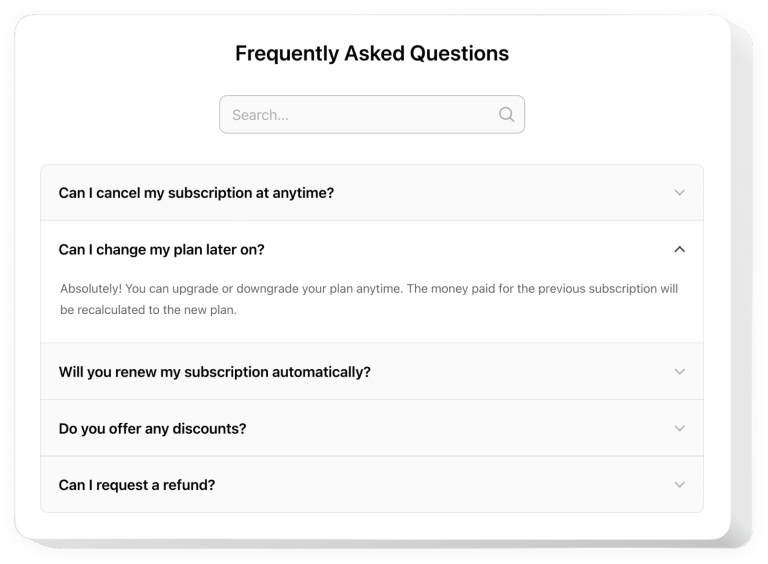
Elfsight FAQ is a hosted FAQ widget with question categories and four ready-made styles. The listing shows a free Lite plan and paid plans of $5, $10 and $20 a month. Elfsight’s own setup, as its listing gives it:
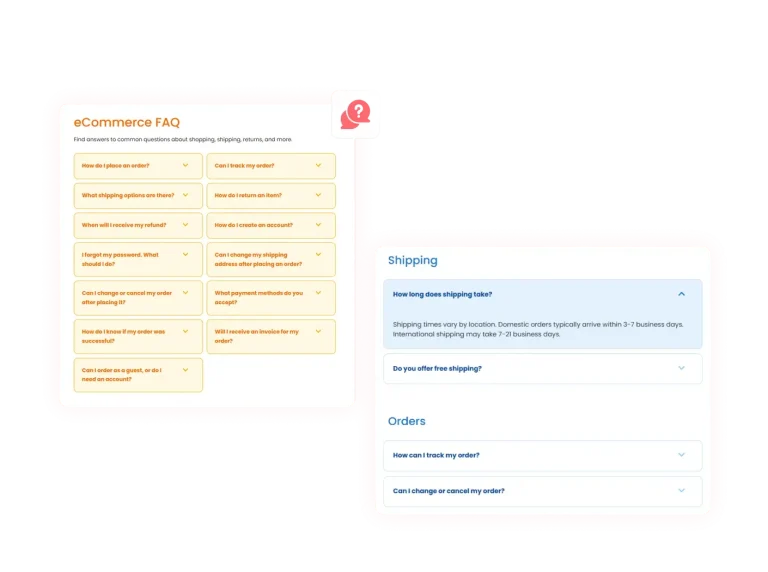
Common Ninja FAQ is a similar hosted widget with a free plan. Common Ninja’s pitch on its listing is that an FAQ lets you cover more long-tail questions; that only helps if the text is readable by search engines, so run the same inspection check. Setup follows the same pattern: build it in Common Ninja’s editor, copy the embed code and paste it into a Code Block.
If you want questions grouped in tabs, the Squarespace Accordion-Tabs Plugin turns existing content into accordions and tabs. Its listing shows a one-time $49 single-site licence or $249 for unlimited sites, says it works on 7.0 and 7.1 with Fluid Engine, and says you do not need Developer Mode. Because it works on content already on the page, the text stays in your page. The setup comes as a zip file with written instructions after purchase; we have not seen those instructions, so follow SQSP Themes’ own guide and video.
Free plan available
Internal links are on Google’s short list of fundamentals for both normal results and AI features: they are how crawlers find pages and how readers find the next useful one. On Squarespace you have three free ways to do it:
If you have a blog with dozens of posts, the Squarespace Related Posts and Products Plugin adds a related posts block automatically. Its listing says it adds a Summary Block “if it finds related posts based on categories and tags of the current post”, keeps all the Summary Block options, and hides the current post. It works on 7.0 and 7.1, at $29 for one site or $149 for unlimited sites.
If customers visit you or you serve a town, two things from Squarespace’s checklist matter most: a Contact page with your address and a map, and a Google Business Profile with your location, service areas and hours. Squarespace already adds Local business structured data, so keep your business name, address and phone number identical on your site and your profile.
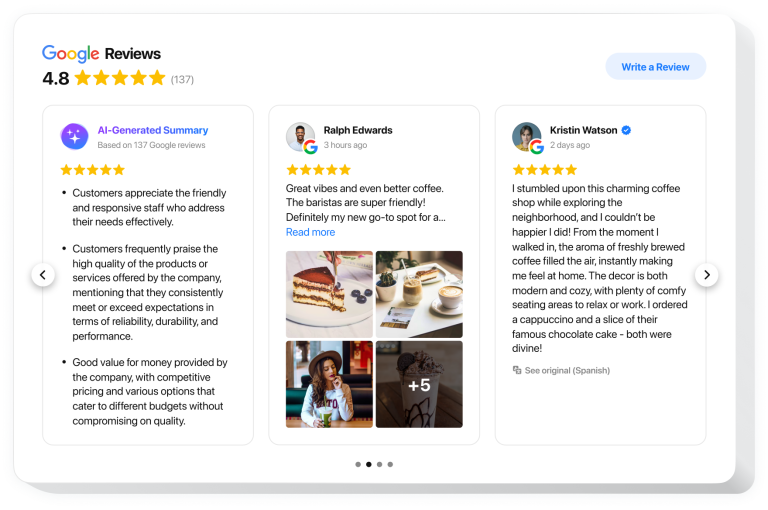
Showing your Google reviews on your site can reassure visitors, and widgets make that easy. One claim to ignore: the Elfsight Google Reviews listing mentions star ratings in search results, but Google’s review snippet rules only support local business and organisation reviews on sites that review other businesses. Reviews of your own business shown on your own site are not eligible for stars. Use the widget for visitors, not for rankings.
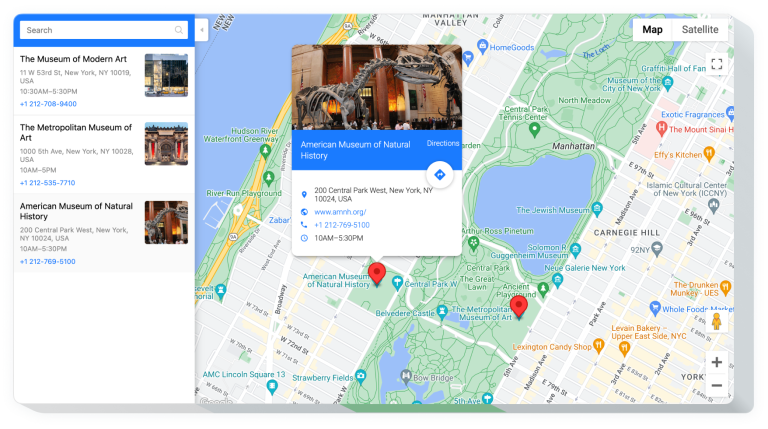
Elfsight Google Reviews pulls your Google reviews into a styled block, and Elfsight Google Maps builds a custom map with multiple locations. Both have a free Lite plan and paid plans at $5, $10 and $20 a month, and their listings say they need a plan that allows custom code. Elfsight’s setup for both:
Our guide to adding testimonials and Google reviews to Squarespace compares the free and paid ways to show reviews.
Free plan available
Free plan available
Squarespace’s SEO report checks two things: descriptions and alt text. If you want broken links, weak titles, thin pages, rank tracking and AI mentions checked as well, an outside audit tool helps. Neither tool below edits your site: Squarespace does not let outside tools change page content, so you apply the fixes yourself. Our article Free Squarespace SEO audit: what a real audit checks explains what to expect from any audit.
| SEOSpace | SEO Roger | |
|---|---|---|
| Built for | Squarespace only | Any website |
| How it works | Dashboard plus a Chrome extension that opens over the Squarespace editor | Web workspace; free single-scan audit without an account |
| Free option | 50-page audit, no card | Free plan with free tools and 15 one-time credits |
| Paid plans | From $18.99 a month | $9, $29 or $79 a month (credit based) |
| AI visibility | Scores mentions in ChatGPT, Perplexity, Gemini, DeepSeek and Copilot | Tracks mentions and citations in ChatGPT, Gemini, Perplexity and Google AI Overviews |
| Needs | Google Chrome (Safari and Firefox not shipped) | Just a website address |
| Best for | Fixing page by page inside the Squarespace editor | Wider audits, rank tracking and backlinks |
From each Squarespell listing, checked 31 October 2026. SEO Roger’s prices are from its pricing page as quoted on the listing (read 23 September 2026); check the vendor before you buy.
SEOSpace is a Squarespace-only auditor. A dashboard scores every page and builds a list of fixes sorted by severity; the Chrome extension then shows each page’s findings on top of the editor, so you fix the problem in the panel that flagged it. These are SEOSpace’s own setup steps, as shown on its listing:
SEO Roger puts site audits, rank tracking, backlinks and AI visibility in one workspace, with an AI assistant that turns findings into fixes. Its listing says one full audit runs without an account, and the free plan keeps the free tools (site audits, PageSpeed, schema and robots generators) on every plan. It is not Squarespace-specific, so some suggestions (for example editing robots.txt or adding schema) cannot be applied on Squarespace; skip those.
Which one fits: if you only run Squarespace sites and want to fix pages while you edit, start with the SEOSpace free audit. If you want rank tracking and backlinks or run sites on several platforms, start with SEO Roger’s free scan. If Squarespace’s own SEO report already shows 100% and Search Console shows no errors, you may not need either yet.
SEO changes take weeks to show. Google needs to recrawl the page, and Squarespace notes that updated descriptions “won’t appear in search results right away”. Measure monthly, not daily.
| What you see | What it usually means | What to do |
|---|---|---|
| Impressions rising, clicks flat | You appear but people do not choose you | Rewrite the SEO title and description for that page |
| Average position 8 to 20 | Page two or the bottom of page one | Improve the page: answer the question sooner, add depth, link to it from related pages |
| A page missing from results | Not indexed, or not yet crawled | Check it in URL Inspection and request indexing |
| Sudden drop across many pages | A Google update or a site change | Check Google’s status dashboard and your recent URL or template changes |
Metric definitions from Squarespace’s Search keywords guide, 31 October 2026. Data in the panel goes back 16 months or to when you connected, whichever is more recent.
| Problem | Likely cause | Fix |
|---|---|---|
| Site does not appear in Google at all | Site still on trial, or password protected | Publish the site and remove the password, then request indexing |
| Search Console verification fails | Domain connected less than 48 hours ago, or you tried the .txt file method | Wait, then connect from Analytics > Search keywords |
| Sitemap shows “Couldn’t fetch” | Google has not processed it yet | Wait 24 to 48 hours before changing anything |
| Blog post titles missing from browser tabs | %i removed from the Items title format | Put %i back in SEO Settings > Items |
| Old links show your 404 page | Slug changed with no redirect | Add a 301 line in URL mappings |
| Links with capital letters return 404 | Squarespace slugs are lowercase only | Add a 301 from the capitalised path |
| “Soft 404” in Search Console | Custom 404 page is indexable | Ignore it, or use the system default 404 page |
| Site never mentioned in AI answers | AI crawlers blocked, or no page answers the question directly | Check Settings > Crawlers; add answer-first paragraphs and FAQs |
| Pages load slowly on phones | Large images, more than 60 blocks, many videos | Compress images below 500 KB; split long pages |
Causes and fixes from the Squarespace help articles linked in this guide, read 31 October 2026.
%p (Pages) and %i (Items).Publishing the gaps is part of the method.
We didn’t test these steps on a live Squarespace site for this article. Every Squarespace step is taken from Squarespace’s help centre as published on 31 October 2026, and each screenshot of a step is of that help page. Menu names change; if yours differ, search the help centre for the article we link.
We couldn’t open the vendors’ own websites this time. Our capture tool could not reach the SEOSpace, SEO Roger, Elfsight, Common Ninja and SQSP Themes websites, so prices and features come from their Squarespell listings (checked 31 October 2026), and some screenshots were taken earlier for those listings. SEO Roger’s prices are as its listing quotes them from 23 September 2026.
We haven’t installed any of the tools or widgets. Their setup steps are the vendors’ own, as shown on their listings. The SQSP Themes plugins send written instructions after purchase, which we have not seen.
We didn’t measure whether FAQ widgets are indexed. That depends on how each widget loads; the URL Inspection check in Step 10 is how to confirm it on your own page.
How this guide was made. It was researched and drafted with AI assistance, then every fact, title, description and alt text was checked against the sources linked in the text.
Is Squarespace good for SEO? Yes, for most small business sites. Squarespace handles the technical layer (sitemap, SSL, clean URLs, structured data, mobile layouts) automatically, so what decides your ranking is the part you control: titles, descriptions, content and links. Its limits show up at the edges: you cannot edit the sitemap, robots.txt or structured data, which matters more to large or very technical sites than to a typical service business.
Where are the SEO settings in Squarespace 7.1? Site-wide settings are in the SEO/AI Visibility panel, under SEO Settings (title formats and the SEO site description). Each page’s SEO title and description are on the SEO tab of its page settings; blog posts and products have the same tab. Search Console is connected from Analytics > Search keywords, and redirects live in Developer tools > URL mappings.
How long does Squarespace SEO take to work? Expect weeks, not days. Google has to recrawl a page before a change shows, and Squarespace says updated descriptions do not appear right away. Requesting indexing in Search Console can speed up the crawl for a single page, but it does not guarantee indexing or a ranking change. Judge progress month to month in the Search keywords panel.
Do I need an SEO plugin for Squarespace? No. Squarespace’s built-in tools cover the settings that matter, and its SEO report finds missing descriptions and alt text for free. An audit tool such as SEOSpace or SEO Roger is useful when you want broken links, weak titles, rank tracking or AI mentions checked as well, or when you manage several sites. Start with the free tiers before paying.
Does Squarespace AI write good SEO descriptions? It writes usable first drafts, based on the Brand Identity you set. Squarespace itself says to review all generated content because it “may not always be accurate”, and Google expects AI-generated titles, descriptions and alt text to be checked before publishing. Edit each suggestion so it describes that page specifically.
How do I get my Squarespace site into Google AI Overviews or ChatGPT answers? There is no special switch or file. Google says AI Overviews and AI Mode have no extra requirements beyond normal SEO, and that llms.txt files are not needed for Google Search. Make sure Settings > Crawlers is not blocking AI crawlers, answer each main question clearly in one paragraph, and use Squarespace’s AI Visibility tool to see whether ChatGPT or Gemini mention you.
Will changing my Squarespace URL slugs hurt my rankings? It can, if you skip the redirect. A changed slug breaks every existing link and search result for that page. Add a 301 redirect in URL mappings from the old path to the new one at the same time, and Squarespace says search engines transfer the old page’s rank to the new address. Do not change slugs on pages that rank well unless you have a strong reason.
Should I still use AMP on Squarespace? No. Squarespace’s AMP help article is no longer available and AMP is not on its current SEO checklist, so there is no AMP setting to rely on. Speed comes from smaller images and lighter pages instead.
If you only have an hour today, do the 10-minute check, connect Search Console, and write SEO titles and descriptions for your five most important pages. Next week, run the SEO report, add alt text and check your heaviest page. After that, keep publishing pages that answer what your customers ask, link them to each other, and look at the Search keywords panel once a month.
If you want a second opinion on what you missed, run the free SEOSpace audit or a free SEO Roger scan. For more ways to extend a Squarespace site, see our guide to Squarespace Extensions versus third-party plugins.
Reviewed and last updated 31 October 2026. All prices checked on that date.

What a free Squarespace SEO audit should check, which warnings to ignore because Squarespace controls them, and three free ways to run one, step by step.
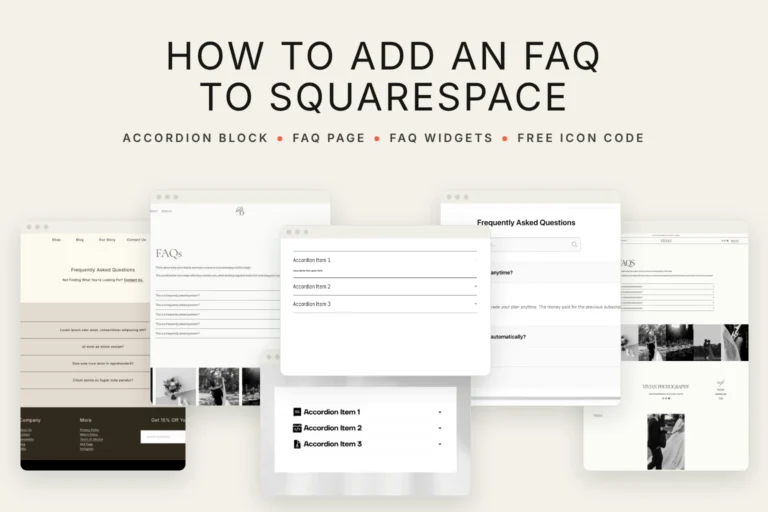
Squarespace has no FAQ block, but its accordion block, text blocks and a few widgets cover every kind of FAQ. Each method set up step by step, with free icon code and what Google changed in 2026.
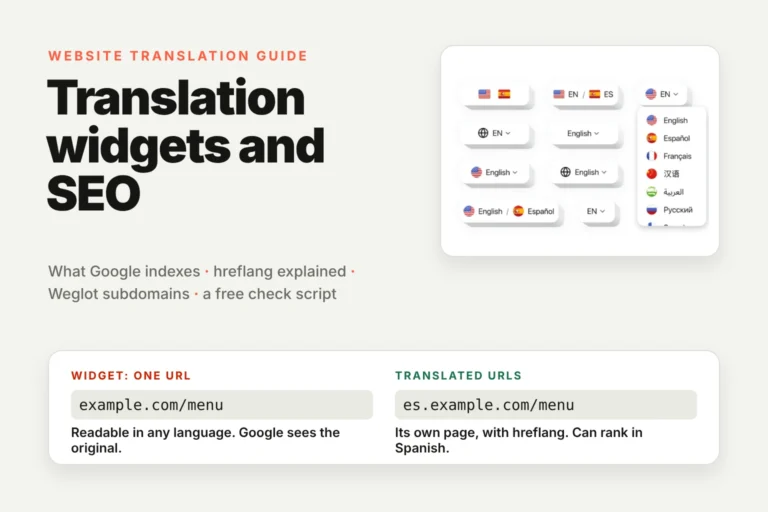
A translation widget makes your site readable in other languages without touching your existing rankings, but it adds no pages Google can show in those languages. Here is where the line falls, tool by tool, and how to check your own site.
Squarespell All Access
All 48 plugins and every new one, worth $2,044 bought one by one. 14 days free, cancel anytime.
Start 14 days freeOr start free with 13 plugins, no cardFounding price until 1 December, kept for as long as you stay.