How to Add a Squarespace Mega Menu Plugin to Your 7.1 Site (Complete Guide)

If you have been searching for a way to add a mega menu to your Squarespace 7.1 website, you have probably run into two frustrating dead ends: tutorials that require you to write CSS from scratch, and plugins that ask you to rebuild your entire navigation inside Squarespace blocks.
There is a better way and it takes two minutes.
In this guide, you will learn exactly how to add a professional squarespace mega menu plugin to any Squarespace 7.1 site without writing a single line of code, without redesigning your navigation, and without touching your site's existing structure.
Your navigation already exists. This method makes it beautiful automatically.
What Is a Mega Menu on Squarespace?
Add a mega menu to Squarespace with expanded dropdown navigation panel that appears when a visitor hovers over a navigation item on desktop. Instead of a basic text list, a mega menu displays rich content images, page previews, product cards, blog post thumbnails, and organized columns making it dramatically easier for visitors to find what they are looking for.

Squarespace 7.1 does not include a native mega menu. The built-in folder dropdown is a basic text list with no images, no columns, and no custom styling. To get a true mega menu on Squarespace, you need a plugin.
Why Squarespace Sites Need a Mega Menu
Navigation is the first thing visitors judge. A premium mega menu with images and structure immediately signals a professional, trustworthy brand.
Reduces bounce rate. When visitors can see what's inside a section before clicking, they navigate deeper into your site instead of leaving.
Essential for sites with multiple categories. Shops, portfolios, and content-heavy sites with 10+ pages become dramatically easier to navigate.
Competitive advantage. Most Squarespace sites use the default text dropdown. A mega menu immediately differentiates yours.
The 3 Ways to Add a Mega Menu to Squarespace 7.1
Before the step by step guide, it helps to understand your options so you can choose the right one for your site.
Option 1:Custom CSS (Not Recommended)
You can style Squarespace's native folder dropdowns using custom CSS injected into your site. This requires writing or copying dozens of lines of CSS, and the result is limited you can change colors and spacing, but you cannot add images, multi-column layouts, or mobile overlays. Any Squarespace update can break your CSS. Support is non-existent unless you wrote it yourself.
Best for:Developers who want full control and have time to maintain custom code.
Not for:Anyone who wants images in their menu, a real mobile menu, or a long-term solution.
Option 2:Build Your Own Plugins (Manual Setup Required)
Some Squarespace 7.1 mega menu plugins including some well-known options require you to build your menu content inside Squarespace using specific block types. You add image blocks, text blocks, button blocks, and arrange them to create your menu layout. You then set CSS variables to match your site's colors.
This works, but it is a significant amount of design work. Every menu item needs to be manually configured. If you rename a page or add a new folder, you update the menu separately.
Best for:Designers who want pixel-level control over every menu panel.
Not for: Site owners who want to set it up once and have it work automatically.
Option 3: Plug and Play Plugin (Recommended Easiest)
The third option reads your existing Squarespace navigation automatically. Your pages, folders, blog, and shop become the menu content without any manual configuration. Colors adapt to your site theme. Images are fetched from your pages automatically. The mobile menu is custom-built and replaces Squarespace's basic mobile navigation.
This is the method this guide covers.
How the Plug and Play Mega Menu Works
The Squarespell Mega Menu Plugin works differently from every other Squarespace mega menu plugin on the market. Here is what happens when you install it:
On desktop:
Hover over any navigation item a full-width dropdown panel slides open
Folders in your navigation become image card grids the plugin fetches photos from your linked pages automatically
Blog and Shop links show your latest posts and products with thumbnails, dates, and prices
Regular pages show a full hero image preview with a visit button
Everything disappears smoothly when you move away

On mobile:
Squarespace's standard mobile navigation is replaced with a custom fullscreen overlay menu
Tap the hamburger button to open a beautifully animated full-screen menu
Folders expand with an accordion animation showing image card grids
Your logo, social links, and a Call to Action button are included automatically
Color adaptation:
The plugin reads your Squarespace CSS variables at load time
Background color, text color, button style, heading font, and body font are all detected automatically
A dark site gets a dark menu. A light site gets a light menu. An orange site gets an orange-tinted menu.
You never touch a single CSS variable
Step by Step: How to Add a Mega Menu to Squarespace 7.1 in 2 Minutes
What You Need Before Starting
A Squarespace 7.1 site on a Business plan or higher(required for Code Injection)
Your existing Squarespace navigation set up with pages and folders
The Squarespell Mega Menu Plugin (get it here — $25)
2 minutes of your time

The Only Squarespace Mega Menu That Installs Itself
Paste two code snippets into Code Injection. Your existing navigation instantly transforms into a premium mega menu no design work, no CSS variables, no Squarespace block building required.
Zero Configuration your existing nav links become the menu automatically
Auto Color Detection reads your Squarespace theme, adapts to any site color
Auto Image Fetching fetches your page images automatically, no manual uploads
Mobile Fullscreen Menu premium custom mobile overlay, not Squarespace's basic menu
Hover Dropdown smooth animated panels appear on desktop hover
Works on ANY Template Fluid Engine, classic 7.1, dark, light, colored headers
2-Minute Install paste Header code, paste Footer code, save. Done
Step 1: Open Your Squarespace Website
Log into Squarespace and open your website. This plugin works on any Squarespace 7.1 template colors, fonts, and layout adapt automatically to your site.
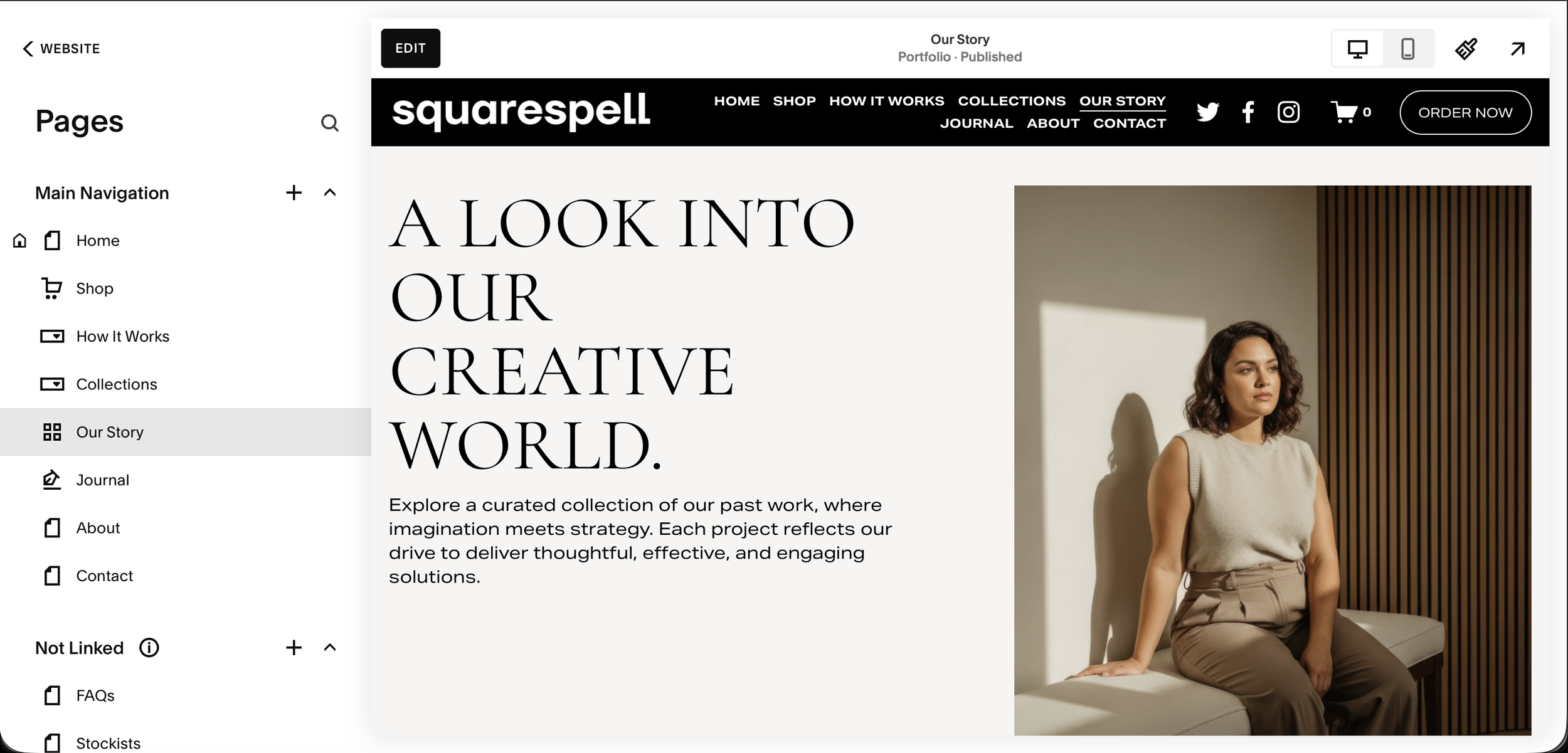
Step 2: Review Your Navigation Structure
Open the Pages panel. Folders become image card dropdowns. Regular pages get a hero image panel. Blog and Shop pages show item grids with thumbnails and prices.
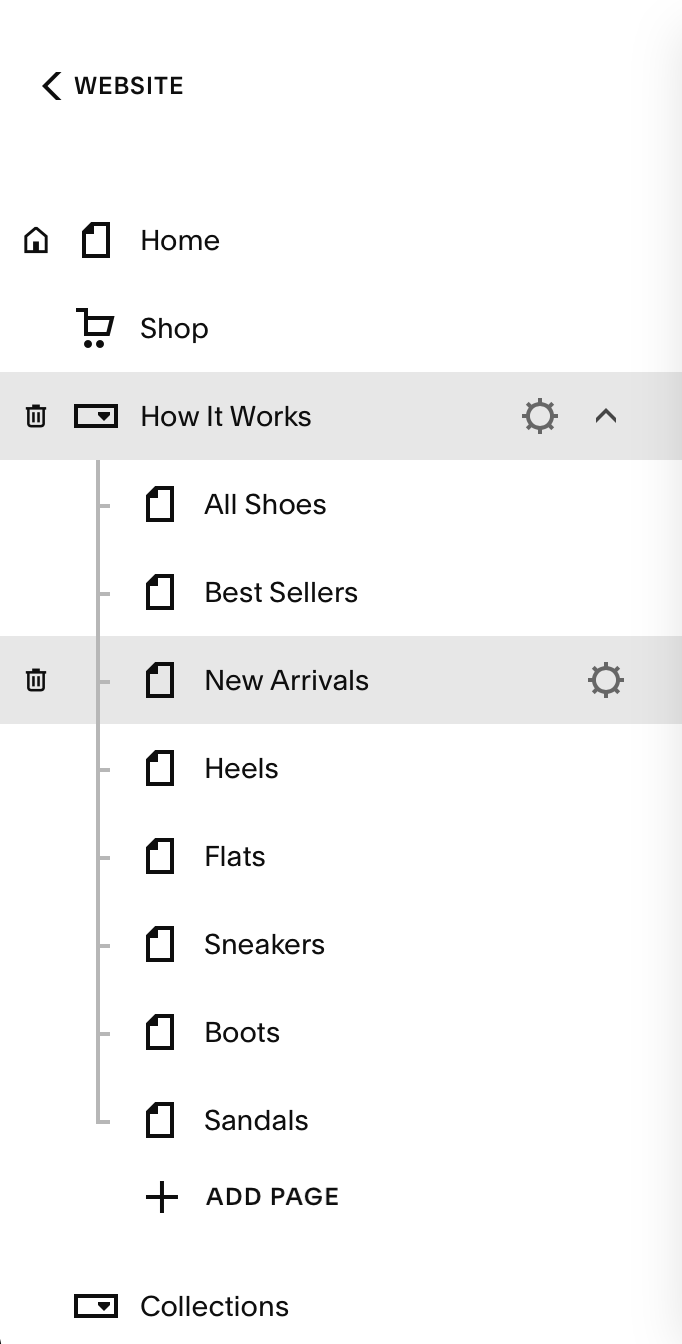

Step 3: Note Your Header Color
Click your header to view its color theme. The plugin reads your site colors automatically dark header gets light text, light header gets dark text. No manual setup.


💡 Works with dark, light, and any colored header automatically.
Step 4: Open Code Injection in Squarespace
Log into your Squarespace account and go to your website dashboard.
In the left sidebar, scroll past your pages list until you see Custom Code at the bottom. Click it to expand the section, then click Code Injection.
Navigation path: Pages sidebar → scroll down → Custom Code → Code Injection
You will see two text boxes: Header at the top and Footer at the bottom.


Step 5: Paste the Header Code
Click inside the Header box. Select all existing content and delete it.
Open the installation guide that came with your purchase. Copy the full Header code block (the one labeled "CSS + HTML") and paste it into the Header box.
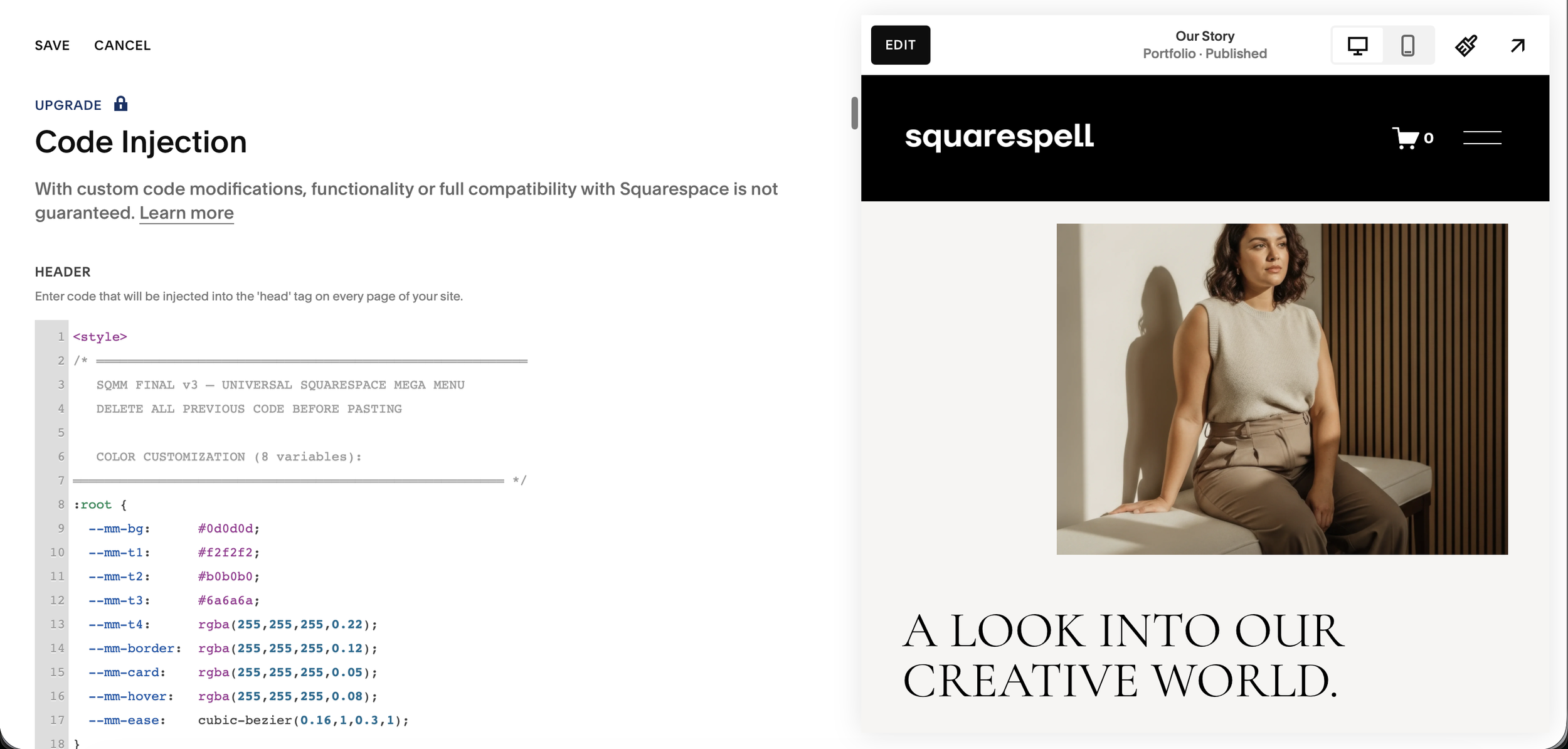
This code block contains:
All CSS styles for the desktop dropdown panels
CSS styles for the mobile fullscreen menu
The HTML structure for both menus
Responsive rules that hide the desktop panel on mobile and vice versa
⚠️ Delete ALL existing content in the Header box before pasting. If there is existing code from another plugin, paste below it on a new line do not replace the entire box unless the other code is no longer needed.
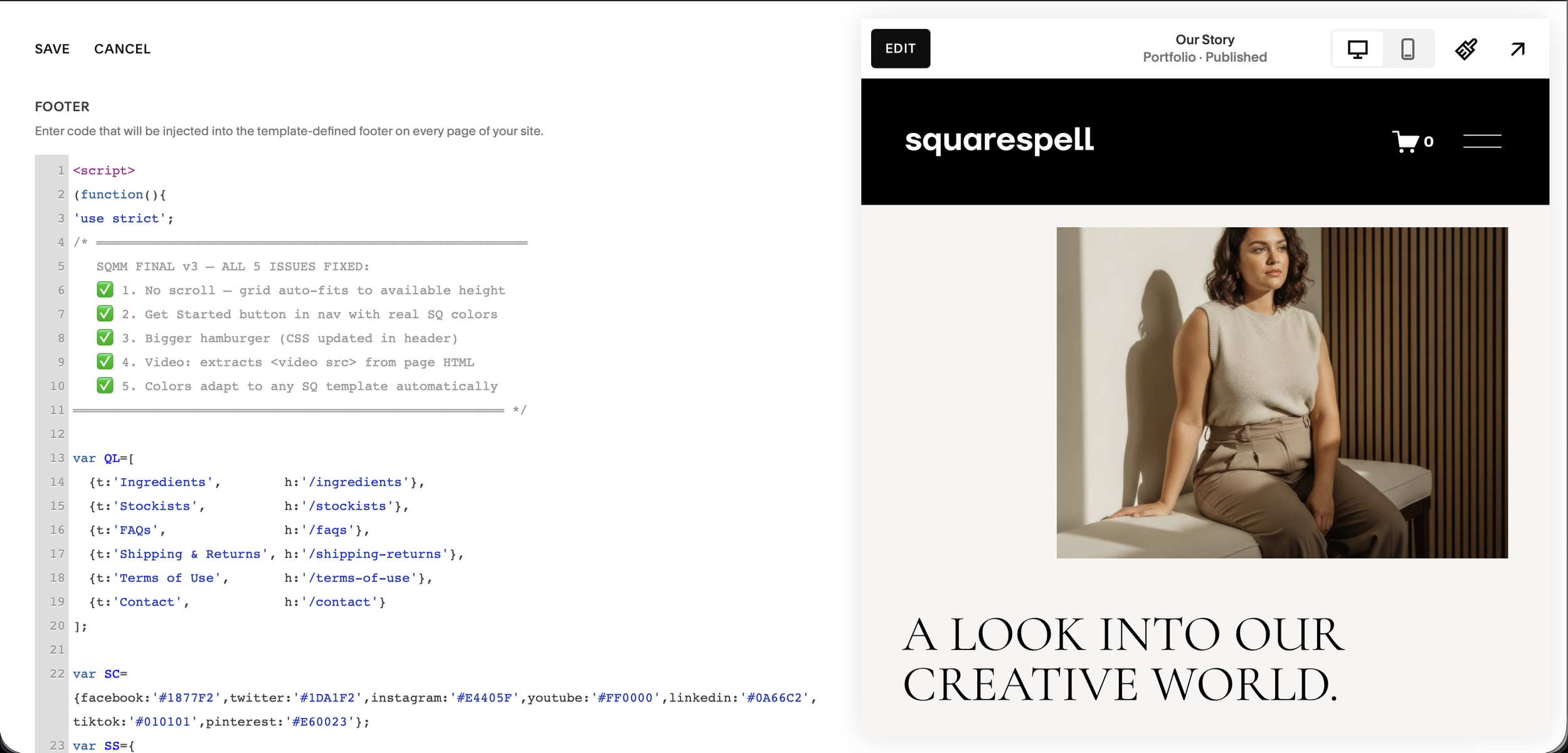
Step 6: Paste the Footer Code
Scroll down to the Footer box. Select all existing content and delete it.
Copy the Footer code block (the one labeled "JavaScript") from your installation guide and paste it into the Footer box.
This code block contains the complete JavaScript logic:
Theme detection (reads your Squarespace colors)
Navigation item detection (reads your pages and folders)
Image fetching (retrieves photos from your pages automatically)
Event listeners for hover, click, and touch interactions
Mobile menu behavior
⚠️ Same rule applies if you have other footer code running, paste on a new line below it rather than replacing.
Step 6: Save and Preview
Click Save at the top of the Code Injection page.
Open your website in a new browser tab (do not preview from the editor open the live site URL).
On desktop, hover slowly over any navigation item. The mega menu panel should slide down smoothly. Hover over a folder to see image card panels. Click anywhere outside to close.
On mobile (or narrow your browser window to under 900px), you should see a hamburger icon appear in your header. Tap or click it to open the fullscreen mobile menu.
The Only Squarespace Mega Menu That Installs Itself
Paste two code snippets into Code Injection. Your existing navigation instantly transforms into a premium mega menu no design work, no CSS variables, no Squarespace block building required.
Zero Configuration your existing nav links become the menu automatically
Auto Color Detection reads your Squarespace theme, adapts to any site color
Auto Image Fetching fetches your page images automatically, no manual uploads
Mobile Fullscreen Menu premium custom mobile overlay, not Squarespace's basic menu
Hover Dropdown smooth animated panels appear on desktop hover
Works on ANY Template Fluid Engine, classic 7.1, dark, light, colored headers
2-Minute Install paste Header code, paste Footer code, save. Done
What the Mega Menu Shows for Each Page Type
One of the most powerful features of this plugin is how intelligently it handles different types of Squarespace pages:
Folders (Navigation Dropdowns)
Folders in your Squarespace navigation become image card grids. Each linked page inside the folder becomes a card with:
An automatically fetched image from that page
The page name as a heading
An arrow indicator
A hover animation
If you have a folder called "Collections" with six linked pages, the mega menu shows a 6-card grid automatically.
Blog Pages
When a Blog page is in your navigation, the mega menu shows a grid of your latest blog posts with:
Post thumbnail image
Article label
Post title
Published date
Shop Pages
When a Shop page is in your navigation, the mega menu shows a grid of your latest products with:
Product image
Product label
Product name
Price
Regular Pages (About, Contact, Portfolio, etc.)
Single pages get a two-column hero preview with:
A large image from the page
The page title
A short description
A visit button
Frequently Asked Questions
-
No coding knowledge is required. The installation is two copy-paste steps. Paste the Header code into the Header box in Code Injection. Paste the Footer code into the Footer box. Save. Your mega menu is live in under two minutes.
-
Yes. This plugin automatically reads your Squarespace CSS variables background color, text color, button color, heading fonts, and body fonts and applies them to the menu panels. Whether your site is dark, light, orange, navy, cream, or any other color, the menu adapts instantly with no manual configuration.
-
Yes. On mobile, the plugin installs a completely custom fullscreen menu that replaces Squarespace's default mobile navigation. When visitors tap the hamburger icon, a full-screen overlay opens with animated accordion sections, image grids for your folder content, your logo, and all navigation links. It is fully tested on iOS Safari and Android Chrome.
-
Your existing navigation structure stays exactly as it is in the Squarespace Pages panel. The plugin reads it automatically and transforms it. You do not rebuild anything. If you rename a page, add a new folder, or remove a link, the mega menu updates automatically on the next page load.
-
Yes. The plugin is fully compatible with all Squarespace 7.1 templates, including Fluid Engine layouts, all header styles, and all color themes.
-
You need a Business plan or higher to access Code Injection, which is required to install this plugin. The plugin does not work on Personal or Basic plans.
-
The Will Myers plugin requires you to build your menu content using Squarespace blocks you design the layout, add images manually, and set CSS variables for your colors. The Squarespell plugin is plug and play. Your existing pages automatically become the menu content. Colors adapt automatically. Images are fetched automatically. There is nothing to design.
-
SquareRefresh's mega menu requires you to build your content using specific block types and uses Squarespace's native mobile folder menu rather than a custom mobile experience. Squarespell includes a fully custom mobile fullscreen overlay and zero manual design work. SquareRefresh is also priced at $40 — $45 and Squarespell's $45 single use price.
-
The single-use license covers one website at $45. The multi-use license covers unlimited websites for $95 making it the most affordable multi-site mega menu option compared to competitors charging $60 for the same license type.
-
If you have other plugins running, paste the mega menu code on a new line below the existing code rather than replacing it. Both plugins will run in parallel without conflict in most cases. If you experience issues, contact the support team at info@squarespell.com.
-
No. The plugin JavaScript loads asynchronously, which means it never blocks your page from rendering. Images in the menu are fetched only when the menu is opened. The plugin is performance-tested and will not affect your Core Web Vitals scores.
-
Yes. Visit the product page at squarespell.com and click the View Demo button to see the mega menu live on a real Squarespace 7.1 site.
Common Mistakes to Avoid When Installing
Pasting the code in the wrong box. The Header code must go in the Header box. The Footer code must go in the Footer box. They will not work if swapped.
Not deleting existing code before pasting. If you paste the Header code in addition to existing code from another plugin, conflicts can occur. Check what is in each box before pasting.
Previewing from the Squarespace editor. The plugin may not run correctly inside the Squarespace editing environment. Always test by opening your live site URL in a new browser tab.
Testing on a cached page. If you saved the code but the menu is not showing, hard refresh your browser (Ctrl+Shift+R on Windows, Cmd+Shift+R on Mac) or open in an incognito tab.
Conclusion
Adding a mega menu to Squarespace 7.1 does not require CSS expertise, Squarespace block arrangement, or hours of design work. The Squarespell Mega Menu Plugin reads your existing navigation, fetches your page images, adapts to your site colors, and builds both the desktop and mobile menu automatically.
Two code snippets. Two minutes. Your Squarespace navigation transformed.
The Only Squarespace Mega Menu That Installs Itself
Paste two code snippets into Code Injection. Your existing navigation instantly transforms into a premium mega menu no design work, no CSS variables, no Squarespace block building required.
Zero Configuration your existing nav links become the menu automatically
Auto Color Detection reads your Squarespace theme, adapts to any site color
Auto Image Fetching fetches your page images automatically, no manual uploads
Mobile Fullscreen Menu premium custom mobile overlay, not Squarespace's basic menu
Hover Dropdown smooth animated panels appear on desktop hover
Works on ANY Template Fluid Engine, classic 7.1, dark, light, colored headers
2-Minute Install paste Header code, paste Footer code, save. Done