 Member Content Pro: Show Members-Only Content on Public Squarespace Pages with Native Member Sites$59
 Squarespace · PluginSquarespell Original
Browse by platform
View allBrowse by goal
View allBrowse by goal
Fresh inventory
Recently added
Member Content Pro: Show Members-Only Content on Public Squarespace Pages with Native Member Sites$59Squarespace · PluginSquarespell Original Event Tickets: Sell Tickets on Squarespace Event Pages with Ticket Types, Seats Left and Native Checkout$59Squarespace · PluginSquarespell Original
 Wholesale Order Pad: Squarespace Wholesale Order Form with Bulk Add to Cart, Order by SKU and Reorder$85Squarespace · PluginSquarespell Original
 Squarespace Summary Block Pro: More Than 30 Items, Load More and Pagination$49Squarespace · PluginSquarespell Original
 Squarespace Delivery Area Checker: Postcode and ZIP Code Checker Plugin$49Squarespace · PluginSquarespell Original
 Order Rules: Squarespace Minimum Order, Quantity Limits and Pack Sizes Plugin$49Squarespace · PluginSquarespell Original
Search results
Matching products
Squarespace
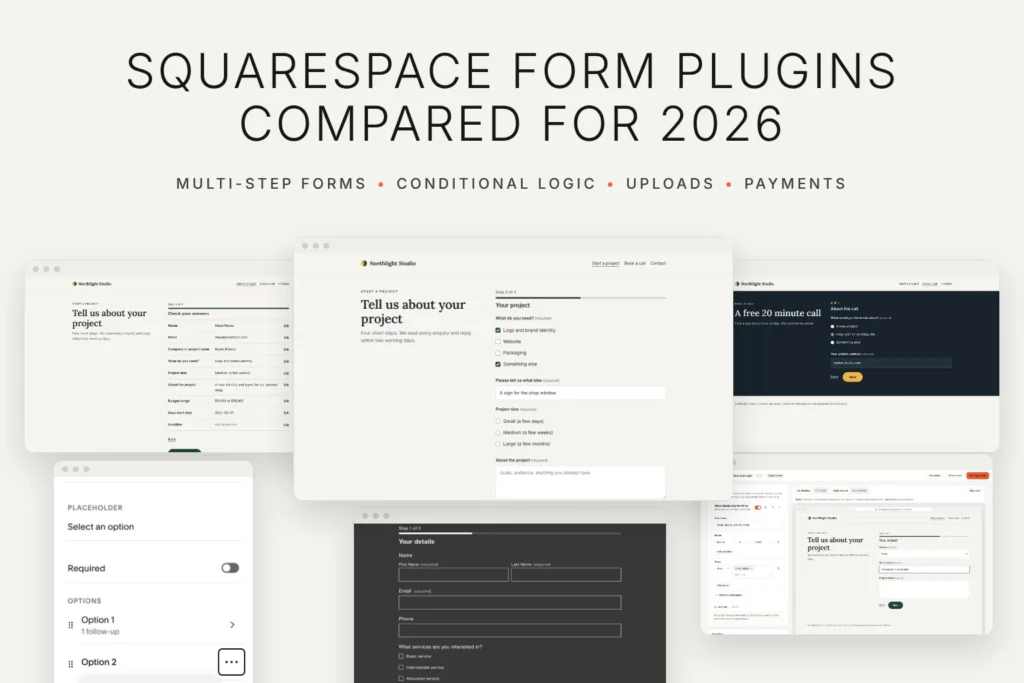
Squarespace’s Form block still has no steps and only one level of follow-up questions. Here is when it is enough, and when Form Steps and Logic, Jotform, Typeform, Elfsight, Common Ninja or a datepicker earns its place.
A note on how we make money. Most form tools in this guide are listed on Squarespell with affiliate links, and Squarespell may earn a commission if you buy through them. Squarespell also makes three products that appear here: Form Steps and Logic (multi-step forms and conditional logic for the native Form Block), the Interactive Quiz Plugin and, in a short related list, the Quote Calculator and Delivery Date Picker plugins. We describe them with the same criteria as the others, and we say where the free built-in Form block is the better choice, which earns us nothing. Details are in our affiliate disclosure.
If you want the short version:
And the honest caveat before any of that matters: every add-on here needs code, either pasted into a Code block (the embeds and the quiz) or into Code Injection (Form Steps and Logic), and Squarespace only runs that on the Core plan and above. On the Basic plan you are, in practice, limited to the built-in Form block (Elfsight documents a Markdown block workaround for its own widgets).
Last updated: 9 November 2026
A form looks like a solved problem on Squarespace: drag in a Form block, add a few fields, done. The trouble starts when a form has to do more than collect a name and a message. Agencies want a project enquiry in short steps, clients want to send files, customers want to pick a delivery date, charities want donations, clinics want intake forms with sensitive data, and coaches want a quiz that captures an email first.
The built-in block has grown in the last year, so some of those jobs no longer need a plugin at all. Others still do, and the most common one, a multi-step form with questions that appear only when they apply, used to mean replacing your Squarespace form with a hosted one. We compared the native Form block with seven form tools listed on Squarespell, using each vendor’s own help pages and pricing as published on the dates shown, and each tool’s Squarespell listing. We did not install the third-party tools on a test site for this guide, and we say exactly where a claim comes from.
For every option you get what it is good at, what it costs, where your submissions end up, and the setup steps from the vendor’s own guide. If you only need steps and rules on the form you already have, go straight to the Form Steps and Logic plugin for Squarespace section, or try its live demo first.
Jotform: Forms, Tables, Apps, Signatures and AI Agents
Free plan available
Free plan available
Free plan available
A form tool is only as good as what happens after someone presses Submit, so we looked at five things for each option, in this order.
Squarespell listings show a verification level. All the third-party listings here are marked “Listing checked”, which means the listing was compared with the vendor’s own pages, not that the tool was tested on a Squarespace site. How our verification levels work.
| Option | What it needs | Steps (multi-step) | Conditional logic | Where the data goes | Phones | Cost |
|---|---|---|---|---|---|---|
| Squarespace Form block | Any plan, no code | No. One page; a Line field is only a visual break | Follow-up questions under Dropdown, Checkbox, Radio and Survey answers, one level | Squarespace (Manage Submissions), email, Google Drive, Mailchimp, Zapier, contacts | Squarespace’s own responsive form | Included |
| Form Steps and Logic | Squarespace 7.1, Core plan or higher (one paste in Code Injection, Footer) | Yes. Split at your Line fields, with a bar, dots or numbered tabs and Next and Back | Show or hide fields and whole steps, or skip to a step; AND and OR; text, number, date and choice answers | Unchanged: your Form Block’s storage, notification email and connections | Uses the form’s own phone layout; tested at phone widths in Chrome, not on real phones | $49 once (one site), $99 once (unlimited sites) |
| Jotform | Core or higher (Code block) | Yes, with page breaks | Show or hide fields, skip pages | Jotform (Jotform Tables) | Full-width card at 390 px in a Squarespell embed check | Free; $34, $39, $99 a month billed yearly ($39, $49, $129 month to month) |
| Typeform | Core or higher (Code block) | One question per screen | Conditional logic from the Basic plan | Typeform | Not checked | Free plan; $28, $56, $91 a month billed yearly ($39, $79, $129 month to month) |
| Elfsight Contact Form | Core or higher (Markdown block workaround on Basic) | Yes, multi-step layouts (listing) | Not stated on its listing | Elfsight dashboard, email, Zapier, Mailchimp | Not checked | Free (200 views a month); $5, $10, $20 a month billed yearly ($6, $12, $24 monthly) |
| Common Ninja Form Builder | Core or higher (Code block) | Not stated | Conditional logic fields (Common Ninja’s page) | Common Ninja dashboard, email, CSV | Not checked | Free tier; paid prices on Common Ninja’s site |
| BeyondSpace Datepicker | Code-enabled plan; installs through BeyondSpace’s Ground Control | Not applicable (adds a calendar) | Date rules only: lead times, cutoffs, blocked dates | Your existing Squarespace form | Not checked | $45 once |
| Squarespell Interactive Quiz Plugin | Squarespace 7.1, Core or higher (Code block) | A quiz before the email step, not form steps | Results depend on the answers | Your Squarespace Form block, a webhook or Web3Forms | Not checked | $85 once (one site), $145 once (unlimited sites) |
Jotform, Typeform and Elfsight prices read from each vendor’s own pricing page on 9 November 2026, in US dollars. Squarespell product prices from their listings on the same day. Native Form block facts from Squarespace’s help centre (Form blocks, updated 28 September 2026; Form fields explained, updated 2 September 2026). The Jotform phone check was an embed of a Jotform sample form at 390 px wide in a Squarespell research test on 9 November 2026; the other embeds were not checked on phones.
Squarespace’s help centre says JavaScript and iframes in Code blocks are a premium feature, available on the Core, Plus and Advanced plans but not on the current Basic plan. Code injection follows the same rule: “Code injection is available in the Core, Plus, Advanced, and some legacy billing plans.” Every third-party form in this guide arrives as a snippet of embed code, and Form Steps and Logic is one paste in Code Injection, so on Basic none of them will run without a workaround.
Squarespace’s own pricing page, read on 9 November 2026, showed Basic at $19 a month, Core at $29, Plus at $49 and Advanced at $99 when billed annually ($25, $39, $65 and $139 month to month), in US dollars; prices can differ by region. If you are on Basic and only need a contact form, the built-in block is the obvious answer. If you need steps, rules or a Jotform or Typeform embed, budget for Core.
One exception worth knowing: Elfsight publishes a separate guide for the Basic plan that uses a Markdown block instead of a Code block. That is Elfsight’s own instruction for its own widgets; it does not apply to the other tools here.
Plan rules read from Squarespace’s help centre and plan prices from squarespace.com/pricing on 9 November 2026.
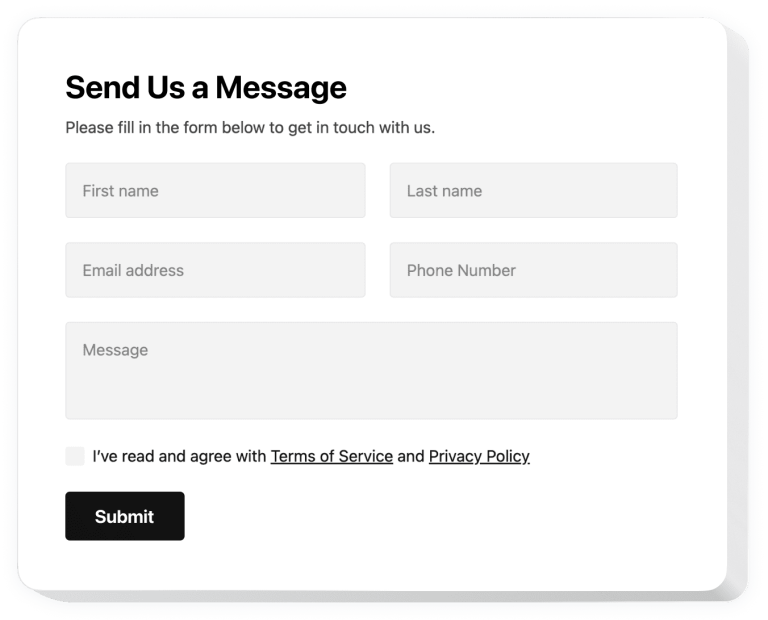
Before paying for anything, check whether the native Form block already does the job. For a contact form, a quote request or a simple enquiry, it usually does, and it works on every plan.
The native block does not take payments, collect signatures, calculate totals, or split a long form into steps: there is no page break, progress bar or Next button. Its Line field “adds a horizontal line, which can be useful for adding a visual break to longer forms”, and that is all it does on its own. A follow-up can only hang off a choice answer, so a typed answer, a number or a date cannot show or hide anything, and two answers cannot be combined. Its date field is a plain input without blocked dates or lead times. Submissions are not stored in a searchable database unless you choose a destination that provides one (Google Drive or your contacts list).
These steps follow Squarespace’s Form blocks help page, read on 9 November 2026.
Why it is still first on this list: it is free, it needs no code, the data stays connected to your Squarespace account, and it now covers two common reasons people used to reach for a plugin: file uploads and a single conditional question.
Squarespace has no setting for it. You have two routes, and the choice comes down to where you want the answers to live.
If you just want a long form to feel shorter without a plugin, the native Line field with a label and description is the closest you can get: it adds a titled break inside the same page, not a separate step.
Yes, one level deep. Squarespace’s follow-up questions let a Dropdown, Checkbox, Radio or Survey answer reveal one or more extra questions, which covers the classic “Other, please specify”. What it cannot do, according to the Form blocks help page: a follow-up cannot have its own follow-up, and only those four choice fields can trigger one.
When a question should depend on a typed answer, a number, a date or a combination of answers, or when a whole group of questions should be skipped, you need more than the native block:
One detail matters with any logic: what happens to an answer someone typed and then hid. Form Steps and Logic clears answers in hidden fields before the form is sent; with the hosted tools, check the vendor’s documentation for how hidden answers are stored.
Squarespell makes Form Steps and Logic, so weigh that interest. It is in this guide because it is the only option here that adds steps and cross-field rules to the Squarespace Form block itself instead of replacing it, which means your submissions, notification email and Squarespace storage stay exactly as they are. Version 1.0.0 went on sale on 9 November 2026.
It is a one-time purchase: $49 for a Single License (one website at a time, which you can move) or $99 for a Multi-Use License (unlimited websites), with no limit on forms, steps, rules or submissions. The listing also offers installation for $39, or installation and styling for $79, done by adding Squarespell as a contributor (read 9 November 2026).
The limits, as the listing states them: Squarespace 7.1 only; the Core plan or higher for Code Injection; product Add to Cart forms, Newsletter blocks and the checkout page are not changed; File Upload fields follow the rules but were not tested with a real upload. Squarespell’s own tests ran in Chrome on a computer and at phone widths, on Form Blocks of public Squarespace 7.1 template demos and the hosted demo, not in Safari, Firefox or on real iPhone and Android phones.
Choose it if you want a multi-step form or answer-based questions and want the data to stay in Squarespace, with no monthly fee. Skip it if the form needs payments, signatures or calculations (Jotform or a calculator fits better), or if you are on the Basic plan.
These are the twelve steps of the installation guide that comes with the plugin (version 1.0.0), in its three parts, with its screenshots.
Prefer to watch first? This short video shows the same setup on a real Squarespace form: the Line fields, the builder, Code Injection and the finished form on a computer and a phone.
| Setup at a glance | Details |
|---|---|
| What it does | Splits a Form Block into steps wherever you add a Line field, with a progress bar and Next and Back; rules show or hide fields and steps from earlier answers |
| What you need | A Squarespace 7.1 site on the Core plan or higher, a page with a Form Block, and your license key from the order email |
| Where it goes | One paste in Pages, Custom Code, Code Injection, Footer (older menus: Settings, Advanced, Code Injection), then Save. It works on every Form Block on the site |
| What stays the same | Your fields, labels, form storage, notification email and thank-you message or redirect |
Part 1: in Squarespace (steps 1 to 3). Find your form, add a Line field where each step starts, and set Required and follow-up questions.
A Form Block is the form you put on a page: the fields visitors fill in and the button that sends them. No form yet? Edit the page, click Add Section and pick Contact: those sections come with a form. Already have one? Edit the page, click the form once, then the pencil. The Content tab shows the form name, the button text and Edit Form Fields, which opens the list of fields.
In Edit Form Fields click Add Field and choose Line. Squarespace adds a thin line to the form; the plugin turns it into a step break. Drag it by its handle to where the new step should begin. Add one Line for each extra step: two Lines make three steps. Click the Line and type its Label: that is the step title visitors see, for example Your project. The fields above the first Line are step 1, titled in the builder (Your details unless you change it). A form without a Line stays on one page, and rules still work on it.
The Required switch in a field’s panel works as always: Next checks the required fields of its step. A required field that a rule hides never blocks the form, because it gets the text Not applicable when the form is sent (you can change that text). Squarespace’s own follow-up questions keep working and stay on the same step as their question. For a question that only matters sometimes, the guide suggests leaving Required off in Squarespace and ticking Must be answered when shown in the builder instead.
Part 2: in the builder (steps 4 to 10). License, describe your form, steps, rules, sending and looks, preview, copy.
Double-click the builder file from your download. It opens in your browser and nothing is installed: settings on the left, the preview on the right, Copy code at the top. In Your license type the key from your order email (1) and the website address your visitors use (2), then click Activate (3). Your site’s built-in squarespace.com address always works too, and you can try every setting in the preview before you activate.
List your form’s fields in the same order as in Squarespace: the label exactly as it is there (capitals and spaces do not matter) and the type. Add the options of Dropdown, Radio and Checkbox fields, one per line, and tick Required where it is on in Squarespace. Add a Line row where your form has a Line, so the preview shows the same steps. This list draws the preview and fills the menus of the rules; the code itself reads your real form on your site by its labels.
Turn every form with a Line field into steps is on by default. Set the title of the first step, the progress style (a bar with “Step 2 of 4”, dots or numbered tabs) and the texts of Next, Back and the step count in your site’s language. Switch on the review step before Submit, or remember answers between pages, and use different settings on some pages if you need them, for example dots on a booking page.
Each rule says When something is true, Then what happens. Pick the field from the menu, then the condition (is, is not, contains, is empty, is not empty, is greater than, is less than or is any of), then the value. With two or more conditions choose all of these (and) or any of these (or). Then show or hide fields or whole steps, or skip to a step. A step whose fields are all hidden is skipped and the progress counts one step less. Only on some pages limits a rule to chosen page addresses, and the switch turns a rule off without deleting it.
Your form still sends through Squarespace. Answers in hidden fields and skipped steps are cleared first, and a hidden Required field gets the text set under Text for hidden Required fields (Not applicable). Under Messages you can change the wording of the required and email messages. In Looks, Match my site gives Next the look of your form’s own Submit button and the progress your button colour; My own colors sets an accent and a step title colour.
The preview runs the code you will copy on a sample page drawn from your list: click Next, pick answers and watch the rules act, on Desktop or Phone, in a light or dark section. Press the form’s Submit and nothing is sent; the list under the preview shows exactly which fields and values Squarespace would receive, with the hidden ones marked. Start over gives a fresh form.
Press Copy code. If your browser blocks copying, Show code opens it so you can copy it with Cmd+C or Ctrl+C, and Download saves it as a text file. These three need an active license; the preview always works. The builder remembers your settings in that browser.
Part 3: on your site (steps 11 and 12).
Open Pages, Custom Code, Code Injection (older menus: Settings, Advanced, Code Injection). Click in the Footer box, go to the end of any code already there, start a new line and paste. Click Save. One paste works on every Form Block of the site. Squarespace’s code injection guide confirms the Footer field adds code before the closing body tag on every page.
Open the page with your form in a private window, logged out. The form shows its first step with the progress and Next. Fill it in, try Back, and send one test entry: it arrives in Manage Submissions and in your notification email like any other, with every field listed. While you edit the page in Squarespace the steps step aside and you see the whole form; exit the editor to see them again.
Open the builder again, make the change, press Copy code, then in Code Injection, Footer replace the old Form Steps and Logic block (from its first comment line to its last) with the new code and click Save. Moving a Line in Squarespace needs no new code; renaming a field or a step that a rule uses does. To move a Single License to another website, deactivate the old site under My Account, Licenses on squarespell.com, then activate the new address in the builder and copy the code again.
| Symptom | Likely cause and fix |
|---|---|
| No steps | The form has no Line field, the code is not saved in the Footer, or the address is not activated. Check in a private window; in the page editor the steps always step aside |
| A rule does nothing | The label in the builder differs from the label in Squarespace, the rule is switched off, or it is limited to other pages |
| A field is still required | It is visible, so it is checked. Hide it with a rule, or switch Required off in Squarespace and tick Must be answered when shown |
| Not applicable in the email | The field is Required in Squarespace and a rule hid it. Change the text in Sending, or use Must be answered when shown |
| A hidden Dropdown, Radio, Checkbox, Email, Date or Number is Required | These cannot hold Not applicable. Switch Required off for them and tick Must be answered when shown, or add an option called Not applicable |
Steps, screenshots and troubleshooting from the Form Steps and Logic installation guide, version 1.0.0, read on 9 November 2026.
If you would rather see it before buying, the hosted demo linked near the top of this guide runs the plugin on three Squarespace Form Blocks. If you write about Squarespace or build sites for clients, Squarespell’s affiliate program pays 20% commission on its own plugins, with a 60-day cookie window, according to the program page on 9 November 2026.
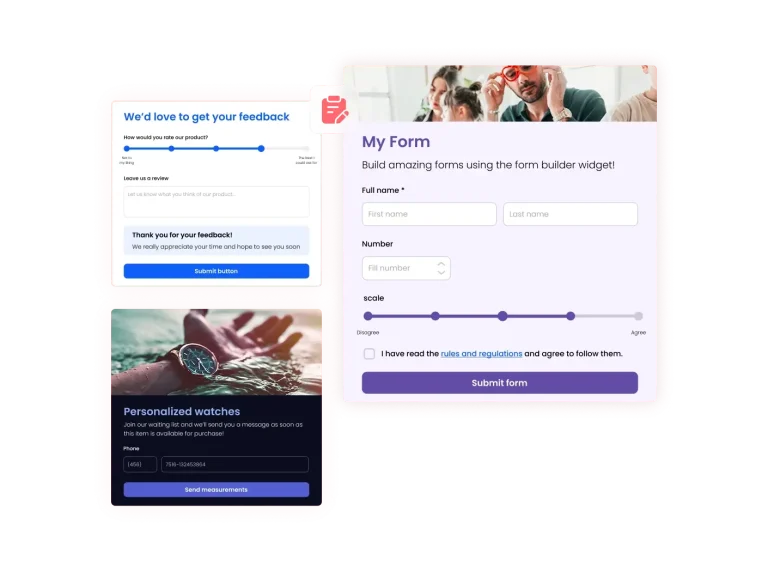
Jotform began as a form builder and now includes Jotform Tables (a spreadsheet-style database of responses), e-signatures, approval workflows, PDFs and simple apps, all metered against one plan. Its Squarespell listing explains that the plans do not add different products so much as raise the limits: monthly submissions, stored submissions and upload space.
On Jotform’s pricing page on 9 November 2026, the free Starter plan allowed 5 forms, 100 submissions a month, 500 stored submissions and 100 MB of space, with Jotform branding. Bronze was $34 a month billed annually ($39 month to month) for 1,000 submissions a month; Silver $39 ($49) for 2,500; Gold $99 ($129) for 10,000. Only Gold lists HIPAA-enabled features.
The limit that catches people out is storage, not submissions. Jotform states that when you exceed total submission storage, the system deletes the oldest response to make room. At 100 submissions a month, the free plan’s 500 fills in about five months. Export what you need to keep before you get there.
From Jotform’s help page Adding a Form to Squarespace:
Steps and logic in Jotform: a Page Break element splits a classic form into pages, and conditions can show or hide fields or skip pages, according to Jotform’s help pages. The steps live in Jotform’s form, not in your Squarespace Form block.
Choose Jotform if the form takes payments, needs a signature, routes through an approval, or will outgrow a simple list of emails. Skip it if you only need a contact form; the native block does that for nothing.
Typeform shows a form as a sequence of single questions. The argument, as its Squarespell listing puts it, is that a long form presented as a conversation gets finished more often than the same fields stacked on one page. The same design is a disadvantage on a short form: three fields become three screens instead of one glance.
On Typeform’s pricing page on 9 November 2026, Basic was $28 a month billed yearly ($39 month to month) with 100 responses a month and conditional logic; Plus $56 ($79) with 1,000 responses and Typeform branding removed; Business $91 ($129) with 10,000. Growth Flow was $266 a month after a 14-day trial, a Talent plan for HR teams started at $119 a month, and the page also offers a free plan. Prices are in US dollars.
From Typeform’s help page Embed your form on Squarespace:
Good to know: Typeform says you cannot embed a form as a full page on Squarespace, because Squarespace does not allow an HTML-only page. Use a section with the Code block set to full width instead.
Choose Typeform if the form is long (applications, onboarding questionnaires, research surveys) and completion rate matters more than speed. Skip it if the form has three to five fields.
Jotform: Forms, Tables, Apps, Signatures and AI Agents
Free plan available
Elfsight Contact Form is a hosted widget: you design the form in Elfsight’s editor and paste one line of code. It suits people who want a styled contact form, or a floating contact button that follows visitors down the page, without a monthly bill.
According to the answers Elfsight gives on its listing, the widget offers around 20 input types (text, email, phone, dropdowns, checkboxes, radio buttons, date selectors and rating fields), stores entries in the Elfsight dashboard, sends email alerts to one or more addresses, exports CSV, supports Google reCAPTCHA and can split a form into several steps with Next and Submit buttons. It can forward entries to Zapier and Mailchimp.
On Elfsight’s Contact Form pricing page on 9 November 2026, the free plan allowed one widget and 200 views a month with Elfsight branding. Basic, Pro and Premium were $5, $10 and $20 a month billed yearly ($6, $12 and $24 month to month). Elfsight meters its plans by monthly widget views and says that exceeding the monthly limit temporarily deactivates the widget, so a busy page can push you up a plan even if submissions are few.
From Elfsight’s help page Adding Elfsight widget to Squarespace website (Core plan and above):
On the Basic plan, Elfsight’s Basic plan guide replaces step 4 with a Markdown block. For the floating button placement, choose that layout in Elfsight’s editor before copying the code.
The Elfsight Subscription Form is built for newsletter signups: four layouts (side-in, embedded, popup and pane), Mailchimp, Zapier, Google Sheets and webhook connections, and conditional fields, according to its listing. The Elfsight Calculator turns a form into a price or quote calculator with formulas, IF/THEN logic and conditional fields, and can email you each result.
Free plan available
Free plan available
Free plan available
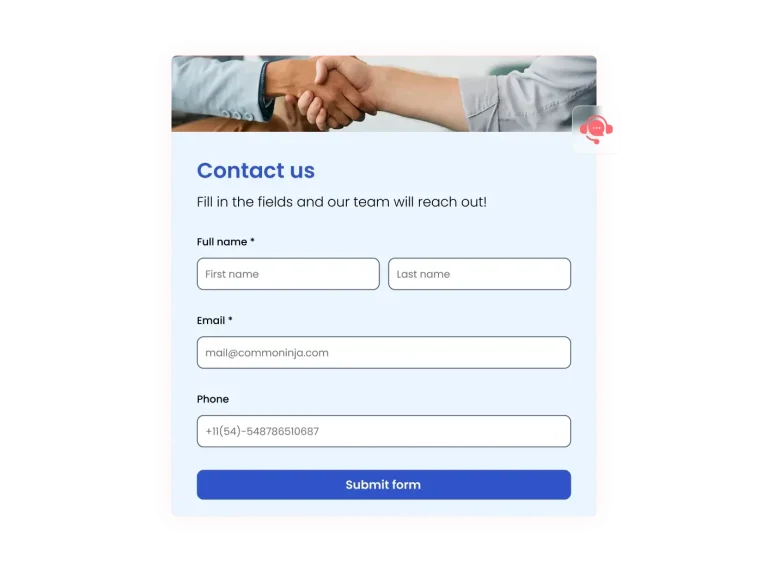
Common Ninja takes the opposite approach to Elfsight: instead of one contact form widget, it lists a general Common Ninja Form Builder plus a set of forms already shaped for a job, including Order Form, Job Application Form, Course Registration Form, Donation Form, RSVP Form and HIPAA Compliance Forms. All sit on a free tier with paid plans above it; the listings deliberately do not restate prices because they change.
According to the listing, the Form Builder adds a wide range of field types with drag-and-drop ordering, file and image uploads, headers and footers with images, notifications to you and a confirmation email to the person who submitted, CSV export, CAPTCHA, pre-made skins and custom CSS.
The ready-made forms save setup time rather than adding new powers: the Order Form, for example, starts with product, quantity, colour and shipping fields already in place. The HIPAA Compliance Forms listing is careful to say that the widget supports HIPAA-conscious workflows but does not on its own make a practice compliant; that depends on your processes and any Business Associate Agreement. Treat that as a starting point for a conversation with your compliance adviser, not a box ticked.
From Common Ninja’s page How to add Form Builder to a Squarespace store:
Common Ninja says the widget updates itself, so later edits in its editor appear on your site without pasting new code.
Free plan available
Free plan available
Free plan available
Free plan available
Free plan available
Free plan available
Free plan available
Free plan available
Free plan available
Free plan available
Free plan available
Free plan available
Free plan available
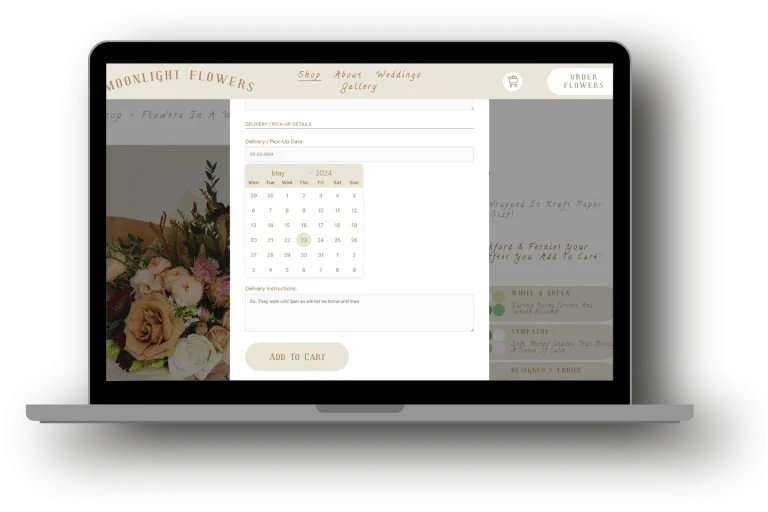
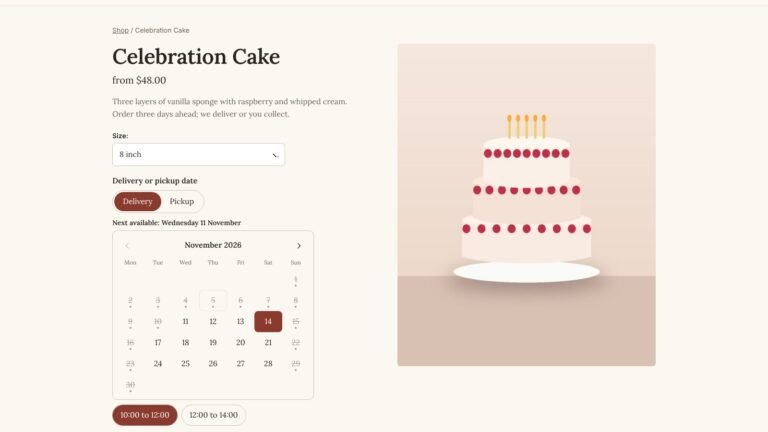
The Squarespace Datepicker plugin does not replace your forms. It upgrades the date fields in Squarespace’s own forms and product forms to a calendar, which matters most for florists, bakeries, caterers and anyone taking delivery or pickup dates.
According to its listing, you can set the date format (British or American), lead times and a booking window, same-day cutoff times, blocked dates and weekdays, and different rules for different products. It works on custom product forms and the cart page, but not on Squarespace’s checkout, where Squarespace does not allow third-party JavaScript. BeyondSpace says it has released updates for Squarespace’s 2025 product page changes and the January 2026 product form update.
BeyondSpace installs its plugins through its Ground Control dashboard. The listing gives these steps and conditions; BeyondSpace’s full install guide is on its own site.
Dates on product pages instead of a form? Squarespell’s Delivery Date Picker Plugin ($45 once) puts a delivery or pickup calendar, with lead times, cut-offs and closed dates, on Squarespace 7.1 product pages, and the date goes into the order through Squarespace’s own Add to Cart form, according to its listing. It does not change Form blocks.
Squarespell makes the Interactive Quiz Plugin, so weigh that interest. It belongs here because many “form” requests are really lead capture: you want a visitor’s email, and a short quiz with a personalised result is a better reason to give it than a newsletter box.
According to the listing (plugin version 4.0.0, read 7 November 2026), it offers four quiz types: personality, product or package finder, score, and knowledge check. Questions can take one answer, pictures, several answers or a scale of 1 to 5 or 1 to 10, and the quiz can sit on the page or open in a popup from a link to #quiz.
The email step uses your own Squarespace Form block on the same page, so each lead and its result go wherever that form already sends submissions: your email, Google Drive, Mailchimp or Squarespace’s other storage options. A webhook to Zapier or Make, or Web3Forms email, are the alternatives. There is no direct connection to Mailchimp, Kit or Klaviyo, and no quiz statistics dashboard (with Google Analytics 4 on your site, you see three quiz events there). It is for Squarespace 7.1 only and is pasted into one Code Block, so your plan must allow JavaScript in Code Blocks: Core and above on current plans, not Basic.
Where it is the wrong tool: for a plain contact form, use the native block. For an application form or anything with payments, use Jotform.
If you would rather not install it yourself, the listing offers installation for $39, or installation and styling for $79 (read 7 November 2026); you add Squarespell as a contributor, so no password is shared. If you write about Squarespace or build sites for clients, Squarespell’s affiliate program pays 20% commission on its own plugins and templates, with a 60-day window from the first click, according to the program page on 30 September 2026.
For more on quizzes, see our guides to adding a quiz to Squarespace and quiz funnels for lead generation.
| If you need | Use | Why |
|---|---|---|
| A contact or enquiry form | Squarespace Form block | Free on every plan, stores to email, Sheets or contacts |
| A multi-step form that keeps your Squarespace storage | Form Steps and Logic | Steps at your Line fields, progress bar, Next and Back, $49 once |
| “Other, please specify” under one answer | Squarespace Form block | A native follow-up question does it, one level deep |
| Questions that depend on typed, number or date answers, or several answers | Form Steps and Logic, or Jotform if you are replacing the form | Rules with AND and OR on the native form; Jotform logic on a hosted form |
| Clients to send files | Squarespace Form block | Up to five files of 10 MB each since the file upload field arrived |
| To take a payment or signature with the form | Jotform | Payments and e-signatures are metered on the same plan |
| A long application or survey | Typeform or Jotform | Typeform for one question at a time, Jotform for a stored database |
| A styled contact form or floating button on a budget | Elfsight Contact Form | Free plan, multi-step layouts |
| An order, donation, RSVP or job form without building from scratch | Common Ninja | Ready-made forms on a free tier |
| Delivery or pickup dates with blocked days | BeyondSpace Datepicker | Adds rules to your existing forms, $45 once |
| Email capture with a personalised result | Interactive Quiz Plugin | Sends each lead and result through your own Form block or a webhook |
| Anything on the Basic plan | Squarespace Form block | Code blocks do not run JavaScript on Basic |
Recommendations based on the features and prices stated above, checked 9 November 2026.
Related Squarespell plugins that work with your Form block: the Quote Calculator Plugin shows visitors a price from their answers and sends the whole quote through your own Squarespace Form block, according to its listing, and the Delivery Date Picker covers delivery dates on product pages.
If the form feeds a booking, our comparison of Squarespace booking and scheduling plugins covers tools that handle the calendar end as well. If you want the form in a popup, see the best Squarespace popup plugins.
Publishing the gaps is part of the method.
We didn’t install the third-party tools on a Squarespace site for this guide. Features, prices and steps come from each vendor’s help and pricing pages and from the Squarespell listings, as dated in the captions. Squarespell’s testing status for each third-party listing is “Listing checked”, not tested. Form Steps and Logic is Squarespell’s own plugin; its facts come from its listing and installation guide, and its tests ran in Chrome only.
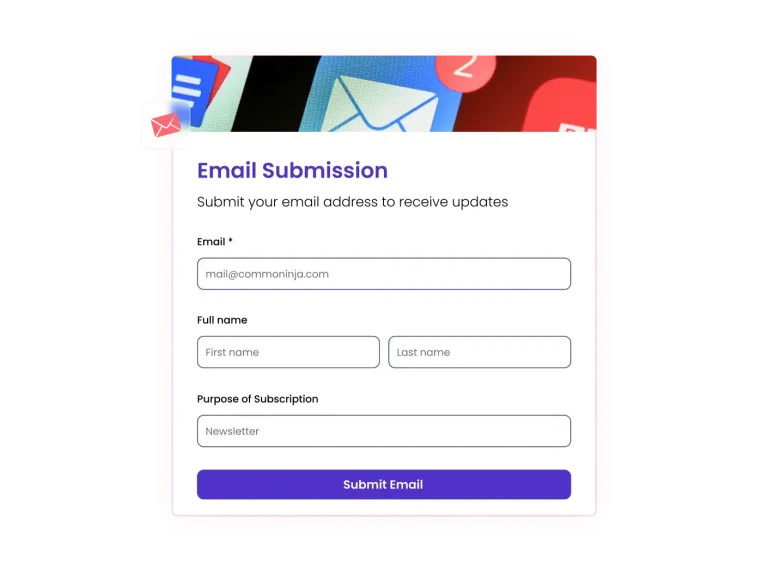
Vendor setup screenshots are not shown for the hosted tools. Their steps are taken from each vendor’s Squarespace help page, but the images on those pages were not reproduced here. The Squarespace editor screenshots in the Form Steps and Logic steps come from its installation guide; the Code block screenshots come from earlier Squarespell guides.
Squarespace menu names can change. The Form block steps follow Squarespace’s help centre as read on 9 November 2026. Squarespace has moved form settings before (the old Advanced tab became Post-Submit inside Content).
Phones were not checked for most embeds. The Phones column says “Not checked” wherever nobody at Squarespell looked at that tool at phone width. Look at any embed on your own phone before launch.
Prices are US dollars from US-facing pages. Squarespace, Jotform, Typeform and Elfsight can show different prices by region, currency and promotion. The yearly figures are monthly equivalents of a yearly payment.
We did not check any tool’s HIPAA or GDPR status. If you collect health, financial or other sensitive data, ask the vendor for its compliance documents and data processing terms.
Does Squarespace have a built-in form builder? Yes. The Form block is included on every plan. You add fields, choose where submissions go (email, Google Drive, Mailchimp, Zapier or your Squarespace contacts) and set a confirmation message or redirect. It now includes a file upload field and follow-up questions on multiple choice fields.
Can a Squarespace form accept file uploads? Yes, through the native file upload field in a Form block. Visitors can send up to five files of up to 10 MB each, in image, document, presentation, video and audio formats you choose. Google reCAPTCHA must be on for the form. For larger files, Jotform and Common Ninja both offer upload fields with their own storage limits.
Can Squarespace forms take payments? Not the native Form block. If you want payment in the same step as the form, use Jotform, whose plans include monthly payment submissions, or check Common Ninja’s payment options. For selling a fixed product, a Squarespace product page with a custom product form is often simpler.
Do I need a paid Squarespace plan to embed Jotform or Typeform? You need a plan that runs JavaScript in Code blocks, which on current plans means Core, Plus or Advanced. Basic does not, so an embed pasted into a Code block will not work there. Elfsight documents a Markdown block method for Basic, for its own widgets only.
Where do Squarespace form submissions go? Wherever you set in the form’s Storage tab. Email sends each entry to an inbox; Google Drive writes to a new Google Sheet; Mailchimp adds to a list; Zapier passes entries to other apps; and the contacts option adds people to your Squarespace contacts. You can connect several at once as a backup.
Can I add conditional logic to a Squarespace form? One level of it, natively. Dropdown, Checkbox, Radio and Survey answers can show follow-up questions, but a follow-up cannot have its own follow-up and typed, number or date answers cannot trigger anything. For rules across fields with AND and OR on the same Squarespace form, use a plugin such as Form Steps and Logic; for logic on a hosted form, Jotform and Typeform both offer it.
Does Squarespace have a progress bar for forms? No. The Form block has no progress bar, steps or Next button. Form Steps and Logic adds a bar with “Step 2 of 4”, dots or numbered tabs to the native form; Jotform offers a progress bar widget, and Elfsight and Typeform show progress inside their own hosted forms.
How do I add “Other, please specify” to a Squarespace form? Add an answer called Other to a Dropdown, Checkbox or Radio field, click … beside it and choose Add follow-up question, then pick a Text field. That is native and works on every plan. You need a plugin only when the extra question should depend on something else, such as two answers together or a typed value.
Will a multi-step plugin change where my submissions go? Form Steps and Logic does not: Squarespace still sends the form to its storage, your notification email and any connection you set up. Hosted tools such as Jotform, Typeform and Elfsight store the answers in their own dashboards instead, under their plan limits.
Will a third-party form slow my site down? It adds some weight, because each embed loads its own script from the vendor. How much depends on the tool, so run the page through a speed test before and after adding it, and place embeds only on the pages that need them rather than in site-wide code injection where the tool allows that.
Build the form with Squarespace’s own Form block first. If it needs steps or questions that depend on earlier answers, add the Form Steps and Logic plugin for Squarespace to that same form. If it needs something the native form cannot hold at all, the table in “Which one fits your form” points to the tool for that job: Jotform for payments and signatures, Typeform for long surveys, Elfsight for a cheap styled widget, Common Ninja for ready-made specialist forms, the BeyondSpace Datepicker for delivery dates, and the Interactive Quiz Plugin for email capture with a result. Check your Squarespace plan before you buy anything that needs code.
Reviewed and last updated 9 November 2026. All prices checked on that date, except the Interactive Quiz Plugin details, read from its listing on 7 November 2026 and unchanged in price on 9 November 2026.

Most Squarespace sites should start with Acuity, because it is the only scheduler that drops into a native Squarespace block. This comparison shows where that stops being true, with verified prices, calendar and staff limits, and the setup method each tool actually uses.
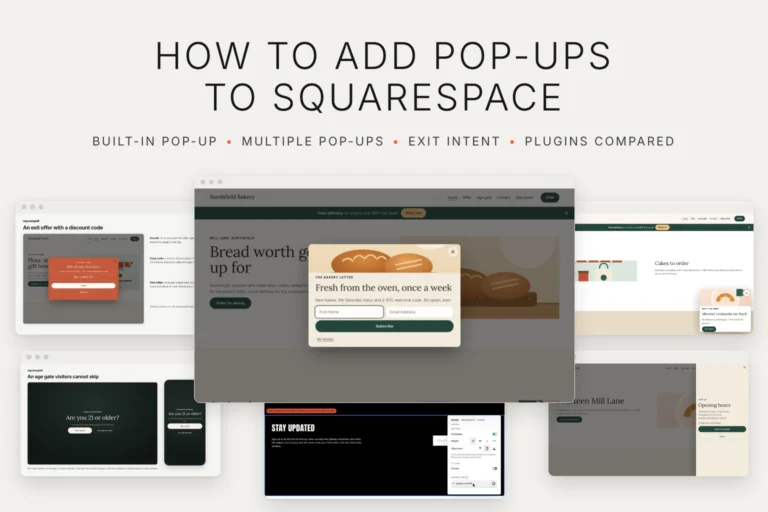
Squarespace’s built-in pop-up is included on Core and above but shows one pop-up, on landing only, with no exit intent or button trigger. Here is how to add several, from your own sections or with Elfsight, Common Ninja or Lightbox Anything.

Squarespace has no quiz block, so a scored quiz comes from a tool you connect or embed. This guide shows each step with real screenshots, what it costs, and when a one-time plugin or another tool fits better.
Squarespell All Access
All 48 plugins and every new one, worth $2,044 bought one by one. 14 days free, cancel anytime.
Start 14 days freeOr start free with 13 plugins, no cardFounding price until 1 December, kept for as long as you stay.