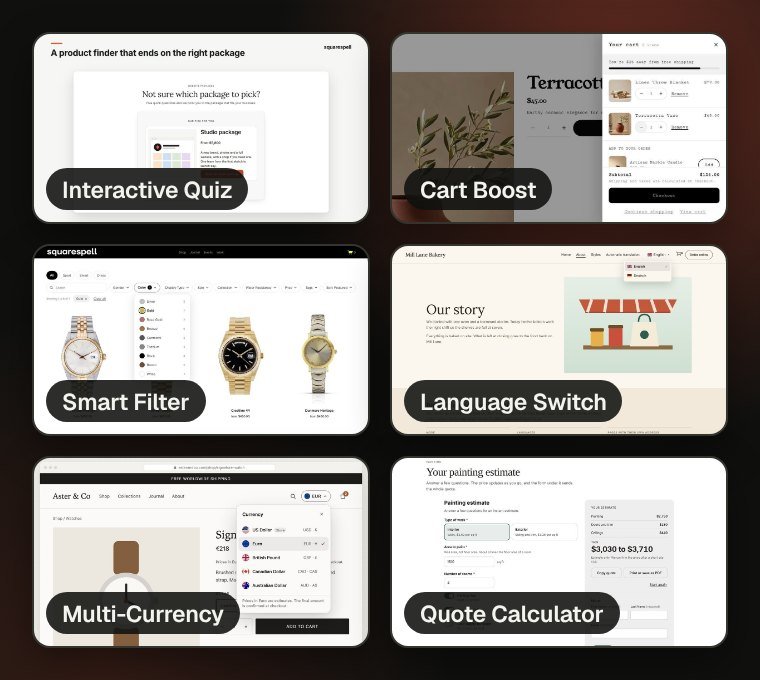
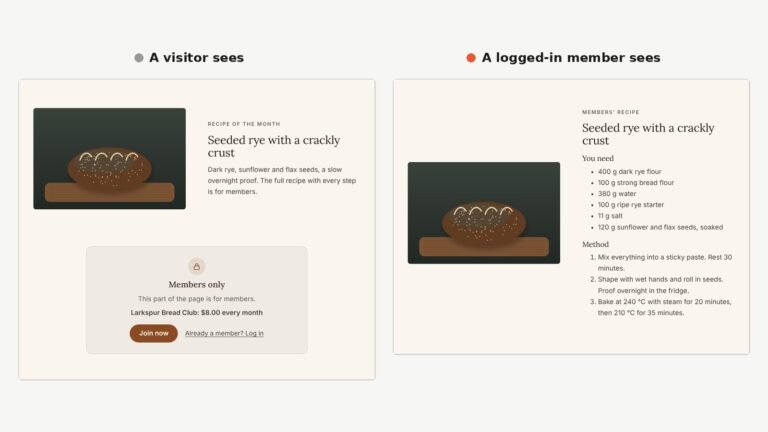
 Member Content Pro: Show Members-Only Content on Public Squarespace Pages with Native Member Sites$59
 Squarespace · PluginSquarespell Original
Browse by platform
View allBrowse by goal
View allBrowse by goal
Fresh inventory
Recently added
Member Content Pro: Show Members-Only Content on Public Squarespace Pages with Native Member Sites$59Squarespace · PluginSquarespell Original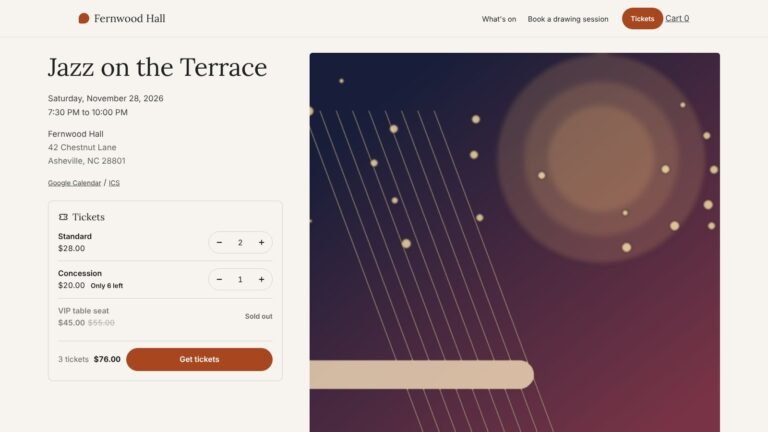 Event Tickets: Sell Tickets on Squarespace Event Pages with Ticket Types, Seats Left and Native Checkout$59Squarespace · PluginSquarespell Original
 Wholesale Order Pad: Squarespace Wholesale Order Form with Bulk Add to Cart, Order by SKU and Reorder$85Squarespace · PluginSquarespell Original
 Squarespace Summary Block Pro: More Than 30 Items, Load More and Pagination$49Squarespace · PluginSquarespell Original
 Squarespace Delivery Area Checker: Postcode and ZIP Code Checker Plugin$49Squarespace · PluginSquarespell Original
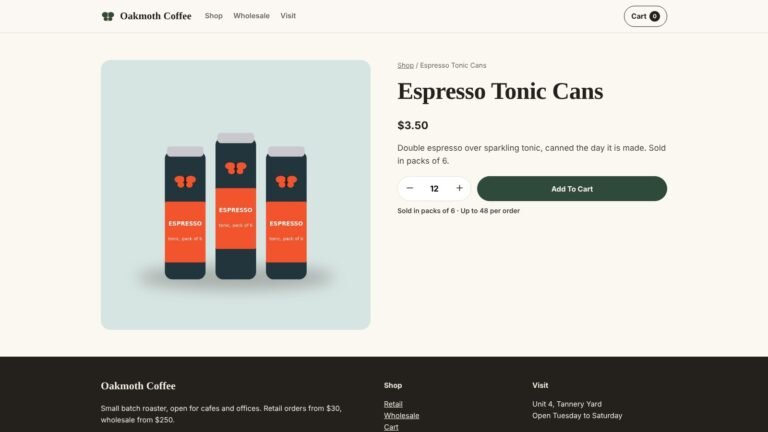 Order Rules: Squarespace Minimum Order, Quantity Limits and Pack Sizes Plugin$49Squarespace · PluginSquarespell Original
Search results
Matching products
Squarespace
On Squarespace 7.1 every template has the same features, so what matters is the layout you start from and the few plugins that fill your gaps. Pairings for five business types, with setup steps and prices.
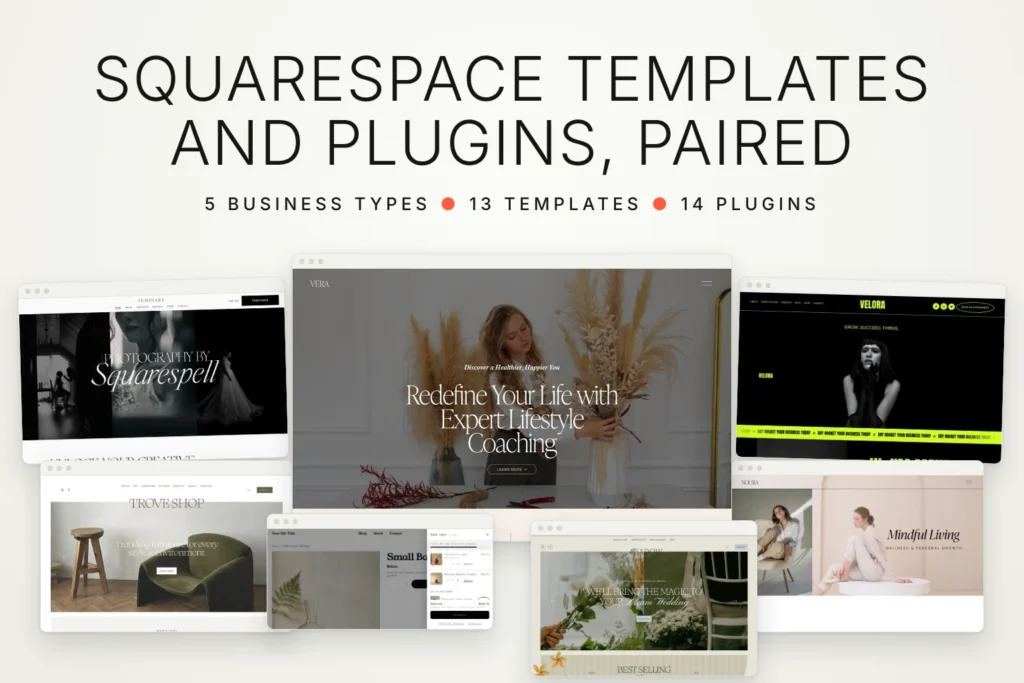
A note on how we make money. Squarespell makes and sells most of the plugins in this guide and six of the templates (Vera, Noura, Serene, Luminara, Velora and Horizon), so weigh that interest. The Go Live HQ templates are listed on Squarespell with affiliate links, and Squarespell may earn a commission if you buy through them. Neither fact decided which pairing we suggest for each business, and where Squarespace’s own features are enough we say so. Details are in our affiliate disclosure.
If you want the short version:
And the honest caveat before any of that matters: on version 7.1 you cannot switch templates later, according to Squarespace’s help centre, so choose the template for its page structure and photography, not for a feature. Features come from Squarespace itself or from a plugin you can add or remove at any time.
Last updated: 18 October 2026
Most advice about matching templates and plugins was written for Squarespace 7.0, where each template family really did have its own features. That is no longer how Squarespace works. Squarespace’s guide to how templates work says all version 7.1 sites belong to the same template family and have the same features and style options. A plugin that works on one 7.1 template works on all of them.
So the useful question has changed. It is no longer “will this plugin work with my template”, but “which starting design fits my business, and which few plugins fill the gaps Squarespace leaves for that kind of business”. A coach needs packages and proof. A shop needs a cart that does not send shoppers away and filters that cope with a growing range. A photographer needs projects people can sort.
This guide answers that for five business types. For each one we name the templates that fit, the plugins that fill the gaps, what each costs, and how to set each one up, step by step, from the instructions published on its listing or in its installation guide. Prices and plan requirements were read from the listings and Squarespace’s help centre on 18 October 2026. We did not install the templates or plugins for this article; the section on what we couldn’t verify says exactly what that means.
$99
$99
Three facts from Squarespace’s own documentation decide everything else in this guide.
A 7.1 template is a starting design, not a feature set. Squarespace’s template guide says you won’t change templates to gain new features or styles, because every 7.1 site has the same features and style options. What a template gives you is its pages, its section layouts, its fonts and colours, and the photography style it was designed around. That is still worth paying for: it is most of the design work.
You can’t swap the template later. Squarespace’s article on finding your site’s version and template answers “Can I switch templates on version 7.1?” with “No.” You change the look by editing fonts, colours and layouts instead. To check your version, open the Pages panel and scroll to the bottom: a 7.1 site shows a Version 7.1 label, and a 7.0 site shows its template’s name.
Plugins add code, and code needs the right plan. A Squarespace plugin is code you paste into your site. Squarespace’s code injection guide says Code Injection “is available in the Core, Plus, Advanced, and some legacy billing plans”, and that checkout pages don’t support code. Its code block guide says JavaScript or an iframe in a Code Block needs the Core, Plus or Advanced plan. Almost every plugin below uses one or both, so the Basic plan is the real constraint, not the template.
| Where the code goes | What it reaches | Plans that allow it | Plugins in this guide that use it |
|---|---|---|---|
| Code Injection, Footer | Every page of the site, before the closing body tag | Core, Plus, Advanced, some legacy plans | Filter Plugin, Mega Menu, Timeline, Cart Boost, Multi-Currency Converter, Estimated Delivery Date, and the script half of the logo, lightbox and summary carousels |
| Code Injection, Header | The head of every page | Same as Footer | Wishlist Plugin (one of its two pastes) |
| Code Block, set to HTML | One spot on one page | JavaScript needs Core, Plus or Advanced | Compare, Video Carousel, Animated Number Counter |
| Custom CSS | Styles across the site | Every plan, according to the plugin listings | The style half of the logo, lightbox and summary carousels |
Plan rules from Squarespace’s code injection and code block guides, read 18 October 2026. Where each plugin installs is taken from its listing or installation guide on the same date.
Two consequences follow. First, once you are on a plan with Code Injection, any template in this guide can take any plugin in it. Second, every plugin is extra code on every page it touches, so stack only what fills a real gap. Our guide to diagnosing a slow Squarespace site shows how to measure what each addition costs.
| Business | Templates that fit | Plugins that fill the gaps | Typical one-time cost |
|---|---|---|---|
| Coach or consultant | Vera, Noura, Serene ($99 each) | Compare, Scrolling Logo Carousel, Animated Number Counter ($25 each) | $99 template plus $50 to $75 of plugins |
| Photographer or creative | Luminara ($99), Rowan ($299) | Filter Plugin ($79), Video Lightbox ($25), Before/After Image Slider ($25) | $99 to $299 plus $85 to $135 |
| Agency or service business | Trove Agency, Signify ($299 each) | Mega Menu, Timeline Layouts ($25 each) | $299 plus $50 |
| Online shop | Trove Shop, Hunter, Meadow ($299 each) | Cart Boost ($39), Filter Plugin ($79), Wishlist ($25), Multi-Currency Converter ($85), Estimated Delivery Date ($25) | $299 plus $59 to $279 |
| Blogger, author or podcaster | Velora, Horizon ($99 each), Penny ($299) | Auto-Scrolling Summary Carousel, Video Carousel ($25 each) | $99 to $299 plus $25 to $50 |
Prices are single-site licences from each Squarespell listing, checked 18 October 2026. Go Live HQ templates show 10% off with the code SQUARESPELL10 on their listings that day. A Squarespace plan is always extra.
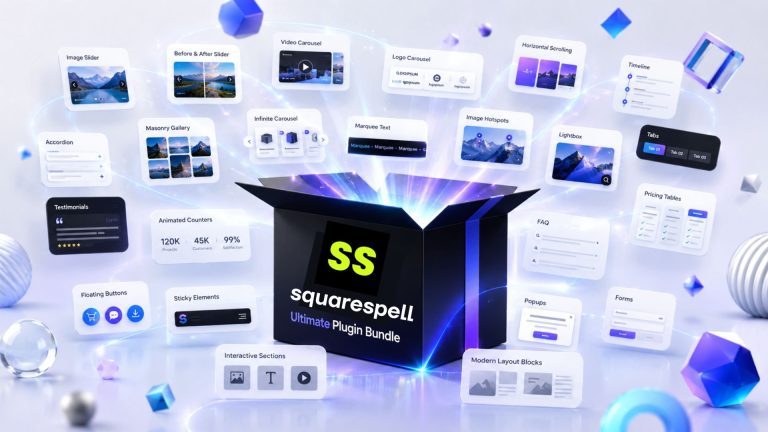
If you need more than four of these plugins: the Squarespell Ultimate Squarespace Plugin Bundle is listed at $179 for a single licence, and its listing says it includes every premium Squarespace plugin Squarespell sells. Compare that with the sum of the plugins you actually need before buying it.
A coaching site has three jobs: explain who you help, show proof, and make the next step (a call, a package, a programme) obvious. Squarespace covers the booking side well with Acuity Scheduling, which our booking plugin comparison covers in depth. The gaps are a clear way to compare packages, a credible way to show who you have worked with, and numbers that carry results.
Vera is a six-page design (Home, About, Services, Gallery, Blog, Contact) in a warm, neutral palette. Its listing says it suits coaches and consultants building a personal brand who sell one to one rather than through a shop, and who have lifestyle photography to lead with.
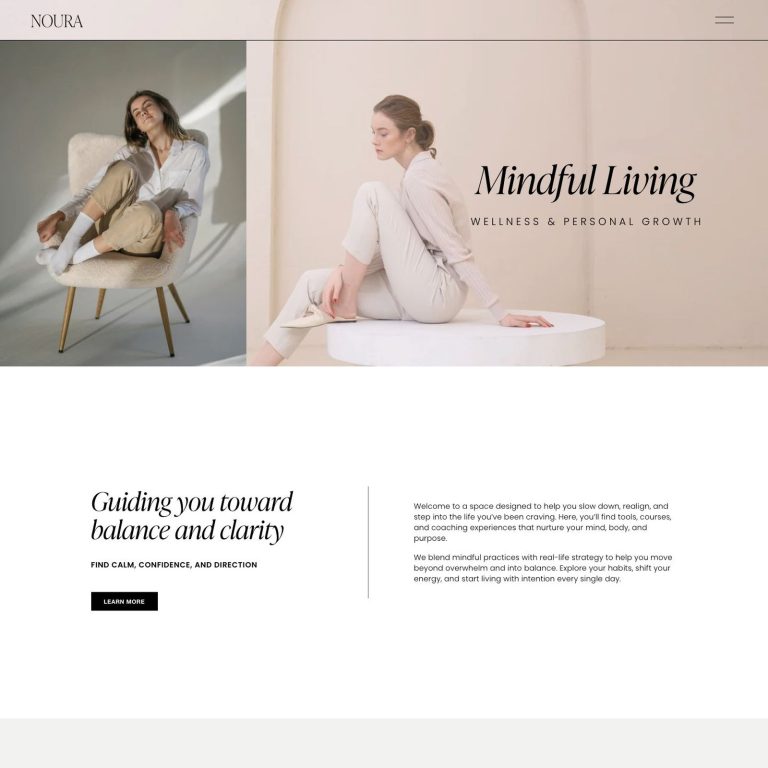
Noura is the calmer option: six pages for wellness coaches, therapists and holistic practitioners, where the listing says the design’s job is to lower the temperature. Pick it if your clients arrive anxious rather than ambitious.
Serene puts Shop first in the navigation, ahead of About and Services. Choose it only if digital products (a course, a workbook, a paid programme) lead your business; otherwise Vera or Noura fits better.
All three are installed into your own Squarespace account by Squarespell; the steps are in How to get a template into your account.
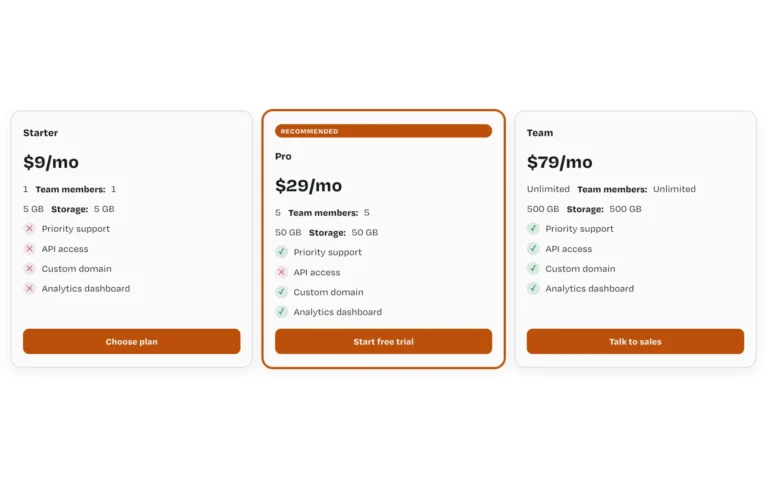
Compare ($25) builds pricing and package tables that sit in one Code Block. The listing names agencies, consultants presenting tiered service packages and membership sites among its intended users, and lists five styles (Minimal, Classic, Bold Dark, Cards and Gradient) plus a Shopper mode that reads products from a store page.
Set it up (from the Compare listing):
Our step-by-step guide to adding a pricing comparison table to Squarespace covers the free alternatives too.
The Scrolling Logo Carousel ($25) turns a Gallery block, Gallery Section or List section of client or press logos into a moving strip. It suits coaches with named clients, speakers with press mentions and consultants with partner logos.
Set it up (from the listing):
logos into Anchor Link.The listing notes the strip stops while you edit the page and moves in the preview and on the live site. Our scrolling logos guide has the full walkthrough.
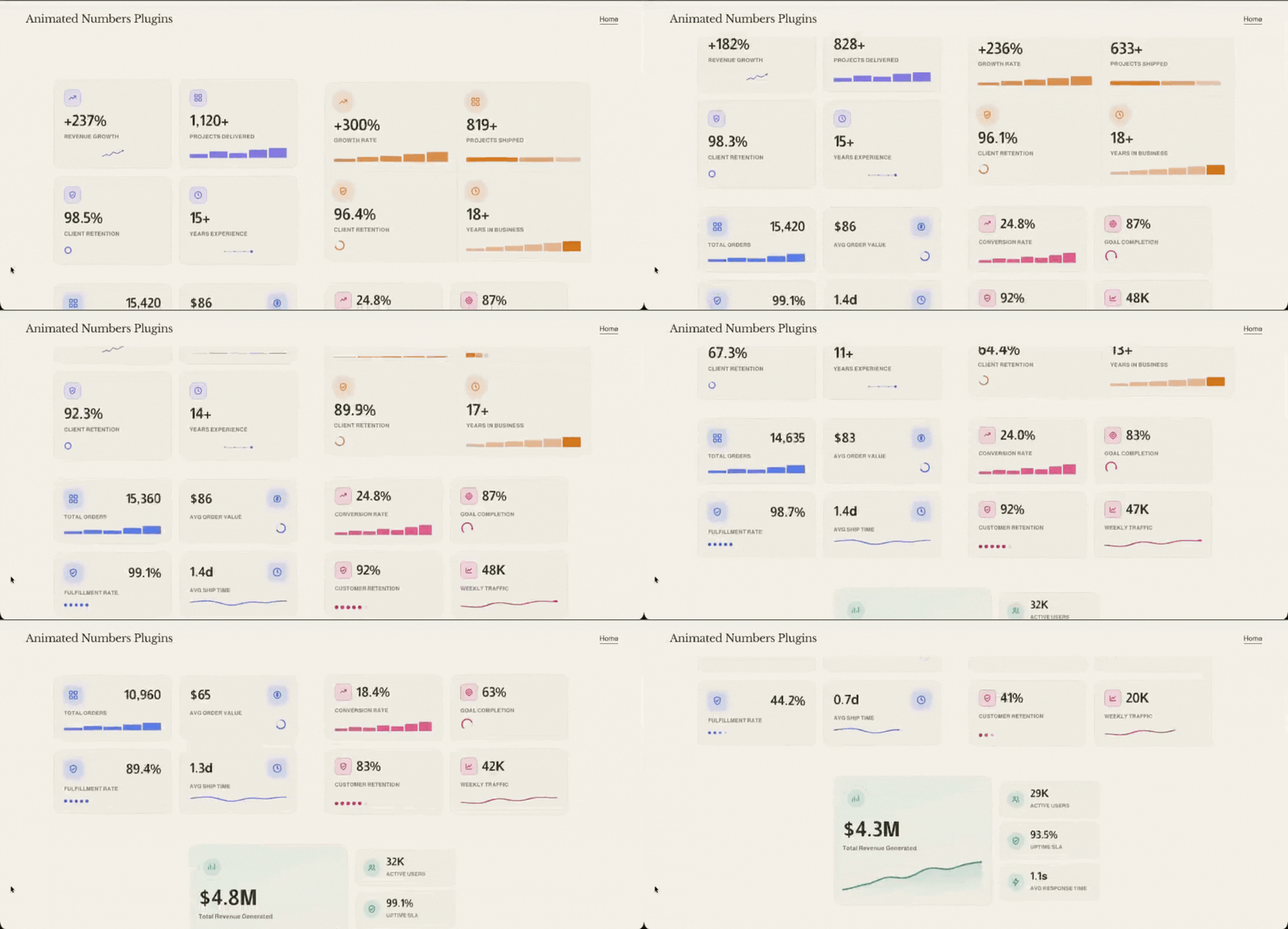
The Animated Number Counter Bundle ($25) ships five finished counter card designs (blue, pink, orange, teal and purple, according to the listing). It goes in a Code Block, the same delivery as the free counter snippet in our animated counter guide, so it needs a plan that runs JavaScript in Code Blocks.
Set it up:
Use real numbers only. A counter showing invented results does more damage than no counter.
$99
$99
Squarespace’s galleries are strong, so a photographer rarely needs a plugin to show images. The gaps appear as a portfolio grows: visitors can’t sort fifty projects by type, and video work sends people off to YouTube. Those are the two problems worth paying to solve.
Luminara is Squarespell’s photography template: six pages composed portfolio first, then services, then a store for prints or presets. It is installed into your account for you.
Rowan from Go Live HQ gives photographers a portfolio and a sales structure in eight pages. Its listing names photographers taking bookings, videographers with project stories and studios selling packages. It costs more ($299) and comes with Go Live HQ’s course and support.
The Squarespace Filter Plugin ($79) adds filters to store, blog, events and portfolio pages. For portfolios there is one honest limit in its listing: Squarespace portfolio projects carry no categories or tags, so the plugin reads tags from a Tags: line or hashtags in each project’s SEO description. Plan to add those before you install.
Set it up (from the listing):
The listing says it is for 7.1 only and that galleries, lists and summary blocks are filtered only in sections whose Anchor Link starts with filter.
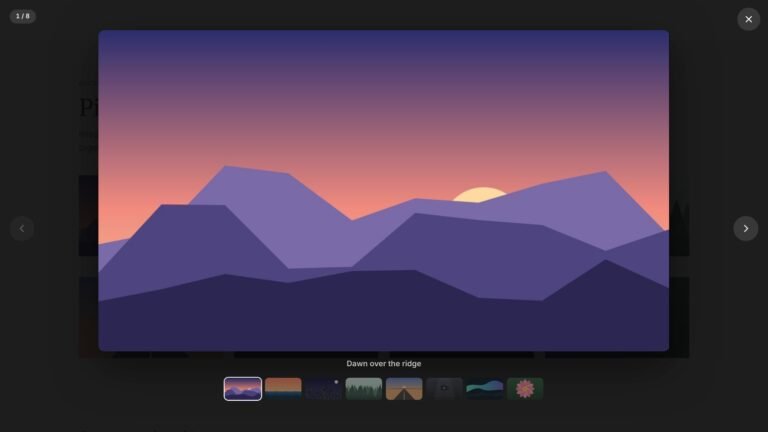
The Video Lightbox ($25) opens YouTube, Vimeo and Squarespace video links in a lightbox over the page, with a gallery for several videos. Its listing names filmmakers, video producers and photographers among its users.
Set it up (from the listing):
Our video lightbox guide also covers what Squarespace does on its own.
If your work is retouching, restoration or interiors, the Before/After Image Slider ($25) puts two images under one drag handle. Its installation steps are not published on its listing, so we can’t give them here; our before and after slider guide has free code with full steps if you would rather not buy it.
$99
 GoLiveHQSquarespace 7.1 · Template
An agency site sells on proof and on clarity. Visitors need to find the one service they came for among many, and they need to believe you have done it before. Squarespace’s standard dropdown menus get crowded once you list more than a handful of services, and it has no built-in way to show a process or history as a timeline.
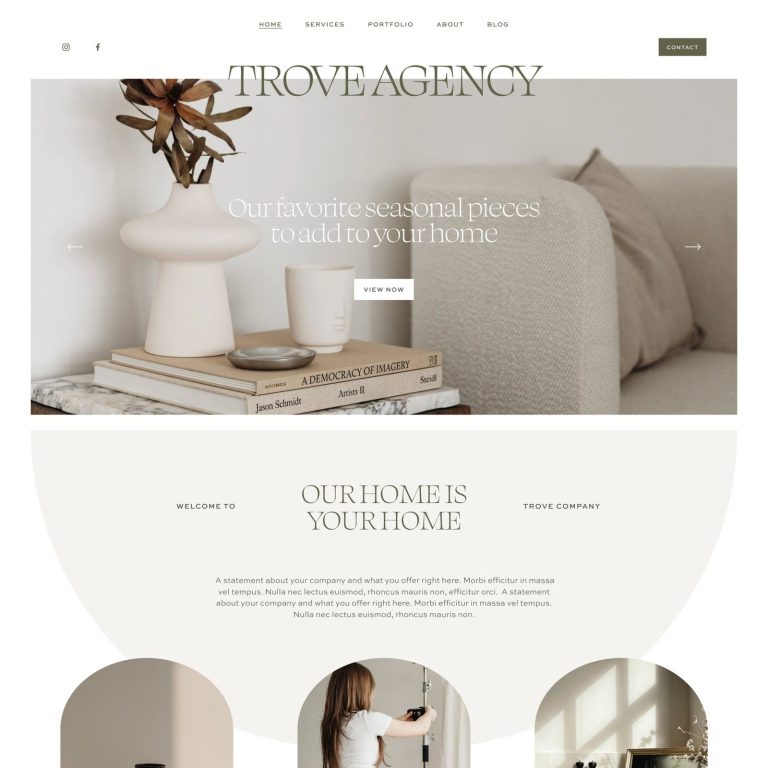
Trove Agency from Go Live HQ is built for agencies and service businesses where published work is the strongest argument; its listing advises against it for new businesses with no case studies. It ships with seven pages.
Signify, also from Go Live HQ, is arranged so a prospect meets your results before your price. The listing names digital marketing agencies, freelancers selling retainers and consultancies with case studies.
The Mega Menu ($25) opens your existing Squarespace dropdowns into full panels with columns, picture cards or a featured card. Its listing says it works on the main navigation in the header, and that a panel made from a Squarespace page should hold text, images and buttons, not forms.
Set it up (from the listing):
For the free route and other plugins, see how to add a mega menu to Squarespace 7.1.
Timeline Layouts ($25) turns a Squarespace List Section into a timeline: classic, rail, horizontal, steps or a roadmap with status labels. For an agency, the steps layout explains how a project runs; the classic layout tells your company’s story.
Set it up (from the listing):
timeline into Anchor Link.The listing says it reads List Section items only and was tested with the Simple List layout. Our timeline guide shows each layout.
GoLiveHQSquarespace 7.1 · TemplateGoLiveHQSquarespace 7.1 · TemplateSquarespace Commerce handles products, checkout and payments. The gaps that cost sales are on the way to checkout: the cart page that takes shoppers away from the product they were looking at, a long product list with no filters, prices shown only in your currency, and no answer to “when will it arrive”. Choose the plugins for the gaps your shop actually has.
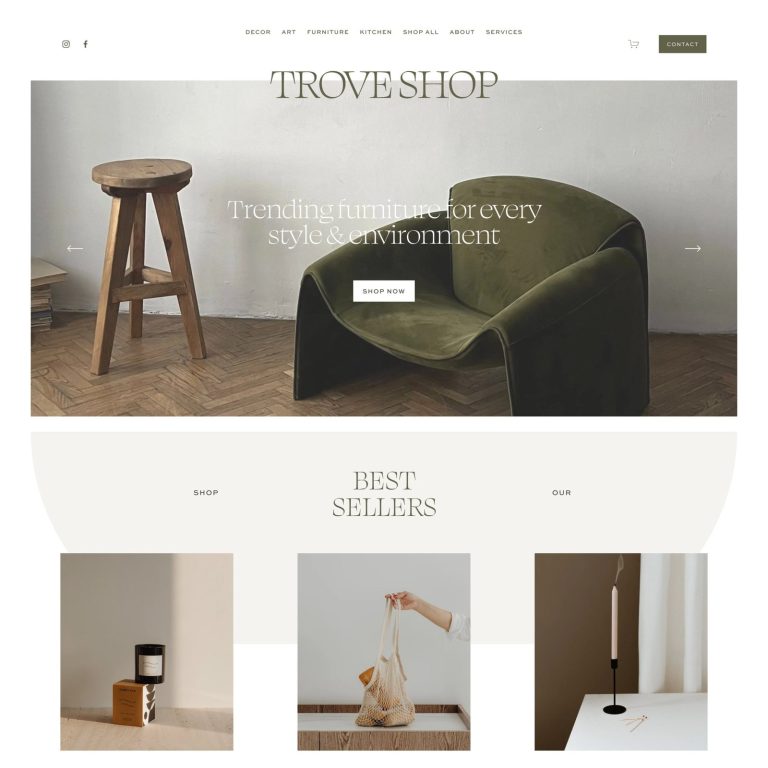
Trove Shop is Go Live HQ’s store template for brands where how the products look is the reason people buy. Its listing suits curated shops and makers with a small range and warns against large catalogues.
Hunter is for brands that sell products and also show the work behind them, such as makers who take commissions or studios with a product line.
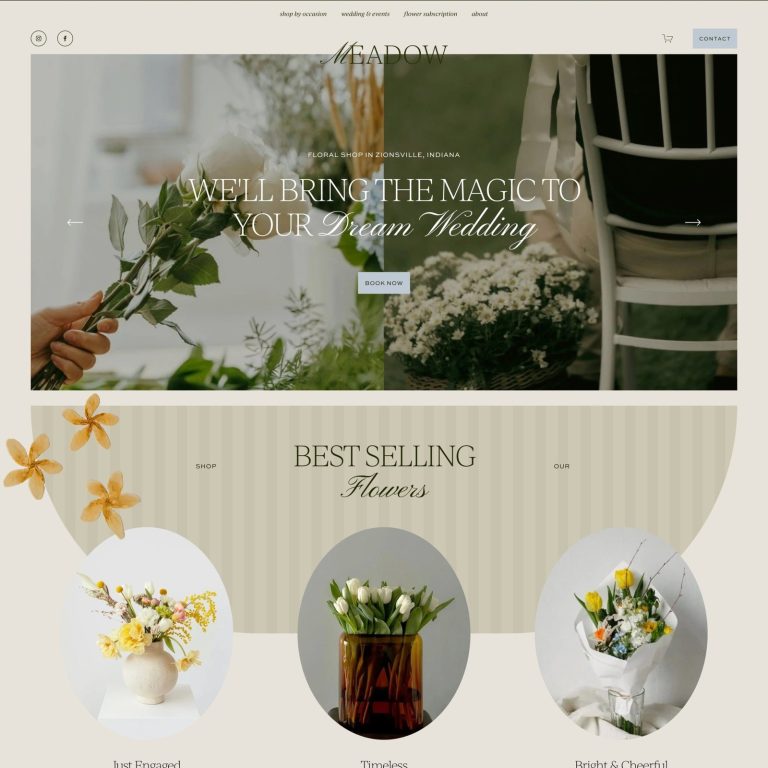
Meadow is built for florists, with a subscription sales page, and fits any small shop with a recurring offer.
Cart Boost ($39) opens the cart as a drawer beside the page after Add to Cart, with an optional free shipping progress bar and product suggestions. Its listing is clear about the limits: the bar shows progress only (free shipping still has to be set up in Squarespace), suggestions don’t change prices, and if Squarespace’s “Skip cart page” setting is on, the drawer won’t open after an add.
Set it up (from the listing):
The full walkthrough is in how to add a slide-out cart to Squarespace.
The same Filter Plugin ($79) from the photographers’ section filters store pages by options such as colour, size, price and availability. Once a shop passes a few dozen products, filters do more for browsing than any design change. Setup is the same three steps: choose settings in the builder, copy the code, paste it into Code Injection, Footer.
If you are deciding between this and Squarespace’s own tools, read Squarespace shop filters versus category tags.
The Wishlist Plugin ($25) adds a heart icon to product cards and product pages, with saved items shown in a side drawer or a bottom bar. It suits shops where people browse several times before buying, such as jewellery or homeware.
Set it up (from our wishlist guide, which follows the plugin’s instructions):
The Multi-Currency Converter ($85) adds a currency switcher and converts displayed prices. Its listing states the limit plainly: checkout, order emails and invoices stay in your Squarespace currency, and converted prices are estimates at current exchange rates. It suits shops with real international traffic, not every shop.
Set it up (from the listing):
The Estimated Delivery Date Plugin ($25) shows a line such as “Order today and receive between” two dates on product pages, worked out from processing time, shipping time, cut-off time, working days and holidays.
Set it up (from our estimated delivery date guide):
GoLiveHQSquarespace 7.1 · TemplateGoLiveHQSquarespace 7.1 · TemplateGoLiveHQSquarespace 7.1 · TemplateSquarespace’s blog is solid for writing and publishing. What content sites usually want is movement and reach on the pages that list their work: posts or products that scroll on their own, and a tidy way to show many videos without embedding each one by hand.
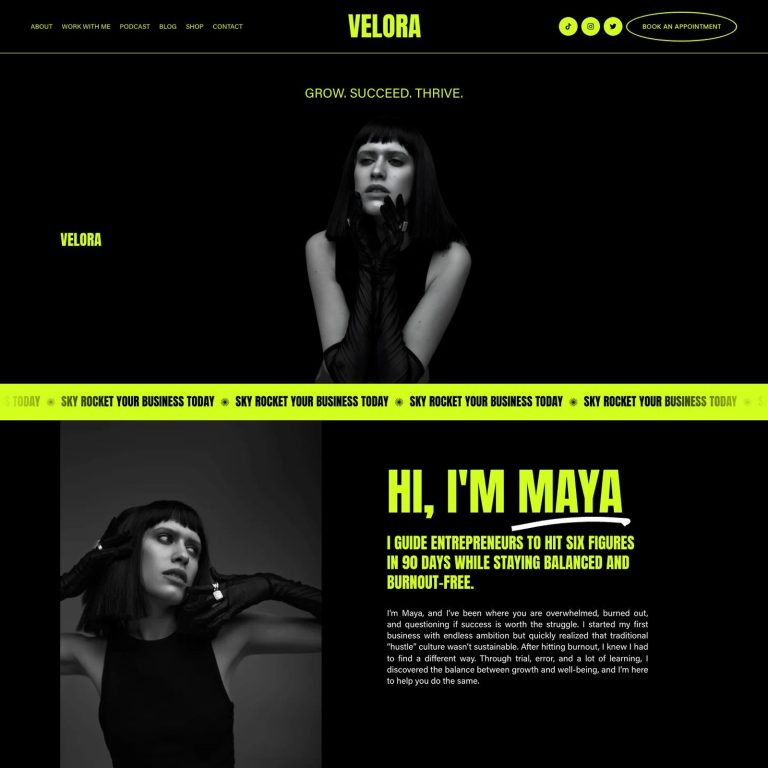
Velora is Squarespell’s template for authors and podcasters, with a podcast page and a shop as standard across seven pages; its listing notes that an author’s income rarely comes from one place.
Horizon is the lightest Squarespell template: five pages for a lifestyle or travel blog that is also a business.
Penny from Go Live HQ is content-led, with nine pages for bloggers who also sell a service, virtual assistants and marketers whose writing is how clients find them.
The Auto-Scrolling Summary Carousel ($25) makes a Squarespace Summary block of blog posts, products, events or videos scroll on its own, as a smooth strip or one item at a time, with a pause button. Squarespace’s own Summary carousel has arrows only.
Set it up (from the v6.0.0 installation guide, as published in our summary carousel guide):
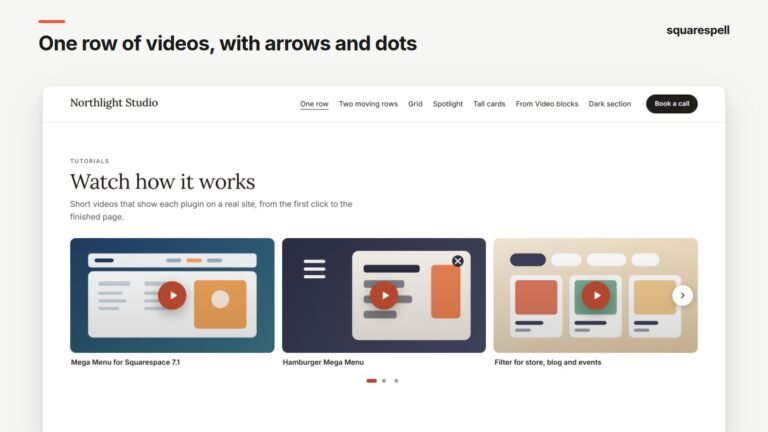
The Video Carousel ($25) shows YouTube uploads, a playlist or uploaded videos in a row, two moving rows, a grid or a spotlight layout. Its listing says your plan must allow JavaScript in Code Blocks.
Set it up (from the listing):
The listing warns that while you are logged in and editing, Squarespace shows “Embedded scripts are disabled” in place of the carousel; open the page in a private window to see it as visitors do. More options are in how to add a video carousel to Squarespace 7.1.
$99
$99
GoLiveHQSquarespace 7.1 · TemplateThird-party Squarespace templates are not files you upload. The two sellers in this guide deliver them in two different ways, and both need a Squarespace account that you pay for separately.
Each Squarespell template listing (Vera, Noura, Serene, Luminara, Velora and Horizon) answers “How is it delivered?” the same way: “We install it. Within 24 hours of purchase we build the full site inside your own Squarespace account.” The listing adds that Squarespell needs access to that account to carry out the installation.
Squarespace limits contributors by plan: its help article says the Basic plan allows one contributor besides the owner, and Core, Plus and Advanced allow unlimited contributors.
Each Go Live HQ listing in this guide says the template is “Delivered as a new Squarespace site by contributor invite, normally within 24 hours”, and lists a six-month extended Squarespace trial and 20% off the first year of an annual Squarespace subscription for template buyers.
If a site ever needs to change hands, Squarespace’s change the site owner article says only the current owner can transfer it, after inviting the new owner as a contributor: open Permissions & Ownership, click your name under Owner, click Transfer Ownership, verify your account, choose the new owner, then Continue and Confirm.
Every Squarespell plugin in this guide installs the same way at heart: you choose settings in a builder file that opens in your browser, copy the code it produces, and paste it into one or two places in Squarespace. You never edit code by hand. What changes from plugin to plugin is where the code goes.
Squarespace’s steps for code injection are short. Open the Code Injection panel (Pages, Custom Code, Code Injection on current accounts; Website Tools on some), add the code to the field that matches where it should run, and click Save. The Footer field is injected before the closing body tag on every page. If the Footer box already holds code, click at the very end, press Return and paste below it, so you don’t overwrite another plugin.
The logo carousel, video lightbox and summary carousel split their code in two: the style half goes at the end of Custom CSS, and the script half goes at the end of the Code Injection Footer. Their listings point out that Custom CSS has an Open in new window button for a bigger box.
Compare, the Video Carousel and the counter bundle go in a Code Block. Squarespace’s steps: edit the page, hover over the section and click Add Block, choose Code, open the block editor and paste. To run JavaScript, set the block to HTML; Squarespace says scripts or iframes in a Code Block need the Core, Plus or Advanced plan, and a Code Block holds up to 400 KB.
If you build client sites, Squarespell’s affiliate program pays 20% on referred plugin, template and bundle purchases, with a 60-day window, according to its page on 18 October 2026.
Because every 7.1 template shares the same structure, most problems come from where the code went, the plan, or another piece of code, not from the template itself.
| What you see | Likely cause | What to do |
|---|---|---|
| Nothing happens after pasting | The code went into the wrong box, or the plan has no Code Injection | Check the listing for Footer, Header, Custom CSS or Code Block, and check your plan is Core or above |
| “Embedded scripts are disabled” in the editor | Squarespace hides some scripts while you are logged in | Open the page in a private window or log out to check |
| Code Block content doesn’t show | The page sits inside an index page, or Ajax loading is on | Squarespace’s code block guide suggests testing outside the index page, then turning off Ajax loading |
| A plugin stopped working after adding another | The second paste overwrote the first in the Footer box | Paste each plugin on a new line at the end of the box, never over existing code |
| You can’t edit the page any more | A script is interfering with the editor | Squarespace’s guides describe disabling scripts in preview, then editing or removing the code |
| Nothing shows on checkout | Squarespace checkout pages don’t run custom code | Expected. Currency and cart plugins stop at checkout by design |
| The plugin works on 7.1 but not on your site | The site is on version 7.0 | Check the Pages panel label; these plugins don’t support 7.0 |
Causes and fixes from Squarespace’s code injection and code block guides and the plugin listings, read 18 October 2026.
Squarespace’s guides say its support team can’t help with custom code. For Squarespell plugins, each listing gives support by email at info@squarespell.com.
Publishing the gaps is part of the method, not an afterthought.
We didn’t install the templates or plugins for this article. Descriptions, setup steps and limits come from each product’s Squarespell listing, its installation guide where we have published one, and Squarespace’s help centre, all read on 18 October 2026. Each listing shows its own verification status; most templates say “Listing checked”, which means the creator, page, platform and price were checked, not that the product was installed.
The Before/After Image Slider’s setup steps aren’t published. Its listing has no installation steps, so this guide links to free code instead of guessing them.
We didn’t open the Go Live HQ demos. Their demo links use a site password, so the images here are captures of the Squarespell listings, which show the designs.
The counter bundle’s own instructions weren’t available to us. Its listing and our counter guide say it is pasted into a Code Block, which is what the steps above cover; follow the instructions in the download for anything design specific.
We didn’t measure speed. Every plugin adds code, but we have not timed any of these pairings. Measure your own pages before and after.
Prices change. All prices are single-site licences read on 18 October 2026. The Go Live HQ discount code and the Squarespace trial and discount offers are as their listings showed that day.
How this article was made. It was researched and written with AI assistance from the sources named in each section, then checked against those pages. Old claims from the earlier version of this post, including percentage gains that had no source, were removed.
Do plugins work with every Squarespace template? On version 7.1, yes in principle, because Squarespace says every 7.1 site has the same features and style options. A plugin built for 7.1 relies on Squarespace’s shared structure, not on a particular template. What can stop a plugin is your plan (Code Injection needs Core or above), your site version (7.0 is not supported by the plugins here), or a clash with another piece of code.
Can I change my Squarespace template after adding plugins? Not on version 7.1. Squarespace’s help centre says you can’t switch templates on 7.1; you change the look with fonts, colours and layouts instead. Your plugins stay where they are while you restyle, because they are in Code Injection, Custom CSS or Code Blocks, not in the template.
Which Squarespace plan do I need for plugins? For most plugins, a plan with Code Injection: Squarespace lists Core, Plus, Advanced and some legacy plans. Plugins that run JavaScript in a Code Block, such as the Video Carousel, also need Core, Plus or Advanced. On the Basic plan, check each listing before you buy.
How many plugins is too many? There is no fixed number, but each one adds code to the pages it touches. Start with the one that fixes your biggest gap, check the page speed and the phone layout, then add the next. For most of the business types above, two to four plugins cover the real gaps.
Are third-party Squarespace templates better than Squarespace’s free ones? Not in features: on 7.1 they have exactly the same features. What you pay for is a finished design composed for one kind of business, with its pages already written as a structure, and with these sellers the setup done for you. If a free Squarespace template already fits your pages and photography, it is a sound choice and you can still add every plugin here.
Do I need to know code to install these plugins? No. Each Squarespell plugin here produces its code from a builder file, and you paste it into the box its listing names. You never edit the code itself. The only Squarespace setting you sometimes change is a section’s Anchor Link, which is a text field.
Will these plugins work on Squarespace 7.0? The plugin listings in this guide say they are built for 7.1 and that 7.0 templates are not supported. Check your version at the bottom of the Pages panel. Squarespace has an update tool for moving a 7.0 site to 7.1.
Is the plugin bundle worth it? Only if you will use several of the plugins. The bundle is listed at $179 for one site, and its listing says it includes every premium Squarespace plugin Squarespell sells. A shop using Cart Boost, the Filter Plugin and the Multi-Currency Converter would spend $229 buying them one by one; a coach using two $25 plugins would not save anything.
Check two things before anything else: the label at the bottom of your Pages panel (it should say Version 7.1) and your plan (Core or above for most plugins). Then pick the template for the pages your business needs, because that choice is permanent on 7.1, and add the one plugin that fixes your biggest gap. Live with it for a week before adding the next.
For more templates by business type, see the best Squarespace templates in 2026. For plugins grouped by the job they do, see the best Squarespace plugins, ranked by the job they do.
Reviewed and last updated 18 October 2026. All prices checked on that date.

We reviewed every premium Squarespace template in the Squarespell catalogue and shortlisted 36. Prices, page structures, honest limitations and who each one suits.
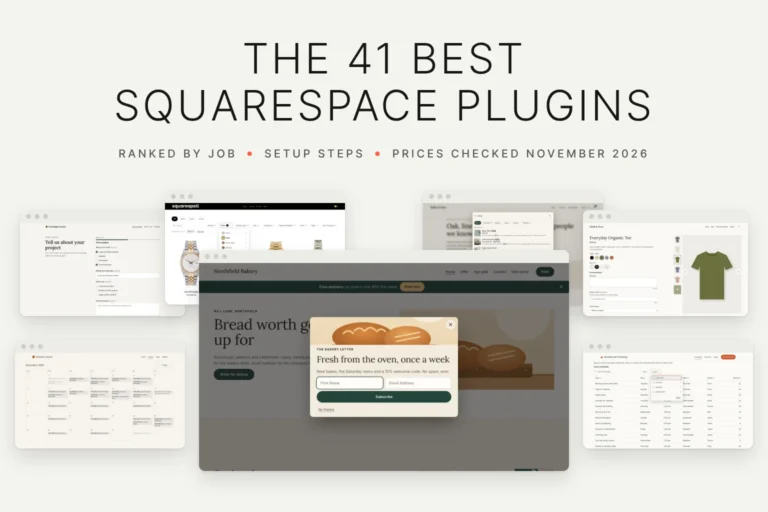
Squarespell’s 41 Squarespace plugins ranked by the gap each one fills, with current prices, plan requirements, setup steps and screenshots, plus the other makers’ plugins worth knowing.

A step-by-step way to choose a Squarespace 7.1 template for your business: start from the job your site must do, check the plan, test the phone layout, then pick one of five routes from free to done for you.
Squarespell All Access
All 48 plugins and every new one, worth $2,044 bought one by one. 14 days free, cancel anytime.
Start 14 days freeOr start free with 13 plugins, no cardFounding price until 1 December, kept for as long as you stay.