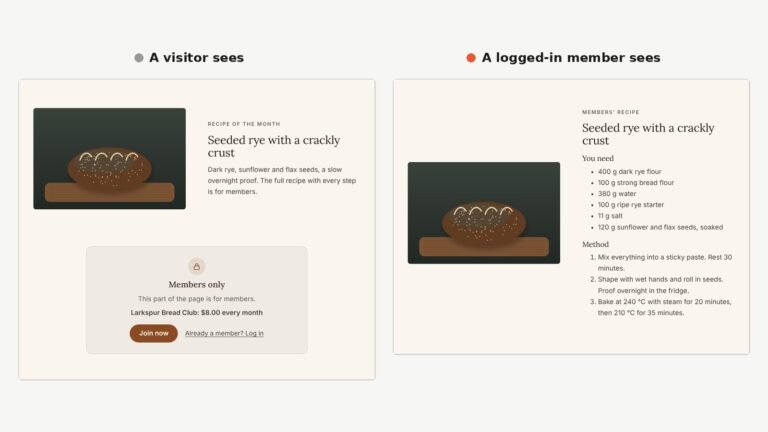
 Member Content Pro: Show Members-Only Content on Public Squarespace Pages with Native Member Sites$59
 Squarespace · PluginSquarespell Original
Browse by platform
View allBrowse by goal
View allBrowse by goal
Fresh inventory
Recently added
Member Content Pro: Show Members-Only Content on Public Squarespace Pages with Native Member Sites$59Squarespace · PluginSquarespell Original Event Tickets: Sell Tickets on Squarespace Event Pages with Ticket Types, Seats Left and Native Checkout$59Squarespace · PluginSquarespell Original
 Wholesale Order Pad: Squarespace Wholesale Order Form with Bulk Add to Cart, Order by SKU and Reorder$85Squarespace · PluginSquarespell Original
 Squarespace Summary Block Pro: More Than 30 Items, Load More and Pagination$49Squarespace · PluginSquarespell Original
 Squarespace Delivery Area Checker: Postcode and ZIP Code Checker Plugin$49Squarespace · PluginSquarespell Original
 Order Rules: Squarespace Minimum Order, Quantity Limits and Pack Sizes Plugin$49Squarespace · PluginSquarespell Original
Search results
Matching products
Squarespace 7.1 plugin
Turn any List Section into a timeline: a company history, a career path, a step by step process or a product roadmap.
Price: $25
Instant download · Sold by Squarespell
Bundle & save
Automatically applied at checkout on Squarespell plugins.
Requires Squarespace 7.1 and a plan with Code Injection.
Squarespace has no timeline block, so most timelines are built by hand from text blocks, lines and spacers that fall apart on phones. This plugin reads the items you already have in a List Section (title, description, image and button) and shows them as a timeline with dates, a connecting line and a layout made for phones. You keep editing the content the normal Squarespace way.
Good to know: Built for Squarespace 7.1 List Sections. Squarespace 7.0 templates are not supported.
Write the date first and the title after it, separated by a vertical bar: `2019 | We open a studio`. A dash, a slash or a colon works too, as in `2019 – We open a studio` or `Q3 2026: Mobile app`. The date can be a year, a quarter, a month or a range like `2016 to 2019`.
Titles, descriptions, images and item buttons all come from the List Section. Links and formatting in descriptions are kept, and so are your section title and the section button, which stays below the timeline.
Every layout has its own phone version. Classic, Rail and Steps become one column with the line on the left. The Roadmap stacks from top to bottom on small screens. The Horizontal track stays swipeable, with previous and next buttons large enough to tap. The timeline keeps your site's side margins, and the page never scrolls sideways.

To change the timeline later, edit the List Section: add an item, change a date in a title, drag items into a new order. The timeline rebuilds on its own, including while you are in the Squarespace editor.
One paste covers every timeline on your site.
Classic
A centre line with cards on both sides and large dates. Good for company history and "our story" pages. Cards can also sit all on the right or all on the left.
Rail
Dates in a narrow column on the left, the line next to them and compact rows with a small image. Good for a CV, an experience section, awards or a list of past events.
Horizontal
Items side by side on a track that visitors swipe or drag, with previous and next buttons and a progress bar. Good for "ten years in six moments" style sections where vertical space is short.
Steps
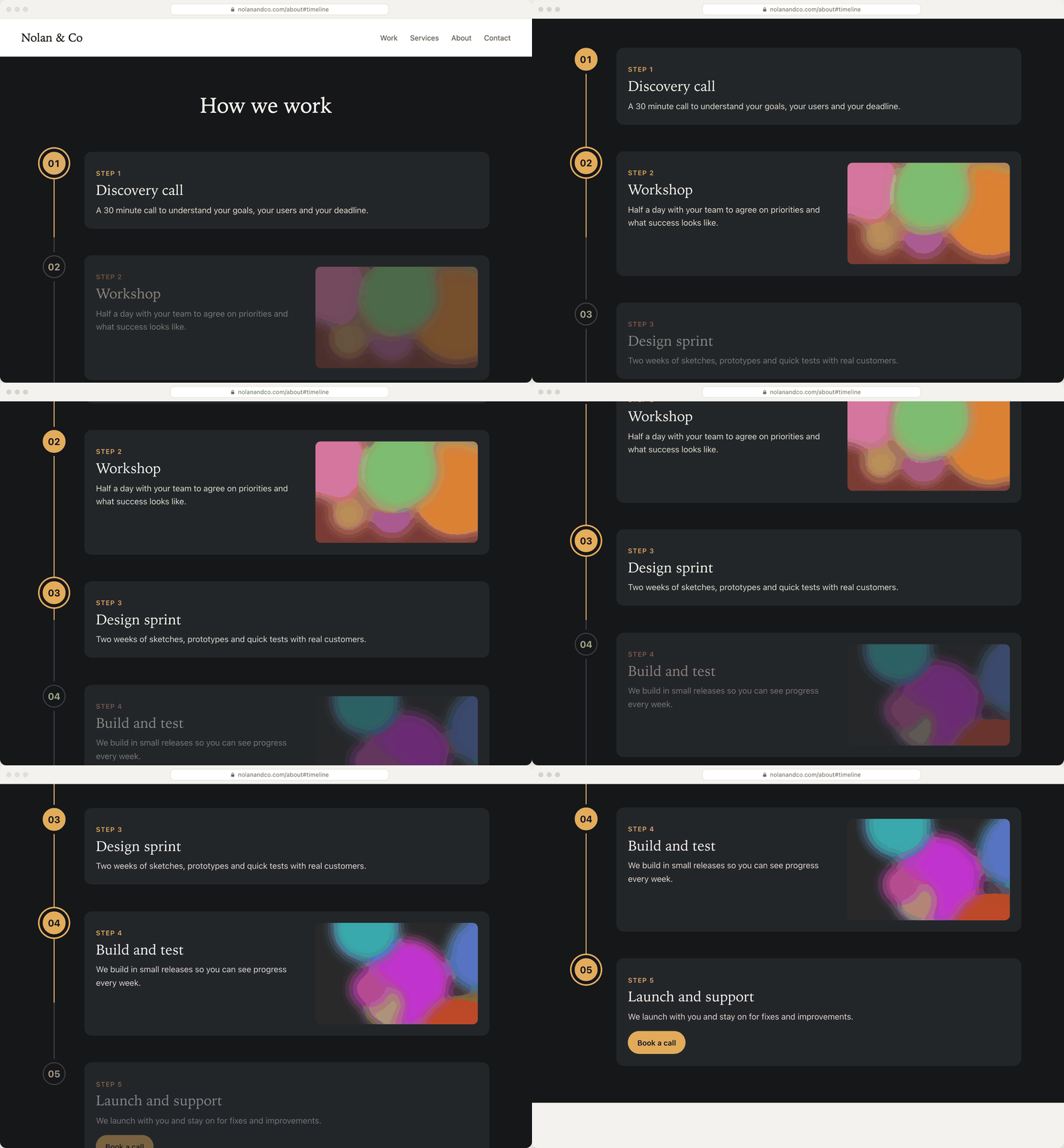
A numbered process, 01, 02, 03, where the current step lights up as the visitor scrolls and the steps below are shown lighter until they are reached. Good for "how we work", onboarding and client journey pages.
Roadmap
A timeline with status labels. Add `[done]`, `[now]` or `[next]` to an item title and it gets a Done, In progress or Planned badge, and the line fills up to where you are now. Good for product roadmaps, project milestones and build updates.
Give a List Section the Anchor Link timeline and it becomes a timeline.
Squarespace has no timeline block, so most timelines are built by hand from text blocks, lines and spacers that fall apart on phones. This plugin reads the items you already have in a List Section (title, description, image and button) and shows them as a timeline with dates, a connecting line and a layout made for phones. You keep editing the content the normal Squarespace way.
View the live demo (password: demo)
Most Squarespace timelines start the same way. Someone draws a line with a divider block, places dates in text blocks, lines everything up in Fluid Engine, and then opens the page on a phone. The line no longer meets the dates, the cards overlap, and adding one more year means moving every block below it.
The List Section is a much better home for this kind of content. Each item already has a title, a description, an image and an optional button, and adding, removing or reordering items takes a few clicks. What it lacks is a timeline layout.
Timeline Layouts adds five of them. Give a List Section the Anchor Link `timeline` and it becomes a timeline. Write a date at the start of each item title, like `2019 | We open a studio`, and the date moves out of the title and next to the line. The line is drawn from where your items actually are on the page, so it always runs through the markers, however long each description is.
You pick the layout and the look in a visual builder, and a preview shows a sample page running the exact code you are about to copy. Then you paste one block of code into Code Injection and save. There is no code to edit, and other List Sections on your site are not changed.
Classic. A centre line with cards on both sides and large dates. Good for company history and "our story" pages. Cards can also sit all on the right or all on the left.
Rail. Dates in a narrow column on the left, the line next to them and compact rows with a small image. Good for a CV, an experience section, awards or a list of past events.
Horizontal. Items side by side on a track that visitors swipe or drag, with previous and next buttons and a progress bar. Good for "ten years in six moments" style sections where vertical space is short.
Steps. A numbered process, 01, 02, 03, where the current step lights up as the visitor scrolls and the steps below are shown lighter until they are reached. Good for "how we work", onboarding and client journey pages.
Roadmap. A timeline with status labels. Add `[done]`, `[now]` or `[next]` to an item title and it gets a Done, In progress or Planned badge, and the line fills up to where you are now. Good for product roadmaps, project milestones and build updates.
One paste covers every timeline on your site. The Anchor Link `timeline` uses the layout you chose in the builder, and adding the layout name picks a different one for that section: `timeline-classic`, `timeline-rail`, `timeline-horizontal`, `timeline-steps` or `timeline-roadmap`. So an About page can have a Classic company history, a Steps section for your process and a Roadmap further down, all from the same code.
The builder lists these Anchor Link names with a Copy button next to each, so you do not have to type them.
Write the date first and the title after it, separated by a vertical bar: `2019 | We open a studio`. A dash, a slash or a colon works too, as in `2019 – We open a studio` or `Q3 2026: Mobile app`. The date can be a year, a quarter, a month or a range like `2016 to 2019`.
If your items have no dates, the builder can number them 01, 02, 03 in the order of your List Section, or leave the dates out.
Titles, descriptions, images and item buttons all come from the List Section. Links and formatting in descriptions are kept, and so are your section title and the section button, which stays below the timeline.
To change the timeline later, edit the List Section: add an item, change a date in a title, drag items into a new order. The timeline rebuilds on its own, including while you are in the Squarespace editor.
Colors and fonts come from the section the timeline sits in, so it looks at home on light and dark sections. By default the accent color follows your site's primary button color. You can also set your own hex color.
In the builder you can change:
As visitors scroll, the line fills and each marker lights up when its item is reached. Items can rise in, fade in or appear without animation. Visitors who turn off animations in their device settings see the whole timeline without motion.
Every layout has its own phone version. Classic, Rail and Steps become one column with the line on the left. The Roadmap stacks from top to bottom on small screens. The Horizontal track stays swipeable, with previous and next buttons large enough to tap. The timeline keeps your site's side margins, and the page never scrolls sideways.
Open the builder file, pick a layout and your settings. The preview updates as you go.
Click Copy code.
In Squarespace, open Pages, scroll down to Custom Code (called Website Tools on some accounts) and click Code Injection.
Paste into the Footer box and click Save.
Open the page with your List Section, click Edit Section, then Format, and type `timeline` into Anchor Link.
There is no code to edit. The PDF guide included with the plugin walks through every step with screenshots.
Squarespace 7.0 templates are not supported, and content placed in separate blocks is not turned into a timeline.
Answers to common questions about how the plugin works.
No. Squarespace 7.1 has no timeline section or block. The List Section offers Simple List, Carousel and Banner Slideshow layouts, so timelines are usually built by hand from text and line blocks, or with custom code. This plugin adds timeline layouts to the List Section.
Add a List Section with one item per moment in your timeline. Paste the code from the builder into Code Injection, Footer, then give the List Section the Anchor Link `timeline` under Edit Section, Format. The PDF guide shows each step with screenshots.
Yes. Classic, Rail and Steps are vertical, Horizontal is a swipeable track, and the Roadmap runs left to right on desktop and top to bottom on phones. You can use different layouts on different sections from the same code.
Yes. Give each List Section its own Anchor Link, such as `timeline-classic` and `timeline-steps`. One paste in Code Injection covers all of them.
Put the date at the start of the item title, followed by a vertical bar: `2019 | We open a studio`. The date is shown next to the line and the rest becomes the title. You can also number the items automatically or show no dates.
Yes. The timeline uses the image you add to each List Section item. You can choose rounded, square or circle corners, or hide the images for a text-only timeline.
Each layout has its own phone version. Most become a single column with the line on the left, and the Horizontal track stays swipeable with buttons you can tap. Nothing scrolls sideways off the page.
Yes. Colors and fonts come from the section's theme, and cards stay readable on dark backgrounds. The builder preview lets you check a light and a dark section before you copy the code.
Yes. Choose the Roadmap layout and add `[done]`, `[now]` or `[next]` anywhere in an item title. The tag is removed and shown as a badge, and you can change the badge wording in the builder.
No. You choose everything in the builder, click Copy code and paste it into Code Injection. To change something later, copy new code from the builder and replace the old one.
No. Only List Sections whose Anchor Link is `timeline` or starts with `timeline-` become timelines. Every other List Section stays as it is.
One that includes Code Injection: Core, Plus or Advanced. It is built for Squarespace 7.1.
It is one script of about 34 KB with no libraries and no requests to other servers. It only works on the sections you mark with the Anchor Link.
No reviews yet. Share your experience.
Sign in to write a review We will bring you straight back here.
Timeline Layouts for Squarespace List Sections · Single License
Squarespell All Access
All 48 plugins and every new one, worth $2,044 bought one by one. 14 days free, cancel anytime.
Start 14 days freeOr start free with 13 plugins, no cardFounding price until 1 December, kept for as long as you stay.