 Member Content Pro: Show Members-Only Content on Public Squarespace Pages with Native Member Sites$59
 Squarespace · PluginSquarespell Original
Browse by platform
View allBrowse by goal
View allBrowse by goal
Fresh inventory
Recently added
Member Content Pro: Show Members-Only Content on Public Squarespace Pages with Native Member Sites$59Squarespace · PluginSquarespell Original Event Tickets: Sell Tickets on Squarespace Event Pages with Ticket Types, Seats Left and Native Checkout$59Squarespace · PluginSquarespell Original
 Wholesale Order Pad: Squarespace Wholesale Order Form with Bulk Add to Cart, Order by SKU and Reorder$85Squarespace · PluginSquarespell Original
 Squarespace Summary Block Pro: More Than 30 Items, Load More and Pagination$49Squarespace · PluginSquarespell Original
 Squarespace Delivery Area Checker: Postcode and ZIP Code Checker Plugin$49Squarespace · PluginSquarespell Original
 Order Rules: Squarespace Minimum Order, Quantity Limits and Pack Sizes Plugin$49Squarespace · PluginSquarespell Original
Search results
Matching products
Squarespace
Two ways to put a quiz on Squarespace: the one-time Interactive Quiz plugin, with its full 14-step setup, or Squarespell Quiz, a hosted app with AI drafting, a lead dashboard and follow-up emails. Prices checked 12 October 2026.

A note on how we make money. Squarespell makes both options in this guide: the Interactive Quiz plugin, sold here on squarespell.com, and Squarespell Quiz, a separate hosted quiz app with its own website. So weigh that interest. We describe both with the same criteria, say plainly where each one falls short, and do not push one to sell the other. Two third-party quiz widgets near the end are Common Ninja listings with affiliate links, and Squarespell may earn a commission if you buy through them. Details are in our affiliate disclosure.
If you want the short version:
And the honest caveat before any of that matters: both routes run your own code on Squarespace, and JavaScript in a Code Block needs the Core, Plus, Advanced, Business, Commerce Basic or Commerce Advanced plan. On the Personal plan, neither will run.
Last updated: 12 October 2026
Quizzes are one of the most requested things on Squarespace: a “which package is right for me” finder for a service business, a product recommendation quiz for a shop, a “what type are you” quiz for a coach, a short knowledge check after a lesson. Squarespace itself has no quiz feature, which is why this guide exists.
This page used to cover only the first version of our quiz plugin. Two things changed. Version 4.0.0 of the plugin went live on 12 October 2026 with a new builder, four quiz kinds and leads that land in your own Squarespace form. And Squarespell now runs a second, separate quiz product, Squarespell Quiz, built for people who want the quiz, the lead list and the follow-up emails in one hosted place. They solve the same problem in different ways, so the right one depends on how you work.
Below you get both options side by side, an honest “which one should you pick”, the full 14-step installation of the plugin with every screenshot from its installation guide, and the steps and prices for starting with Squarespell Quiz. Prices were read on both websites on 12 October 2026.
A quiz needs three things a Squarespace page cannot do on its own: count what each answer is worth, pick a result from the total, and show that result to the visitor before they leave. The Form block can ask multiple choice questions and store the answers, but every visitor reaches the same submit button and the same message. So the quiz has to come from code you add to the page. Squarespace’s code block guide says adding JavaScript or iframes to a Code Block needs the Core, Plus, Advanced, Business, Commerce Basic or Commerce Advanced plan, read on 12 October 2026.
Option 1 runs on your page. The Interactive Quiz plugin is one block of code that you build in a settings builder and paste into a Code Block. The questions, results and look live inside that code. Nothing is hosted elsewhere, there is no account and no limit on responses, and if you collect emails the quiz uses the Form block you already have, so each lead is an ordinary Squarespace form submission.
Option 2 runs in an app. Squarespell Quiz is a hosted service at squarespellquiz.com. You paste your website address, its AI drafts a branded quiz, you edit and publish it, and then you place it on your site. The quiz, the lead list, the result emails and the analytics live in your Squarespell Quiz account. It is a monthly or yearly subscription, and it is an independent product, not affiliated with Squarespace Inc.
The table lines up what each one does, checked on the plugin listing, its installation guide and squarespellquiz.com on 12 October 2026. “Not offered” means the product page does not list it.
| Interactive Quiz plugin | Squarespell Quiz app | |
|---|---|---|
| What it is | A Squarespace 7.1 plugin: one block of code you own | A hosted quiz app (SaaS) that embeds on your site |
| Price | One payment: Single License $85 (one website), Multi-Use License $145 (unlimited websites) | Core $12 a month or $9 billed yearly ($108); Pro $19 or $16 yearly ($192); Business $35 or $29 yearly ($348) |
| Free option | A live demo; no trial | 14-day trial with Pro features, no credit card; no free plan |
| How you build | Settings builder that runs in your browser, with a live preview at computer and phone size | Paste your website address and AI drafts questions, answers, scoring, a lead form and outcomes; or start from 16 templates |
| Quiz kinds | Personality, product finder, score, knowledge check | Weighted scoring with score bands, plus branching; five starting points such as lead quiz, price calculator and service recommender |
| Questions | One answer, pictures, several answers, scale 1 to 5 or 1 to 10; jumps to a later question | Single or multiple choice as buttons, cards, dropdown or image choices; image or video on a question; logic blocks |
| Where it shows | In a Code Block on the page, in a popup from any #quiz link, or both | Inline, popup, slide-in, or a share link |
| Collecting emails | Your own Squarespace Form block, a Zapier or Make webhook, or Web3Forms email | Built-in lead form (email, name, phone, company, custom fields) before the result or after any question |
| Where leads end up | Wherever your Squarespace form sends them: email, Google Drive, Mailchimp and the other form storage options | Lead dashboard with tags, segments and a 0 to 100 lead score, CSV export; Mailchimp, Klaviyo, Kit, Google Sheets and webhooks on Pro and Business |
| Emails to the visitor | Not offered | Branded result email to every lead; email sequences per outcome on Pro |
| Analytics | Three Google Analytics 4 events if your site has GA4; no dashboard | Funnel, answer breakdown and outcomes; drop-off by question on Pro; A/B testing on Pro and Business |
| Limits | No response limit; one Code Block per quiz | Core: 5 quizzes, 1,000 leads and 1,000 emails a month; Pro: unlimited quizzes, 3,000 leads and 3,000 emails; Business: unlimited |
| Platforms | Squarespace 7.1 only | AI drafting reads Squarespace sites; finished quizzes embed on any site that accepts custom code |
| Tested in | Chrome on a computer and at phone size (as stated on the listing) | Not stated on the website |
Prices and features read on the Interactive Quiz listing and squarespellquiz.com/pricing and /features on 12 October 2026. Prices in US dollars.
What a year costs, as an example. For one website, the plugin is $85 once. Squarespell Quiz on Core billed yearly is $108 a year, so $216 over two years, and Pro billed yearly is $192 a year. Those numbers buy different things: the yearly fee pays for AI drafting, the lead dashboard, result emails and analytics that the plugin does not have. If you would never use those, the plugin is cheaper; if you would, compare the app’s price with the time and the separate email tool you would otherwise need.
Pick the Interactive Quiz plugin if you want to pay once, you are happy to write your own questions in a builder, and you want leads to arrive exactly like your other Squarespace form entries, in the same inbox, Google Drive sheet or Mailchimp list your forms already use. It suits a service business with a package finder, a shop with a product recommendation quiz, a course site with a knowledge check, and designers who build quizzes for several client sites on the Multi-Use License. It is also the choice if you want no outside account and no limit on responses.
Pick Squarespell Quiz if the quiz is part of how you sell and you want everything after the quiz handled too: an AI first draft from your own site, a lead list with scores and tags, a result email to every person, follow-up sequences per outcome, drop-off numbers per question and A/B tests. It suits coaches, photographers, wedding vendors and studios who follow up every lead by email and want to see which question loses people. It also works off Squarespace, which the plugin does not.
If you are not sure, open the plugin’s live demo and take one quiz, then start the Squarespell Quiz trial and paste your website address. Ten minutes with each will tell you more than any table: whether you prefer building in a settings panel and keeping leads in Squarespace, or starting from an AI draft and working from a dashboard.
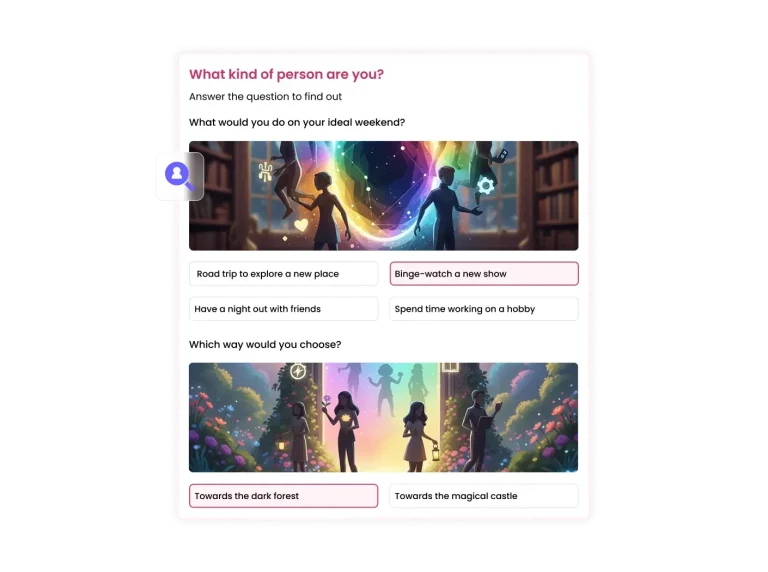
The Interactive Quiz plugin is a Squarespell plugin for Squarespace 7.1, now at version 4.0.0. Visitors see one question at a time with a progress bar, pick answers on large cards, and get a result at the end: a personality type, the product or package that fits them, a score band, or how many answers they got right. You decide what each answer counts for, so the result follows your own logic.
Personality. Each answer counts for one or more results, with 1 to 3 points. The result with the most points wins; on a tie, the one higher in your list wins. Product finder. The same logic, but the result is a product card with a picture, a name, a price text you type and a button to the product or package page.
Score. Every answer has points and the total picks a result band, such as 5 to 11, 12 to 18 and 19 to 25. The builder checks your bands leave no gaps or overlaps. Knowledge check. Questions have right answers, with an optional pass mark, right or wrong shown after each answer with your explanation, and a review of every answer at the end.
A question can have one answer (rows with A, B, C or text tiles), picture answers (two per row on phones, up to four on computers), several answers with a lowest and highest number, or a scale from 1 to 5 or 1 to 10 with a label at each end. An answer can send the visitor to a later question or straight to the results; the builder only offers later questions, so a quiz cannot loop. Back follows the path the visitor actually took, and a reload keeps their place until they close the tab.
The quiz can show where its Code Block sits, open in a popup from any button or link that points to #quiz, or both. The popup closes with its X, the Escape key or a click outside, and the visitor’s answers are kept. A link to your page address with #quiz at the end opens the quiz straight away.
If you want emails, the recommended route uses a normal Squarespace Form block on the same page with a Text field labelled “Quiz result” and, if you like, a Text Area labelled “Quiz answers”. At the email step the quiz moves your form into the quiz, fills in those fields and hides them, so the visitor only sees name and email. The entry then goes wherever that form is set to send things. The email step can come before the result, with an optional “Skip and see my result” link, or under it.
Two other routes exist. A Zapier “Catch Hook” or Make “Custom webhook” address receives the quiz name, result, score, every answer, name, email, consent, page and time. A free Web3Forms access key emails each lead to you. With either of these the quiz shows its own small form. There is no direct Mailchimp, Klaviyo or Kit connection: leads reach those through your form’s storage options or a webhook.
On phones answers become large cards, picture answers sit two per row and the popup fills the screen. The quiz works from the keyboard and with screen readers, since answers are real radio buttons and checkboxes. If your site already has Google Analytics 4, it sends three events: quiz_start, quiz_complete with the result, and quiz_lead. The copied code is about 56 KB with no libraries and no outside fonts.
The listing sells two licences of the same plugin: a Single License at $85 for one website at a time, which you can move yourself, and a Multi-Use License at $145 for unlimited websites, each activated in the builder. Both are one payment with an instant download of the builder file and an illustrated PDF guide, and support is by email at info@squarespell.com.
If you write about Squarespace or build sites for clients, Squarespell’s affiliate program pays commission on its own plugins and templates.
These are the steps from the plugin’s own Interactive Quiz v4.0.0 installation guide, the PDF every buyer receives, with its screenshots. The guide puts the whole job at about fifteen minutes.
| Details | |
|---|---|
| In your download | The builder file (Interactive-Quiz-Builder-Single-License.html or Interactive-Quiz-Builder-Multi-Use-License.html) and the PDF guide |
| You need | Squarespace 7.1 and a plan that allows JavaScript in Code Blocks (not Personal), plus your licence key from the order email |
| Where it goes | A Code Block on the page where the quiz should show; one Code Block per quiz, several quizzes per page are fine |
| Emails | Optional. Your own Squarespace Form block is recommended; a webhook for Zapier or Make, or Web3Forms email, also work |
| Your licence | Single License: one website at a time, can be moved. Multi-Use License: as many websites as you like, each activated in the builder |
| Had the older version? | Build the quiz in the new builder, delete the old code from its Code Block and paste the new code (step 12); a Web3Forms access key can be reused in step 7 |
From the Interactive Quiz v4.0.0 installation guide, read 12 October 2026.
The guide has three parts:
Double-click the builder file and it opens in your web browser. Nothing is installed and no account is needed. Settings are on the left. The preview on the right is a made-up sample page that runs the exact code you will copy, so you can click the answers and try your quiz as you build it.
Your key is in the order email and on squarespell.com under My Account, Licenses, and looks like SQSP-XXXX-XXXX-XXXX-XXXX. Type the key and the address your visitors use, for example yoursite.com, then click Activate. This needs an internet connection once. Your site’s built-in squarespace.com address always works too, so you can install the quiz before your domain is connected.
“Start from” offers four ready quizzes: a package finder, a style quiz with pictures, a business score and a knowledge check. Pick the one closest to yours; if you already changed your quiz, the builder asks first, and Undo brings your work back. Quiz type decides how answers turn into a result (personality, product finder, score or knowledge check, as described above). Quiz name is used in emails, the webhook and Google Analytics.
Click a question to open it. Write the question and, if you like, a helper line and a picture address. Use the arrows to change the order and the X to remove a question; Add question adds one. Choose the answer type: One answer, Pictures, Several (with a lowest and highest number of answers) or Scale. For each answer choose what it counts for: a result and 1 to 3 points for personality and product finder (with “+ another result” to split points), the points for a score quiz, or a tick on the right answer and an optional explanation for a knowledge check. Switch off Answer required to show a Skip link. Under Advanced, “Jump to other questions” adds “Then go to” to one-answer questions.
Each result has a title, a picture address, a text, a button with its link and an optional second link. In the text, use the B, I and Link buttons, or type **bold**, *italic* and [link text](https://…); an empty line starts a new paragraph. Links must start with https://, / (a page of your site) or #. Product finder results also have a price text. Score and knowledge check results cover a range of total score or percent right; if the ranges leave a gap or overlap, the builder names the numbers and offers Fix bands, which spreads the results over every possible score.
The start screen shows a title, a text, a picture, a button and “5 questions”; switch it off to open the quiz on the first question. Under Look, the quiz uses your site’s fonts and the colours of the section it sits in, light or dark. Buttons, progress and selected answers take your site’s button colour (Match my site) or a colour of your own, with the button text colour picked to stay readable. You also choose a Card or Plain panel, answers as Rows A B C or Tiles, rounded corners and the largest width.
Choose My Squarespace form (recommended), Webhook, Email with Web3Forms, or Do not ask. Then choose Before the result, with an optional “Skip and see my result” link, or Under the result. With My Squarespace form you add a Form block to the same page in step 11; the quiz moves it into the email step, keeps its look, fills in the result and answers and hides those fields, and with several forms on the page you type the form name. With a webhook or Web3Forms the quiz shows its own small form with first name (optional), email and an optional consent checkbox with your privacy link, and a slow connection never holds back the result for more than 4 seconds.
On the page shows the quiz where the Code Block is. In a popup shows nothing there; any link or button on the page that links to #quiz opens the quiz in a window. Both does both. Change the link name if you have two popup quizzes on one page, for example #style-quiz, and use Copy the link to copy it for your button in step 13.
Switch between Desktop and Phone, and Light and Dark sections. Jump to shows any screen at once: the start screen, each question, the email step and every result. The pictures in the ready quizzes are samples, so replace their addresses with your own (upload an image to your site, right-click it and choose Copy Image Address). Nothing is sent from the preview: not to your form, not to the webhook, not to Web3Forms.
Click Copy code at the top right and you will see “Code copied”. Your questions, results and settings are inside this code, so you never edit it by hand; Download saves the same code as a text file. If a field needs a fix, the builder says what is wrong next to it and copying waits until it is fixed. If your quiz is still an unchanged ready quiz, a note above the code says so.
In Squarespace open the page and click Edit. Add a Form block in any section of the same page; a section of its own under the quiz works well, and the quiz hides that section if nothing else is in it. Edit the form, keep Name and Email, click Add field and add the fields below, typing the labels exactly, because the quiz finds them by label. Use Text and Text Area fields, not Hidden fields: Squarespace does not let other code fill Hidden fields. Under the form’s Post-Submit settings keep the message (no redirect), so visitors see their result after they submit, and connect your storage as usual.
| Field type in Squarespace | Label (type it exactly) | Needed? |
|---|---|---|
| Name | Name | Yes (comes with every form) |
| Yes (comes with every form) | ||
| Text | Quiz result | Yes |
| Text Area | Quiz answers | Optional |
| Text | Quiz score | Optional, for score and knowledge check quizzes |
From the Interactive Quiz v4.0.0 installation guide, step 11.
In the page editor click Add Block where the quiz should show and choose Code; for a popup quiz the Code Block can go anywhere on the page. Keep Mode on HTML, delete the sample line in the box and paste (Cmd+V on a Mac, Ctrl+V on Windows). Click Save at the top left of the page. While you are logged in and editing, Squarespace shows “Embedded scripts are disabled” in place of the quiz; that is normal. Use one Code Block per quiz. In a Fluid Engine section a new block is small, so drag its side handle to make it wider and its bottom handle down until it is about as tall as the quiz, or the quiz will run over the blocks below it.
Add a Button block, or use any button or text link on the page, and set its link to #quiz (or your own link name from step 8): type #quiz in the link box and press Enter. A navigation link can also open the quiz if it links to your page address followed by #quiz, for example /packages#quiz. The window closes with the X, the Escape key or a click outside, and the visitor’s answers are kept.
Open your page in a private window, or log out of Squarespace first, because there the quiz shows the way your visitors see it. Take the quiz once to the end. With “My Squarespace form”, submit the form once with your own email and check that the submission arrived with the Quiz result filled in.
Change your quiz later. Open the builder again; it remembers your quiz in the same browser. On another computer, open Advanced, paste your current Interactive Quiz code from the Code Block into Settings as text and click Import, and Export settings gives you the quiz as text to keep. Change what you like, click Copy code, and in Squarespace select everything in the Code Block (from Squarespell Interactive Quiz to End Squarespell Interactive Quiz), paste the new code over it and Save.
Move to another website. With a Single License, open My Account, Licenses on squarespell.com and click Deactivate next to the old site; then in the builder click “Use another website or key”, activate the new address and copy the code again. With a Multi-Use License, activate each website in the builder and copy the code for it. Code copied for one website does not run on another.
If something looks wrong, these are the fixes from the guide:
| Symptom | Fix |
|---|---|
| “Embedded scripts are disabled” where the quiz should be | Normal while you are logged in and editing. Open the page in a private window, or log out. |
| A note says “Add a Form block with a field called Quiz result” | Add a Form block with a Text field labelled Quiz result (step 11). Until then the quiz skips the email step. Only you see the note. |
| A note says Quiz result must be a Text field | The field is a Hidden field. Change it to a Text field with the same label. |
| Visitors do not see their result after submitting | The form redirects to another page. Under Post-Submit, show a message instead. |
| The submission arrives without the result | The label must be exactly Quiz result; with several forms, type the form name in step 7. |
| “This code is not activated for” your address | The code was copied for another address. Activate the address visitors use, copy again and replace the code. |
| “This key is active on” another site | A Single License works on one site at a time. Deactivate the old site under My Account, Licenses. |
| Copy code does nothing | Enter your licence key first (step 2), or fix the field marked in red. |
| The button does not open the popup | The link must be exactly #quiz (or your link name) and the Code Block must be on the same page. Check in a private window. |
| Pictures do not show | The ready quizzes use sample addresses that only work in the builder. Use the addresses of your own pictures. |
| Nothing shows on the live site | Check the Code Block is on HTML, the whole code was pasted and saved, and your plan allows JavaScript in Code Blocks. |
From the Interactive Quiz v4.0.0 installation guide, read 12 October 2026.
Squarespell Quiz is Squarespell’s separate quiz product, with its own site at squarespellquiz.com and its app at app.squarespellquiz.com. Its home page sums it up as quizzes that turn visitors into qualified leads: you paste your website, it drafts a branded quiz, scores every answer, captures the lead and sends each person to the right result. The site states it is not affiliated with Squarespace Inc.
Paste a Squarespace site address and the AI reads your brand colours, font, site name, headings, page text and navigation, then writes a quiz around what you sell: questions, answers, scoring, a lead form and outcomes. There are five starting points (lead quiz, price calculator, service recommender, client qualifier or segmentation quiz) and 16 industry templates. Drafting works from a Squarespace address today; a site on another platform starts from a template or a blank quiz. Nothing goes live until you click Publish.
Each answer carries points and outcomes are score bands, so the total decides the result. Logic blocks can jump to a different question or outcome based on a score range or a specific answer. Outcome pages name the result, recommend the next step and carry a button to book, buy or reply, and recommended products can be shown on a result, with Squarespace Commerce products mapped to outcomes. Quizzes can also be scheduled to go live and come down on set dates.
The lead form can ask for email, name, phone, company and custom fields, before the result or after any question you choose. Every lead arrives in a lead dashboard with their answers, score and outcome, with tags, segments, auto-tag rules and a 0 to 100 lead score, plus CSV export and consent records. Each lead gets a branded result email with an optional PDF report, and on Pro each outcome can start its own email sequence.
Every quiz reports views, starts, completions and leads, with an answer breakdown and the outcomes people reached. Drop-off by question shows where people leave, and A/B testing of two quiz versions is on Pro and Business. Integrations with Mailchimp, Klaviyo, Kit and Google Sheets, and webhooks, are also included on Pro and Business.
The steps below follow Squarespell Quiz’s own “how it works” and help pages, read on 12 October 2026. We did not build a quiz in the app for this article.
A note on placing the quiz. Squarespell Quiz’s public Squarespace page describes adding the quiz with a Code Block, and Code Injection for a popup on every page. When Squarespell’s team checked the app itself on 5 October 2026, its Publish menu also had a Sites option: connect a website once with one line in Code Injection, then publish, move, pause or remove quizzes from the app without opening Squarespace each time. Follow whichever route the app shows you. Squarespace’s code injection guide says Code Injection is available on the Core, Plus, Advanced and some legacy plans.
Squarespell Quiz has three plans, billed monthly or yearly. There is no free plan; every account starts with the 14-day Pro trial.
| Plan | Billed yearly | Billed monthly | Quizzes | Leads and emails a month | Adds |
|---|---|---|---|---|---|
| Core | $9 a month ($108 a year) | $12 a month | 5 | 1,000 leads, 1,000 emails | AI draft, embeds and branding, branching and weighted scoring, scheduling, standard analytics, lead dashboard and CSV export |
| Pro | $16 a month ($192 a year) | $19 a month | Unlimited | 3,000 leads, 3,000 emails | A/B testing, email sequences, integrations and webhooks, advanced analytics, drop-off by question, custom CSS |
| Business | $29 a month ($348 a year) | $35 a month | Unlimited | Unlimited | White-label, team members with roles, dedicated onboarding call; custom quiz domain and API access marked planned |
Read on squarespellquiz.com/pricing on 12 October 2026. Prices in US dollars. Monthly plans can be cancelled at any time; yearly plans are not refundable, per the pricing page FAQ.
Squarespell’s catalogue also lists two quiz widgets from Common Ninja, a third-party widget maker. We have not reviewed or installed them for this guide. Their listings show “Free plan available” and send you to Common Ninja to sign up.
Free plan available
Free plan available
Whichever option you choose, run through this before you send traffic to the quiz:
Publishing the gaps is part of the method.
We did not install either product on a new site for this article. The plugin steps and screenshots come from its v4.0.0 installation guide, and the demo screenshots from the hosted demo, which runs the same code buyers get. The plugin listing says it was tested in Chrome on a computer and at phone size; Safari, Firefox, iPhone and Android are not stated, so we do not claim them.
We did not open the Squarespell Quiz app for this article. Everything about it comes from squarespellquiz.com as read on 12 October 2026, plus one note about the app’s Publish menu from Squarespell’s own check on 5 October 2026. The marketing site and the app can change at different times, so follow the screens you see in the app.
Prices can change. All prices were read on 12 October 2026 on the plugin listing and the Squarespell Quiz pricing page. Check both before you buy.
We did not test the webhook or Web3Forms routes against live accounts. The plugin’s listing describes what the code sends; its Squarespace form route is the one its launch notes describe as tested with a real submission.
How this article was made. It was researched and drafted with AI help, then checked against the plugin listing, its installation guide, squarespellquiz.com and Squarespace’s help centre on the dates given.
Can you make a quiz on Squarespace without a plugin? Not a real one. The Form block can ask multiple choice questions and store answers, but it does not add up points or show each visitor a result of their own. You need code that does the scoring, either a plugin you paste into a Code Block or a quiz app that embeds on your page.
Is the Interactive Quiz plugin a subscription? No. It is one payment: $85 for a Single License on one website or $145 for a Multi-Use License on unlimited websites, as listed on 12 October 2026. There is no monthly fee and no limit on responses. Squarespell Quiz, the other option here, is a subscription.
Does the plugin work on Squarespace 7.0? No. It is built for Squarespace 7.1 and the listing says 7.0 templates are not supported. Squarespell Quiz embeds on any site that accepts custom code, so it is the one to look at if you are still on 7.0.
Can the plugin send leads to Mailchimp or Klaviyo? Not directly. With your own Squarespace Form block, each lead goes wherever that form sends things, and Squarespace forms can connect to Mailchimp. For Klaviyo or Kit, use a Zapier or Make webhook. Squarespell Quiz has direct Mailchimp, Klaviyo, Kit and Google Sheets integrations on its Pro and Business plans.
Can visitors see their result without giving an email? In the plugin, yes if you want: switch on “Skip and see my result”, put the email step under the result, or choose Do not ask. Squarespell Quiz lets you show its lead form before the result or after any question you choose.
Which Squarespace plan do I need? For either option, one that allows JavaScript in Code Blocks: Core, Plus, Advanced, Business, Commerce Basic or Commerce Advanced, according to Squarespace’s code block guide on 12 October 2026. The Personal plan does not.
Can I switch from the plugin to Squarespell Quiz later, or use both? Yes. They are separate products, so nothing stops you using the plugin for a knowledge check on one page and a Squarespell Quiz lead quiz on another, or moving over later. They do not share quizzes or leads, so you would rebuild the quiz in the app.
I bought the older version of the plugin. What changes? Version 4 replaces it completely. Build your quiz in the new builder, delete the old code from its Code Block and paste the new code. A Web3Forms access key from the old version can be pasted into the new builder.
If you want to own the quiz and keep leads in Squarespace, open the Interactive Quiz live demo, then get the Interactive Quiz plugin and follow the 14 steps above. If you want an AI draft, a lead dashboard and follow-up emails, start the Squarespell Quiz free trial and paste your website address. For more on quizzes in general, our guide on how to add a quiz to Squarespace covers the wider choices.
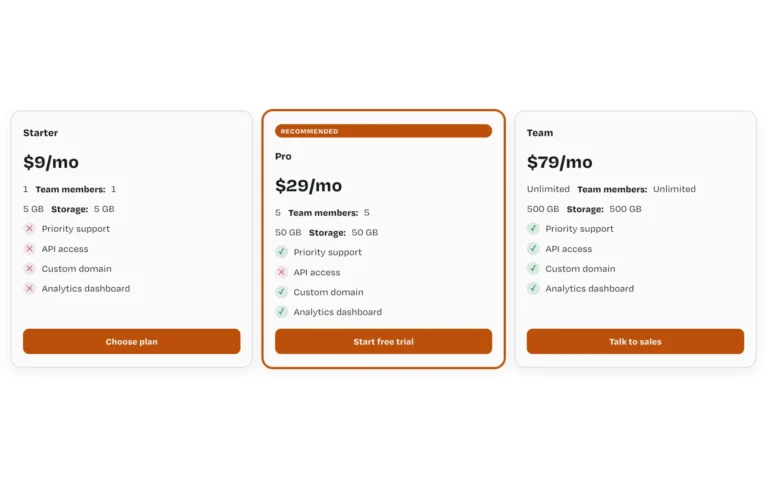
A package finder quiz often sits next to a pricing table. If yours ends on packages, Compare is Squarespell’s one-time plugin for package and product comparison tables, also installed with one Code Block.
Reviewed and last updated 12 October 2026. All prices checked on that date.

Squarespace has no quiz block, so a scored quiz comes from a tool you connect or embed. This guide shows each step with real screenshots, what it costs, and when a one-time plugin or another tool fits better.
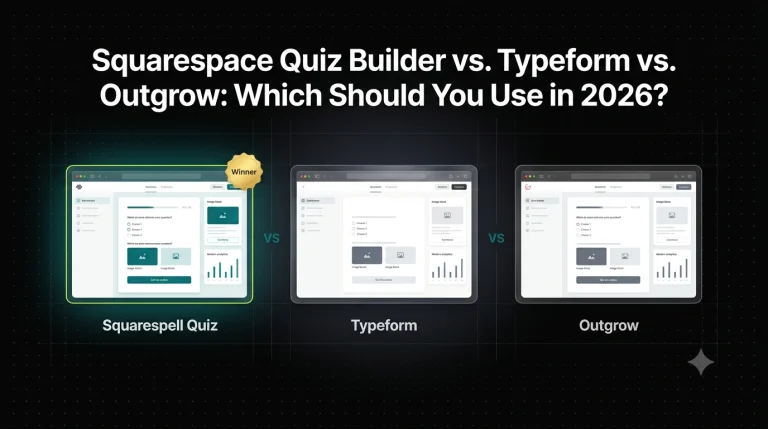
Honest 2026 comparison of quiz tools for Squarespace pricing, setup time, embed quality, and lead scoring, side by side.
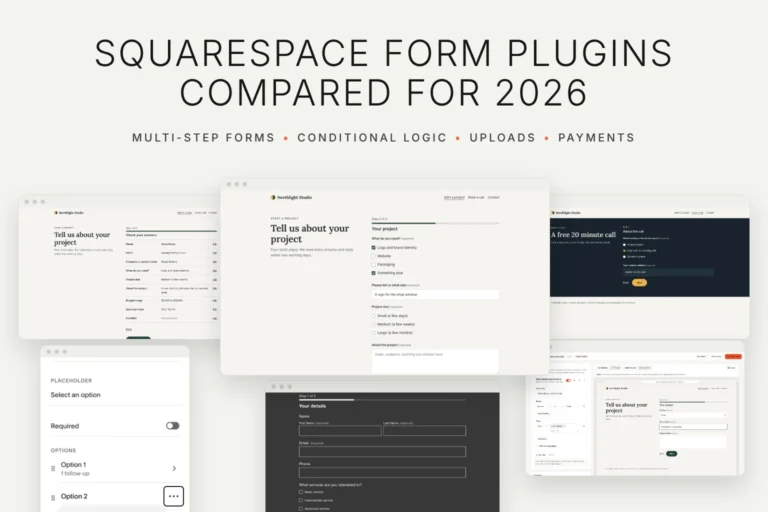
Squarespace’s Form block still has no steps and only one level of follow-up questions. Here is when it is enough, and when Form Steps and Logic, Jotform, Typeform, Elfsight, Common Ninja or a datepicker earns its place.
Squarespell All Access
All 48 plugins and every new one, worth $2,044 bought one by one. 14 days free, cancel anytime.
Start 14 days freeOr start free with 13 plugins, no cardFounding price until 1 December, kept for as long as you stay.