 Member Content Pro: Show Members-Only Content on Public Squarespace Pages with Native Member Sites$59
 Squarespace · PluginSquarespell Original
Browse by platform
View allBrowse by goal
View allBrowse by goal
Fresh inventory
Recently added
Member Content Pro: Show Members-Only Content on Public Squarespace Pages with Native Member Sites$59Squarespace · PluginSquarespell Original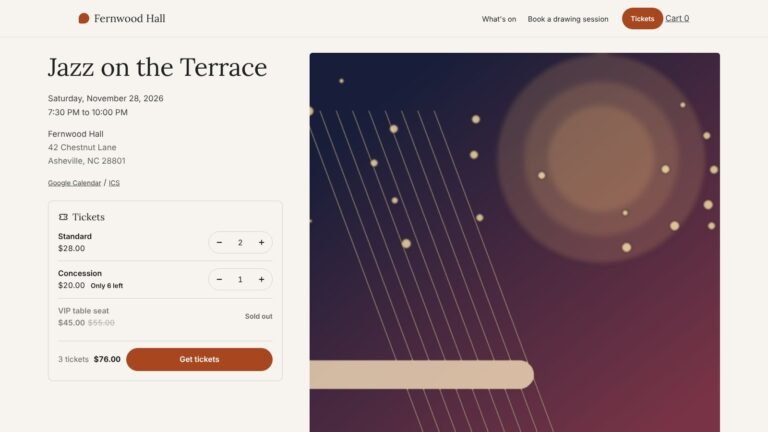 Event Tickets: Sell Tickets on Squarespace Event Pages with Ticket Types, Seats Left and Native Checkout$59Squarespace · PluginSquarespell Original
 Wholesale Order Pad: Squarespace Wholesale Order Form with Bulk Add to Cart, Order by SKU and Reorder$85Squarespace · PluginSquarespell Original
 Squarespace Summary Block Pro: More Than 30 Items, Load More and Pagination$49Squarespace · PluginSquarespell Original
 Squarespace Delivery Area Checker: Postcode and ZIP Code Checker Plugin$49Squarespace · PluginSquarespell Original
 Order Rules: Squarespace Minimum Order, Quantity Limits and Pack Sizes Plugin$49Squarespace · PluginSquarespell Original
Search results
Matching products
Squarespace
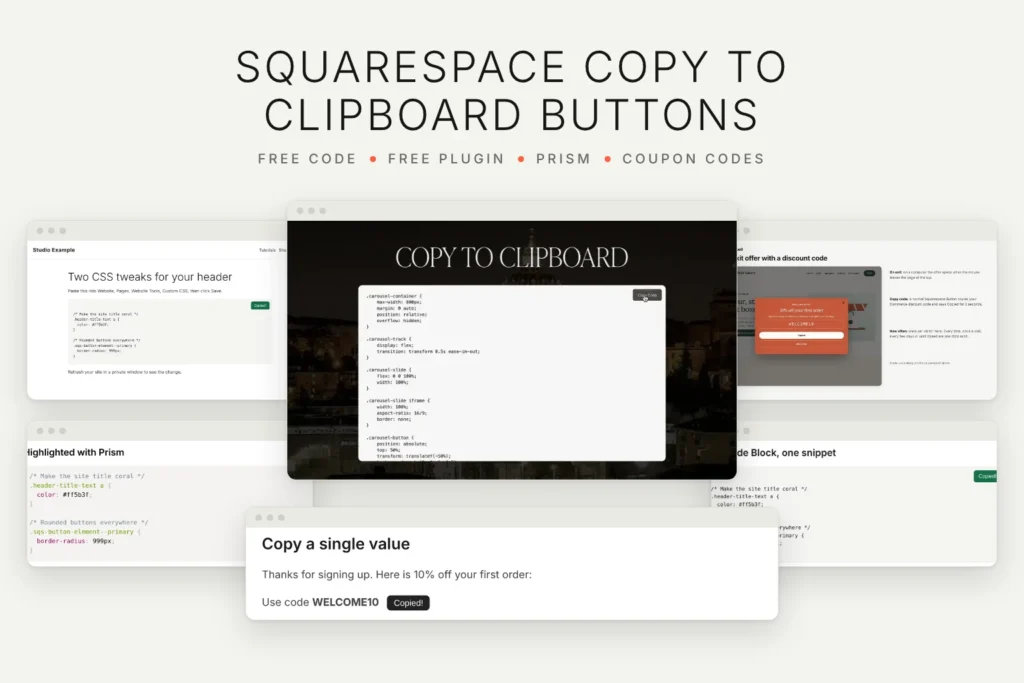
Squarespace has no copy button for code, so this guide gives you free code that adds one to every Code Block, tested on a live 7.1 page, plus Prism, Squarespell’s free plugin and copy buttons for coupon codes.
A note on how we make money. Squarespell makes two products in this guide, the free Copy to Clipboard Plugin for Squarespace and the paid Popup Pro plugin, so weigh that interest. Code Snippets and three coupon widgets by Common Ninja are listed on Squarespell with affiliate links, and we may earn a commission if you upgrade through them. Neither fact decided which method we recommend: the free code in this guide earns nobody anything. Details are in our affiliate disclosure.
If you want the short version:
And the honest caveat before any of that matters: on the Basic plan none of these buttons can run. Your fallback there is a Code Block with Display Source on, where visitors select the text themselves.
Last updated: 26 November 2026
A tutorial with code is only as useful as the reader’s ability to copy the code cleanly. Selecting forty lines of CSS by hand on a phone, and missing the closing brace, is how a reader ends up in your inbox saying “it doesn’t work”. A Copy button removes that step.
Squarespace doesn’t add one for you. Its Code Block can show code as text, but there’s no built-in copy control, so the button has to come from your own code or a widget. An older version of this guide described a plugin whose file went missing from its listing for a while, so we rewrote it around code you can paste. That plugin can be downloaded again and now also runs through All Access, so this update covers both: the code and the plugin.
For this update we re-read Squarespace’s help pages for Code Blocks, Code Injection and Custom CSS and its pricing page on 26 November 2026, read the markup of real Squarespace 7.1 Code Blocks on three public sites, and ran the Method 1 code against one of them in Chromium. Every snippet was also run on local test pages on 21 October 2026, reading the clipboard back after each click. What we could not test is listed near the end.
Free plan available
Free plan available
All four methods put a button on a box of code that copies the box’s text when clicked. They differ in where the code lives, how much you paste per snippet, and whether the code is coloured.
| Method | Best for | Setup | Per snippet | Plan needed | Cost |
|---|---|---|---|---|---|
| 1. Footer script + Custom CSS | Blogs and tutorial sites with many snippets | Once, about 10 minutes | Paste raw code into a Code Block, Display Source on | Core, Plus or Advanced | Free |
| 2. Self-contained Code Block | One snippet on one page | None site-wide | Paste the template and replace < > & | Core, Plus or Advanced | Free |
| 3. Prism with Copy plugin | Developers who want coloured code | Once, two Code Injection boxes | Write a pre and code tag with a language class | Core, Plus or Advanced | Free (open source) |
| 4. Common Ninja Code Snippets | No-code, themes, tabs of snippets | Build in Common Ninja’s editor | Edit in their dashboard | A plan that allows embed code | Free plan, paid tiers |
| Squarespell Copy to Clipboard plugin | Anyone who wants a ready-made plugin instead of keeping code | Download it, or switch it on in an All Access dashboard | As the plugin’s own guide describes | Core or higher for the All Access install line (Code Injection) | Free |
Plan requirements from Squarespace’s help centre and pricing page, checked 21 October 2026. Common Ninja’s tiers are set on its own site. Plugin row from its Squarespell listing, 26 November 2026.
The practical rule: if you will publish more than two or three snippets, set up Method 1 once and forget about it. Each new snippet is then just a Code Block with Display Source on. Use Method 2 when you want a button on one page without touching site-wide settings, and Method 3 only if coloured code matters to your readers.
Copying to the clipboard needs JavaScript, and Squarespace only runs your JavaScript on some plans. Its Code Block guide says that to add JavaScript to a Code Block “your site needs to be on the Core, Plus, or Advanced plan”, and its Code Injection guide lists the same plans plus some legacy billing plans. Custom CSS works on every plan.
| Plan | Monthly billing | Annual billing | Custom CSS | JavaScript in Code Blocks | Code Injection |
|---|---|---|---|---|---|
| Basic | $25/mo | $19/mo | Yes | No | No |
| Core | $39/mo | $29/mo | Yes | Yes | Yes |
| Plus | $65/mo | $49/mo | Yes | Yes | Yes |
| Advanced | $139/mo | $99/mo | Yes | Yes | Yes |
US prices and features from Squarespace’s pricing page, checked 21 October 2026. Prices vary by region and change; check the page before you buy.
You also need:
This is the approach the original Squarespell plugin took: styles in Custom CSS, one script in Code Injection, Footer, and plain Code Blocks for the snippets. The script looks for Code Blocks that display code, wraps each one in a box and adds a Copy button in the top right corner. Squarespace escapes the code for you, so you paste snippets exactly as they are.
Keep each snippet in its own Code Block. The button copies the whole block, so two snippets in one block are copied together. A Code Block holds up to 400 KB, about 300,000 characters, according to Squarespace’s help centre.
Go to Website, then Pages, scroll to Website Tools and open Custom CSS. Paste the CSS below at the end of anything already there and click Save. Squarespace’s Custom CSS guide covers the panel if you can’t find it.
/* Copy to clipboard: code container and button */
.ss-copy-wrap {
  position: relative;
}
.ss-copy-btn {
  position: absolute;
  top: 10px;
  right: 10px;
  z-index: 2;
  padding: 6px 12px;
  font-size: 13px;
  line-height: 1.4;
  color: #ffffff;
  background: #222222;
  border: 0;
  border-radius: 6px;
  cursor: pointer;
}
.ss-copy-btn:hover,
.ss-copy-btn:focus-visible {
  background: #444444;
}
.ss-copy-btn.is-copied {
  background: #187149;
}
.ss-copy-wrap pre,
.ss-copy-wrap .source-code {
  max-height: 420px;
  overflow: auto;
  padding: 48px 20px 20px;
  background: #f5f5f2;
  border-radius: 10px;
  font-size: 13px;
  line-height: 1.5;
  white-space: pre;
}What the CSS does: .ss-copy-wrap is the box the script adds around each Code Block, so the button can sit in its corner. .ss-copy-btn styles the button and .is-copied turns it green after a successful copy. The last rule gives the code a light background, extra top padding so the button never covers the first line, and a 420 px maximum height with scrolling for long snippets.
In Website Tools, open Code Injection. Paste the script into the Footer box and click Save. Footer code runs before the closing body tag on every page, so one paste covers every Code Block on the site.
<script>
(function () {
  var SELECTORS = '.sqs-block-code pre, .sqs-block-code .source-code, .code-block pre, .code-block .source-code, .sqs-block-markdown pre, .markdown-block pre';
  var LABEL = 'Copy', DONE = 'Copied!', FAIL = 'Press Ctrl+C';

  function copyText(text) {
    if (navigator.clipboard && window.isSecureContext) {
      return navigator.clipboard.writeText(text);
    }
    return new Promise(function (resolve, reject) {
      var area = document.createElement('textarea');
      area.value = text;
      area.setAttribute('readonly', '');
      area.style.position = 'fixed';
      area.style.opacity = '0';
      document.body.appendChild(area);
      area.select();
      var ok = false;
      try { ok = document.execCommand('copy'); } catch (e) {}
      document.body.removeChild(area);
      ok ? resolve() : reject();
    });
  }

  function addButtons() {
    document.querySelectorAll(SELECTORS).forEach(function (box) {
      if (box.closest('.ss-copy-wrap') || box.querySelector('pre, .source-code')) return;
      var wrap = document.createElement('div');
      wrap.className = 'ss-copy-wrap';
      box.parentNode.insertBefore(wrap, box);
      wrap.appendChild(box);
      var btn = document.createElement('button');
      btn.type = 'button';
      btn.className = 'ss-copy-btn';
      btn.textContent = LABEL;
      btn.setAttribute('aria-label', 'Copy code to clipboard');
      wrap.appendChild(btn);
      btn.addEventListener('click', function () {
        copyText(box.textContent.replace(/^\n+|\s+$/g, '')).then(function () {
          btn.textContent = DONE;
          btn.classList.add('is-copied');
        }, function () {
          btn.textContent = FAIL;
        });
        setTimeout(function () {
          btn.textContent = LABEL;
          btn.classList.remove('is-copied');
        }, 2000);
      });
    });
  }

  if (document.readyState === 'loading') {
    document.addEventListener('DOMContentLoaded', addButtons);
  } else {
    addButtons();
  }
})();
</script>How the script works, line by line in plain words: it looks for code inside Squarespace Code Blocks and Markdown Blocks, skips anything it has already wrapped, and adds a real <button> with an accessible label. On click it copies the box’s text with the browser’s Clipboard API, or with the older copy command when that API is missing, shows “Copied!” and resets after two seconds. If the browser refuses, the label changes to “Press Ctrl+C” so the reader knows to copy by hand.
What the script looks for on a real page: on 26 November 2026 we read the markup of Code Blocks with Display Source on, on three public Squarespace 7.1 sites. All three put the code in a pre element with the class source-code, inside a div with the class sqs-code-container, in a block with the classes sqs-block-code and code-block. The script’s .sqs-block-code .source-code selector matches that directly. Its other selectors cover Markdown Blocks and older markup, and it ignores code boxes outside those blocks.
Our first test, on local pages: on 21 October 2026, a local test page in Chromium 141 held four versions of a Code Block (code in a pre, in a div, in a Markdown Block, and nested). Each got a button, each click put the exact text on the clipboard, including <script> tags and an ampersand, and the label reset after two seconds. A second run with the Clipboard API removed copied through the fallback. Firefox and Safari were not tested.
Our test on a live Squarespace page, 26 November 2026: we opened a public Squarespace 7.1 blog post that shows a snippet in a Code Block with Display Source on, and added the CSS and script above in our own browser (Chromium 158; nothing was saved to that site). The script found the block and added one button. A click put the block’s 1,367 characters on the clipboard exactly, including <style> tags, and the label went back to “Copy” after two seconds. The button sat inside the box without covering the first line, and at 390 px wide the page had no sideways scroll.
Use this when only one page needs a copy button, or when you don’t want site-wide code. Everything lives in one Code Block: the box, the button, the styles and the script. You can repeat the block on the same page; each button copies its own box.
<div class="ss-copybox">
<button type="button" class="ss-copybox__btn">Copy</button>
<pre class="ss-copybox__code"><code>.header-title-text a {
color: #ff5b3f;
}
<!-- Paste your own code here --></code></pre>
</div>
<style>
.ss-copybox { position: relative; margin: 1em 0; }
.ss-copybox__btn {
position: absolute; top: 10px; right: 10px;
padding: 6px 12px; font-size: 13px; line-height: 1.4;
color: #fff; background: #222; border: 0; border-radius: 6px; cursor: pointer;
}
.ss-copybox__btn.is-copied { background: #187149; }
.ss-copybox__code {
margin: 0; max-height: 420px; overflow: auto;
padding: 48px 20px 20px; background: #f5f5f2; border-radius: 10px;
font-size: 13px; line-height: 1.5; white-space: pre;
}
</style>
<script>
document.querySelectorAll('.ss-copybox').forEach(function (box) {
var btn = box.querySelector('.ss-copybox__btn');
var code = box.querySelector('.ss-copybox__code');
if (!btn || !code || btn.dataset.ready) return;
btn.dataset.ready = '1';
btn.addEventListener('click', function () {
navigator.clipboard.writeText(code.textContent).then(function () {
btn.textContent = 'Copied!';
btn.classList.add('is-copied');
}, function () {
btn.textContent = 'Press Ctrl+C';
});
setTimeout(function () {
btn.textContent = 'Copy';
btn.classList.remove('is-copied');
}, 2000);
});
});
</script>Replace the lines between <code> and </code> with your snippet. Because this block runs as HTML, three characters must be written as entities, or the browser will treat your code as part of the page:
| In your code | Write it as |
|---|---|
| & | & |
| < | < |
| > | > |
Replace every ampersand first, then the angle brackets. The button copies the plain characters back, so readers get <div>, not <div>. We confirmed that in our test. If escaping by hand sounds tedious, that is the main reason to prefer Method 1.
Click Apply, then Save, and test the page in a private window. While you are logged in, Squarespace may hide the block’s output; its help centre suggests Preview in Safe Mode to see it.
Prism is a free, open-source syntax highlighter. Its Copy to Clipboard plugin adds a Copy button to every highlighted block and, according to Prism’s documentation, depends on the Toolbar plugin being loaded first. Choose this when coloured code helps your readers; otherwise Method 1 is simpler.
In Website Tools, open Code Injection and paste this into the Header box:
<link rel="stylesheet" href="https://cdn.jsdelivr.net/npm/prismjs@1.30.0/themes/prism.min.css">
<link rel="stylesheet" href="https://cdn.jsdelivr.net/npm/prismjs@1.30.0/plugins/toolbar/prism-toolbar.min.css">
For a dark theme, replace prism.min.css with prism-tomorrow.min.css.
In the same panel, paste this into the Footer box, keeping this order, and click Save:
<script src="https://cdn.jsdelivr.net/npm/prismjs@1.30.0/prism.js"></script>
<script src="https://cdn.jsdelivr.net/npm/prismjs@1.30.0/plugins/toolbar/prism-toolbar.min.js"></script>
<script src="https://cdn.jsdelivr.net/npm/prismjs@1.30.0/plugins/copy-to-clipboard/prism-copy-to-clipboard.min.js"></script>Add a Code Block, set Mode to HTML, leave Display Source off, and wrap your snippet in pre and code tags with a language class. Escape &, < and > as in Method 2.
<pre><code class="language-css">.header-title-text a {
  color: #ff5b3f;
}</code></pre>
The standard prism.js file covers HTML (language-markup), CSS (language-css) and JavaScript (language-javascript). Other languages need extra Prism component files.
Prism reads its messages from data attributes on the code element or any parent: data-prismjs-copy for the label, data-prismjs-copy-success after a copy, data-prismjs-copy-error when copying fails, and data-prismjs-copy-timeout in milliseconds. By default the messages are in English and reset after five seconds.
Don’t combine Method 3 with Method 1. The Method 1 script would add a second button to Prism’s boxes, because they also sit inside Code Blocks.
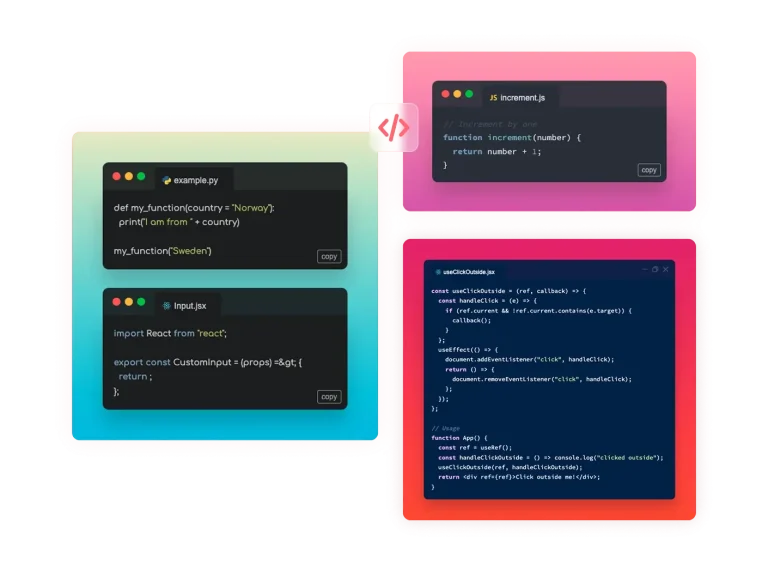
Code Snippets by Common Ninja is a hosted widget: you build the snippet box in Common Ninja’s editor and paste one embed code into Squarespace. Its Squarespell listing describes syntax highlighting, light and dark themes, several snippets shown as tabs or a list, line numbers, file icons and custom CSS, with a free plan and paid tiers set by Common Ninja.
Check the copy button before you commit. The listing’s product images show a “copy” label on each snippet card, but its text doesn’t describe a copy feature or say which plan includes it. Build a test snippet on the free plan and click it before you rely on it.
These steps follow the listing’s description of the install, which says nothing beyond pasting the code is needed. The listing also notes that adding embed code needs a Squarespace plan that allows it. Later edits in Common Ninja’s dashboard update the widget on your site without pasting again.
Free plan available
The Copy to Clipboard Plugin for Squarespace is Squarespell’s own free plugin and the subject of the original version of this guide. Its listing describes one-click copying, a button you can restyle to match your site, a light footprint, and support for Chrome, Firefox, Safari and other browsers. In October its download file was missing. On 26 November 2026 the listing offered the plugin again, in two ways: as a free download, or switched on through the All Access free plan.
Use the plugin or Method 1, not both. If both target the same Code Blocks you would see two buttons. We did not download the file for this update, so follow the steps that come with it where they differ from Method 1. If you would rather not paste anything, the listing offers installation by Squarespell’s team: you add them as a contributor, so they never need your password.
The listing’s free plan box says you can “switch it on from your dashboard, with 12 more free plugins on one site. No card, no files to download.” The All Access page describes the same plan as 13 free plugins on one site through one install line, with the paid plugins available later through a 14-day trial.
These are the four steps as the All Access page describes them:
Step 1: Add your site in the dashboard. Type your Squarespace site address in your All Access dashboard. You get one install line for that site.
Step 2: Paste the line into Code Injection, Footer. In Squarespace open Website, Pages, Custom Code, Code Injection, paste the line into the Footer box and click Save. You do this once per site, and Code Injection needs the Core plan or higher.
Step 3: Switch Copy to Clipboard on. Flip the switch next to the plugin in your dashboard. All Access says your site shows a plugin within about two minutes.
Step 4: Change its settings in the dashboard. Pick the options and save; the site updates by itself. All Access says most plugins are set up with simple forms there and a few use a short settings block that you copy into Custom CSS. We did not open a dashboard for this update, so follow the plugin’s guide there for its options.
Which route to choose: the download is yours to keep and edit. The All Access route saves you pasting plugin code, and the same install line can switch on Squarespell’s other free plugins on that site, but plugins are delivered from Squarespell’s servers while your account is active.
If you write about Squarespace or build sites for clients, Squarespell’s affiliate program pays 20% on referred plugin, template and bundle purchases, with a 60-day window from the first click, as its page stated on 26 November 2026.
Sometimes the thing to copy is one value: a discount code, an email address, a bank reference or a link. You can put a button next to it with a few lines of free code, show it in a pop-up whose button copies the code, or use a hosted coupon widget.
| Option | How the copy works | Setup | Plan needed | Price |
|---|---|---|---|---|
| One-value Code Block (this guide) | A button next to the value copies it | One Code Block per value | Core, Plus or Advanced | Free |
| Squarespell Popup Pro | A Button linked to #copy- and the code copies it and says Copied for 2 seconds | Build the section, paste settings into Custom CSS, one Footer code | Core or higher, Squarespace 7.1 | $39 one site, $79 unlimited sites, paid once |
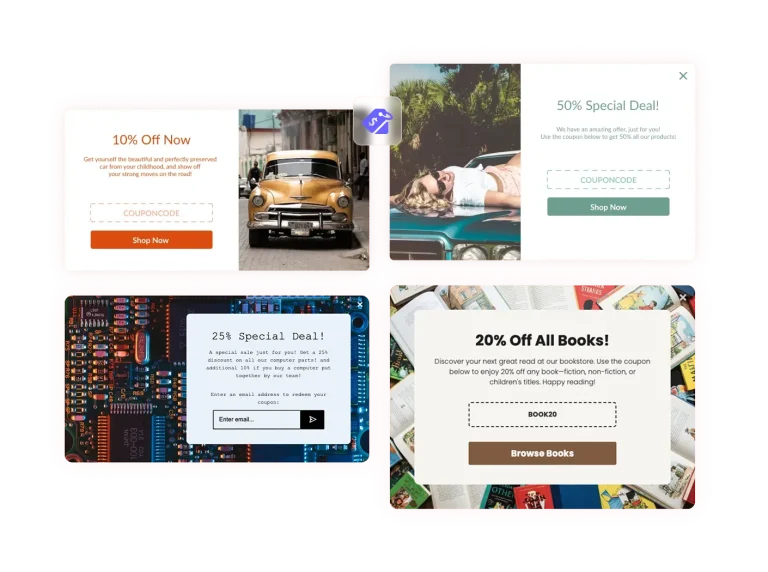
| Coupon Popup (Common Ninja) | Listing describes “one-click copying of coupons” | Build in Common Ninja, paste embed code | A plan that allows embed code | Free plan, paid tiers |
| Coupon Bar and Corner Coupon Pop-up (Common Ninja) | Listings describe showing a coupon code, not copying it | Build in Common Ninja, paste embed code | A plan that allows embed code | Free plan, paid tiers |
Features and prices from each Squarespell listing, checked 26 November 2026. Popup Pro also showed a Black Friday price until 1 December.
This small block puts a button next to the value. Add it as a Code Block in HTML mode with Display Source off, then change WELCOME10 and the button text.
<p class="ss-copyline">
  Use code <strong class="ss-copyline__value">WELCOME10</strong>
  <button type="button" class="ss-copyline__btn">Copy code</button>
</p>

<style>
  .ss-copyline__btn {
    margin-left: 8px; padding: 4px 10px; font-size: 13px;
    color: #fff; background: #222; border: 0; border-radius: 6px; cursor: pointer;
  }
</style>

<script>
  document.querySelectorAll('.ss-copyline').forEach(function (line) {
    var btn = line.querySelector('.ss-copyline__btn');
    var value = line.querySelector('.ss-copyline__value');
    if (!btn || !value || btn.dataset.ready) return;
    btn.dataset.ready = '1';
    btn.addEventListener('click', function () {
      navigator.clipboard.writeText(value.textContent.trim()).then(function () {
        btn.textContent = 'Copied!';
        setTimeout(function () { btn.textContent = 'Copy code'; }, 2000);
      });
    });
  });
</script>Keep the value visible. Some readers will still select it by hand, and screen reader users need to hear it. The button only saves them a step.
Popup Pro is Squarespell’s own pop-up plugin: each pop-up is a Squarespace section you build yourself, opened on exit, after a delay, on scroll or from a link. Its listing answers the coupon question directly: create the code in Commerce, Discounts, show it in your section, and set a Button’s link to #copy- followed by the code, for example #copy-WELCOME10. Visitors click it and the code is copied.
These steps follow the plugin’s listing:
Step 1: Create the discount code. In Squarespace open Commerce, then Discounts, and create the code your pop-up will show, for example WELCOME10.
Step 2: Build the pop-up as a section and name it. For every page, edit your Site Footer and add a section; for one page, add it as that page’s last section. Add a Text block with the code and a Button whose link is #copy-WELCOME10 (your code after #copy-). Open Edit Section, go to Anchor Link and type a name that starts with popup-, for example popup-welcome.
Step 3: Activate the builder and paste your settings into Custom CSS. Open the builder file, enter your licence key and website address and click Activate. Add the pop-up, pick a starter (the listing names an exit offer) and choose when, where and how often it opens. Click Copy settings, then paste them at the end of Pages, Custom Code, Custom CSS and click Save.
Step 4: Paste the Footer code once. Click Copy Footer code, then in Squarespace open Pages, Custom Code, Code Injection and paste it on a new line at the end of the Footer box. Click Save. Check the pop-up in a private window; the listing says adding ?sqpop-test to the address shows it again and again while you test.
Popup Pro needs Squarespace 7.1 and the Core plan or higher. We have not installed it for this guide: the copy behaviour and steps come from its listing, which says the included PDF guide shows every step with screenshots of a real Squarespace site.
Common Ninja’s Coupon Popup, Coupon Bar and Corner Coupon Pop-up are hosted widgets with a free plan, listed on Squarespell. Only the Coupon Popup listing mentions copying: it describes “the one-click copying of coupons” and an optional email step before the coupon shows.
The Coupon Bar listing says you can add a coupon code to a bar at the top or bottom of the page, with sticky and display rules, and the Corner Coupon Pop-up listing describes a coupon in a corner with an email collection option. Neither listing describes a copy button, and the Corner Coupon Pop-up listing notes that Common Ninja doesn’t list Squarespace for that widget on its own site, so build a test on the free plan before you rely on either.
How to set one up:
These steps follow the listings, which say no coding is needed beyond pasting the embed code.
Everything visual is in the CSS, and the words are at the top of the script. For Method 1:
| To change | Edit this | Example |
|---|---|---|
| Button text | LABEL, DONE and FAIL in the script | var LABEL = 'Copy code' |
| Button colour | background in .ss-copy-btn | background: #ff5b3f; |
| Colour after copying | background in .ss-copy-btn.is-copied | background: #187149; |
| Button position | top and right in .ss-copy-btn | left: 10px; instead of right |
| Box background | background in the last rule | background: #1e1e1e; color: #f5f5f5; |
| Box height | max-height in the last rule | max-height: 600px; |
| How long “Copied!” shows | 2000 (milliseconds) in the script | 3000 for three seconds |
Match your fonts. The button inherits nothing from Squarespace’s button styles, so it looks the same on every template. Add font-family: inherit; to .ss-copy-btn if you want it to use your site font.
| Symptom | Likely cause | Fix |
|---|---|---|
| No button appears | You are logged in, or the plan doesn’t run JavaScript | Check in a private window; confirm the site is on Core, Plus or Advanced |
| Code shows as text instead of a button (Method 2) | Display Source is on, or Mode is CSS or JavaScript | Set Mode to HTML and switch Display Source off |
| Code disappears or breaks the layout (Method 2) | Unescaped < or > in your snippet | Replace &, < and > with entities |
| Button says “Press Ctrl+C” | The browser blocked clipboard access, often on a page not served over HTTPS | Check the site loads with https; readers can still copy by hand |
| Two buttons on one box | Method 1 and Method 3 are both installed | Keep one of them |
| Button missing on a page inside an index page | Squarespace may not run custom code there | Squarespace suggests testing the page outside the index page |
| The editor stops responding after pasting | A script error in Code Injection | Use Disable Scripts in Preview, or add /safe after /config in the editor address, then fix the code |
Causes for the last three rows from Squarespace’s Code Block and Code Injection guides, checked 21 October 2026.
Publishing the gaps is part of the method, not an afterthought.
We tested on a live Squarespace page, but not through Code Injection. On 26 November 2026 we added the Method 1 code in our own browser to a public Squarespace 7.1 page with a Display Source Code Block, and it worked as described above. We did not save code to a Squarespace site, so we haven’t seen it load from Code Injection itself. Methods 2 and 3 and the one-value block were tested on local pages in Chromium 141 on 21 October 2026. If no button appears on your site, tell us and we will check your page.
We didn’t test Firefox or Safari. The code uses the standard Clipboard API with a fallback to the older copy command, but only Chromium was tested.
We couldn’t open Common Ninja’s own site. Our checking environment could not reach it in October or on 26 November 2026. What this guide says about Code Snippets and the three coupon widgets comes from their Squarespell listings, including the install steps. We did not confirm the copy buttons, the plan limits or the prices.
We didn’t load Prism from the jsDelivr CDN. We tested Prism 1.30.0 from the same npm package files the CDN addresses point to, and confirmed each file exists in that version.
We didn’t install Squarespell’s plugins for this update. The Copy to Clipboard Plugin’s download and All Access routes, and Popup Pro’s copy-code button, come from their listings and the All Access page on 26 November 2026. We did not download the files or open an All Access dashboard.
How this guide was made. The article was researched and written with AI assistance, then every claim was checked against the sources linked in it and every code sample was run as described above.
Does Squarespace have a built-in copy to clipboard button? No. A Code Block with Display Source switched on shows code as formatted text, but Squarespace’s help centre describes no copy control for it. The button has to come from your own code, as in this guide, or from a widget.
Can I add a copy button on the Squarespace Basic plan? No. Copying to the clipboard needs JavaScript, and Squarespace allows JavaScript in Code Blocks and Code Injection only on Core, Plus and Advanced, plus some legacy plans for Code Injection. On Basic, show the code in a Code Block with Display Source on so readers can select it.
Will the copy button work on mobile? Yes, in our tests at 390 px wide (a local page in October and a live Squarespace page in November) the button stayed in the box’s corner and long lines scrolled inside the box. Mobile browsers support the same Clipboard API, though we only tested Chromium.
Does the button copy the code exactly, including symbols? Yes. In our test it copied <script> tags, ampersands and blank lines exactly as written. Method 1 copies the text Squarespace displays, so what readers see is what they get.
Does this slow my site down? Hardly. Method 1 adds one short script and a few CSS rules, with no external files. Prism adds three script files and two stylesheets from a CDN, which is more, so use it only if you want highlighting.
Can I copy ordinary text, not code? Yes. Use the one-value block in this guide and replace the value with your text: an address, a bank reference or a short paragraph. The text and its button sit together in one Code Block, so the script always finds the right text.
Should I use Squarespell’s free plugin or the code in this guide? Either works, so choose by how you like to maintain your site. Method 1 is code you can read and edit line by line, and it is the version we tested on a live Squarespace page. The free plugin saves you keeping that code yourself and can be switched on from an All Access dashboard. Use one of them, not both, or the same Code Blocks may get two buttons.
Is the Copy to Clipboard plugin part of All Access? Yes, on the free plan. Its listing says you can switch it on from your dashboard with 12 more free plugins on one site, with no card and no files to download. You paste one All Access line into Code Injection, Footer, so the site still needs the Core plan or higher.
Can a pop-up copy a discount code when a visitor clicks it? Yes, with Squarespell’s Popup Pro: create the code in Commerce, Discounts, and set a Button’s link in the pop-up section to #copy- followed by the code, for example #copy-WELCOME10. Its listing says the button copies the code and shows Copied for two seconds. For a free option on a normal page, use the one-value block in this guide.
If you are on Core or higher and publish code regularly, start with Method 1: paste the CSS, paste the footer script, then switch Display Source on for each snippet. It takes about ten minutes once, and every snippet after that needs no extra work.
If you would rather not keep code yourself, get Squarespell’s free Copy to Clipboard Plugin from its listing or switch it on with the All Access free plan. For discount codes, start with the free one-value block; when you want the code to appear at the right moment, such as when a visitor is about to leave, a Popup Pro pop-up with a copy button is the next step.
For other small upgrades in the same style, see our free guides to adding dark mode to Squarespace and adding a scroll to top button, or browse Squarespace plugins on Squarespell.
Reviewed and last updated 26 November 2026. All prices checked on that date.
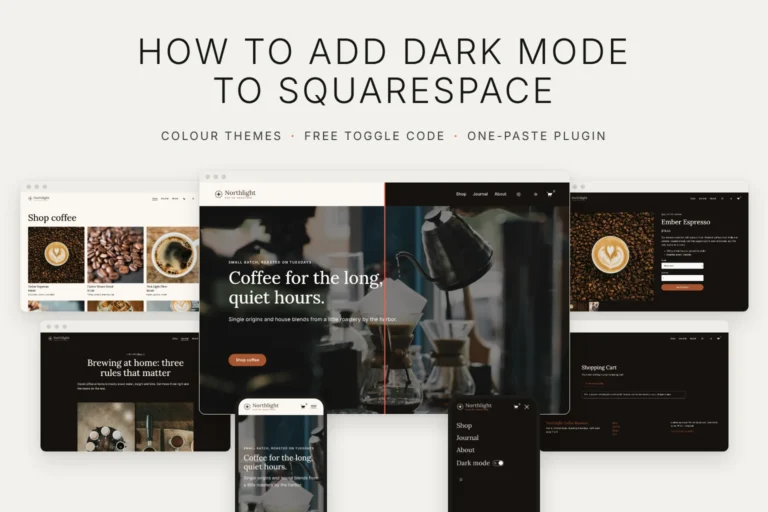
Squarespace 7.1 has no dark mode switch for visitors. Three ways to get one: a fully dark design, a free toggle we ran on two 7.1 demos, and a plugin that builds dark mode from your own colour themes.

Squarespace has no back to top button, so this guide gives you free tested code for every page, a no-JavaScript version for the Basic plan and two hosted widgets, each set up step by step.
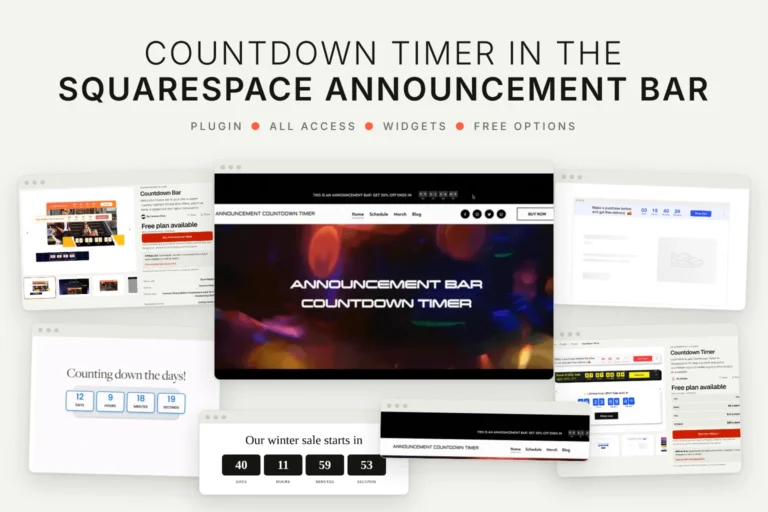
Squarespace’s announcement bar can’t count down on its own. How to add a live countdown inside it with a plugin or All Access, as a sticky widget bar, or for free, with the end date and time zone set right.
Squarespell All Access
All 48 plugins and every new one, worth $2,044 bought one by one. 14 days free, cancel anytime.
Start 14 days freeOr start free with 13 plugins, no cardFounding price until 1 December, kept for as long as you stay.