Black Friday30% off every Squarespell plugin. No code neededOr get all 48 plugins from $15/mo, 14 days freeEnds in02d12h00m58sShop plugins
squarespell
Product Gallery Video: Add YouTube, Vimeo and Uploaded Videos to Your Squarespace Product Gallery to Pinterest (opens in a new window)

Squarespace 7.1 plugin

Product Gallery Video: Add YouTube, Vimeo and Uploaded Videos to Your Squarespace Product Gallery

Videos inside your product gallery.

Price: $39

Choose your license

Instant download · Sold by Squarespell

Bundle & save

  • 2 plugins 10% off
  • 3 plugins 20% off
  • 4+ plugins 30% off

Automatically applied at checkout on Squarespell plugins.

Requires Squarespace 7.1 product pages and the Core plan or higher (Code Injection).

  • Every video source YouTube (also Shorts), Vimeo, Loom, video files, uploaded Squarespace videos in Video blocks
  • In the gallery Squarespace's own arrows, swipe, thumbnails and counter treat it like a picture
  • Phones By itself on phones too, or a play button on phones
  • Installation One paste in Code Injection, Footer

Videos inside your product gallery.

Put videos inside the product gallery of your Squarespace 7.1 store, as slides next to your pictures.

Good to know: Squarespace 7.1 product pages only. Squarespace's product editor still takes pictures only, so the video link goes in a picture's alt text, a gallery-video section or the builder. Code Injection needs the Core plan or higher.

  • Three ways to add a video

    A link in a picture's alt text, Video blocks in a section with the Anchor Link gallery-video, or videos by product address in the builder

  • Colours and sizes with their own video

    When a shopper chooses it, the gallery opens that video.

  • On store pages

    On store pages and under related products, the video plays over the product's picture while the pointer is on it, and stops when the pointer leaves.
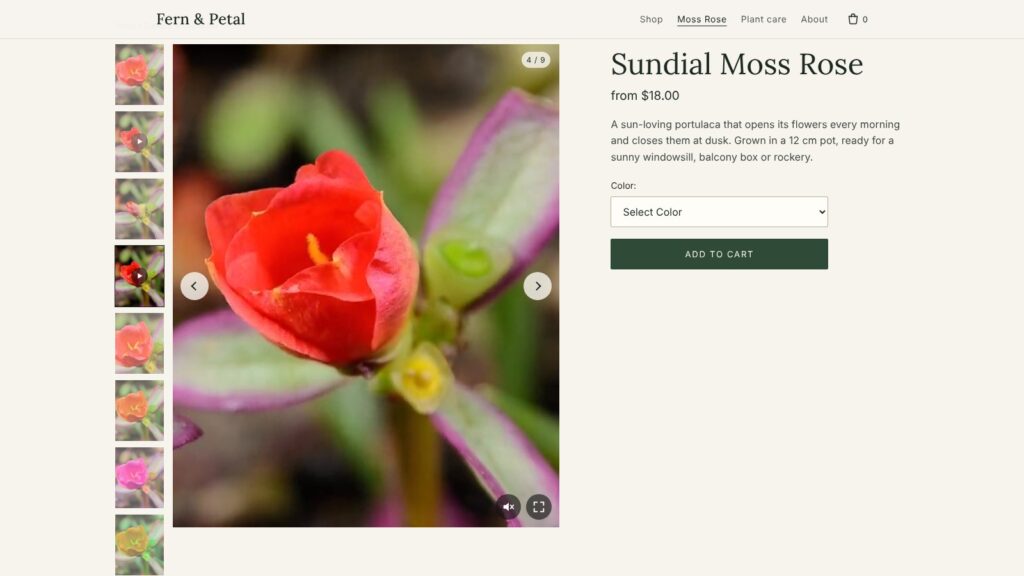
See how it looks on your site.

A Squarespace product page with a flower video playing in the product gallery, a play badge on its thumbnail, sound and full-screen buttons on the video
A video slide in the product gallery.
All features in detail

Videos inside your product gallery.

Put videos inside the product gallery of your Squarespace 7.1 store, as slides next to your pictures. YouTube (Shorts too), Vimeo, Loom, video files and the videos you upload to Squarespace. They play without sound when shown, when clicked or when the pointer is on them, open full screen with sound, follow the colour a shopper picks and play on store cards. One paste of code, one payment.

Squarespace product images take pictures only. Shoppers who want to see the product move have to scroll down to a Video block or leave the page. Product Gallery Video puts the video in the gallery itself, as a slide with a play badge on its thumbnail, and Squarespace's own arrows, swipe, thumbnails and counter treat it like a picture.

Squarespace's product editor takes pictures only. Owners on the Squarespace Forum have asked for years how to add a video to a product, and the answers point to a Video block further down the page, which looks like an afterthought next to the gallery.

Product Gallery Video adds each video to the gallery when the page loads, before Squarespace sets up the gallery. Squarespace then treats the video like any other slide: the arrows, swipe on phones, the thumbnails and the counter include it. The picture you chose stays as the video's cover until the video really plays, so a slow connection or a video that cannot play never shows a black box.

You choose everything in a builder file that runs in your browser, with a sample store beside it that runs your exact settings. Then you paste one block of code into Code Injection, Footer. Your products, pictures and checkout stay as they are.

What it does

  • Adds videos to the product gallery as slides, next to your pictures
  • Plays YouTube (Shorts too), Vimeo, Loom, video files and the videos you upload to Squarespace
  • Three ways to add them: a link in a picture's alt text, Video blocks in a section with the Anchor Link gallery-video, or videos by product address in the builder
  • Starts the video without sound when its slide is shown, when clicked, or when the pointer is on it
  • Opens a full-screen player with sound and controls
  • Opens a colour's own video when a shopper chooses that colour
  • Plays the video on store cards while the pointer is on them
  • Works with the Slideshow, Carousel and Stacked gallery designs

Three ways to add a video

  • A link in a picture's alt text: in the product editor, open a picture's Edit metadata and paste the video link into Alt text, for example "Bloom timelapse https://youtu.be/…". That picture becomes the video and stays as its cover until it plays. The other words become the video's name for screen readers.
  • Videos you upload to Squarespace: add a section under the product with the Anchor Link gallery-video and put Video blocks in it. Each video moves into the gallery, first, second or last, and the section is hidden. Squarespace's own player plays uploaded videos, so no YouTube or Vimeo account is needed.
  • Videos by product address: in the builder, type the product page address, such as /shop/p/linen-dress, the video link and its place. Type * to add a video to every product. No change to your pictures.

Every video source

  • YouTube links, youtu.be links and YouTube Shorts, which play tall. A start time in the link is kept.
  • Vimeo links, unlisted Vimeo links too.
  • Loom links.
  • Links to video files ending in .mp4, .webm, .mov or .m4v, for example a file you upload with a text link (Link, File).
  • Video blocks in the gallery-video section: uploaded videos, YouTube and Vimeo.
  • A link the plugin cannot play is marked next to the field in the builder, and YouTube, Vimeo and Loom links are named there.

How videos play

  • By itself without sound when the slide is shown (the default), when clicked, or when the pointer is on it.
  • By itself on phones too, or a play button on phones.
  • A sound button and a full-screen button on the video. Full screen opens a large player with sound and controls; Escape closes it.
  • Play again and again, player controls after a click, and what a click on a playing video does: open full screen, turn sound on or off, pause, or nothing.
  • Only one video plays at a time. A video stops when its slide is no longer shown, and in the Stacked design when it scrolls off screen.
  • Squarespace's own zoom and lightbox stay on your pictures; on a video slide the click is used for the video.
  • Visitors who ask their device for less motion get a play button instead of videos that start by themselves.

Colours and sizes with their own video

  • In the builder, give a video an option value, such as Yellow or Sage. When a shopper chooses it, the gallery opens that video.
  • A picture with a video link can also be a variant picture: choosing that variant shows its video.
  • Squarespace's own variant pictures keep working after videos are added: choosing a colour still shows that colour's picture.

Look

  • Fill the frame like your pictures, or show the whole video with a colour around it.
  • Play button: circle, rounded, outline or icon only, in three sizes, in your site's primary button colour or your own.
  • A play badge on the video's thumbnail, and an optional small label under it.
  • Videos stay where they are in the gallery, or move first.

On store pages

  • On store pages and under related products, the video plays over the product's picture while the pointer is on it, and stops when the pointer leaves.
  • It uses the same links as the product: the alt text of the product's pictures, or a video by product address.
  • On phones and tablets without a mouse, cards stay pictures and a tap opens the product.

Privacy and loading

  • YouTube's no-cookie player and Vimeo's do-not-track mode, on by default.
  • A video's player loads only when its slide is shown or its card is pointed at; until then the picture is all that loads.
  • No library and no file from another server: one block of code in your Footer, about 33 KB (about 12 KB compressed).
  • Pasted twice by mistake, it still runs once. While you edit a page in Squarespace, nothing is moved.

Change settings later

Open the builder again (it remembers your settings in that browser), make the change, click Copy code and paste it over the old Product Gallery Video code in Code Injection, Footer. New videos in alt text or in a gallery-video section need no new code. The builder can also save your settings to a file.

Your license key

Your key is in the order email and under My Account, Licenses on squarespell.com. You enter it once in the builder, together with the address of your website. The code you copy then works on that website.

  • A Single License works on one website at a time. To move it, deactivate the old website under My Account, Licenses, click "Use another website or key" in the builder, activate the new one and copy the code again.
  • A Multi-Use License works on unlimited websites. You activate each one in the builder and copy its code.
  • Your site's built-in squarespace.com address always works, so you can install before your domain is connected.

One payment

You pay once. There is no monthly fee, no limit on products, videos or views, and nothing switches off.

Who it is for

  • Stores whose products sell better when shoppers see them move: clothing, plants, furniture, crafts, gadgets
  • Stores with a different video for each colour or size
  • Owners who upload their videos to Squarespace and do not want a YouTube or Vimeo channel
  • Designers building Squarespace stores for clients (the Multi-Use License covers unlimited websites)

One paste in your Footer.

  1. Step 1: Activate

    Open the builder file. Enter your license key and your website address, then click Activate.

  2. Step 2: Choose

    Choose where your videos come from, how they play and how they look, and check them in the preview.

  3. Step 3: Paste

    Click Copy code. In Squarespace open Pages, Custom Code, Code Injection, paste it into the Footer box and click Save.

  4. Step 4: Add your videos

    Add your videos: a link in a picture's alt text, or Video blocks in a section with the Anchor Link gallery-video.

Code Injection needs the Core plan or higher. Check your store in a private window. The PDF guide included with the plugin shows every step with screenshots.

What’s included and compatibility

What’s included

  • The Product Gallery Video builder (one HTML file that runs in your browser), with a live preview on a sample store
  • An illustrated PDF installation guide
  • Your license key
  • Support by email at info@squarespell.com

For stores whose products sell better when shoppers see them move, stores with a different video for each colour or size, owners who upload their videos to Squarespace, and designers building Squarespace stores for clients.

Known limitations

  • Built for Squarespace 7.1 product pages. Squarespace 7.0 templates are not supported.
  • Squarespace's product editor still takes pictures only, so the video link goes in a picture's alt text, a gallery-video section or the builder.
  • Videos from a gallery-video section and by product address are added when the page loads. Pages that open without a full page load, such as Quick View, show alt text videos only. Quick View was not part of our 1.0.0 tests.
  • YouTube and Vimeo show their own logo, play from their own servers and set cookies once a video plays, also in their privacy modes. Private videos, age-restricted videos and videos with embedding switched off do not play; the picture stays as their cover.
  • Loom cannot be paused or have its sound changed from outside, so a Loom video has no sound button.
  • Phones play videos without sound until a shopper taps the sound button. Low power mode on a phone can stop videos that start by themselves; the play button then shows.
  • Code Injection needs the Core plan or higher.
  • Tested in Chromium (Chrome) on a computer and at phone widths, on public Squarespace 7.1 product pages, on a Squarespace store and on the hosted demo. Not tested in Safari, in Firefox or on real phones (iPhone and Android).

Check compatibility

Squarespace version
7.1
Works with
Product pages (Slideshow, Carousel and Stacked gallery designs), store pages, related products
Video sources
YouTube (also Shorts), Vimeo, Loom, video files, uploaded Squarespace videos in Video blocks
Installation
One paste in Code Injection, Footer
Plugin version
1.0.0
Plan needed
Core or higher (Code Injection)
Coding knowledge
None. Everything is chosen in the builder.
Browser support
Tested in Chromium (Chrome) on a computer and at phone widths
Dependencies
None
License
Single License: Single Website. Multi-Use License: Unlimited Websites.
Support
info@squarespell.com

Squarespace 7.0 templates are not supported.

Good to know before you buy.

Answers to common questions about how the plugin works.

Can I add a video to a Squarespace product's images?

Not with Squarespace alone: the product editor takes pictures only. Product Gallery Video puts the video in the product gallery as a slide, from a link in a picture's alt text, from a Video block in a gallery-video section, or from the builder.

Do I need YouTube or Vimeo?

No. Upload your video to a Video block in a section with the Anchor Link gallery-video, and Squarespace's own player plays it in the gallery. YouTube, Vimeo, Loom and video file links work too.

Do the arrows, swipe and thumbnails still work?

Yes. The video is added before Squarespace sets up the gallery, so its arrows, swipe on phones, thumbnails and counter treat the video like a picture.

Does the video play with sound?

Videos that start by themselves play without sound, because browsers block sound until a visitor taps. A sound button turns it on, and the full-screen player plays with sound.

Can each colour have its own video?

Yes. Give a video an option value, such as Yellow, in the builder, and choosing Yellow opens that video. A picture with a video link can also be a variant picture.

Can the video play on my store page?

Yes. On store pages and under related products, the video plays over the product's picture while the pointer is on it.

Will a video slow down my product page?

A video's player loads only when its slide is shown or its card is pointed at; until then the picture is all that loads. The code is about 33 KB with no library.

Can I use YouTube Shorts?

Yes. Shorts links play tall, and the picture stays as the cover until the video plays.

Does it work with the Carousel and Stacked gallery designs?

Yes. In the Carousel the video is a slide like the pictures; in the Stacked design each video plays while it is on screen.

Which plan do I need?

Squarespace 7.1 on the Core plan or higher, for Code Injection.

Is this a subscription?

No. One payment: $39 for a Single License, $79 for a Multi-Use License. No monthly fee.

Installation & troubleshooting 8 fixes
No video shows.
Check that the code is in the Footer box and saved, and that the license is activated for this website: while you are logged in, a note at the bottom left says so when it is not. Look at your store logged out, in a private window.
The picture stays a picture.
The alt text needs the whole link, starting with https://, or youtu.be, vimeo.com or loom.com. Save the product and refresh the page.
The uploaded video does not move into the gallery.
The section needs the Anchor Link gallery-video (Edit Section, Anchor Link) and must be on the same product page. While you edit the page in Squarespace, the section stays where it is; exit the editor to check.
A YouTube video does not play.
Its owner switched off playing on other websites, or it is private or age-restricted. The picture stays as its cover.
It shows twice.
The code was pasted twice. Keep one Product Gallery Video block in the Footer and click Save.
My change in the builder does not show.
Click Copy code again, paste it over the old Product Gallery Video code in Code Injection, Footer, click Save and look at your store in a new private window.
"Product Gallery Video: not activated for" your address.
Only you see this note, while logged in. Activate that address in the builder, copy the code again and paste it over the old code.
"Could not reach squarespell.com".
The builder needs the internet once to activate. Check the connection and click Activate again. Your store never contacts squarespell.com.

Customer reviews

No reviews yet. Share your experience.

Ready to show your products moving?

Product Gallery Video: Add YouTube, Vimeo and Uploaded Videos to Your Squarespace Product Gallery · Single License

Get the plugin $39 , Single License