 Member Content Pro: Show Members-Only Content on Public Squarespace Pages with Native Member Sites$59
 Squarespace · PluginSquarespell Original
Browse by platform
View allBrowse by goal
View allBrowse by goal
Fresh inventory
Recently added
Member Content Pro: Show Members-Only Content on Public Squarespace Pages with Native Member Sites$59Squarespace · PluginSquarespell Original Event Tickets: Sell Tickets on Squarespace Event Pages with Ticket Types, Seats Left and Native Checkout$59Squarespace · PluginSquarespell Original
 Wholesale Order Pad: Squarespace Wholesale Order Form with Bulk Add to Cart, Order by SKU and Reorder$85Squarespace · PluginSquarespell Original
 Squarespace Summary Block Pro: More Than 30 Items, Load More and Pagination$49Squarespace · PluginSquarespell Original
 Squarespace Delivery Area Checker: Postcode and ZIP Code Checker Plugin$49Squarespace · PluginSquarespell Original
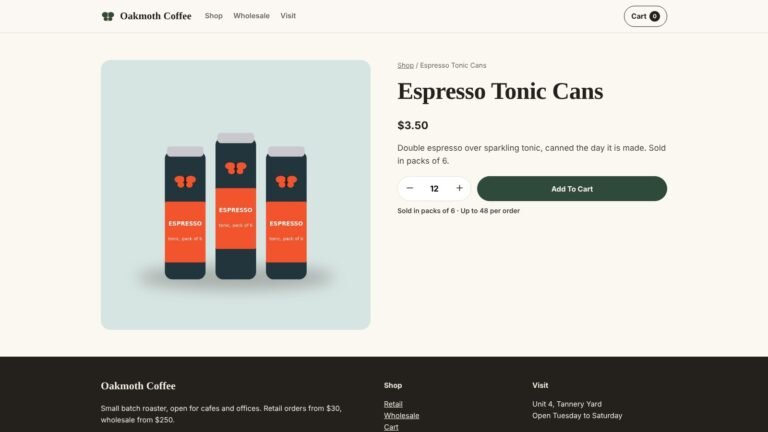 Order Rules: Squarespace Minimum Order, Quantity Limits and Pack Sizes Plugin$49Squarespace · PluginSquarespell Original
Search results
Matching products
Squarespace
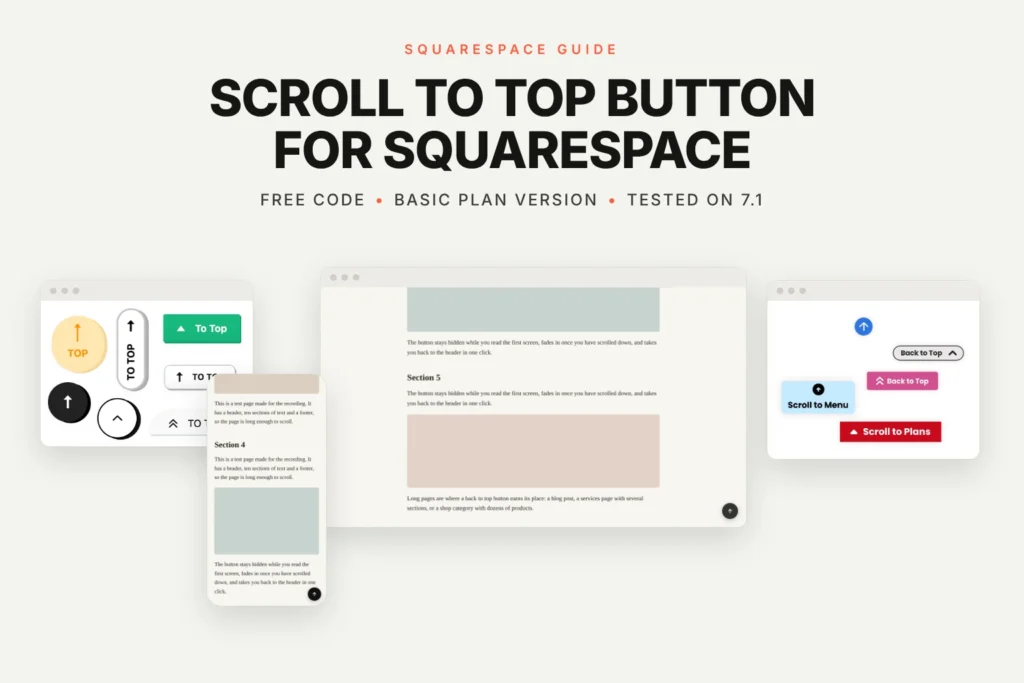
Squarespace has no back to top button, so this guide gives you free tested code for every page, a no-JavaScript version for the Basic plan and two hosted widgets, each set up step by step.
A note on how we make money. The two hosted widgets in this guide, Back to Top by Elfsight and Back to Top Button by Common Ninja, are listed on Squarespell with affiliate links, and we may earn a commission if you upgrade through them. The free code in this guide earns nobody anything, and it is still the method we recommend for most sites. Details are in our affiliate disclosure.
If you want the short version:
And the honest caveat before any of that matters: Squarespace has no built-in back to top button in version 7.1, so every route here is added code. Squarespace’s support team doesn’t help with custom code, and a later Squarespace update could change how it behaves, which is why the code below is short and easy to remove.
Last updated: 22 October 2026
A scroll to top button (also called a back to top or go to top button) is the small arrow that sits in a corner of a long page and takes the reader back to the header. On Squarespace it matters most on long blog posts, services pages with many sections and shop categories with dozens of products, especially on phones, where scrolling back up takes many swipes.
This guide replaces our original 2025 tutorial. We rewrote the code from scratch, ran both free versions on a Squarespace 7.1 template demo in Chromium, and found two Squarespace-specific problems the old code did not handle: the site footer traps a fixed button underneath page content, and template CSS can override your animation and scroll settings. Both are fixed in the code below. We also looked at the two hosted widgets listed on Squarespell for readers who want a visual editor instead.
Free plan available
Free plan available
Two questions decide it: which Squarespace plan you are on, and whether you want to edit the button in a visual editor or are happy changing a few values in code.
| Method | Plan needed | Cost | Where it goes | Best for |
|---|---|---|---|---|
| 1. Free code, site-wide | Core, Plus or Advanced | Free | Code Injection, Footer | Most sites: one paste, every page, hides until needed |
| 2. Free code, no JavaScript | Any plan, including Basic | Free | A Code Block in the site footer | Basic plan sites, or anyone who wants no script at all |
| 3. Elfsight Back to Top | A plan that allows embed code (see below) | Free Lite plan; Basic $5, Pro $10, Premium $20 a month | Embed code from Elfsight | A visual editor with ready-made button styles and page rules |
| 4. Common Ninja Back to Top Button | A plan that allows embed code | Free plan; paid plans on Common Ninja’s site | Embed code from Common Ninja | Skins, colour and font controls in a drag-and-drop dashboard |
Plan rules from Squarespace’s help centre and Elfsight prices from its Squarespell listing, both checked 22 October 2026. Common Ninja does not state prices on its listing.
Our pick for most readers is Method 1. It is about 80 lines, loads nothing from another server, hides itself until the reader has scrolled, respects the reduced motion setting and works with a keyboard. Pick a widget only if you will genuinely use its editor or its page rules.
<style> tags, which is what Method 2 uses.This is one paste into Code Injection, Footer. It adds a round black arrow button to the bottom right corner of every page. The button stays hidden for the first 400 pixels, fades in as the reader scrolls, and on click scrolls smoothly back to the top and moves keyboard focus to your header so keyboard and screen reader users land in the right place.
In your Squarespace dashboard, open Website, scroll the panel to Website Tools, and choose Code Injection under Custom Code. If you only see an upgrade message there, your plan does not include code injection: use Method 2.
Copy the whole block below, including the <style> and <script> tags, and paste it into the Footer field. Squarespace’s guide says code in the Footer field “is injected before the closing </body> tag on every page in your site”, which is what makes the button site-wide. If the Footer field already holds other code, paste this underneath it.
<!-- Squarespell back to top button: paste into Code Injection, Footer -->
<style>
  .sstt-btn {
    position: fixed;
    right: 24px;
    bottom: 24px;
    z-index: 999;
    width: 48px;
    height: 48px;
    display: flex;
    align-items: center;
    justify-content: center;
    padding: 0;
    border: 0;
    border-radius: 50%;
    background: #111111;
    color: #ffffff;
    box-shadow: 0 4px 14px rgba(0, 0, 0, 0.2);
    cursor: pointer;
    opacity: 0;
    visibility: hidden;
    transform: translateY(12px);
    transition: opacity 0.25s ease, transform 0.25s ease, visibility 0.25s;
  }
  .sstt-btn.is-visible {
    opacity: 1;
    visibility: visible;
    transform: translateY(0);
  }
  .sstt-btn:hover { background: #333333; }
  .sstt-btn:focus-visible { outline: 3px solid #4a90e2; outline-offset: 3px; }
  .sstt-btn svg { width: 22px; height: 22px; }
  @media (max-width: 767px) {
    .sstt-btn { right: 16px; bottom: 16px; width: 44px; height: 44px; }
  }
  @media (prefers-reduced-motion: reduce) {
    .sstt-btn { transition: none; }
  }
</style>
<script>
(function () {
  var SHOW_AFTER = 400; // pixels scrolled before the button appears
  var LABEL = 'Back to top';

  function init() {
    if (document.querySelector('.sstt-btn')) return;
    var btn = document.createElement('button');
    btn.type = 'button';
    btn.className = 'sstt-btn';
    btn.setAttribute('aria-label', LABEL);
    btn.innerHTML = '<svg viewBox="0 0 24 24" aria-hidden="true" focusable="false">' +
      '<path d="M12 5l-7 7 1.4 1.4L11 8.8V19h2V8.8l4.6 4.6L19 12z" fill="currentColor"/></svg>';
    document.body.appendChild(btn);

    var ticking = false;
    function update() {
      ticking = false;
      btn.classList.toggle('is-visible', window.pageYOffset > SHOW_AFTER);
    }
    window.addEventListener('scroll', function () {
      if (!ticking) { ticking = true; window.requestAnimationFrame(update); }
    }, { passive: true });
    update();

    btn.addEventListener('click', function () {
      var reduce = window.matchMedia('(prefers-reduced-motion: reduce)').matches;
      window.scrollTo({ top: 0, behavior: reduce ? 'instant' : 'smooth' });
      var target = document.querySelector('header') || document.body;
      if (!target.hasAttribute('tabindex')) target.setAttribute('tabindex', '-1');
      target.focus({ preventScroll: true });
    });
  }

  if (document.readyState === 'loading') {
    document.addEventListener('DOMContentLoaded', init);
  } else {
    init();
  }
})();
</script>Checked on the alameda-demo.squarespace.com template (Squarespace 7.1) and on a local test page in Chromium 141, 22 October 2026.
Click Save. Open your site in a private or incognito window, scroll down a little more than one screen, and the button fades in at the bottom right. Click it and the page scrolls to the top. Then press Tab until the button is focused and press Enter: it should do the same, with a blue outline showing focus.
What the code does, line by line in plain words. The style block positions the button, hides it with opacity and visibility, and shrinks it on phones. The script creates one <button> with the accessible name “Back to top”, adds it to the end of the page, watches the scroll position (once per animation frame, with a passive listener so scrolling stays smooth), and shows the button after 400 pixels. On click it scrolls to the top, smoothly unless the visitor’s device asks for reduced motion, in which case it jumps instantly.
Why one paste instead of CSS in the Custom CSS panel. Squarespace help recommends the Custom CSS panel for styles, and you can move the <style> contents there if you prefer. We kept them together so the button can be removed in one place and so the same block also works on a single page (see below).
Squarespace’s custom code guide says that “on all plans, code blocks support plain text, HTML, Markdown, and CSS code surrounded by <style></style> tags”. So a plain link styled as a fixed button works even on Basic. The link points to #top, which browsers treat as the top of the page, and one line of CSS makes the jump smooth.
The trade-off: without JavaScript, hiding the button at the top of the page needs CSS scroll-driven animations. Chromium-based browsers support it and use it; in browsers that do not, the button is simply always visible, which still works. The address bar also shows #top after a click.
Open any page in the editor, scroll to the bottom and click Edit Site Footer. The footer is shared by your pages, so a block added here appears wherever the footer does. Putting the code in a normal page section would show the button only on that page.
Click Add Block (or the + in a classic editor section), type “code” in the search box and choose Code. Place the block anywhere in the footer; the button is fixed to the corner of the screen, so the block itself shows nothing.
Open the block’s editor, check Mode is set to HTML and Display Source is off, delete the sample text, and paste:
<!-- Squarespell back to top link: no JavaScript, works on every plan -->
<a class="sstt-link" href="#top" aria-label="Back to top">
  <svg viewBox="0 0 24 24" aria-hidden="true" focusable="false"><path d="M12 5l-7 7 1.4 1.4L11 8.8V19h2V8.8l4.6 4.6L19 12z" fill="currentColor"/></svg>
</a>
<style>
  html { scroll-behavior: smooth; }
  /* Lift the site footer so the fixed link sits above page content */
  #footer-sections { z-index: 9; }
  @media (prefers-reduced-motion: reduce) {
    html { scroll-behavior: auto !important; }
  }
  .sstt-link {
    position: fixed;
    right: 24px;
    bottom: 24px;
    z-index: 999;
    width: 48px;
    height: 48px;
    display: flex;
    align-items: center;
    justify-content: center;
    border-radius: 50%;
    background: #111111;
    color: #ffffff !important;
    box-shadow: 0 4px 14px rgba(0, 0, 0, 0.2);
  }
  .sstt-link:hover { background: #333333; }
  .sstt-link:focus-visible { outline: 3px solid #4a90e2; outline-offset: 3px; }
  .sstt-link svg { width: 22px; height: 22px; }
  @media (max-width: 767px) {
    .sstt-link { right: 16px; bottom: 16px; width: 44px; height: 44px; }
  }
  /* Hide the link at the top of the page in browsers that support scroll-driven animations */
  @supports (animation-timeline: scroll()) {
    .sstt-link {
      animation: sstt-reveal linear both !important;
      animation-timeline: scroll(root) !important;
      animation-range: 0 400px !important;
    }
    @keyframes sstt-reveal {
      0%, 60% { opacity: 0; visibility: hidden; }
      100% { opacity: 1; visibility: visible; }
    }
  }
</style>The line most tutorials miss. #footer-sections { z-index: 9; } is there because Squarespace gives the footer its own layer (in our test it had position: relative and z-index: 0). Without the line, a fixed button inside the footer sat underneath the page content: on the template demo a product’s quick view button covered it and clicks never reached it. The value 9 lifts the footer above page content while keeping it below the header’s value of 10 on that template, so menus still open over it.
Click Save and exit the editor, then open a different page in a logged-out window. The button should be in the bottom right corner (hidden at the very top in Chrome and Edge, always visible in browsers without scroll-driven animations), and a click should return to the top.
If only one long page needs it, a single blog post or a long sales page, use page-level code injection instead of the site-wide Footer field. This needs the same Core, Plus or Advanced plan as Method 1.
Back to Top by Elfsight is a hosted widget: you design the button in Elfsight’s online editor and paste one embed code into Squarespace. Its Squarespell listing shows a free Lite plan and paid plans at $5, $10 and $20 a month, and describes floating and embedded modes, a scroll percentage that triggers the button, adjustable scroll speed, spacing controls so it does not overlap other floating elements, and display rules to show or hide it on chosen URLs.
A plan note on the listing. Elfsight’s answers on the listing say Business and Commerce plans allow standard custom code embedding and that on Basic the widget can be added with a Markdown block. Business and Commerce are older Squarespace plan names; under the current plans, Squarespace’s own guide says embedding scripts needs Core, Plus or Advanced. We did not test the Markdown block route.
Back to Top Button by Common Ninja works the same way: you build it on Common Ninja’s site and paste a short embed code. The listing describes several skins, colour, text and hover colour controls, font changes, a choice of arrow icons and layouts, custom CSS, and a responsive design that adjusts to the screen. It has a free plan; Common Ninja sets the limits and prices on its own site, and the listing deliberately does not repeat them.
Before you pick a widget for a single arrow. Both widgets add a script from another company’s servers to every page, and free plans of hosted widgets usually carry limits or branding set by the vendor. Check those on the vendor’s pricing page before you commit, because neither listing states them.
| Free code (Methods 1 and 2) | Elfsight | Common Ninja | |
|---|---|---|---|
| Cost | Free | Free Lite plan; $5 to $20 a month for paid plans | Free plan; paid plans on its site |
| Editing | Change values in the code | Visual editor | Drag-and-drop dashboard |
| Loads from | Your own page | Elfsight’s servers | Common Ninja’s servers |
| Hide until scrolled | Yes, after 400 px (Method 2: Chromium browsers) | Yes, by scroll percentage | Not stated on the listing |
| Page rules | Footer for all pages, or page code injection for one | Show or hide by URL | Not stated on the listing |
| Reduced motion respected | Yes, tested | Not stated on the listing | Not stated on the listing |
| Tested by us | Yes, 22 October 2026 | No | No |
Widget features from each Squarespell listing, checked 22 October 2026. “Not stated” means the listing does not say, not that the feature is missing.
Every change below is a value inside the code you pasted. In Method 2, the class is .sstt-link instead of .sstt-btn; the values are the same.
Colour. Change background: #111111; to your brand colour and color: #ffffff; to the arrow colour. Keep strong contrast so the arrow stays visible; the hover colour is the second background value.
Size. Change width and height (48px on desktop, 44px in the mobile block). Keep at least 44 pixels on phones so it is easy to tap.
Bottom left instead of bottom right. Replace right: 24px; with left: 24px; in the main rule, and right: 16px; with left: 16px; in the mobile rule. Moving it left is the simplest fix when a chat bubble or cookie banner already uses the right corner.
When it appears. In Method 1, change var SHOW_AFTER = 400; (pixels). In Method 2, change animation-range: 0 400px.
A text label instead of an arrow. For a pill that reads “Top”, add this inside the style block, after the other rules:
.sstt-btn { width: auto; padding: 0 18px; border-radius: 24px; gap: 6px; font: 600 14px/1 inherit; }
.sstt-btn::after { content: "Top"; }
Hide it on phones. Add .sstt-btn { display: none; } inside the @media (max-width: 767px) block. Many sites want it most on phones, so try it before you remove it.
A back to top button solves one direction. Two related widgets on Squarespell cover the others: Scroll Progress by Common Ninja shows how far down the page the reader is, as a bar or a floating circle, and Scroll to Element Button lets visitors jump to a chosen section, such as pricing or a menu. Both have free plans and install with an embed code in the same way as Method 4.
Free plan available
Free plan available
I can’t see the button while logged in. Squarespace says that code “sometimes doesn’t appear while you’re logged in, even when visitors can view it”. Check in a private window.
The button is there but something covers it, or clicks do nothing. Another fixed element is on top: a chat bubble, a cookie banner, Squarespace’s mobile information bar, or on template demos the “Free trial” pill. Move the button with the bottom value (try 90px) or to the left corner. For Method 2, check the #footer-sections line is in your code.
The button scrolls away with the page instead of staying in the corner. A fixed element inside a block that has a CSS transform behaves as if it were not fixed. This can affect Method 2, because its link lives inside a Code Block; block animations are the usual cause. Turn off animations on that footer block or switch to Method 1, which attaches the button to the page itself.
The page jumps instead of scrolling smoothly. Your device probably has reduced motion switched on (on a Mac: System Settings, Accessibility, Display, Reduce motion), and the code respects that on purpose. Test with the setting off.
The reveal does not work in Method 2. Your browser does not support scroll-driven CSS yet, so the button is always visible; that is the designed fallback. If it must hide at the top in every browser, you need Method 1 and a plan with JavaScript.
Code Injection or the Code Block says Upgrade. Your plan does not include JavaScript. Use Method 2, or upgrade to Core, Plus or Advanced.
Two buttons appear. You pasted the code in two places (for example the Footer field and a page header), or an older version of this guide’s code is still on the site. Search Code Injection, your footer and Custom CSS for sqs-scroll-to-top or sstt and keep one copy.
Publishing the gaps is part of the method, not an afterthought.
We didn’t install the code on a live Squarespace site we own. We injected both methods into the live alameda-demo.squarespace.com template (Squarespace 7.1) with Playwright, in Chromium 141, on 22 October 2026, with every request other than page loads blocked, and checked hiding, revealing, clicking, keyboard use, reduced motion and the 390 pixel layout. The demo’s images could not load from our checking environment, so the GIFs were recorded on a local test page instead.
We only tested Chromium. Safari and Firefox were not tested. Method 1 uses standard scrolling and focus methods; Method 2’s reveal relies on scroll-driven animations, which not every browser supports, and the fallback is an always-visible button.
The footer fix is based on one template. The footer’s z-index of 0 and the header’s 10 were read from one 7.1 template. Other templates may use other values; if the button hides behind something, see Troubleshooting.
We couldn’t open Elfsight’s or Common Ninja’s own sites. Both were unreachable from our checking environment. What this guide says about the two widgets, including the set-up steps, comes from their Squarespell listings. We did not install either widget or confirm their free plan limits.
How this guide was made. The article was researched and written with AI assistance, then every claim was checked against the sources linked in it and both code methods were run as described above.
Does Squarespace have a built-in back to top button? No. Squarespace 7.1 has no back to top setting in its site styles or blocks, so the button comes from your own code, as in this guide, or from a widget.
Can I add a scroll to top button on the Squarespace Basic plan? Yes, with Method 2. Basic plan Code Blocks accept HTML and CSS, so a fixed link to the top of the page works. What Basic cannot do is run JavaScript, so the button can only hide itself at the top of the page in browsers that support scroll-driven CSS.
Will a back to top button slow my site down? The free code adds about 2 KB to each page and loads nothing from other servers, so the effect is negligible. Hosted widgets load a script from the vendor on every page, which adds a network request.
Does this work on Squarespace 7.0? The Method 1 code itself is plain HTML, CSS and JavaScript and does not depend on 7.1. We only tested 7.1. Squarespace notes that on 7.0, Ajax loading may stop CSS added through code injection from loading correctly, so if the button looks unstyled on a 7.0 site, move the style block into Custom CSS or turn off Ajax loading.
Is the button accessible? Method 1 uses a real button element with the name “Back to top”, a visible focus outline, keyboard support and reduced motion support, and it moves focus to your header after the scroll. Method 2 is a standard link with the same label and focus outline.
Where should the button go on the page? Bottom right is the convention readers expect. Use bottom left if a chat bubble, cart or cookie banner already sits in the right corner, and keep it at least 16 pixels from the edges on phones.
How do I remove it? Delete the code from Code Injection, Footer (Method 1), the footer Code Block (Method 2) or the page’s Header field, then save. Nothing else on the site changes.
Can I use the code on client sites? Yes. The code in this guide is free to use on your own and client sites, with no attribution needed.
On Core, Plus or Advanced, paste Method 1 into Code Injection, Footer, save, and check it in a private window: that is the whole job for most sites. On Basic, use Method 2 in a footer Code Block. Choose Elfsight or Common Ninja only if you want their editors or page rules, and read their plan limits first. If you write long posts, our guide to adding a copy button to Squarespace code blocks uses the same Code Injection steps.
Reviewed and last updated 22 October 2026. All prices checked on that date.
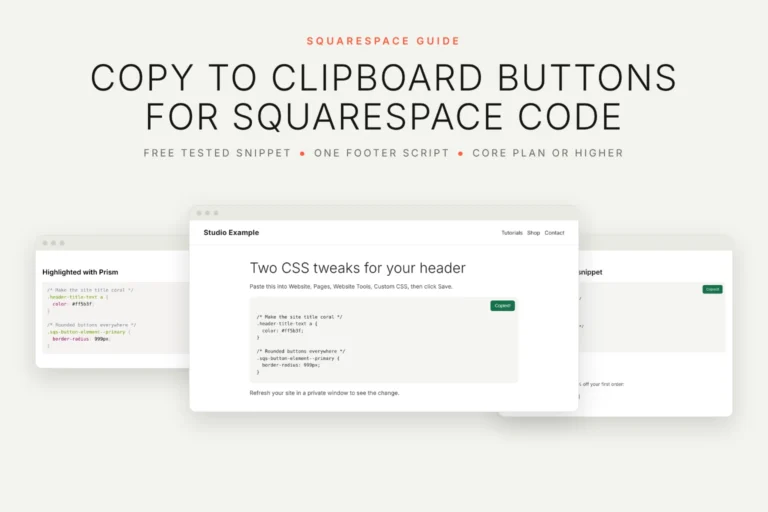
Squarespace has no copy button for code, so this guide gives you free code that adds one to every Code Block, plus a single-block version, Prism highlighting and a hosted widget, each tested and set up step by step.
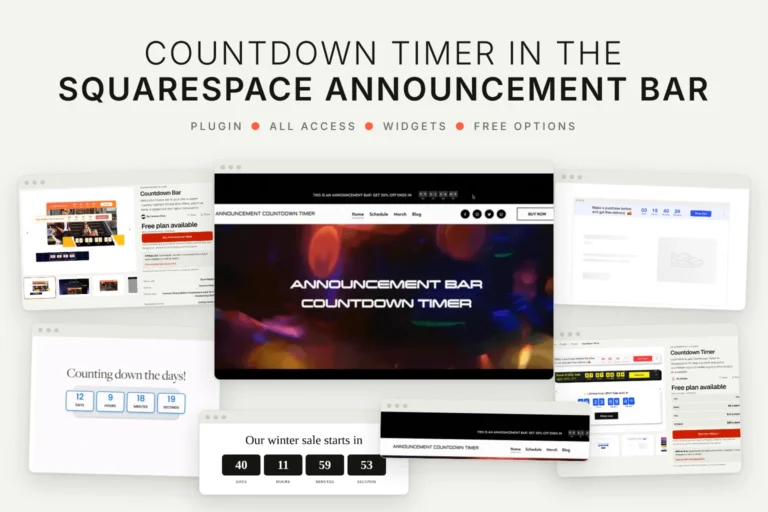
Squarespace’s announcement bar can’t count down on its own. How to add a live countdown inside it with a plugin or All Access, as a sticky widget bar, or for free, with the end date and time zone set right.
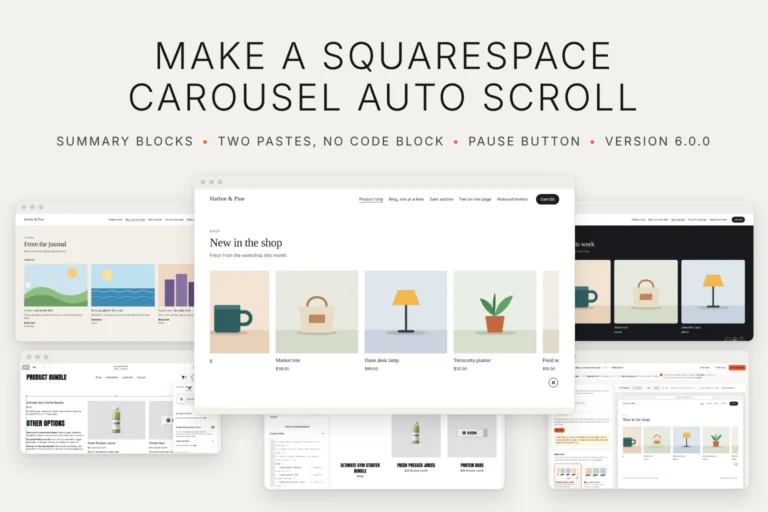
Which Squarespace carousels move on their own, the free code for a stepped Summary carousel, and the version 6 setup that makes Summary blocks of products, posts or events glide or step, installed in two pastes.
Squarespell All Access
All 48 plugins and every new one, worth $2,044 bought one by one. 14 days free, cancel anytime.
Start 14 days freeOr start free with 13 plugins, no cardFounding price until 1 December, kept for as long as you stay.