How to Add a Wishlist to Your Squarespace Store (2026 Guide)
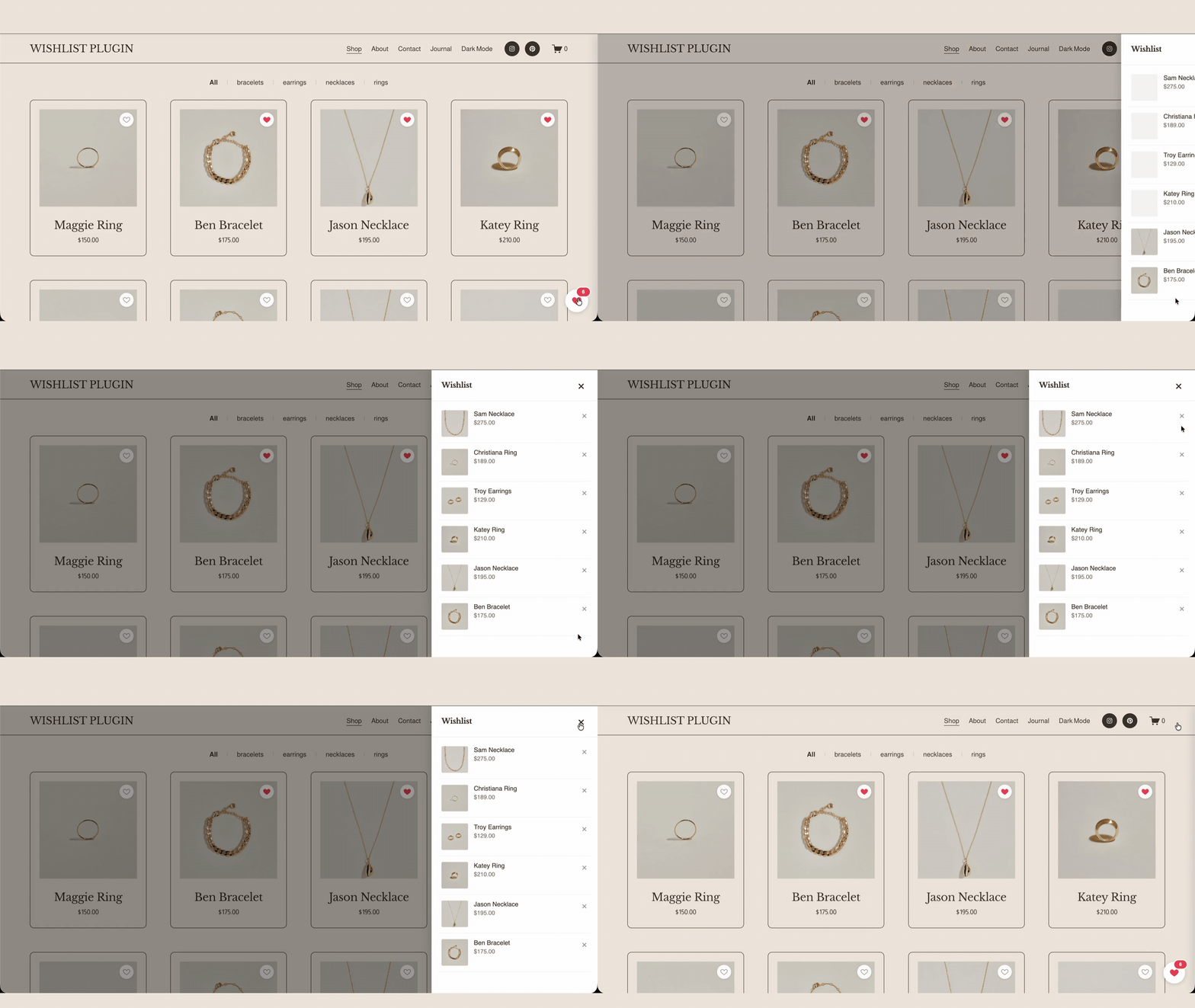
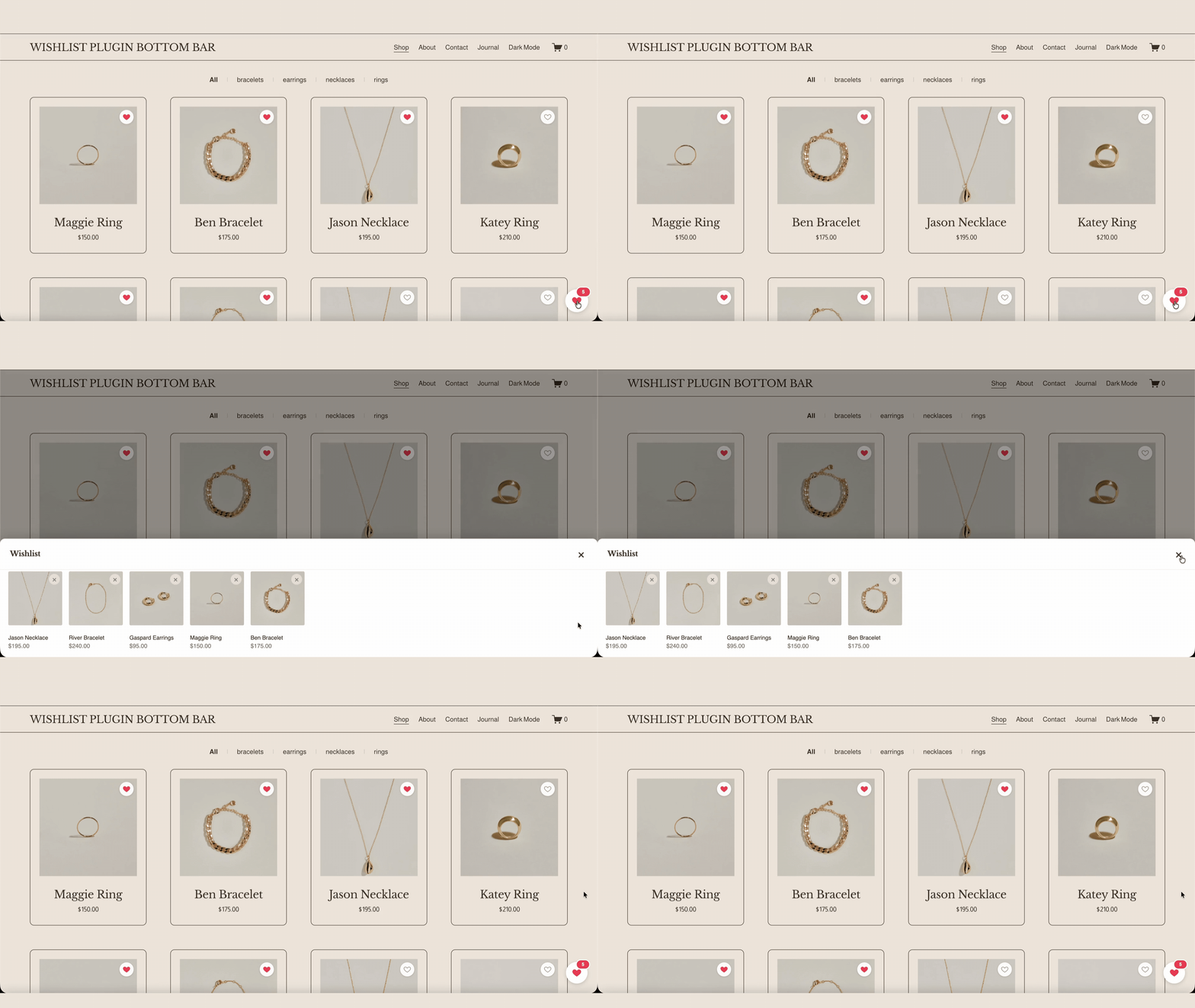
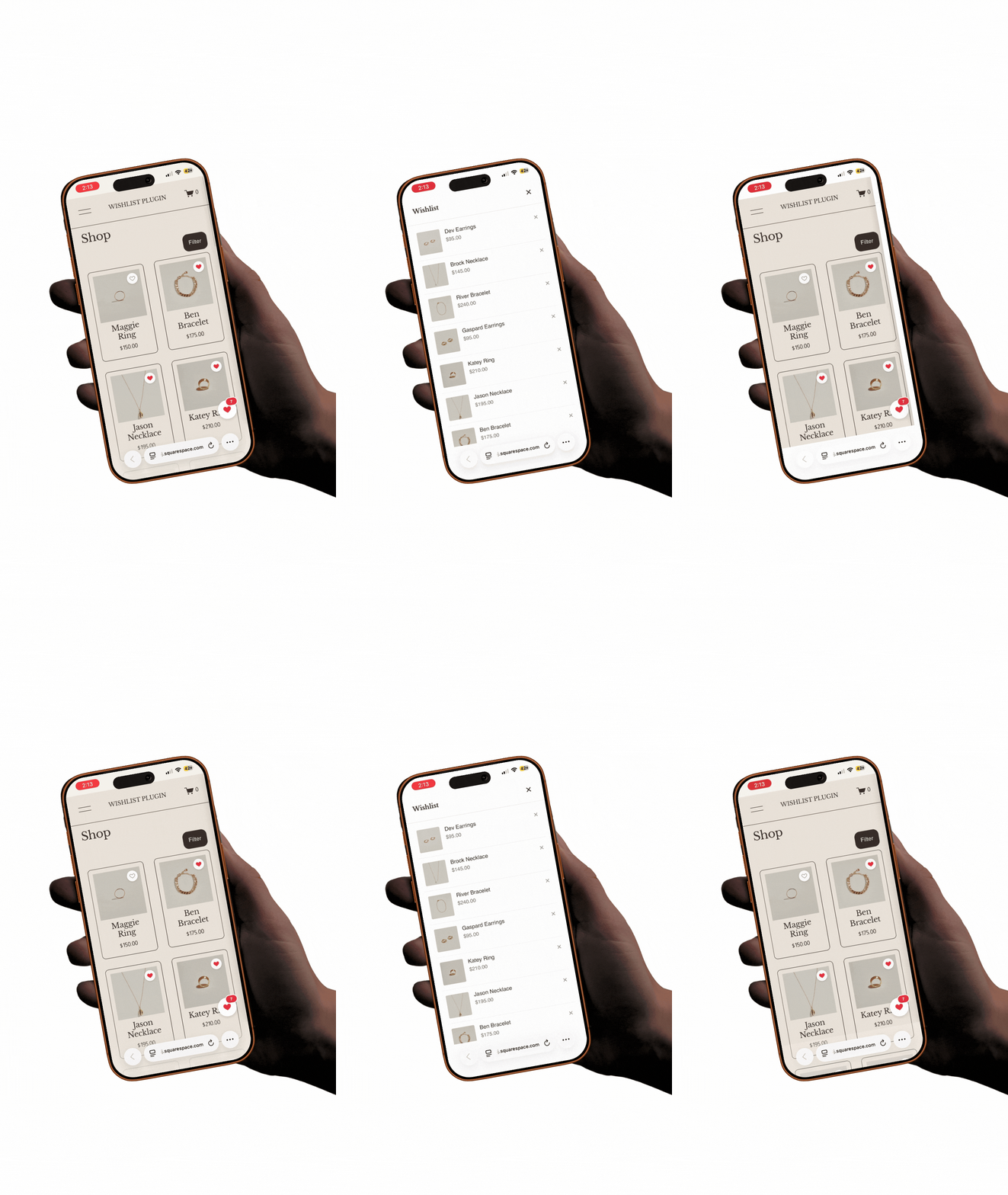
Quick answer: Squarespace has no built-in wishlist feature, so you add one with a plugin that drops a heart icon onto every product. The best options let shoppers save items with one tap no account or email required and keep your normal checkout intact. For example, Squarespell's Wishlist Shop Plugin offers a one-tap heart with a choice of side drawer or bottom bar display.
If you run a Squarespace store, you've watched shoppers browse, add nothing to cart, and leave. Many weren't ready to buy they just wanted to save something for later, and had no way to do it. This guide covers why Squarespace makes that harder than it should be, your real options, and what actually matters when you choose one.
The problem: Squarespace has no native wishlist
Squarespace still ships without a built-in wishlist or "save for later" feature. This isn't a niche request it's one of the most persistent asks in the Squarespace community, and has been for years.
A few representative threads from the Squarespace Forum:
Shop owners asking how to add "Favourites / Wishlist functionality" to their store.
Requests for an "add to wishlist" heart that sits next to the add-to-cart button not one that replaces it.
Store owners asking simply whether "customers can save products or create a list of favorites."
The recurring theme is telling: people don't just want a wishlist, they want one that works alongside normal checkout, not instead of it. That distinction turns out to be the whole game.
Your options for adding a wishlist
There are two realistic paths.
Option 1: Build it yourself with custom code
You can hand-code a wishlist using JavaScript to capture clicks and store saved items in the browser (via local storage) or in a connected database. It's the most flexible route and costs nothing but time.
The trade-offs:
You own every bug, edge case, and future fix.
Browser-only storage means saved lists can vanish when someone clears their cache or switches devices.
Squarespace platform updates can break custom code with no warning.
Making it responsive and accessible on mobile is real work.
For most store owners, custom code becomes a maintenance liability rather than a feature.
Option 2: Use a dedicated wishlist plugin
A purpose-built plugin adds the heart icon, handles saving and persistence, and stays responsive out of the box. You paste a snippet and you're done. The catch: "squarespace wishlist plugin" covers very different products some are genuine save for later tools, others are lead-capture forms wearing a wishlist label. The feature gaps are where the real differences hide (more below).
Why a dedicated plugin beats a manual workaround
Unless you have a developer on call, a plugin wins on the things that quietly matter:
Persistence across sessions. A good plugin remembers saved items when a shopper returns, so they land back on the products they liked instead of starting over.
No maintenance burden. When Squarespace pushes an update, keeping the feature working is the plugin maker's problem, not yours.
Mobile responsiveness by default. Most store traffic is on phones. A dedicated plugin handles tap targets, layout, and the drawer/bar behavior on small screens so you don't have to test it yourself.
Speed to live. A snippet install takes minutes; a custom build takes days and ongoing attention.
What to look for in a Squarespace wishlist plugin
Not all wishlist tools solve the same problem. Before you commit, check these four things they separate a true save-for-later feature from a workaround:
No login or email required to save: Forcing shoppers to hand over an email before they can heart an item adds friction at exactly the wrong moment. The best experience is one tap, no form.
It works alongside checkout it doesn't replace it: Some "wishlist" tools disable the Squarespace cart and convert it into an enquiry/quote form. That's useful for made to order or rental businesses, but it's the wrong tool if you want customers to actually buy online. If shoppers can't add a saved item to a real cart and check out, it isn't a retail wishlist.
One-time install vs. recurring cost: Some wishlist tools are subscriptions with no one-time option, so a simple UX feature becomes a permanent monthly line item. Decide whether that ongoing cost is worth it for what is, ultimately, a save button.
Display flexibility: A wishlist people forget about doesn't help you. Look for a clear, always-visible entry point a side drawer that slides in, or a persistent bottom bar showing the saved-item count and the choice of which fits your layout.
Frame these as your buyer's checklist. Whichever plugin you choose, hold it up against all four.
Squarespace Wishlist Plugins Compared
Squarespace Wishlist Plugins Compared
| Feature | Wishlist Shop PluginSquarespell | Studio Reveuse Wishlist Drawer |
WishlistFlow | SF Digital Wishlist |
|---|---|---|---|---|
| Wishlist heart on products | Yes | Yes | Yes | No (enquiry form) |
| Side-drawer display | Yes | Yes | No | No |
| Bottom-bar display | Yes | No | No | No |
| Save without login or email | Yes | Yes | No (email required) | No |
| Works alongside checkout | Yes | Yes | Yes | No (replaces checkout) |
| One-time purchase (no subscription) | Yes | Yes | No (monthly) | Yes |
| One-snippet install, live immediately | Yes | Yes | Yes | No (submit and wait) |
| Fully mobile responsive | Yes | Yes | Yes | Yes |
| Price | $25 one-time | $29 one-time | $17 / month | ~£125-135 |
A worked example: how a plugin like this comes together
To make the checklist above concrete, here's how one plugin Squarespell's Wishlist Shop Plugin maps to it. It's a useful reference point because it lines up with all four criteria: it adds a wishlist heart to every product (on product cards and product pages), lets shoppers save items with a single tap and no login or email, and leaves the normal Squarespace checkout untouched.
BEFORE YOU START
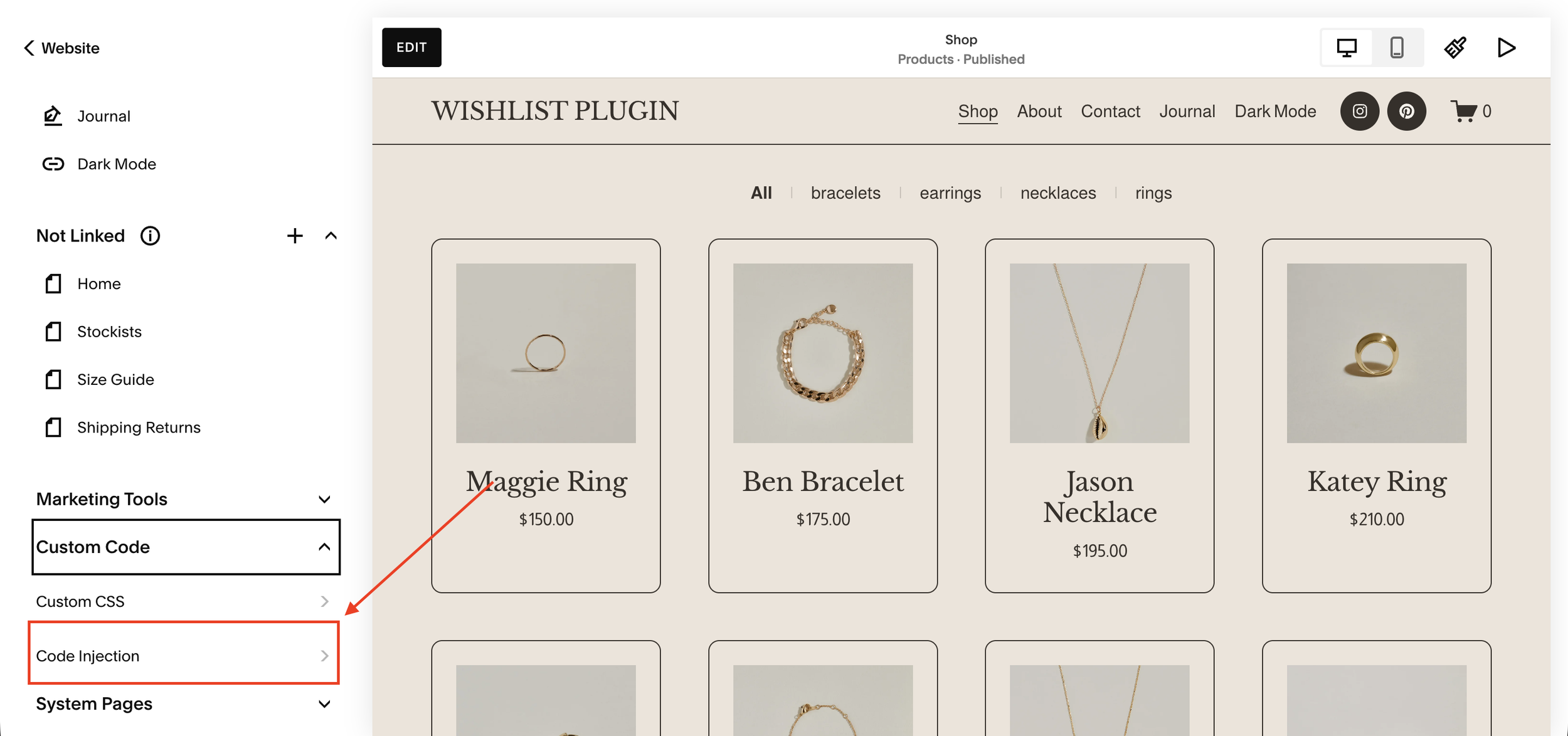
Find Code Injection
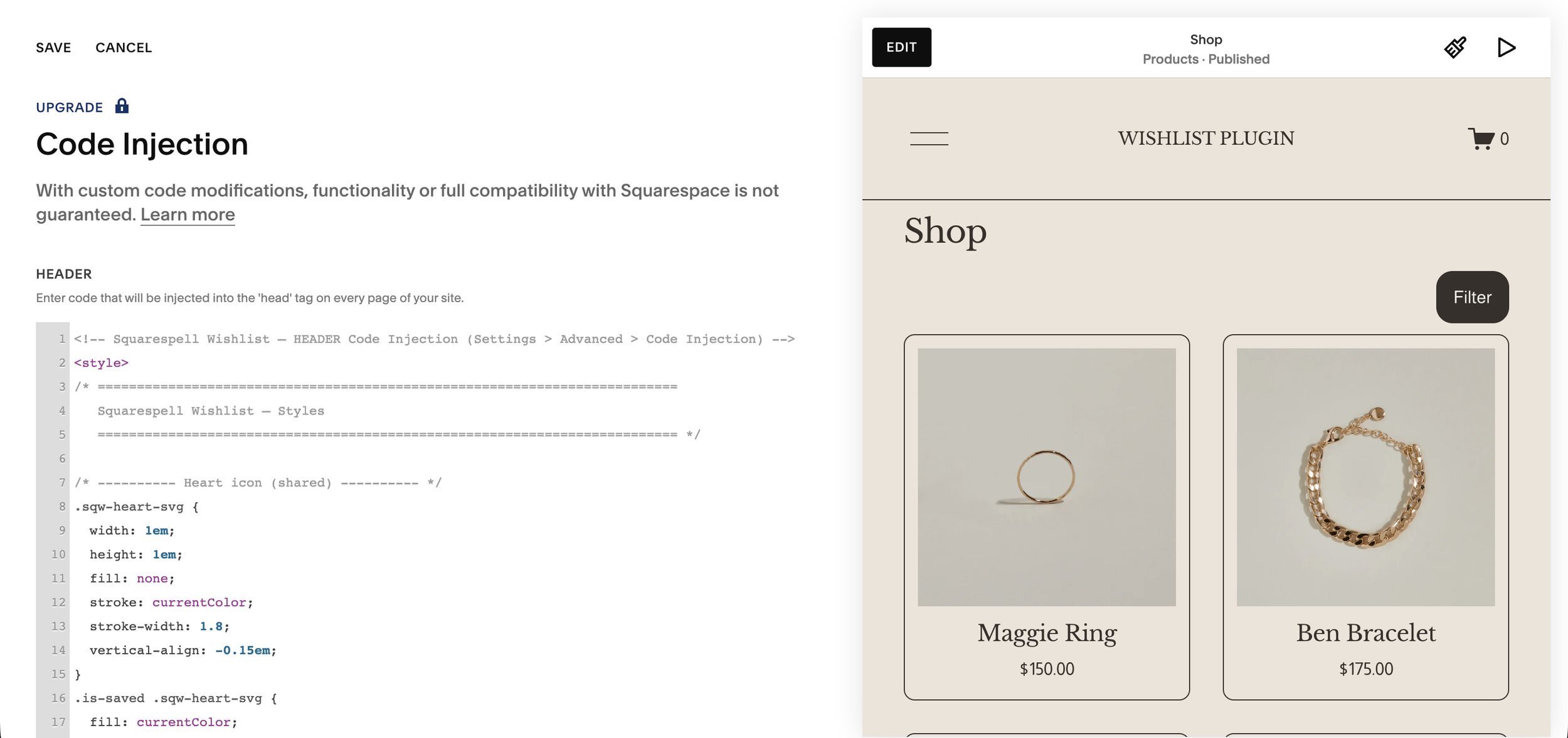
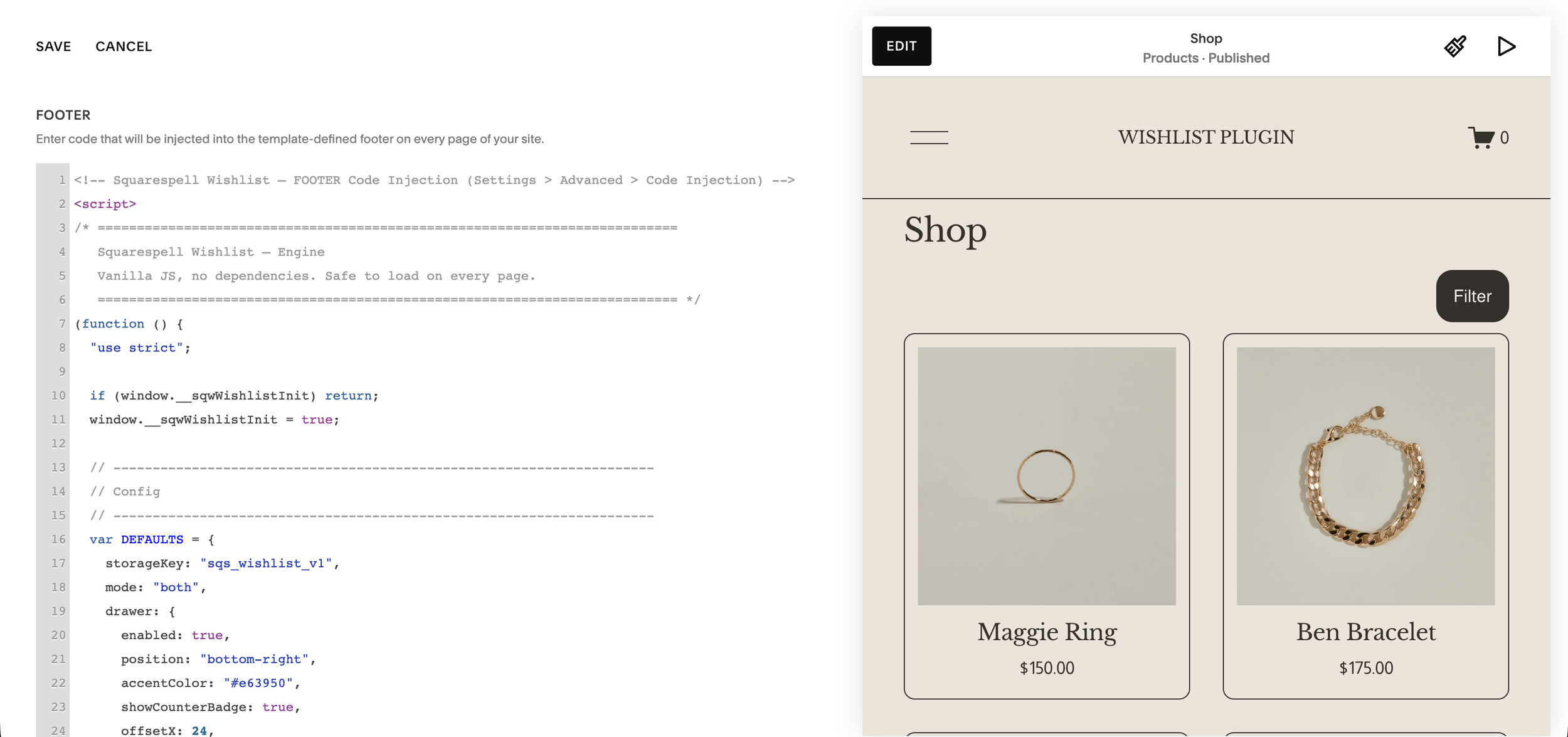
This plugin installs with two small pastes one in Header, one in Footer. Both fields live in the same place.
Open Code Injection in Squarespace
From your Squarespace dashboard go to Marketing Tools → Custom Code → Code Injection in the left sidebar.
CHOOSE A STYLE
Pick one panel style
The heart icon on every product card works the same either way the only difference is how the saved-items panel opens. Install either Side Bar or Bottom Bar below, not both.
STYLE 1
Side Bar panel slides in from the right
Saved items open in a tall vertical panel anchored to the right edge of the screen.
Paste the Side Bar Header code
Open Code Injection → Header, paste the code below, then click Save.
Paste the Side Bar Footer code
Open Code Injection → Footer, paste the code below, then click Save.
Save and preview Side Bar live
Click the floating heart icon on the live site. Saved items slide in from the right in a vertical list.
FAQ
-
No. Squarespace has no native wishlist or favorites feature, so you need a plugin or custom code to let customers save products for later.
-
Use a plugin like Squarespell's Wishlist Shop Plugin. You paste one snippet into Code Injection and a wishlist heart appears on every product automatically no developer or build tools needed.
-
Not with every plugin. Squarespell's Wishlist Shop Plugin lets shoppers save items with a single tap no login, no sign-up, and no email wall.
-
It shouldn't. Some enquiry style tools disable the cart, but a proper retail wishlist works alongside checkout so customers can still buy online. Squarespell's plugin keeps your normal checkout intact.
-
Yes. A well built plugin is fully responsive. Squarespell's Wishlist Shop Plugin uses tap-friendly icons and a mobile-sized drawer or bottom bar.
-
It depends on the vendor some are monthly subscriptions, others are one-time installs. Check pricing before you commit, since a wishlist is a feature you'll likely want to "buy once."
-
A side drawer slides in from the edge to show saved items on demand. A bottom bar stays visible at the bottom of the screen with a running count. It's down to which fits your store's layout.
Wrapping up
Adding a wishlist to Squarespace comes down to choosing an approach that saves items reliably, doesn't force a login, and keeps your checkout intact whether you build it yourself or use a dedicated plugin. Run any option you're weighing against the four-point checklist above, and you'll land on the one that fits your store.