 Member Content Pro: Show Members-Only Content on Public Squarespace Pages with Native Member Sites$59
 Squarespace · PluginSquarespell Original
Browse by platform
View allBrowse by goal
View allBrowse by goal
Fresh inventory
Recently added
Member Content Pro: Show Members-Only Content on Public Squarespace Pages with Native Member Sites$59Squarespace · PluginSquarespell Original Event Tickets: Sell Tickets on Squarespace Event Pages with Ticket Types, Seats Left and Native Checkout$59Squarespace · PluginSquarespell Original
 Wholesale Order Pad: Squarespace Wholesale Order Form with Bulk Add to Cart, Order by SKU and Reorder$85Squarespace · PluginSquarespell Original
 Squarespace Summary Block Pro: More Than 30 Items, Load More and Pagination$49Squarespace · PluginSquarespell Original
 Squarespace Delivery Area Checker: Postcode and ZIP Code Checker Plugin$49Squarespace · PluginSquarespell Original
 Order Rules: Squarespace Minimum Order, Quantity Limits and Pack Sizes Plugin$49Squarespace · PluginSquarespell Original
Search results
Matching products
Squarespace
Six Squarespace 7.1 templates designed around a blog rather than merely including one, compared on pages, price, delivery and terms, with the steps to set up the blog, the mailing list and the plugins.
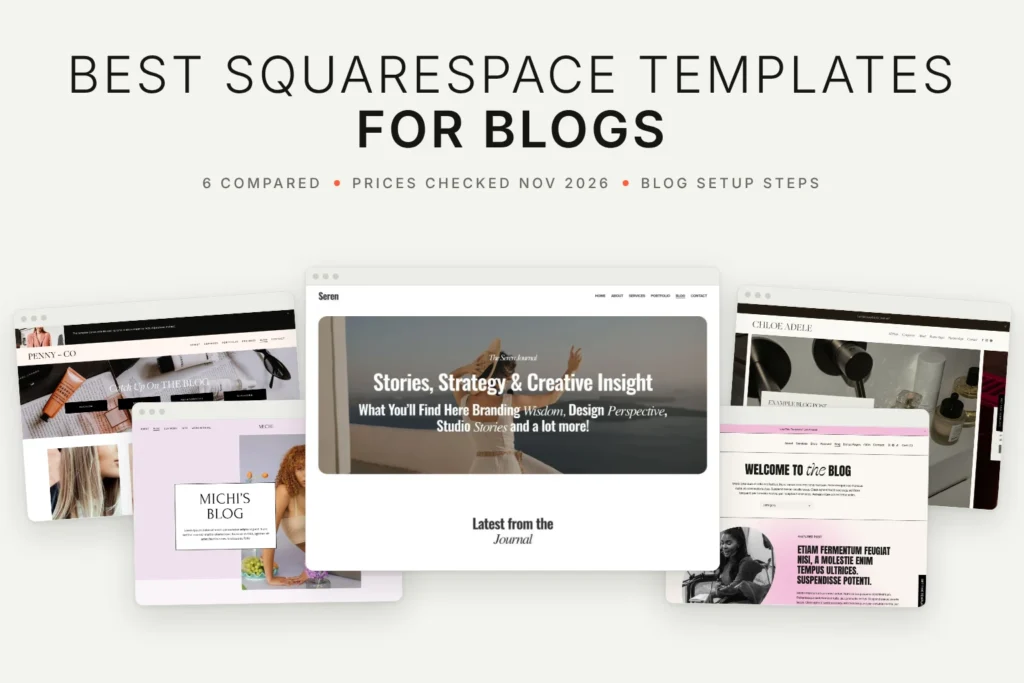
A note on how we make money. Five of the six templates compared here are sold by other creators and listed on Squarespell, and we may earn a commission if you buy through those listings; the same goes for the two third-party plugins near the end. Seren is Squarespell’s own template, and the six plugins in the blog toolkit section are Squarespell’s own products, so weigh that interest. None of it decided the order or the verdicts, and we say where another creator’s template does a blogger’s job better than ours. Details are in our affiliate disclosure.
If you want the short version:
And the honest caveat before any of that matters: on Squarespace 7.1 every template gets the same blog engine. The five blog page layouts, the post settings, scheduling, categories and the email tools are identical on any template, and blog posts use the classic editor whatever you buy. A template gives you the pages around the blog (the home page, freebies, favourites, work with me) and a style that is already finished. If you only need a blog page, a free Squarespace template and a weekend will do the same job.
Last updated: 24 November 2026
Most lists of “Squarespace blog templates” are lists of good-looking templates that happen to have a blog page. That is not much use, because on Squarespace 7.1 every template can have as many blog pages as you like. What changes from one template to the next is everything a blog needs around its posts: somewhere to send a reader who wants more, a reason to subscribe, a page that shows brands what you offer, and an index that still makes sense at post two hundred.
So we looked for templates designed around the blog rather than ones that merely include it. We read all 120 Squarespace template listings in the Squarespell catalogue on 24 November 2026, counted how often each listing talks about blogging, then read the strongest candidates in full: pages, delivery, licence and refund terms. We kept six whose page structure is built for a blogger, and studied the page previews on each listing, which are captures of the creator’s demo. The setup steps later on come from the Squarespace Help Center, read the same day.
If you write books rather than posts, our guide to templates for authors and writers covers a different set of needs (book pages, events, press).
 GoLiveHQSquarespace 7.1 · Template
 Big Cat CreativeSquarespace 7.1 · Template
$189
 Candor TemplatesSquarespace 7.1 · TemplateBig Cat CreativeSquarespace 7.1 · Template
$189
Candor TemplatesSquarespace 7.1 · Template$99
A food blogger, a travel writer, a beauty creator and a consultant who writes every week want different looks. Their sites still share four jobs.
It has to make the latest writing the first thing people see. A blog that hides its posts behind a hero image and three service cards is a services site with a blog attached. The templates here put posts, or a featured post, on the home page.
It has to help a reader find the next post. Categories, a search box and a tidy index matter more at post fifty than at post five. Squarespace lets you add categories and tags to posts; a template that shows them at the top of the blog page saves you building that yourself.
It has to turn a visit into a subscriber. Most readers arrive from search, read one post and leave. A freebie, a lead magnet page or a sign-up box on every page is what turns that visit into a list you own.
It has to show how the blog earns. That might be a service, a collaboration offer for brands, a page of recommended products with affiliate links, a shop or a podcast. Templates with a page for that job save you designing one.
So the shortlist had to meet four conditions: built for Squarespace 7.1; blogging named as one of the things the template is for, not just a Blog page in the list; a listing that states the pages, delivery and terms; and page previews we could read on the listing on the day. Price was not a ranking factor. Seren is Squarespell’s own template, which is why we say plainly where a $189 to $297 template from another creator suits a blogger better.
| Template | Price | Sold by | Pages | The pages that serve the blog | How it reaches you | Licence | Refunds |
|---|---|---|---|---|---|---|---|
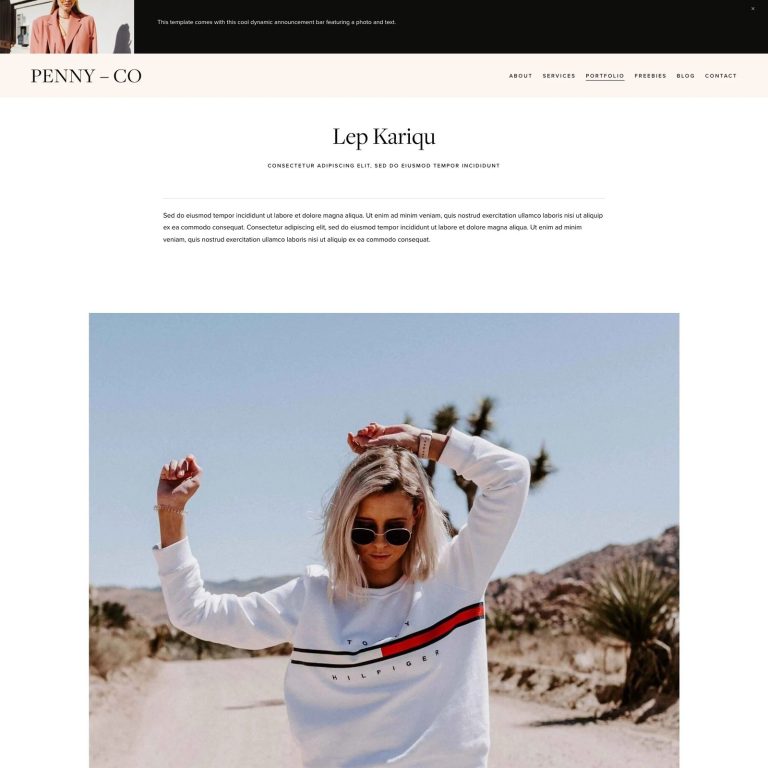
| Penny | $180 ($162 with SQUARESPELL10) | GoLiveHQ | 9 | Blog, Blog Post, Freebies, Services, Portfolio | New Squarespace site by contributor invite, normally within 24 hours | One site; each client site needs a new licence | None |
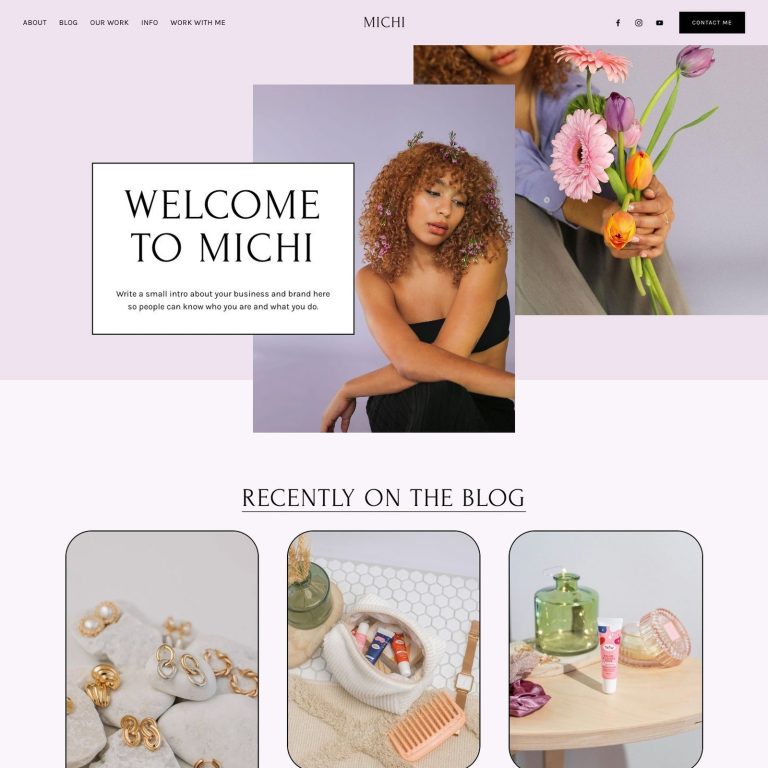
| Michi | $297 | Big Cat Creative | 6 | Blog, Work with me, Info | New site, or installed into your existing 7.1 site, within 48 hours | One project or business per purchase | Not stated on the listing |
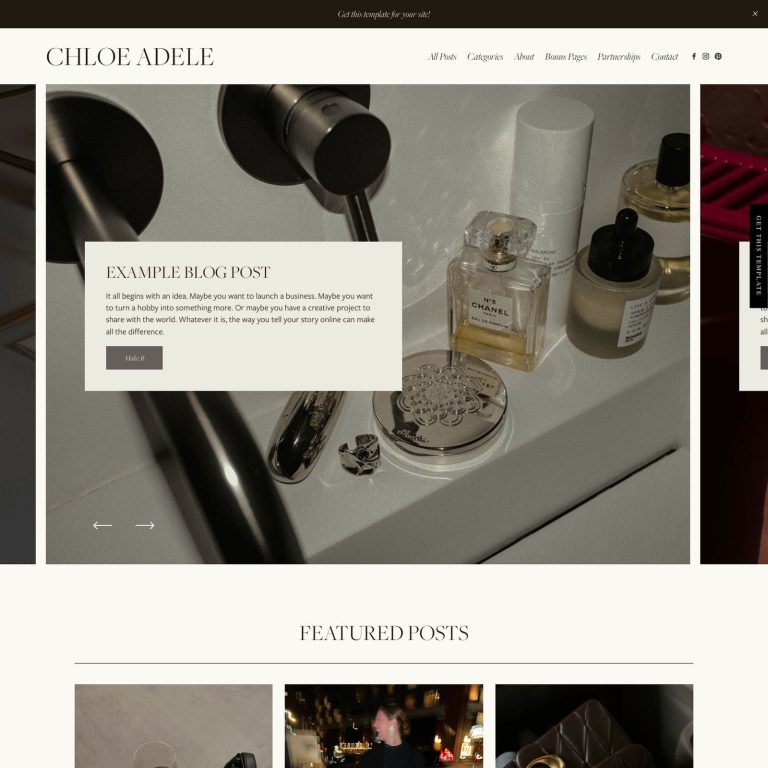
| Chloe Adele | $189 | Candor Templates | 8 | All Posts, Favorites, Lead Magnets, Lead Magnet Download, Social Links | Into your own Squarespace account, within 24 hours | Not published by Candor | Not stated on the listing |
| Gigi Rose | $297 | Big Cat Creative | 7 | Blog, Projects, Services | New site, or installed into your existing 7.1 site, within 48 hours | One project or business per purchase | Not stated on the listing |
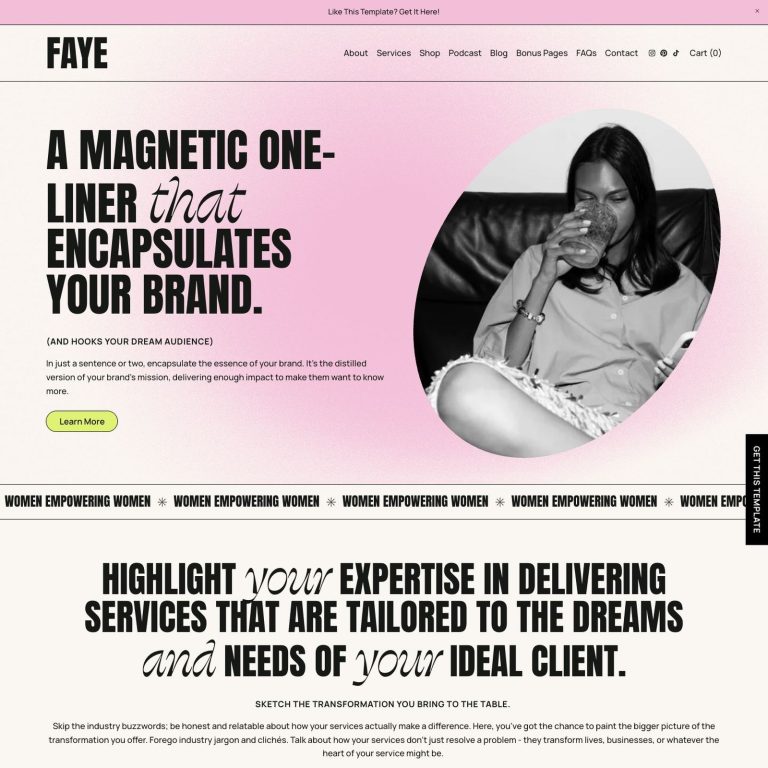
| Faye | $189 | Candor Templates | 8 | Blog, Podcast, Shop, Social Links | Into your own Squarespace account, within 24 hours | Not published by Candor | Not stated on the listing |
| Seren | $99 | Squarespell | 6 | Blog, Portfolio, Services | Squarespell builds it in your own account within 24 hours | One website per purchase | Non-refundable once the installation is done |
Prices, page counts, delivery and terms read from each listing on squarespell.com on 24 November 2026. The creators’ terms were last checked by Squarespell on 26 August 2026. Every template needs a Squarespace plan, bought separately.
The delivery column matters more than it looks. A template delivered into your own account (Candor, Seren, or Big Cat if you ask for it) means you open a finished site and start replacing words. A new site shared by invitation, which is how GoLiveHQ delivers Penny, means you build on a separate site and move your domain across when it is ready. If you already have a blog with posts on Squarespace, that difference decides a lot; the steps are further down.
Penny is GoLiveHQ’s “Squarespace Blog Template”, $180 ($162 with the code SQUARESPELL10 at GoLiveHQ’s checkout), with nine pages: Home, About, Services, Portfolio, Portfolio Item, Freebies, Blog, Blog Post and Contact. The listing describes it as “content-led, for bloggers, virtual assistants and marketers whose writing is how clients find them”, and it is the only template in the catalogue named as a blog template.
The blog page is the part to look at. It opens with a “Catch up on the blog” header and four category buttons (Fashion, Beauty, Photography, Blogging in the demo), then a three-column grid of posts with the category above each title. Those buttons are ordinary links to your blog categories, so you can rename them to your own subjects.
GoLiveHQ also styled a single post, which most templates leave to the defaults: a narrow reading column, the image set beside the text, a pull quote and previous and next links. Every page ends with an Instagram strip and a “Download the free guide” form.
The Freebies page is laid out for several downloads, each with its own image, short description and email field. For a blogger that is the most useful page in the template: the post brings the reader in, the freebie gets the email address.
Know before you buy. The licence covers one website, and each client site needs a new licence. GoLiveHQ offer no refunds. The listing says they pass on a six month extended Squarespace trial and 20% off the first year of an annual subscription, and include a free five day course and email and Loom support.
Who should skip it. Anyone who never publishes: the listing says plainly that without regular posts “the home page has nothing to lead with”. Read the Penny listing.
Michi is Big Cat Creative’s “Squarespace Influencer Template”, $297, with six designed pages: Home, About, Blog, Our work, Info and Work with me. The listing calls it “a minimalist seven-page design built around a blog, for a site where the writing is the product”, and lists six pages a few lines later; we count the six it names.
Its blog page does what a blog template should: the title, then category links (Beauty, Fashion, Lifestyle, All posts in the demo) and a search box, then the posts. The home page has a “Recently on the blog” section near the top, so a returning reader sees what is new straight away.
The Work with me page is built for the way many bloggers earn: sections for Instagram collabs, a blog feature and product reviews, each with its own button. That is a rate card a brand can read before it emails you.
Know before you buy. Each purchase covers one project or business; client work is allowed, but the design may not be promoted as solely your own. The listing states no refund policy. Big Cat publish three recoloured versions (Bold, Classic, Neutral), include a copywriting workbook, Canva graphics, an SEO checklist and a launch guide, and sell add-on pages such as a freebie page in the same design.
Who should skip it. Anyone without strong photographs: the rounded image frames carry the whole look. Read the Michi listing.
Chloe Adele is Candor Templates’ template “for bloggers and UGC creators, with the content index doing the work a services page does elsewhere”, $189, a kit of eight pages: Home, All Posts, About, Social Links, 404, Favorites, Lead Magnets and Lead Magnet Download. It is the most blog-shaped template here: there is no services page at all.
The home page opens with a featured post rather than a slogan, follows it with featured posts and the latest posts, and puts a “Never Miss A Post” sign-up in a dark band halfway down.
Two pages make it different. Favorites (“Shop my faves”) collects products you recommend in a grid of cards with buttons, and the demo text notes that links on the page may be affiliate links. Lead Magnets offers free resources, each with its own sign-up, and a separate Lead Magnet Download page is where someone lands after signing up.
Know before you buy. Candor do not publish licence terms for this template, so ask them before using it on client work; the listing states no refund policy. The listing says Candor pass on an extended 12 month Squarespace free trial and 25% off a new annual subscription, plus video tutorials and a launch checklist. Demo photography is not included.
Who should skip it. Service businesses and anyone who posts rarely: with no services page, the site only works if the posts keep coming. Read the Chloe Adele listing.
Gigi Rose is Big Cat Creative’s collage template, $297, seven pages: Home, About, Services, Info, Projects, Blog and Contact. It is listed as a photography template, but the listing names “bloggers who publish visually” among the people it is best for, and its blog page is one of the most complete here.
The blog page header holds a search box and a category drop-down, set among overlapping photos. The posts sit in two staggered columns with an excerpt and a Read more link, so the page reads like a magazine spread rather than a grid of squares.
The home page ends with a “Faves on the blog” strip of four posts above the footer, which has its own newsletter sign-up.
Know before you buy. The same Big Cat terms as Michi: one project or business per purchase, client work allowed with the design not promoted as solely your own, no refund policy on the listing, demo photos not included. Three recoloured versions are published (Bold, Dark, Neutral).
Who should skip it. The listing’s own warning: “If your work is uniform, or you want a conventional grid, the collage will fight you.” Read the Gigi Rose listing.
Faye is Candor Templates’ brightest template, $189, eight pages: Home, About, Services, Shop, Podcast, Blog, Social Links and Schedule a Call. The listing pitches it at coaches, but for a blogger the point is that it carries the most in one design: “services, a shop, a podcast and a blog, so a business with several things running has somewhere to put each of them”.
The blog page opens with a category menu and a featured post in a large round frame, then the latest posts, then a “Stay in the loop” sign-up. The Podcast page has listen buttons and a “Latest episodes” section, which matters if your blog and your show feed each other.
Know before you buy. Candor do not publish licence terms for Faye and the listing states no refund policy. The demo’s home page shows a strip of sample brand names; replace or remove it, because a “featured in” strip you have not earned misleads readers.
Who should skip it. Anyone who wants calm: toned down to neutrals, the listing says, “it becomes an ordinary template”. Read the Faye listing.
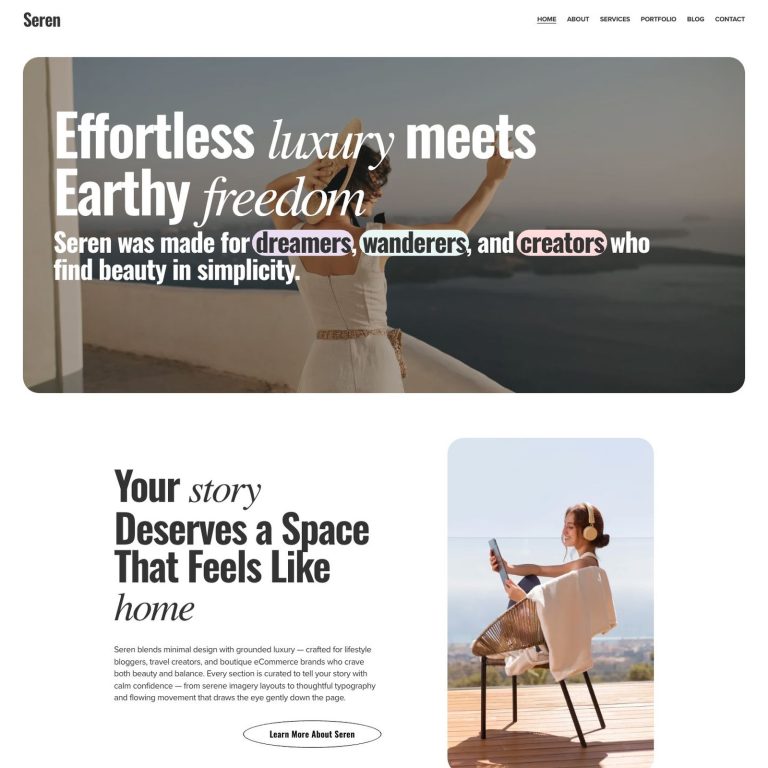
Seren is Squarespell’s own template, $99, six pages: Home, About, Services, Portfolio, Blog and Contact. The difference from everything above is the delivery: Squarespell builds the whole site inside your own Squarespace account within 24 hours, so you start by replacing words rather than setting anything up.
The blog is presented as “The Seren Journal”, with a photo header and large post images. The home page carries a Lifestyle Journal list of post titles in a pale green band, an easy way to send home page visitors to your writing.
Know before you buy. One website per purchase; client sites need their own licence. Refunds are not offered once the installation has been carried out, so walk the public demo first. The listing’s check covers the creator, the page, the platform and the price; it says Squarespell has not installed it as a test.
Who should skip it. Bloggers who need a freebie or favourites page out of the box: Penny and Chloe Adele have them; Seren does not. If you write about Squarespace or build sites for clients, Squarespell’s affiliate program pays commission on its own templates and plugins. Read the Seren listing.
| If your blog… | Start with | Why |
|---|---|---|
| Brings in clients for a service | Penny | Freebies page, services and portfolio pages, a free guide in every footer |
| Earns from brand collaborations | Michi | A Work with me page with blog feature, review and collab offers |
| Earns from affiliate links and freebies | Chloe Adele | Favorites and Lead Magnets pages, no services page to fill |
| Is mostly photographs | Gigi Rose | Collage layout, search and category menu on the blog page |
| Runs beside a podcast or a shop | Faye | Blog, Podcast and Shop pages in one design |
| Needs to be live this week, built for you | Seren | Installed in your account within 24 hours, at $99 |
Our reading of each listing’s page structure, 24 November 2026.
If you are torn between two, pick the one whose extra pages you will fill in the first month. An empty Favorites page or a podcast page with no episodes does more harm than a plainer site.
Templates arrive in one of three ways. Chloe Adele and Faye are delivered into your own Squarespace account. Seren is built in your account by Squarespell. Michi and Gigi Rose come as a new site or an install into your existing site, as you choose. Penny arrives the GoLiveHQ way: a new Squarespace site shared with you by contributor invitation.
Template sales are mostly final. Open the listing, click through every page preview and decide which pages you will keep, rename and delete. If a page has no use for you, count it as work, not value.
Third-party templates are bought on the creator’s own site from the listing’s buy button; Seren is bought in Squarespell’s checkout. Enter any code shown on the listing, such as SQUARESPELL10 for GoLiveHQ, at the creator’s checkout.
For Penny you receive an email with the subject “New Squarespace Contributor Invitation”. Squarespace’s guide to accepting a contributor invitation has two steps: open the email and click Accept invitation, then log in, or create an account, with the same email address the invitation was sent to.
Only the current owner can hand a site over. In Squarespace’s steps to change the site owner, the owner opens the Permissions & Ownership panel, clicks their name under Owner, clicks Transfer Ownership, verifies their login, picks you from the list, then clicks Continue and Confirm. Once you own it, you choose the plan and add billing.
| Plan | Monthly billing | Annual billing, per month | Contributors | Code injection |
|---|---|---|---|---|
| Basic | $25 | $19 | 2 | No |
| Core | $39 | $29 | Unlimited | Yes |
| Plus | $65 | $49 | Unlimited | Yes |
| Advanced | $139 | $99 | Unlimited | Yes |
From squarespace.com/pricing and the Squarespace Help Center’s code injection guide, read 24 November 2026. Prices in US dollars before tax.
Basic can be enough for the blog itself. Nothing in the Squarespace blog guides we read limits blog pages, scheduling or categories to a higher plan. The limits that matter to a blogger are code injection, which every plugin in this guide uses and which starts at Core, and contributors: Basic allows two, so a guest writer may push you to Core.
Build the whole site on its temporary address, check it on a phone, and only then connect your domain. If you are moving an existing blog, your current site stays live until that moment.
Every template here ships with a blog page, but you will add more (a second blog for recipes or a podcast, say) or rebuild one. These steps apply to any 7.1 site, whichever template you bought.
From Squarespace’s guide to adding blog pages and posts:
Posts per page runs from 1 to 20. Squarespace’s styling guide says so, and adds that infinite scroll is not supported on 7.1: when you have more posts, links to older and newer posts appear at the bottom of the page.
Click Edit on the blog page, then the pencil icon on the blog section, and pick a layout under Format. There are five, from Squarespace’s guide to styling blog pages: Basic grid, Masonry, Single column, Side by side and Alternating side by side. The catch is that a layout’s settings apply to every blog page using that layout.
Which layout for which blog. Basic grid for a uniform index like Penny’s; Masonry when your images are different shapes; Single column with “Full Post” content display if you want readers to scroll through whole posts; Side by side when your excerpts do the selling.
Squarespace’s guide to categories and tags recommends being selective with categories and liberal with tags. Categories and tags belong to one blog page, not to the whole site. To add them: open the blog page, hover over a post and click …, click Settings, then Options, and type the category or tag. They are added one post at a time; there is no bulk edit.
Comments are switched on in the Blog preferences panel under Comments Settings, from Squarespace’s comments guide. If you want readers to comment, you also have to turn on Allow Anonymous Comments; Squarespace says visitors cannot currently log in to comment. Turn on Require Approval if you would rather approve each one.
Open the Pages panel, click the blog page, then click + in the side panel. Add a title (200 characters or fewer) and build the post from blocks. One thing surprises people who bought a template for its look: blog posts use the classic editor, not Fluid Engine, so you cannot drag blocks freely inside a post.
Open the post’s settings (… then Settings). The tabs hold everything a post needs before it goes out: a featured image and an excerpt under Content, categories, tags and comments under Options, and an SEO title and SEO description under SEO. Edit the Post URL to something short and readable before you publish, because changing it later breaks links to it.
In a post’s settings, open Options and switch Featured Post on. Templates like Chloe Adele and Faye lead with featured posts, and Squarespace’s guide says a summary block can display featured posts anywhere on your site.
From Squarespace’s scheduling guide: when you are done editing, hover over Publish and choose Schedule…, pick a date, click the time to set it, then click Schedule. The post goes live on its own and shows that date as its publication date.
A blog without a list depends on search and social feeds for every visit. Squarespace’s guide to adding email subscriptions to your blog names three places for a newsletter block: the footer (so it is on every page), inside individual posts, and in a block section above or below the blog section on the blog page.
After you publish, Squarespace can turn the post into an email campaign draft. From its guide to campaigns from blog posts: open the post editor, click the Share tab, click Create Email Draft, then Go To Campaigns, open the draft from Drafts, review it, and send or schedule it. Up to 37 sections convert, from text, image, button, gallery and line blocks; other blocks are left out.
Sending costs extra. Squarespace’s Email Campaigns billing guide says you can build lists and compose drafts without a subscription, but sending needs an Email Campaigns plan, priced on Squarespace’s Email Campaigns page.
Squarespace 7.1 can put a blog page behind a paywall. Its guide to selling access to your blog posts says visitors can either pay or sign up free with their email address, and that paywalls on blog pages are only available on version 7.1. Open the blog page, click Add a pricing plan, then Create pricing plan, write up to five benefits, choose the pricing, and click Create; the page then shows a Paywall label.
A free sign-up wall is the gentler use. Charging needs posts people cannot find elsewhere. Asking for an email to read a premium series builds the list without asking for a card. Keep your best search posts outside the wall, or search engines will have little to send you.
Squarespace leaves out a few things bloggers ask for: a sidebar on posts, more than 30 posts in a summary block, a search box in the header, filters on the blog page, and related posts that fill themselves. These plugins add them. All six of Squarespell’s are installed by pasting code, so they need a plan with code injection (Core or above). We have not tested them for this article; what follows is from each listing and its guide.
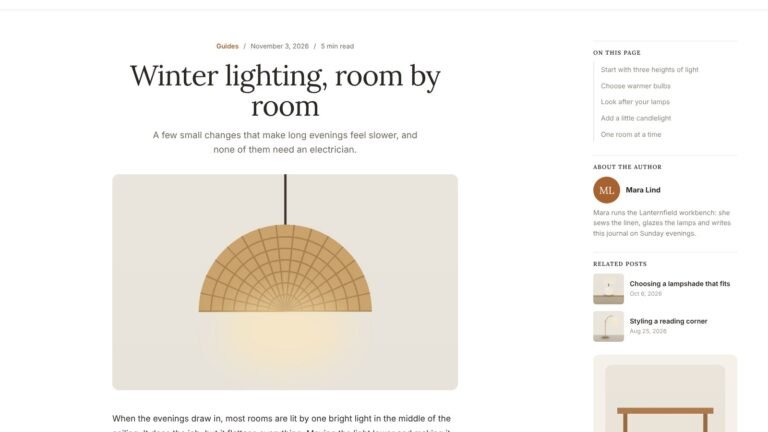
Sidebar Pro ($45) adds the sidebar 7.1 does not have: beside posts, the blog page or pages you choose, with a table of contents that follows the reader, recent and related posts, categories, tags, search, the author, and sections you build in the Squarespace editor. If you searched for a blog template with a sidebar, this is the way to get one on any template. Install: choose the settings in its builder, enter your licence key, copy the code, and paste it into the Footer box in Code Injection. Our sidebar guide has every step.
Squarespace’s summary block guide says a summary block can display up to 30 items. Summary Block Pro ($49) lifts that with Load more, infinite scroll or numbered pages, and adds category tabs, a search box and related posts. Install: set it up in the builder, copy the code, paste it into Footer Code Injection. Steps are in our guide to summary block load more.
The Squarespace Filter Plugin ($79) adds filters, search and sort to blog pages (and store, events and portfolio pages) without reloading the page, and replaces Squarespace’s category links and Older posts link with one set of filters. Install: choose settings in the visual builder, then paste once into Footer Code Injection.
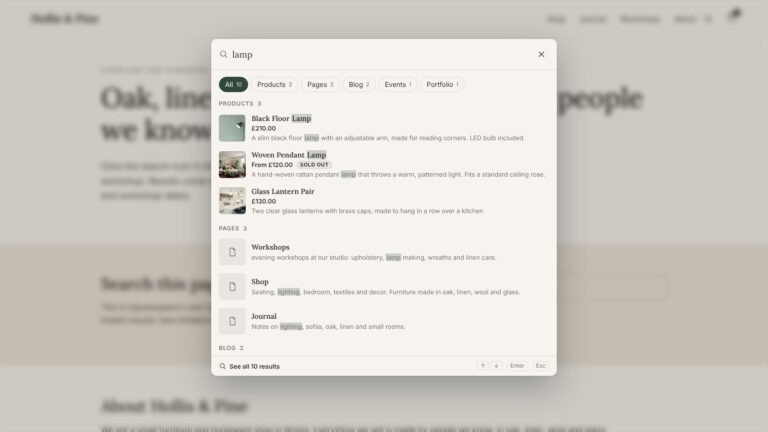
The Squarespace Search Plugin ($85) adds a search icon to your own 7.1 header, on computers and phones, with results as visitors type, grouped by kind, with post dates. One paste, one payment, according to the listing. For the free ways to add search, see our search bar guide.
Popup Pro ($39) turns your own Squarespace sections into pop-ups, slide-ins, bars or side panels that open on exit, after a delay, on scroll or from a button, and the newsletter block inside keeps working the Squarespace way. Install: set the rules in its builder and paste two short blocks into Squarespace.
The Auto-Scrolling Summary Carousel ($25) makes a blog summary block move by itself, gliding or stepping every few seconds, in the design you gave the block. Install: choose the motion in the builder, paste the CSS into Custom CSS and the script into Code Injection.
Squarespace’s own route to related posts is manual: give related posts a shared category or tag, then add a summary block at the bottom of each post filtered by it. The Related Posts and Products Plugin by SQPlugins (from $29) does it automatically; we have not installed it. Scroll Progress by Common Ninja adds a bar that shows how far a reader has scrolled, and the listing shows a free plan; we have not installed it either.
Free plan available
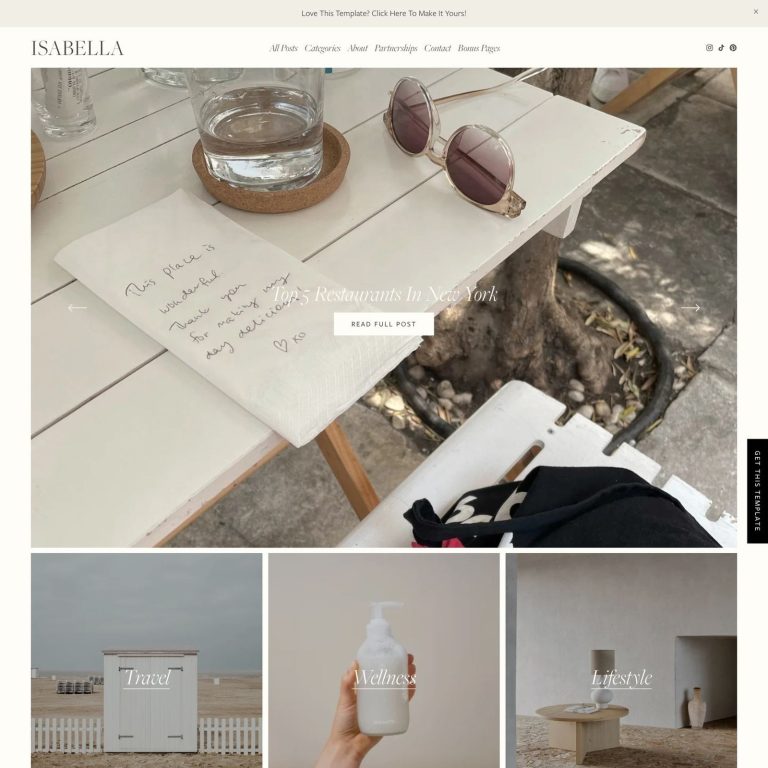
Isabella (Candor Templates, $189) is “a minimal blogging template for creators whose photography is soft and whose writing does the selling”: All Posts, Partnerships and Favorites pages. We covered it in the authors guide; it suits a lifestyle blogger who works with brands.
Willow (Asha Glenn Design Studio, $197, shown reduced from $297) was built for social media managers and lifestyle bloggers who also sell services and a few products; its Blog page is described as “the writing, and the search surface”.
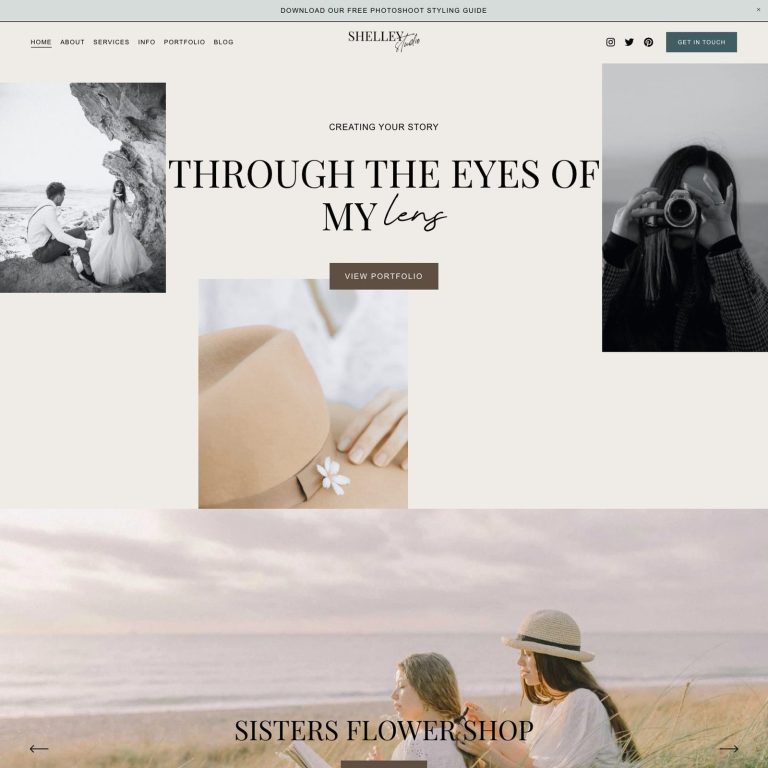
Shelley (Big Cat Creative, $297) is soft and warm, with a blog page that has a category menu and a search box; the listing names bloggers among the people it suits.
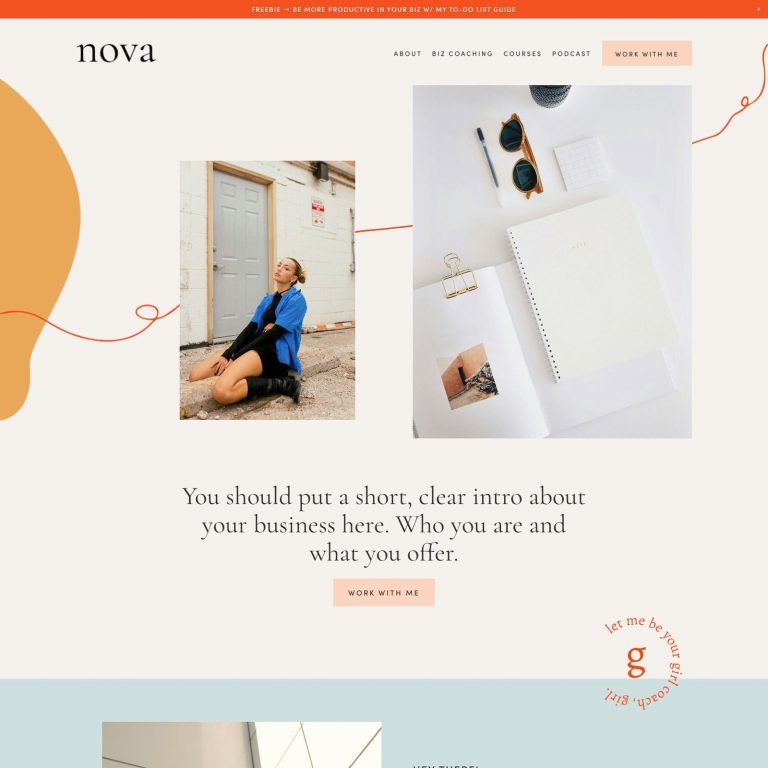
Nova (Big Cat Creative, $297) is bright and layered, for “coaches with a warm brand” and “bloggers and creators”, with a blog page built around a business blog and featured episodes.
$197 $297.00
 Asha Glenn Design StudioSquarespace 7.1 · Template
$189
Candor TemplatesSquarespace 7.1 · TemplateBig Cat CreativeSquarespace 7.1 · TemplateBig Cat CreativeSquarespace 7.1 · TemplatePublishing the gaps is part of the method.
We did not install any of these templates or plugins for this article. Everything about the templates comes from their Squarespell listings and the page previews on them, which are captures of each creator’s demo; the plugin details come from their listings and guides. Squarespace facts come from the Squarespace Help Center and pricing page, read on 24 November 2026. The Help Center images are our captures of its text, because its own pages would not render in our browser.
We could not open the creators’ own sites. Our network could not reach the GoLiveHQ, Big Cat Creative and Candor storefronts, so prices, delivery times and terms are as the Squarespell listings state them. Squarespell last checked the creators’ terms on 26 August 2026; check the creator’s checkout before you pay.
Michi’s page count is inconsistent on its listing. It says “seven-page design” and then names six pages. We used six.
Refund terms are missing for four templates. The Michi, Gigi Rose, Chloe Adele and Faye listings state no refund policy, and Candor publish no licence terms. Ask before you buy if either matters to you.
We did not measure page speed. Image-heavy blog layouts can be slow on phones; that depends on your images more than the template.
How this article was made. It was researched and written with AI assistance and checked against the sources named above, including the titles, captions and image descriptions.
Do I need a blog template to blog on Squarespace? No. Every Squarespace 7.1 site can have blog pages, with the same five layouts, post settings, scheduling and email tools. A blog template gives you designed pages around the blog (a freebie page, favourites, a work with me page) and a finished style. If you only need the blog, a free Squarespace template works.
Can I add a bought template to the Squarespace site I already have? Sometimes. Big Cat Creative will install Michi or Gigi Rose into an existing 7.1 site if you ask. Candor and Squarespell deliver into your account. GoLiveHQ deliver Penny as a new site, and sell a separate service to place the pages into an existing site.
Will my existing posts move into the new template? Not by themselves. If the template arrives as a new site, your posts stay on the old one; Squarespace can import posts from WordPress, Blogger and Tumblr, but moving between two Squarespace sites is a manual job. If the template is installed into your existing site, your blog page and posts stay where they are and take on the new styles.
Can I have a sidebar on Squarespace blog posts? Not natively on version 7.1, which is why “Squarespace blog templates with sidebar” is such a common search. None of the six templates here adds one. A plugin such as Sidebar Pro adds it on any template, on a plan with code injection.
Can I use Fluid Engine to design blog posts? No. Squarespace says blog posts use the classic editor and that Fluid Engine is not available in them. You can still use Fluid Engine sections above or below the blog section on the blog page itself.
Which plan do I need for a blog? Basic ($19 a month on annual billing) covers the blog itself in the Squarespace guides we read. Choose Core ($29) if you want code injection for plugins, more than two contributors, or Mailchimp and Zapier connections on newsletter blocks, which Squarespace lists for Core and above.
Can I make money from a Squarespace blog? Yes, in several ways the templates here are built for: services (Penny), brand collaborations (Michi, Isabella), affiliate links on a favourites page (Chloe Adele), a shop or a podcast (Faye), and Squarespace’s own paywall for blog pages on 7.1. Label sponsored posts and affiliate links clearly.
Decide how the blog earns before you choose the look. If it brings in clients, start with Penny. If brands pay you, Michi. If affiliate links and freebies do, Chloe Adele. If you want a finished site in your own account this week for the least money, Seren. Then write three posts before you touch the design, because every template here is built to lead with your writing.
Reviewed and last updated 24 November 2026. All prices checked on that date.
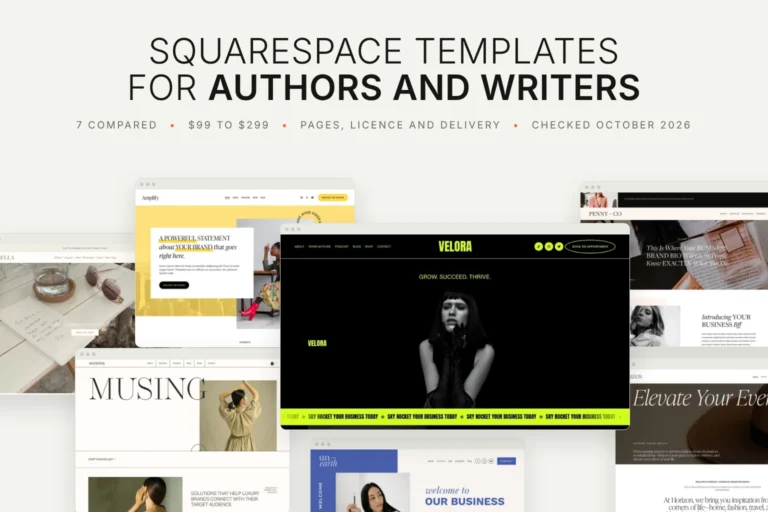
Seven Squarespace templates for authors, bloggers and copywriters, compared on pages, price, delivery and licence, with the steps to sell a book from the site and build the mailing list.
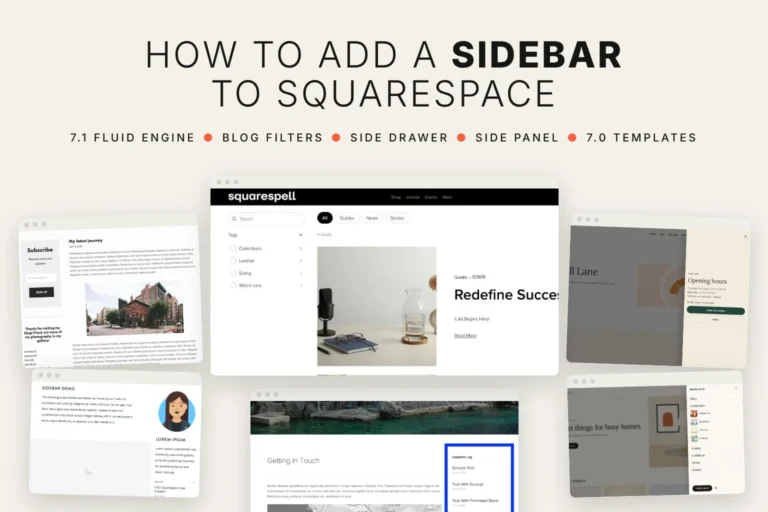
Squarespace 7.1 has no sidebar setting, so here are the seven ways that work: a pinned Fluid Engine column, blog post columns, the shop category sidebar, filter and sidebar plugins, and side drawers, each with steps.
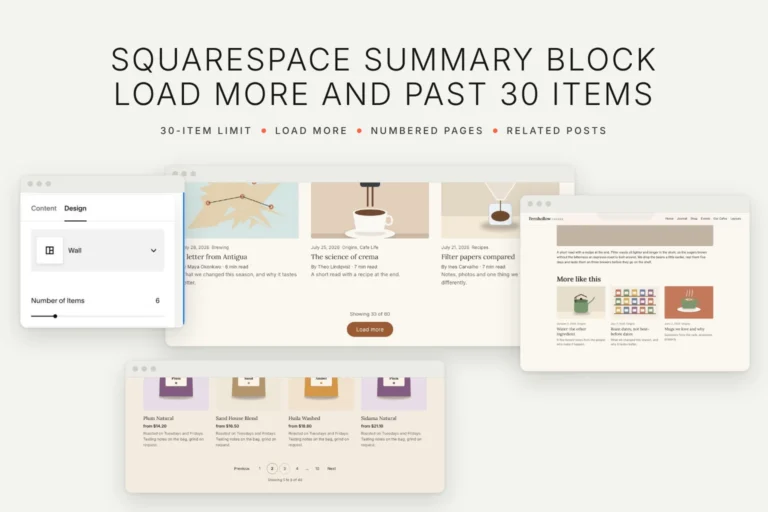
A Squarespace Summary block stops at 30 items and has no Load more button or page numbers. Seven ways round it, from the free settings and a tested Load more code to plugins, step by step with screenshots and prices.
Squarespell All Access
All 47 plugins and every new one, worth $1,985 bought one by one. 14 days free, cancel anytime.
Start 14 days freeOr start free with 13 plugins, no cardFounding price until 1 December, kept for as long as you stay.