How to Add Dark Mode to Squarespace (2026 Guide)
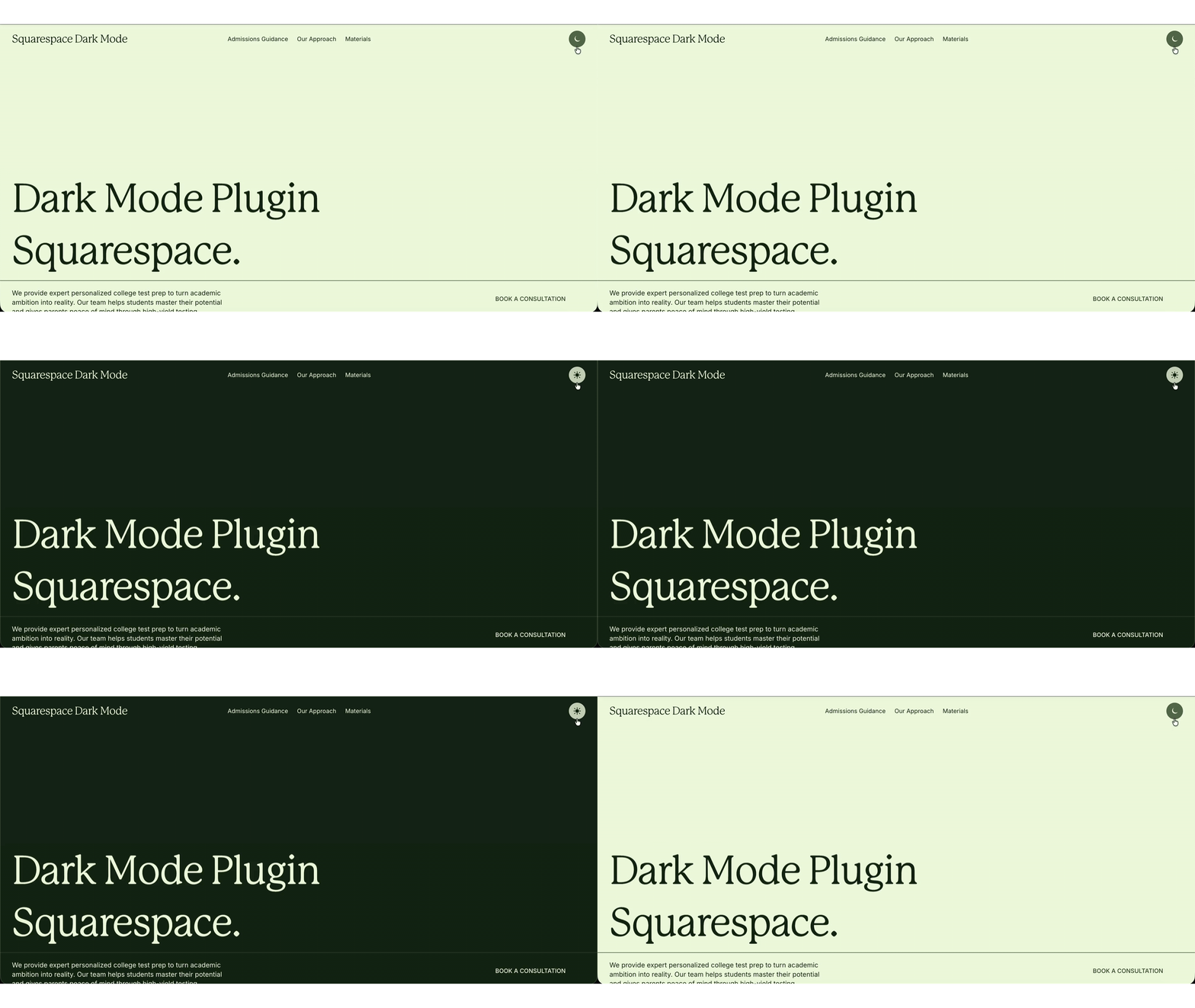
Quick answer: Squarespace has no built-in dark mode toggle for visitors, so you add one in one of two ways. The free method is to design a dark color theme in Design → Colors and apply it with a bit of custom CSS and a toggle button. The faster, no-code method is a dark mode plugin like Squarespell's Dark Mode Toggle Plugin which adds a light/dark switch, reuses your existing themes, remembers each visitor's choice, and loads with no flash of white. Both work on Squarespace 7.1 (Business plan or higher).
Dark mode has gone from novelty to expectation. Phones, YouTube, and most major apps ship it, and visitors increasingly reach for a light/dark switch especially at night or if they have light-sensitive eyes. This guide shows you exactly how to add dark mode to Squarespace in 2026, covering both the free DIY route and the plugin route, plus the fixes for the problems that trip most people up (the dreaded "flash of white," the cart page, and dark mode breaking after an edit).
Does Squarespace have a built-in dark mode?
No. As of 2026, Squarespace 7.1 still has no native dark mode toggle that lets visitors flip the whole site and saves their choice. What 7.1 does give you is a powerful color themes system (Design → Colors), where every section is assigned one of ten editable themes. You can design a dark theme there but on its own that only lets you, the designer, set a section to dark. Turning that into a visitor-facing switch that persists across pages takes either custom code or a plugin. That gap is why "how to add dark mode to Squarespace" is one of the most-searched Squarespace questions.
Two ways to add dark mode to Squarespace
There are two realistic routes. Neither requires you to hand-style every element (an old JavaScript approach that you should avoid — it's fragile, breaks on Squarespace updates, and causes flashes).
The free color-theme + CSS method: Best if you're comfortable with a little custom code and want zero cost.
A dark mode plugin: Best if you want it done in minutes, with the hard parts (no flash, cart page, remembered preference) already solved.
Here's how to do each.
Method 1: Add dark mode with Squarespace color themes (free, DIY)
This is the right free approach for 7.1 because it reuses Squarespace's own theming engine instead of styling elements one by one.
Step 1: Design your dark color theme. Go to Design → Colors, pick one theme slot you're not using (for example, "Dark 1"), and style it: a deep charcoal or near-black background, and off-white text (not pure white) for comfortable contrast. Set button, link, and heading colors so they stay legible.
Step 2: Decide how dark mode turns on. You have two options, and you can combine them:
A manual toggle: a button that adds a class (e.g. dark-mode-active) to the page and swaps sections to your dark theme.
Automatic system detection with the CSS media query @media (prefers-color-scheme: dark), which activates dark styles when the visitor's device is already in dark mode.
Step 3: Apply the dark theme with CSS. In Website → Website Tools → Custom CSS (or Code Injection), scope your dark styles to the active class so they only apply when dark mode is on. Conceptually:
body.dark-mode-active .page-section {
  /* map sections to your dark color theme */
}
Step 4: Add the toggle button and remember the choice. A small script adds/removes the dark-mode-active class on click and stores the preference in localStorage so returning visitors keep their setting.
Step 5: Fix the flash of white and the cart page. This is the hard part. Add CSS/JS that applies the saved mode before the page paints (to prevent the flash of white), set the site background so no bright slice shows on tall screens, and separately style the cart, search, and order-confirmation pages, which the color-theme method does not cover on its own.
Honest caveat: Steps 1–3 are quick; Steps 4–5 are where DIY dark mode gets fiddly, and where most forum complaints come from. If you're comfortable maintaining code as Squarespace updates its HTML, this method is free and flexible. If not, the plugin route below handles exactly these hard parts for you.
Method 2: Add dark mode with a plugin (no code, fastest)
If you'd rather not maintain custom code, a dedicated plugin is the fastest route. Squarespell's Dark Mode Toggle Plugin is built specifically to solve the DIY pain points above: it reuses your own Squarespace color themes (so dark mode matches your real design), prevents the flash of white, and covers every page including cart and 404.
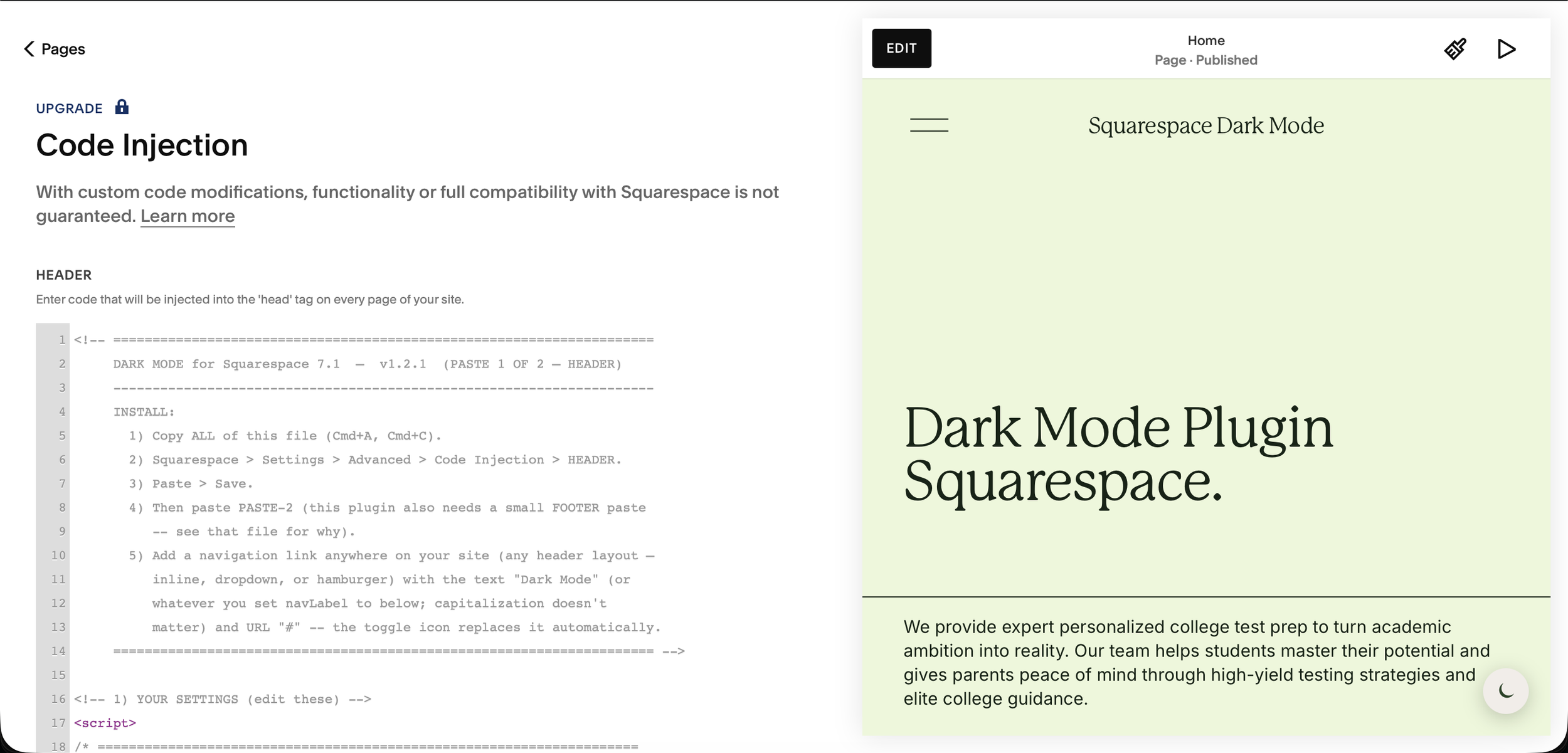
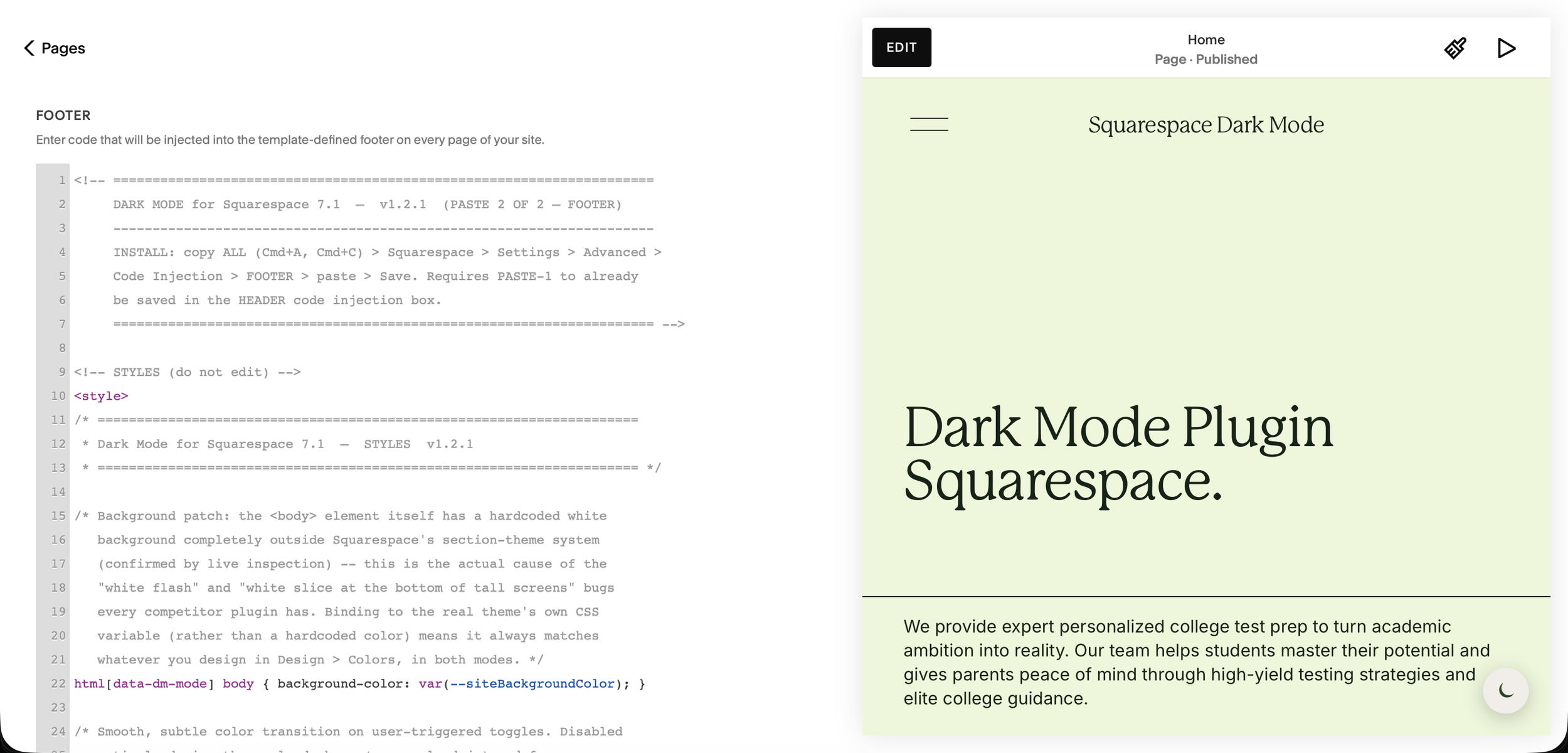
Step 1: Paste two snippets. Add the plugin's Header and Footer code in CUSTOM CODE → Code Injection. No build step, no dependencies, no developer.
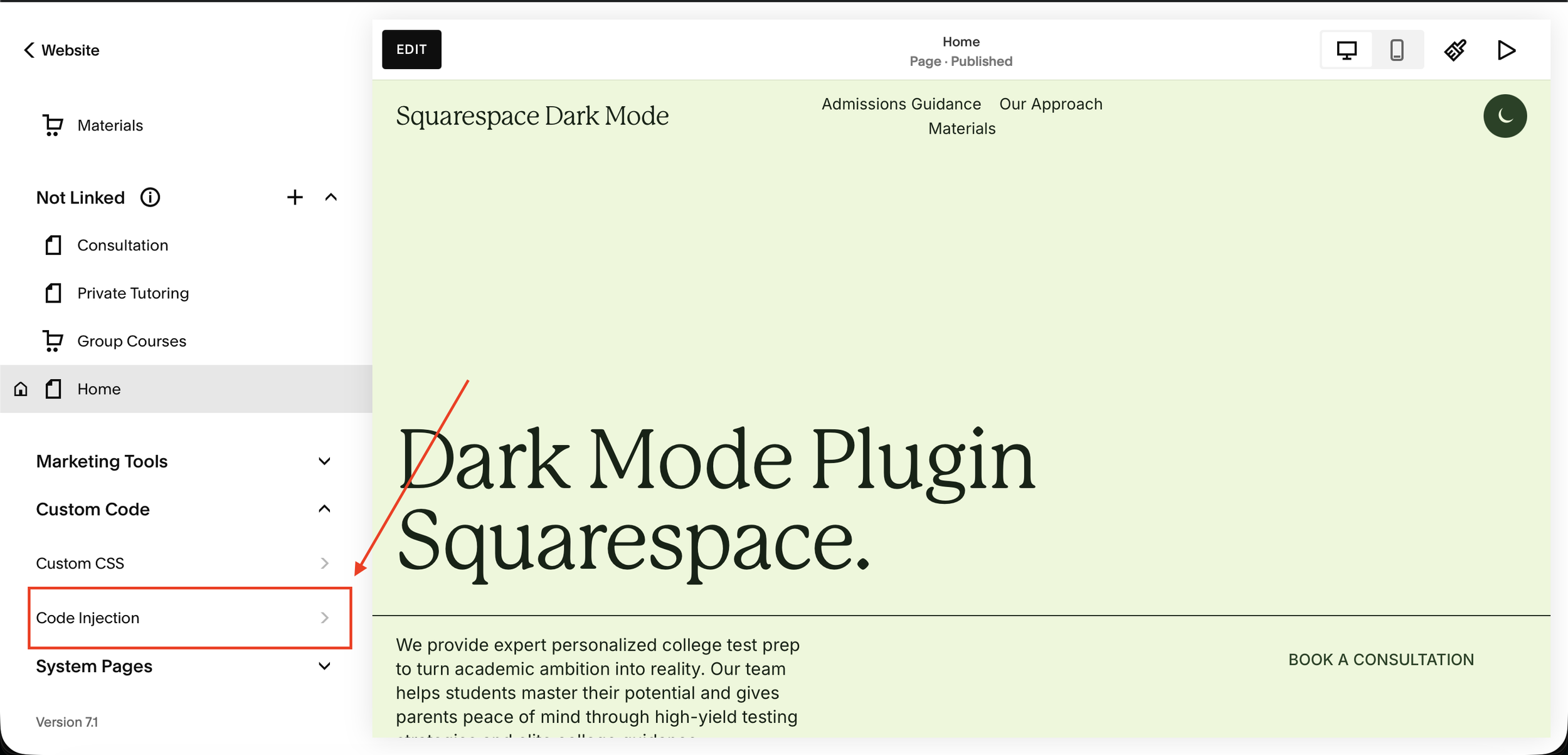
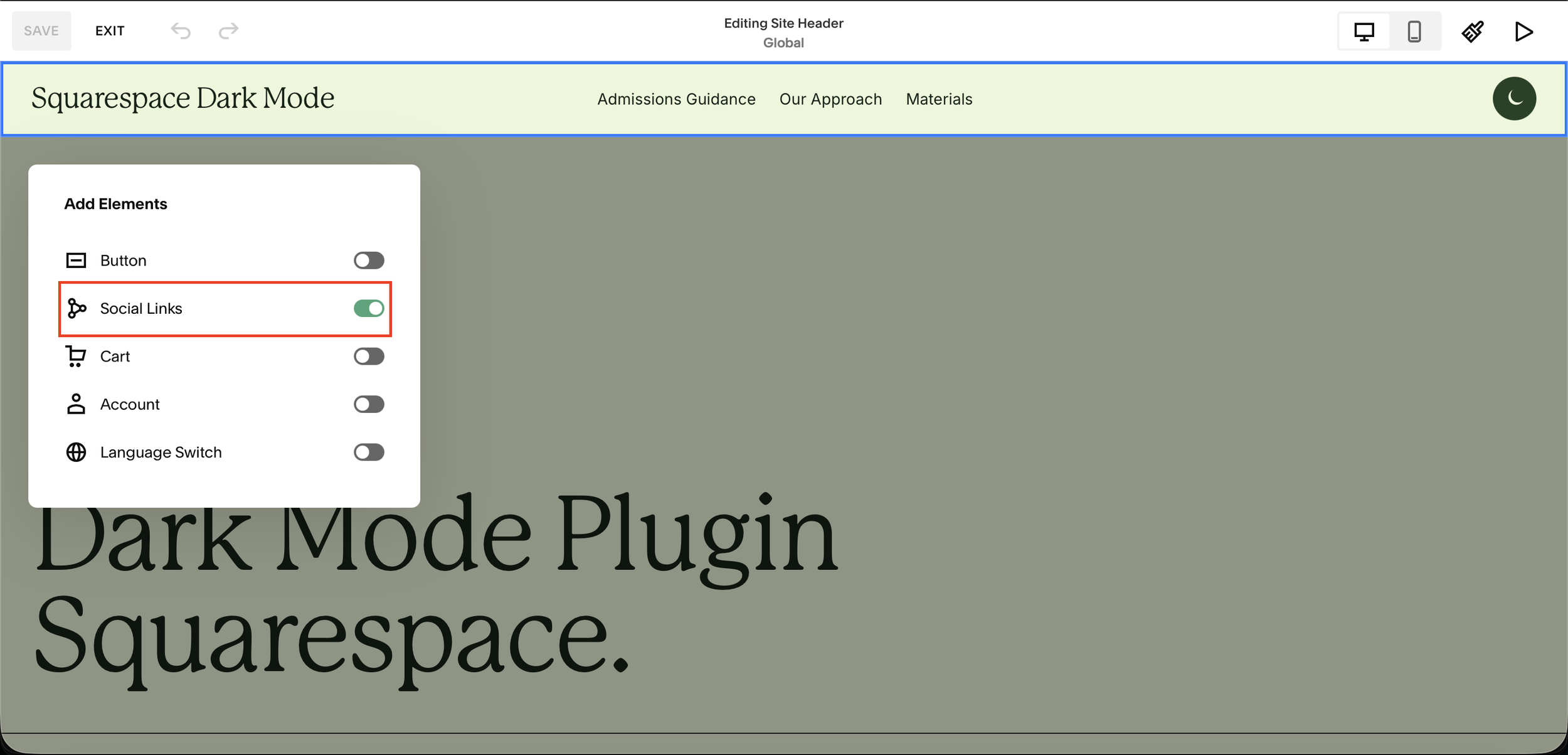
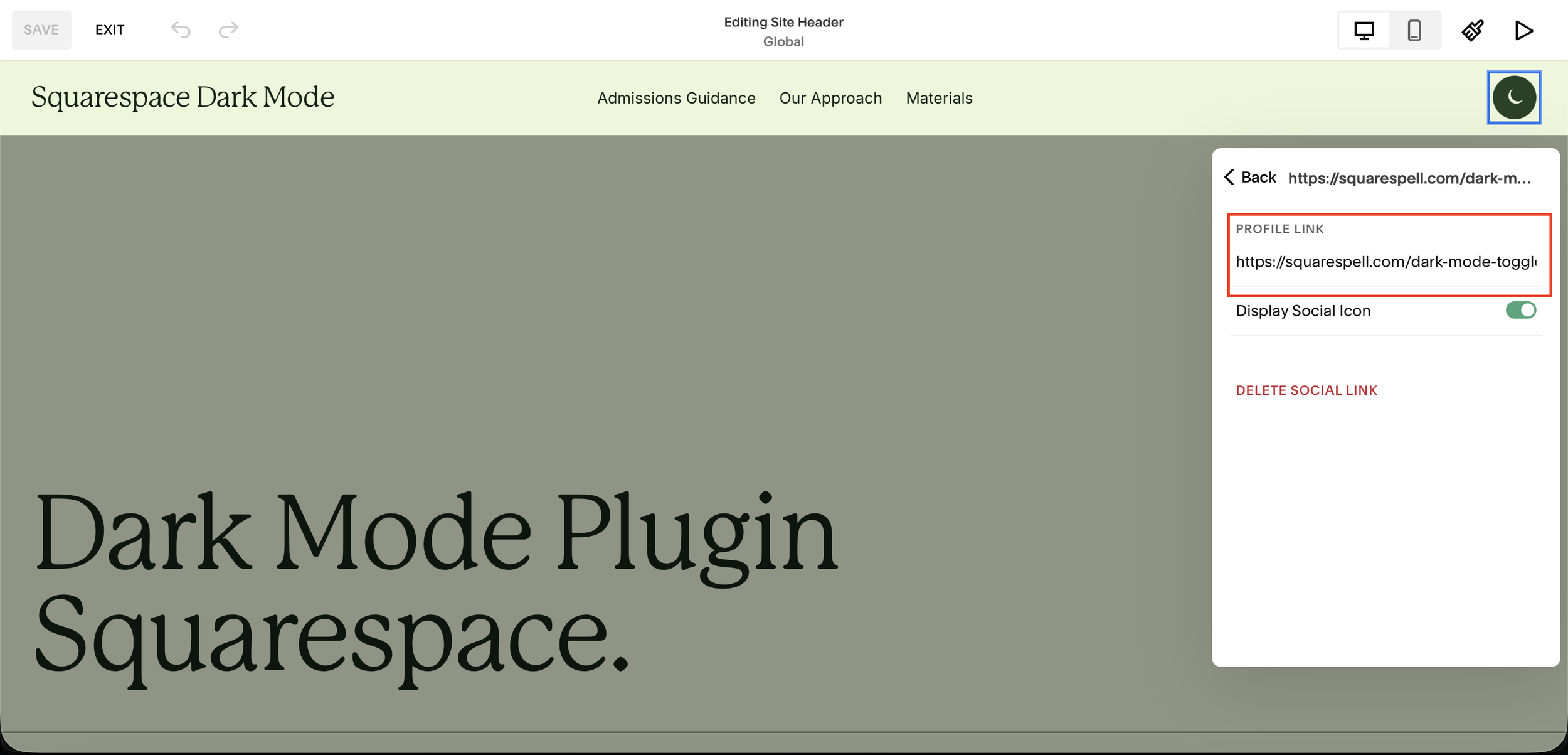
Step 2: Choose your toggle placement. Pick any combination of three: a nav-menu link, an icon in your Social Links row (auto-matched to your other icons), or a floating corner button (optionally mobile-only, so it isn't buried in the hamburger menu).
Step 3: Set colors and behavior. Adjust the dark-theme contrast, the transition animation, and whether first-time visitors default to light (they do by default) or follow their system setting.
Step 4: Publish. The toggle appears across your site instantly, on desktop and mobile. Each visitor's choice is remembered, and there's no flash of white on return visits.
That's the entire install. Because it reuses your existing themes, you don't have to rebuild your color palettes the way some theme-switcher plugins require.
Squarespell's Dark Mode Toggle Plugin is a no-code Squarespace dark mode plugin that adds a light/dark toggle to any Squarespace 7.1 site. It puts a sun/moon switch in your nav menu, your Social Links row, or a floating corner button, and flips the whole site between light and dark in one tap. Instead of a generic color invert, it reuses your site's own Squarespace color themes, remembers each visitor's choice, works on every page (including cart and 404), and loads with no flash of light. You install it by pasting two snippets into Code Injection no developer needed.
Best practices for Squarespace dark mode
Use off-white, not pure white, for text. Pure #FFFFFF on pure black causes halation (shimmer) and eye strain. Aim for a soft off-white like #E8E8E8.
Meet WCAG AA contrast (4.5:1 for body text). Check your dark theme's text-on-background with a contrast checker so it stays readable.
Design the dark theme, don't just invert. A machine invert makes photos look strange and brand colors go muddy. Choosing your own dark theme (or a plugin that reuses your themes) looks intentional.
Handle images and logos. Dark-on-transparent logos disappear on dark backgrounds use a light logo variant in dark mode. Give bright, full-bleed images a subtle overlay or exclude those sections.
Respect reduced motion. If you animate the transition, keep it short and honor prefers-reduced-motion for visitors who get motion sick.
Test the cart, search, and 404 pages, not just the homepage these are the pages DIY setups most often miss.
Default to light for first-time visitors so the experience is predictable, and let people opt into following their system setting.
Common mistakes to avoid
Styling every element with JavaScript. It's fragile, breaks on Squarespace updates, and flashes. Use color themes instead.
Forgetting the flash-of-white fix. If the saved mode isn't applied before paint, returning dark-mode visitors see a jarring white flash.
Ignoring the cart/checkout pages. Shoppers dropping from a dark site into a bright cart is disorienting and a conversion risk for stores.
Pure black + pure white. Too harsh; use near-black and off-white.
Not saving the preference. If the site forgets the choice on the next page or visit, the toggle feels broken.
Skipping mobile. The floating toggle can collide with the mobile menu or a sticky cart button; size touch targets to at least 44×44px and place the button clear of other controls.
Troubleshooting Squarespace dark mode
"There's a flash of white before dark mode loads." The saved mode isn't being applied before the page paints. The fix is a preload script that sets the mode in the page <head> before render this is handled automatically by Squarespell's Dark Mode Toggle Plugin.
"Dark mode stopped working after I edited a section." Editing in the Squarespace app can reset a section's color theme, so it no longer matches your dark styles. Re-apply the theme, or use a plugin that keys off the theme system rather than fixed classes.
"Only my logo switches, nothing else does." Your dark styles are scoped too narrowly (or only the logo swap is configured). Make sure the dark theme is applied to sections site-wide, and add a dark-logo swap separately.
"The cart or 404 page is still light." The color-theme method doesn't cover these pages by default; they need separate styling or a plugin that already applies dark mode to every page type.
"A bright slice shows at the bottom on large screens." Set the site/background color for dark mode so empty space below short content stays dark.
Is dark mode good for accessibility?
For many people, yes. A dark theme can reduce eye strain in low-light environments and is often easier to read for visitors with light sensitivity (photophobia), migraines, or certain visual conditions. The key is choice: offering a toggle lets each visitor pick what's comfortable rather than forcing one theme on everyone. Keep dark-mode text at readable contrast (WCAG AA) so the accessibility benefit is real and not undercut by low-contrast gray-on-black.
Which method should you choose?
Choose the free color-theme method if you're comfortable with custom code, want no cost, and don't mind maintaining it as Squarespace evolves.
Choose a plugin if you want it live in minutes, need it to work on cart and 404 pages, want no flash of white, and want each visitor's choice remembered without touching code beyond two pastes. For most site owners and for agencies deploying across client sites, this is the practical winner.
Frequently asked questions
-
No. As of 2026, Squarespace 7.1 has no native visitor-facing dark mode toggle. You can design dark sections with color themes, but adding a switch that flips the whole site and remembers the choice requires custom code or a plugin.
-
Either design a dark color theme and apply it with custom CSS plus a toggle button, or install a dark mode plugin. With Squarespell's Dark Mode Toggle Plugin you paste two snippets into Code Injection, choose a placement, and publish no developer needed.
-
Yes. A plugin adds a light/dark toggle with no coding you paste the provided snippets into Code Injection. The fully manual method does require some custom CSS and JavaScript.
-
Because the saved mode isn't applied before the page renders. A preload script that sets the mode in the page head before paint prevents it; dedicated plugins handle this automatically.
-
Not with the basic color-theme method those pages need separate styling. A good dark mode plugin applies dark mode to every page type, including cart, search, and 404.
-
A lightweight, dependency-free implementation has no meaningful impact on page speed. Avoid heavy JavaScript-that-styles-every-element approaches, which are both slow and fragile.
-
Yes. The CSS media query @media (prefers-color-scheme: dark) detects the device setting, and most plugins offer an optional "follow system preference" mode. Squarespell's plugin defaults first-time visitors to light, with system-follow available as an option.
-
Yes. Both custom code and plugins install through Code Injection, which Squarespace makes available on the Business plan and higher.
-
7.0 doesn't have the 7.1 color-theme system, so dark mode there relies on the CSS method. Most modern dark mode plugins target 7.1.
-
It can be. Dark mode reduces eye strain in low light and helps visitors with light sensitivity, as long as text keeps readable contrast (WCAG AA). Offering a toggle rather than forcing dark mode is the most inclusive approach.
-
Store the preference in the browser's localStorage and re-apply it on each page load. Plugins do this for you so the site reopens in the visitor's last-chosen mode.
-
Yes. Look for a multi-use or agency license; Squarespell's Dark Mode Toggle Plugin offers one for unlimited client Squarespace sites.
Conclusion
Adding dark mode to Squarespace comes down to two paths: design a dark color theme and wire it up with custom CSS for free, or install a plugin and have the toggle, the no-flash loading, the cart-page coverage, and the remembered preference handled for you. Whichever you choose, design the dark theme intentionally, keep contrast readable, and test every page type including the cart and 404.
If you'd rather skip the fiddly parts, Squarespell's Dark Mode Toggle Plugin adds a light/dark switch to your Squarespace 7.1 site in two pastes reusing your own themes, with no flash of white and full mobile support.