 Member Content Pro: Show Members-Only Content on Public Squarespace Pages with Native Member Sites$59
 Squarespace · PluginSquarespell Original
Browse by platform
View allBrowse by goal
View allBrowse by goal
Fresh inventory
Recently added
Member Content Pro: Show Members-Only Content on Public Squarespace Pages with Native Member Sites$59Squarespace · PluginSquarespell Original Event Tickets: Sell Tickets on Squarespace Event Pages with Ticket Types, Seats Left and Native Checkout$59Squarespace · PluginSquarespell Original
 Wholesale Order Pad: Squarespace Wholesale Order Form with Bulk Add to Cart, Order by SKU and Reorder$85Squarespace · PluginSquarespell Original
 Squarespace Summary Block Pro: More Than 30 Items, Load More and Pagination$49Squarespace · PluginSquarespell Original
 Squarespace Delivery Area Checker: Postcode and ZIP Code Checker Plugin$49Squarespace · PluginSquarespell Original
 Order Rules: Squarespace Minimum Order, Quantity Limits and Pack Sizes Plugin$49Squarespace · PluginSquarespell Original
Search results
Matching products
Squarespace 7.1 plugin
Your videos open over the page, and your visitors stay on your site.
Price: $25
Instant download · Sold by Squarespell
Bundle & save
Automatically applied at checkout on Squarespell plugins.
Requires Squarespace 7.1 and the Core plan or higher (Code Injection).
Open YouTube, Vimeo, Loom, Wistia and uploaded videos in a clean window over the page, from the Buttons, text links, pictures, menu items and Video blocks you already have on your Squarespace 7.1 site.
Good to know: Squarespace 7.1 only. Code Injection needs the Core plan or higher. The Personal and Basic plans have no Code Injection, and the CSS alone does nothing.
Link a Button, text, picture or menu item to a YouTube, Vimeo or video address, as you always do, or add a Video block.
Every setting is one line at the top of your Custom CSS. To change the look later, you change a value in Custom CSS and click Save.
A click on a YouTube or Vimeo Video block, or on an uploaded video, opens it big in the same window.

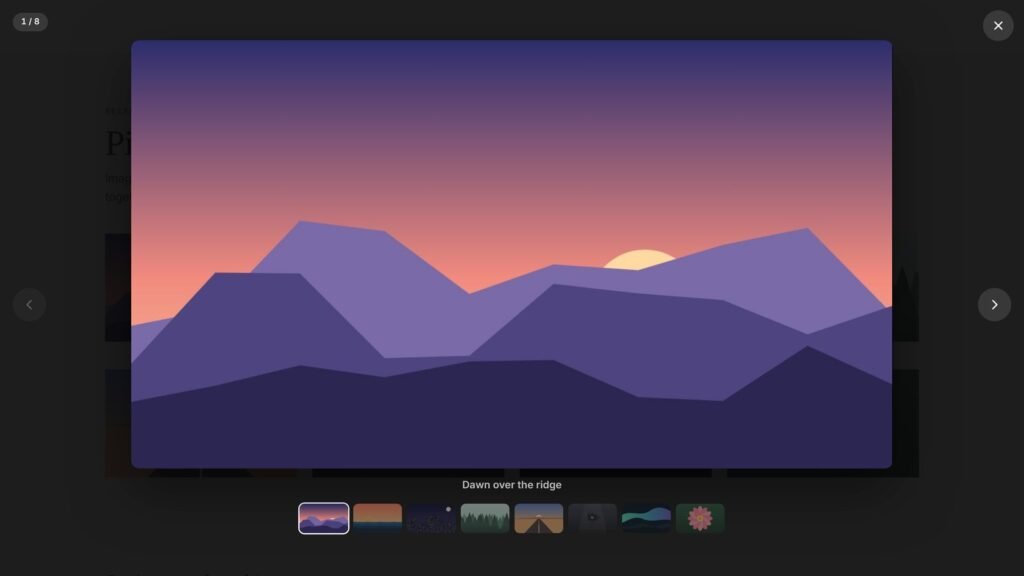
Open YouTube, Vimeo, Loom, Wistia and uploaded videos in a clean window over the page, from the Buttons, text links, pictures, menu items and Video blocks you already have on your Squarespace 7.1 site. Visitors stay on your page. You choose the look in a builder with a live preview, then paste a short CSS into Custom CSS and a script into Code Injection, once for the whole site.
Squarespace sends a YouTube link to YouTube and plays a Video block in its small box. With this plugin a click on a Button, a link, a picture or a Video block opens the video big, in a lightbox over the page, with sound, and closes it again with Escape, the close button or a click outside. You keep adding video links the way you always do.
The question comes up in the Squarespace forum again and again, in the site owners' own words: how can I get video links to pop up, a button that pops up a video lightbox, a video lightbox after a click on an image, a lightbox video instead of a separate page. Squarespace has no setting for it. A YouTube link leaves your site for YouTube. A Video block plays inside its own box. The image lightbox shows images only, and the promotional pop-up does not take a video.
Video Lightbox works with what you already have. Link a Button, a few words in a Text block, a menu item or a picture to a YouTube or Vimeo address, as you always do. On the live site a click opens that video in a lightbox over the page, with sound, and the page stays where it was behind it. Video blocks work too: a click on a YouTube or Vimeo Video block, or on an uploaded video, opens it big in the same window.
Links that are not a video stay normal links. A link to your YouTube channel, a Vimeo profile, the social icons in your footer, a shop page: none of them change. When one video link should stay a normal link, add #nolightbox at the end of its address.
Version 2 installs once for the whole site. A short CSS goes into Custom CSS, with every setting as a readable line at the top: size, backdrop, close button, gallery, play icon. A script goes into Code Injection, Footer, and reads those settings. To change the look later, you change a value in Custom CSS and click Save. There is no Code Block on your pages and no ID to copy.
Everything is chosen in a builder file that runs in your browser. Its preview is a sample page with Buttons, text links, pictures and Video blocks, and a click there opens the real lightbox with your settings, playing short sample clips.
Nothing needs a tag or an ID. The plugin looks at the address a link points to, and every link to a video it can play opens the lightbox:
A click with Ctrl, Cmd or Shift, or with the middle mouse button, opens the link as before, so visitors can still open a video in a new tab on purpose. In the builder you can let only links that end in #lightbox open the lightbox, and keep links set to "Open link in new tab" normal.
Links to a channel, an @handle, a user page or a home page are not videos, so they stay normal links.
A YouTube or Vimeo Video block with a custom thumbnail opens big when it is clicked, instead of playing in its small box. A Video block without a thumbnail normally loads the YouTube or Vimeo player as soon as the page opens. The plugin shows a light poster there instead (the YouTube picture of the video, or a dark panel with the title) and loads the player only when someone clicks, so the page loads lighter.
An uploaded video plays in the lightbox with sound and its controls, and goes back to its place on the page when the lightbox closes. Background-style videos (set to autoplay, muted and loop) stay as they are, because they are usually decoration; switch on "Background-style videos too" to open them as well. "Plays in the page" leaves every Video block to Squarespace.
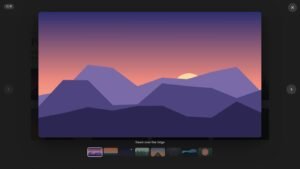
The videos of one section open together as a gallery, in the order of the page, one entry per video. Visitors move with the arrows, the Left and Right keys or a swipe on a touch screen, and a counter such as 2 / 5 shows where they are. Choose "Whole page" to put every video of the page in one gallery, or "One at a time" for none. Loop starts again at the first video after the last. A thumbnail strip under the video jumps to any video; it uses each link's own picture.
A YouTube Shorts link opens in a tall 9:16 window that fits the height of the screen. Uploaded videos and video files take their own shape. For other videos you can set the shape yourself: 16:9, 9:16, 4:3, 1:1 or 21:9. The "Shorts and reels" ready look fills the whole phone screen.
The video plays at once, with sound, because the visitor clicked. If a browser still blocks the sound, the video starts muted with a "Turn sound on" button. You can start every video muted, loop it, hide the player controls, switch on YouTube captions, show or hide the Vimeo title and pick the color of the Vimeo player.
When a video ends, the lightbox can stay, close, play the next video or play it again. Other videos playing on the page wait while the lightbox is open. On close the player is removed, so no sound keeps playing.
Set the largest width, the largest height as a share of the screen, rounded corners, a shadow and the space around the video, or let it fill the screen on computers, on phones or both. The backdrop takes any color and strength, can blur the page behind, and the window can zoom, fade or slide up at the speed you choose.
The close button shows an icon, a word or both, in the corner of the screen, above the video or in the video, in your colors, at 44 px or more. A click outside the video closes the lightbox if you like, and on phones the Back button closes it too.
Show a title line under the video, taken from the link text, the picture's alt text or the Video block's caption. Add a button with your own text and link, such as "Book a call", shown when the video ends or all the time, in your colors.
Every picture that links to a video gets a play icon: a circle, a rounded square or a square, in the size and colors you choose, with a small grow on hover and a soft pulse if you like. Text links and Buttons stay as they are. A picture link without any text gets the name "Play video" plus the picture's alt text for screen readers.
Give a section the Anchor Link video-popup and its first video opens by itself after the delay you set, for example 2 seconds. Choose how many days pass before the same visitor sees it again, or 0 to open it on every visit. The section can stay on the page so its button plays the video again, or be hidden. A video that opens by itself starts muted with a "Turn sound on" button, and it never opens while you edit the page.
Nothing loads from YouTube or Vimeo before a click. Privacy mode, on by default, uses YouTube's no-cookie player and Vimeo's do-not-track setting. "Ask before playing" shows a short note and a button before the YouTube or Vimeo player loads, with your own words, for cookie laws; your own uploaded videos and files play without it.
If your site has Google Analytics or Google Tag Manager, the plugin sends the events sqvl_open, sqvl_play, sqvl_complete and sqvl_close with the video's address, provider and title. Nothing is sent anywhere else. A deep link option puts #video-2 in the address while a video is open, so a shared address opens that video.
The lightbox is a real dialog over the page. Focus moves to the close button, Tab stays inside the lightbox, and when it closes focus goes back to what was clicked. Escape closes it. The page behind keeps its scroll position and does not scroll while the lightbox is open. Arrows and buttons are at least 44 px, the counter is read out by screen readers, and every word the buttons say can be changed for a site in another language. Visitors who ask their device for less motion get no zoom or slide.
On phones the arrows and the counter sit under the video, where a thumb reaches them, the close button stays in the corner, and the window never makes the page scroll sideways.
Every video opens with the main look. When one section needs something else, for example a white gallery on the portfolio page and a "Book a call" button on the home page, add a section look in the builder: type that section's Anchor Link, click Edit this look and change what you like. Only the settings you change are written into Custom CSS, as a short rule like #portfolio { ... }. In Squarespace, give the section the same Anchor Link. Every video opened from that section uses its look.
Start from one of six looks and make it your own: Clean dark, Light gallery, Cinema, Glass, Brand call to action and Shorts and reels.
The lightbox works in the Squarespace preview while you are logged in. While you edit a page it stays off and the page shows exactly as Squarespace draws it. Click Exit and it is back.
Every setting is one line at the top of your Custom CSS, with a short note next to it, for example --sqvl-width: 1200px; /* largest width */. To change one, open Custom CSS, change the value after the colon, keep the semicolon and click Save. The lines under @media (max-width: 767px) are the phone values.
Or change it in the builder, copy the CSS again and paste it over the old one. The builder can also read back the settings you pasted into Custom CSS. The Footer script stays the same: you paste it once and copy it again only for another website.
Your key is in the order email and under My Account, Licenses on squarespell.com. You enter it once in the builder, together with the address of your website. The Footer script you copy then works on that website.
Open the builder file. Enter your license key and your website address, then click Activate. Pick a ready look and set the size, backdrop, close button and gallery. Click Play a sample to see the real lightbox.
Click Copy code, then Copy CSS. Paste it at the end of Custom CSS (Pages, Custom Code, Custom CSS) and click Save. Click Copy script. Paste it on a new line at the end of the Footer box in Code Injection (Pages, Custom Code, Code Injection) and click Save.
Link a Button, text, picture or menu item to a YouTube, Vimeo or video address, as you always do, or add a Video block.
That is the whole installation, once for the whole site. There is no Code Block on your pages and no ID to copy. Custom CSS is on every Squarespace plan; Code Injection needs the Core plan or higher. Tip: in Custom CSS, click Open in new window for a bigger box. The PDF guide included with the plugin shows every step with screenshots of a real Squarespace site.
For filmmakers, video producers and photographers who show their work on a Squarespace page, coaches, course creators and podcasters who link to YouTube and want visitors to stay on their site, and designers building Squarespace sites for clients.
Squarespace 7.0 templates are not supported.
Answers to common questions about how the plugin works.
Install the plugin's two parts once, into Custom CSS and Code Injection, Footer. From then on every link to a YouTube, Vimeo, Loom or Wistia video, or to a video file, opens in a lightbox over the page. You keep adding links the way you always do.
Yes. Paste the video's address into the Button's link. "Open link in new tab" can stay on; the Button opens the lightbox either way, unless you choose to keep new tab links normal.
Yes. Give an Image block a click-through URL to the video, or link a Gallery, List or Summary item to it. The picture gets a play icon, and a click opens the video.
Yes. A YouTube or Vimeo Video block opens big when it is clicked, with or without a custom thumbnail, and so does an uploaded video. You can switch this off to let Video blocks play in the page.
Yes, when the link points to the video's YouTube or Vimeo address. Visitors watch it over your page and are back where they were when they close it. Items of a Squarespace Videos page link to their own page, so they open that page as before.
Yes. Public and unlisted Vimeo videos play, and the private part of an unlisted address is kept, so the video does not show "This video does not exist". Vimeo's do-not-track setting is on by default.
Yes. A Shorts link opens in a tall 9:16 window that fits the screen, and the "Shorts and reels" look fills the whole phone screen.
Yes, from a Video block on the same page: the video plays big in the lightbox with sound and goes back to its place when it closes. A video file linked with a file link plays too.
Yes. Give a section the Anchor Link video-popup: its first video opens after the delay you set, and the same visitor sees it again only after the number of days you choose. It starts muted, with a "Turn sound on" button.
The promotional pop-up does not take a video. Use a section with the Anchor Link video-popup instead: its video opens in the lightbox when the page loads.
Yes. Put the video links of one section in Image blocks, a Gallery section or a List section. They open together as a gallery with arrows, a counter and thumbnails if you like.
No. The video plays over your page, and the page behind keeps its place. Only links that are not videos, such as your channel link, go to YouTube as before.
The script is about 18 KB and the CSS about 11 KB, with no libraries. Nothing loads from YouTube or Vimeo until someone clicks, and Video blocks without a thumbnail load a light poster instead of a player, so pages with such blocks get lighter.
YouTube's no-cookie player and Vimeo's do-not-track setting are on by default, and nothing is loaded from them before a click. "Ask before playing" adds a short note and a button before the player loads, with your own words.
Yes: size, shape, backdrop color and blur, close button, arrows, animation, a title and a button under the video, and the play icon. Six ready looks get you started, and any section can have a look of its own.
Yes. The window fits the phone screen, the arrows and the counter sit under the video, a swipe changes the video, and the Back button closes the lightbox. It was tested at phone width in Chrome, not on real phones.
Squarespace 7.1 on the Core plan or higher, because the script goes into Code Injection. Custom CSS is on every plan, but the CSS alone does nothing.
No. You pay once. There is no monthly fee and no limit on views.
A Single License covers one website at a time, and you can move it yourself. A Multi-Use License covers unlimited websites. Each website is activated in the builder with your license key.
No reviews yet. Share your experience.
Sign in to write a review We will bring you straight back here.
Squarespace Video Lightbox Plugin · Single License
Squarespell All Access
All 48 plugins and every new one, worth $2,044 bought one by one. 14 days free, cancel anytime.
Start 14 days freeOr start free with 13 plugins, no cardFounding price until 1 December, kept for as long as you stay.