 Member Content Pro: Show Members-Only Content on Public Squarespace Pages with Native Member Sites$59
 Squarespace · PluginSquarespell Original
Browse by platform
View allBrowse by goal
View allBrowse by goal
Fresh inventory
Recently added
Member Content Pro: Show Members-Only Content on Public Squarespace Pages with Native Member Sites$59Squarespace · PluginSquarespell Original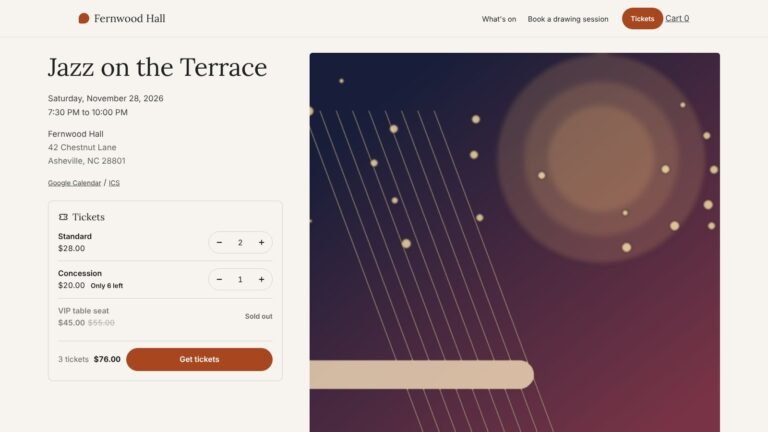 Event Tickets: Sell Tickets on Squarespace Event Pages with Ticket Types, Seats Left and Native Checkout$59Squarespace · PluginSquarespell Original
 Wholesale Order Pad: Squarespace Wholesale Order Form with Bulk Add to Cart, Order by SKU and Reorder$85Squarespace · PluginSquarespell Original
 Squarespace Summary Block Pro: More Than 30 Items, Load More and Pagination$49Squarespace · PluginSquarespell Original
 Squarespace Delivery Area Checker: Postcode and ZIP Code Checker Plugin$49Squarespace · PluginSquarespell Original
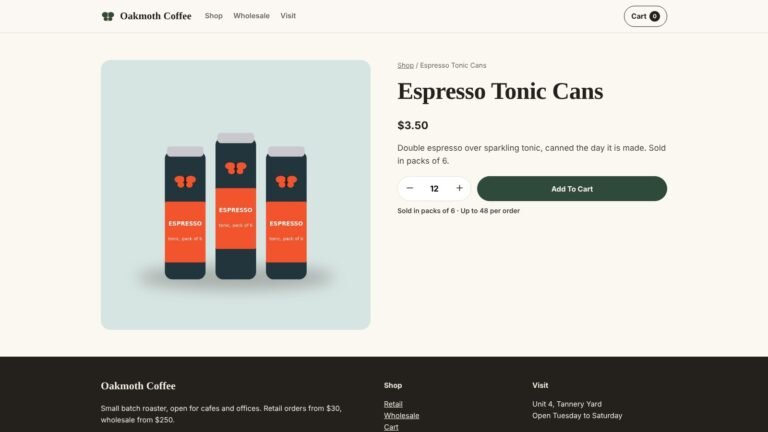 Order Rules: Squarespace Minimum Order, Quantity Limits and Pack Sizes Plugin$49Squarespace · PluginSquarespell Original
Search results
Matching products
Squarespace 7.1 plugin
Your Squarespace site in more than one language.
Price: $85
Instant download · Sold by Squarespell
Bundle & save
Automatically applied at checkout on Squarespell plugins.
Requires Squarespace 7.1 and the Core plan or higher (Code Injection).
A language switcher for Squarespace 7.1 in two ways. You choose in a builder and paste one Footer code; there is no code to edit.
Good to know: Squarespace 7.1 only. Code Injection needs the Core plan or higher. The Personal and Basic plans have no Code Injection.
You make your choices in a builder file that runs in your browser and try them in a live preview of a Squarespace page. Then you paste one Footer code into Code Injection. Your settings are inside the code, so you never edit it.
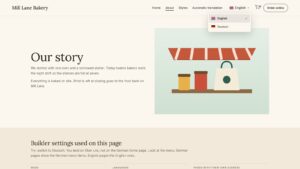
When the language of a visitor's browser is one of yours and differs from the page, a small bar offers the page in that language, in that language. It shows once, closes with one click, and nobody is ever sent elsewhere by themselves.
Next to the cart in your header, in the phone menu, as a small button in a bottom corner, or in any Code Block on a page. You can use several at once.

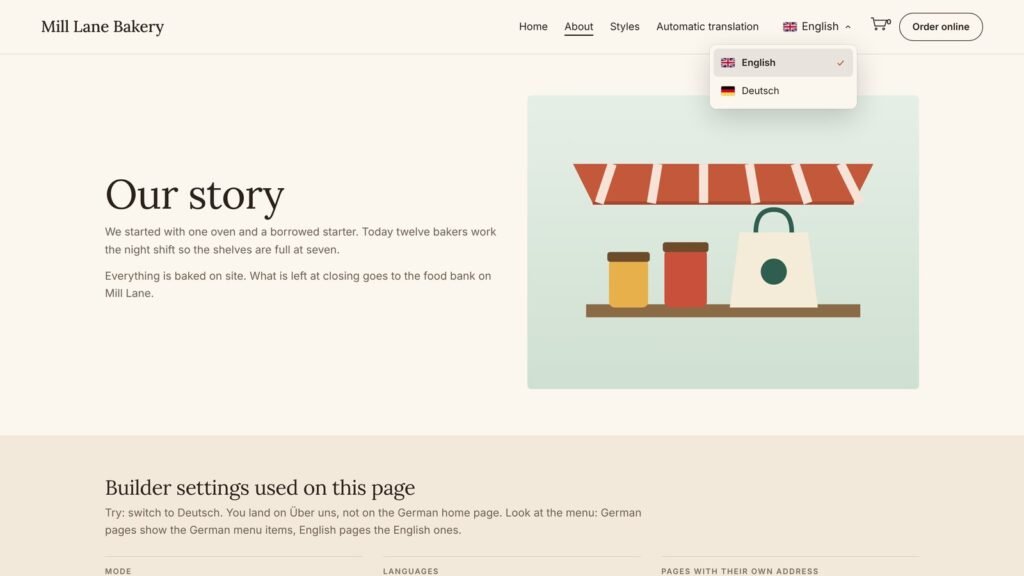
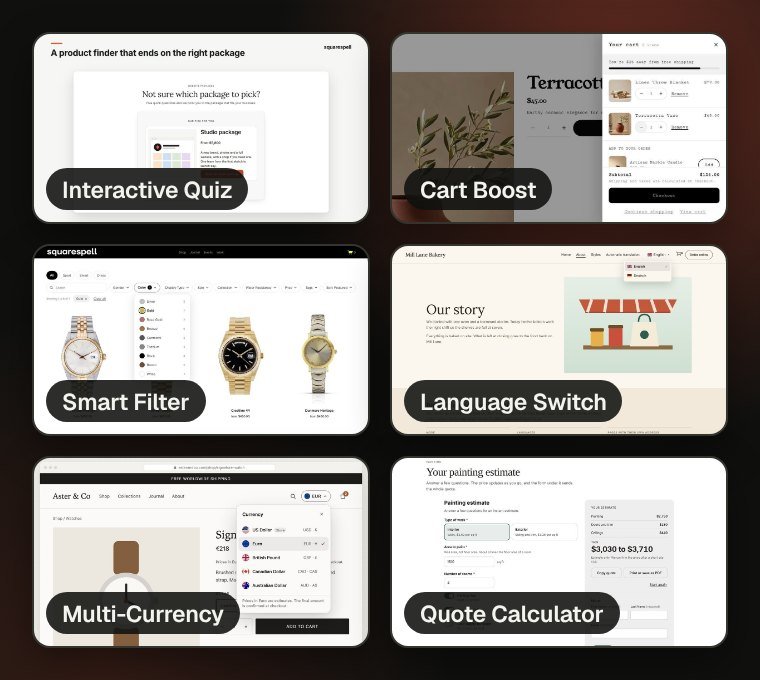
A language switcher for Squarespace 7.1 in two ways. Write your own page for each language, and visitors who switch stay on the same page, with the page language and hreflang set for search engines. Or let Google's free website translator translate each page in the visitor's browser, behind a switcher that matches your site. You choose in a builder and paste one Footer code; there is no code to edit.
Squarespace has no switcher for pages you translate yourself: its own method puts each language in a navigation dropdown, so a visitor who changes language lands somewhere else and search engines are not told which pages belong together. Language Switch connects your pages, keeps the visitor on the same page and tells search engines about every language. Or it puts Google's free translator behind a switcher made for your header. One payment, no account and no code to edit.
The question comes back on the Squarespace forum again and again: "Is it possible to switch language and stay on the specific page (translated), instead of being redirected to homepage". Others ask for a "Multilingual site 7.1 - how to make it happen without third party (Weglot) integration?", a language switch in the phone menu, and hreflang for blog posts. Squarespace's answer for hand-made translations is a manual method: one navigation dropdown per language, every language's dropdown on every page, and no tags that tell search engines which page is the German version of which.
Language Switch turns that manual method into a multilingual site. You write each page in Squarespace, the way you already do, and tell the builder where each language lives, for example every German page under /de/. The switcher then takes a visitor from /about to its German twin, the page says it is German, and search engines get the links between the language versions.
If you would rather not write every page, the second mode puts Google's free website translator behind the same switcher. It translates the page in the visitor's browser, and nothing is sent to Google until a visitor picks a language.
You make your choices in a builder file that runs in your browser and try them in a live preview of a Squarespace page. Then you paste one Footer code into Code Injection. Your settings are inside the code, so you never edit it.
My own translated pages (recommended). You, or your translator, write each language as its own Squarespace page. Visitors land on the same page in their language, and search engines can find and show every language, because every language is a real page.
Automatic translation. Google's free website translator translates each page in the visitor's browser. It is quick to set up, but the translated text is not indexed by search engines, and machine translation can get names and short words wrong.
You pick one in the builder and can change it later by copying the code again. Many sites start with automatic translation and write their own pages for the languages that bring the most visitors.
Give every language its own start of the address, like /de for German. In Squarespace that is the URL Slug of each page: de/ueber-uns, de/kontakt, de/shop. Then in the builder:
When a page has no twin in the other language, the switcher checks with your site first and sends the visitor to that language's home page instead of an error page. If every page exists in every language, one switch turns that check off and the switcher goes straight to the twin. When the twin is known, any text after the address, such as ?color=blue or #menu, comes along.
On your own pages the code does what Squarespace's manual method leaves out:
When the language of a visitor's browser is one of yours and differs from the page, a small bar offers the page in that language, in that language: "Diese Seite auf Deutsch lesen". It shows once, closes with one click, and nobody is ever sent elsewhere by themselves. Search engines see your pages as they are. The sentence is built in for 30 languages; other languages show their own name on the button.
In automatic mode the switcher is ours and the translation is Google's. Google's own bar and tooltip are hidden and your header is not pushed down. Text that loads later is translated too, and the visitor's choice follows them to every page.
Google's website translator is a free service. It worked when we tested it on 26 October 2026, but Google can change or end it at any time, and a privacy or ad blocker can stop it in some browsers. Then your page stays in its own language and the switcher says "Automatic translation is not available right now." Machine translations are not indexed by search engines; for that, use your own pages.
Choose one or more places:
Flags are small images that come with the code, never emoji, so they look the same on every computer and phone. Each language gets the flag of its usual country, and you can pick another or none. A flag stands for a country, not a language, so one switch turns them off.
By default the switcher takes the colors and font of your header, and the accent of your site. Or set your own background, text and accent, and rounded corners from 0 to 20 px. Text on the accent color is kept readable.
On a phone the list slides up from the bottom of the screen, with rows of at least 48 px and a close button of 44 px. The page behind stays where it was. The header switcher, the menu row and the floating button all work at every width from 320 px, with no sideways scrolling.
The switcher is a real button that names the current language ("Language: Deutsch") and opens a list visitors can use with the keyboard: arrows, Home, End, Enter, Escape and typing the first letters. With more than 8 languages the list has a search box. Each language name is marked with its own language, so screen readers pronounce "Deutsch" and "Français" correctly. The focus returns to the button when the list closes. The words "Language", "Close" and "Search" follow the page's language in 30 languages.
Your website never contacts squarespell.com; only the builder does, once, when you activate your key.
While you edit in Squarespace, the switcher steps aside and your pages, menus and sections show exactly as you made them. It comes back when you click Exit, and on your live site.
Open the builder (it remembers your settings in that browser), change what you like, click Copy code and replace the Language Switch block in Code Injection, Footer. A new language with your own pages: make its pages in Squarespace, add it in the builder and copy the code again.
Version 7.0.0 is a new plugin, not a patch. Version 6 was one script you edited by hand, with your email inside, and it translated text through the free MyMemory and Lingva services, which in our tests sometimes changed facts such as opening hours. Version 7.0.0 is made in the builder, has no email or other value to type into the code, and uses your own pages or Google's website translator.
Remove the old code before you paste the new one: in Code Injection, Footer, select the whole version 6 block and delete it, then Save. If both are there, visitors see two switchers, and you see a short note on your site while you are logged in.
Your key is in the order email and under My Account, Licenses on squarespell.com. You enter it once in the builder, together with the address of your website. The Footer code you copy then works on that website.
You pay once. There is no monthly fee and no limit on languages, words, pages or visitors, and nothing switches off. Translation services that plug into Squarespace usually bill monthly, with a cap on words and languages per plan.
For your own pages: in Squarespace, make the pages of each language. In the Pages panel hover a page, click the three dots and Duplicate, translate the copy, then open its settings, General, and give it a URL Slug that starts with the language, for example /de/ueber-uns. Keep each language's pages in a navigation dropdown named after the language, or in Not Linked. (Skip this step for automatic translation.)
Open the builder file. Enter your license key and your website address, then click Activate. Choose the mode, your languages, where each language lives, and where the switcher shows and how it looks. Try it in the preview.
Click Copy code. In Squarespace open Pages, Custom Code, Code Injection, and paste it on a new line at the end of the Footer box, after any code that is already there. Click Save. This is done once for the whole site.
Optional, for search engines: in the builder, Header snippets for SEO lists one snippet per page. Copy each one into that page's settings, Advanced, Page Header Code Injection, and click Save. Code Injection needs the Core plan or higher. Check your site in a private window. The PDF guide included with the plugin shows every step with screenshots.
For businesses that serve customers in two or more languages, sites with translated pages that want visitors to stay on the same page, sites that want a quick machine-translated version for visitors from abroad, and designers building Squarespace sites for clients.
Squarespace 7.0 templates are not supported.
Answers to common questions about how the plugin works.
Yes. Write your pages in each language in Squarespace and Language Switch connects them with a switcher, the page language and hreflang. You pay once, with no limit on languages or words.
Yes. On /about, choosing Deutsch opens your German About page, for example /de/ueber-uns. If a page has no German twin, the visitor lands on the German home page instead of an error page.
Yes. Each page that has twins links to them, with an x-default. For the strongest result, the builder also gives you one small snippet per page to paste into that page's Page Header Code Injection.
Yes, in automatic mode, with Google's free website translator behind the plugin's switcher. Nothing is sent to Google until a visitor picks a language.
No. Search engines see your original language only. For translated pages that search engines can find, use your own pages.
Your own pages can be in any of 273 languages and regional variants, such as pt-BR or fr-CA. Automatic mode offers the languages Google's translator offers: 248 from an English page when we checked on 26 October 2026.
Yes. Turn on "Show only the current language's menu items". A dropdown that holds only German pages counts as German too.
Yes. Give a section the Anchor Link lang-de and it shows on German pages only. Use one footer section per language.
No. It offers the page in their language once, with a small bar in that language, and the visitor decides. Nobody is redirected.
Next to the cart in your header, in the phone menu, as a small button in a bottom corner, or in any Code Block on a page. You can use several at once.
Yes. Turn on Phone menu and a language row shows inside the menu.
No. They are small images that come with the code, so they look the same everywhere. You can change a language's flag or turn flags off.
Yes. Arabic, Hebrew, Persian, Urdu and other right-to-left languages turn the page to read from the right, on your own pages and in automatic mode.
Yes, in automatic mode. "Keep my site title as it is" keeps your header title, and you can list words Google should leave alone.
No. Checkout and Squarespace's emails are Squarespace pages that accept no code, so they stay in your site language.
No. You choose everything in the builder, click Copy code and paste it once into Code Injection, Footer.
Squarespace 7.1 on the Core plan or higher, because the code goes into Code Injection.
The Footer code is about 50 KB with two to four languages, about 17 KB when compressed, with no libraries. Google's translator loads only in automatic mode, and only after a visitor picks a language.
No. That option belongs to Squarespace's own translation integration. Leave it off when you use this plugin, so visitors see one switcher.
Version 7.0.0 is made in the builder, so there is no email or code to edit, and it uses your own pages or Google's translator. Remove the old code from Code Injection, Footer before you paste the new one.
No. You pay once. There is no monthly fee and no limit on languages, words or visitors.
A Single License covers one website at a time, and you can move it yourself. A Multi-Use License covers unlimited websites. Each website is activated in the builder with your license key.
No reviews yet. Share your experience.
Sign in to write a review We will bring you straight back here.
From the Squarespell blog
Four ways to put more than one language on a Squarespace site, from Squarespace’s Weglot integration to a one-time plugin, free widgets and hand-built pages, with…
Squarespace Language Switch Plugin · Single License
Squarespell All Access
All 48 plugins and every new one, worth $2,044 bought one by one. 14 days free, cancel anytime.
Start 14 days freeOr start free with 13 plugins, no cardFounding price until 1 December, kept for as long as you stay.
Global Store Pack
Sell to other countries in their language and currency
$99 $170 You save $71Black Friday pack price until 1 December
Single site licences, paid once. The pack price shows in the cart.