 Member Content Pro: Show Members-Only Content on Public Squarespace Pages with Native Member Sites$59
 Squarespace · PluginSquarespell Original
Browse by platform
View allBrowse by goal
View allBrowse by goal
Fresh inventory
Recently added
Member Content Pro: Show Members-Only Content on Public Squarespace Pages with Native Member Sites$59Squarespace · PluginSquarespell Original Event Tickets: Sell Tickets on Squarespace Event Pages with Ticket Types, Seats Left and Native Checkout$59Squarespace · PluginSquarespell Original
 Wholesale Order Pad: Squarespace Wholesale Order Form with Bulk Add to Cart, Order by SKU and Reorder$85Squarespace · PluginSquarespell Original
 Squarespace Summary Block Pro: More Than 30 Items, Load More and Pagination$49Squarespace · PluginSquarespell Original
 Squarespace Delivery Area Checker: Postcode and ZIP Code Checker Plugin$49Squarespace · PluginSquarespell Original
 Order Rules: Squarespace Minimum Order, Quantity Limits and Pack Sizes Plugin$49Squarespace · PluginSquarespell Original
Search results
Matching products
Squarespace
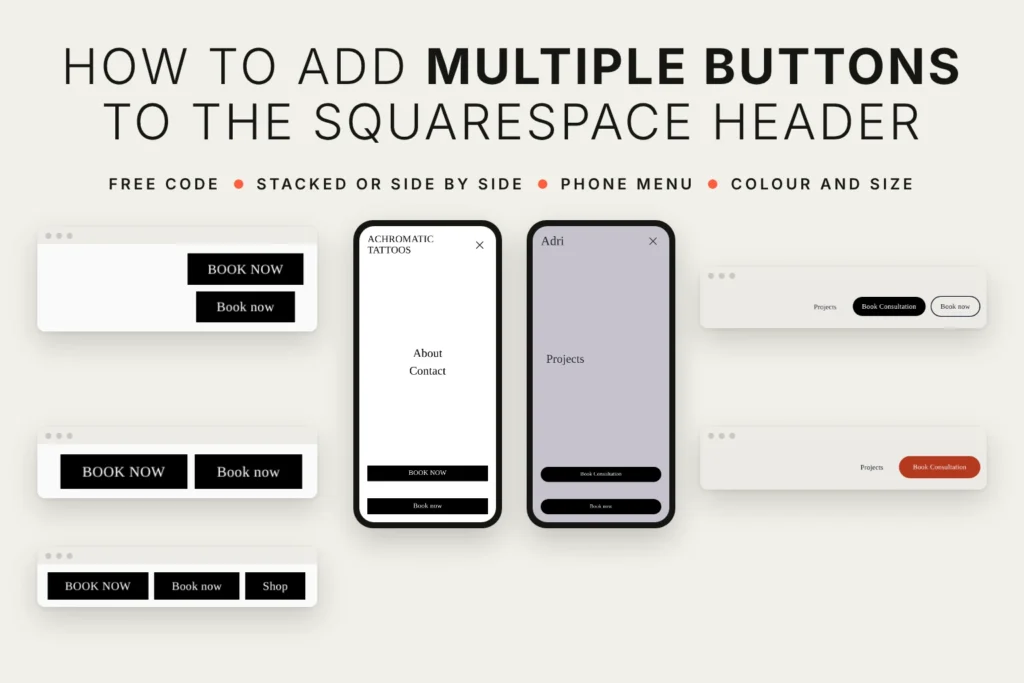
How to add a second or third button to the Squarespace 7.1 header with free code tested on live 7.1 templates, how to change the header button’s colour and size, and the no-code options: floating buttons, the announcement bar, pop-ups and the mobile information bar.
A note on how we make money. The main method in this guide is free code that earns nobody anything, and so are Squarespace’s own options. Squarespell also makes several of the header, menu, pop-up and announcement bar plugins shown below, plus the free button styles, so weigh that interest; we describe them with the same criteria as everything else. Other products here are third-party listings with affiliate links, and Squarespell may earn a commission if you buy through them. That never changes which method we recommend. Details are in our affiliate disclosure.
If you want the short version:
And the honest caveat before any of that matters: the script and the CSS depend on Squarespace’s header class names. They worked on the live templates we tried on 13 November 2026, but if Squarespace renames them, the extra button stops appearing; your original button keeps working.
Last updated: 13 November 2026
Most sites need two calls to action in the header sooner or later: “Book now” and “Shop”, “Donate” and “Volunteer”, “Client login” and “Get a quote”. Squarespace 7.1 gives you one header button and no setting for a second, and the forum threads asking for one go back years.
The fix is small, but the details trip people up: which plan allows the script, where each piece of code goes, why the second button disappears on phones, how to change the header button’s colour and size, and how to make the two buttons look different. This guide covers all of it, step by step, with screenshots of each Squarespace screen.
For this update we read every Squarespace help page we cite directly, and ran each snippet on two live Squarespace 7.1 template demos (Achromatic and Adri) at computer and phone widths, adding the code to the page the same way Custom CSS and Code Injection do. The screenshots of the results come from those runs; “What we couldn’t verify” lists the limits.
Two questions decide it: does your plan include Code Injection, and does the second call to action have to sit inside the header itself? The table puts the options side by side.
| Method | Plan needed | Cost | Looks like | On phones | Best for |
|---|---|---|---|---|---|
| 1. Copy the header button (CSS + script) | Core, Plus or Advanced (Code Injection) | Free | Two or more real header buttons in your button style | Added to the phone menu too | Most sites |
| 2. Style a menu link as a button (CSS only) | Any plan, including Basic | Free | A navigation link drawn as a button | A normal menu link unless you style it too | Basic plan sites |
| 3. Floating button widget | Core or above (the widget’s JavaScript) | Free plans; Elfsight paid tiers $5, $10 or $20 a month | A button fixed to a corner of the screen | Floats on phones too | Calls, WhatsApp, bookings |
| 4. Announcement bar | Core, Plus or Advanced | Built in, or $25 one-time for the Mega Announcement Bar | A strip above the header with a link | Yes | Offers, launches, deadlines |
| 5. Pop-up with buttons | Core, Plus or Advanced | Built in (one pop-up, two buttons), or $39 one-time for Popup Pro | A window over the page | Yes | Quotes, sign-ups, contact |
| Mobile information bar | Core, Plus or Advanced (and some older plans) | Built in | Email, Call, Map and Hours buttons at the foot of the screen | Phones only | Local businesses |
Plan requirements from Squarespace’s help centre and prices from the Squarespell listings, checked 13 November 2026.
Our recommendation: use Method 1 if your plan has Code Injection. It is the only method that gives you a second true header button that inherits your site’s button style, changes when you change Site Styles, and appears in the phone menu. Add Method 3 or the mobile information bar if phone visitors need a call button they can see without opening the menu.
Custom code is your responsibility, not Squarespace’s. Squarespace’s custom CSS guide says its support team “can’t help you add custom code to your site or troubleshoot issues that arise from using it”. If Squarespace renames a header class in a future update, the extra button stops appearing; your original button and the rest of the site carry on as normal.
Every header method starts here. The extra buttons are copies of this one, so it has to exist and be styled the way you want. These are the steps in Squarespace’s site header guide:
Where it shows on phones. The same guide says that “On mobile, the button always appears below your navigation links”, inside the menu that opens from the menu icon. Check it on desktop and inside the phone menu before you move on. If the built-in button does not show, nothing in the next steps will either.
Before adding a second button, get the first one looking right, because the copies inherit everything about it. Squarespace splits the controls between Site Styles and the header editor.
These settings change every button of that type on the site, not only the header button. That is why choosing Secondary for the header button, and leaving page buttons on Primary, is the simplest way to give the header its own look. Squarespace’s button styles guide lists header buttons among the buttons whose type you can change.
There is no colour picker on the header button itself. Squarespace’s site header guide says the colour depends on the header background style: Solid, Color and Gradient headers use your site’s default colour theme, Solid, Theme uses the theme you pick, and Adaptive (transparent) headers follow the colour theme of the first section on each page. To change it, open Site styles, then Colors, click that colour theme and edit the button background and text colours under Button.
The catch with Adaptive headers. The button can change colour from page to page, because each page’s first section may use a different theme. Set the button colours in every theme your first sections use, or switch the header to a Solid background.
For a header button set to Primary, open Site styles, click > next to Fonts, click Assign Styles, then Header Button. Secondary and Tertiary header buttons follow your button styles instead.
If you want the header button to differ from every other button of its type, Custom CSS can target it alone. This is the snippet we ran on both demos; change the colour code and sizes to your own:
/* Squarespell: header button colour and size */
.header-actions-action--cta .btn,
.header-menu-cta .btn {
  background-color: #b4381f !important;
  border-color: #b4381f !important;
  color: #ffffff !important;
  padding: 1em 2em !important;
  font-size: 15px !important;
}
The first selector is the header button on computers and the second is the same button inside the phone menu, so both change together. The !important flags are needed because Site Styles load with stronger rules.
Squarespell’s free Solid to Outline button style turns a filled button into an outlined one when the pointer is over it. As published, it targets button blocks on your pages, not the header button. Changing the selector to the header classes makes it work in the header:
/* Squarespell: solid to outline on hover, header buttons only */
.header-actions-action--cta .btn:hover,
.header-menu-cta .btn:hover {
  background-color: transparent !important;
  border: 2px solid #000000 !important;
  color: #000000 !important;
}The other free button styles on Squarespell (a shaking hover, a gradient fill and a confetti burst) are written for button blocks too. We adapted and tested only the Solid to Outline style for the header.
Squarespace · Plugin
Squarespace · Plugin
Squarespace · Plugin
Squarespace · Plugin
Free
Squarespace · Plugin
This method copies your real header button in the browser, changes the copy’s text and link, and places it next to the original. Because it is a copy, it uses the same colours, font and shape, and it follows any later change you make in Site Styles. It needs Code Injection (Core plan or above).
At the bottom of the Pages panel, click Custom Code. A panel titled Website Tools opens; click Custom CSS under Custom Code.
Paste this at the end of anything already in the box, then click Save. The first rule lays out the buttons in the computer header; the second does the same inside the phone menu.
/* Squarespell: more than one header button (desktop) */
.header-actions-action--cta {
  display: flex;
  flex-direction: column; /* delete this line to put the buttons side by side */
  align-items: center;
  gap: 10px;
}

/* Squarespell: the same buttons inside the mobile menu */
.header-menu-cta {
  display: flex;
  flex-direction: column;
  gap: 10px;
}Use /* */ comments, not //. An earlier version of this guide put a // comment on the same line as the selector, which stops the rule loading. The snippet above keeps every comment between /* and */.
Go back to the same Website Tools panel and open Code Injection. If you do not see it, your plan does not include it; use Method 2 instead.
Paste this into the Footer box, not the Header box, and click Save. Squarespace’s code injection guide says code in the Footer box “is injected before the closing </body> tag on every page in your site”, which means it runs after the header exists.
<script>
/* Squarespell: extra header buttons. Edit the list, then save. */
(function () {
  var extraButtons = [
    { text: 'Book now', url: '/book' }
    /* add more like this: , { text: 'Shop', url: '/shop' } */
  ];

  function addHeaderButtons() {
    var holders = document.querySelectorAll('.header-actions-action--cta, .header-menu-cta');
    holders.forEach(function (holder) {
      var original = holder.querySelector('a');
      if (!original || holder.querySelector('[data-extra-header-button]')) return;
      extraButtons.forEach(function (button, i) {
        var copy = original.cloneNode(true);
        copy.setAttribute('href', button.url);
        copy.textContent = button.text;
        copy.setAttribute('data-extra-header-button', String(i + 2));
        holder.appendChild(copy);
      });
    });
  }

  if (document.readyState === 'loading') {
    document.addEventListener('DOMContentLoaded', addHeaderButtons);
  } else {
    addHeaderButtons();
  }
})();
</script>Edit only the list at the top of the script. Each button is one line of the form { text: 'Label', url: '/page' }. To add a third button, put a comma after the first line’s closing brace and add another, for example { text: 'Shop', url: '/shop' }. Keep the quotes straight, not curly, or the script will not run.
Moving from the earlier version of this guide? Remove the old footer script and, if nothing else on your site uses it, the jQuery line from the Header box. Running both versions gives you two copies of the second button.
The layout is controlled by one CSS property on the button container. flex-direction: column places the buttons one above the other; without it, flexbox uses its default, row, and they sit next to each other. The gap value sets the space between them in either layout.
flex-direction: column; /* delete this line … */ from the first rule only, and save. Leave the phone menu rule alone; stacked buttons suit a narrow menu.gap: 10px;, for example to 16px.Side by side needs room. Three buttons plus a centred logo fill most of a 1440 px wide screen, as the next screenshot shows, and five or six menu links can crowd a 13 inch laptop. If the navigation wraps or the logo shrinks, shorten the labels or stack the buttons.
Two identical buttons compete for attention. A common pattern is a filled main button and an outlined secondary one. The script marks every copy with data-extra-header-button and its position (2 for the second button, 3 for the third), so you can style copies without touching the original. Add this to Custom CSS:
/* Squarespell: outline style for the second header button */
[data-extra-header-button="2"] {
  background: transparent !important;
  color: inherit !important;
  border: 2px solid currentColor !important;
}Change "2" to "3" to style a third button separately. If you only want a different colour, replace the three lines with background: #1d4ed8 !important; and your own colour code.
Without Code Injection you cannot add a script, but you can still use Custom CSS. Instead of copying the button, you make one of your navigation links look like a button. It is the same technique Squarespell’s free “New” badge for the navigation uses to pick out one menu item.
/* Squarespell: draw one menu link as a button (any plan) */
.header-nav-item > a[href="/book"],
.header-menu-nav-item > a[href="/book"] {
  display: inline-block;
  padding: 0.7em 1.4em;
  border: 2px solid currentColor;
  border-radius: 6px;
  line-height: 1;
}
The trade-off. This button sits among your menu links, not in the button area, and it uses your navigation font rather than your button style. It will not change when you restyle buttons in Site Styles. For a filled look, add background: #000; and color: #fff !important; with your own colours.
Sometimes the second call to action does not need to be in the header at all. A phone number, a WhatsApp chat or a “Book a call” link often works better as a button fixed to the corner of the screen, because it stays visible as people scroll, including on phones where the header button hides inside the menu.
Elfsight’s Button is built in Elfsight’s online editor. Its listing says it can link to a page, email, file or popup, start a phone call, open WhatsApp or Telegram, and sit inline in a section or float while visitors scroll. There is a free Lite plan, and paid tiers are listed at $5, $10 and $20 a month.
If the second action is “Call us”, Click to Call is the more specific tool. Its listing describes left or right floating placement, showing it only on chosen pages or to all, new or returning visitors, and opening it after time on the page, a scroll percentage or an exit attempt. Same plans as the Button widget.
For a “Message us” button, WhatsApp Chat opens a chat with your number. Its listing names three layouts (a floating bubble, an embedded bubble and an embedded chat window), editable bubble text, and triggers such as page load, time on page and scroll position. It needs your WhatsApp number with the country code. Same plans as the Button widget.
Common Ninja’s Call Button is a free-plan alternative. Its listing describes a button at the left, centre or right of the bottom of the screen, an icon, text or both, several skins, and a narrow, wide or full-width version on phones.
These steps follow the installation outline on the Elfsight listings; Common Ninja’s widgets work the same way.
Check the plan before you build. These widgets run JavaScript, and Squarespace’s premium features guide says “Adding JavaScript or iframes to a code block is a premium feature available in the current Website Core plan and higher”. Elfsight’s Button listing says it can be added on Basic with a Markdown block; we did not test that route. The free tiers usually show the vendor’s branding and load from the vendor’s servers.
Free plan available
Free plan available
Free plan available
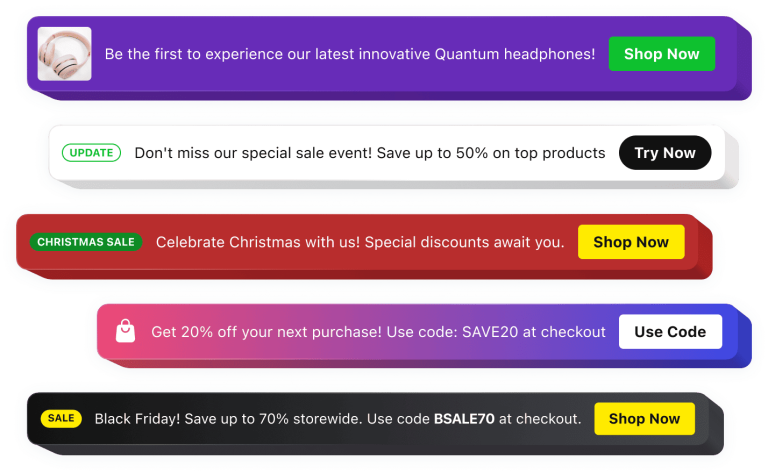
If your second action is time-bound, such as a sale, a launch or a booking deadline, a bar across the top of the site often earns more clicks than a second button, because it carries a sentence of context.
Squarespace’s announcement bar guide says the bar “is available in the Core, Plus, and Advanced plans”, appears on every page except cover pages, and cannot be limited to certain pages. To set it up:
Its colour follows the header’s colour theme; change it under Site styles, Colors, in the theme the bar follows, under Announcement Bar.
When one line is not enough, Squarespell’s Mega Announcement Bar Plugin ($25 one-time, $45 for unlimited sites) turns the bar into a panel that can show products, discounts or announcements. Its listing says it installs through the footer section, works on 7.1 and 7.0, and comes with a step-by-step guide.
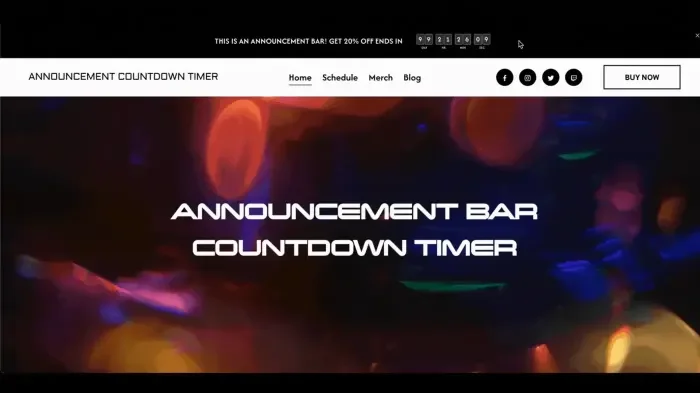
For deadlines, the Countdown Timer in Announcement Bar ($25 one-time) counts down to a date and time you set, in the bar on every page. Its listing says it needs Code Injection (Core, Plus or Advanced) and that you set the colours, style and end time, then copy and paste it into your site.
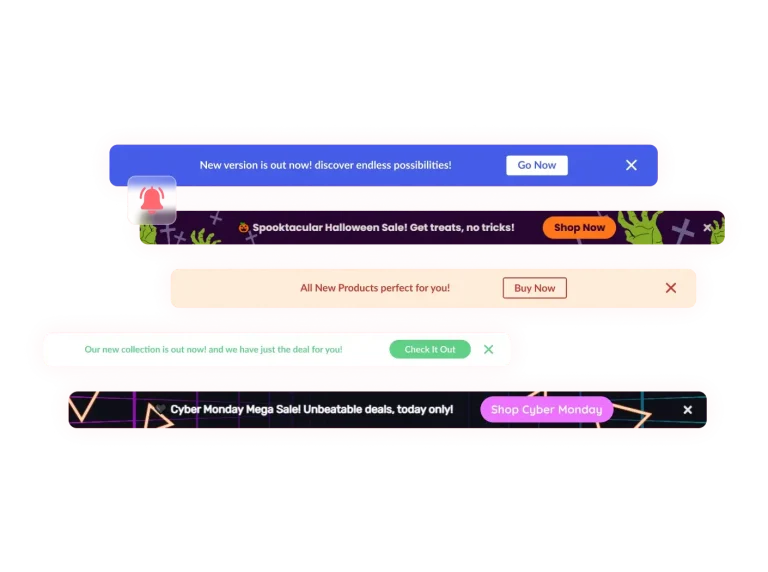
Elfsight and Common Ninja also list bar widgets with free plans, shown below with the two Squarespell plugins.
Free plan available
Free plan available
When the second action needs a sentence or a form, such as “Get a quote” or “Join the list”, a pop-up can carry it. Squarespace has one built in, and a plugin can make a header button open one.
Squarespace’s promotional pop-up guide says you can “Add up to two buttons that link to your site’s pages, a file, a different site”, and that pop-ups are available on the Core, Plus and Advanced plans. To set it up:
Its limits. It is one pop-up for the site, and its timing options are a timer and a scroll depth, so it does not open when someone clicks your header button.
Popup Pro ($39 one-time, $79 for unlimited sites) turns a section you design into a pop-up, side panel or bar, as many as you like. Its listing says any button, text link or menu item can open one by linking to #popup- and the pop-up’s name, for example #popup-quote. That works for the header button, and for the second button from Method 1: put url: '#popup-quote' in the script’s list.
The listing describes three steps:
On a phone, the header button sits inside the menu, so it takes two taps to reach. For a local business, Squarespace’s mobile information bar puts Email, Call, Map and Hours buttons at the bottom of the screen instead. The guide says it appears “when you’re at the top of a page and disappears as you scroll down”, shows only on phones, and is available on the Core, Plus and Advanced plans and some older plans.
A second button is sometimes a sign that the navigation has outgrown Squarespace’s simple header: too many pages, folders nobody opens, or a phone menu that buries the call to action. These tools change the menu itself, and they work alongside Method 1.
The Hamburger Mega Menu Plugin ($25 for one site, $45 for unlimited sites, 7.1 only) replaces the header links with a menu icon on computers as well as phones, which opens a full-screen menu or a side drawer built from your navigation. Its listing says your header button and social icons can stay in the header, move inside the menu, or show in both, so the button stays one click away.
Setup, from the plugin’s guide: open the builder and activate your licence; choose the layout, the menu icon and where the header button goes; click Copy code; paste it into the Footer box of Code Injection and save. Our hamburger menu guide walks through all 12 steps with the guide’s screenshots.
If you want the normal horizontal menu but richer dropdowns, the Mega Menu Plugin ($25, or $45 for unlimited sites) turns each dropdown into a panel with columns, headings, picture cards and a featured card, and adds a full-screen phone menu. It needs Code Injection. Setup: activate and choose your settings in the builder, copy the code, paste it into the Footer box of Code Injection and save. The full steps are in our mega menu guide.
The Mobile Menu Animation Plugin ($20, or $45 for unlimited sites) changes how the burger menu opens: its listing describes the menu loading from the bottom up with a fade, with colours you can match to your brand, and a setup guide included. It changes the animation, not the buttons, so pair it with Method 1 if you want both.
If your second header action is really “find something”, the Squarespace Search Plugin ($85, or $145 for unlimited sites) adds a search icon to your own 7.1 header, next to the cart, with results as visitors type, including product photos and prices. Its listing says it installs with one paste in the Footer box of Code Injection and needs the Core plan or higher.
The Navigation Upgrade Kit ($30 one-time) styles the existing menu rather than replacing it: pill-shaped links, a rounded floating header bar, softer dropdowns, navigation badges and a card-style phone menu. Pill-shaped links are the polished version of Method 2, if you want several links to read as buttons. Its listing says it works with copy-and-paste CSS and small Code Injection snippets; its requirement line still uses Squarespace’s old plan names (“Business plan or above”), which today means Core or above.
Spark Plugin is a click-to-edit panel with over a hundred customisations from one installed snippet, including mega menus, phone menu styling, floating and vertical headers, and button hover effects. Its listing shows Personal at $9 a month billed yearly ($11 monthly) and Business at $19 a month billed yearly, after a 14-day trial with no card, and warns that on Personal and Business your customisations switch off if you cancel. Worth it if the header is one of many changes you want; more than you need for one button.
Setup, as Spark describes it: start the trial and copy the snippet you are given, paste it into your site once, then open the panel on your live pages, click a block or the header and change its settings.
If you write about Squarespace or build sites for clients, Squarespell’s affiliate program pays commission on its own plugins, including the header and menu plugins above.
| Symptom | Likely cause | Fix |
|---|---|---|
| No second button anywhere | The built-in button is switched off, so there is nothing to copy | Turn on Button in Edit site header, Add elements (Step 1) |
| No second button, built-in button is on | Script pasted in the Header box without waiting, or Code Injection is not on your plan | Move it to the Footer box; on Basic, use Method 2 |
| Buttons overlap or touch | The CSS did not load | Check for an unclosed brace or a // comment on the same line as a selector |
| Two copies of the second button | The old jQuery script and the new one are both installed | Delete the old footer script |
| Missing in the phone menu | An old script that only targets the computer header | Use the script above, which also targets .header-menu-cta |
| Header button changes colour from page to page | The header uses the Adaptive background | Set the button colours in each colour theme, or use a Solid header |
| Code shows as text on the page | Curly quotes from a word processor, or a missing <script> tag | Paste the code from this page directly, with straight quotes |
| Worked before, stopped after a Squarespace update | A header class name changed | Check the class names in your browser’s inspector and update the selectors |
Causes drawn from our tests on two live template demos on 13 November 2026 and from Squarespace forum threads on second header buttons.
Publishing the gaps is part of the method, not an afterthought.
We tested on template demos, not inside the Squarespace editor. On 13 November 2026 we loaded the Achromatic and Adri Squarespace 7.1 template demos in Chromium, put each snippet into the page where Custom CSS and the Code Injection Footer box put it, and checked the result at 1440 px and 390 px, with every request other than page loads blocked. The built-in announcement bar screenshot comes from the Idrah template demo, which has the bar switched on. Running the script twice added no duplicates; the page-level Header placement also worked. We did not save code into a real site’s panels for this update, and we did not test Safari, Firefox or a real phone. Squarespace’s fonts and images did not load in our test browser, so the screenshots show fallback type.
The dashboard screenshots are from earlier captures. The Custom CSS window and Footer box images show earlier versions of the code, and menu names in the dashboard change from time to time; Squarespell’s own plugin guides name the path Pages, Custom Code, which we followed. The Squarespace help pages we quote were read directly on 13 November 2026.
We have not installed the third-party widgets or plugins. What we say about Elfsight, Common Ninja, The Square Genius and Spark comes from their Squarespell listings, which record a listing check, not hands-on testing. The same goes for the Squarespell plugins in the later sections: their steps come from their listings and guides, not from an install for this article.
Method 2 depends on your link’s address. If the menu item is a dropdown or a link with a different address than the one in the CSS, nothing will change. Copy the address exactly as it appears in your browser after clicking the link.
How this guide was made. Squarespell researched it, ran the snippets and took the demo screenshots, and drafted it with an AI writing assistant; every fact, price and quotation was checked against the cited pages on 13 November 2026.
Can you have two buttons in a Squarespace header without code? Not as two real header buttons. The site header has one Button element. Without code, the closest options are a floating button widget, the announcement bar with a link, a promotional pop-up with two buttons, or a navigation plugin that restyles links.
How do I change the colour of my Squarespace header button? In Site styles, Colors, edit the Button colours in the colour theme your header follows. Which theme that is depends on the header background: Solid, Color and Gradient headers use the default theme, Solid, Theme uses the theme you choose, and Adaptive headers follow each page’s first section. To change the header button alone, use the CSS in “Change the header button’s colour, font and size”.
How do I make the header button bigger or smaller? Change the Padding (and font size) for its button type in Site styles, Buttons. That also changes other buttons of the same type, so set the header button to Secondary or Tertiary if you want it to differ, or use the CSS above, which changes only the header button.
Does adding a second header button work on the Basic plan? The script method does not, because Basic has no Code Injection. Custom CSS is on every plan, so you can style a navigation link as a button (Method 2). That gives a button-shaped link next to your real button, not a copy of it.
Why does my header button only show inside the phone menu? That is how Squarespace 7.1 lays out the phone header: its help centre says the button “always appears below your navigation links”. The script adds your extra buttons there too. For a call to action visible without opening the menu, use a floating widget (Method 3) or the mobile information bar.
Can the second button open in a new tab? Yes. In the script, after the line copy.textContent = button.text;, add if (button.url.indexOf('http') === 0) { copy.target = '_blank'; copy.rel = 'noopener'; }. External links then open in a new tab and your own pages do not. We checked this line on the Achromatic demo.
Can a header button open a pop-up? Not with Squarespace’s own promotional pop-up, which opens on a timer or scroll. With Popup Pro, set the button’s link to #popup- and the pop-up’s name; the same works for a second button made with the script.
Can I show a different second button on different pages? Yes, with page-level code injection. Remove the script from the site-wide Footer box and paste a copy into each page’s Page Header Code Injection field (hover over the page in the Pages panel, open its settings, then Advanced) with the text and link for that page. The script waits for the page to load, so it works from that field; we checked that on the Achromatic demo. Page-level injection also needs Core or above.
Check your plan first. On Core or above, switch on the header button, get its colour and style right in Site Styles, paste the CSS and the footer script from Method 1, edit the one line with your second button’s text and link, and look at the live site on a phone. That takes about five minutes and costs nothing. On Basic, use Method 2. If the button you want is really “Call us” or “Chat on WhatsApp”, skip the header and add a floating widget or the mobile information bar instead.
If the header is starting to feel crowded, that is the moment to look at the menu as a whole; our guide to the best Squarespace hamburger menu plugin walks through that option, our scroll to top button guide covers another small header-adjacent fix, and more tools for the platform are on the Squarespace hub.
Reviewed and last updated 13 November 2026. All prices checked on that date.
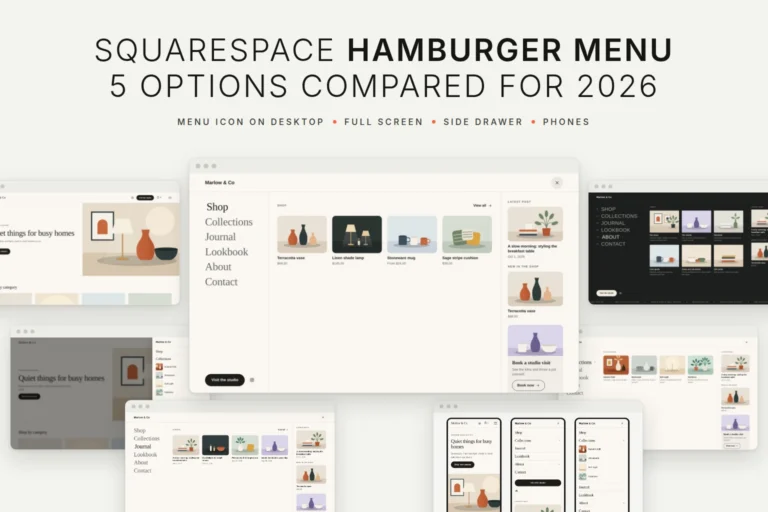
Squarespace 7.1 shows the menu icon on phones only. We compared five ways to get a hamburger menu on desktop, from three free CSS rules to plugins that open a full-screen menu, with prices checked on 4 October 2026 and full setup steps.

Squarespace 7.1 dropdowns list links in one column. Here is free CSS that splits them into columns and restyles the panel, and four mega menu plugins compared on price, setup steps and what phone visitors get.

Squarespace has no back to top button, so this guide gives you free tested code for every page, a no-JavaScript version for the Basic plan and two hosted widgets, each set up step by step.
Squarespell All Access
All 48 plugins and every new one, worth $2,044 bought one by one. 14 days free, cancel anytime.
Start 14 days freeOr start free with 13 plugins, no cardFounding price until 1 December, kept for as long as you stay.