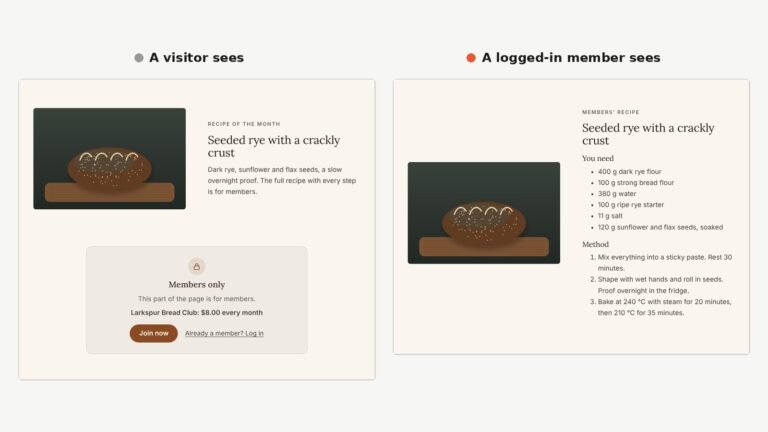
 Member Content Pro: Show Members-Only Content on Public Squarespace Pages with Native Member Sites$59
 Squarespace · PluginSquarespell Original
Browse by platform
View allBrowse by goal
View allBrowse by goal
Fresh inventory
Recently added
Member Content Pro: Show Members-Only Content on Public Squarespace Pages with Native Member Sites$59Squarespace · PluginSquarespell Original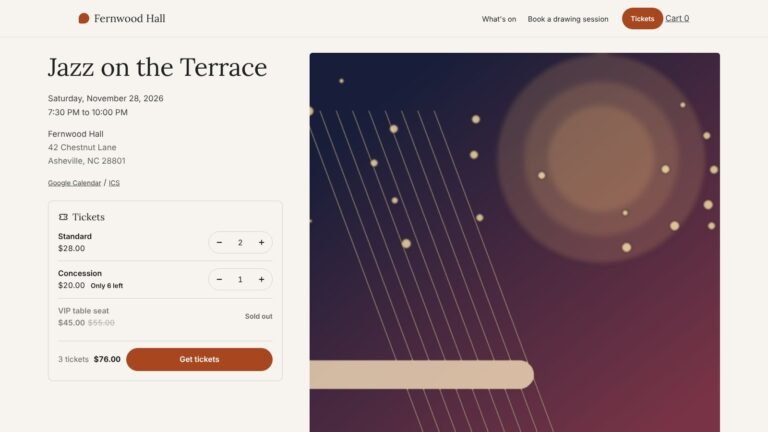 Event Tickets: Sell Tickets on Squarespace Event Pages with Ticket Types, Seats Left and Native Checkout$59Squarespace · PluginSquarespell Original
 Wholesale Order Pad: Squarespace Wholesale Order Form with Bulk Add to Cart, Order by SKU and Reorder$85Squarespace · PluginSquarespell Original
 Squarespace Summary Block Pro: More Than 30 Items, Load More and Pagination$49Squarespace · PluginSquarespell Original
 Squarespace Delivery Area Checker: Postcode and ZIP Code Checker Plugin$49Squarespace · PluginSquarespell Original
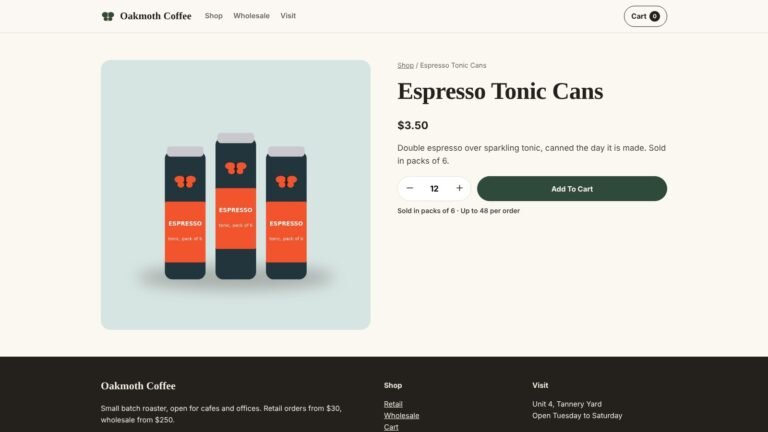 Order Rules: Squarespace Minimum Order, Quantity Limits and Pack Sizes Plugin$49Squarespace · PluginSquarespell Original
Search results
Matching products
Squarespace 7.1 plugin
Your Summary blocks, moving on their own.
Price: $25
Instant download · Sold by Squarespell
Bundle & save
Automatically applied at checkout on Squarespell plugins.
Requires Squarespace 7.1 and the Core plan or higher (Code Injection).
Make the Summary blocks on your Squarespace 7.1 site move by themselves: products, blog posts, events or videos glide past in an endless strip, or step on every few seconds.
Good to know: Squarespace 7.1 only. Code Injection needs the Core plan or higher. Custom CSS is on every plan.
Every Summary block with the Carousel layout moves, and so does a Grid, List or Wall block in a section whose Anchor Link starts with scroll. The carousel keeps those cards as they are.
Your settings sit at the top of what you pasted, one per line, each with a short note of the values it takes. Change the value after the colon, keep the semicolon, click Save and reload your page.
The carousel stops while the mouse is over it, while a card has keyboard focus, when it is scrolled out of view and when the browser tab is in the background, and a round pause button stops it until the visitor plays it again.
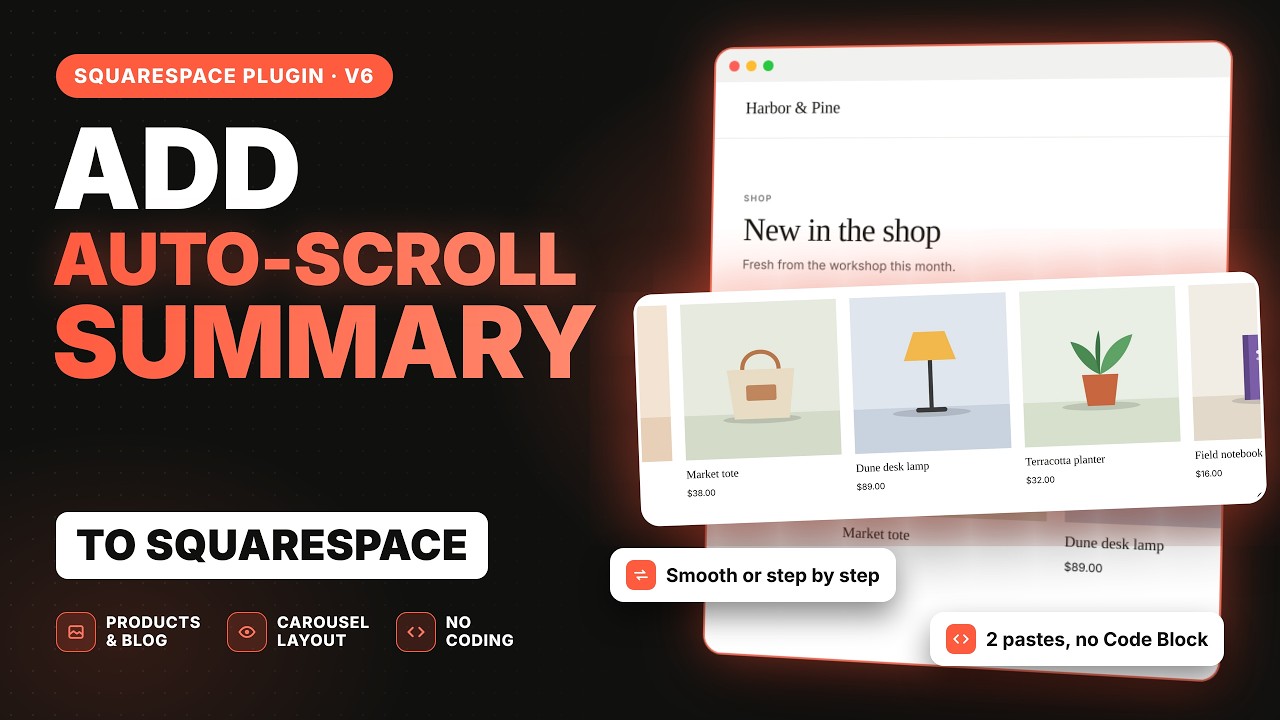

Make the Summary blocks on your Squarespace 7.1 site move by themselves: products, blog posts, events or videos glide past in an endless strip, or step on every few seconds. The cards keep the design you gave the Summary block. You choose the motion in a builder with a live preview, then paste the CSS into Custom CSS and the script into Code Injection, once for the whole site.
Squarespace's Summary block has a Carousel layout, but it only moves when a visitor clicks its arrows. This plugin makes it scroll by itself, as a smooth endless strip or one step at a time. Set a Summary block to Carousel and it moves; any other layout moves too when its section has an Anchor Link that starts with scroll. Visitors can stop it with a pause button, and nothing moves for people who ask their device for less motion.
Ask on the Squarespace Forum how to make a Summary block scroll automatically and you find the same question going back to 2014: autoplay for the summary carousel, an auto-rotating blog carousel, a product strip that moves on its own. The Summary block has no autoplay setting in any of its layouts. Gallery Section slideshows can play by themselves, but they show images, not your products, posts or events. The usual answer is a snippet that clicks the Next arrow on a timer, which works on the first carousel of the page only and jumps back to the start at the end.
Auto-Scrolling Summary Carousel keeps the Summary block you set up in Squarespace, with its source, its layout and its display options, and moves its own cards. You mark the blocks in Squarespace itself. Every Summary block with the Carousel layout moves, and so does a Grid, List or Wall block in a section whose Anchor Link starts with scroll. Every other Summary block on your site stays exactly as it is.
You pick how it moves. Smooth and endless glides the cards past all the time at the speed you set, with no jump when the row starts over. Step by step rests for a few seconds, then slides on by one card or by a whole view. You also set how many cards are in view on computers, tablets and phones, the space between them, arrows and a few small touches to the card look.
Installing takes two pastes, once for the whole website. The settings go into Custom CSS as short readable lines, one per setting, so a later change is a number you edit and save. The script goes into Code Injection, Footer, and never changes when you change a setting. There is no Code Block on your pages and no ID to look up.
Anything that moves needs a way to stop it. The carousel stops while the mouse is over it, while a card has keyboard focus, when it is scrolled out of view and when the browser tab is in the background, and a round pause button stops it until the visitor plays it again. Visitors who have switched on reduce motion on their phone or computer never see it move.
There is nothing to type in the builder. You mark a Summary block in Squarespace in one of two ways:
1. Layout Carousel. Edit the Summary block, open Design and set Layout to Carousel. Every Summary block with that layout moves. 2. Any layout, by Anchor Link. For a Grid, List or Wall block, hover its section, click Edit Section and type an Anchor Link that starts with scroll, for example scroll or scroll-blog.
To keep one Carousel block still, give its section a look with Motion set to Off (see Different look for one section).
Add a Summary block the usual way: Add Block, Summary, then pick the store, blog, events or videos page in its Content tab. Switch on what the cards should show under Display, such as title, price, excerpt, date or button.
The carousel keeps those cards as they are. Picture, title size and font, excerpt, price and button look the way your Summary block shows them, on light and dark sections. It only changes how the cards are laid out and moved. Links, prices and pictures stay as Squarespace draws them, and pictures keep loading the way Squarespace loads them.
When you change the Summary block later (other items, more display options), the carousel follows. You need no new code for that.
Smooth and endless. The cards glide past all the time, without a jump at the end of the row. You set the speed in pixels per second, once for computers and tablets and once for phones. 25 to 40 reads well; under 20 is a slow drift.
Step by step. The carousel rests, then moves on. Choose every 1 to 15 seconds, one card or one full view per move, and the length of the move. After the last card the first one follows, so the row never rewinds.
Both move to the left or to the right. Off leaves a block as Squarespace draws it, which is useful for one section. Five ready looks in the builder get you started: Smooth product strip, Blog one at a time, Full view slides, Slow showcase and Quick ticker.
Small touches on top of your Summary block's own design:
Arrows are optional: none, on the sides of the pictures with their own arrow and circle colors, or under the cards. They are 44 pixels and have labels for screen readers. In step mode they move the row back or on; with smooth motion an arrow moves the strip on by one card.
Visitors can also swipe the row on a phone or drag it with the mouse. A swipe or a drag moves the row on by one card when the finger or the mouse is let go. A drag never opens a card by mistake, a click does. After an arrow, a swipe or a drag, the motion rests 4 seconds and then carries on. Swipe and drag can be switched off.
A small round button pauses and plays the carousel. It works with a mouse, a finger or the keyboard (Tab to it, then Enter or Space), and screen readers hear "Pause carousel" or "Play carousel". The button row sits on the left, in the center or on the right under the cards. The buttons take the text color of the section, light or dark, unless you pick a color. Anything that moves for more than five seconds needs a way to stop it (WCAG 2.2.2), so the builder recommends keeping it on.
The carousel also stops while the mouse is over it (you can switch that off), while a card has keyboard focus, when it is scrolled out of view and when the browser tab is in the background.
Visitors who switch on reduce motion on their phone or computer never see the cards move. They get a normal row of the same cards that they scroll by hand or with the arrows. There is no setting to turn that off, on purpose.
The copies of the cards that make the endless loop are hidden from screen readers and skipped by the Tab key, so every card is reached once, and a click on a copy opens the link of its card. A card reached with Tab stops the carousel and is brought into view. You give the carousel a name for screen readers, for example "New in the shop". The words of the buttons can be changed for a site in another language.
Phones get their own speed, their own number of cards in view and their own spacing, and visitors swipe the row. The carousel stays inside the screen, so the page never scrolls sideways.
Give the Summary block in one section its own settings, for example step by step with arrows on the blog page and a smooth strip in the shop. In the builder click Add a section look and type the section's Anchor Link; it must start with scroll. Then change any setting for that look. Only what differs from the main look is written for that section, and the preview shows each look.
Open Custom CSS. Your settings sit at the top of what you pasted, one per line, each with a short note of the values it takes. Change the value after the colon, keep the semicolon, click Save and reload your page. Values for tablets and phones sit in their own blocks below the main ones.
You can also change it in the builder and copy the CSS again. The builder remembers your settings in your browser, and on another computer it reads them back from the CSS you paste into it. The Footer script stays the same: only a new website or a new key needs a new script.
From version 4: delete the old Code Block or Code Blocks of this plugin from your pages (edit the page, click the Code Block, Remove), then paste the two new parts. Your activation carries over: open the version 6 builder in the same browser and it still knows your site. While an old Code Block is on a page, version 6 stays off on that page and shows you a note while you are logged in.
From version 1 (Infinite Summary Carousel): delete the old script from Code Injection, Footer, and the old Shop and Blog CSS from Custom CSS, then paste the two new parts. Version 6 sees leftovers and stays off on that page, with a note only you see while logged in. You no longer need a section ID.
Your key is in the order email and under My Account, Licenses on squarespell.com. You enter it once in the builder, together with the address of the website the carousel is for. The script you copy then works on that website.
Open the builder file. Enter your license key and your website address, then click Activate. Pick a look and set the motion. The preview updates as you go.
In the builder click Copy code, then Copy CSS. In Squarespace open Pages, Custom Code, Custom CSS, paste at the end of the box and click Save.
Click Copy script. Open Pages, Custom Code, Code Injection, paste into the Footer box and click Save.
In Squarespace, set your Summary block's Layout to Carousel, or give its section an Anchor Link that starts with scroll. That is the whole installation, once for the whole website. The carousel moves in the Squarespace preview and on the live site. It stops while you edit the page and starts again when you leave editing, so you can work on the Summary block as usual. Code Injection needs the Core plan or higher. Custom CSS is on every plan. The PDF guide included with the plugin shows every step with screenshots from the Squarespace editor.
For shops that want new products or a collection to move across the home page, blogs and magazines that want recent posts to rotate by themselves, and designers building Squarespace sites for clients.
Squarespace 7.0 templates are not supported.
Answers to common questions about how the plugin works.
Not for Summary blocks. The Summary block's Carousel layout moves only when a visitor clicks its arrows, and none of its layouts has an autoplay setting. Gallery Section slideshows can play by themselves, but they show images, not products, posts or events. This plugin makes a Summary block scroll by itself.
Add a Summary block with your products, posts or events and set its Layout to Carousel. Set the motion in the builder, then paste the CSS into Custom CSS and the script into Code Injection, Footer, and save both. The PDF guide shows each step with screenshots, and our blog post on adding an infinite summary carousel walks through it as well.
Install the two parts from the builder once, then set the Summary block's Layout to Carousel, or put it in a section whose Anchor Link starts with scroll. On the live page and in the Squarespace preview the cards then glide past as an endless strip, or move on every few seconds, whichever you chose.
Yes. The cards stay the ones Squarespace draws for your Summary block: picture, title, price, excerpt and button, with your fonts and colors. The carousel lays them out in a row and moves them, with a few optional touches such as rounded picture corners.
All four layouts: Carousel directly, and Grid, List and Wall in a section whose Anchor Link starts with scroll. Any content a Summary block can show: products, blog posts, events and videos.
No. The plugin moves Summary blocks, and a Summary block cannot show portfolio pages. Testimonials kept in List Sections or Quote blocks are not moved either.
No. Only Summary blocks with the Carousel layout and Summary blocks in a section whose Anchor Link starts with scroll move. Every other Summary block on your site stays as it is. To keep one Carousel block still, give its section a look with Motion set to Off.
Yes. Every marked Summary block on the page moves, each with its own pause button. With section looks, each one can move in its own way, for example a smooth strip of products above blog posts that step on with arrows.
Open Custom CSS and change the number on the speed line, then save. Smooth motion is set in pixels per second, once for computers and tablets and once for phones. Step by step is set in seconds between moves, from 1 to 15. You can also change it in the builder and copy the CSS again; the Footer script stays the same.
Yes. Phones get their own speed, number of cards in view and spacing, visitors swipe the row, and the page never scrolls sideways.
Yes. The carousel stops while the mouse is over it and while a card has keyboard focus, and the round pause button stops and starts it with a mouse, a finger or the keyboard. Visitors who ask their device to reduce motion see a still row.
Yes. The real cards keep loading their pictures the way Squarespace loads them, and the copies that make the loop use the same pictures.
The script is about 7 KB and the CSS about 6 KB for the whole site, with no libraries and no outside requests. In our tests with slow pictures nothing below the carousel moved while the page loaded. On a very slow phone the normal Summary block can show for a moment before the carousel takes over. The carousel pauses when it is out of view.
Squarespace 7.1 on the Core plan or higher, because the script goes into Code Injection. The Basic and Personal plans have no Code Injection. Custom CSS is on every plan.
No. You pay once. There is no monthly fee and no limit on views.
A Single License covers one website at a time, and you can move it yourself. A Multi-Use License covers unlimited websites. Each website is activated in the builder with your license key and gets its own Footer script.
No reviews yet. Share your experience.
Sign in to write a review We will bring you straight back here.
Squarespace Auto-Scrolling Summary Carousel · Single License
Squarespell All Access
All 48 plugins and every new one, worth $2,044 bought one by one. 14 days free, cancel anytime.
Start 14 days freeOr start free with 13 plugins, no cardFounding price until 1 December, kept for as long as you stay.