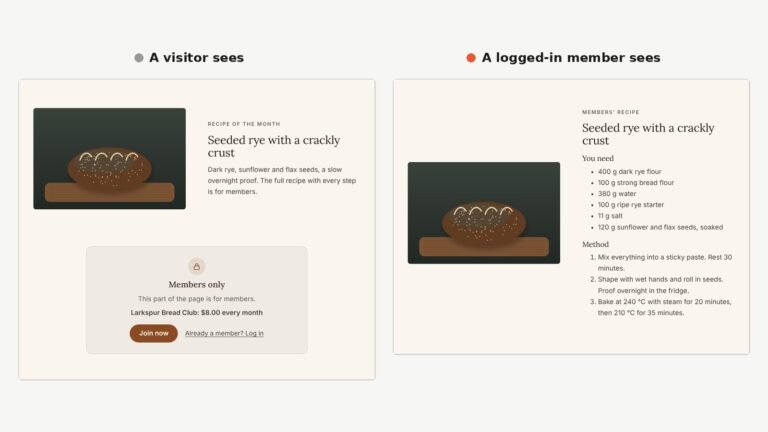
 Member Content Pro: Show Members-Only Content on Public Squarespace Pages with Native Member Sites$59
 Squarespace · PluginSquarespell Original
Browse by platform
View allBrowse by goal
View allBrowse by goal
Fresh inventory
Recently added
Member Content Pro: Show Members-Only Content on Public Squarespace Pages with Native Member Sites$59Squarespace · PluginSquarespell Original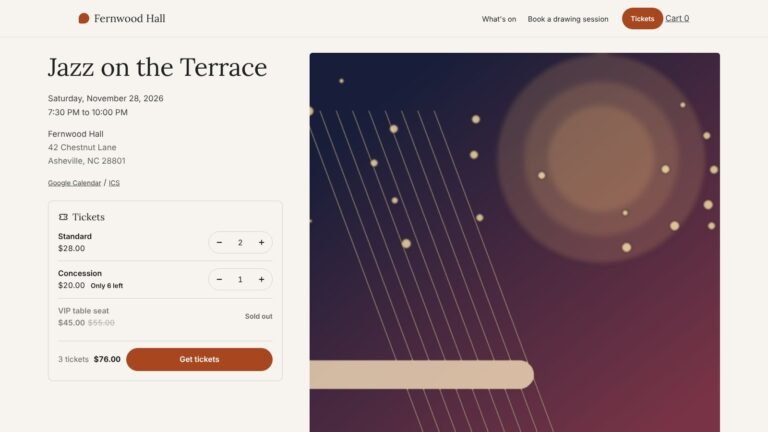 Event Tickets: Sell Tickets on Squarespace Event Pages with Ticket Types, Seats Left and Native Checkout$59Squarespace · PluginSquarespell Original
 Wholesale Order Pad: Squarespace Wholesale Order Form with Bulk Add to Cart, Order by SKU and Reorder$85Squarespace · PluginSquarespell Original
 Squarespace Summary Block Pro: More Than 30 Items, Load More and Pagination$49Squarespace · PluginSquarespell Original
 Squarespace Delivery Area Checker: Postcode and ZIP Code Checker Plugin$49Squarespace · PluginSquarespell Original
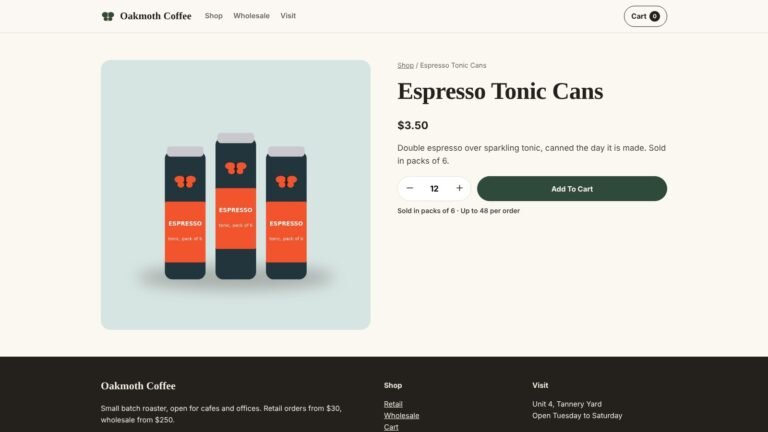 Order Rules: Squarespace Minimum Order, Quantity Limits and Pack Sizes Plugin$49Squarespace · PluginSquarespell Original
Search results
Matching products
Squarespace
How to run a candle shop on Squarespace: scent and size variants, shipping heavy jars, pickup, a candle club, gift boxes and selling to stockists, with the plan fees and every step from Squarespace’s own help centre.
A note on how we make money. Squarespell makes the eight Squarespace plugins shown in this guide (Product Options, Bundle Builder, Cart Boost, Estimated Delivery Date, Delivery Area Checker, Delivery Date Picker, Order Rules and Wholesale Order Pad), so weigh that interest. We describe them with the same criteria as Squarespace’s built-in features, and we say where the free, built-in route is enough. Links to Squarespace earn us nothing. Details are in our affiliate disclosure.
If you want the short version:
And the honest caveat before any of that matters: every plugin in this guide runs from Code Injection, which Squarespace only includes on Core, Plus and Advanced. If you start on Basic to save $10 a month, you are limited to what Squarespace does on its own, and that is still a workable candle shop.
Last updated: 27 November 2026
Candles look like an easy product to sell online, and on Squarespace most of it is. The parts that trip people up are specific to wax and glass: one candle in eight scents and three sizes becomes 24 variants to price and stock, a heavy jar costs more to post than the shipping rate you guessed, seasonal scents sell out and come back, and the best sellers are often gift sets that Squarespace has no native “build a box” for.
We read Squarespace’s pricing page and its help centre articles on variants, physical products, shipping, carrier rates, shipping labels, local pickup, fulfilment profiles, low stock labels, subscriptions, gift cards and abandoned cart emails on 27 November 2026, and every plan requirement below comes from those pages. We also read the listings of the eight Squarespell plugins that fit a candle shop. We did not build a live candle store for this guide; the screenshots are Squarespace’s own help centre, its template demos and the plugins’ hosted demos, and each caption says which.
What you get: a setup order you can follow from plan to first order, the numbered Squarespace steps for each part, and an honest view of where a plugin helps and where it does not. If you are still deciding whether Squarespace is the right platform at all, start with our Squarespace e-commerce review and come back.
All four current plans can sell physical products. Squarespace’s physical products article says “Commerce features are available in the Basic, Core, Plus, and Advanced plans.” The difference for a candle shop is in fees and in the shipping and display tools that only start at Core.
| Plan | Annual billing | Monthly billing | Store transaction fee | Card rates from | What matters for candles |
|---|---|---|---|---|---|
| Basic | $19 a month | $25 a month | 2% | 2.9% + $0.30 | Variants, stock, weight-based and flat rate shipping, local pickup, subscriptions, gift cards, abandoned cart emails. No Code Injection. |
| Core | $29 a month | $39 a month | None | 2.9% + $0.30 | Adds carrier-calculated shipping, US shipping labels, low stock labels, automatic discounts and Code Injection for plugins. |
| Plus | $49 a month | $65 a month | None | 2.7% + $0.30 | Lower card rate, reserved cart and countdown timer for limited drops. |
| Advanced | $99 a month | $139 a month | None | 2.5% + $0.30 | Lowest card rate; connect your own carrier account for carrier-calculated rates. |
Prices and fees from squarespace.com/pricing, read on 27 November 2026 (US pricing). Feature notes from the Squarespace help centre articles linked in each section.
The break-even between Basic and Core is about $6,000 a year in sales. On annual billing Core costs $10 a month more than Basic, which is $120 a year. Basic’s 2% transaction fee reaches $120 at $6,000 of online sales. Below that, Basic is cheaper on fees alone; above it, Core is. Card processing is the same 2.9% + $0.30 on both, so it does not change the comparison.
For most candle shops the decision is not about fees, though. Carrier-calculated shipping, shipping labels and low stock labels all need Core, and so does Code Injection, which every plugin below uses. Our recommendation is Core, and Basic only if you are testing demand with a handful of scents and a flat shipping rate.
The cleanest structure for most candle ranges is one product per candle line (for example “Classic jar candle”), with two options: Scent and Size. Squarespace’s variants article says each product can have “up to six options and 250 variant combinations, images, and SKUs”, and every variant can carry its own image, price, sale price, SKU, stock and weight. Illustrative example: 12 scents in 3 sizes is 36 variants, well inside the limit.
One product per scent is the alternative. It gives every scent its own page, photos and description of the notes, which helps when people search for a scent by name. The cost is more products to manage. A common middle way is one product per scent with Size as the only option.
In the Products panel, add a product and choose Physical. Add the name, the description (scent notes, wax, wick, burn time if you have measured it, and care instructions) and the photos. Squarespace’s physical products article also lists GTIN and MPN fields if you sell through marketplaces that need them.
Squarespace’s own steps, as its help centre lists them:
Click Edit all under Variants. Larger sizes usually cost more, so set each size’s price here, and give every variant its stock count and weight. If a combination does not exist (a scent you only pour in the small size), delete it; if it exists but is out of stock, set its units to 0 so it shows as sold out instead.
Do not skip the weights. Weight-based and carrier-calculated shipping both read the variant’s weight, and Squarespace shows “Unable to calculate shipping rates” at checkout when weights or dimensions are missing. Weigh the filled, lidded jar in its packaging, not the empty vessel.
On a Squarespace 7.1 product page each option is a dropdown menu. In the Simple product layout you can switch them to buttons. Scent names in a dropdown work, but shoppers cannot see colour or a photo of each scent until they choose it.
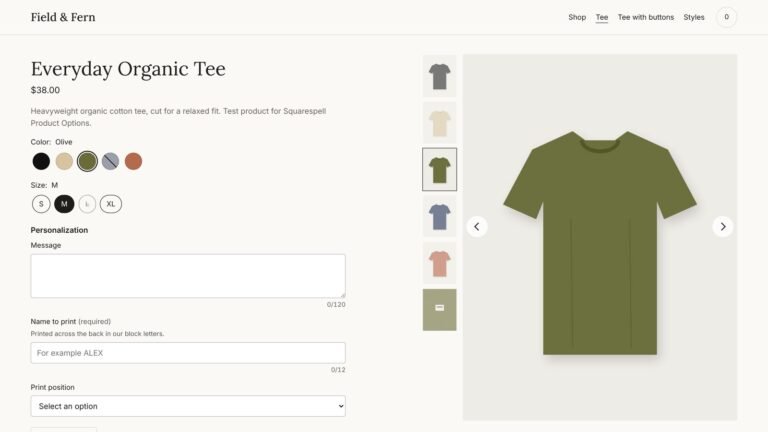
Product Options ($49, Squarespell) turns option menus into clickable swatches, small photos or text buttons, changes the main photo as soon as a value is chosen, and marks sold-out combinations. Options are matched by name; for a Scent option you would add “Scent” as a swatch name in the builder and use each scent’s variant photo (for example the label or the wax colour). It also shows an Add to Cart form on the page, which suits personalised candle labels. Its listing says it is built for Squarespace 7.1 (Products V2), needs Code Injection, and that subscriptions were not tested.
Setup, from the listing’s three steps:
Our guide to colour swatches and variant images covers the native options and this plugin in more depth.
Small-batch candle makers usually pour in runs, so stock goes up and down in steps. Squarespace counts stock per variant and marks a variant sold out when its count reaches 0. Three built-in tools help around that:
Those are the steps in Squarespace’s low stock labels article, read on 27 November 2026.
One catch with candle clubs: subscription products have no stock count at all. Turning an existing product into a subscription makes its inventory unlimited and the old count is lost, so keep your subscription box as a separate product from the candles you sell one at a time.
Squarespace offers flat rate, weight-based and carrier-calculated shipping, plus local pickup and delivery. Its shipping methods article recommends weight-based shipping “for businesses where weight is critical but all of your products are similar in size”, which describes a range of jar candles well. Carrier-calculated shipping also uses box dimensions and distance.
| Method | Plans | Needs | Good for |
|---|---|---|---|
| Flat rate | All plans | Nothing extra | A few products of similar weight, or a simple free shipping offer |
| Weight-based | All plans | A weight on every product and variant | Jar candles in several sizes; you set the price for each weight band |
| Carrier-calculated | Core, Plus, Advanced (own carrier account on Advanced) | Weight and dimensions on every product; domestic orders only | Heavier or mixed orders where real carrier rates matter |
| US shipping labels | Core, Plus, Advanced | A US-based site in USD; UPS or USPS | Buying and printing domestic labels from the Orders panel |
Plans from Squarespace’s shipping, carrier-calculated shipping and shipping labels articles, read on 27 November 2026.
Squarespace’s steps:
If a product has no weight, the same article says checkout shows “Unable to calculate shipping rates”. In the US, Squarespace notes that USPS First Class can only be offered as a weight-based option, priced from USPS’s own calculator.
In the US the rates are the retail prices from FedEx, UPS and USPS. Carrier-calculated rates are domestic only: an international order needs a flat rate or weight-based option as well. In the UK, Squarespace notes that a new Royal Mail connection can take two to three days to process.
On Core and above, a US site that accepts USD can buy and print UPS and USPS labels from the Orders panel (click a pending order, then Purchase label). Labels are domestic only, you cannot use an existing UPS account through the Orders panel, and Squarespace cannot book carrier pickups. Outside the US, use your carrier’s own tools or a shipping extension.
Packing is your job, not the platform’s. Squarespace calculates the price and prints the label; it does not know your jar is glass. Build the weight of the box and padding into each variant’s weight so the rates you charge match what you pay.
Many candle makers sell at markets and from a studio, and local customers often want to skip postage. Squarespace’s local pickup is free to the customer and shows at checkout alongside your shipping options.
Open the Pickup panel, click Add Pickup Option, name it (for example “Collect from the studio”), add the pickup details and hours customers get in their confirmation email, optionally add the pickup address for tax, and click Save. Squarespace lists the limits: customers cannot choose a pickup time, Afterpay and Clearpay are not offered for pickup orders, and subscription products are not eligible for pickup.
In the Delivery panel, click Add Delivery Option, choose the country, type each ZIP or postal code (one at a time; Squarespace does not accept a pasted list), name the option, set a fee or leave it empty for free delivery, add your delivery schedule and click Save.
If your three-wick candles or poured vessels are too heavy or fragile to post, a fulfilment profile limits which shipping options a product shows. You can create up to 49 profiles, but a profile applies to a whole product, not to one variant, so a “local only” size has to be its own product.
Delivery Area Checker ($49, Squarespell) adds a postcode box that tells shoppers whether you deliver to them, at what cost and on which days, before they reach checkout. You set delivery zones by postcode, prefix or range, and it gives you lists to paste into Squarespace’s own postal code field so checkout matches. Its listing is clear about the limits: Squarespace runs no code on checkout, there is no map or radius, and postcode zones at checkout work in the 10 countries Squarespace supports.
Our local pickup guide and postcode delivery guide go further on both.
A monthly “scent of the month” club is a natural fit for candles, and Squarespace supports it natively. Its subscription products article lists the requirements: a Basic, Core, Plus or Advanced plan; a physical or service product; Squarespace Payments or Stripe (subscriptions cannot be paid with PayPal, Apple Pay or ACH); and customer accounts switched on.
Plan the club around the limits. Subscription products have no stock count, gift cards cannot pay for them, they cannot be collected through local pickup, and abandoned cart emails are not sent for carts that hold a subscription. Most of the plugins in this guide also leave subscriptions alone or were not tested with them, so keep the club page simple.
Gift sets sell well for candles, and there are three ways to build them on Squarespace:
Create the add-on product (for example a wick trimmer), open the candle’s product editor, find Add-ons under Selling Tools, click Add, choose the products and click Apply.
Bundle Builder ($59, Squarespell) adds a box section where shoppers choose a box size, fill it from your candles and add it to the cart in one click; its listing names candle, soap and beauty shops with “pick any 3” offers. The plugin never changes a price: the saving comes from a Squarespace discount you create, applied at checkout. Items stay separate lines in the cart. Subscriptions, gift cards and products with an Add to Cart form cannot go in a box, and automatic discounts need Core or higher.
Our product bundles guide compares all five ways to bundle on Squarespace.
Two questions stop candle orders at the cart: “how much more for free shipping?” and “will it arrive before the birthday?”. Squarespace handles the first natively with a free shipping discount; the second it does not answer on the product page.
Create a discount of the Orders Over type with free shipping. Squarespace’s limits: free shipping only works with Any Order or Orders Over discounts, it applies to all shipping methods or all local delivery options but not both, and you cannot charge a handling fee on a free shipping order.
Cart Boost ($39, Squarespell) replaces the jump to the cart page with a slide-out cart that shows how far the shopper is from free shipping and suggests small add-ons (its listing names candles, soaps and gift items as examples). It shows progress only: free shipping itself still has to be a Squarespace rate or discount. If “Skip cart page” is on in Squarespace, the cart does not open after an add.
Estimated Delivery Date ($25, Squarespell) adds a line such as “Order today and receive between Friday and Monday” to product pages, worked out from your processing time, shipping time, order cut-off, working days and holidays. It is an estimate, not a date the shopper chooses. Per-product rules let a made-to-order candle show a longer window.
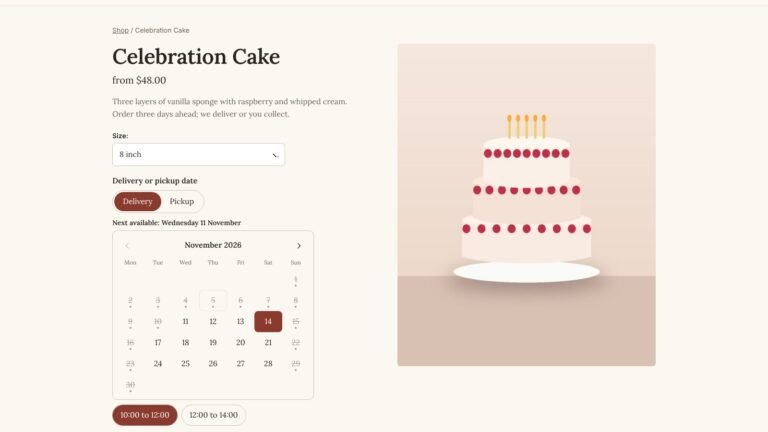
For local delivery, market collection or gifting on a set day, Delivery Date Picker ($45, Squarespell) adds a calendar above Add to Cart with your lead times, closed days, cut-offs and time slots. Its listing notes there is no limit on orders per day or slot, and that the date is chosen before checkout because Squarespace’s checkout cannot be changed by code.
Gift shops, florists and boutiques often buy candles by the case. Squarespace has no separate wholesale price list, so the usual setup is a password-protected or members-only trade page with its own trade products, a minimum order amount, and quantity limits. Our wholesale guide walks through those native options; two plugins cover what Squarespace does not.
Order Rules ($49, Squarespell) sets minimums, maximums and pack sizes per product or group and checks the cart before checkout; its listing names “candles or cards in sixes and twelves”. Squarespace runs no code on checkout, so the listing asks you to keep Squarespace’s own minimum order amount and quantity limits on as the backstop.
Wholesale Order Pad ($85, Squarespell) puts your trade products on one order form where buyers type quantities across scents and sizes, order by SKU and repeat their last order, then add everything to the cart. Prices come from Squarespace, and the pad does not decide who sees it: a page password or member site does that.
If you write about Squarespace or build sites for clients, Squarespell’s affiliate program pays commission on its own plugins and templates.
| If you are | Plan | Built in | Add only if needed |
|---|---|---|---|
| Testing a few scents | Basic | Variants, flat rate or weight-based shipping, pickup | Nothing yet |
| A growing online candle shop | Core | Weight-based or carrier rates, low stock labels, free shipping discount, waitlists | Product Options for scent swatches, Cart Boost for the free shipping bar |
| Gift-led, seasonal sales | Core | Gift cards, add-ons, fixed gift sets, abandoned cart emails | Bundle Builder for build-your-own boxes, Estimated Delivery Date |
| A local studio with markets | Core | Local pickup, local delivery, fulfilment profiles | Delivery Area Checker, Delivery Date Picker |
| Retail plus stockists | Core or Plus | Trade page behind a password or member site, minimum order amount | Order Rules for packs, Wholesale Order Pad |
| A candle club | Core | Subscription products with Stripe or Squarespace Payments | Keep plugins off the club page |
Plan requirements from Squarespace’s help centre, read on 27 November 2026.
Publishing the gaps is part of the method, not an afterthought.
We did not build a live candle store. The steps come from Squarespace’s help centre and the plugins’ listings, read on 27 November 2026. The screenshots are Squarespace’s own help centre and template demos captured for earlier Squarespell guides in October and November 2026 (we re-read the same help centre text on 27 November 2026), plus the plugins’ hosted demos, which use made-up shops. We could not capture fresh help centre screenshots in this run because the pages’ images would not load in our capture browser.
We have not tested any plugin on a candle store. The plugin descriptions, steps and limitations are from their Squarespell listings, which list how each was tested (Chromium on a computer and at phone widths; not Safari on iPhone, Firefox or real phones). One listing, Estimated Delivery Date, still describes the plan it needs in older “Business plan” terms; Squarespace now says Code Injection is in Core, Plus and Advanced.
We give no regulatory or safety advice. Candle warning labels, fragrance allergen labelling and carrier rules for shipping candles depend on your country and carrier. Check them with your national authority and your carrier before you sell.
Prices are US prices on one day. Squarespace’s prices and card rates were read from its US pricing page on 27 November 2026, and the plugin prices are the Single Licence prices on their listings that day, when a Black Friday discount was also showing. Check both before you buy.
Is Squarespace good for a candle business? Yes, for a small to mid-sized candle brand that wants a good-looking site and a simple store in one place. Squarespace covers scent and size variants, stock, weight-based and carrier-calculated shipping, pickup, subscriptions and gift cards natively. It is weaker on build-your-own boxes and wholesale price lists, which need a plugin or a workaround, and it has no back-order system.
Can I sell candles on the Squarespace Basic plan? Yes. Basic sells physical products with variants, stock and shipping, but it adds a 2% transaction fee on store sales and does not include carrier-calculated shipping, US shipping labels, low stock labels or Code Injection. Core removes the fee for $10 a month more on annual billing.
How many scents can one Squarespace product have? One product can have up to six options and 250 variant combinations. With Scent and Size as the only options, 50 scents in 5 sizes is exactly 250. Beyond that, split the range into more than one product.
How should I charge shipping for heavy glass candles? Use weight-based shipping on any plan, or carrier-calculated rates on Core and above, and enter the packed weight of every variant. Weight-based is predictable and works for international bands; carrier rates follow real retail prices but only for domestic orders.
Can customers subscribe to a monthly candle? Yes. Make a physical subscription product that renews monthly, connect Squarespace Payments or Stripe, and turn on customer accounts. Subscriptions have no stock count, cannot be paid with PayPal or gift cards, and are not eligible for local pickup.
Can shoppers build their own candle gift box? Not with Squarespace alone. You can sell a fixed gift set as its own product or offer add-ons, and you can create a Buy X get Y or percent off discount. A page where shoppers pick the candles for a box needs a plugin such as Bundle Builder, which needs Core for Code Injection and automatic discounts.
Do I need a plugin to sell candles on Squarespace? No. Everything in the launch checklist works without one. The plugins in this guide solve specific gaps: scent swatches, free shipping progress, delivery dates and areas, build-a-box offers and trade ordering. Add them when one of those gaps is costing you orders, not before.
Start the free trial, create your first candle line with Scent and Size options, weigh one packed jar of each size and set up weight-based shipping. That gets a working store live in an afternoon. Switch on low stock labels, waitlists and abandoned cart emails before your first restock, and pick a plugin only when a real gap shows up. For store designs that suit a candle brand, see our online store templates guide.
Reviewed and last updated 27 November 2026. All prices checked on that date.

Squarespace has come a long way from its origins as a blog-and-portfolio builder. In 2026, it powers hundreds of thousands of online stores worldwide from ceramic artists in Brooklyn to boutique skincare brands in Austin. But is it the right platform for you?
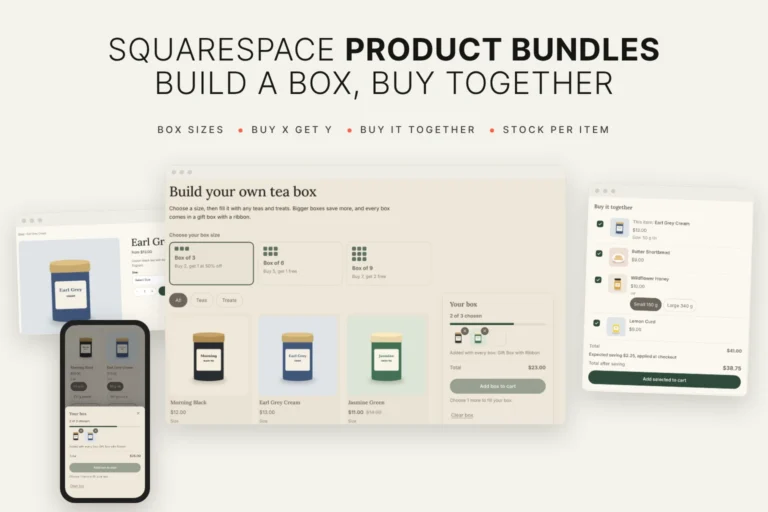
Squarespace has no bundle product. Five ways to sell bundles on a Squarespace 7.1 store, step by step with screenshots: a bundle product, Buy X get Y discounts, Add-ons, bundle apps and a build-a-box plugin, with their stock, plan and price limits.
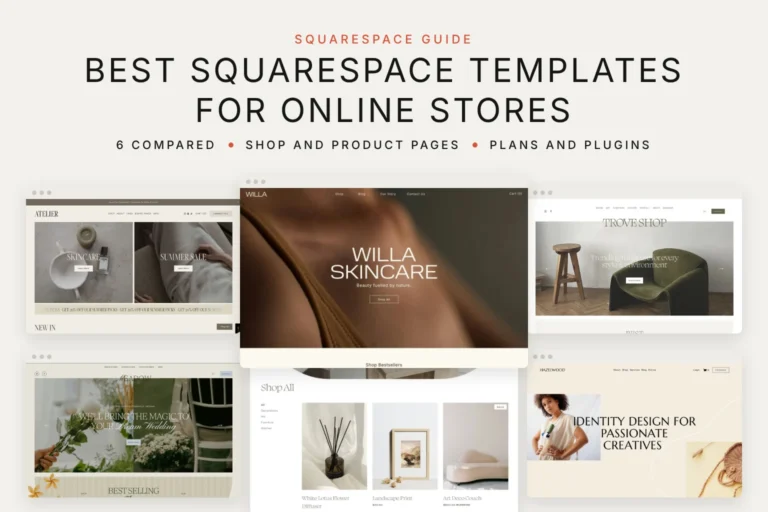
Six Squarespace 7.1 templates built for selling, compared on price, navigation, shop and product pages, with the plan to budget for and the steps to set up the store.
Squarespell All Access
All 48 plugins and every new one, worth $2,044 bought one by one. 14 days free, cancel anytime.
Start 14 days freeOr start free with 13 plugins, no cardFounding price until 1 December, kept for as long as you stay.