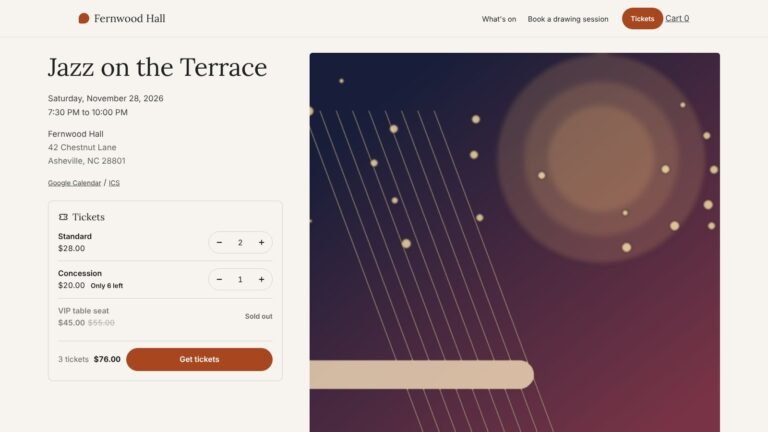
 Event Tickets: Sell Tickets on Squarespace Event Pages with Ticket Types, Seats Left and Native Checkout$59
 Squarespace · PluginSquarespell Original
Browse by platform
View allBrowse by goal
View allBrowse by goal
Fresh inventory
Recently added
Event Tickets: Sell Tickets on Squarespace Event Pages with Ticket Types, Seats Left and Native Checkout$59Squarespace · PluginSquarespell Original Wholesale Order Pad: Squarespace Wholesale Order Form with Bulk Add to Cart, Order by SKU and Reorder$85Squarespace · PluginSquarespell Original
 Squarespace Summary Block Pro: More Than 30 Items, Load More and Pagination$49Squarespace · PluginSquarespell Original
 Squarespace Delivery Area Checker: Postcode and ZIP Code Checker Plugin$49Squarespace · PluginSquarespell Original
 Order Rules: Squarespace Minimum Order, Quantity Limits and Pack Sizes Plugin$49Squarespace · PluginSquarespell Original
 Bundle Builder: Squarespace Product Bundles Plugin, Build a Box and Buy Together$59Squarespace · PluginSquarespell Original
Search results
Matching products
Squarespace
Six Squarespace 7.1 templates built for selling, compared on price, navigation, shop and product pages, with the plan to budget for and the steps to set up the store.
A note on how we make money. The six templates in this guide are listed on Squarespell with affiliate links, and Squarespell may earn a commission if you buy through them. Squarespell also makes the store plugins in the later sections, which we describe with the same criteria as everything else. Neither fact decided the order or the verdicts. Details are in our affiliate disclosure.
If you want the short version:
And the honest caveat before any of that matters: a template is the shop window, not the shop. Checkout, payments, shipping and taxes are Squarespace’s own and work the same under every template, so choose on how a template organises products (navigation, store page, product page) and on whether your photography can carry it.
Last updated: 22 November 2026
Most “best template for a store” lists rank designs by how they look. That is the wrong test for a shop. A beautiful template with no room for categories will fight a 200-product catalogue, and a catalogue template will look empty with six products in it. The right template depends on how many products you sell, how shoppers will look for them and what else the site has to do.
So we started from Squarespell’s catalogue of 211 template listings, kept the Squarespace 7.1 templates whose creators built them for selling, and read each listing’s page previews, page list, extras, licence and refund terms on 22 November 2026. Then we checked what any store needs from Squarespace itself: the plan, the fees, payments and shipping, from Squarespace’s pricing page and help centre on the same day.
What follows is four shop-first templates in depth, two that put a shop beside services, the steps to get a bought template into your account and set the store up, and the plugins that fill the gaps Squarespace leaves.
$299
 The Styled SquareSquarespace 7.1 · Template
$189
 Candor TemplatesSquarespace 7.1 · Template
 GoLiveHQSquarespace 7.1 · TemplateGoLiveHQSquarespace 7.1 · Template
$188.30 $269.00
 Station SevenSquarespace 7.1 · TemplateGoLiveHQSquarespace 7.1 · Template
A skincare brand, a florist and a furniture shop sell very different things, but their store templates do the same four jobs.
It has to help shoppers find a product. With a dozen products a single grid is enough. With hundreds, shoppers need categories in the menu and on the store page. Squarespace lets you create up to 1,000 categories and subcategories, three levels deep, according to its guide to organising a store page with categories and tags, but the template decides how much of that the header can show.
It has to make the product page answer the buying question. Photographs, price, options, and what happens about delivery and returns. A template with a designed product page and an FAQ saves you writing that layout yourself.
It has to bring people back. A newsletter sign-up with a reason to join, a discount landing page for an ad or an email, a blog for search. These pages are tedious to build from scratch and are where bought templates earn their price.
It has to suit your photographs. Several creators say it plainly: their template assumes good product photography. Demo photos are not included with any of these templates, so the pictures you have decide how the shop will look.
The shortlist had to meet four conditions: built for Squarespace 7.1, which every new site runs; listed by its creator as suited to ecommerce or a shop; a shop page in the page kit rather than a shop bolted on later; and page previews on its Squarespell listing that show the shop, so the claims here rest on real pages. Price was not part of the ranking.
| Template | Creator | Price on the listing | Pages | Store pages in the kit | Best for | Skip it if |
|---|---|---|---|---|---|---|
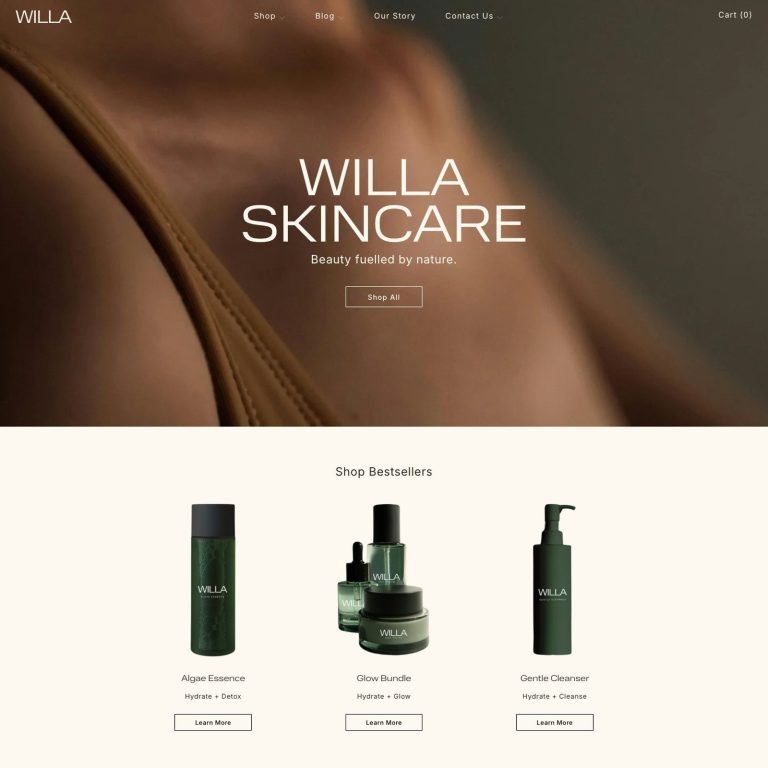
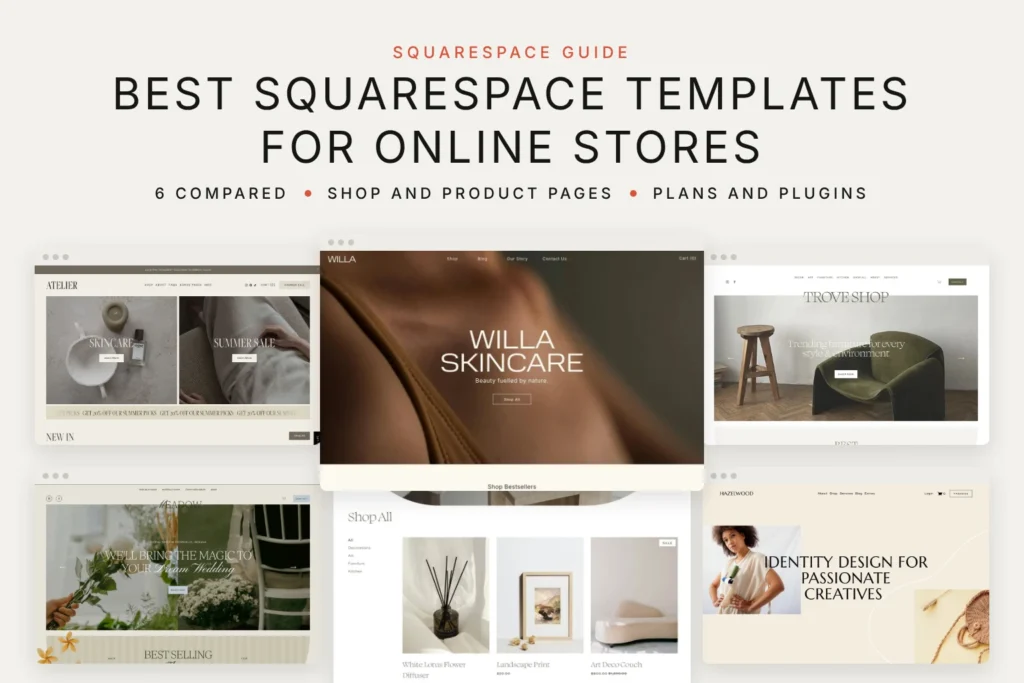
| Willa | The Styled Square | $299 | 8 plus utility pages | Shop, FAQ, 3 mega menus | A catalogue with categories | You sell a handful of pieces |
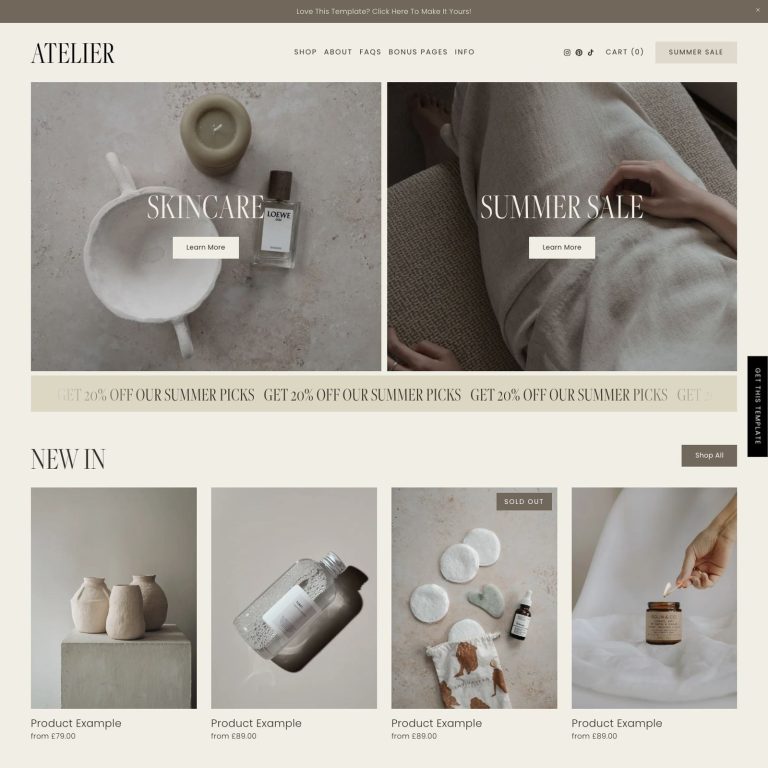
| Atelier | Candor Templates | $189 | 8 | Shop Edit, Discount Landing Page, Newsletter Sign Up | Homeware, beauty and gifts sold on photography | Your product photos are weak |
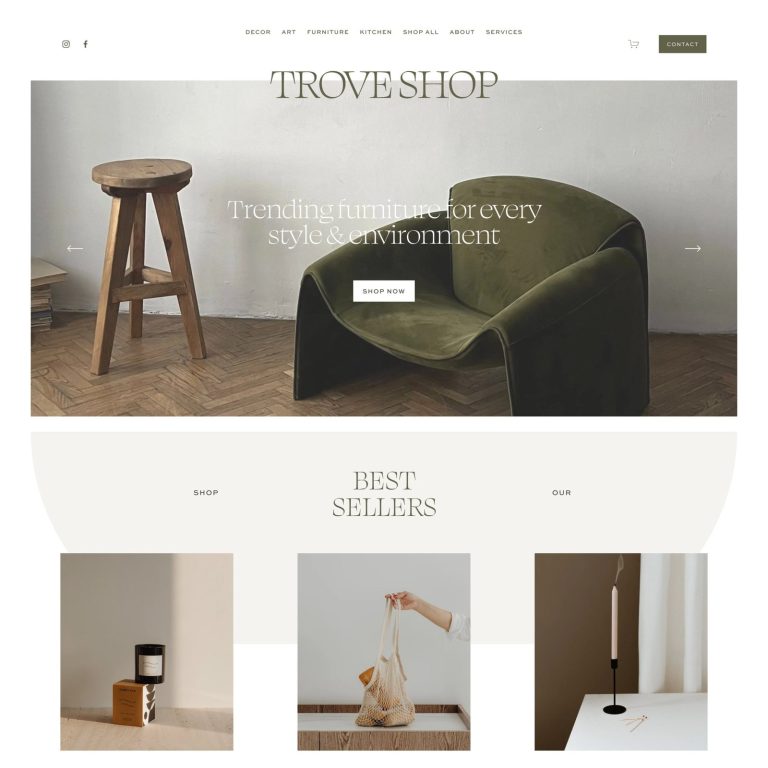
| Trove Shop | Go Live HQ | $180 ($162 with SQUARESPELL10) | 7 | Shop, Shop Product, FAQ | A curated range | You have hundreds of products |
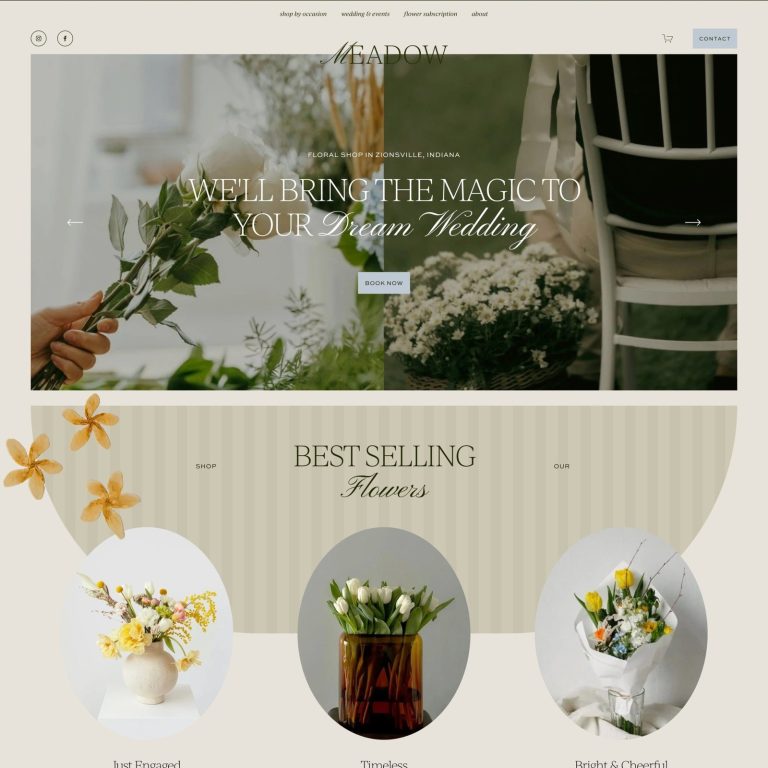
| Meadow | Go Live HQ | $180 ($162 with SQUARESPELL10) | 7 | Shop, Flower Subscription Sales | Florists and subscription offers | You sell a large catalogue |
| Hazelwood | Station Seven | $188.30 (shown against $269) | 8 | Shop, Freebies | Creators selling products and services | You want a quiet, minimal look |
| Hunter | Go Live HQ | $180 ($162 with SQUARESPELL10) | 7 | Shop, Portfolio | Makers who sell and take commissions | You only sell products |
Prices, page lists and terms read from each Squarespell listing on 22 November 2026. Squarespell’s own listing checks against the creators’ pages are dated 27 August 2026. The Squarespace plan is extra in every case.
All six are one-time purchases made on the creator’s own website, edited in Squarespace’s drag and drop editor with no code, and sold as non-refundable digital products, except Atelier, whose creator publishes no terms on the point. None of them can be moved to WordPress, Wix or Shopify.
Willa is The Styled Square’s shop template, $299, and the one to choose if you sell enough products to need a real menu. The listing sums it up as “a shop, not a shop page”. Its page kit is Home, Shop, Blog, About, Contact, Newsletter Signup, Instagram and FAQ, plus the pages nobody enjoys building: a 404 page, privacy policy, terms of service, return policy and a master layout page.
The reason to pick it is the navigation. Willa comes with three customisable mega menus, which is what lets a header hold product categories rather than a single Shop link. Below the header, the Shop page puts category links above a large product grid, so a shopper can narrow the range before scrolling.
The other pages deal with the two doubts that stop an online purchase: is it any good, and what happens if it is wrong. The home page has a reviews layout, and the FAQ page is a ready-made set of questions with a contact link above them.
What you get beyond the design. Video tutorials for Squarespace 7.1 and for the template, demo stock imagery, a photography sourcing workbook, a launch checklist, an extended Squarespace trial and a discount code. The listing notes that The Styled Square state the trial as 12 months in one place and 6 months in another, so confirm it with them. The licence: one website per purchase, stated in clause 6.3 of their terms. Who should skip it: a maker with only a few pieces, for whom the catalogue structure will look empty.
Atelier is Candor Templates’ ecommerce template, $189, built for homeware, beauty, baby and gift brands where the pictures do the persuading. Its eight pages are Home, About, FAQs, Shop Edit, Social Links, 404, Newsletter Sign Up and a Discount Landing Page.
The home page reads like a catalogue you would keep. Under the opening tiles come New In, a feature on a single product, a Shop by Category mosaic of large photographs, a Popular Finds row and a Shop the Look section that groups products into one scene. It is the most image-led of the six, and the listing is blunt about what that means: without good product photography the layout has nothing to work with.
Two pages make it useful for marketing as well as browsing. The Shop Edit page groups products into gift edits (skincare gifts, homeware gifts), which suits seasonal campaigns. The Discount Landing Page is a ready-made page for a promotion, with an email sign-up offering a first-order discount in the demo, ready to point an ad or an email at.
What you get beyond the design. Template video tutorials, a launch checklist and scorecard, Launch Lounge access and support, an extended 12 month Squarespace trial and 25% off a new annual subscription. Demo photography is not included. The licence: Candor publish no licence terms for this template, so ask them before using it for a client. Who should skip it: service businesses and anyone without strong product images.
Trove Shop is Go Live HQ’s ecommerce template, $180, or $162 with the code SQUARESPELL10 at Go Live HQ’s checkout. Its seven pages are Home, Shop, Shop Product, About, Services, FAQ and Contact. The listing describes it as a store “where how the products look is most of the reason people buy”, and is clear about its limit: a store with hundreds of lines will need more navigation than this.
The Shop page is the most practical store layout of the six for a small range: a column of categories on the left (All, Decorations, Art, Furniture and Kitchen in the demo) and a three-column grid of large product photographs on the right, with a Sale badge on reduced items and the old price struck through.
The Shop Product page is the reason to pick it over a prettier home page. Next to the photographs it has the price, a short description, a colour option and Add to Cart, and under them two accordions, Ordering (shipping and delivery, returns and exchanges, care instructions) and FAQs, then a You Might Also Like row.
What you get beyond the design. A free five day course and community, unlimited email and Loom video support, a six month extended Squarespace trial and 20% off the first year of an annual plan. A few Go Live HQ designs use Canva for individual graphics. The licence: one Squarespace website per purchase, client projects included. Who should skip it: large catalogues, which need Willa’s menus or a filter plugin.
Meadow is Go Live HQ’s florist template, $180 ($162 with SQUARESPELL10). Its seven pages are Home, About, Shop, Flower Subscription Sales, Blog, Blog Posts and Contact. The listing’s argument is that a recurring order is worth more than a single bouquet, so the structure leads with the subscription and the story rather than the catalogue.
The Shop page groups products by occasion (Flower Subscription, Celebration of Life, Weddings, Congratulations and Anniversary in the demo), which is how flower buyers think. Any shop that sells for occasions, such as cakes, gifts or hampers, could use the same structure.
The Flower Subscription Sales page is the reason to choose it. In the demo, a Weekly/Monthly Flower Subscription product offers a choice between a one-time purchase and a subscription on a set frequency, then Add to Cart, with Ordering and FAQ accordions below.
That choice is Squarespace’s, not the template’s, and it has conditions. Squarespace’s guide to subscription products says they must be physical or service products, need Squarespace Payments or Stripe (not PayPal, Apple Pay or ACH), need customer accounts switched on, and can only be created on a computer.
What you get beyond the design: the same Go Live HQ course, support, six month trial and 20% discount as Trove Shop. Who should skip it: a large catalogue, which the listing says will fight the layout.
Some businesses sell products and a service: a designer who sells templates, an interior designer with a homeware line, a maker who takes commissions. For them a shop-only template is the wrong shape. These two carry both.
Hazelwood is Station Seven’s template, shown at $188.30 against $269 with a 30% off label on 22 November 2026. Its eight pages are Home, About, Shop, Services, Blog, Portfolio, Freebies and Contact. The listing calls it “the most designed one”: overlapping section backgrounds, vertical text, image animations and graphic accents, wrapped around a full shop and a Freebies page for a lead magnet.
Station Seven are a Squarespace Circle Platinum Partner, so buyers get an extended 365 day trial and 25% off the first year. Their terms do not say whether a template may be used for a client, so ask first.
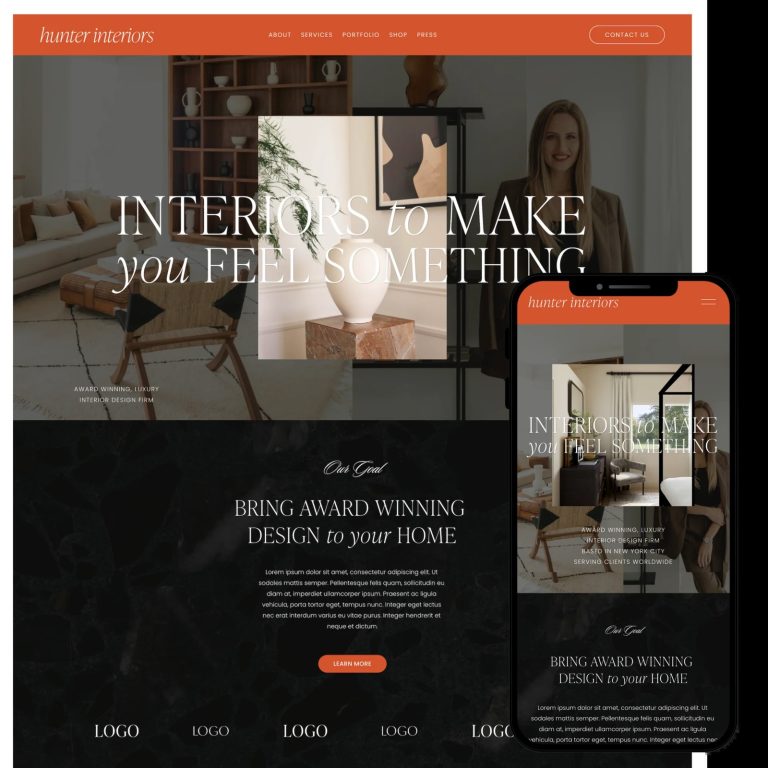
Hunter is Go Live HQ’s shop and portfolio template, $180 ($162 with SQUARESPELL10). Its seven pages are Home, Services, About, Portfolio, Portfolio Item, Shop and Contact, so a visitor can browse finished work and buy in the same visit. The listing’s warning is fair: it carries both structures, so both need filling, and a business that only sells products will launch faster with a shop-only template.
If you are still choosing between Squarespace and another platform for selling, our honest review of Squarespace ecommerce covers what the platform does and does not do, and the full Squarespace templates guide compares 118 templates across every kind of business.
Squarespace 7.1 has no button that applies a bought template to an existing site. These creators deliver in two ways: a new site that you are invited into (Go Live HQ), or a site placed into your account for you (The Styled Square, Candor Templates and Station Seven). Either way, the steps are the same.
Open the live demo from the listing and visit every page you intend to use, on a phone as well as a computer, including the product page. Most of these creators sell templates as non-refundable, so the demo is your check.
All six are bought on the creator’s own site, so the payment, the licence and the support come from them. Squarespell lists and checks the template; the listing’s buy button takes you to the creator. For the Go Live HQ templates, enter SQUARESPELL10 at their checkout.
For Go Live HQ’s templates you receive a contributor invitation. Squarespace’s guide to accepting a contributor invitation gives the steps:
If the site arrives with you as a contributor rather than the owner, ask the creator to transfer ownership. Squarespace’s guide to changing the site owner gives the steps the current owner follows: open the Permissions & Ownership panel, click their name under Owner, click Transfer Ownership, verify their account and select you, then click Continue and Confirm. Then add billing and choose a plan before the trial ends.
Read from Squarespace’s pricing page on 22 November 2026: Basic $19, Core $29, Plus $49 and Advanced $99 a month on annual billing, or $25, $39, $65 and $139 month to month. Squarespace’s guide to transaction fees and payment processing rates puts the commerce transaction fee at 2% on Basic and 0% on Core, Plus and Advanced, and US card rates through Squarespace Payments at 2.9% + $0.30 on Basic and Core, 2.7% + $0.30 on Plus and 2.5% + $0.30 on Advanced. Code injection is available on Core, Plus and Advanced, according to Squarespace’s code injection guide. For a store, Core is the practical floor: on Basic the 2% fee on a $3,000 month is $60, more than the $10 a month the upgrade costs.
Plan prices and fees read from Squarespace’s pricing page and help centre on 22 November 2026. The $3,000 month is an illustrative figure.
Whichever template you choose, the store itself is built with Squarespace’s own tools. These are the steps from Squarespace’s help centre, read on 22 November 2026.
In version 7.1, open the Pages panel, click ➕, choose Products, Services or Group Events, click Store and pick a layout, according to Squarespace’s guide to adding products to your store. Squarespace recommends one store page with categories rather than several store pages. To add categories, click the gear beside the store page in the Pages panel, click Categories, type a name and press Enter; drag them to change the order of the store navigation.
Click the store page, then ➕, and choose a product type, which cannot be changed later. Squarespace offers physical, service, download and gift card products, and any physical or service product can be a subscription. Each product has a name, images, price and stock, then options such as an Add to cart form for personalisation. Download links are active for 24 hours after the customer first clicks them.
Squarespace Payments is Squarespace’s own processor; you sign up from the Finance panel by clicking Get started and following the prompts, according to its guide to setting up Squarespace Payments. You can connect Stripe or PayPal instead or as well. Check availability in your country first, and remember that subscriptions need Squarespace Payments or Stripe.
Open the Shipping panel, click Add Shipping Option, choose Flat Rate, Weight-based or Carrier-calculated, then name it and add the rates, according to Squarespace’s guide to setting up shipping rates. If you sell physical products you must offer at least one shipping, local pickup or local delivery option, or customers cannot place orders. Free shipping is a flat rate set to zero or a free shipping discount.
Log out, open the shop in a private window and buy something: check the product page, the cart, the shipping options for your own address and the confirmation email. After Add to Cart, Squarespace 7.1 shows a small mini cart. Its colours cannot be chosen directly: Squarespace makes it contrast with the section behind it, dark on a light background and light on a dark one.
Every template above runs on the same Squarespace store, so the gaps are the same too. Squarespace 7.1 has no search in the header, no bundle product and no delivery dates on product pages, and its Summary blocks stop at 30 items. Squarespell makes plugins for these. They are all for Squarespace 7.1, installed with one paste into Code Injection, so they need the Core plan or higher. If you write about Squarespace or build sites for clients, Squarespell’s affiliate program pays 20% commission on its own plugins and templates, with a 60 day window from the first click.
Filter Plugin ($79) adds filters, search and sort to a store page: a filter bar, a sidebar or a single Filters button, reading product options, prices, stock, sale, categories and tags. It is the answer to a large catalogue in a template with a simple shop page. Our guide to shop filters versus category tags explains when Squarespace’s categories are enough.
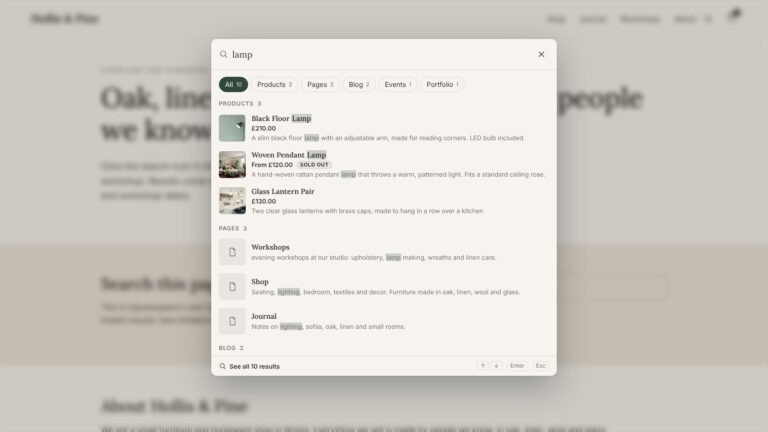
Search Plugin ($85) adds a search icon to your own header, with results as visitors type, grouped by kind, showing photos, product prices, Sale and Sold out. Mega Menu ($25) turns the dropdowns in your navigation into wide menus with columns, headings and a featured card, built from your existing Pages panel. Summary Block Pro ($49) lets a Summary block show every product, not only 30, with load more, pages or infinite scroll.
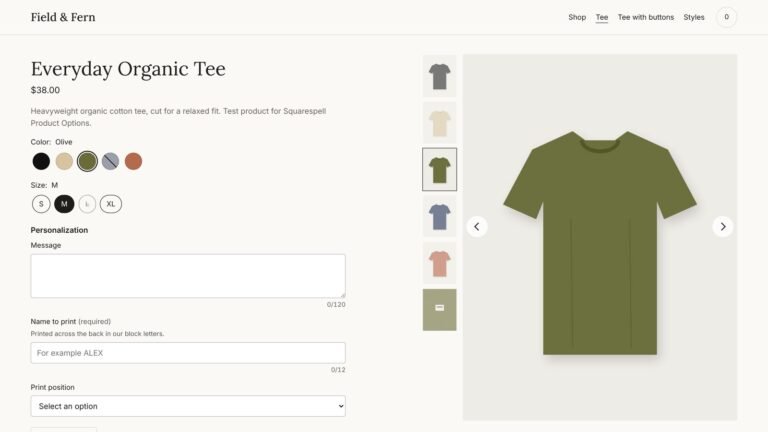
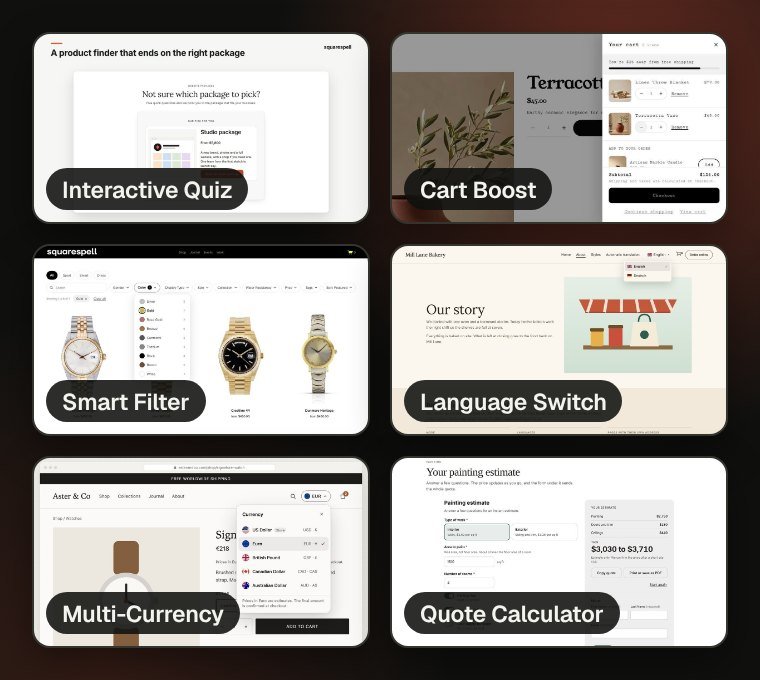
Product Options ($49) replaces option dropdowns with colour and photo swatches, changes the product photo as soon as a colour is chosen and puts swatches under each store card. Cart Boost ($39) replaces the small added-to-cart notice with a cart that slides in over the page, with a free shipping progress bar and up to four suggested products; checkout, prices, shipping and taxes are unchanged.
Bundle Builder ($59) adds a build-a-box and Buy it together, because Squarespace 7.1 has no bundle product; the saving comes from a discount you create in Squarespace. Wishlist ($25) adds a heart to every product, a saved list opened from the header and an optional quote request list sent through your own Form Block.
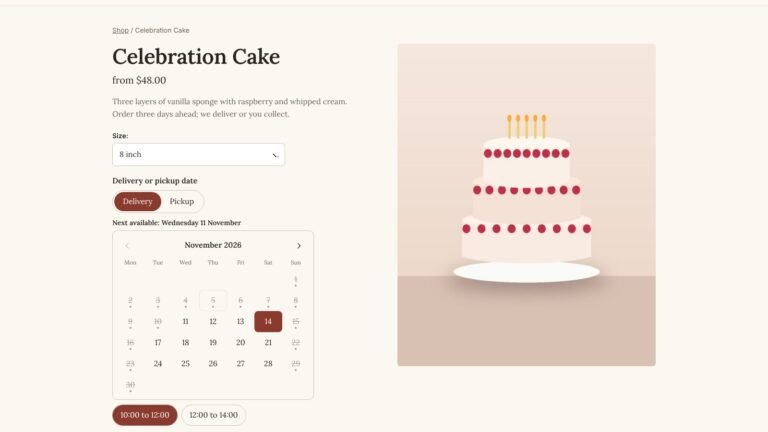
Estimated Delivery Date ($25) shows an arrival window on the product page, worked out from your processing time, shipping time, cut-off and holidays. Delivery Date Picker ($45) lets shoppers choose a delivery or pickup date and time slot, offering only the days your rules allow, which suits Meadow’s kind of shop. Delivery Area Checker ($49) answers “do we deliver to you?” by postcode or ZIP code before anyone shops; read our guide to limiting delivery to certain postcodes for the native options first.
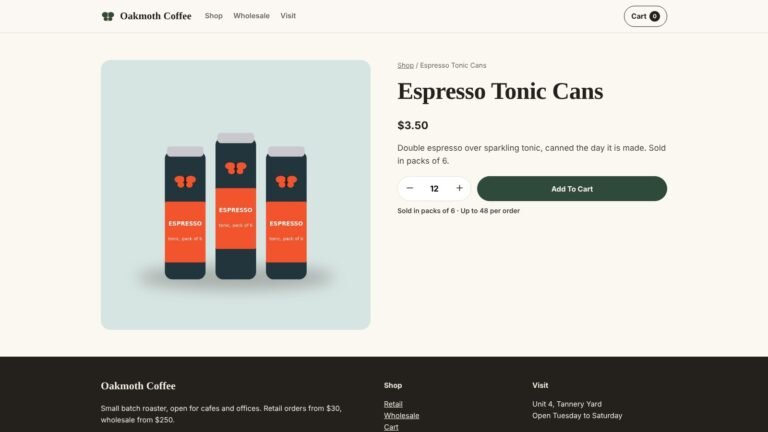
Order Rules ($49) adds minimums, maximums and pack sizes per product, option, category or tag, on top of Squarespace’s store-wide minimum. Wholesale Order Pad ($85) puts every product and variant on one order form with bulk add to cart, order by SKU and reorder; our guide to setting up wholesale on Squarespace covers the rest. Countdown Timer in the Announcement Bar ($25) counts down to the end of a sale or a shipping cut-off at the top of every page.
Each listing gives the same route: one paste into Code Injection, Footer, once for the whole site.
Squarespace does not allow code on its checkout pages, so these plugins work on your store and product pages, and Squarespace’s own settings (shipping options, quantity limits, minimum order amount) stay switched on as the backstop.
Publishing the gaps is part of the method, not an afterthought.
We did not buy or install any of these templates or plugins for this article. Template facts come from the creators’ listings on Squarespell and their page previews, read on 22 November 2026. Squarespell’s listing checks were last made against the creators’ own pages on 27 August 2026, and the creators’ websites could not be opened from the system we used for this article, so prices and terms may have changed at the creator’s checkout.
The template images are listing captures, not fresh screenshots. They come from each listing’s page previews, made from the creators’ demos. The demos are behind a demo password, so we did not open them for new captures. Hunter’s listing has no full page captures, so it has one presentation image only.
We could not capture Squarespace’s free templates. Squarespace’s template gallery listed 47 Online Store templates on 22 November 2026, but its preview images did not load from our system, so the free option has no screenshot here.
Two prices carry a discount label we could not check. Hazelwood shows $188.30 against $269 with a 30% off label, and the listing gives no end date. The SQUARESPELL10 code for Go Live HQ is shown on their listings with no expiry.
The plugin descriptions come from Squarespell’s listings. Squarespell makes them, so weigh that interest; we have not run them against these particular templates.
How this article was put together. It was researched and written with AI assistance, then checked line by line against the listings and Squarespace pages named above, including the title, description and image alt text.
Can I put a bought template on my existing Squarespace store? Not with a button. Squarespace 7.1 has no way to apply a template to an existing site, so these creators deliver the template as a new site, and you move your products and content into it. The Styled Square offer to install Willa onto an existing site for $199 more. Squarespace’s product import from a .csv file can save retyping a large catalogue.
Do I need a paid template to sell on Squarespace? No. Any Squarespace 7.1 site can have a store page, and Squarespace’s own gallery listed 47 free Online Store templates when we checked. A paid template saves you designing the shop, product and marketing pages, and comes with the creator’s support, which is what you are paying for.
Which Squarespace plan do I need for an online store? Every current plan can sell, but Basic ($19 a month on annual billing) adds a 2% transaction fee and has no Code Injection. Core ($29) removes the fee and allows plugins. Plus ($49) and Advanced ($99) lower card rates and add tools such as a reserved cart and countdown timer, which matters once sales are large.
How many products can a Squarespace store have? Squarespace’s help centre gives limits on categories (up to 1,000 categories and subcategories, three levels deep) rather than a product limit we could confirm. In practice the template matters before any limit does: a shop-first template with a short menu struggles past a few dozen products unless you add filters or mega menus.
Are these templates good for SEO? A template does not rank a shop on its own. What helps is what the templates give you room for: a blog (Willa, Meadow, Hazelwood), category pages with their own text and product pages with real descriptions. Squarespace handles the technical basics on every template.
Can I change a template’s colours and fonts after I buy it? Yes. Every listing here says colours, fonts, images, text, section order and the number of pages stay editable in Squarespace with no code. What you cannot do is move it to WordPress, Wix or Shopify.
Do the templates include the demo photographs? Not to use on your site. Candor say demo photography is licensed to them; The Styled Square include demo stock imagery and a photography sourcing workbook. Plan your own product photography before you choose an image-led template such as Atelier.
Count your products and look at your photographs. Fewer than about fifty products with strong pictures: Atelier or Trove Shop. A real catalogue with categories: Willa. A subscription or a local delivery business: Meadow. Then budget for the Core plan, set up payments and shipping before you style anything, and place one test order before you tell anyone the shop is open.
Reviewed and last updated 22 November 2026. All prices checked on that date.
Squarespace has come a long way from its origins as a blog-and-portfolio builder. In 2026, it powers hundreds of thousands of online stores worldwide from ceramic artists in Brooklyn to boutique skincare brands in Austin. But is it the right platform for you?

We reviewed every premium Squarespace template in the Squarespell catalogue and shortlisted 36. Prices, page structures, honest limitations and who each one suits.

Squarespace added tag-based store filters in 2026. This guide compares categories, those native filters and a filter plugin, with each one's limits, setup steps and six store scenarios.
Squarespell All Access
All 47 plugins and every new one, worth $1,985 bought one by one. 14 days free, cancel anytime.
Start 14 days freeOr start free with 13 plugins, no cardFounding price until 1 December, kept for as long as you stay.