



Squarespace
How to Add a Wishlist to Your Squarespace Store (2026 Guide)
Add a wishlist heart to every Squarespace product. Side drawer or bottom bar, mobile ready, one snippet install. No code, no subscription.
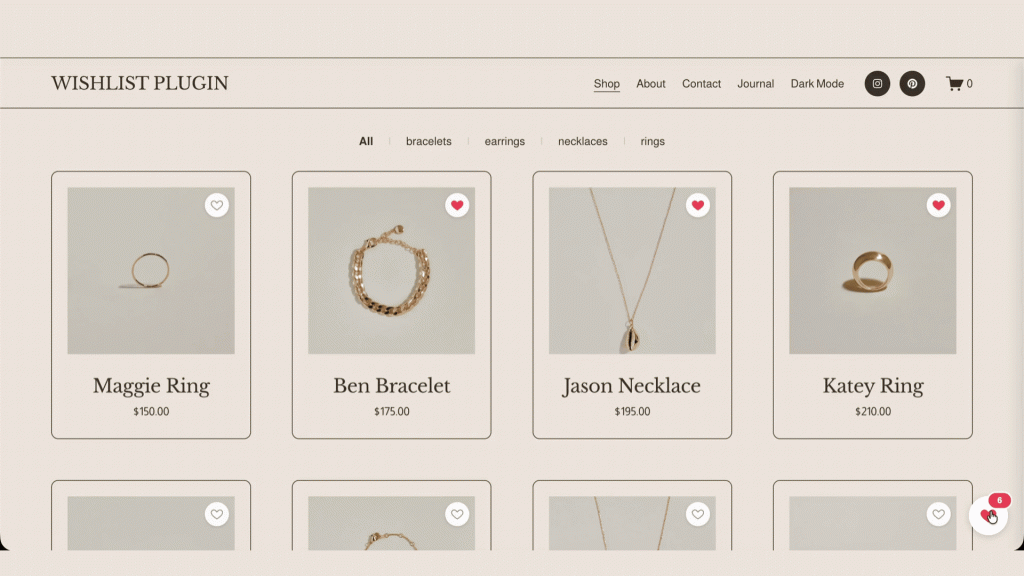
If you run a Squarespace store, you’ve watched shoppers browse, add nothing to cart, and leave. Many weren’t ready to buy they just wanted to save something for later, and had no way to do it. This guide covers why Squarespace makes that harder than it should be, the actual customer experience a good wishlist creates, your real options, and what to look for before you choose one.
01The gap
The problem: Squarespace has no native wishlist
Squarespace still ships without a built-in wishlist or “save for later” feature. This isn’t a niche request it’s one of the most persistent asks in the Squarespace community, and has been for years.
A few representative threads from the Squarespace Forum:
- Shop owners asking how to add “Favourites / Wishlist functionality” to their store.
- Requests for an “add to wishlist” heart that sits next to the add-to-cart button not one that replaces it.
- Store owners asking simply whether “customers can save products or create a list of favorites.”
The recurring theme is telling: people don’t just want a wishlist, they want one that works alongside normal checkout, not instead of it. That distinction turns out to be the whole game.
02Why it matters
Why your store needs a wishlist
Not every shopper who leaves without buying was a lost sale. A large share of them simply weren’t ready yet: they were comparing options, waiting for payday, or checking with someone else before committing. Without a way to bookmark a product, that visitor’s only options are to buy immediately, dig through their browser history later, or forget about it entirely. A wishlist gives that hesitant-but-interested shopper a fourth option: save it, and come back when they’re ready.
That matters more on mobile, where switching between browser tabs to compare products is clumsier than on desktop and shoppers are more likely to close the app and never find their way back to a product they liked. A visible, one-tap way to save an item removes that friction at the exact moment someone is deciding whether to keep looking.
There’s a second, quieter benefit: a saved-items list is a signal. When a shopper hearts three products in the same collection, you know what they’re interested in, without asking them to fill out a form or hand over an email address first. Whether or not you act on that signal, it’s information a plain add-to-cart flow never gives you, because a shopper who isn’t ready to buy never generates it.
03The customer’s view
What the shopper actually experiences
It’s easy to talk about “adding a wishlist” as one feature, but from the shopper’s side it’s a short sequence of moments, and each one is where a badly built wishlist quietly loses people:
- They see the heart icon. On a product card in the shop grid, or on the product page itself, sitting near but not replacing the add-to-cart button.
- They tap it. Nothing interrupts them. No login prompt, no email capture form, no page reload. The heart fills in, maybe a small badge count updates, and they keep browsing exactly where they were.
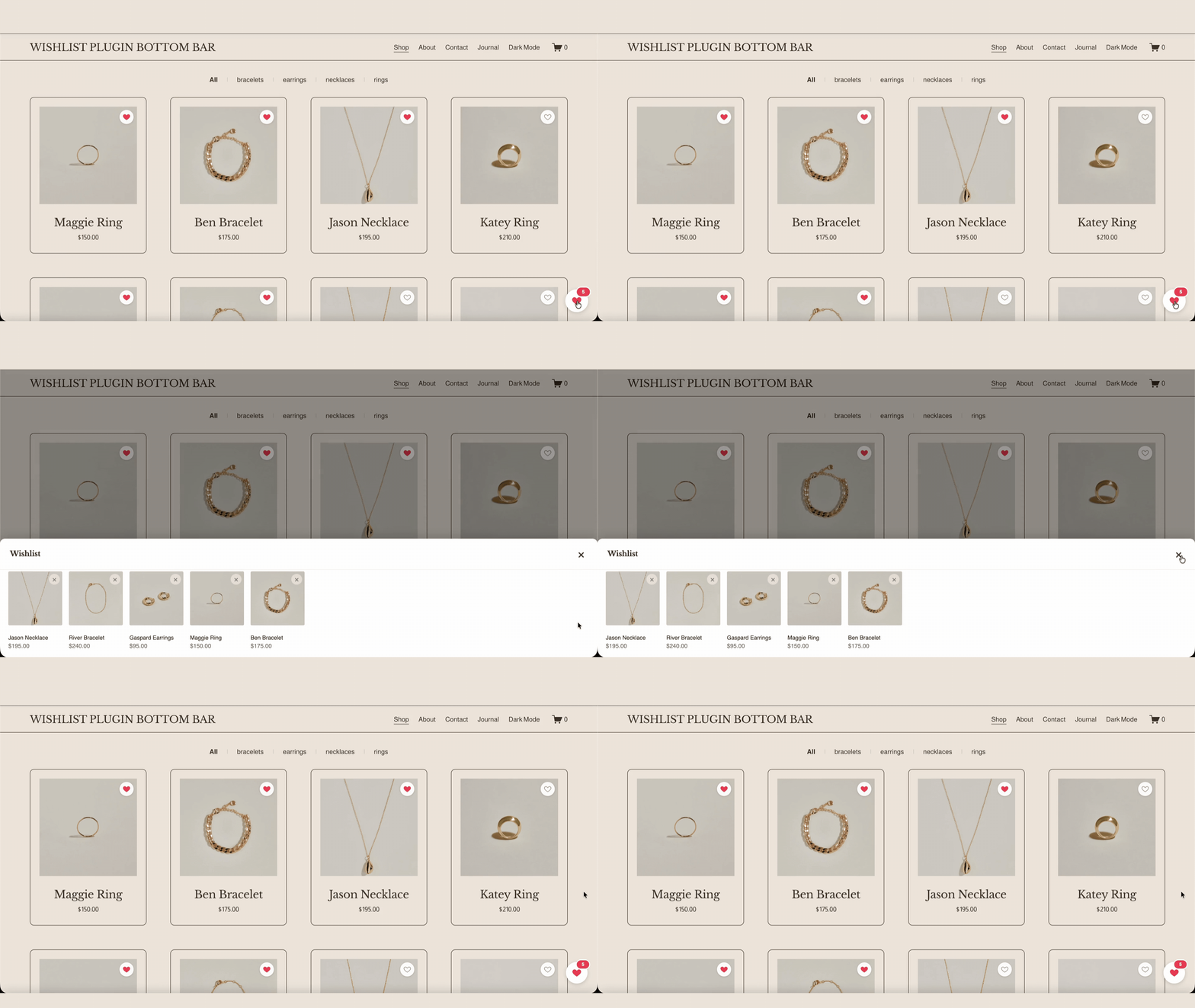
- They open the saved list when they’re ready. Either a drawer slides in from the side, or a persistent bar at the bottom of the screen shows how many items are saved and lets them jump straight to the list.
- They browse their saved items like a mini shop. Ideally with the same product images and prices they saw originally, not a stripped-down list of names.
- They move a saved item into a real purchase. Either directly from the wishlist drawer, or by tapping through to the product page and adding it to cart normally. Either way, checkout is the same checkout they’d have used anyway.
On mobile specifically, steps 3 and 4 are where the display choice (side drawer versus bottom bar, covered in the checklist below) actually matters: a drawer that’s hard to reach with a thumb, or a bar that covers the add-to-cart button underneath it, undoes the convenience the heart icon just created.
04Choosing an approach
Your options for adding a wishlist
There are two realistic paths.
Option 1: Build it yourself with custom code
You can hand-code a wishlist using JavaScript to capture clicks and store saved items in the browser (via local storage) or in a connected database. It’s the most flexible route and costs nothing but time.
The trade-offs:
- You own every bug, edge case, and future fix.
- Browser-only storage means saved lists can vanish when someone clears their cache or switches devices.
- Squarespace platform updates can break custom code with no warning.
- Making it responsive and accessible on mobile is real work.
For most store owners, custom code becomes a maintenance liability rather than a feature.
Option 2: Use a dedicated wishlist plugin
A purpose-built plugin adds the heart icon, handles saving and persistence, and stays responsive out of the box. You paste a snippet and you’re done. The catch: “squarespace wishlist plugin” covers very different products some are genuine save-for-later tools, others are lead-capture forms wearing a wishlist label. The feature gaps are where the real differences hide (more below).
05Why a plugin
Why a dedicated plugin beats a manual workaround
Unless you have a developer on call, a plugin wins on the things that quietly matter:
- Persistence across sessions. A good plugin remembers saved items when a shopper returns, so they land back on the products they liked instead of starting over.
- No maintenance burden. When Squarespace pushes an update, keeping the feature working is the plugin maker’s problem, not yours.
- Mobile responsiveness by default. Most store traffic is on phones. A dedicated plugin handles tap targets, layout, and the drawer/bar behavior on small screens so you don’t have to test it yourself.
- Speed to live. A snippet install takes minutes; a custom build takes days and ongoing attention.
06Buyer’s checklist
What to look for in a Squarespace wishlist plugin
Not all wishlist tools solve the same problem. Before you commit, check these four things they separate a true save-for-later feature from a workaround:
01 / 04
No login or email required to save
Forcing shoppers to hand over an email before they can heart an item adds friction at exactly the wrong moment. The best experience is one tap, no form.
02 / 04
It works alongside checkout it doesn’t replace it
Some “wishlist” tools disable the Squarespace cart and convert it into an enquiry/quote form. That’s useful for made-to-order or rental businesses, but it’s the wrong tool if you want customers to actually buy online. If shoppers can’t add a saved item to a real cart and check out, it isn’t a retail wishlist.
03 / 04
One-time install vs. recurring cost
Some wishlist tools are subscriptions with no one-time option, so a simple UX feature becomes a permanent monthly line item. Decide whether that ongoing cost is worth it for what is, ultimately, a save button.
04 / 04
Display flexibility
A wishlist people forget about doesn’t help you. Look for a clear, always-visible entry point a side drawer that slides in, or a persistent bottom bar showing the saved-item count and the choice of which fits your layout.
Frame these as your buyer’s checklist. Whichever plugin you choose, hold it up against all four.
Two more worth checking, depending on your store
- Cross-device sync. Local, browser-only storage means a customer who saves items on their phone won’t see them if they come back on a laptop. If a meaningful share of your traffic browses on one device and buys on another, this matters more than it first appears; if most of your customers complete their whole visit on one device, it matters less.
- Variant support. If your products come in sizes or colors, check whether the wishlist saves the specific variant a shopper looked at, or just the base product. Saving “Blue, Medium” and having it actually add the blue medium to cart later is a meaningfully better experience than saving a generic product and making the shopper re-select the variant.
07Comparison
Squarespace Wishlist Plugins Compared
| Feature | Wishlist Shop PluginSquarespell | Studio Reveuse Wishlist Drawer | WishlistFlow | SF Digital Wishlist |
|---|---|---|---|---|
| Wishlist heart on products | Yes | Yes | Yes | No (enquiry form) |
| Side-drawer display | Yes | Yes | No | No |
| Bottom-bar display | Yes | No | No | No |
| Save without login or email | Yes | Yes | No (email required) | No |
| Works alongside checkout | Yes | Yes | Yes | No (replaces checkout) |
| Saves specific variant (size/color) | Yes | Base product only | Yes | Not applicable |
| Cross-device sync | No (per-browser) | No (per-browser) | Yes (account required) | Not applicable |
| Saved-item analytics for the store owner | No | No | Yes | Not applicable |
| One-time purchase (no subscription) | Yes | Yes | No (monthly) | Yes |
| One-snippet install, live immediately | Yes | Yes | Yes | No (submit and wait) |
| Fully mobile responsive | Yes | Yes | Yes | Yes |
| Price | $25 one-time | $29 one-time | $17 / month | ~£125-135 |
The two rows worth pausing on are cross-device sync and analytics. WishlistFlow asks shoppers to create an account, which is exactly the friction the “no login” checklist item above warns against, but in exchange it can sync a saved list across a customer’s devices and show you which products get saved most often. That’s a real trade-off, not a strict downgrade: if you’re running a boutique store where most visits start and finish on the same phone, the account requirement costs you more in dropped saves than the sync feature gives back. If you’re running a larger catalogue where customers routinely browse on mobile and buy on desktop, WishlistFlow’s account-based sync may be worth the extra friction and the monthly cost.
Product used in this guide

Squarespell product Squarespace
Squarespace Wishlist Plugin
Squarespell’s Wishlist Shop Plugin adds a wishlist heart icon to every product on your Squarespace store on both product cards and product pages. Shoppers tap the heart to save items, then view them in a slide in side drawer or a persistent bottom bar (your choice). It’s plug and play paste one code snippet into Squarespace Code Injection, with no build step, no dependencies, and full mobile support.
- Squarespace · Plugin
$25.00
Squarespace Wishlist Plugin is a Squarespell product. We describe our own product here; the guidance above applies whichever tool you choose.
08Worked example
A worked example: how a plugin like this comes together
To make the checklist above concrete, here’s how one plugin Squarespell’s Wishlist Shop Plugin maps to it. It’s a useful reference point because it lines up with all four criteria: it adds a wishlist heart to every product (on product cards and product pages), lets shoppers save items with a single tap and no login or email, and leaves the normal Squarespace checkout untouched.
The wishlist in place
- Wishlist side drawer sliding in from the left on a Squarespace store with saved products
- Hand holding a phone showing a Squarespace shop grid, with a red wishlist heart filled in on saved products and a saved-item count badge
Before you start
Find Code Injection
This plugin installs with two small pastes one in Header, one in Footer. Both fields live in the same place.
Open Code Injection in Squarespace
From your Squarespace dashboard go to Marketing Tools → Custom Code → Code Injection in the left sidebar.
Choose a style
Pick one panel style
The heart icon on every product card works the same either way the only difference is how the saved-items panel opens. Install either Side Bar or Bottom Bar below, not both.
As a rule of thumb: a side drawer suits stores with a smaller catalogue, where a shopper opens it deliberately to review a handful of saved items before deciding. A bottom bar suits larger catalogues or browsier shopping behavior, since the running count stays visible the whole time and nudges a shopper back to their list without them having to remember it’s there.
The two panel styles
- Wishlist side drawer sliding in from the left on a Squarespace store with saved products
- Persistent wishlist bottom bar showing saved item count on a Squarespace shop
Style 1
Side Bar panel slides in from the right
Saved items open in a tall vertical panel anchored to the right edge of the screen.
Paste the Side Bar Header code
Open Code Injection → Header, paste the code below, then click Save.
Paste the Side Bar Footer code
Open Code Injection → Footer, paste the code below, then click Save.
Save and preview Side Bar live
Click the floating heart icon on the live site. Saved items slide in from the right in a vertical list.
09Mobile
Getting the mobile experience right
Most storefront traffic is on a phone, so the mobile wishlist experience isn’t a secondary concern, it’s the primary one. A few things separate a wishlist that actually gets used on mobile from one that gets tapped once and ignored:
- The heart icon needs a real tap target. A tiny outline icon crammed into the corner of a product card is easy to miss and easy to mis-tap on a small screen; aim for at least a 44×44px touch area even if the visible icon is smaller.
- The saved-item panel shouldn’t cover the add-to-cart button. A bottom bar that sits too tall can hide the very button a shopper needs to complete a purchase from their wishlist. Check this on an actual phone, not just a resized desktop browser window.
- The badge count should update instantly. If there’s a lag between tapping the heart and seeing the count change, shoppers tap again, assuming it didn’t register, which can accidentally remove the item they just added.
- Saved images should load fast. A wishlist drawer that has to fetch full-resolution product images for every saved item can feel sluggish on a mobile connection; thumbnail-sized previews keep it snappy.
10At the end
FAQ
Does Squarespace have a built-in wishlist?
No. Squarespace has no native wishlist or favorites feature, so you need a plugin or custom code to let customers save products for later.
How do I add a wishlist to Squarespace without coding?
Use a plugin like Squarespell’s Wishlist Shop Plugin. You paste one snippet into Code Injection and a wishlist heart appears on every product automatically no developer or build tools needed.
Do customers need an account to save items?
Not with every plugin. Squarespell’s Wishlist Shop Plugin lets shoppers save items with a single tap no login, no sign-up, and no email wall. Some competitors, like WishlistFlow, do require an account in exchange for syncing the list across devices.
Will a wishlist replace my Squarespace checkout?
It shouldn’t. Some enquiry style tools disable the cart, but a proper retail wishlist works alongside checkout so customers can still buy online. Squarespell’s plugin keeps your normal checkout intact.
Does a wishlist plugin work on mobile?
Yes. A well built plugin is fully responsive. Squarespell’s Wishlist Shop Plugin uses tap-friendly icons and a mobile-sized drawer or bottom bar sized to stay clear of the add-to-cart button.
Is a wishlist plugin a one-time purchase or a subscription?
It depends on the vendor some are monthly subscriptions, others are one-time installs. Check pricing before you commit, since a wishlist is a feature you’ll likely want to “buy once.”
What’s the difference between a side drawer and a bottom bar?
A side drawer slides in from the edge to show saved items on demand, which suits a smaller catalogue a shopper reviews deliberately. A bottom bar stays visible at all times with a running count, which suits a larger catalogue or browsier shopping. It’s down to which fits your store’s layout.
Does the wishlist remember a customer’s saved items if they use a different device?
Not with plugins that store the list in the browser, including Squarespell’s, since the data lives on that specific device. If cross-device sync matters more to your store than avoiding a login, a tool like WishlistFlow that requires an account can carry the list between devices.
If a product has sizes or colors, does the wishlist save the specific variant?
It depends on the plugin some save only the base product and make the shopper re-select a variant later, others save the exact variant that was viewed. Check this specifically if your store sells products with meaningful variants.
Can I see which products customers save the most?
Only with plugins that build in saved-item analytics for the store owner, which is typically a feature of the subscription-based tools rather than the one-time-purchase ones. A simple heart-and-drawer plugin gives the customer the feature without reporting the data back to you.
Will adding a wishlist slow down my store?
A lightweight, single-snippet plugin has no meaningful effect on page speed. Loading full-resolution images for every saved item inside the wishlist panel is the one place a poorly built plugin can feel slow, so check that saved-item previews use smaller thumbnails.
Wrapping up
Adding a wishlist to Squarespace comes down to choosing an approach that saves items reliably, doesn’t force a login, and keeps your checkout intact whether you build it yourself or use a dedicated plugin. Run any option you’re weighing against the checklist above, and pay particular attention to what happens on mobile, since that’s where most of your shoppers will actually meet it. You’ll land on the one that fits your store.
Sources and editorial information
- Squarespace Forum: wishlist and favourites requestsSquarespace ForumThe recurring store-owner requests this guide summarises: favourites, an add-to-wishlist heart beside add-to-cart, and saved product lists.
- Using code injectionSquarespace Help CenterThe Header and Footer fields the install uses, and the plans that include them.
- Squarespace Wishlist PluginSquarespell product pageDisplay options, supported pages and the one-time price quoted in the comparison table.
Related articles
Squarespace
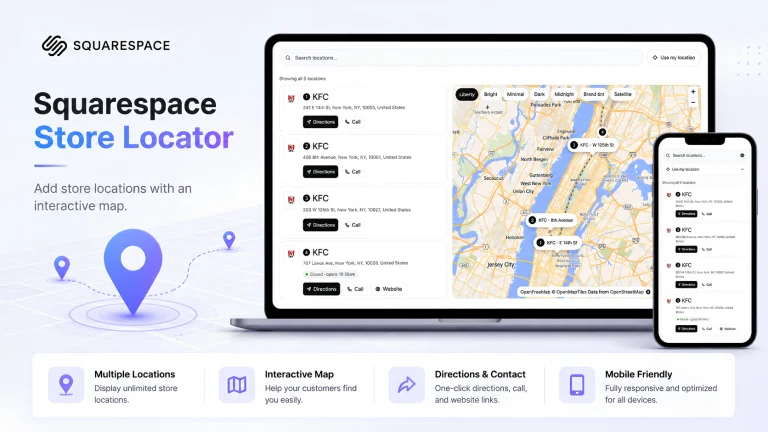
How to Add a Store Locator to Your Squarespace Website (Without Coding or API Keys)
If your business has more than one physical location, your website visitors will eventually ask the same question: where is the closest one? Maybe you run a chain of coffee shops across three cities. Maybe you have retail stockists in dozens of locations. Maybe you operate a service business with regional offices. Whatever the situation, […]
Squarespace
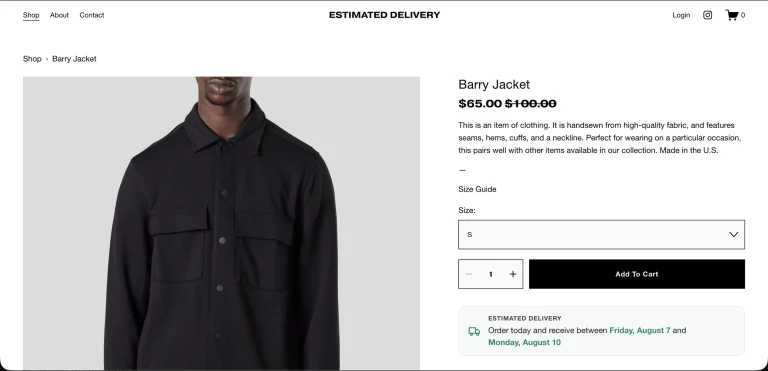
How to Show Estimated Delivery Dates on Your Squarespace Store (2026)
The plugin on a Squarespace product page Squarespace product page showing an estimated delivery panel below the Add to Cart button, reading “Order today and receive between Friday, August 7 and Monday, August 10” Squarespace Estimated Delivery Date Plugin Mobile Responsive Shoppers decide whether to buy on the product page, and one of the first […]

Squarespace
How to Add Dark Mode to Squarespace (2026 Guide)
Dark mode has gone from novelty to expectation. Phones, YouTube, and most major apps ship it, and visitors increasingly reach for a light/dark switch especially at night or if they have light-sensitive eyes. This guide shows you exactly how to add dark mode to Squarespace in 2026, covering both the free DIY route and the […]
Get weekly insights that build better websites.
Actionable guides, product recommendations and early access to updates.
On this page
- The problem: Squarespace has no native wishlist
- Why your store needs a wishlist
- What the shopper actually experiences
- Your options for adding a wishlist
- Why a dedicated plugin beats a manual workaround
- What to look for in a Squarespace wishlist plugin
- Squarespace Wishlist Plugins Compared
- Product used in this guide
- A worked example: how a plugin like this comes together
- Getting the mobile experience right
- FAQ