

How to Enhance Your Squarespace Website's Functionality Without Coding (2026 Guide)
You don't need a developer. You need the right template, the right tools, and a clear strategy. This guide gives you all three.
You built your business from the ground up. The last thing you should be doing is wrestling with CSS stylesheets or debugging JavaScript at midnight. The good news? Squarespace has matured into one of the most powerful no code website platforms available in 2026 and when you pair it with the right Squarespace website templates and smart design strategies, you can build a site that looks custom, performs beautifully in search, and converts visitors into clients. All without touching a single line of code.
This guide is written for small business owners, coaches, consultants, and entrepreneurs who want to get the most out of their Squarespace site fast, professionally, and without a developer on retainer.
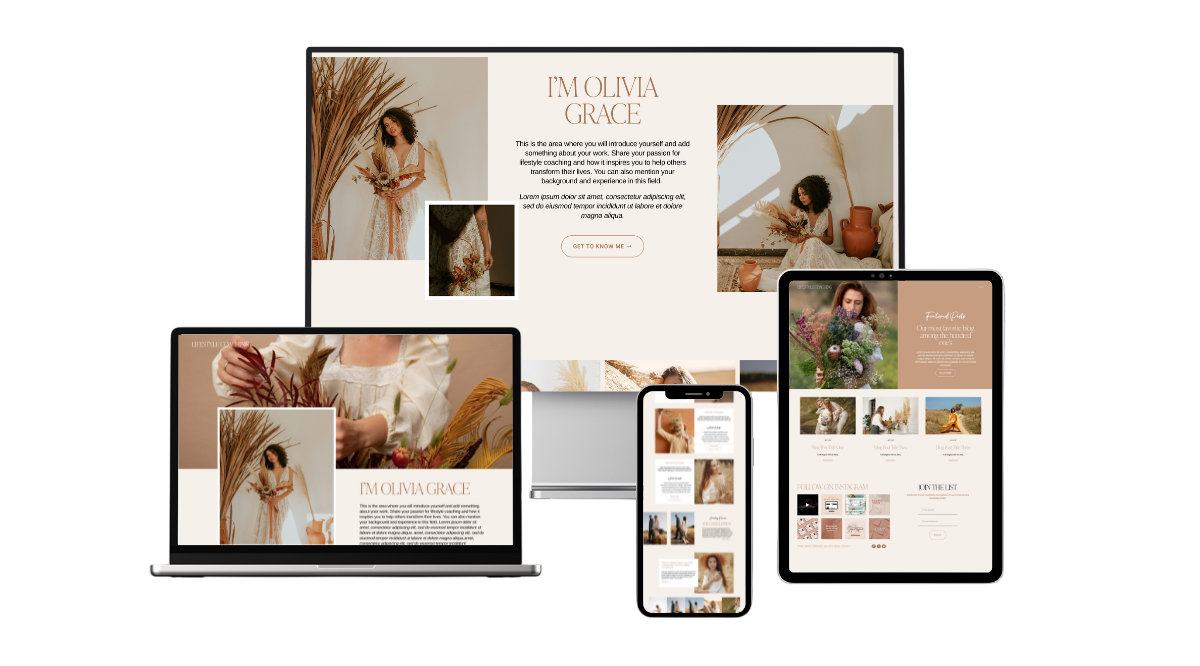
By the end, you'll know exactly how to choose the right template, customize it confidently, extend its functionality with plugins, and optimize every corner of your site for SEO and conversions.
Why Choosing the Right Squarespace Website Templates Matters for Functionality and SEO
Most people think of a template as just a design skin a pretty facade slapped over the same blank canvas. In reality, the Squarespace template you choose sets the structural and functional foundation of your entire site. It determines how your content is organized, how your pages load on mobile, how your navigation works, and in many cases, how Google indexes and ranks your site.
A well-architected template does several things from day one that would otherwise take hours of custom configuration:
Page structure and semantic HTML
Premium Squarespace templates are built with clean, logical HTML hierarchies. This isn't just good design it's exactly the kind of structure that search engines use to understand what your pages are about.
Responsive Squarespace layouts
Every Squarespell template is built on Squarespace 7.1's Fluid Engine, which means your site adapts automatically across desktop, tablet, and mobile. Google's mobile-first indexing means your mobile experience is now your primary SEO signal.
Load speed & Core Web Vitals
Bloated templates with heavy animations, excess scripts, and oversized image blocks slow your site down. Premium Squarespace templates are built lean, with performance in mind. Faster sites rank higher and convert better and with no-code tools, you should never have to sacrifice one for the other.
Functional sections built in
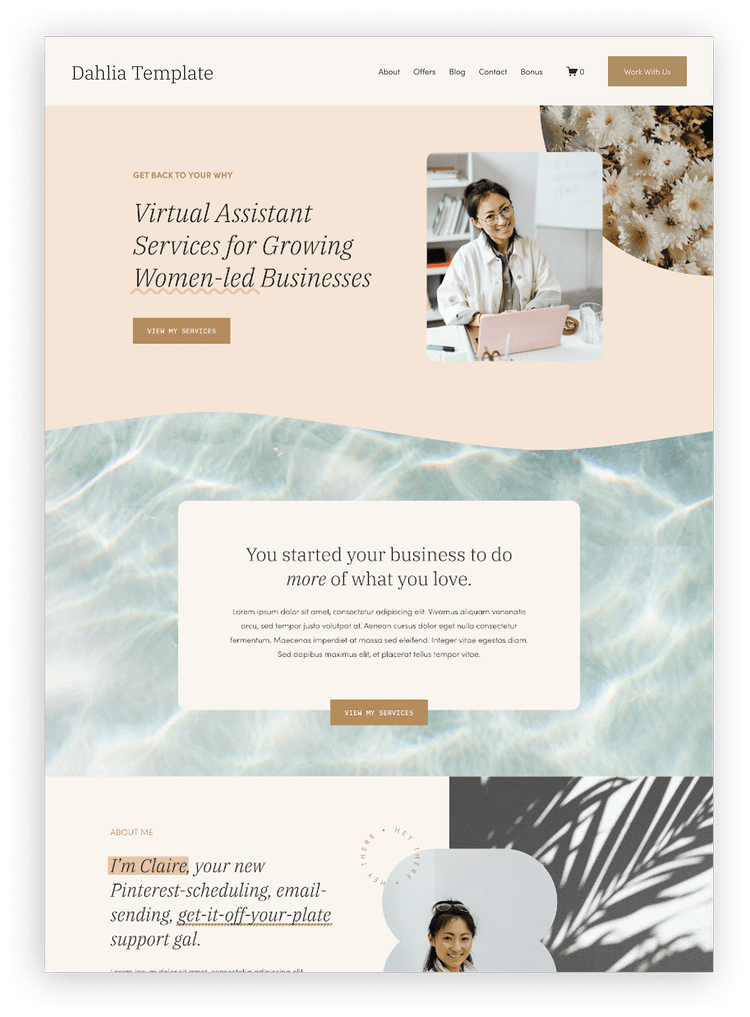
The best Squarespace templates come pre-built with sections that go far beyond a basic homepage. Think testimonial carousels, services grids, newsletter sign-up blocks, portfolio galleries, and conversion-focused call-to-action banners all without needing to build from scratch or install third-party tools.
💡 Pro Tip
Faster sites rank higher and convert better. Premium templates are built lean with performance in mind you should never have to sacrifice speed for style.
How to Pick the Best Premium Squarespace Templates
With hundreds of templates available both from Squarespace itself and third-party designers choosing the right one can feel overwhelming. Here's a practical framework to guide your decision.
Match the Template to Your Business Model
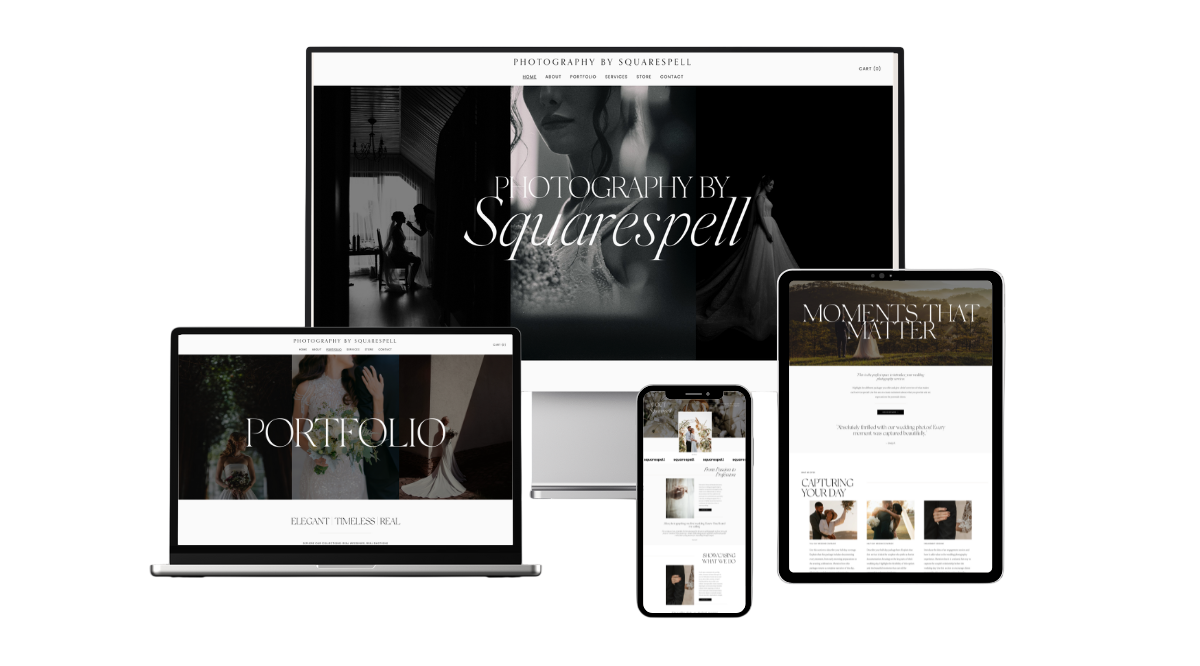
A photographer’s portfolio template has very different priorities than one for coach, consultant, or service based business. Before choosing based on design alone, ask what site needs to achieve. If bookings matter most, choose template that highlights them front and center. If blogging, content marketing is core, prioritize templates with strong editorial layouts, clear content hierarchy.
Prioritize SEO Friendly Squarespace Design
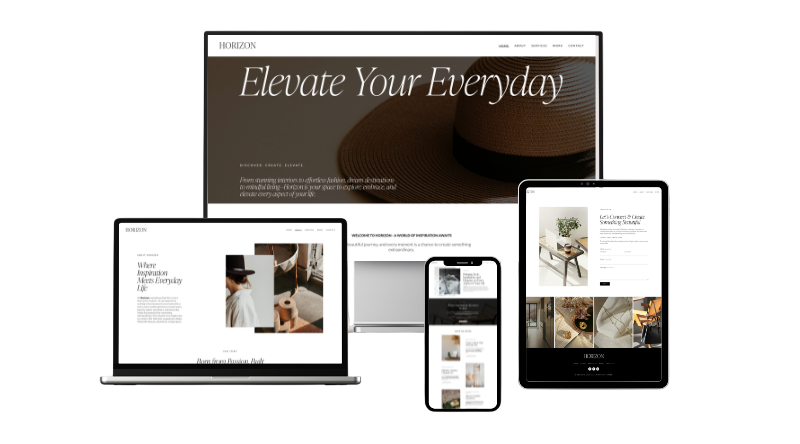
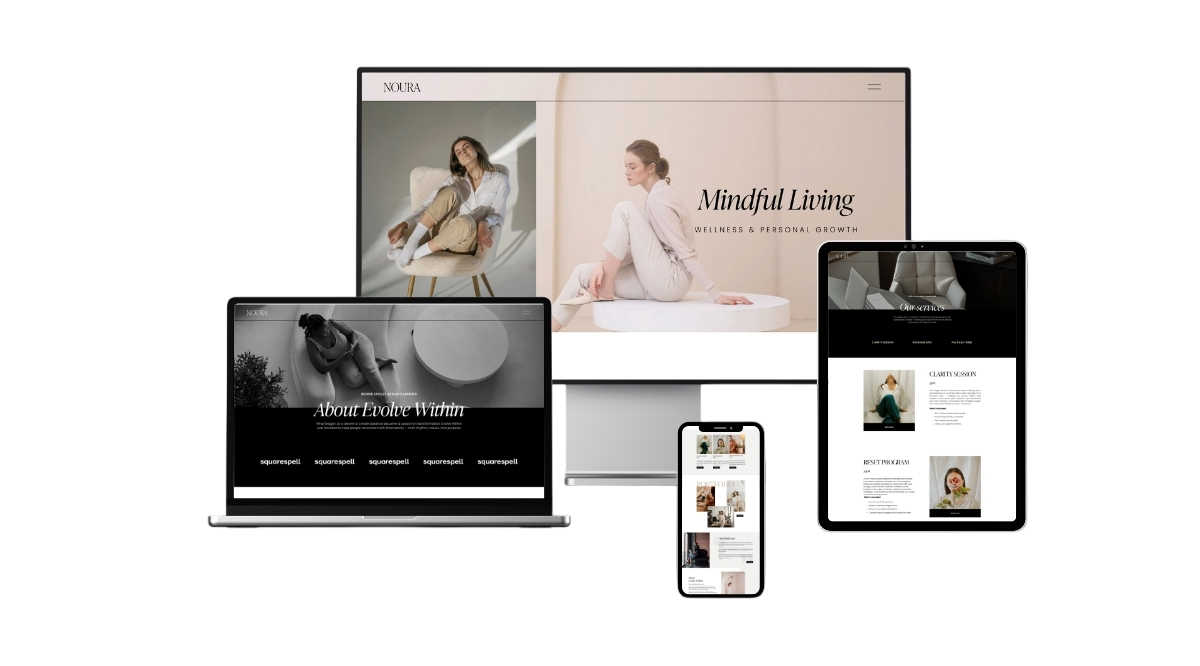
Look for templates where the typography hierarchy is clear, whitespace is intentional, and the homepage naturally guides visitors toward a strong conversion action. This isn’t just good UX it reflects strategic design and builds instant credibility. It also signals to Google that your content is well-structured, organized, and easy to read, supporting stronger SEO performance.
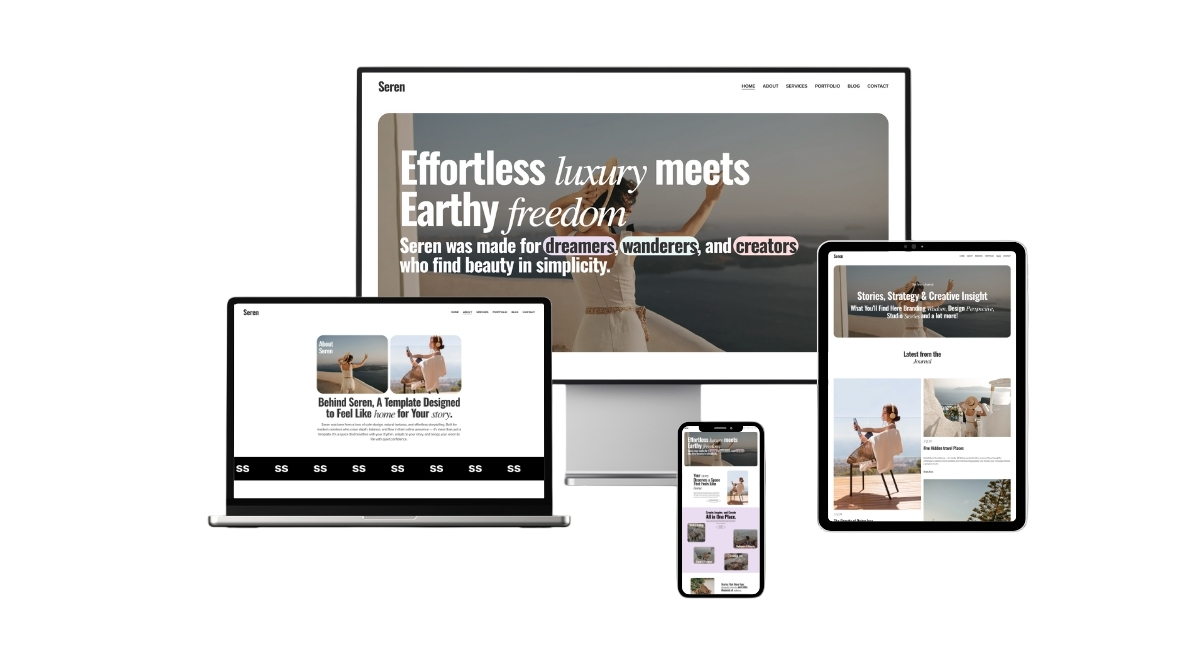
Evaluate Fluid Engine Compatibility
Make sure any template you consider is built on Squarespace 7.1's Fluid Engine not the legacy 7.0 platform. Fluid Engine offers true drag-and-drop design with pixel-level control over layouts. Templates still running on older versions limit your flexibility significantly.
Consider Industry Fit
The Squarespell template collection is designed with specific industries and use cases in mind. Here's a breakdown of their standout offerings:
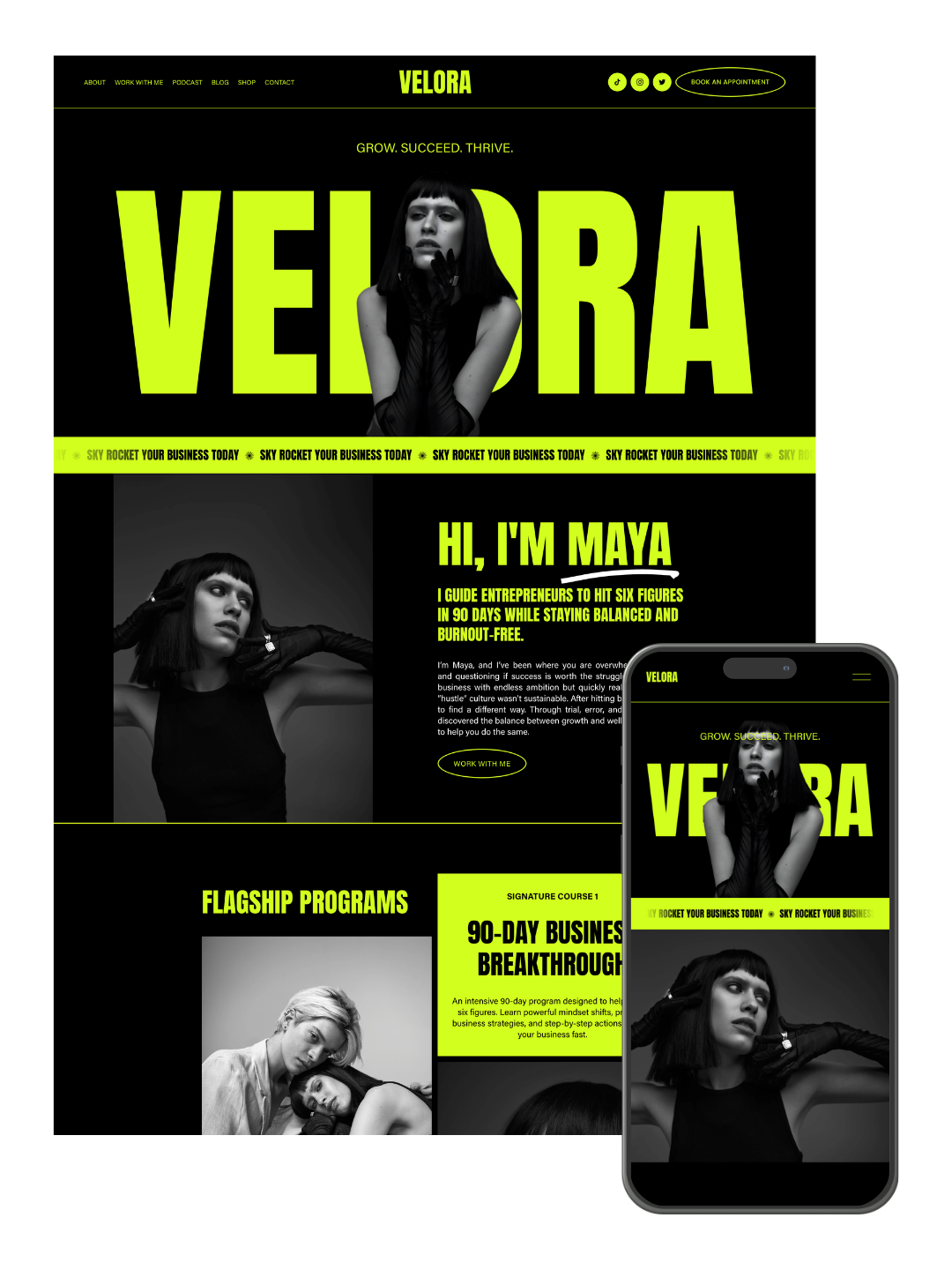
Transform your online presence with this bold Squarespace website template designed for business:
Coaches
Authors
Podcasters
Course Creators
Speakers
Consultants
Creative Entrepreneurs
Frequently asked questions
Do these Squarespace templates work with 7.1 and Fluid Engine?
Yes. Every template is built for Squarespace 7.1 and uses Fluid Engine sections, so you can drag, resize and restyle anything without touching code.
Is this a one-time payment or a subscription?
One-time. You pay once for the template licence. Your Squarespace plan is separate and paid to Squarespace.
Do I need to know how to code?
No. Installation is a guided process inside Squarespace, and every section is editable with the normal Squarespace editor.
Can I change the fonts, colours and images?
Yes. Fonts, colours, spacing, images and section order are all editable. The template is a starting point, not a locked design.
How long does setup take?
Installing the template itself takes a few minutes. Most people have their own copy, images and content in place the same day.
Can I use one template on more than one website?
A single-use licence covers one website. If you build sites for clients, use the multi-use licence linked on this listing.
Do I need a Squarespace subscription?
Yes. Templates are installed on a Squarespace 7.1 site, so you need an active Squarespace plan. You can install on a free trial first.
What if I get stuck installing it?
Every template comes with written setup instructions, and you can contact Squarespell if you need a hand.
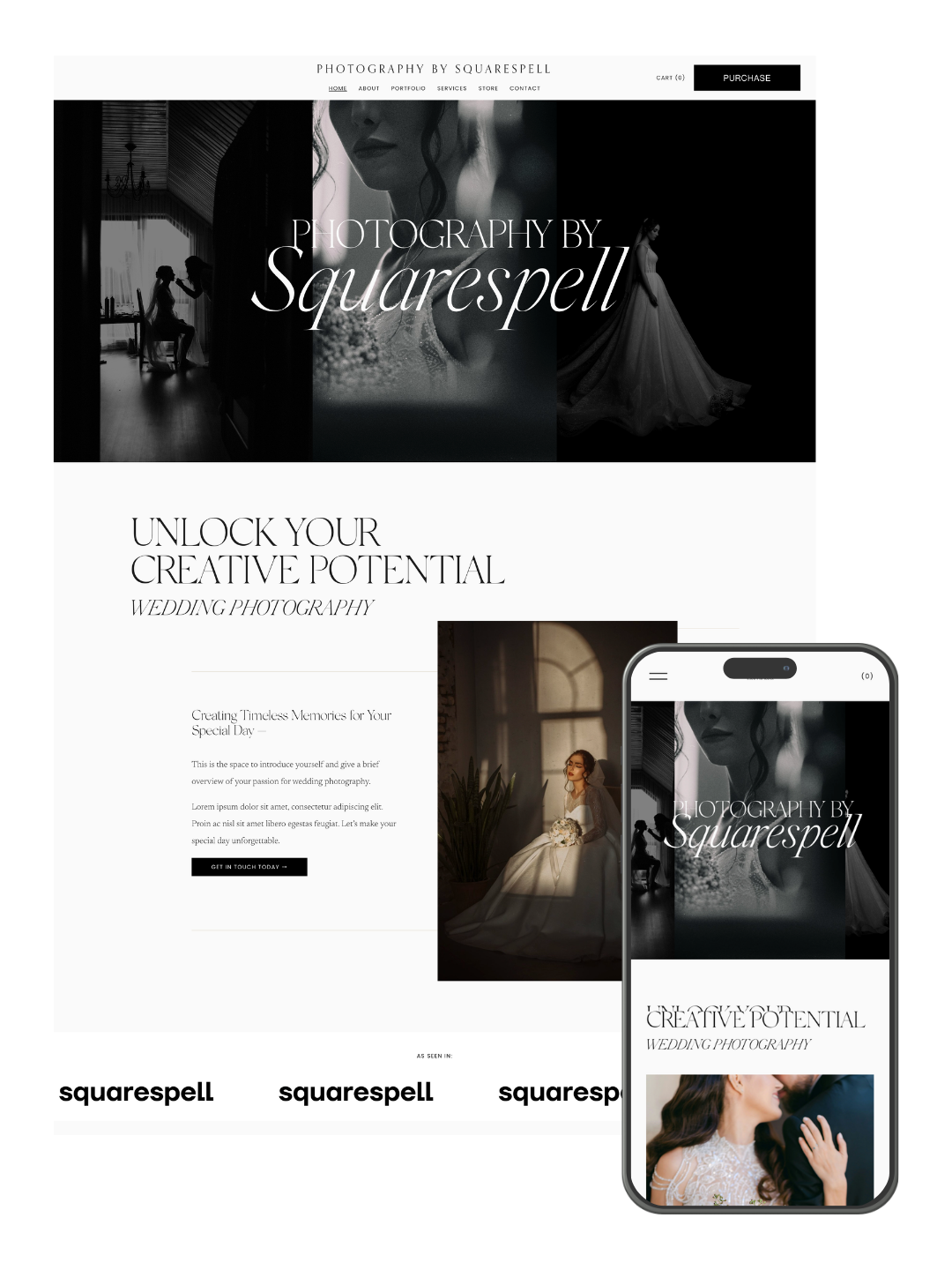
Minimal portfolio Squarespace website template by Squarespell for photographers and creative designers who want a modern, SEO optimized online presence.
Clean minimalist portfolio design
Mobile responsive layout
Easy drag and drop customization
SEO friendly structure
Built for photographers and designers
Elegant project showcase layout
Not sure which template fits your work? Read our Squarespace templates for photographers guide
Frequently asked questions
Do these Squarespace templates work with 7.1 and Fluid Engine?
Yes. Every template is built for Squarespace 7.1 and uses Fluid Engine sections, so you can drag, resize and restyle anything without touching code.
Is this a one-time payment or a subscription?
One-time. You pay once for the template licence. Your Squarespace plan is separate and paid to Squarespace.
Do I need to know how to code?
No. Installation is a guided process inside Squarespace, and every section is editable with the normal Squarespace editor.
Can I change the fonts, colours and images?
Yes. Fonts, colours, spacing, images and section order are all editable. The template is a starting point, not a locked design.
How long does setup take?
Installing the template itself takes a few minutes. Most people have their own copy, images and content in place the same day.
Can I use one template on more than one website?
A single-use licence covers one website. If you build sites for clients, use the multi-use licence linked on this listing.
Do I need a Squarespace subscription?
Yes. Templates are installed on a Squarespace 7.1 site, so you need an active Squarespace plan. You can install on a free trial first.
What if I get stuck installing it?
Every template comes with written setup instructions, and you can contact Squarespell if you need a hand.
High converting Squarespace website template by Squarespell for coaches, consultants, and creative entrepreneurs who want a bold, SEO-optimized online presence.
• Modern minimalist design
• Mobile responsive layout
• Easy customization
• Built-in SEO structure
• Fast loading performance
• Perfect for coaches & creatives
Frequently asked questions
Do these Squarespace templates work with 7.1 and Fluid Engine?
Yes. Every template is built for Squarespace 7.1 and uses Fluid Engine sections, so you can drag, resize and restyle anything without touching code.
Is this a one-time payment or a subscription?
One-time. You pay once for the template licence. Your Squarespace plan is separate and paid to Squarespace.
Do I need to know how to code?
No. Installation is a guided process inside Squarespace, and every section is editable with the normal Squarespace editor.
Can I change the fonts, colours and images?
Yes. Fonts, colours, spacing, images and section order are all editable. The template is a starting point, not a locked design.
How long does setup take?
Installing the template itself takes a few minutes. Most people have their own copy, images and content in place the same day.
Can I use one template on more than one website?
A single-use licence covers one website. If you build sites for clients, use the multi-use licence linked on this listing.
Do I need a Squarespace subscription?
Yes. Templates are installed on a Squarespace 7.1 site, so you need an active Squarespace plan. You can install on a free trial first.
What if I get stuck installing it?
Every template comes with written setup instructions, and you can contact Squarespell if you need a hand.
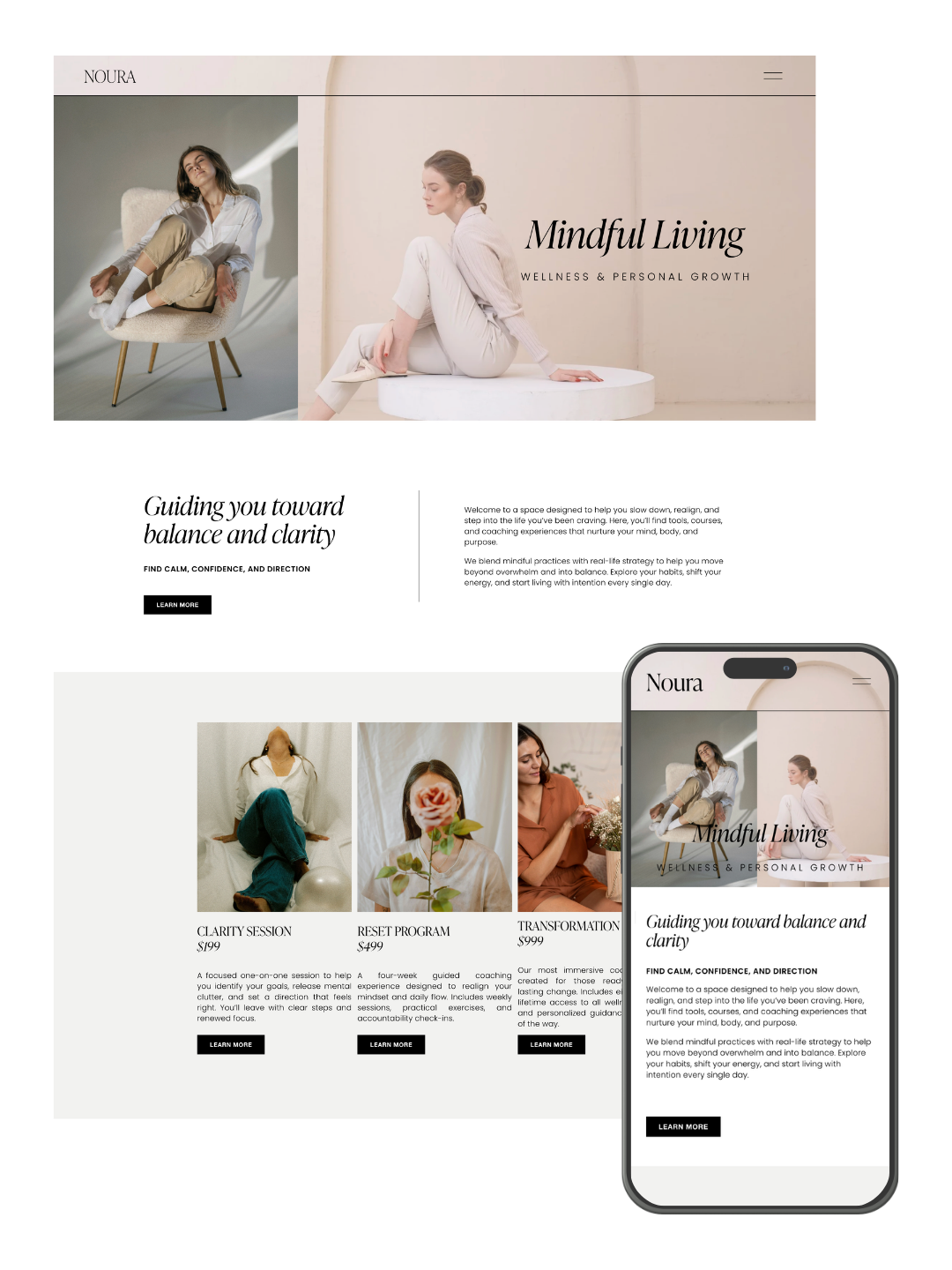
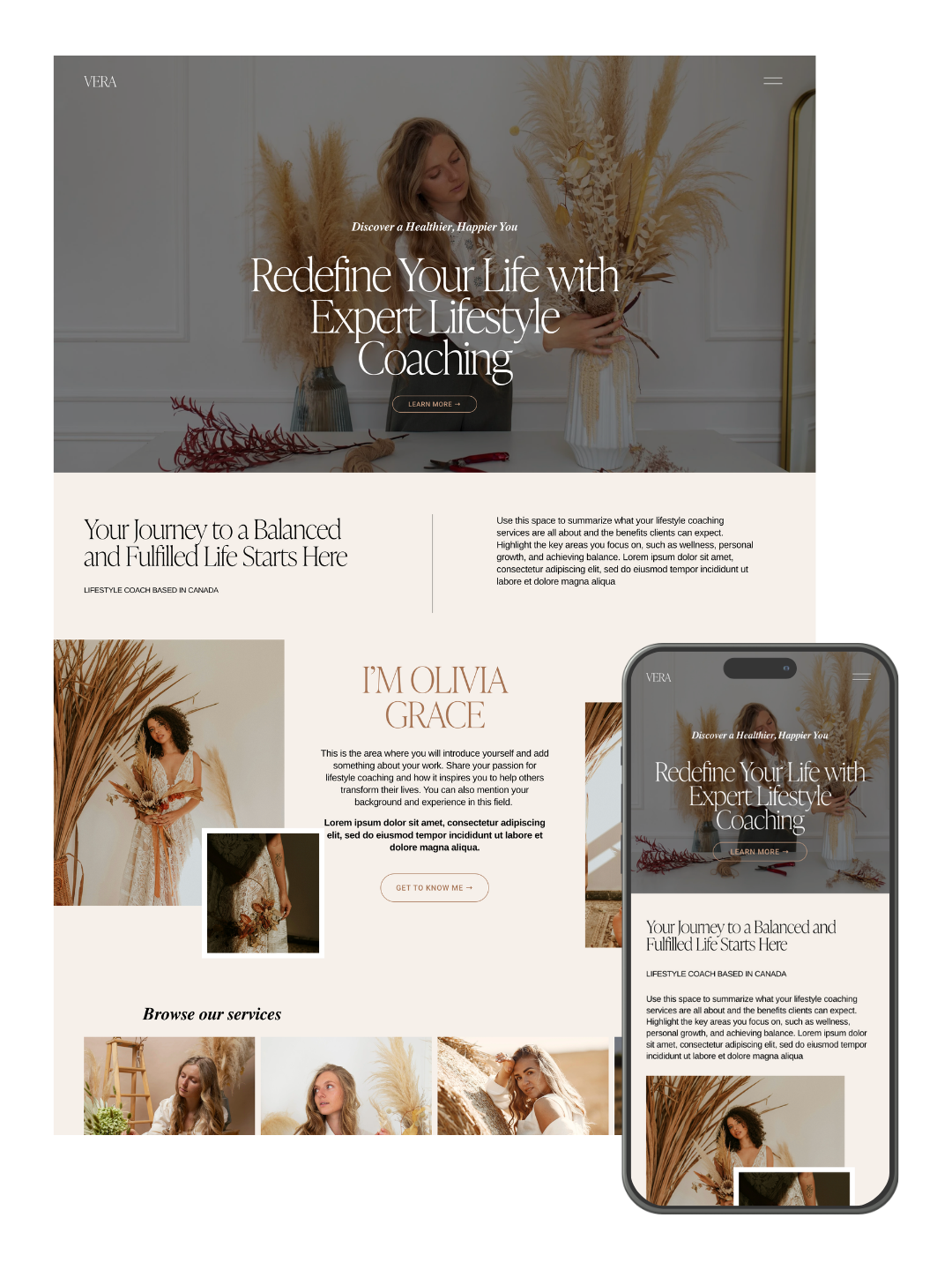
Calming wellness Squarespace 7.1 website template by Squarespell for therapists, coaches, and holistic experts who want a modern, SEO optimized online presence.
Minimal calming professional design
Mobile responsive all devices
Easy drag and drop customization
SEO friendly website structure
Built for therapists and coaches
Perfect for wellness brands
Frequently asked questions
Do these Squarespace templates work with 7.1 and Fluid Engine?
Yes. Every template is built for Squarespace 7.1 and uses Fluid Engine sections, so you can drag, resize and restyle anything without touching code.
Is this a one-time payment or a subscription?
One-time. You pay once for the template licence. Your Squarespace plan is separate and paid to Squarespace.
Do I need to know how to code?
No. Installation is a guided process inside Squarespace, and every section is editable with the normal Squarespace editor.
Can I change the fonts, colours and images?
Yes. Fonts, colours, spacing, images and section order are all editable. The template is a starting point, not a locked design.
How long does setup take?
Installing the template itself takes a few minutes. Most people have their own copy, images and content in place the same day.
Can I use one template on more than one website?
A single-use licence covers one website. If you build sites for clients, use the multi-use licence linked on this listing.
Do I need a Squarespace subscription?
Yes. Templates are installed on a Squarespace 7.1 site, so you need an active Squarespace plan. You can install on a free trial first.
What if I get stuck installing it?
Every template comes with written setup instructions, and you can contact Squarespell if you need a hand.
Minimal portfolio Squarespace website template by Squarespell for photographers and creative designers who want a modern, SEO optimized online presence.
Clean minimalist portfolio design
Mobile responsive layout
Easy drag and drop customization
SEO friendly structure
Built for photographers and designers
Elegant project showcase layout
Not sure which template fits your work? Read our Squarespace templates for photographers guide
Frequently asked questions
Do these Squarespace templates work with 7.1 and Fluid Engine?
Yes. Every template is built for Squarespace 7.1 and uses Fluid Engine sections, so you can drag, resize and restyle anything without touching code.
Is this a one-time payment or a subscription?
One-time. You pay once for the template licence. Your Squarespace plan is separate and paid to Squarespace.
Do I need to know how to code?
No. Installation is a guided process inside Squarespace, and every section is editable with the normal Squarespace editor.
Can I change the fonts, colours and images?
Yes. Fonts, colours, spacing, images and section order are all editable. The template is a starting point, not a locked design.
How long does setup take?
Installing the template itself takes a few minutes. Most people have their own copy, images and content in place the same day.
Can I use one template on more than one website?
A single-use licence covers one website. If you build sites for clients, use the multi-use licence linked on this listing.
Do I need a Squarespace subscription?
Yes. Templates are installed on a Squarespace 7.1 site, so you need an active Squarespace plan. You can install on a free trial first.
What if I get stuck installing it?
Every template comes with written setup instructions, and you can contact Squarespell if you need a hand.
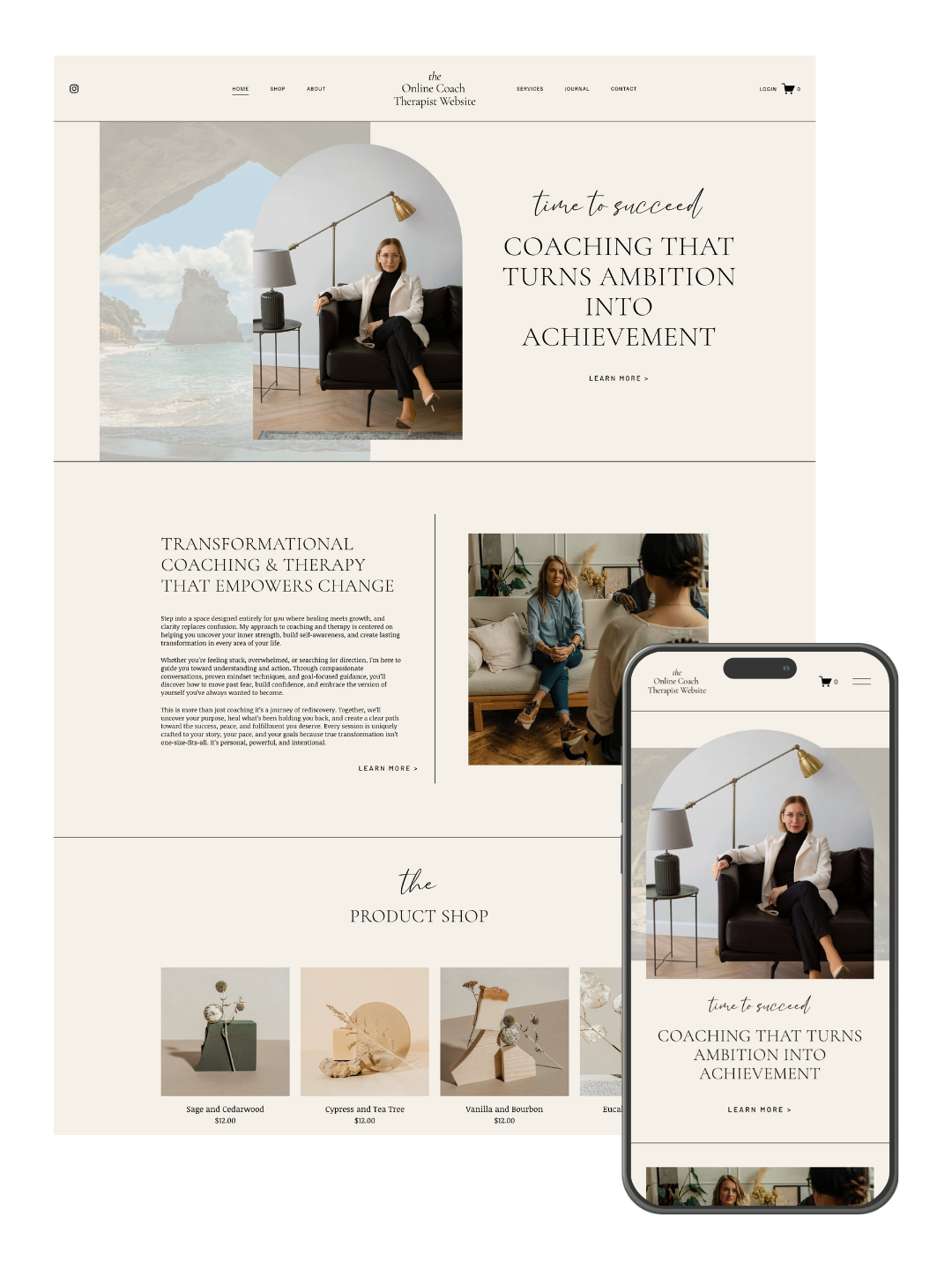
High converting Squarespace 7.1 website template by Squarespell for coaches, consultants, wellness experts, and creative designers who want a modern, SEO optimized online presence.
Sophisticated minimalist design
Strategic high converting layout
Mobile responsive all devices
SEO friendly website structure
Easy drag and drop customization
Built for coaches and creatives
Frequently asked questions
Do these Squarespace templates work with 7.1 and Fluid Engine?
Yes. Every template is built for Squarespace 7.1 and uses Fluid Engine sections, so you can drag, resize and restyle anything without touching code.
Is this a one-time payment or a subscription?
One-time. You pay once for the template licence. Your Squarespace plan is separate and paid to Squarespace.
Do I need to know how to code?
No. Installation is a guided process inside Squarespace, and every section is editable with the normal Squarespace editor.
Can I change the fonts, colours and images?
Yes. Fonts, colours, spacing, images and section order are all editable. The template is a starting point, not a locked design.
How long does setup take?
Installing the template itself takes a few minutes. Most people have their own copy, images and content in place the same day.
Can I use one template on more than one website?
A single-use licence covers one website. If you build sites for clients, use the multi-use licence linked on this listing.
Do I need a Squarespace subscription?
Yes. Templates are installed on a Squarespace 7.1 site, so you need an active Squarespace plan. You can install on a free trial first.
What if I get stuck installing it?
Every template comes with written setup instructions, and you can contact Squarespell if you need a hand.
All are priced at $299 and built on Squarespace 7.1 Fluid Engine with full mobile responsiveness. Browse premium Squarespace templates at Squarespell to preview each design and find the one that fits your brand.
Don't Underestimate Setup Support
One significant advantage of choosing a curated template provider like Squarespell over a generic marketplace is the support that comes with the purchase. Their Launch Package includes full website setup, logo design, premium plugin installation, and domain connection all included in the template price. For small business owners who want a professional result without the DIY headache, that's a meaningful differentiator.
How to Customize Template Features Without Writing Code
Once you've chosen your template, the next question is: how do you make it yours without calling a developer? The answer is: more easily than you might think. Here's how to use Squarespace's built in tools to customize confidently.
Using the Style Editor
Every Squarespace 7.1 site includes a Style Editor accessible directly in the visual editor where you can adjust global fonts, colors, button styles, and spacing. This is your most powerful no-code customization tool because changes here cascade across your entire site instantly.
Key things to adjust in the Style Editor:
Set your primary, secondary, and accent brand colors
Choose heading and body fonts that match your brand identity (Squarespace connects to Google Fonts)
Adjust button corner radius to match your brand aesthetic (sharp = corporate; rounded = friendly)
Set site-wide spacing and padding to improve readability
The Style Editor is especially powerful with premium templates because the templates are designed with customization flexibility in mind the colors, fonts, and spacing are deliberately set up to be swapped cleanly.
Drag and Drop Design with Fluid Engine
Squarespace's Fluid Engine turns every section of your site into an interactive canvas. You can drag content blocks text, images, buttons, video, code embeds and snap them into position with precision. This is genuine drag-and-drop design in action: no code, no CSS positioning, no quirks.
Practical tips for using Fluid Engine effectively:
Use section backgrounds strategically: Alternating between white, light gray, and a brand-color section backgrounds creates natural visual rhythm that guides visitors down the page without requiring any custom design work.
Lock aspect ratios on image blocks: When resizing image blocks in Fluid Engine, hold Shift to maintain the aspect ratio this prevents distorted images without needing to edit the source file.
Use spacer blocks intentionally: Adding spacer blocks between content elements lets you control vertical rhythm on mobile and desktop independently.
Leveraging Section Layout Templates
Within the Fluid Engine editor, Squarespace offers pre-built section layout templates structured arrangements of blocks that you can drop in and replace with your own content. These are ideal for quickly building out services pages, testimonial sections, team bios, or feature comparisons.
To access section layouts: click the "+" icon between any two sections on your page and select "Layout" before choosing a design. This alone can save hours of layout work for non designers.
Strategic Image and Block Placement
Visual hierarchy is one of the most powerful tools in web design and it requires zero code.
Place your most important headline in the largest text on the page
Use a high-quality hero image that communicates your brand positioning before a visitor reads a single word
Pair every call-to-action button with a visual anchor (an image, an icon, or a bold headline) above it
Keep your most important conversion action (book a call, download the lead magnet, shop now) visible without scrolling on desktop
How Plugins and Add Ons Can Extend Functionality (No Coding Required)
One of the most common complaints about Squarespace is that its native feature set has limits. But in 2026, a thriving ecosystem of no code plugins has made it possible to extend Squarespace far beyond its defaults without touching code.
What Plugins Can Do for Your Squarespace Site
The right plugins can unlock functionality including:
Advanced popups and announcement bars capture email subscribers with timed or exit-intent popups
Scroll-triggered animations create dynamic, engaging page transitions
Enhanced navigation mega menus, sticky headers, and mobile-optimized navigation layouts
Custom form behavior multi-step forms, conditional fields, and form redirect customization
Social proof and testimonials dynamic review displays and trust signals
Squarespell builds and maintains its own suite of premium squarespace plugins the same plugins they install for free as part of every Launch Package. These are specifically engineered for Squarespace 7.1 sites and require no coding to configure. You install via a simple code snippet in Squarespace's Settings > Developer Tools > Code Injection a five-minute process even for non-technical users.

Instant horizontal scrolling: No plugins or extra costs
Copy-paste code: CSS + JavaScript included
Easy to edit : Effect only appears on live site (edit mode stays normal)
Lightweight : Won’t slow down your website
Save money : One-time solution, no monthly fees
Mobile Supported: Supported on mobile devices

The Only Squarespace Mega Menu That Installs Itself
Paste two code snippets into Code Injection. Your existing navigation instantly transforms into a premium mega menu no design work, no CSS variables, no Squarespace block building required.
Zero Configuration your existing nav links become the menu automatically
Auto Color Detection reads your Squarespace theme, adapts to any site color
Auto Image Fetching fetches your page images automatically, no manual uploads
Mobile Fullscreen Menu premium custom mobile overlay, not Squarespace's basic menu
Hover Dropdown smooth animated panels appear on desktop hover
Works on ANY Template Fluid Engine, classic 7.1, dark, light, colored headers
2-Minute Install paste Header code, paste Footer code, save. Done
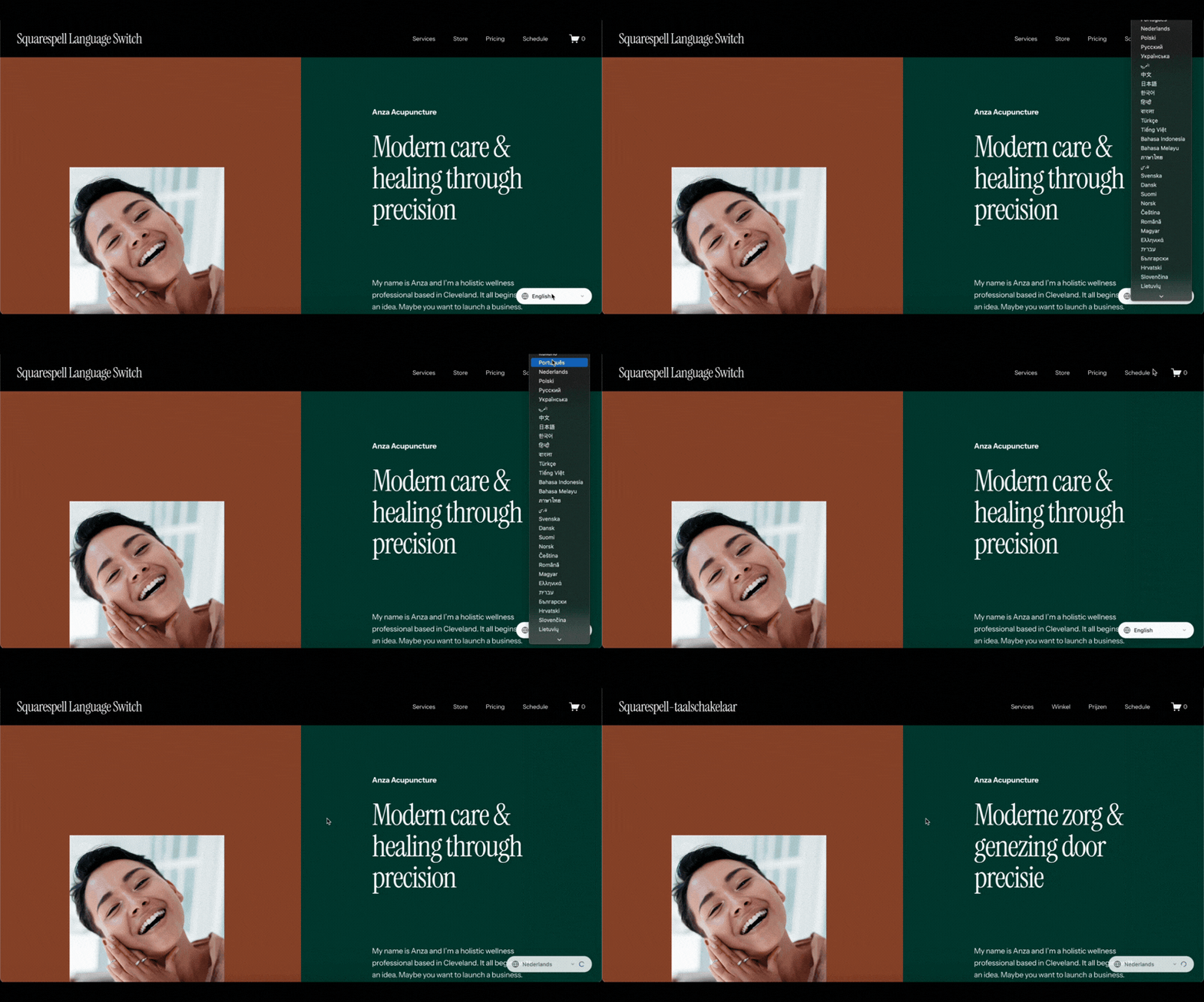
41 languages supported (full names + codes)
4 RTL languages supported
~50,000 words/day via MyMemory API + unlimited Lingva fallback
3-provider waterfall (MyMemory → Lingva → Backup)
Instant cache loads (<16ms, localStorage)
Carousel-aware (Squarespace compatible)
SPA navigation support (pushState/popState patched)
Auto geo-detection & language switching
One-time purchase, fully self-hosted

Customizable: Change questions, answers, colors & branding
Lead Capture: Automatic email collection before quiz
Instant Results: Personalized delivery via email
Mobile Ready: Works on phones, tablets & desktop
Easy Setup: 10 minutes, no coding needed
Flexible Outcomes: Multiple results with custom messages
Grow Your List: Built-in lead generation & email integration
Modern Design: Professional look matching your brand
Engaging: Progress bar keeps users involved
Guided Setup: Step-by-step instructions included
Squarespace Ready: Works on 7.1 Business & Commerce
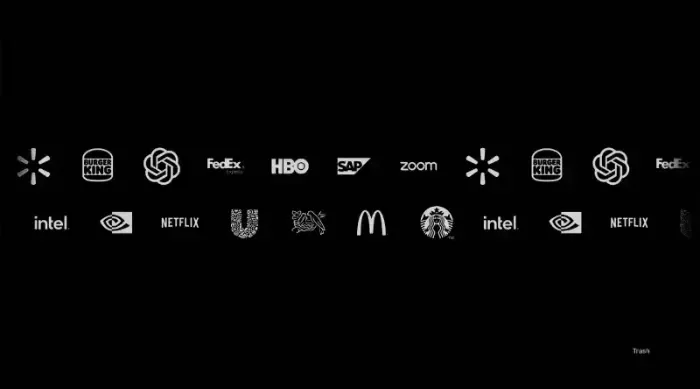
Easy Integration: Add animated scrolling logos to Squarespace 7.1 effortlessly
Infinite Scroll: Seamless, continuous logo animation
Customizable: Adjust speed and logo size with ease
Responsive Design: Works perfectly on all devices
Future Updates: Includes free updates to the original code
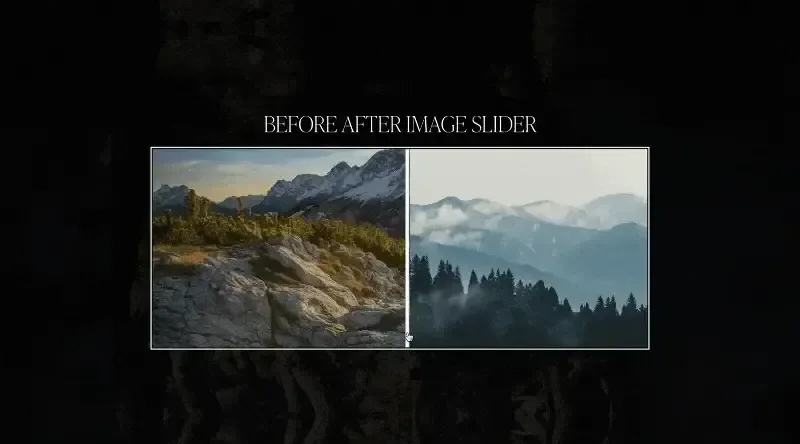
Responsive Design: The Squarespace Before After Image Slider looks stunning on desktop, tablet, and mobile devices
Smooth Effect: Enjoy seamless transitions with the Squarespace Before After Image Slider for effortless comparisons
Cross-Browser Compatible: Works perfectly on Chrome, Firefox, Safari, and Edge, ensuring your Squarespace slider is accessible to all
Customizable Options: Easily adjust styles to ensure your Squarespace Before After Image Slider matches your site’s branding
Third Party Integrations Without Code
Squarespace's native integrations cover a wide range Google Analytics, Mailchimp, Acuity Scheduling, Stripe, PayPal, and more all configurable from your dashboard without a single line of code. For integrations not natively supported, tools like Zapier or Make (formerly Integromat) let you connect Squarespace to thousands of external apps via visual, no-code automation workflows.
When to Use Squarespace's Built In Features vs. Plugins
Not every functionality gap needs a plugin. Before installing a third-party tool, check whether Squarespace's native features already cover your need. In 2026, Squarespace natively supports: product inventory management, subscription products, course hosting, donation blocks, appointment scheduling (via Acuity), member areas, and email campaigns. Plugins are best used for UX enhancements, advanced design effects, and conversion optimization not core functionality.
Real World Example: Squarespace Functionality Without Coding
A Long Term Partnership Built on Trust & Execution
For over 2–3 years, Andrew J. Smith, CEO of ALPINE PRO CLEANERS, has trusted Squarespell as his go to partner for everything from custom code enhancements to full website builds.
Whether bringing a fully detailed vision or just a rough concept, Andrew relies on our ability to translate ideas into refined, high-performing digital experiences.
Each project is approached with strategic clarity, technical precision, and a shared commitment to success not just completion.
What began as a single collaboration evolved into a long term partnership rooted in responsiveness, reliability, and consistent delivery. The result? A relationship strong enough that Andrew confidently refers others, knowing every project will be handled with the same care and expertise.
Tools and Resources to Enhance Your Squarespace Site Without Coding
Building a high-performing Squarespace site without code doesn't mean going it alone. These are the tools and resources worth bookmarking in 2026.
Squarespell Template Collection
The best starting point for any Squarespace site. Explore top Squarespace website templates across categories including coaches, consultants, photographers, wellness professionals, bloggers, and entrepreneurs. All built on Fluid Engine, all $299, all with free setup included.
Squarespace Style Editor
Your built-in tool for site-wide design customization. Use it first before reaching for any plugin or workaround.
Canva
For creating on-brand images, social graphics, and blog thumbnails that maintain visual consistency across your site. Canva's Squarespace-sized templates make sizing effortless.
Unsplash / Pexels
High-quality, free stock photography to populate your site professionally before you have custom photography.
Google Search Console
Connect your Squarespace site to Search Console to monitor indexing, keyword performance, and Core Web Vitals scores. Squarespace's built-in SEO settings (meta titles, descriptions, alt text) pair directly with Search Console data to guide your optimization.
Squarespell Blog & Guides
The Squarespell blog publishes practical, designer-level guides on getting more from Squarespace from SEO tips to layout strategies to plugin walkthroughs. It's one of the best free resources for Squarespace design tips available online.
Squarespell Free Plugins
Before purchasing premium plugins, explore Squarespell's free plugin offerings a curated set of lightweight enhancements available to any Squarespace site owner.
Actionable No Code SEO Tips for Squarespace
No code Squarespace enhancements aren't just about design they have a direct impact on your search rankings. Here are the most impactful SEO actions you can take without writing code.
Optimize Every Page's SEO Settings
In Squarespace, every page has its own SEO settings panel (accessible via Pages > [Page Name] > Settings > SEO). Here you can set a custom meta title, meta description, and social sharing image. These settings directly affect how your pages appear in Google search results and on social media.
Write meta titles under 60 characters that include your primary keyword
Write meta descriptions under 155 characters that describe the page's value and include a natural call-to-action
Upload a custom social sharing image (1200×630px) for every key page

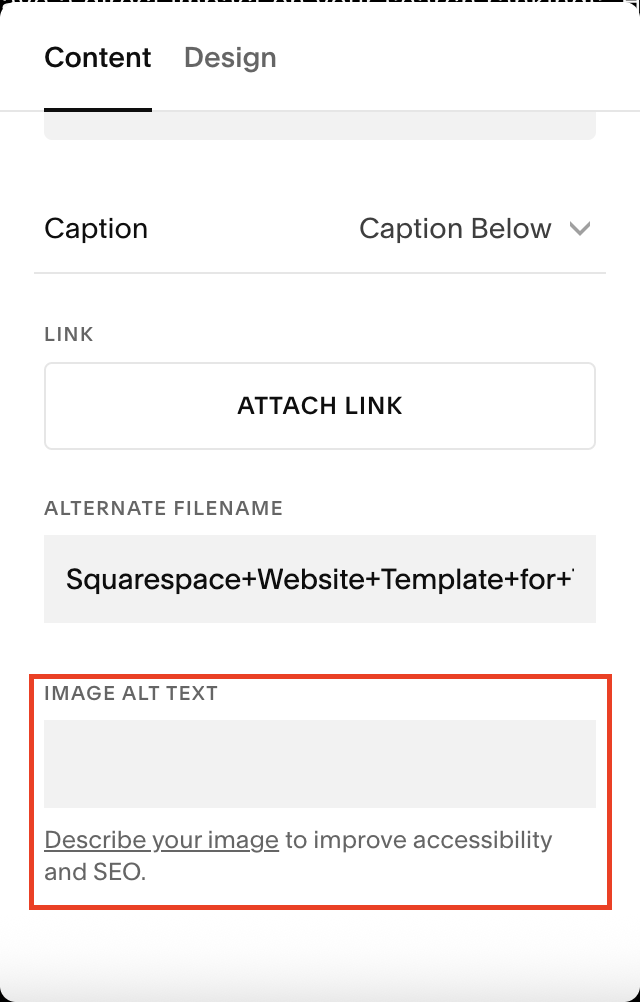
Write Descriptive Alt Text for Every Image
Every image on your Squarespace site has an alt text field and most site owners leave it blank. Alt text serves two functions: it helps visually impaired users understand your images, and it tells search engines what your images depict. For SEO value, write alt text that describes the image naturally while incorporating relevant keywords where appropriate. "A wellness coach leading a breathwork session in a light-filled studio" is far more valuable than "image1.jpg."

Use Clean URL Slugs
Squarespace auto-generates URL slugs from your page titles, but you can customize them. Keep slugs short, keyword-rich, and readable: /squarespace-coaching-templates is better than /squarespace-coaching-templates-for-business-owners-2026.

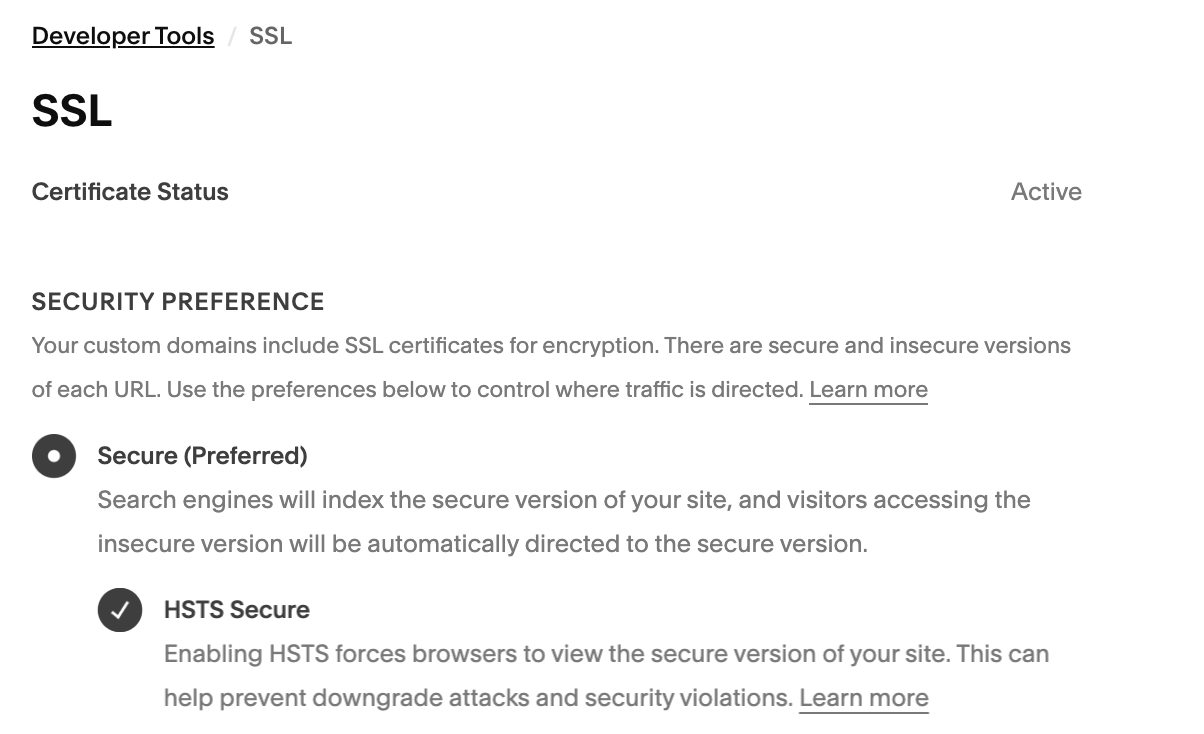
Enable SSL and Connect to Google Search Console
Both are available in your Squarespace Settings panel with no code required. SSL (the padlock in your browser bar) is now a Google ranking signal. Search Console connectivity allows you to submit a sitemap and monitor how Google crawls your site.
Conclusion: Your Squarespace Site Deserves Better And You Can Do It Without Code
The narrative that building a great website requires a developer is outdated. With the right Squarespace template as your foundation, Squarespace's built-in Style Editor and Fluid Engine as your design tools, and a smart selection of no-code plugins and integrations, you have everything you need to build a site that looks custom, performs well in search, and converts visitors into clients.
The most important decision you'll make is choosing your starting point. A premium template isn't just a design shortcut it's a structural investment in your site's long-term performance. The templates in the Squarespell collection Velora, Vera, Seren, Luminara, Horizon, Noura, and Serene are each purpose-built for specific audiences and come with free website setup included.
Whether you're launching your first professional site or refreshing an existing one, the path forward is clearer than you think. You don't need to know code. You need the right template, a few smart tools, and the confidence to get started.
Related from Squarespell: Eventually — event ticketing inside Squarespace · free Squarespace site audit
Frequently Asked Questions
-
Yes and in 2026, more effectively than ever. Squarespace's Fluid Engine, Style Editor, and native integrations cover the vast majority of functional needs for small business sites. For advanced UX enhancements like popups, scroll animations, and custom navigation, no-code plugins (including Squarespell's own plugin suite) extend your site's capabilities without requiring any coding knowledge. The key is starting with a well-structured premium Squarespace templates that provides a strong functional foundation from day one.
-
Premium Squarespace templates from designers like Squarespell include significantly more than Squarespace's default designs. Expect pre-built conversion-optimized page layouts (homepage, services, about, contact), strategic typography systems, mobile-responsive designs built on Fluid Engine, carefully selected color palettes, and section templates for testimonials, FAQs, portfolios, and lead magnets. Squarespell's templates also come with free website setup, logo design, premium plugin installation, and domain connection making them a complete launch package rather than just a design file.
-
Start by identifying what your site needs to do not just how you want it to look. A coach selling discovery calls needs a different layout priority than a photographer building a portfolio. Once you know your functional requirements, match them to templates designed for your use case. Browse the Squarespell template collection by category Coaching, Wellness, Photography, Creative, Consultant, and more to find templates purpose-built for your industry. Then evaluate each on mobile responsiveness, SEO structure, and the quality of built-in sections before making your decision.
-
Yes. Squarespace 7.1 generates clean, semantic HTML, serves content through a global CDN, automatically generates XML sitemaps, and provides granular per-page SEO settings. When paired with an SEO-friendly Squarespace design and good content practices (proper heading hierarchy, descriptive alt text, keyword-optimized meta titles), Squarespace sites can and do rank competitively. The platform handles the technical SEO foundation; your job is to provide quality content and strategic on-page optimization.
-
If you're doing it yourself, expect 2–5 days to swap out demo content and customize your template to match your brand. With Squarespell's Launch Package, they handle the full setup content loading, logo design, plugin installation, and launch within 7 working days of receiving your content. For most business owners, the Launch Package approach is faster, less stressful, and produces a more polished result than DIY setup.
-
There are three ongoing costs to be aware of: your Squarespace subscription (starting from around $16/month for the Personal plan, or $23/month for Business which is recommended for access to advanced features), your domain name (typically $10–20/year), and any third-party plugins or integrations you choose. The template itself is a one-time purchase. Squarespell templates are priced at $299 each with full website setup included at no additional charge.
This guide was written in 2026 for small business owners, entrepreneurs, coaches, and designers looking to maximize their Squarespace site's performance without writing code. For template recommendations, free design resources, and Squarespace tutorials, visit squarespell.com

The Edition — a premium Squarespace 7.1 template by Intention to Empire. Suits: Founders, Agencies, Coaches, Creatives, Wellness, E-commerce.
Get This Template →
This is an affiliate link. We may earn a commission if you purchase, at no extra cost to you.