Wholesale Order Pad: Squarespace Wholesale Order Form with Bulk Add to Cart, Order by SKU and Reorder$85
 Squarespace · PluginSquarespell Original
Browse by platform
View allBrowse by goal
View allBrowse by goal
Fresh inventory
Recently added
Wholesale Order Pad: Squarespace Wholesale Order Form with Bulk Add to Cart, Order by SKU and Reorder$85Squarespace · PluginSquarespell Original Squarespace Summary Block Pro: More Than 30 Items, Load More and Pagination$49Squarespace · PluginSquarespell Original
 Squarespace Delivery Area Checker: Postcode and ZIP Code Checker Plugin$49Squarespace · PluginSquarespell Original
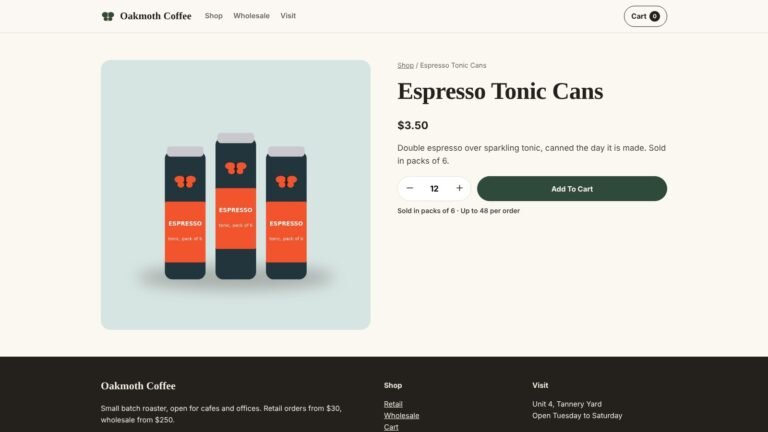 Order Rules: Squarespace Minimum Order, Quantity Limits and Pack Sizes Plugin$49Squarespace · PluginSquarespell Original
 Bundle Builder: Squarespace Product Bundles Plugin, Build a Box and Buy Together$59Squarespace · PluginSquarespell Original
 Sidebar Pro: Squarespace Sidebar Plugin for Blog Posts and Pages$45Squarespace · PluginSquarespell Original
Search results
Matching products
Squarespace
Four Squarespace templates for real estate agents, compared on price, listing pages and buyer and seller structure, with the steps to add MLS search, build your own listings and launch.

A note on how we make money. The four templates compared here are sold by other studios (Station Seven, Go Live HQ and Candor Templates) and listed on Squarespell with affiliate links, so we may earn a commission if you buy through them. Common Ninja’s listings widget is an affiliate listing too. Squarespell makes six of the plugins further down (Filter, Summary Block Pro, Gallery Lightbox, Multi-Step Form, Searchable Directory and Sheet Table), so weigh that interest as well. None of it set the order. Details are in our affiliate disclosure.
If you want the short version:
And the honest caveat before any of that matters: no Squarespace template brings MLS listings in by itself. Squarespace’s own help centre says you need to be a member of an IDX service and paste its code into a Code Block, and that this is custom code its support team will not set up or troubleshoot. Choose the template for how it explains you to buyers and sellers, and treat the MLS search as a separate decision you make with your IDX provider.
Last updated: 21 November 2026
A real estate site has an awkward double job. Buyers arrive wanting to search homes; sellers arrive wanting to know whether you can get them a good price. A site that only shows a listings grid serves the first group and loses the second, and a site that only talks about your service gives buyers nothing to browse.
So we went through every Squarespace template on this marketplace built for estate agents, realtors and property businesses, read each listing and its terms, studied the page captures on each listing, and checked Squarespace’s help centre for the parts templates cannot solve: MLS search, listing pages, maps and the 30-item limit on summary blocks. Prices are as listed on 21 November 2026.
After the four templates come the parts most round-ups skip: how a bought template reaches your account, how MLS search is actually added to Squarespace, how to build your own listings if you have no IDX feed, and the plugins that make a property site easier to browse.
$188.30 $269.00
 Station SevenSquarespace 7.1 · Template
 GoLiveHQSquarespace 7.1 · TemplateGoLiveHQSquarespace 7.1 · Template
$189
 Candor TemplatesSquarespace 7.1 · Template
A residential agent, a letting agent, a buyer’s agent and a home stager sell different things, but their websites share four jobs.
It has to split buyers from sellers. The two want opposite things from the same agent. A buyer wants homes, areas and the steps to an offer; a seller wants a valuation, a marketing plan and a timeline. Templates that give each their own page, and send each to it from the home page, convert both.
It has to present a property the way a buyer reads one. Price, bedrooms, bathrooms, size, photographs, a map and a way to ask for a viewing. A template with a designed single-listing page saves you building that layout yourself.
It has to prove local knowledge. Buyers choose an agent partly for the area. Neighbourhood pages, market notes on a blog and a resources page with a free guide all show it, and give search engines something to rank.
It has to make the next step easy. Book a call, request a valuation, schedule a viewing. One clear action on every page, ideally with a form that asks the right questions.
The shortlist had to meet four conditions: built for Squarespace 7.1, which every new site runs; built for, or listed as suited to, real estate; a listing page and a buyer or seller structure that an agent can use without rebuilding; and a listing on Squarespell with the creator, price and terms checked, so we could compare like with like. Four templates met all four. Price was not a ranking factor.
| Template | Price | Sold by | Pages | Buyer and seller pages | Listing layout | How it reaches you |
|---|---|---|---|---|---|---|
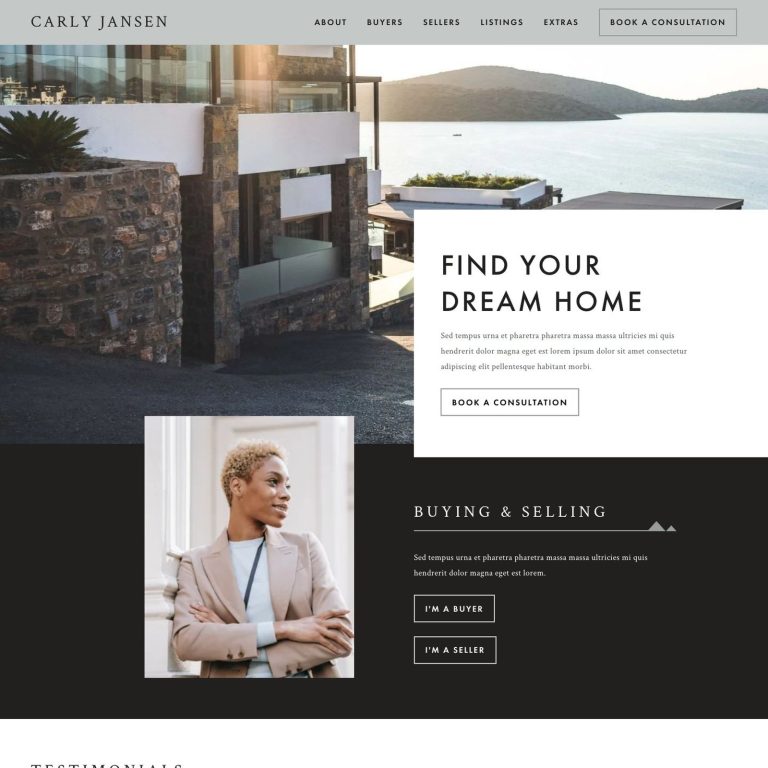
| Jansen | $188.30 (list $269) | Station Seven | 7 | Separate Buyers and Sellers pages, chosen on the home page | Listings index with Current and Previous, plus a full single-listing page | Transferred to your account as a separate site within 24 hours |
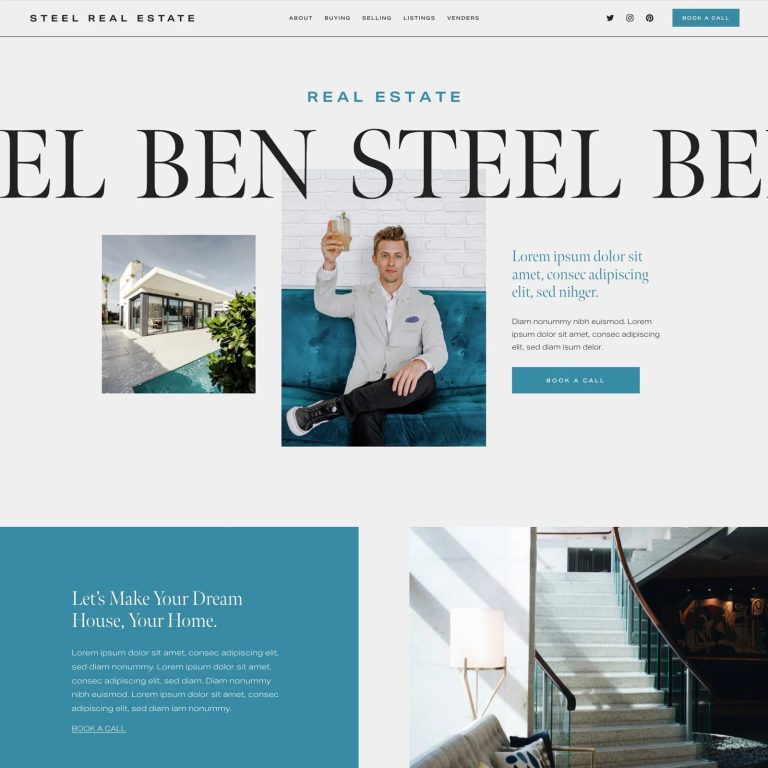
| Steel | $299 ($269.10 with code SQUARESPELL10) | Go Live HQ | 7 | Separate Buying and Selling pages | One Listing page with a section for MLS search code | New site by contributor invite, normally within 24 hours |
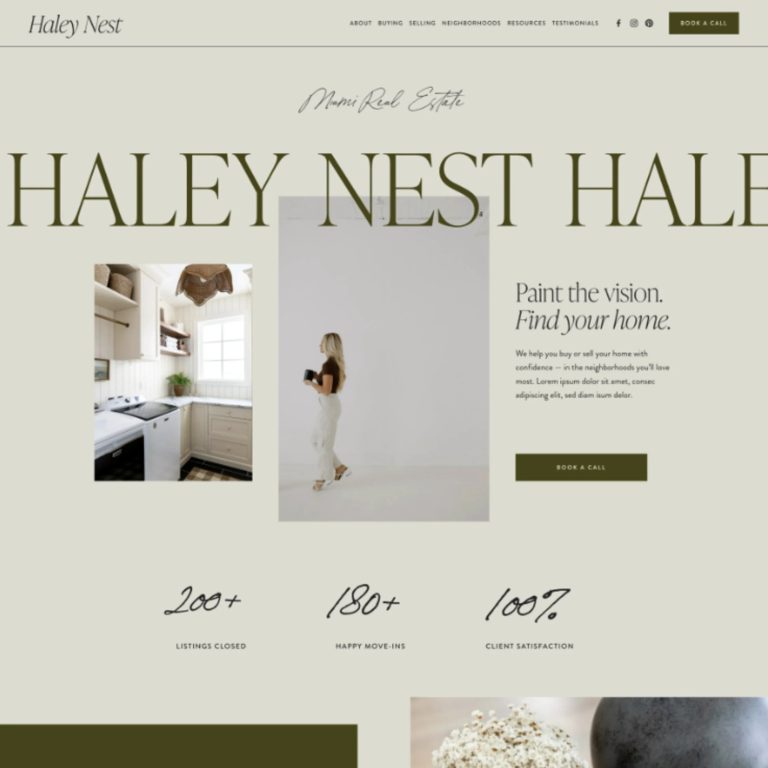
| Nest | $180 ($162 with code SQUARESPELL10) | Go Live HQ | 12 | Separate Buying and Selling pages | Listing Post layout with details, map and video tour | New site by contributor invite, normally within 24 hours |
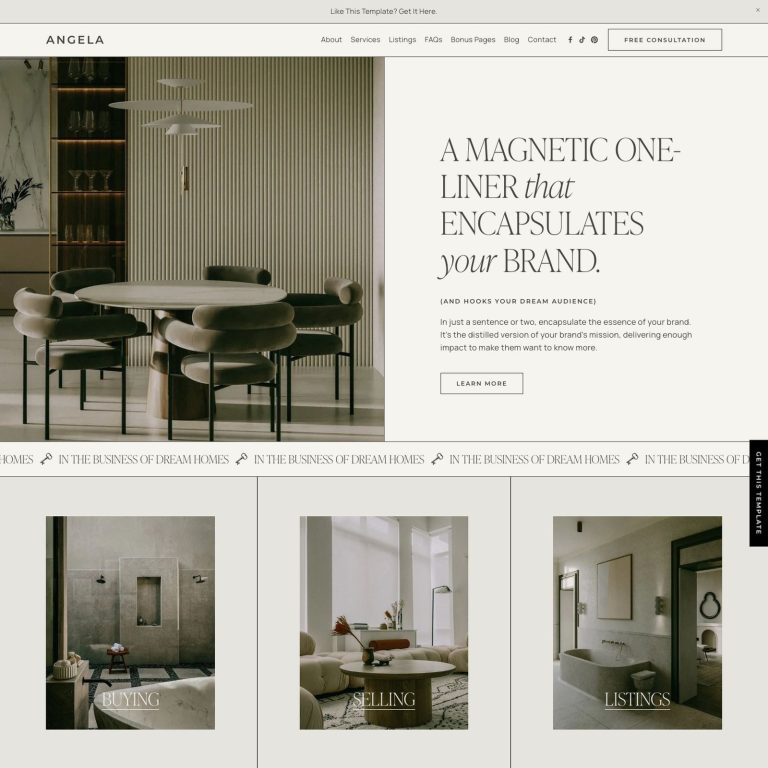
| Angela | $189 | Candor Templates | 8 | One Services page split for buyers, sellers and renters | Listings page for a small number of properties | Delivered to your account within 24 hours |
Prices, page counts and delivery read from each listing on squarespell.com on 21 November 2026. Nest was listed at $299 on 17 November 2026 and $180 on 21 November 2026. Every template needs a Squarespace plan, bought separately.
Two columns decide most choices. The listing layout tells you how much property presentation is already designed: Jansen and Nest have a proper single-property page, Steel puts its effort into a search section, and Angela shows a few homes as a gallery of work. The buyer and seller column tells you how the site talks to the two audiences: three of the four give each its own page, while Angela puts buyers, sellers and renters on one services page.
Jansen is Station Seven’s real estate template, seven pages: Home, About, Buyers, Sellers, Listings, Blog and a Listing Template. The listing showed $188.30 against $269 with a 30% off label on 21 November 2026. Station Seven built it for estate and letting agents, property managers, buyer’s agents and relocation specialists, and the listing describes the palette as “a calm coastal grey”.
The reason to choose it is the split. The first screens ask the visitor which they are, and each answer goes to a page written for that person: the buying process and first steps on Buyers; valuation, marketing and timeline on Sellers. Behind that, the listing names process carousels, FAQ modules, YouTube embeds and a blog for market notes.
The Listing Template is the most complete single-property page in this guide. The capture on the listing shows the price and address in a dark band, four number boxes (bedrooms, bathrooms, square feet, garage), a description, a property details table (price, type, style, year built, area of town, school district and MLS number), an amenities list, then videos, photos, a location map and a contact form. The Listings page itself sorts homes into Current and Previous, so sold homes keep working as proof.
What you get beyond the design. A step-by-step template guide and video tutorials, and, because Station Seven are a Squarespace Circle Platinum Partner, an extended 365 day Squarespace trial and 25% off your first year. The licence: non-exclusive and non-transferable; client use is not addressed in their terms, so ask before buying for a client. Who should skip it: an agent with hundreds of active listings to keep current by hand, because each listing is a page you maintain.
Steel is Go Live HQ’s sharper real estate template, $299 ($269.10 with the code SQUARESPELL10 at Go Live HQ’s checkout), seven pages: Home, About, Buying, Selling, Listing, a vendors page and Contact. The listing calls it “the sharper of the two estate agent templates, leading with typography and listings rather than neighbourhood guides”, and it is the smaller structure of Go Live HQ’s pair.
Choose it if MLS search matters to you. The Listing page opens with a property photo grid, then a Search section whose text in the demo reads: “This is where you can add your MLS embed code so your clients can search your listings right on your website. (the example below is just a faux screenshot)”. In other words the space is designed, and your IDX provider’s code goes into it (the MLS section below shows how).
The vendors page is a small, useful extra: accordions for home maintenance, design services and business services, where you list the painters, inspectors and lenders you recommend. Buyers keep coming back to it after the sale, and the trades you list have a reason to link to you. (The page is spelled Venders in the demo’s menu; rename it.)
What you get beyond the design. A free five day course and community, unlimited email and Loom video support from Go Live HQ, a six month extended Squarespace trial and 20% off the first year of an annual Squarespace subscription. A few Go Live HQ designs use Canva for individual graphics. The licence: one website per purchase; a new purchase for each further client or site. Who should skip it: an agent who sells on area expertise, for whom Nest gives more room.
Nest is the larger of Go Live HQ’s pair, twelve pages: Home, Neighborhoods, Neighborhood, Buying, Listing Post, Selling, About, Testimonials, Resources, Blog, Blog Posts and Book a Call. It was listed at $299 on 17 November 2026 and at $180 ($162 with the code SQUARESPELL10) on 21 November 2026; check the listing for the current price. The listing sums it up as “Expertise first. Listings second.”
Choose it if you sell on local knowledge. The Neighborhoods page is an index of areas, each with a photograph and a short description; each area then gets its own Neighborhood page with what to do there and the homes for sale in it. For an agent who knows four or five areas well, that is the strongest structure here for search engines and for buyers who are still choosing where to live.
The Listing Post layout covers the property itself: the address, a Schedule a visit button, a description with the key numbers, a large photo gallery, a “Conveniently located” map with nearby points, and a “Take the tour” video.
What you get beyond the design. The same as Steel: a five day course and community, unlimited email and Loom support, a six month extended Squarespace trial and 20% off the first year. The licence: one website per purchase. Who should skip it: an agent who wants a listings page and a contact form live this week. The listing itself warns that “Twelve pages is a real commitment.”
Angela is Candor Templates’ property kit, $189, eight pages: Home, About, Services, Listings, FAQs, Social Links, Schedule A Call and Lead Magnets. The listing says it is for home stagers, property stylists and estate agents, and that it “puts the work ahead of the property feed”.
The Services page is the reason to choose it for agency work. In the demo it opens with “Whether you’re selling, buying or looking to rent”, then gives buyers, sellers and renters a block each, with its own photograph and button. For a boutique agent or a lettings business that sells on presentation, that is a calmer structure than separate pages.
The Listings page is built for a handful of properties: a location menu at the top and a grid of homes with their street names. The listing is honest that an agent with hundreds of listings “will want a feed-led template instead.”
What you get beyond the design. Template video tutorials, a launch checklist and scorecard, Launch Lounge access and support, an extended 12 month Squarespace trial and 25% off a new annual subscription. Demo photography is not included. The licence: Candor do not publish licence terms on the listing, so ask before using it for a client. Who should skip it: any agent with a large, changing stock of listings.
| If you are | Start with | Why |
|---|---|---|
| A residential agent with both buyers and sellers | Jansen | The buyer and seller split on the home page, and a full listing page |
| An agent whose IDX provider supplies a search widget | Steel | A designed Search section on the Listing page, ready for the code |
| An area specialist or relocation agent | Nest | A page per neighbourhood, with the homes for sale in each |
| A boutique agent, stager or lettings business | Angela | Services split for buyers, sellers and renters; a few properties shown beautifully |
| An agent with hundreds of listings | Any, plus an IDX search | None of the four is built to hold a large feed by hand |
Our reading of each listing’s pages and intended use, 21 November 2026.
Squarespace 7.1 has no button that applies a bought template to an existing site. These creators deliver in two ways: a new site that you are invited into (Go Live HQ), or a site placed straight into your account (Candor and Station Seven). Either way, the steps are the same.
Open the live demo from the listing and visit every page you intend to use, on a phone as well as a computer. Go Live HQ and Station Seven sell templates as non-refundable, so the demo is your check.
All four are bought on the creator’s own site, so the payment, the licence and the support come from them. Squarespell lists and checks the template; the listing’s buy button takes you to the creator.
For Go Live HQ’s templates you receive a contributor invitation. Squarespace’s guide to accepting a contributor invitation gives the steps:
If the site arrives with you as a contributor rather than the owner, ask the creator to transfer ownership. Squarespace’s guide to changing the site owner gives the steps the current owner follows: open the Permissions & Ownership panel, click their name under Owner, click Transfer Ownership, verify their account and select you, then click Continue and Confirm. Then update the billing and choose a plan before the trial ends.
Read from Squarespace’s pricing page on 21 November 2026: Basic $19, Core $29, Plus $49 and Advanced $99 a month on annual billing, or $25, $39, $65 and $139 month to month. For an agent, Core is the practical floor, because MLS search code and every plugin below need it.
This is the question every agent asks, and Squarespace answers it in a help article, Adding an MLS search (last updated 27 October 2026). The short version: Squarespace has no built-in MLS or IDX feature. You join an IDX service, which the article names examples of (Diverse Solutions, IDXBroker and Displet), and paste the search code that service gives you into a Code Block.
Click Edit on the page where the search should appear (Steel’s Listing page has a section waiting for it). Hover over the section, click Add block or +, then click Code.
Copy the HTML embed code from your IDX service and paste it into the Code Block, with the Mode set to HTML.
Squarespace warns that the code may not render while you are logged in. Open the page in a private window to see it as visitors do. Some IDX services also ask for a script in Code Injection; add it there if your provider says so.
One more point from Squarespace’s own real estate page: it says costs “vary based on features such as IDX/MLS integration options”. Budget for the IDX subscription as a running cost, separate from the template and the plan.
Many agents do not need a full MLS search: they want their own ten or twenty properties presented well. For that, Squarespace’s own tools go a long way, and a plugin or widget fills the gaps.
A blog page with one post per property is the most flexible structure. Squarespace’s guide to adding blog posts gives the steps in 7.1: open the Pages panel and click +, choose Blog under Showcase, pick a layout and name the page (Listings). Then click the blog page and + to add each property as a post, with its own page and address.
Give each post categories and tags, because that is what filters and summary blocks read. Squarespace’s guide to categories and tags gives the path: hover over the post, click •••, then Settings, then Options, and add a category (For sale, Sold, To let) and tags (the area, the number of bedrooms). Two limits matter: categories and tags work on blog posts, events and products but not on portfolio sub-pages, and blog posts use the classic editor rather than Fluid Engine.
A Map block shows one location pin, so add one per property post: Add block, Map, then type the address in the Content tab. To show your latest properties elsewhere, use a Summary block, which Squarespace’s summary block guide limits to 30 items; its workaround is several summary blocks filtered by tags in batches of 30.
Those native tools cover a small agency. The three tools below cover what they do not: filtering, more than 30 properties in one block, and a ready-made property card with search.
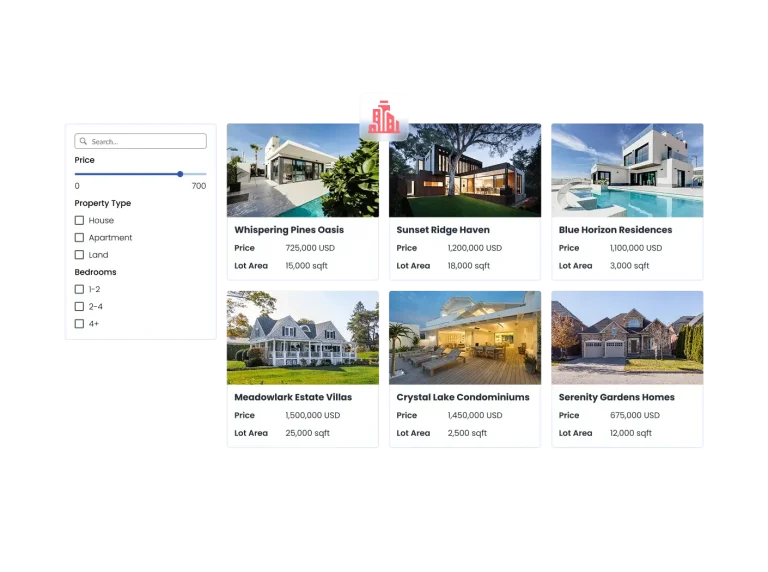
Common Ninja’s Real Estate Listings widget is an affiliate listing with a free plan and paid plans set by Common Ninja. According to the listing, it has preset fields for real estate (price, area, property type), custom fields of your own, a full details card per property, several images per listing, a map for each property, and filters and sorting for visitors, in a choice of skins. Your listings live in Common Ninja’s editor rather than in Squarespace.
Squarespell’s own testing status for this widget is listed as untested, and Common Ninja’s prices are on their site rather than restated in the listing.
The Filter Plugin is Squarespell’s own, $79 for one site or $129 for unlimited. It adds a filter bar to store, blog, events and portfolio pages, reading the categories and tags you already set, so a buyer can tick an area and a property type on your Listings blog page. On phones the filters open in a bottom sheet.
Summary Block Pro is Squarespell’s own, $49 for one site or $99 for unlimited. It keeps the items Squarespace prints and adds the rest of the collection below them, with a Load more button, infinite scroll or numbered pages, so a home page block can show every property rather than the latest 30. It can also add category tabs and a search box inside the block. Items added after the first ones are loaded in the visitor’s browser, so search engines index what Squarespace itself prints.
Everything below is installed with one paste into Squarespace’s Code Injection, so all of it needs Core, Plus or Advanced. All four are Squarespell’s own, one-time purchases with a single-site and an unlimited-sites licence; the listings show a bundle discount of 10% for two plugins, 20% for three and 30% for four or more.
The Gallery Lightbox Plugin is $29 for one site or $59 for unlimited. Squarespace’s own gallery lightbox shows a photo and nothing else; this plugin shows the Description you typed for each image (the room, the size, the finish) with thumbnails, a counter, and zoom by double tap or two fingers on phones, which is how buyers look at a kitchen.
The Multi-Step Form Plugin is $49 for one site or $99 for unlimited. It splits a Squarespace Form Block into steps wherever you add a Line field, with a progress bar, Next and Back, and rules that show or hide questions from earlier answers. A seller valuation form (address, property type, bedrooms, timeline, contact details) feels shorter in four steps, and a rule can ask renters different questions from sellers. Answers still go to Squarespace’s form storage and your notification email.
The Searchable Directory Plugin is $45 for one site or $95 for unlimited. It turns a normal blog page into a directory with instant search, filters from your categories and tags, sorting, and Call, Email, Website and Directions buttons; its listing names properties among the uses. It suits Steel’s vendors page as a searchable list of trades, or a small agency’s property list with a Nearest to me order.
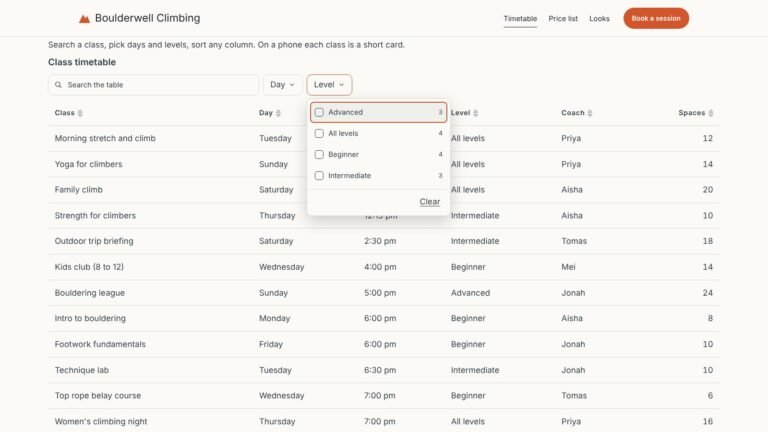
Sheet Table is $39 for one site or $79 for unlimited. Squarespace has no table block; this plugin turns a table in a Markdown block, or a Google Sheet link pasted into one, into a table visitors can search, filter and sort. An agent can publish recent sales or available rentals from a sheet the office already keeps, and the page updates when the sheet does. On phones each row becomes a short card.
If you write about property websites or build them for clients, Squarespell’s affiliate program pays commission on its own plugins and templates.
Publishing the gaps is part of the method, not an afterthought.
We did not buy or install any of these templates or plugins. Everything here comes from the creators’ listings on Squarespell, their page captures and Squarespace’s help centre, read on 21 November 2026. Squarespell’s listing checks for the four templates were last made against the creators’ own pages on 27 August 2026, and the creators’ own websites could not be opened from the system we used for this article.
The page images are listing captures, not fresh screenshots. They come from each listing’s page previews, made from the creators’ demos. The demos are behind a demo password, so we did not open them for new captures.
We did not test any IDX service. The MLS steps are Squarespace’s own. Which IDX provider covers your MLS, what it costs and how its search looks on a phone are questions for the provider.
Two prices need watching. Nest dropped from $299 to $180 between 17 November and 21 November 2026, and Jansen’s listing shows $188.30 against $269 with a 30% off label but no end date. Check both listings before you buy.
Licence terms are incomplete for two creators. Candor do not publish terms on Angela’s listing, and Station Seven’s terms do not address client work. Ask them before buying for someone else.
How this article was checked. Every price, page count, plan requirement and licence term was read from its primary source on 21 November 2026: Squarespace’s pricing page and help centre for plans, MLS search, code blocks, blog posts, categories, map blocks, summary blocks, contributors and ownership, and each Squarespell listing for templates and plugins. The text was drafted with AI assistance and every fact, title, description and image caption was checked against those sources before publishing.
Does Squarespace have real estate templates? Yes. Squarespace’s own templates are included with every plan and any of them can be adapted, and paid templates such as Jansen, Steel, Nest and Angela are built for agents, with buyer, seller and listing pages already designed. The paid ones save the structure work; the free ones save money.
Can I add MLS or IDX listings to Squarespace? Yes, with an IDX service. Squarespace’s help centre says to join an IDX provider, then paste its embed code into a Code Block on a Core, Plus or Advanced plan. Squarespace does not support or troubleshoot that code, so your IDX provider is the one to help with it.
Which Squarespace plan does a real estate agent need? Core, in most cases. Basic does not run JavaScript in code blocks or Code Injection, so neither IDX search nor the plugins in this guide work on it. Core is $29 a month on annual billing, read on 21 November 2026.
How many listings can a Squarespace site hold? As many blog posts as you like; Squarespace’s guide puts no limit on posts in a blog page. The limit is in summary blocks, which show 30 items at most unless you stack several or use a plugin such as Summary Block Pro.
Can I show several properties on one map? Not with Squarespace’s Map block, which shows one location pin. Add one Map block per property page, or use a widget with a map per listing such as Common Ninja’s Real Estate Listings, or the map in your IDX search.
Can I put one of these templates on my existing Squarespace site? Usually not directly. Jansen and Angela arrive as a separate site in your account and Go Live HQ deliver a new site; Go Live HQ also sell an install service into an existing 7.1 site. Otherwise you build on the new site and move your domain across when it is ready.
Do I get the photographs in the demo? No. Candor say demo photography is licensed to them and is not passed on. Use your own property photographs, which buyers trust more anyway.
Can I use one template for my agency and a client’s site? Not on one purchase. Go Live HQ limit each purchase to one website, Station Seven’s terms do not address client work, and Candor do not publish terms on the listing, so ask before buying for a client.
If you work with buyers and sellers in equal measure, start with Jansen. If your IDX provider gives you a search widget, Steel. If buyers choose you for the area, Nest. If you show a few properties beautifully, or stage and let them, Angela.
Whichever you choose, settle the MLS question with your IDX provider before you launch, and put a valuation form on every seller page. If you keep your own listings instead, add the Filter Plugin once you have more than a dozen. For templates beyond real estate, our guide to the best Squarespace templates compares 118, and our guide to templates for interior designers covers stagers and stylists in more depth.
Reviewed and last updated 21 November 2026. All prices checked on that date.
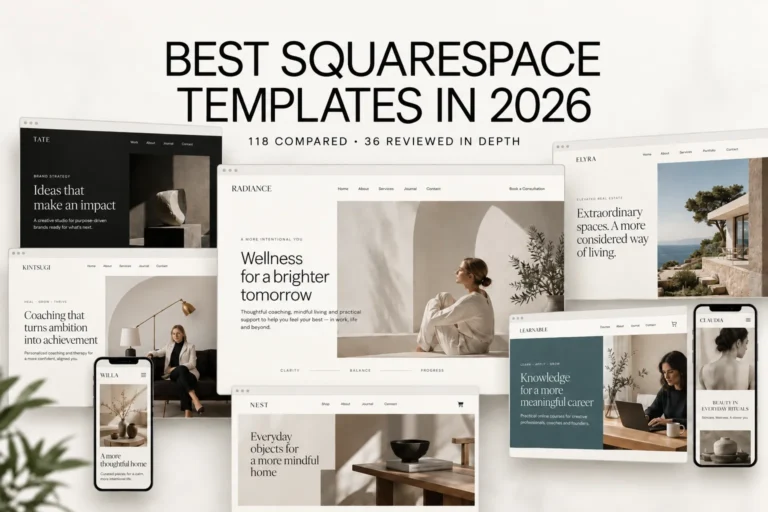
We reviewed every premium Squarespace template in the Squarespell catalogue and shortlisted 36. Prices, page structures, honest limitations and who each one suits.

Six Squarespace templates for interior designers, home stagers and property stylists, compared on price, pages, portfolio and delivery, with the steps to build projects, take enquiries and show before and after.

Squarespace has no directory feature, but a Blog page holds most of what one needs. Five ways to build a searchable member, business, staff or job directory, with costs, limits and every setup step.
Squarespell All Access
All 45 plugins and every new one, worth $1,841 bought one by one. 14 days free, cancel anytime.
Start 14 days freeOr start free with 13 plugins, no cardFounding price until 1 December, kept for as long as you stay.