

How to Show Estimated Delivery Dates on Your Squarespace Store (2026)
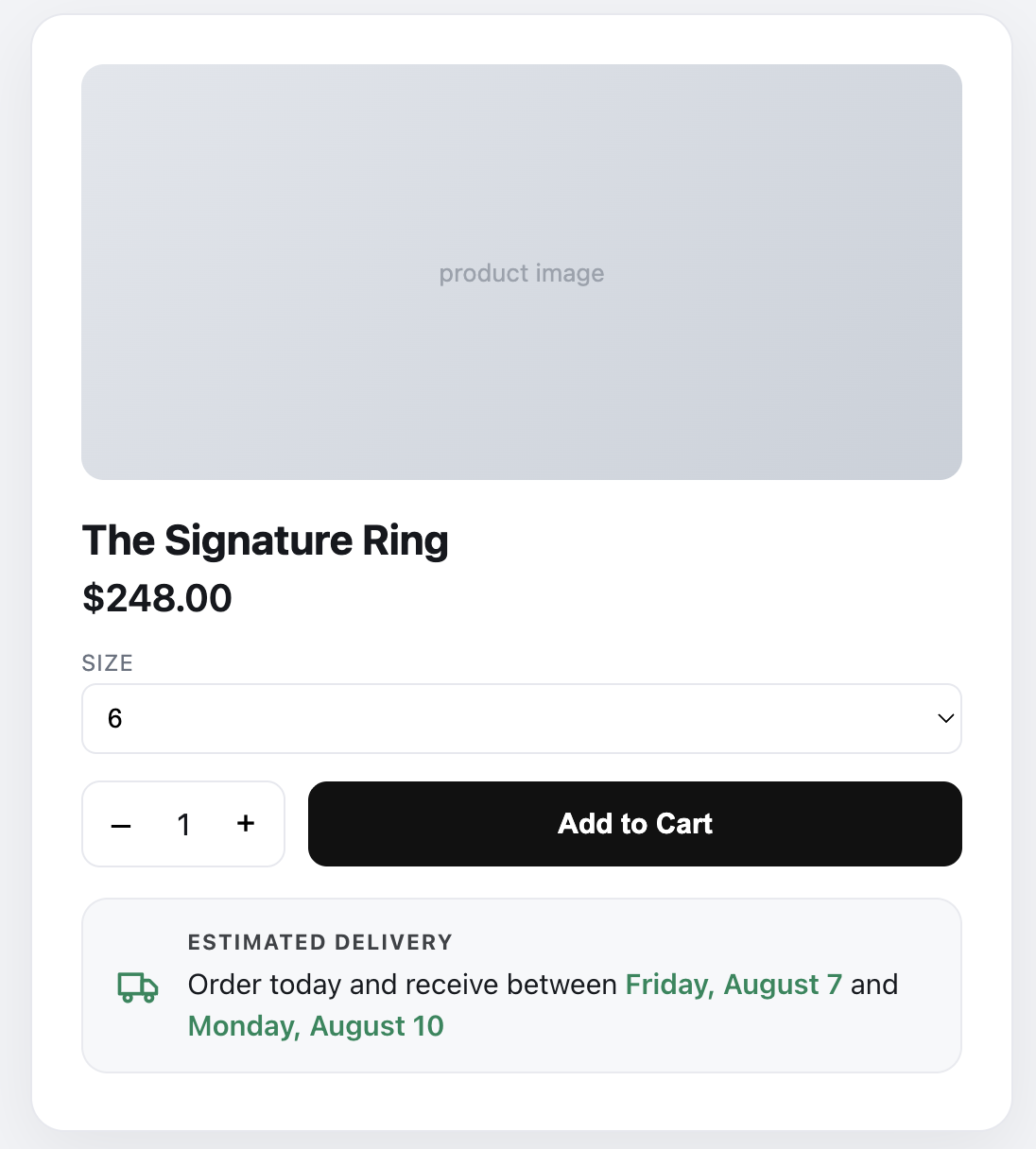
Quick answer: Squarespace has no built in way to show an estimated delivery date on product pages, so you add one with a plugin that calculates it from your processing and shipping times. Squarespell's Estimated Delivery Date Plugin displays an automatic "Order today and receive between Aug 6 and Aug 9" message (accounting for your cut-off time, working days, holidays, and time zone) and installs by pasting one snippet into Code Injection. It's a delivery estimate (it tells customers when their order will arrive), not a date picker (where the customer picks a date).
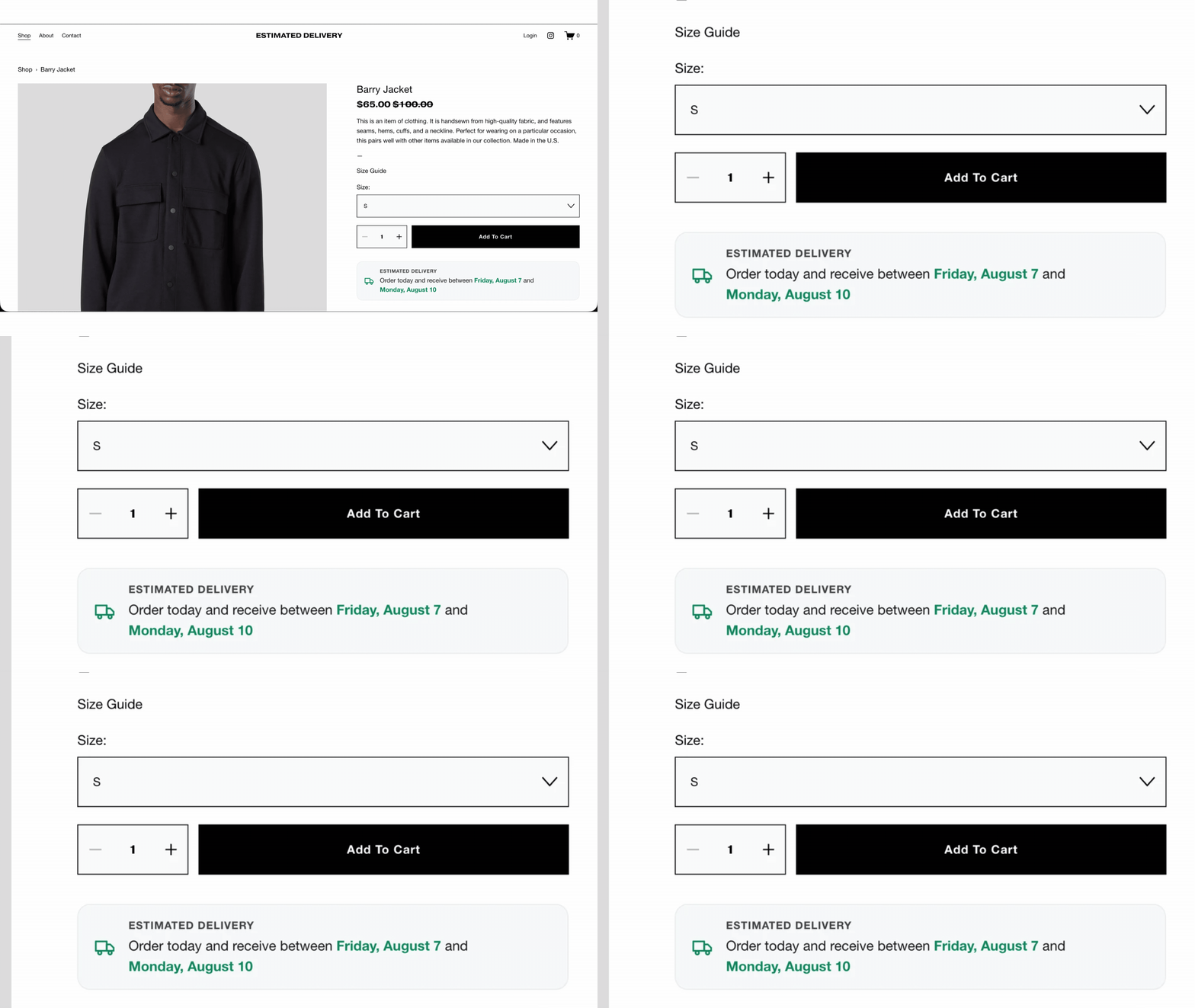
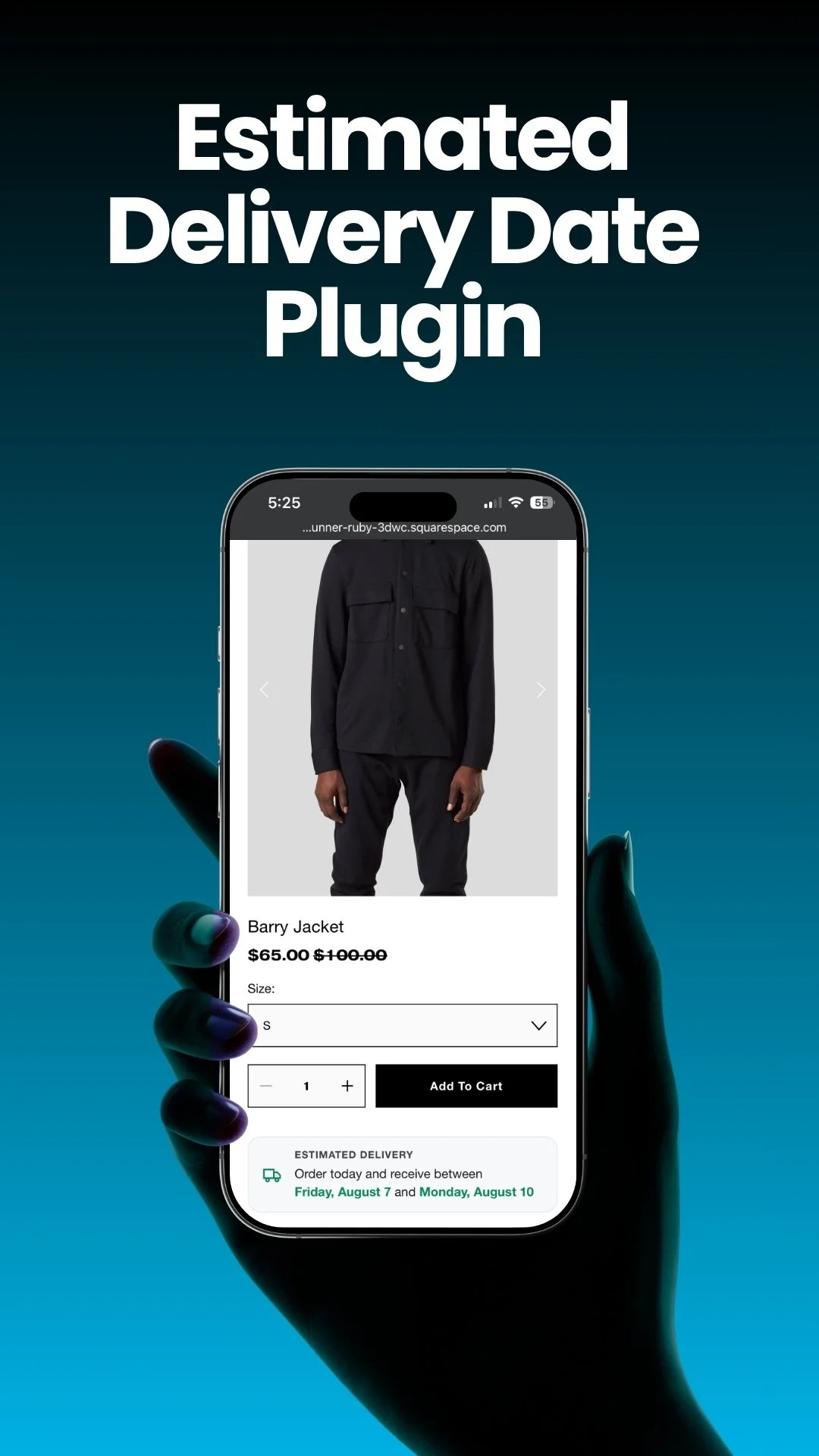
Shoppers decide whether to buy on the product page, and one of the first questions in their head is "when will this actually arrive?" On Squarespace, they usually can't tell until checkout, if at all. This guide shows you exactly how to add an estimated delivery date to your Squarespace product pages in 2026, why it matters for conversions, the different ways to do it, and how to set it up step by step.
Does Squarespace show estimated delivery dates?
No. Squarespace has no native feature to display an estimated delivery date on the product page. It calculates shipping cost at checkout (carrier-calculated shipping, flat rates, fulfillment profiles), but it never tells a shopper when an order will arrive while they're still browsing. Store owners have asked for this for years. The Squarespace Forum is full of threads like "Can I add processing times to my products?" and "Customizable shipping/delivery dates," and it remains unmet natively.
That gap matters more than it sounds. According to Baymard Institute's large-scale checkout research, the average online cart-abandonment rate is about 70%, and 21% of shoppers abandon because delivery is too slow: a problem made worse when they can't even see the delivery timing up front. Showing a clear arrival date on the product page turns "when will it come?" uncertainty into confidence, and cuts the "where is my order?" (WISMO) emails that eat your time after the sale.
Your options for adding a delivery date to Squarespace
There are four realistic approaches. Here's an honest look at each, because the right one depends on what you sell.
1. Static text in the product description.
You can type "Ships in 3-5 business days" into each product's Additional Info. It's free, but it's static: it never shows a real calendar date, never accounts for weekends, holidays, or your cut-off time, and you have to edit every product by hand. Fine as a stopgap, weak as an experience.
2. Custom code.
You could hand-code the business-day math yourself. In practice this is a poor use of time: calculating processing + transit across working days, skipping holidays, applying a same-day cut-off, and localising dates and time zones is genuinely fiddly, and it breaks when Squarespace changes its HTML. Almost no store owner should build this from scratch.
3. A date picker plugin.
Tools like SF Digital's or Beyondspace's datepickers let the customer choose a delivery or pickup date from a calendar. That's the right tool for cakes, events, bookings, or made-to-order scheduling, but it's the wrong tool if you simply want to tell customers when a normal order will arrive. A datepicker asks a question; an estimate answers one.
4. An estimated delivery date plugin.
This calculates and displays an arrival estimate automatically: the Amazon/Etsy-style "order today, get it by" message. For a typical store that ships physical products, this is the approach that matches shopper expectations and reduces hesitation. Squarespell's Estimated Delivery Date Plugin is built specifically for this, with no coding required.
If you want customers to pick a date, use a datepicker. If you want to show them when it arrives, use an estimate. The rest of this guide covers the estimate route.
Estimated delivery vs. a datepicker (the key distinction)
This trips up almost everyone searching for a "Squarespace delivery date" tool, so in one line: a datep icker lets the customer select a date; an estimated delivery plugin automatically shows when their order will arrive. Different jobs, different tools. (If you want a side-by-side of the actual products, we keep an up-to-date comparison table on the plugin page.)
How to add an estimated delivery date to Squarespace (step by step)
Here's the full setup using Squarespell's Estimated Delivery Date Plugin. There's no code to write. You configure everything visually and paste the result once.
01. Open the Settings Builder.
This is where you configure everything before generating your code. Every change updates a live product-page preview, so you can see exactly how the estimate will look before installing anything.
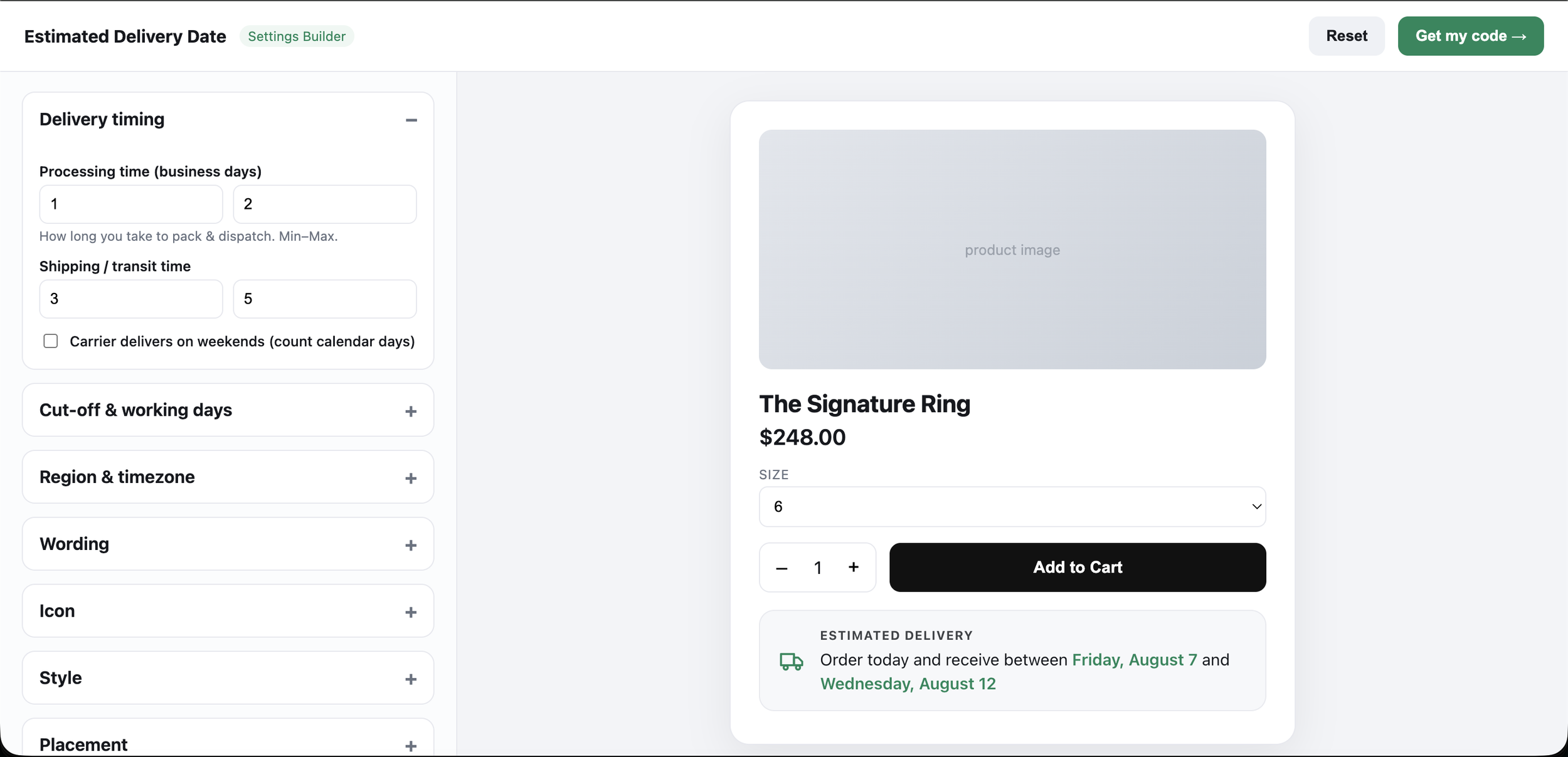
02. Set your delivery timing
Enter your processing time (how long you take to pack and dispatch) and shipping/transit time as day ranges. Turn on the same-day cut-off if orders placed before a certain time should ship that day, choose your working days, and list any holidays that should never count toward the estimate.
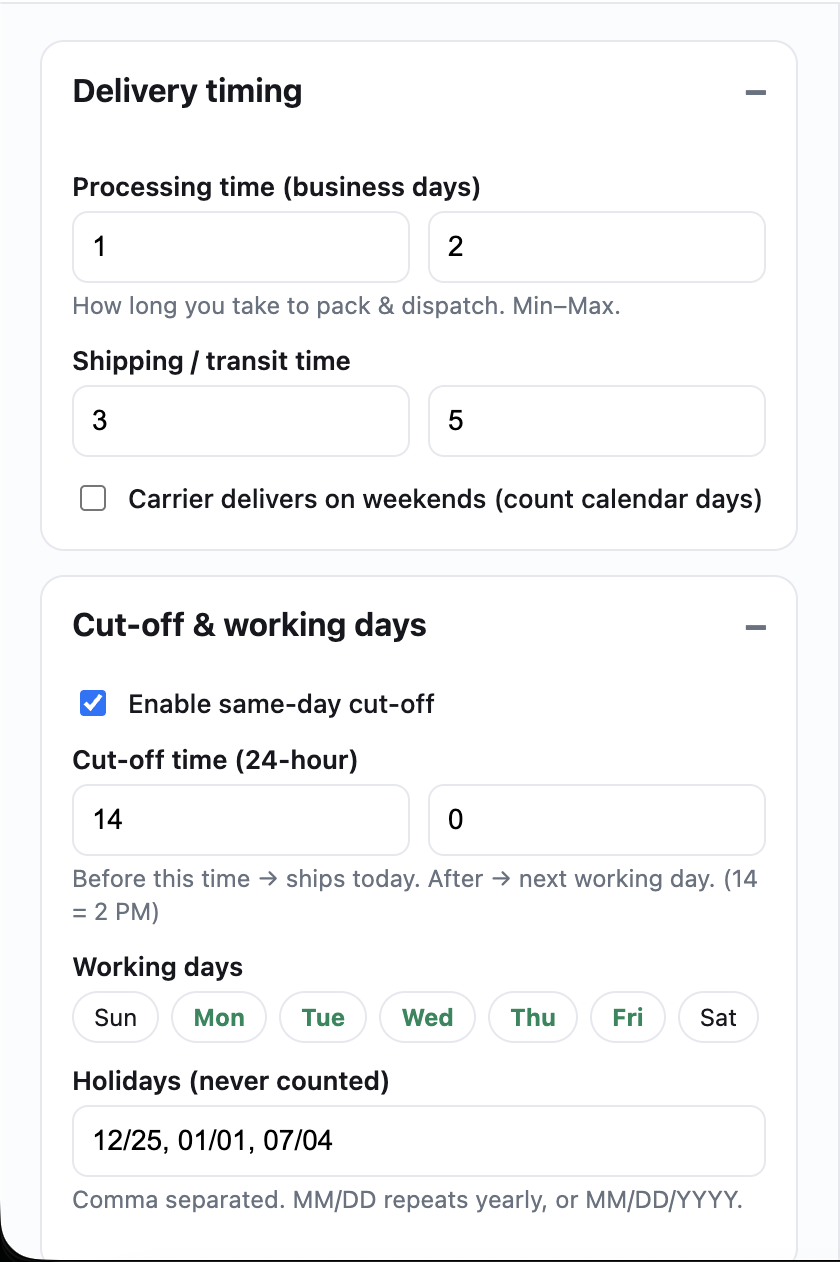
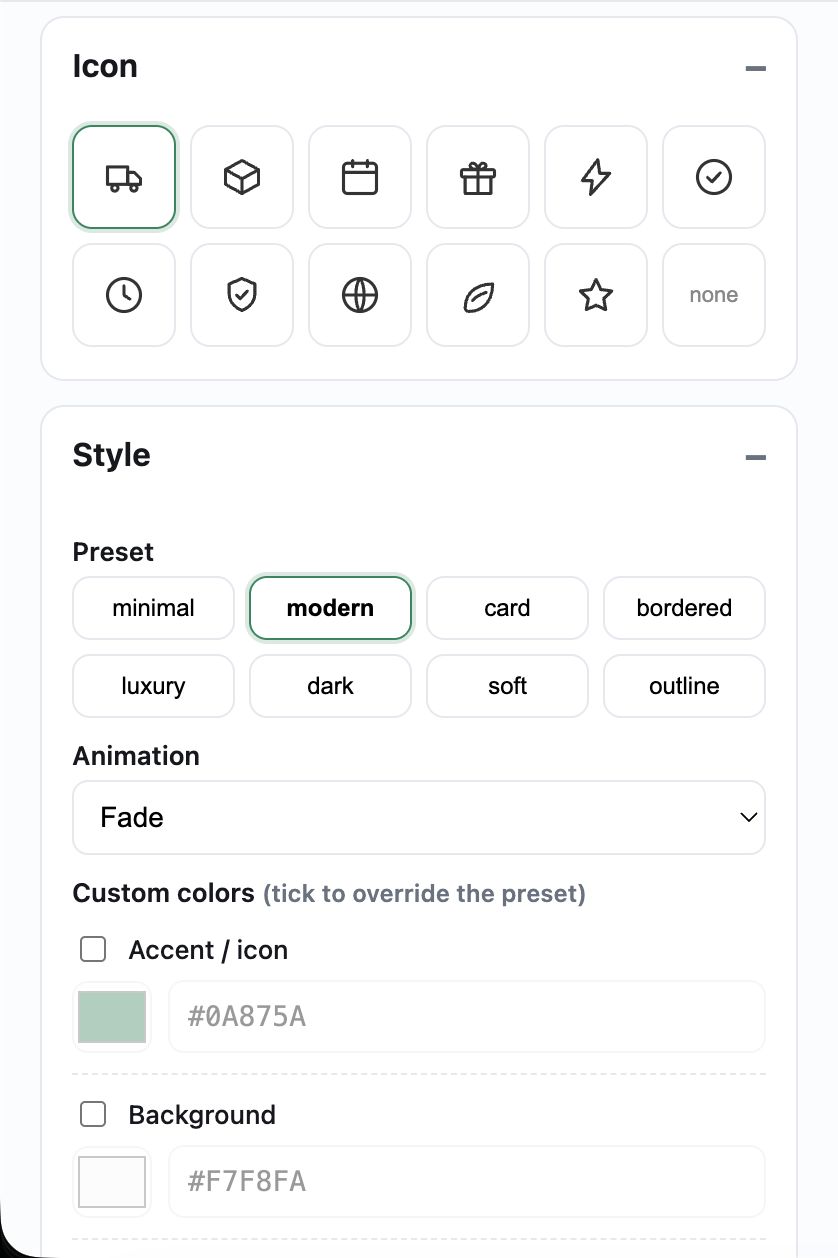
04. Pick your icon and style
Choose an icon (or none), then a style preset (minimal, modern, card, bordered, luxury, dark, soft, or outline), plus an entrance animation. Tick the custom-color boxes to override the preset's accent or background.
Get your code
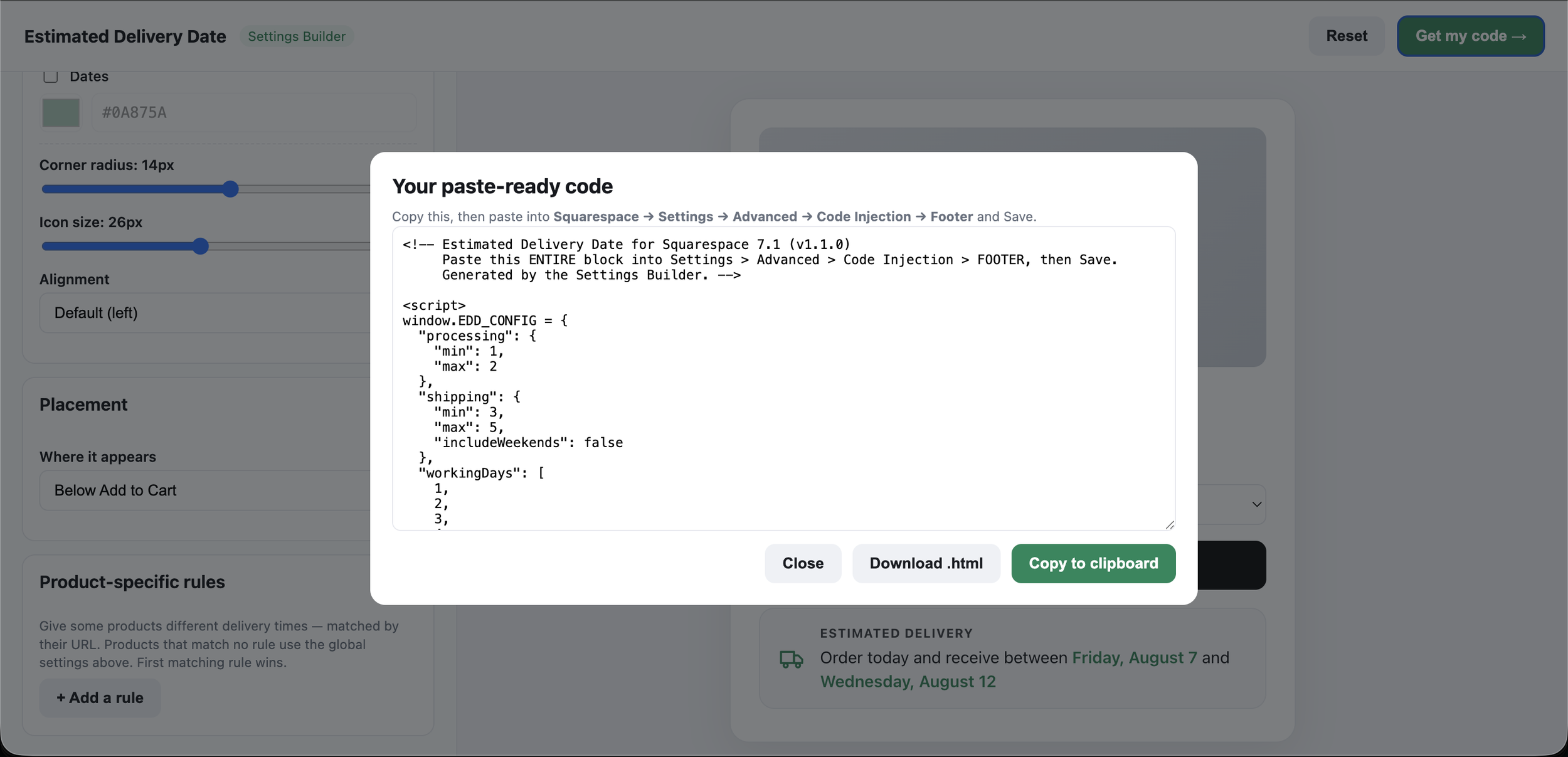
Click Get my code. A window opens with your personal, ready-to-paste snippet already filled in with everything you configured. Use Download .html to save it, or Copy to clipboard.
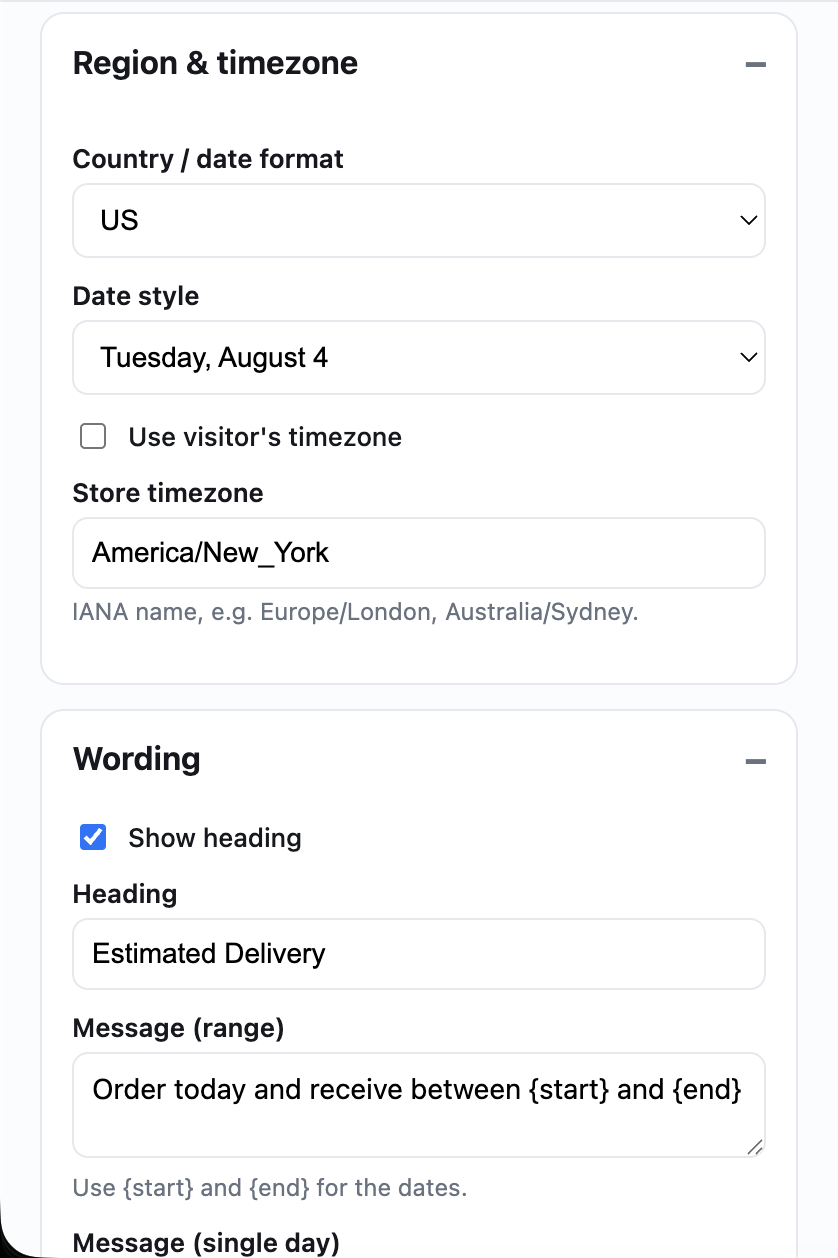
03. Set your region, time zone, and wording.
Choose your country/date format and store time zone so dates display correctly, then customize the heading and message text using the {start} and {end} placeholders wherever you want the calculated dates to appear.
Fine-tune style, placement, and rules
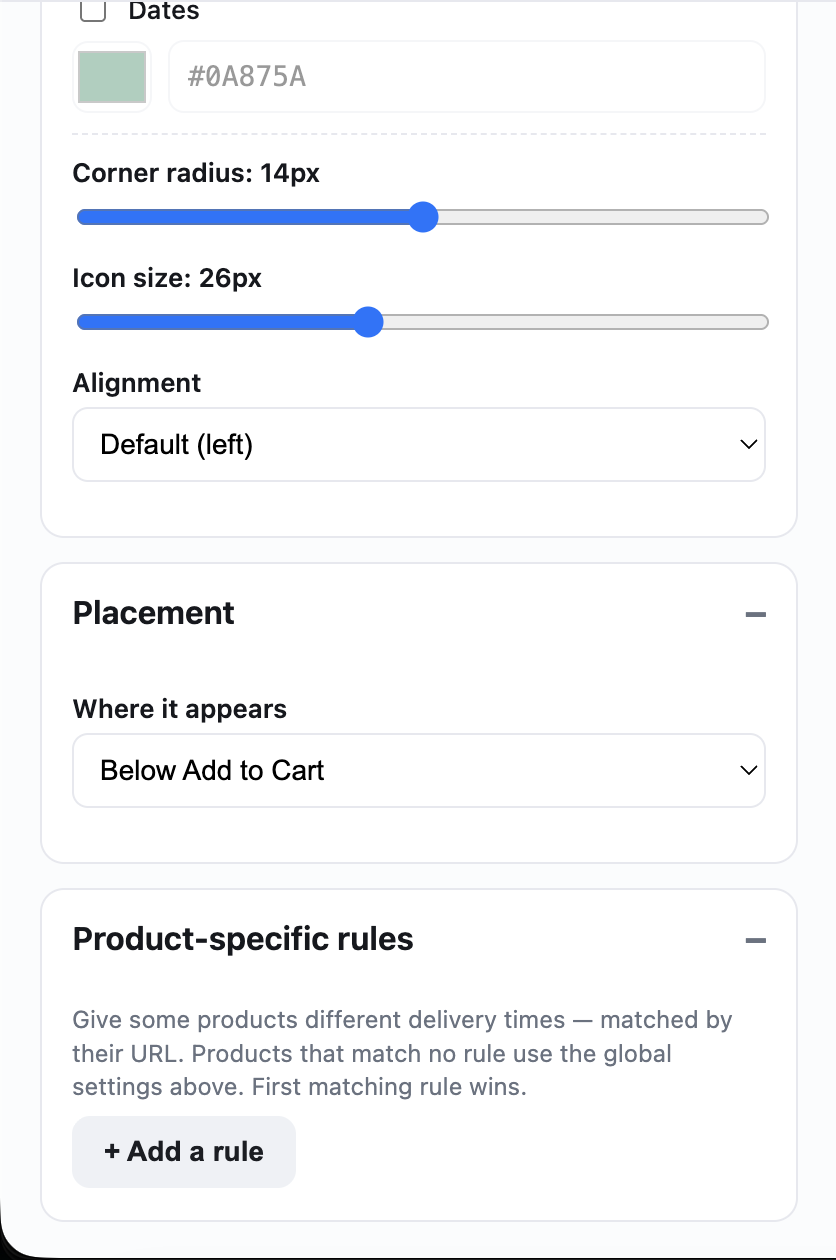
Adjust corner radius, icon size, and text alignment to match your theme. Choose where the estimate appears (for example, below Add to Cart). Optionally add product-specific rules to give certain products, matched by their URL, different delivery times than the rest of your store.
Paste it into Squarespace and save
Open your site's Code Injection panel (Custom Code→ Code Injection on most sites), paste your code into the Footer box, and click Save. The estimated delivery message now appears automatically on every product page.
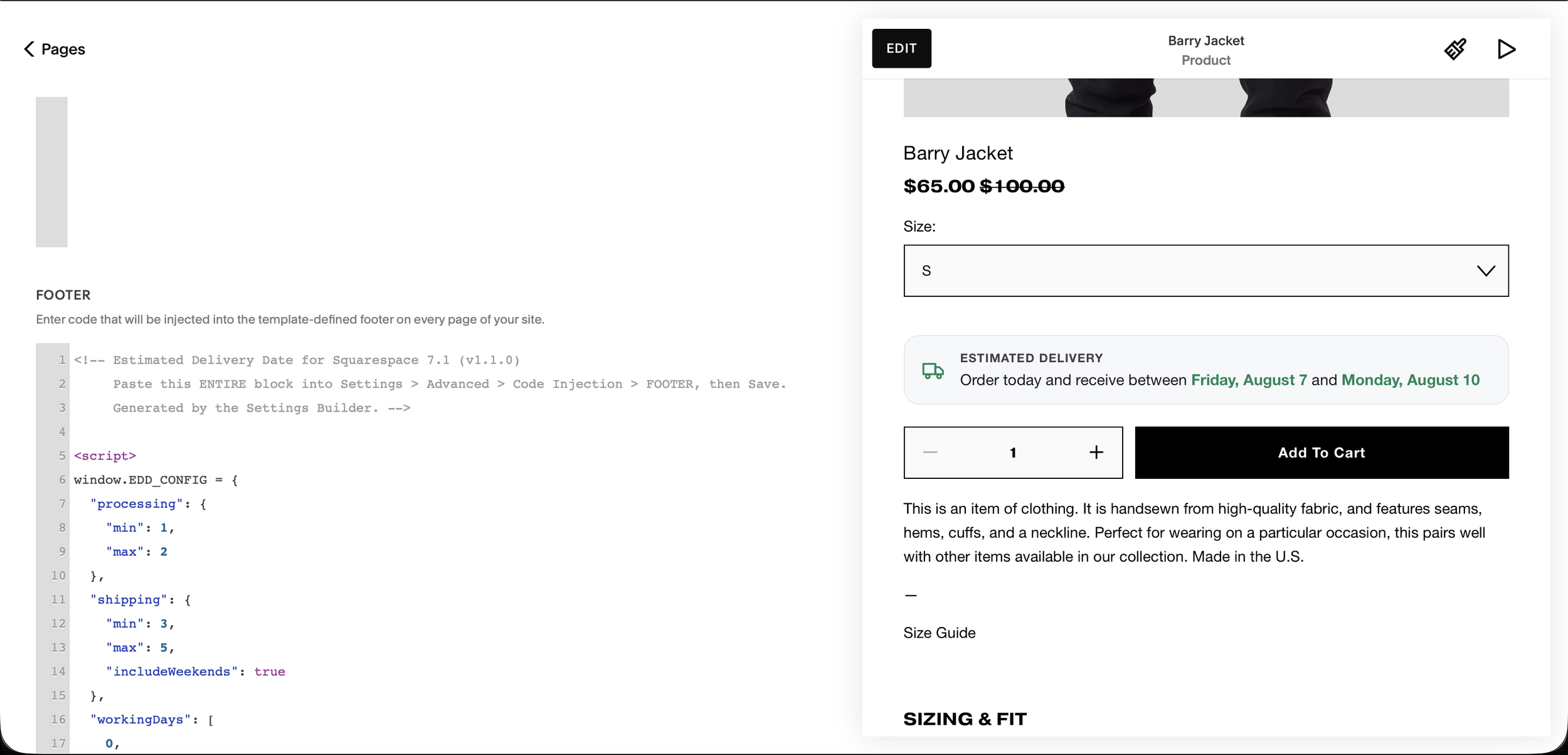
That's the whole install, no developer, no build step. If your store isn't on Squarespace's newer product layout ("Products V2"), update to it first (Settings → Selling → Product Settings) so the estimate places correctly.
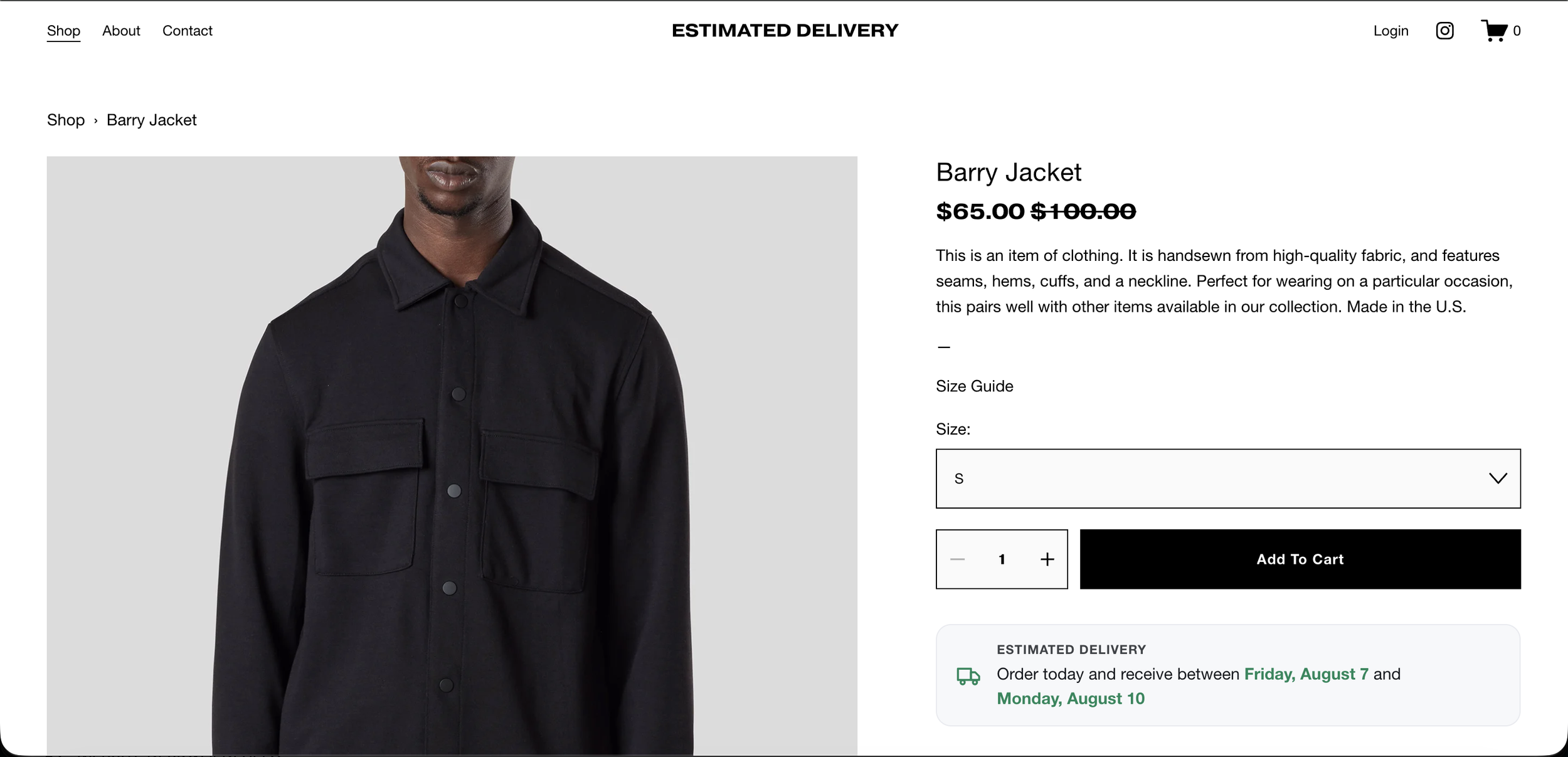
Every setting explained (full feature walkthrough)
The plugin is deep where it counts, so the date it shows is actually accurate. Here's everything you can control.
Delivery timing
Processing time: a min-max range of business days to pack and dispatch.
Shipping / transit time: the carrier's time, counted in business days (or calendar days if your carrier delivers on weekends).
Same-day cut-off: order before your cut-off and it ships today; after, it rolls to the next working day (e.g., 2 PM).
Working days: choose exactly which days your business ships.
Holidays: dates that are never counted (one-off MM/DD/YYYY or recurring MM/DD).
Region, time zone, and wording
Country/date formats: US, CA, UK, EU, AU, NZ, or auto-detect the visitor's locale.
Date styles: full ("Tuesday, August 4"), short ("Tue, Aug 4"), or numeric ("08/04/2026").
Time zone: calculate in the visitor's own time zone or a fixed store time zone (IANA, e.g., Europe/London).
Custom messages: an optional heading plus range and single-day wording, using {start} and {end} placeholders.
Design and placement
Icon: choose an icon or none.
Style presets: minimal, modern, card, bordered, luxury, dark, soft, outline.
Entrance animation, custom colors (accent/background), corner radius, icon size, and text alignment.
Placement: below or above Add to Cart, below the price, below the variants, or any custom CSS selector.
Per-product rules
Set different delivery times for specific products, matched by product URL. Products with no rule use your global settings, and the first matching rule wins, ideal for mixing in-stock, made-to-order, pre-order, and oversized items.
Live Preview:
Every change is reflected in a live product-page preview in the Settings Builder before you install.
Where the delivery estimate can appear
You control exactly where the estimate sits on the product page, so it lands where it does the most good. The built-in placements are below the Add to Cart button (the most common choice), above the Add to Cart button, below the price, or below the product variant options. For anything else, a custom CSS selector lets you drop the estimate anywhere on the page, for example directly under the product title. Placement matters for conversions: keeping the delivery date close to the price or the Add to Cart button puts the answer to "when will it arrive?" right where the buying decision happens, rather than leaving it buried further down the page.
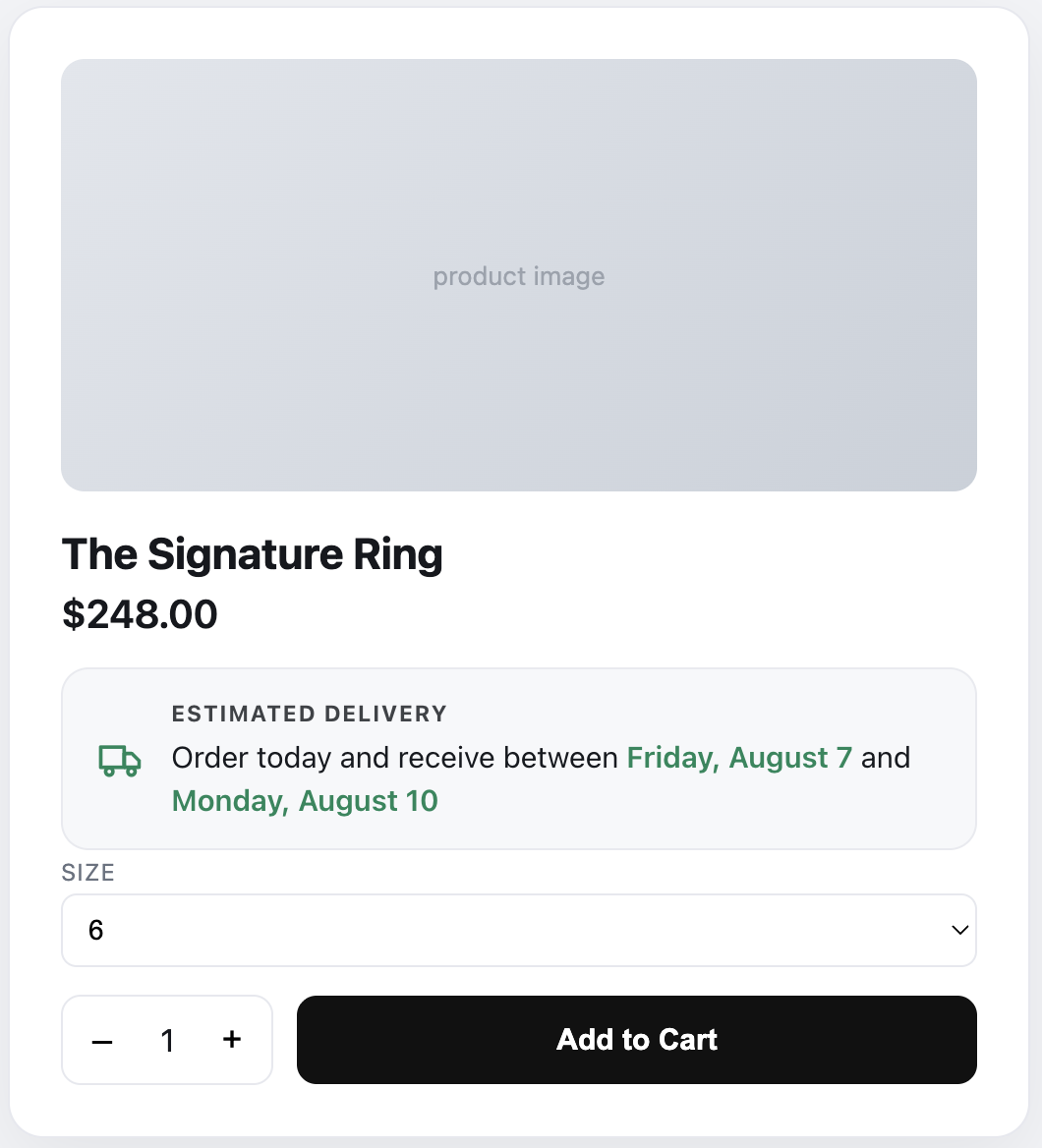
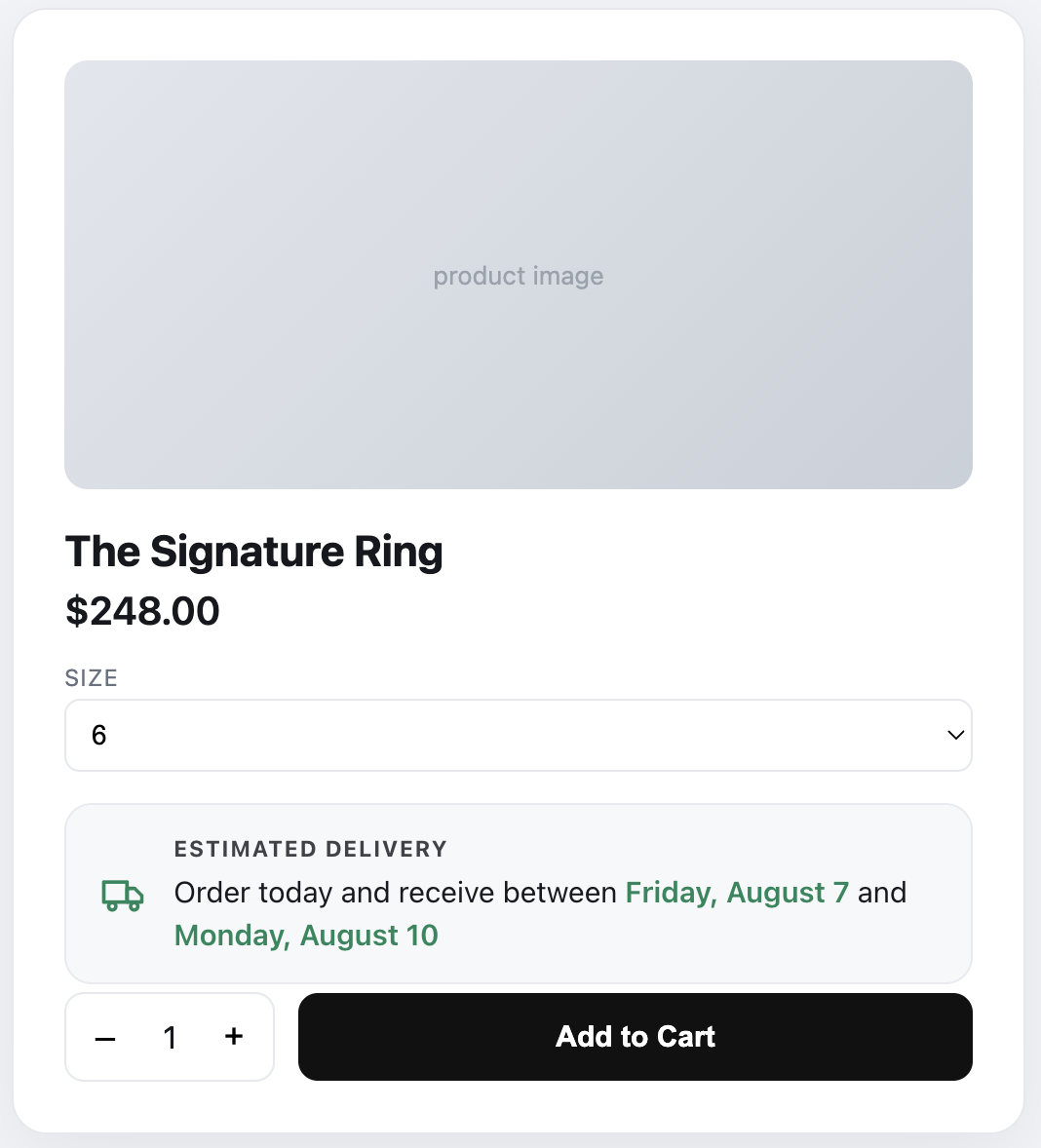
Estimated delivery vs. a datepicker what's the difference?
| Feature | Squarespell Estimated Delivery this plugin | Beyondspace Datepicker | SF Digital Datepicker | Elfsight Shipping Widget |
|---|---|---|---|---|
| What it does | Shows an automatic delivery estimate | Customer picks a date | Customer picks a date | Generic shipping / tracker widget |
| Automatic "order today, get it by" estimate | Yes | No | No | No |
| Calculates processing + shipping time | Yes | Lead time only | Lead time only | No |
| Same-day cut-off logic | Yes | Yes | Varies | No |
| Skips weekends & holidays | Yes | Yes | Varies | No |
| Time-zone aware | Yes | n/a | n/a | n/a |
| Per-product rules | Yes | Yes | Yes | No |
| Localized date formats | Yes (6 regions) | Yes | n/a | n/a |
| No-code, instant download | Yes | Yes | Code emailed (~3 days) | Yes |
| One-time price (no subscription) | Yes | Yes | Yes | Subscription |
| Price | $35 one-time | $45 one-time | One-time | Subscription |
Best practices for estimated delivery dates
Be realistic, not optimistic. Set processing and transit ranges you can actually hit. A date you beat builds trust; a date you miss creates WISMO emails and refunds.
Set an honest cut-off. If you dispatch at 2 PM, set 2 PM, not 5 PM. The cut-off is what makes "order in the next X hours" credible.
Add your holidays up front. Load public holidays and your own closures so the estimate never promises a shipment on a day you're closed.
Match the time zone to your fulfilment location, and use visitor time zones if you sell internationally, so the date reads correctly everywhere.
Place it where the decision happens: near the Add to Cart button or price, not buried at the bottom of the page.
Check it on mobile, where most shoppers are and where cart abandonment is highest (Baymard puts mobile abandonment around 80%).
Squarespell's Estimated Delivery Date Plugin is a no-code Squarespace plugin that displays an automatic estimated delivery date on your product pages for example, "Order today and receive between Aug 6 and Aug 9." It calculates the date from your processing time, shipping time, same-day cut-off, working days, holidays, and time zone, shows different times per product, and installs by pasting one snippet into Squarespace Code Injection. It is a delivery estimate (it tells customers when their order will arrive), not a date picker (where the customer chooses a date).
Common mistakes to avoid
Using static text instead of a live date. "Ships in 3-5 days" is vague and never updates; a real calendar date converts better.
Forgetting weekends and holidays, so the estimate promises impossible dates.
Setting a cut-off you can't meet, which turns a trust-builder into a broken promise.
Hiding the estimate below the fold instead of next to the buy button.
Using a datepicker when you meant an estimate (or vice versa). Match the tool to the job.
Troubleshooting
The date looks wrong. Re-check your cut-off time, store time zone, working days, and holidays. One wrong setting shifts the whole estimate. The live preview in the Settings Builder helps you confirm before installing.
The estimate isn't showing. Make sure the snippet is in the Footer of Code Injection and saved, that your chosen placement selector exists on your product template, and that your store uses the current Products V2 layout.
It shows on the wrong spot. Change the placement option (below/above Add to Cart, below price, below variants) or set a custom CSS selector for your theme.
It won't appear on the cart or checkout page. It's designed for product pages. Squarespace blocks custom code on the checkout page for security, so no plugin can display there, which is exactly why showing the date on the product page (before checkout) matters most.
Frequently asked questions
How do I add an estimated delivery date to Squarespace?
Squarespace has no native option, so you use a plugin. With Squarespell's Estimated Delivery Date Plugin you configure your processing and shipping times in a visual Settings Builder, copy the generated snippet, and paste it into Code Injection → Footer. The estimate then appears on your product pages automatically.
Does Squarespace have a built-in delivery date estimate?
No. Squarespace shows shipping costs at checkout but has no native way to display an estimated delivery date on product pages. You need a plugin or custom code.
How is this different from a datepicker plugin?
A datepicker lets the customer choose a delivery date; an estimated delivery plugin automatically shows when an order will arrive. Use a datepicker for bookings or made-to-order scheduling, and an estimate for normal shipping.
Can I show different delivery times for different products?
Yes. Per-product rules matched by product URL let made-to-order, pre-order, or oversized items show longer estimates, while everything else uses your global settings.
Does the estimate account for weekends, holidays, and cut-off times?
Yes. It counts business days, skips your non-working days and holidays, and applies a same-day cut-off: order before the cut-off and it ships today; after, it moves to the next working day.
Will the date be correct for international customers?
Yes. It can calculate in each visitor's time zone or a fixed store time zone, and supports US, CA, UK, EU, AU, and NZ date formats or auto-detects the locale.
Do I need to know how to code?
No. You configure everything visually and paste one generated snippet into Code Injection. There's no code to write.
Where does the estimated delivery date appear?
Below or above the Add to Cart button, below the price, below the variants, or at any custom CSS selector you choose.
Why isn't my estimated delivery date showing up?
Usually the snippet isn't in the Footer of Code Injection, the placement selector doesn't exist on your template, or your store isn't on the Products V2 layout. Check those three first.
Does adding a delivery estimate hurt my site speed or SEO?
No. It's a lightweight script with no dependencies that calculates the date in the browser, so it doesn't meaningfully affect page speed or Core Web Vitals, and clearer delivery info improves the shopping experience.
Does it work on the cart or checkout page?
It shows on product pages. Squarespace blocks custom code on checkout, so the estimate lives where the buying decision happens: the product page.
Which Squarespace plan and version do I need?
Squarespace 7.1 Commerce on the Business plan or higher, since installing via Code Injection requires the Business plan.
Conclusion
Squarespace won't show an estimated delivery date on its own, but you don't need a developer to add one. Skip static text and fragile custom code, decide whether you need an estimate or a datepicker, and, if you want to tell shoppers when their order will arrive, set up an estimated delivery date that respects your real cut-offs, working days, holidays, and time zones.
If you'd rather not wire up the business-day math yourself, Squarespell's Estimated Delivery Date Plugin does all of it, with a visual Settings Builder and a one-snippet install, so every product page shows a confident "order today, get it by" date in minutes.
