Wholesale Order Pad: Squarespace Wholesale Order Form with Bulk Add to Cart, Order by SKU and Reorder$85
 Squarespace · PluginSquarespell Original
Browse by platform
View allBrowse by goal
View allBrowse by goal
Fresh inventory
Recently added
Wholesale Order Pad: Squarespace Wholesale Order Form with Bulk Add to Cart, Order by SKU and Reorder$85Squarespace · PluginSquarespell Original Squarespace Summary Block Pro: More Than 30 Items, Load More and Pagination$49Squarespace · PluginSquarespell Original
 Squarespace Delivery Area Checker: Postcode and ZIP Code Checker Plugin$49Squarespace · PluginSquarespell Original
 Order Rules: Squarespace Minimum Order, Quantity Limits and Pack Sizes Plugin$49Squarespace · PluginSquarespell Original
 Bundle Builder: Squarespace Product Bundles Plugin, Build a Box and Buy Together$59Squarespace · PluginSquarespell Original
 Sidebar Pro: Squarespace Sidebar Plugin for Blog Posts and Pages$45Squarespace · PluginSquarespell Original
Search results
Matching products
Squarespace
Squarespace has no wholesale mode, no bulk order form and one price per variant. How to give trade buyers their own prices, a private area and a fast order form, step by step with screenshots, plans and prices.
A note on how we make money. Squarespell makes Wholesale Order Pad, the plugin in Option 5 of this guide, and the other Squarespell plugins shown here (Order Rules, the Wishlist Plugin and the Multi-Step Form Plugin), so weigh that interest. The Common Ninja Order Form is listed on Squarespell with an affiliate link, and we may earn a commission if you buy through it. Links to Candid Wholesale and to Squarespace earn us nothing. None of this changes where we say a free Squarespace setting is enough. Details are in our affiliate disclosure.
If you want the short version:
And the honest caveat before any of that matters: Squarespace has one checkout with no custom code, so retail and trade share its payments and minimum, and prices come from the products. Only a portal such as Candid gives each buyer a price list.
Last updated: 21 November 2026
Coffee roasters, bakeries, candle makers and clothing brands on Squarespace hit the same wall when cafés and shops start ordering by the case. One owner asked on the Squarespace Forum whether buyers could “buy my products from the first/main page of the store, without necessity to enter every product physical card”; another, running a wholesale business, wrote that “every time i get an order i have to recopy it by hand”. A third asked whether it is “possible to make a 3rd shop page on the same site for B2B”.
We found 24 Squarespace Forum topics with “wholesale” in the title between 2020 and 2026. The answers are scattered, so this guide puts the whole setup in one place: what Squarespace does natively, how to give trade buyers their own prices and a private area, the ways buyers can order many products at once, and the full setup of each option with screenshots.
We read every Squarespace Help Center article cited here on 21 November 2026, checked Candid’s and Common Ninja’s own pages the same day, and took the Wholesale Order Pad screenshots from its public demo and its installation guide.
There is no wholesale switch in Squarespace. These are the parts you can build a wholesale area from, and the gaps, read from the Help Center on 21 November 2026.
| Wholesale need | Native answer | Where |
|---|---|---|
| Trade prices for some buyers | No price per customer or group. Each variant has one price, so trade prices need their own products | Products, store pages |
| A separate trade catalogue | Yes, a second store page (7.1 allows several) | Pages panel |
| Keep it private | Page password (one shared password) or a Member Site (own logins) | Page settings, Member Sites |
| Approve buyers before they can order | No. Squarespace says you can’t restrict who signs up to a Member Site | Not available |
| A trade discount | Yes, a promo code, for example percent off a category | Discounts panel |
| Minimum order | Yes, one minimum order amount for the whole store | Settings, Selling, Checkout |
| Order form with many products and quantities | No | Not available |
| Add many products to the cart at once, order by SKU, reorder | No | Not available |
| Bill a trade customer later | Yes, Invoicing, paid by card online or marked as paid for bank transfer | Invoices panel |
| Code on the checkout page | No. Checkout pages don’t support code | Not available |
From the Squarespace Help Center articles on variants, page passwords, Member Sites, discounts, Invoicing and code injection, read 21 November 2026.
One price per variant. In the variants article, each variant gets “Price: Set the product’s regular price.” and an optional sale price, plus its own SKU. Nothing lets the same variant cost less for a signed-in buyer, which is why every native wholesale setup starts with separate trade products. For more on variants, see our product variants guide.
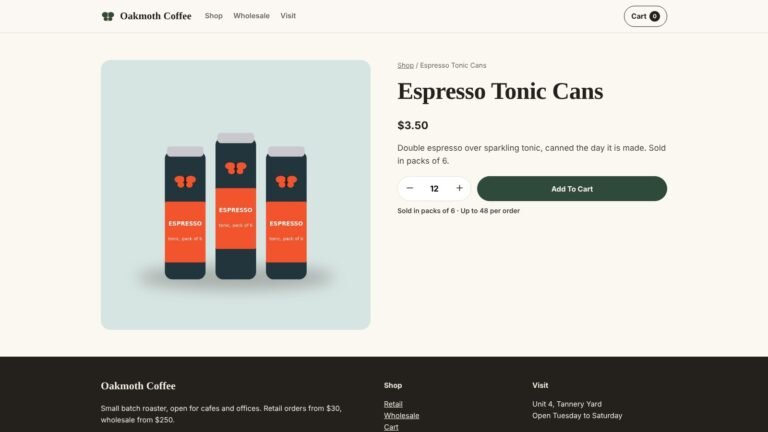
One minimum order amount. Under Settings, Selling, Checkout, the Minimum order amount card asks how much customers need to buy and applies to “one-time purchases of physical, service, download products, and donations.” It is one value for the store: an owner with a wholesale shop on the Forum found it “affects ALL of my online shops”. A $250 trade minimum would also apply to retail shoppers. Squarespell’s Order Rules plugin can show separate minimums and pack sizes before checkout, as our minimum order guide explains, but only this setting is enforced at checkout.
Most wholesale setups combine three decisions: where trade prices live, who can open the trade area, and how buyers place an order. The options below are the ones store owners actually use.
| Option | Trade prices | Who can order | Ordering many products | Uses Squarespace cart and checkout | Cost |
|---|---|---|---|---|---|
| 1. Wholesale store page | Separate trade products | Anyone with the link, or add Option 2 | One product page at a time | Yes | No extra cost |
| 2. Page password or Member Site | From Option 1 | Password holders, or signed-in members | One product page at a time | Yes | No extra cost; selling Member Site plans needs a plan with digital products |
| 3. Order form (Form Block or Common Ninja) | You price it afterwards | Anyone who sees the form | Yes, as form fields | No, you invoice | Free Form Block; Common Ninja has a free plan |
| 4. Candid Wholesale | Price lists per customer | Buyers with a Candid account | Yes, in Candid’s portal | No, orders live in Candid | From $179 a month, billed annually |
| 5. Wholesale Order Pad | From Option 1 | From Option 2 | Yes, one Add to cart for every line, order by SKU, reorder | Yes | $85 or $145, one payment; Core plan or higher |
Prices from each vendor’s page, checked 21 November 2026. Options 1 and 2 are the base most of the others sit on.
The practical reading: Options 1 and 2 decide prices and access, and Options 3 to 5 decide how an order gets placed. A café ordering twelve products every week will not open twelve product pages for long, which is where the order forms come in.
Because a variant has one price, the usual answer is a second store page that holds trade versions of your products: the same coffee, at the trade price, often in trade sizes such as 1 kg and 5 kg bags. Squarespace’s own tip in its store article points the same way for members-only selling: “add Member Sites and move your store page into your gated content.”
From Squarespace’s Add products to your store, for version 7.1:
Squarespace’s duplicating article describes it:
The catch is stock. Squarespace says “Duplicated products don’t share inventory or SKUs with their originals”. If retail and trade sell from the same shelf, either give trade products unlimited stock and count by hand, or move stock between the two when you restock. Give trade SKUs a clear prefix so orders are easy to read.
If your trade price is a flat discount, such as 30% off everything, you can skip the duplicate products and give trade buyers a promo code. From Squarespace’s discounts article (Core, Plus, Advanced, Business, Commerce Basic and Commerce Advanced plans): open the Discounts panel, click Add Discount, choose Percent off with a Promo code trigger, apply it to any order or to products by category, and click Save.
The weakness is control. Anyone who learns the code can use it, and Squarespace’s per-customer limit only caps how often one email address uses it, so a shared code is closer to a public sale than a trade account. A category discount also works only for products on the one store page you select.
Trade prices should not sit on a public page. Squarespace gives you two locks, and they behave differently.
| Page password | Member Site | |
|---|---|---|
| Login | One password for everyone | Each buyer has their own account |
| Approving buyers | You decide who gets the password | Anyone can sign up; you can cancel memberships, but they can sign up again |
| Changing access | Change the password and send the new one to every buyer | Cancel one member |
| Session | Expires after four hours | Signed in with the customer account |
| Search engines | Not indexed once the password is set | Not indexed, no SEO options |
| Plan | No extra plan named | Free to build; selling pricing plans needs a billing plan that includes digital products |
From the Squarespace Help Center articles on page passwords, Member Sites, the Member Sites checklist and managing members, read 21 November 2026.
From Squarespace’s page passwords article:
A password on a store page also locks its product pages. Squarespace notes that items can still appear in summary blocks elsewhere, “but visitors won’t be able to click through to access the item without the password.”
The trade-off: one password for every buyer. When a buyer leaves, you change the password and send the new one to everyone else. The session also ends after four hours.
A Member Site gives every buyer their own login. From Squarespace’s Member Sites article, for version 7.1:
Read two notes before you rely on it. Squarespace’s checklist says “To sell pricing plans you need an active billing plan that includes digital products”, and the Help Center says “It’s free to build a member site”; check your plan in the dashboard before you set it up.
The bigger one is approval. Squarespace’s managing members article says plainly that you can’t keep people out of the sign-up:
So treat a free Member Site as a login, not a vetting step. Keep the sign-up page unlinked, watch new members in the Contacts panel and cancel anyone who is not a trade customer. A paid plan deters casual sign-ups, but your buyers then pay for access.
One leak to avoid: product and summary blocks on public pages can sell products from a gated store. Squarespace warns that “visitors can use these blocks to purchase the featured products from your gated store without signing up for a membership.” Link to the trade store with an image or button instead.
Most wholesalers want to know who a buyer is before sending a password or approving a member. A normal Form Block with business name, VAT or tax number, address and expected order size does that, and Squarespace sends each application by email and stores it. If the form grows long, the Squarespell Multi-Step Form Plugin splits your own Form Block into steps with a progress bar; sending stays in Squarespace.
If you invoice trade buyers anyway, a form that lists your products with a quantity box beside each is the simplest order form. The buyer submits it, you get an email, and you send an invoice. Nothing reaches the Squarespace cart, so stock and totals are not checked.
From Squarespace’s Form blocks and Form fields explained:
The limit is size. Squarespace recommends no more than 30 fields per form, so this suits a short trade list. Prices, totals and stock are not shown unless you type them into the labels, and you update the form by hand whenever a product changes.
The Common Ninja Order Form is a hosted form builder with order form templates. Its page says it lets customers “submit product orders, save entries, receive notifications, and collect payments through PayPal or Stripe”, and lists a free plan. Like the Form Block, it does not read your Squarespace products, stock or cart. Common Ninja’s own steps:
Free plan available
A form order still needs a bill. Squarespace’s Invoicing clients and wholesalers does that from your dashboard:
Squarespace says invoice payments have no transaction fee but carry payment processor fees, and that physical items need a flat rate shipping or local pickup option: carrier-calculated and weight-based shipping aren’t supported for invoices. Unpaid invoices get up to four reminder emails.
Some trade buyers want a price before they commit, and some stores never take card payments from trade customers. The pattern is the same as Option 3: a list arrives by form, you reply with a quote, and Squarespace Invoicing collects the money. What changes is how the buyer builds the list.
Candid Wholesale is listed in Squarespace’s Extensions and is the option built for wholesale from the start. Its Squarespace page lists “per-customer pricing”, shareable catalogues and “Simple, 1-click invoicing”, and gives the price as “Starting at $179/month”. Candid’s site says it “has joined the TrackStreet family”.
Its pricing page lists Pro at $179 a month, Complete at $599 a month and Unlimited on contract, each “Per month, billed annually”. Pro covers one user and order volume up to $1.5M a year, with multiple price lists and order minimums.
The important difference: Candid is its own ordering system. Buyers sign in to Candid’s storefront, orders and invoices live in Candid, and Squarespace’s cart and checkout are not used. Candid syncs products from Squarespace; its integration page says changes to products and variants “will update in Candid in real time.”
From Candid’s help articles on connecting your store and the website widget:
Candid suits a brand whose wholesale side is big enough for a monthly fee and a second system: per-customer prices, minimums and invoicing in one place. Candid has no listing on Squarespell and we earn nothing from it.
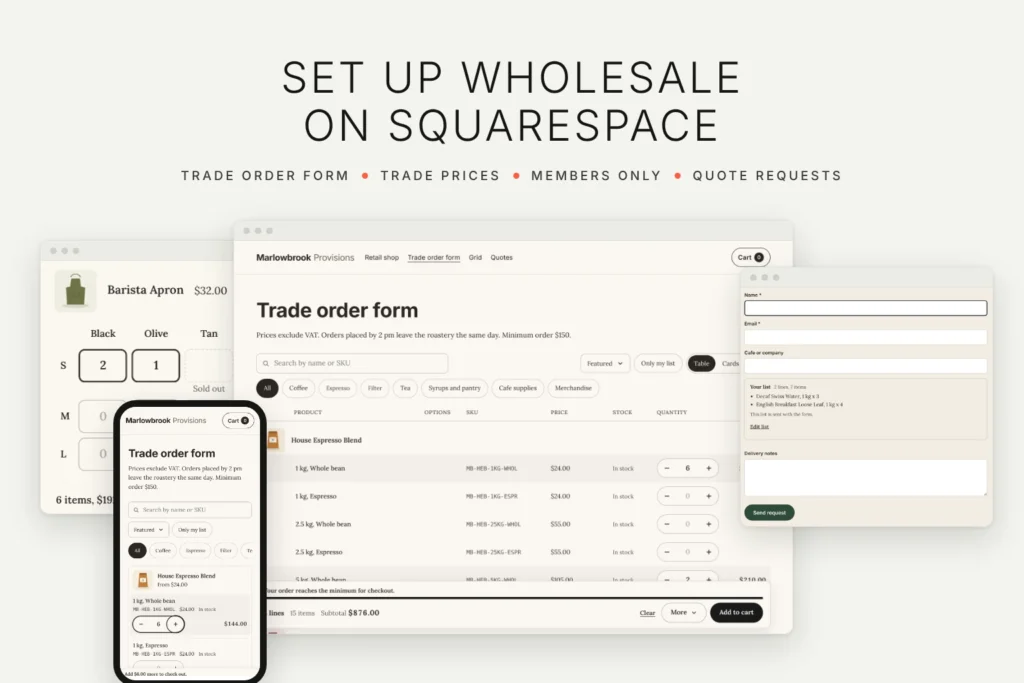
Wholesale Order Pad is Squarespell’s plugin for the “list of products” problem. It reads the store pages you choose from your own site, with every variant, price, sale price and stock level, and lists them on any page in one table (cards on phones). Buyers type quantities or paste SKUs, see the subtotal, and press one Add to cart: each line goes into Squarespace’s own cart, one after another, with a result for every line. Checkout, payments and order emails stay Squarespace’s own.
It does not replace Options 1 and 2. Prices come from Squarespace, so trade prices still need a wholesale store page, and a page password or Member Site still decides who sees it. What it replaces is opening one product page per line, retyping orders and the form-plus-invoice routine.
It costs $85 for a Single License (one website) or $145 for a Multi-Use License (unlimited websites), one payment, on the listing (checked 21 November 2026). It needs Squarespace 7.1 and the Core plan or higher for Code Injection. Squarespell lists it as tested in Chrome on a computer and at phone widths, not in Safari, Firefox or on real phones. You can try every screen on the live demo.
| You need | A Squarespace 7.1 site with a store, on the Core plan or higher, and your license key from the order email |
|---|---|
| Where it goes | One paste in Pages, Custom Code, Code Injection, Footer (older menus: Settings, Advanced, Code Injection), then the Anchor Link order-pad on a section |
| What stays the same | Squarespace’s cart, checkout, payments and order emails; prices from your products |
| Part 1, the builder | Steps 1 to 10: license, pads, rows, buttons, rules, advisor, look, preview, copy code |
| Part 2, Squarespace | Steps 11 to 14: paste the code, name a section, an optional quote form and a members-only area |
| Part 3, the result | Steps 15 and 16: check the live site and the owner test mode |
From the Wholesale Order Pad installation guide, version 1.0.0.
Double-click the builder file from your download (Wholesale-Order-Pad-Builder-Single-License.html or the Multi-Use one). It opens in your web browser and nothing is installed. The settings are on the left, a sample store running your settings is on the right, and Copy code is at the top.
In Your license, type the key from your order email, then the website address your visitors use, for example yoursite.com, and click Activate. It needs an internet connection once. Your site’s built-in squarespace.com address always works too, so you can install before your domain is connected, and you can try every setting in the preview first.
A pad is one order form. Pad 1 shows in every section whose Anchor Link is order-pad. Add a pad for a second form with other settings, for example a trade pad whose Anchor Link is order-pad-trade. In Store pages, list the address of each store page to show, one per line, such as /wholesale: every product is read, more than 200 too, in your store’s order. Only these categories or tags narrow it (a category includes its sub categories), and Leave out takes product addresses. “Also on the store page itself” shows the pad above Squarespace’s product grid on that store page, or instead of it.
Choose the layout on computers: Table, Cards or Compact list. On phones and in narrow sections the pad always shows cards with large buttons. Products with options get a row per variant under the product (with its SKU, stock and quantity) or a row per product with option pickers. Size by colour grid shows products with exactly two options as a grid with a quantity box in each cell; sold-out cells can’t be filled. Then pick the columns, whether sold out lines are dimmed or hidden, the low stock badge (“Only 3 left”), the opening order, the search box, the category filter as buttons or a dropdown, “Only my list” and the view switch.
Choose the buttons: Add to cart, Request a quote, or both. With a quote button, type the label of the Text Area in your Form Block (step 13). For quote-only stores, Hide prices removes prices from the pad, the quote and the CSV. When every line is in the cart, the buyer can stay on the page with View cart and Checkout (the default), go to the cart page, or open the cart; lines that need attention always stay, with Try again. Switch Keep quantities, Clear (with Undo), Order by SKU, Saved lists, Repeat last order, Download CSV and Keep unfinished lists on or off.
A rule sets a minimum, maximum and pack size for all products, one product (by its address), a category or a tag; the first rule that matches wins. The pad corrects typed quantities (“Changed to 12”) and shows a note under the quantity (“Packs of 6, Min 12”). Stock always caps the quantity, counting what the buyer’s cart already holds. Your own order minimum, an amount or a number of items, holds Add to cart until the list reaches it, and Show Squarespace’s minimum order amount shows “Add $40.00 more to check out”. These guide buyers on the pad: checkout runs no code, so only Squarespace’s own minimum order amount is enforced at checkout.
Card 5 explains, step by step, how to keep a wholesale area for trade buyers only (a Member Site with a store page inside it, or a simple page password), how to give trade buyers their own prices (separate products in a wholesale store page), the minimum order amount and the quote form. The pad itself never changes a price and does not decide who sees it. Read its Member Site steps alongside Option 2 above: Squarespace says it is free to build a member site and that you can’t restrict who signs up.
Look: Clean, Lined or Boxed, rounded corners, and the button colour from your site’s primary button or your own; the pad takes your section’s font and colours, light or dark. Words holds every word buyers see or hear (keep the words in curly brackets, like {n}), with language sets for German, French, Spanish, Italian and Dutch pages that a native speaker should check before you switch them on. More: the summary bar at the bottom or top on computers, the width under which the table turns into cards, analytics events, the owner test mode and saving your settings to a file.
The preview runs the code you will copy on a sample store. Switch between Desktop and Phone, and use Show to see the order pad, the grid view, the Order by SKU panel, the report after adding (with one line refused) and the quote form filled. Search, quantities and Add to cart work in it, and nothing leaves your computer. The line under the preview says what the pad shows.
Press Copy code at the top. If your browser blocks copying, Show code opens the code so you can select it and copy it with Cmd+C on a Mac or Ctrl+C on Windows, and Download saves it as a text file. The builder remembers your settings in this browser.
Open Pages, Custom Code, Code Injection (older menus: Settings, Advanced, Code Injection). Click in the Footer box, go to the end of any code already there, start a new line and paste. Click Save. Paste it once; other Squarespell plugins, for example Order Rules or Bundle Builder, stay in the same box. Squarespace’s code injection article says code injection is available on the Core, Plus, Advanced and some legacy plans.
Make a page for ordering (for example Trade orders) or use an existing one. Add a section with your heading and any text, open its settings with Edit Section, find Anchor Link and type order-pad (for a second pad, its own name, such as order-pad-trade). Save. The pad shows at the end of that section on the live site; in the editor you see a quiet placeholder there.
With a page password: if the store page the pad lists has a password the buyer has not entered, the pad says “The products could not load”. Showing the pad on the password-protected store page itself (store page mode, step 3) or using a Member Site keeps it to one lock.
On the same page, add a section under the pad with a Form Block. Keep Name, Email and anything else you like, and add a Text Area named Order list (or the label you typed in card 3), then choose Request a quote or Both in card 3. When a buyer presses Request a quote, the pad writes the list (product, options, SKU, quantity, and prices unless hidden) into that field, hides the field and takes the buyer to the form. In the field’s place the buyer sees a short summary with Edit list. Squarespace sends the form to you as usual, by email and to form storage. Without a matching field the button stays hidden.
The guide shows this step on a Squarespace test store; the capture above and the quote form in the “Quote requests” section show the same screens on the public demo.
Follow card 5 of the builder: add a Member Site, put a store page with your trade products and the page with the pad inside it, and point the pad at that store page in card 1. Only signed-in members can open those pages, and the pad reads the store page with the buyer’s own login. A simple page password works too, but everyone shares it. Squarespace’s notes on plans and sign-ups are in Option 2.
Open the page in a private window (logged out, or signed in as a member for a members-only pad). Type quantities, press Add to cart, and read the report: every line that went in is marked Added, and a line Squarespace refused shows Squarespace’s reason. If stock is still left it keeps its quantity with Try again; if the last ones are already in the cart, the line goes back to 0. Open the cart to check, and don’t complete a test order unless you want one.
The guide’s first two step 15 screenshots come from a Squarespace test store; the two demo captures above show the same result.
Logged in to Squarespace, add ?sqwop-debug to the address of the page with the pad (for example yoursite.com/trade-orders?sqwop-debug). A small dark panel lists each pad: products loaded, products shown with “Choose on the product page” and why (subscription, gift card, add-ons, a form field type), product form fields, quantity rules and how many products each matches, whether the quote form was found, and the license. Refresh products reads the store again right away; otherwise products are kept for 10 minutes. Visitors never see it.
Open the builder again (it remembers your settings in that browser, or use Open a settings file), make the change, press Copy code, then in Code Injection, Footer, replace the old Wholesale Order Pad block with the new code and click Save. Keep one Wholesale Order Pad block in the Footer. A Single License key works on one website at a time: deactivate the old site under My Account, Licenses on squarespell.com, click Use another website or key in the builder, activate the new address and paste the new code there. A Multi-Use License key works on as many websites as you like.
With Order Rules and Bundle Builder. All three run side by side in the same Footer. Order Rules keeps its notes on product pages, the mini cart and the cart page, and the pad shows its own quantity rules inside the pad, so set the same minimums in both if you use both. See our minimum order guide and our product bundles guide.
| Symptom | Fix |
|---|---|
| The pad does not show | Check the code is saved in the Footer box, the section’s Anchor Link is exactly order-pad, and the license is activated for this website. Look at the site logged out, in a private window |
| “The products could not load” | The store page address in card 1 is wrong, or the store page has a password the buyer has not entered. Check the address, for example /wholesale, and the owner test mode |
| A product says “Choose on the product page” | Subscriptions, gift cards, products with add-ons and products with some form fields are bought on their own page; the owner test mode says which and why |
| A line was refused | The report shows Squarespace’s own reason. Change the quantity and press Try again |
| Request a quote does not show | Add a Form Block on the same page with a Text Area whose label matches card 3 (Order list by default) |
| The prices are retail prices | Prices come from Squarespace. For trade prices, list a wholesale store page with its own products |
| It shows twice | The code was pasted twice. Keep one Wholesale Order Pad block in the Footer and Save |
| Nothing shows while I edit | In the editor the pad is a placeholder; exit the editor to see it |
From the Wholesale Order Pad installation guide and listing, version 1.0.0.
If you build Squarespace sites for clients or write about Squarespace, Squarespell’s affiliate program pays commission on its own plugins.
Publishing the gaps is part of the method, not an afterthought.
We did not set up a live Member Site wholesale store. The Member Site steps, plan note and sign-up rule are Squarespace’s own, read on 21 November 2026. Squarespell’s builder marks its Member Site steps as not tested on a live Member Site.
We did not test Squarespace Invoicing or the Form Block order form with a real order. Those steps come from the Help Center; the Invoicing article names no plan.
We did not install Candid Wholesale or the Common Ninja Order Form. Their features, steps and prices come from their own pages and help articles on 21 November 2026; Candid’s prices are billed annually.
Wholesale Order Pad screenshots come from its public demo and its installation guide. The demo runs the plugin on a made-up supplier and its cart is a demo cart. Squarespell lists tests in Chrome on a computer and at phone widths, not in Safari, Firefox or on real phones.
Forum posts are not official. We quote the Squarespace Forum for what owners ask; for what Squarespace does, we cite its Help Center.
How this article was made. Squarespell researched and drafted it with AI assistance, then checked every fact, price and screenshot against the pages named, on the date given.
Does Squarespace have a wholesale feature? No single feature. Squarespace has the parts: extra store pages, page passwords, Member Sites, discount codes, a minimum order amount and Invoicing. It has no price per customer group, no order form, no bulk add to cart, no order by SKU and no reorder, so a wholesale area is built from those parts, or from an extension such as Candid or a plugin.
How do I show wholesale prices only to trade customers on Squarespace? Put trade versions of your products, with trade prices, on a separate store page and lock that page with a page password or a Member Site. A variant has one price, so the same product cannot show two prices to different visitors; Candid’s separate portal is the option with per-customer price lists.
Can I approve wholesale buyers before they can order? With a page password, yes: only people you send it to can open the page. With a Member Site, not natively: Squarespace says it’s not possible to restrict who signs up, though you can cancel a membership. A trade application form lets you vet buyers before you share the password.
Can I have a different minimum order for wholesale on Squarespace? Not natively. The minimum order amount is one value for the whole store, so it applies to retail too. Plugins such as Order Rules or Wholesale Order Pad show a separate trade minimum before checkout, but only Squarespace’s own minimum is enforced at checkout.
Is there a bulk order form or quick order form for Squarespace? Not built in. A Form Block or the Common Ninja Order Form collects quantities without using the cart, and you invoice. Wholesale Order Pad lists every product and variant on one page and adds every line to Squarespace’s cart with one Add to cart.
Can trade customers order by SKU or reorder on Squarespace? Not with Squarespace alone. Wholesale Order Pad adds order by SKU (pasted lines or a CSV file) and Repeat last order, both kept in the buyer’s browser rather than an account. Candid handles orders inside its own portal instead of your Squarespace checkout.
Can I take wholesale orders without payment? Yes, with a form instead of checkout: a Form Block, the Common Ninja Order Form, or Request a quote in Wholesale Order Pad or the Wishlist Plugin. You then bill the buyer with Squarespace Invoicing, which they pay online, or mark the invoice as paid for a bank transfer.
Which Squarespace plan do I need for wholesale? Every current Squarespace plan includes selling, according to its pricing page on 21 November 2026, and the page passwords article names no plan. Discount codes are on Core, Plus, Advanced, Business, Commerce Basic and Commerce Advanced. Selling Member Site plans needs a billing plan that includes digital products. Plugins pasted into Code Injection, such as Wholesale Order Pad, need Core or higher.
Start with the free parts: a wholesale store page with trade products, locked with a page password, and a short application form. When orders grow past a few lines, decide whether buyers should pay by card through your checkout, which is where Wholesale Order Pad fits (try the live demo), or send a list you invoice. If you need per-customer price lists and a sales team, look at Candid Wholesale. More Squarespace guides and plugins are on our Squarespace hub.
Reviewed and last updated 21 November 2026. All prices checked on that date.
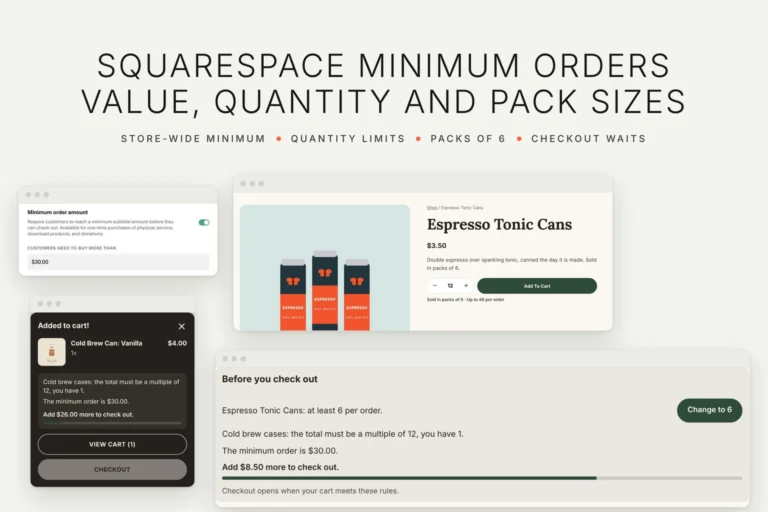
Squarespace has a store-wide minimum order amount and a maximum per product, but no minimum quantity or pack size. Five ways to set order minimums on a 7.1 store, step by step with screenshots, with what each one enforces at checkout.
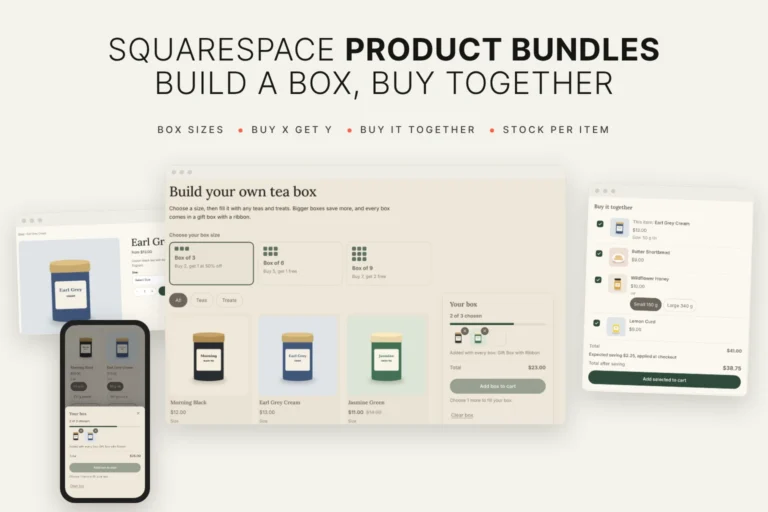
Squarespace has no bundle product. Five ways to sell bundles on a Squarespace 7.1 store, step by step with screenshots: a bundle product, Buy X get Y discounts, Add-ons, bundle apps and a build-a-box plugin, with their stock, plan and price limits.
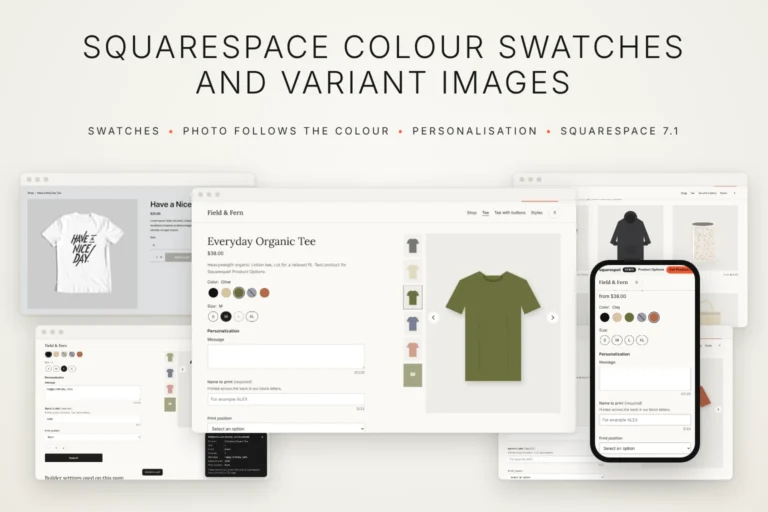
Squarespace shows variants as dropdowns or text buttons and changes the photo only after a full choice. How to set up variants, images, sold-out labels and personalisation, and two plugin routes for colour swatches.
Squarespell All Access
All 45 plugins and every new one, worth $1,841 bought one by one. 14 days free, cancel anytime.
Start 14 days freeOr start free with 13 plugins, no cardFounding price until 1 December, kept for as long as you stay.