How to Add a Video Lightbox in Squarespace (Plugin + Manual Guide)
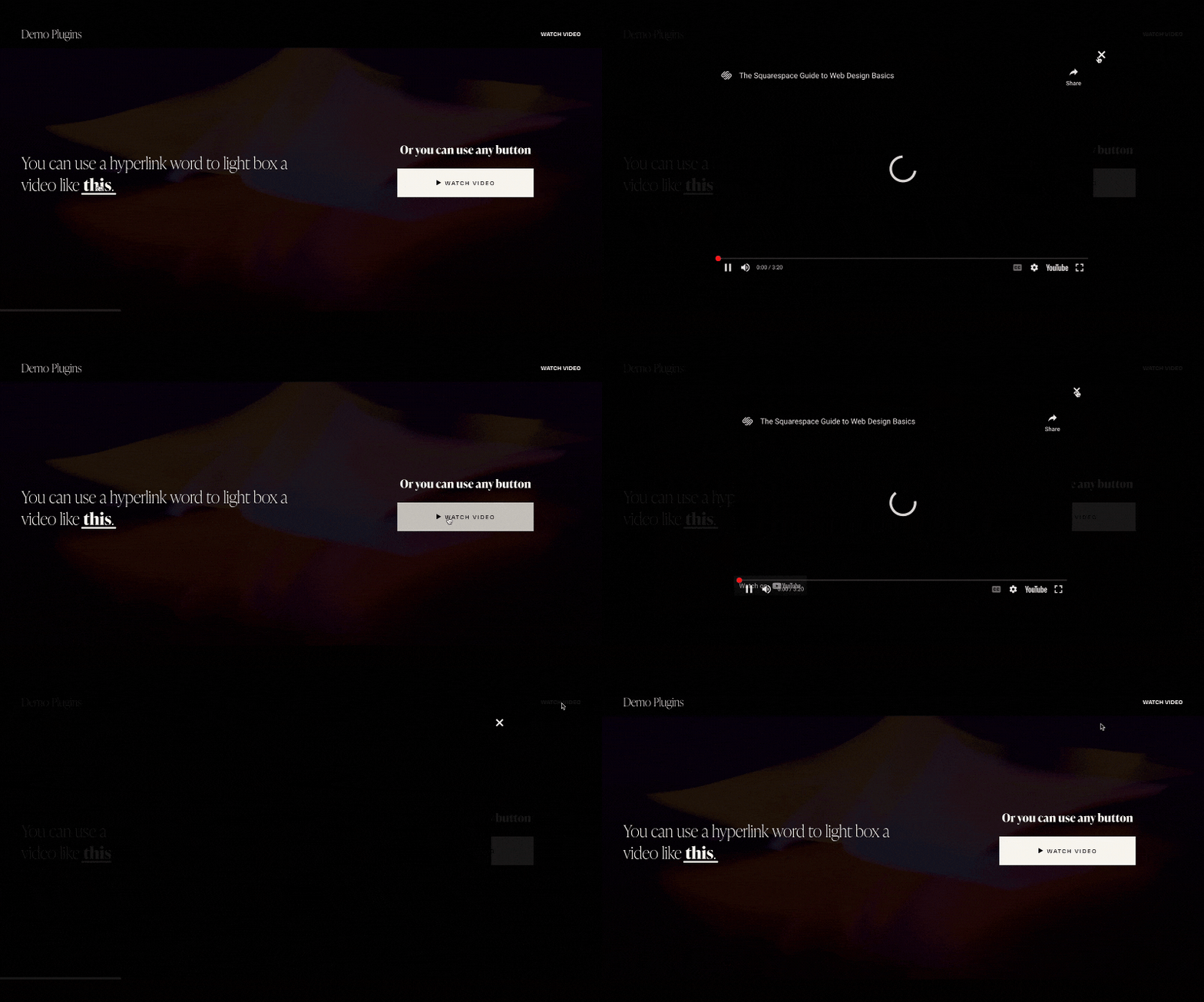
Want to play a YouTube or Vimeo video in a clean popup on your Squarespace site without the video awkwardly expanding inline or navigating the user away from your page?
You're looking for a video lightbox.
In this guide, you'll learn exactly what a video lightbox is, why it improves your site's user experience, how to set one up in Squarespace manually, and if you want to skip the technical stuff how a simple plugin handles everything in minutes.
What Is a Video Lightbox?
A video lightbox is a popup overlay that plays a video when a user clicks a button, image, text link, or any other element on your page. The rest of the page dims in the background, keeping the user focused on the video.
You've seen this pattern on professional agency sites, course landing pages, and product demos. It feels polished, intentional, and modern.
Instead of embedding a video inline (which takes up space and can slow down your layout), a lightbox keeps your design clean and only loads the video when the user actually wants to watch it.
Why Use a Video Lightbox in Squarespace?
Squarespace has a built-in Video Block, but it embeds the player directly into your page layout. That works fine for some use cases, but it comes with real limitations:
It takes up a fixed amount of vertical space, even when no one is watching
The player is always visible and can distract from your copy or CTA
You can't trigger it from a button, text link, or image click
It doesn't give you that focused, cinematic popup experience
A Squarespace video popup solves all of this. Here's why designers and developers prefer it:
Cleaner design. Your page layout stays tight. The video only appears when someone wants it.
Better engagement. Users who actively click to watch are more invested. Autoplay inline videos are often ignored.
Professional UI. Lightbox popups are associated with high-quality, polished websites. They signal credibility.
Faster page load. The video iframe doesn't load until the user clicks which means your page renders faster.
More flexibility. You can trigger the popup from text, buttons, images, or header links not just a static video block.
Step-by-Step: How to Add a Video Lightbox in Squarespace (Manual Method)
Squarespace doesn't have a native lightbox for videos, but it does allow custom code injection. Here's how the manual process works across four different trigger types.
Note: Each method below requires you to add custom code via Code Injection. Go to Pages > Custom Code > Code Injection and paste your script in the Footer section. The code activates the lightbox behavior for whichever trigger method you choose.
Method 1: Trigger the Video from a Text Link
This method lets you hyperlink a word or phrase in your content to open a video popup.
Write your text in a Text Block on your page for example: "Watch how it works"
Highlight the text you want to use as the trigger
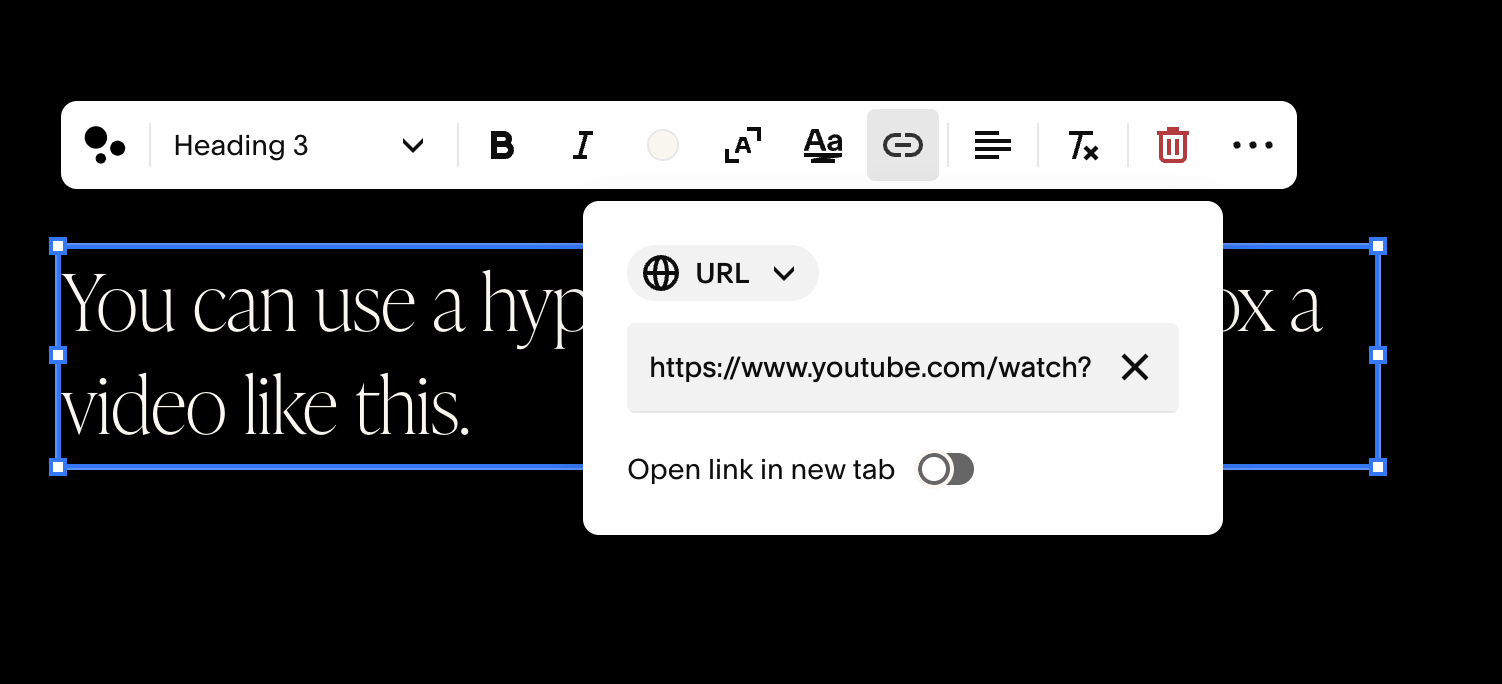
Use the link tool to insert your YouTube or Vimeo video URL
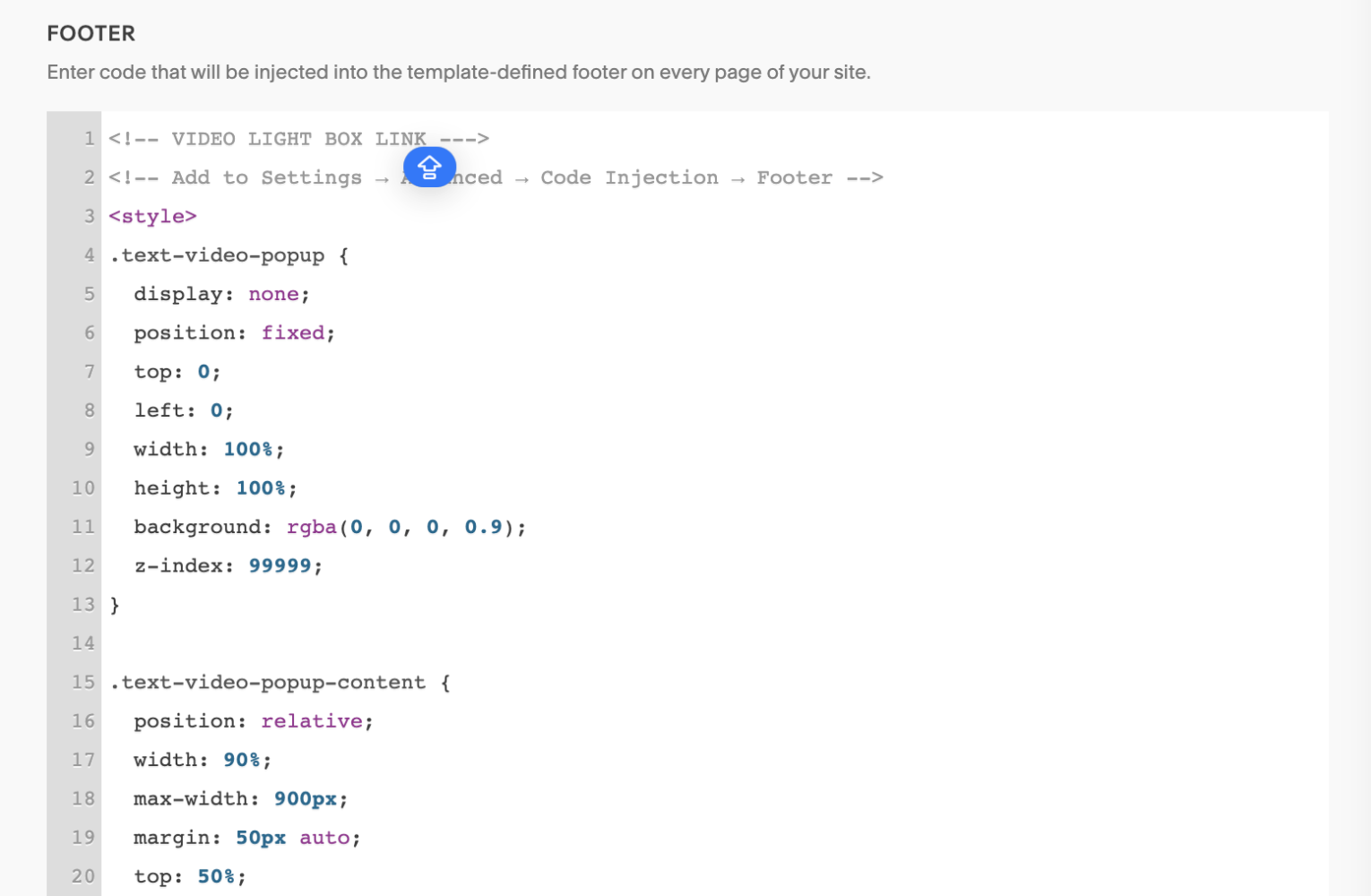
Navigate to Pages > Custom Code > Code Injection > Footer
Paste the lightbox script into the Footer section
Save and preview your page clicking that text should now open the video in a popup
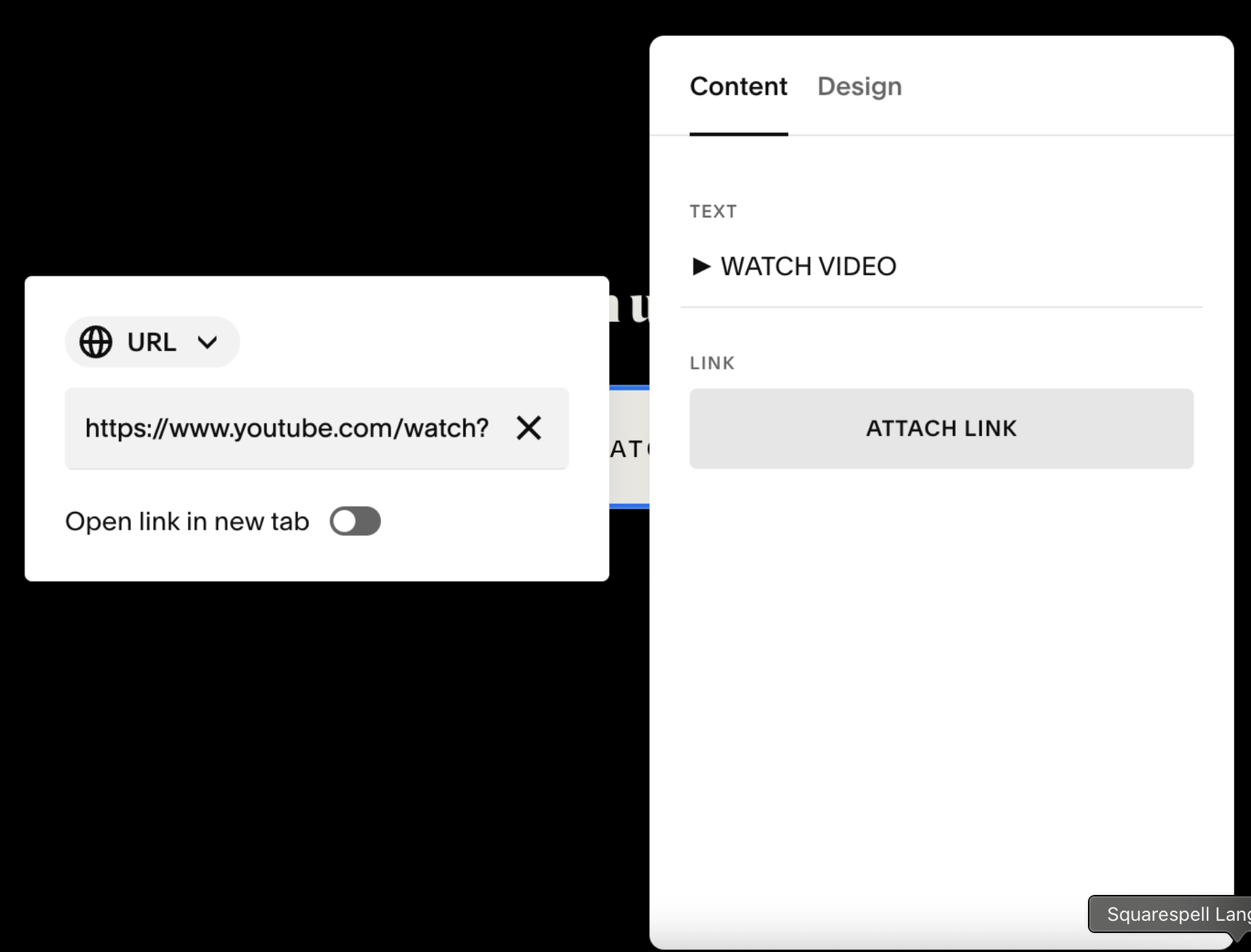
Method 2: Trigger the Video from a Button
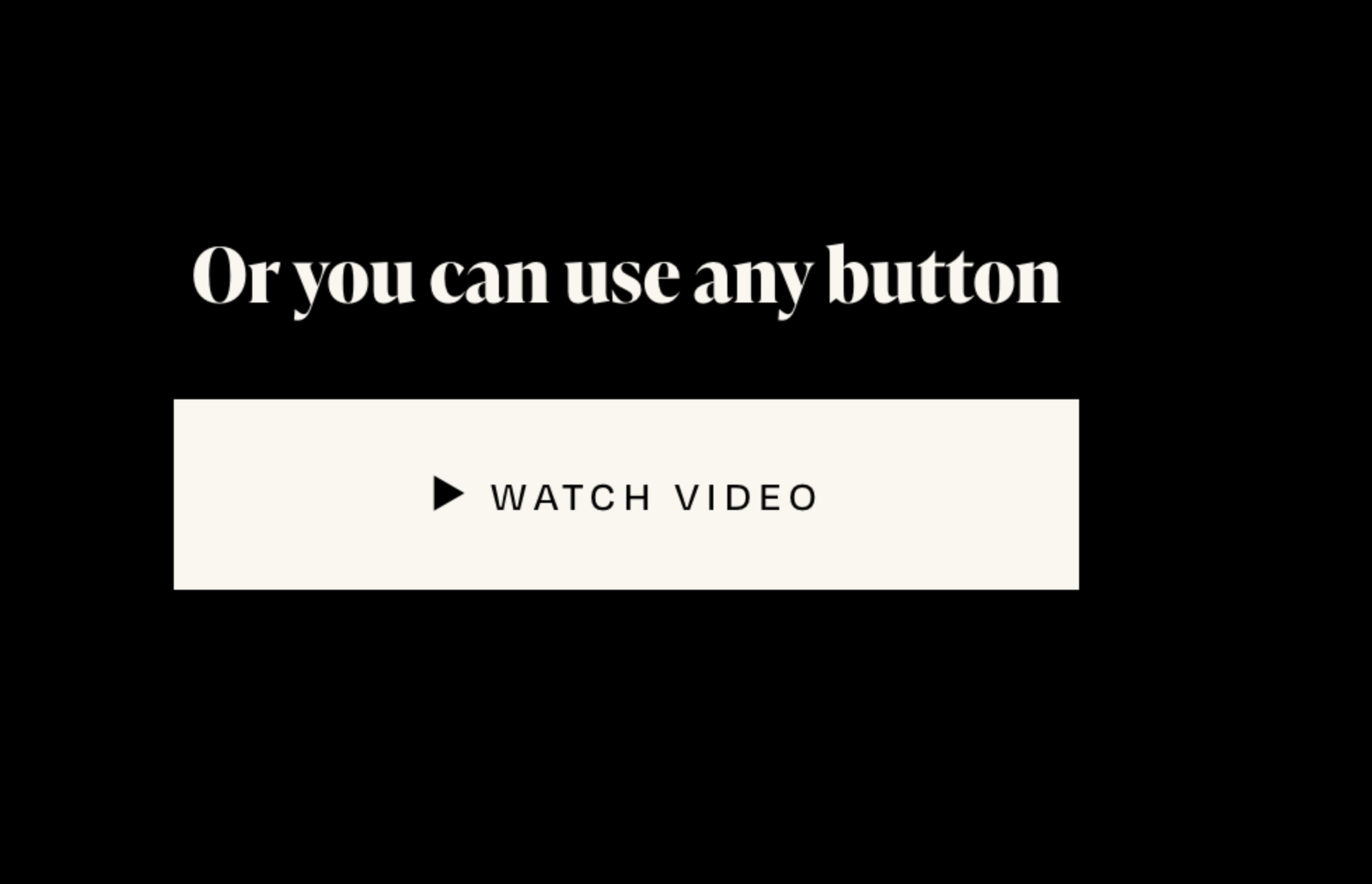
Buttons are one of the most common lightbox triggers especially for CTAs like "Watch Demo" or "See It in Action."
Add a Button Block to your page section
Set the button label (e.g., "Watch the Demo")
In the button link field, paste your YouTube or Vimeo URL
Navigate to Pages > Custom Code > Code Injection > Footer
Paste the lightbox script into the Footer section
Save your button will now open the video in a popup instead of redirecting
Method 3: Trigger the Video from the Header
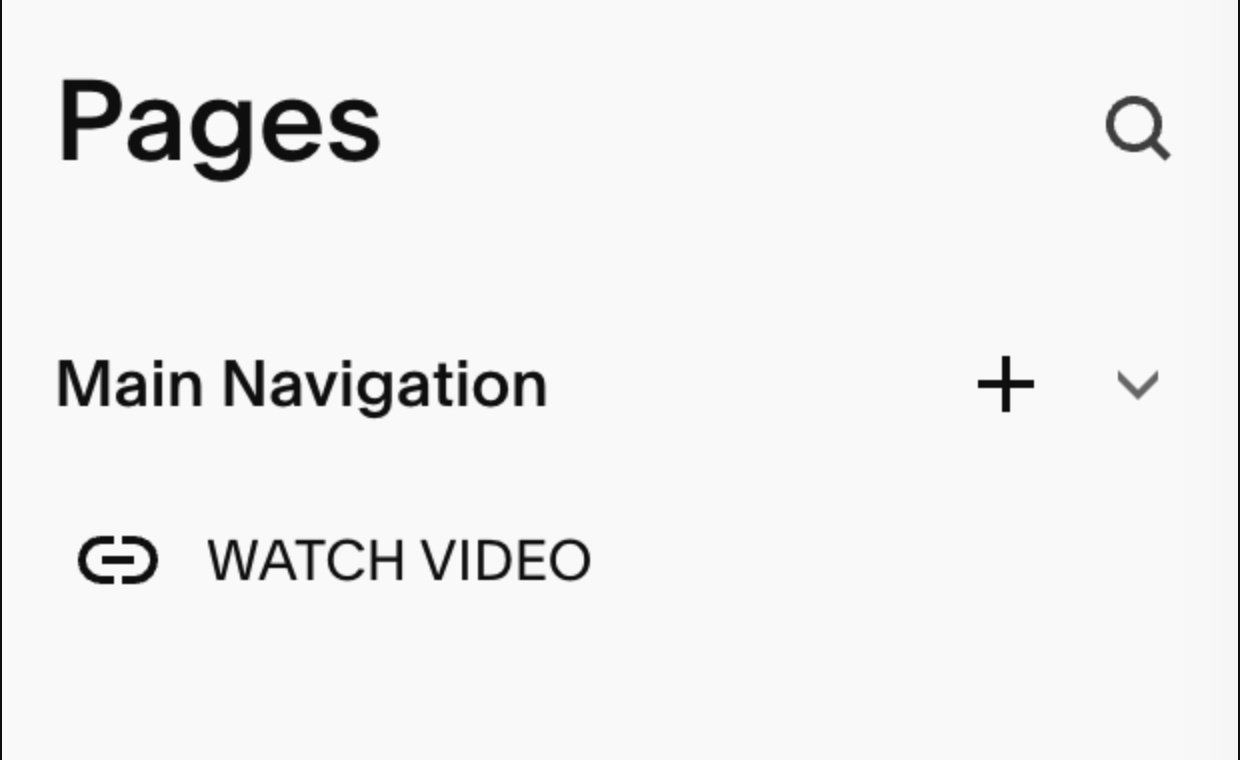
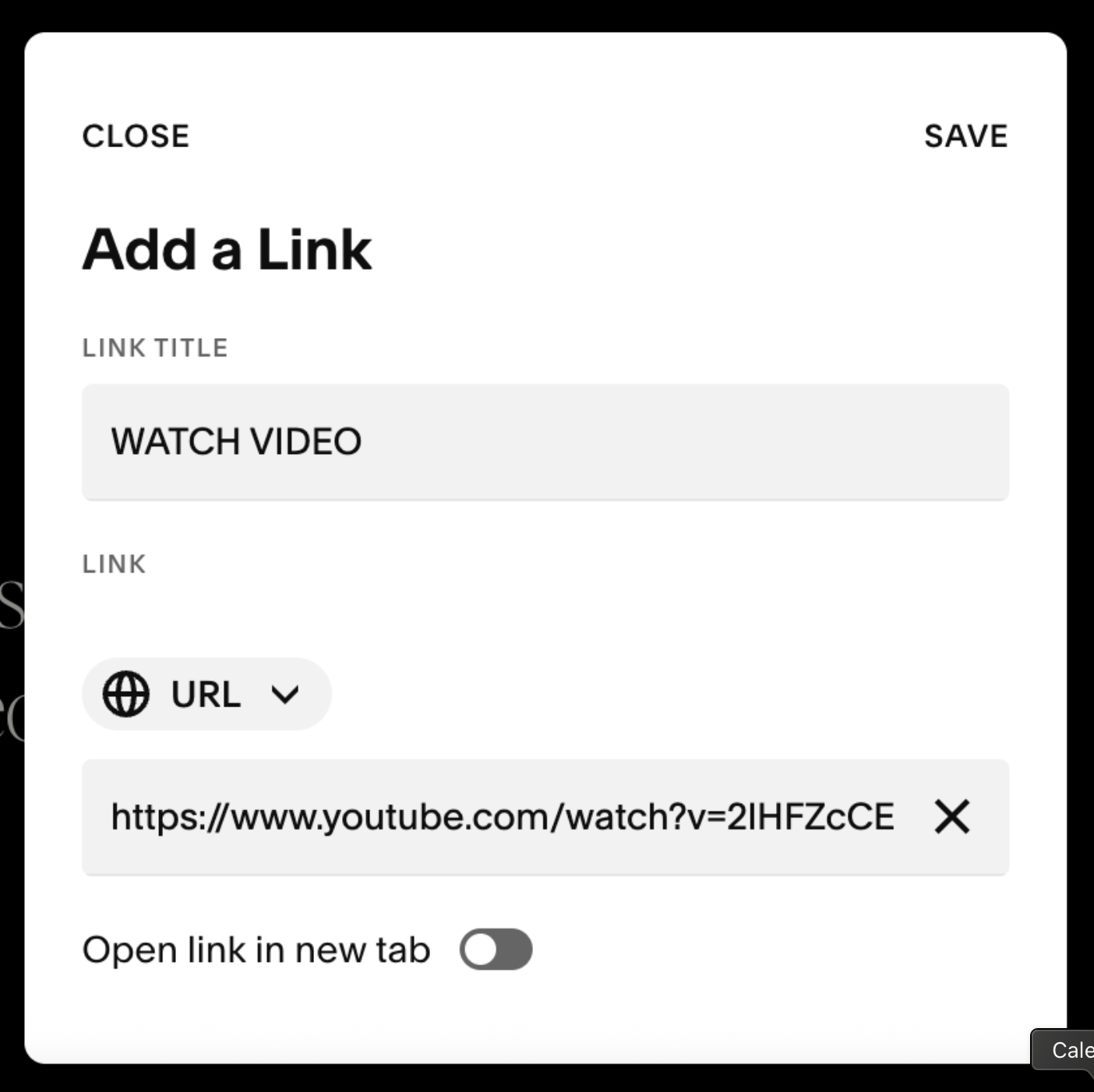
Want a video link in your site's main navigation or header area? This works too.
In your header editor, click the + icon where you want to add the video link
Paste your YouTube or Vimeo URL as the link destination
Navigate to Pages > Custom Code > Code Injection > Footer
Paste the lightbox script into the Footer section
Save visitors can now click a header link to open the video overlay
Method 4: Trigger the Video from a Video Block (with Thumbnail)
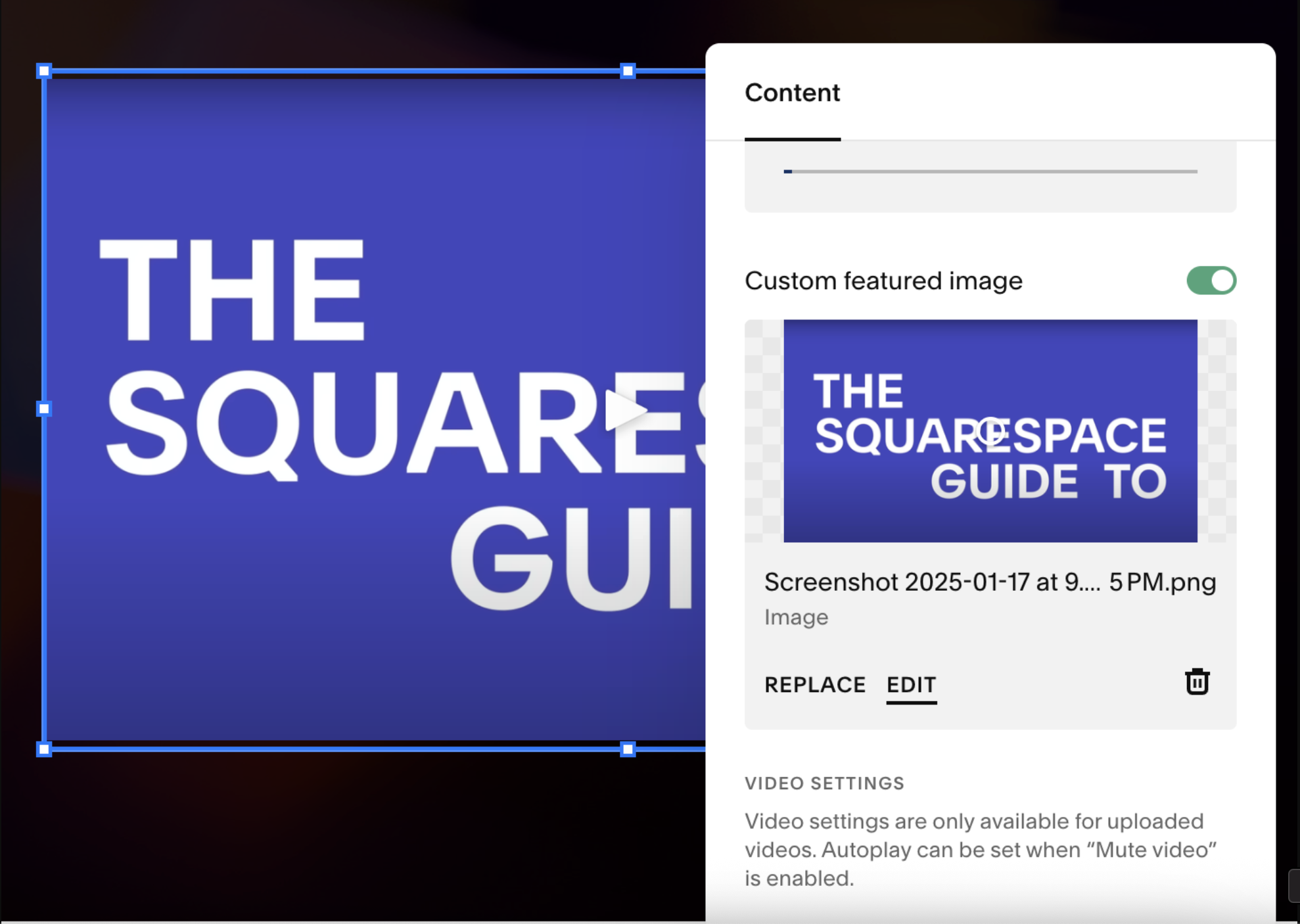
This method gives you a visual thumbnail that users click to play similar to how YouTube embeds look, but in a lightbox popup.
Add a Block to your page section
Insert a Video Block and paste your YouTube or Vimeo URL
Important: Make sure you upload a thumbnail image for the video block this is what users will see before clicking
Navigate to Pages > Custom Code > Code Injection > Footer
Paste the lightbox script into the Footer section
Save clicking the thumbnail now opens the video in a lightbox overlay

Common Problems with the Manual Approach
The manual method works, but it's not beginner-friendly. Here's what people typically run into:
It requires custom code If you're not comfortable with JavaScript or HTML, adding and debugging code injection can be intimidating and errors aren't always obvious.
Styling is limited The default code you find online may not match your brand. Customizing the overlay color, animation, close button, or size requires additional CSS knowledge.
Managing multiple videos is messy If you want several different videos to open from different triggers on the same page, you'll need to structure your code carefully or it breaks.
Updates can cause conflicts When Squarespace releases updates, injected code sometimes stops working and you'll need to troubleshoot why.
Mobile behavior is inconsistent YouTube and Vimeo lightboxes can behave differently on mobile if the code isn't specifically designed to handle it.
Easier Solution: The Video Lightbox Plugin for Squarespace
If the manual method sounds like more hassle than it's worth, there's a purpose-built solution.
The Video Lightbox Plugin for Squarespace is a premium plugin designed specifically for Squarespace sites. It supports both YouTube and Vimeo, works across all four trigger types covered in this guide, and handles all the code for you.
Here's what makes it different from doing it manually:
YouTube and Vimeo support paste any video URL and it works
Clean popup animation smooth fade-in/out transition that looks professional
Simple setup paste one code snippet into Code Injection, add your video links, done
No complex coding you don't need to write or debug any JavaScript
Consistent mobile experience built to work properly on all screen sizes
Professional UI the overlay, close button, and animation are already styled for you
Supports all trigger types text links, buttons, header links, and video block thumbnails
Rather than stitching together a solution from free code snippets that may or may not work, this plugin gives you a reliable, tested implementation that's maintained and updated.
You can find it here: Video Lightbox Plugin for Squarespace

Add stunning video light boxes to your Squarespace website
Seamlessly integrate YouTube and Vimeo videos with just a few clicks
Works with text links, buttons, icons, and video blocks
Requires no coding skills—easy to follow step-by-step guide included
Fully customizable for embedding video links in different elements
Perfect for portfolios, product showcases, and client presentations
Only supports video links from YouTube or Vimeo (does not support Squarespace-hosted videos)
Who Should Use a Video Lightbox on Their Squarespace Site?
Video popups aren't just for one type of business. Here are some of the most common use cases:
Portfolio websites Designers, photographers, and videographers use lightboxes to showcase project videos without cluttering their portfolio grid layout.
Agencies and service businesses A "Watch how we work" or "Meet our team" video popup on a homepage adds warmth and credibility without interrupting the sales flow.
Product demos SaaS tools and physical product brands use video popups to show their product in action triggered from a "See it in action" button near their headline.
Client testimonials Video testimonials are far more persuasive than text. A lightbox lets you feature a client story cleanly alongside written reviews.
Course creators and educators An intro or preview video popup on a course sales page builds trust and drives enrollment especially when triggered from a prominent CTA button.
Event and conference pages Recap videos, speaker previews, or promo reels fit naturally as lightbox popups without dominating the page layout.
FAQ: Video Lightbox in Squarespace
-
Squarespace doesn't have a built-in video lightbox, but you can add one using custom code via Code Injection. You link your YouTube or Vimeo URL to a trigger element (text, button, image, or header link), then inject a lightbox script in the Footer section of your Code Injection settings. Alternatively, the Video Lightbox Plugin handles this for you with a simpler setup.
-
Not natively. Squarespace's default video block embeds the player inline on the page. To get a popup or lightbox effect, you need to use custom code or a dedicated plugin.
-
Link your YouTube URL to a button or text element on your page, then inject a lightbox script via Pages > Custom Code > Code Injection. The script intercepts the link click and opens the video in an overlay instead of navigating away. The Video Lightbox Plugin automates this process.
-
Squarespace doesn't support it natively, but both YouTube and Vimeo URLs work with lightbox scripts and plugins. The Video Lightbox Plugin for Squarespace supports both platforms.
-
The manual method requires pasting JavaScript into Code Injection and understanding how to troubleshoot if something breaks so some comfort with code helps. If you'd prefer to skip that, the Video Lightbox Plugin is designed to be set up without coding experience.
-
It depends on the implementation. Generic code snippets don't always handle mobile behavior correctly. The Video Lightbox Plugin is built and tested to work on both desktop and mobile.
Ready to Add a Video Lightbox to Your Squarespace Site?
If you want to go the manual route, the steps in this guide will get you there. But if you'd rather spend that time on your actual business — and have something that works reliably from day one the plugin is worth a look.
Try the Video Lightbox Plugin for Squarespace →
It supports YouTube and Vimeo, works with text links, buttons, headers, and video blocks, and takes about five minutes to set up.