 Lodgify: Vacation Rental Website and Channel Manager$18Affiliate link



SquarespaceHeader
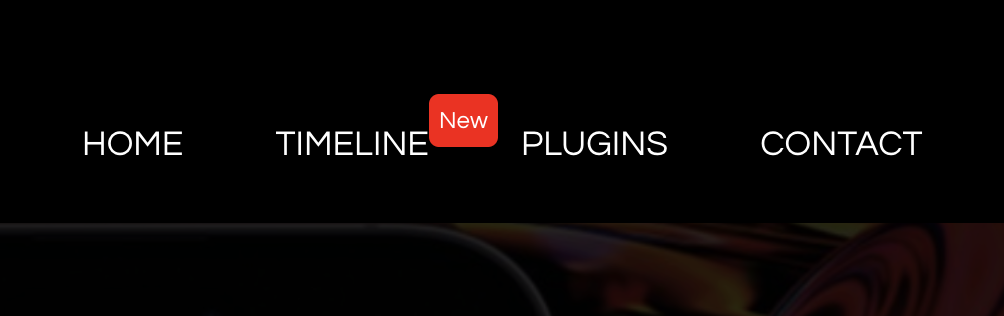
“New” badge in navigation Squarespace (7.1)
How to easily add a
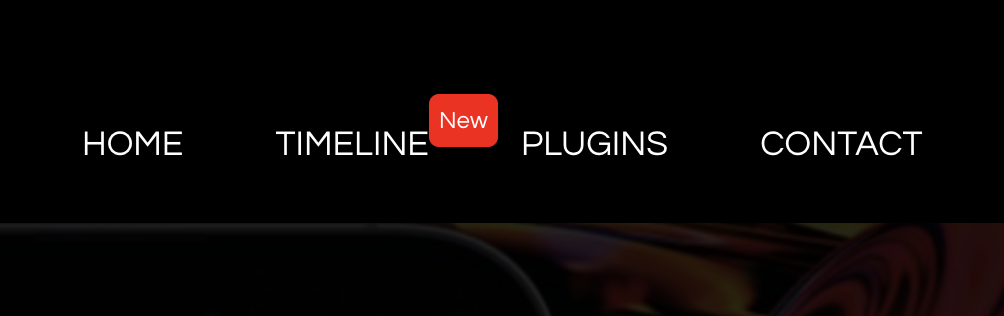
1. Add this code to CSS
Paste the code: Paste the provided CSS code into the Custom CSS bloc
// WWW.SQUARESPELL.CO.UK //
div.header-nav-item:nth-child(X) > a {
    position: relative;
}
div.header-nav-item:nth-child(X) > a:after {
    content: "New"; /* Badge text */
    position: absolute;
    top: -10px; /* Adjust vertical position */
    background-color: red; /* Badge background color */
    color: white; /* Badge text color */
    font-size: 12px; /* Font size for the badge */
    padding-left: 5px; /* Left padding */
    padding-right: 5px; /* Right padding */
    border-radius: 5px; /* Rounded corners */
}
// WWW.SQUARESPELL.CO.UK //
How to Use the CSS Code for the “New” Badge
Change the nth-child Number: Update the number in nth-child(X) to target the correct navigation item based on its position.
Badge Customization: Modify the CSS properties (like background-color, color, font-size, etc.) to customize the badge’s appearance according to your website design.
More free plugins
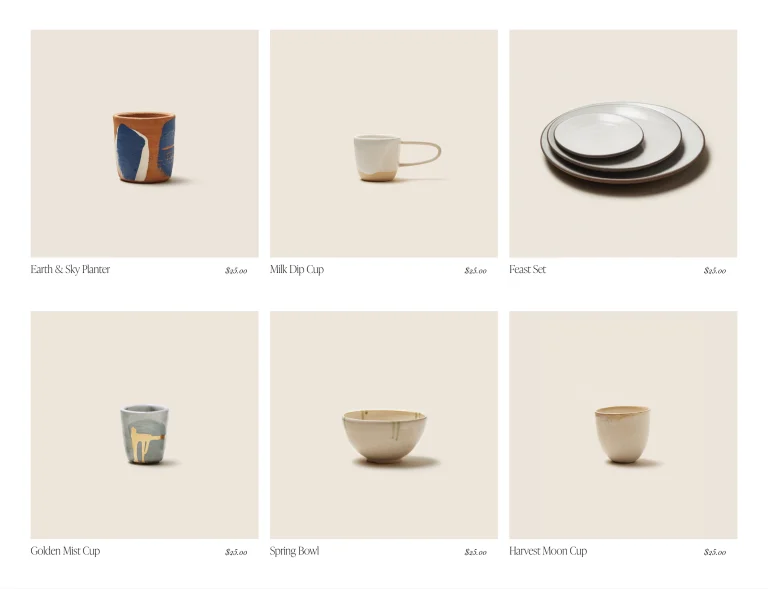
Product Name and Price on One Line
Want to display the product name and price on the same line in your Squarespace shop?
CSSView plugin
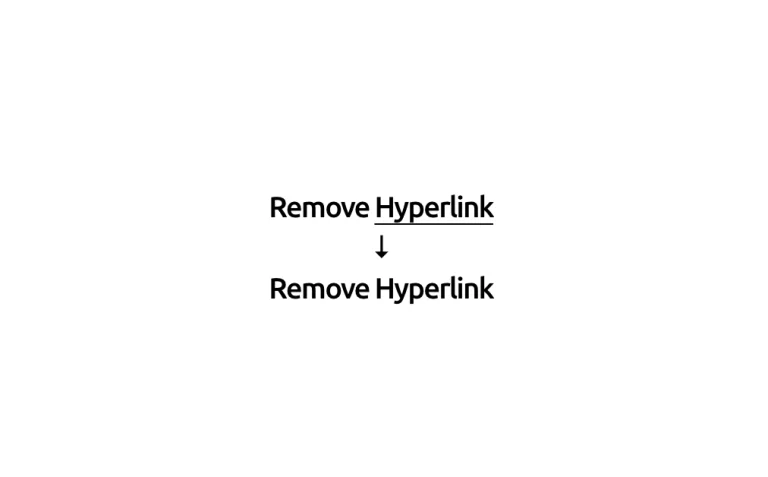
Remove Hyperlink Styling in Squarespace
Looking to remove underlined links from your Squarespace 7.1 website? We
CSSView plugin

Confetti-Pop! Button
Learn how to create fun and interactive Confetti Pop buttons on your Squarespace 7.1 website.
JavaScriptView plugin