 Lodgify: Vacation Rental Website and Channel Manager$18Affiliate link



SquarespaceAnimation
Font Zoom Animation
Learn how to add a smooth font zoom animation to your Squarespace website with our free plugin.


1. How it Works
Watch detailed video guide to learn how to integrate custom animations into your Squarespace site. Walk through each step to ensure a smooth implementation.
2. Add this code to Code Block (HTML)
<center><h2 class="scroll-effect">YOUR HEADING TEXT</h2></center>3. Add this code to CSS
/// Initial Style for the Heading ///
h2.scroll-effect {
  position: relative;
  font-size: 2em;
}
4. Add this code to Website Tools – Code Injection – Paste code in Header
///WWW.SQUARESPELL.CO.UK///
<script>
document.addEventListener('scroll', function() {
  const scrollPosition = window.scrollY;
  const heading = document.querySelector('h2.scroll-effect');
  if (heading) {
    // Increase font size based on scroll position
    let newSize = 2 + scrollPosition / 200; // Adjust the divisor to control the rate of size increase
    heading.style.fontSize = newSize + 'em';
    // Move heading from bottom to top based on scroll position
    let newPosition = scrollPosition / 5; // Adjust the divisor to control the rate of movement
    heading.style.transform = 'translateY(-' + newPosition + 'px)';
  }
});
</script>
    </code></pre>
    <button class="copy-btn" onclick="copyToClipboard()">Copy to Clipboard</button>
</div>

<script>
  function copyToClipboard() {
    // Get the code snippet
    const codeSnippet = document.getElementById('codeSnippet').textContent;
    // Create a temporary textarea element
    const tempTextArea = document.createElement('textarea');
    tempTextArea.value = codeSnippet;
    document.body.appendChild(tempTextArea);
    // Select and copy the text
    tempTextArea.select();
    document.execCommand('copy');
    // Remove the temporary textarea
    document.body.removeChild(tempTextArea);
    // Alert the user
    alert('Code copied to clipboard!');
  }
</script>

<style>
  .code-container {
    position: relative;
    margin: 20px;
    font-family: monospace;
  }
  pre {
    background-color: #f4f4f4;
    padding: 10px;
    border-radius: 5px;
    overflow: auto;
  }
  .copy-btn {
    position: absolute;
    top: 10px;
    right: 10px;
    padding: 5px 10px;
    background-color: #000;
    color: white;
    border: none;
    border-radius: 3px;
    cursor: pointer;
  }
  .copy-btn:hover {
    background-color: #000;
  }
</style>
///WWW.SQUARESPELL.CO.UK///To apply this code to your Squarespace site, simply follow the steps provided. If you encounter any issues or need further assistance, feel free to reach out to us—we’re here to help!
More free plugins
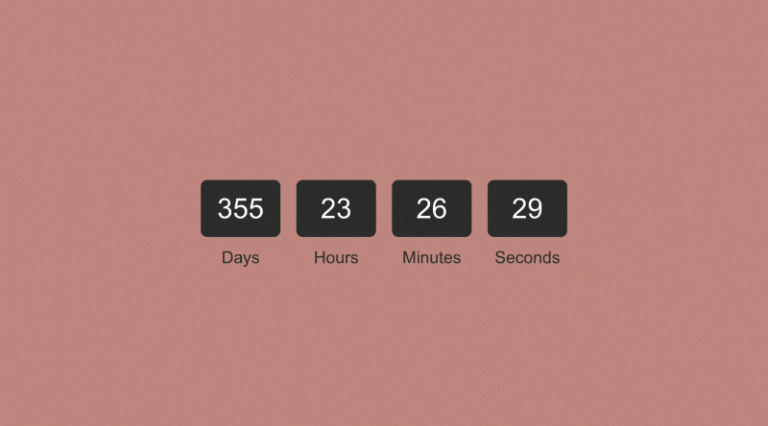
Countdown Timer
Learn how to add a countdown timer to your Squarespace website with this step-by-step guide.
HTMLView plugin

Text Outline Effect
Looking to make your Squarespace website stand out? This blog walks you through creating a sleek text outline…
CSSView plugin